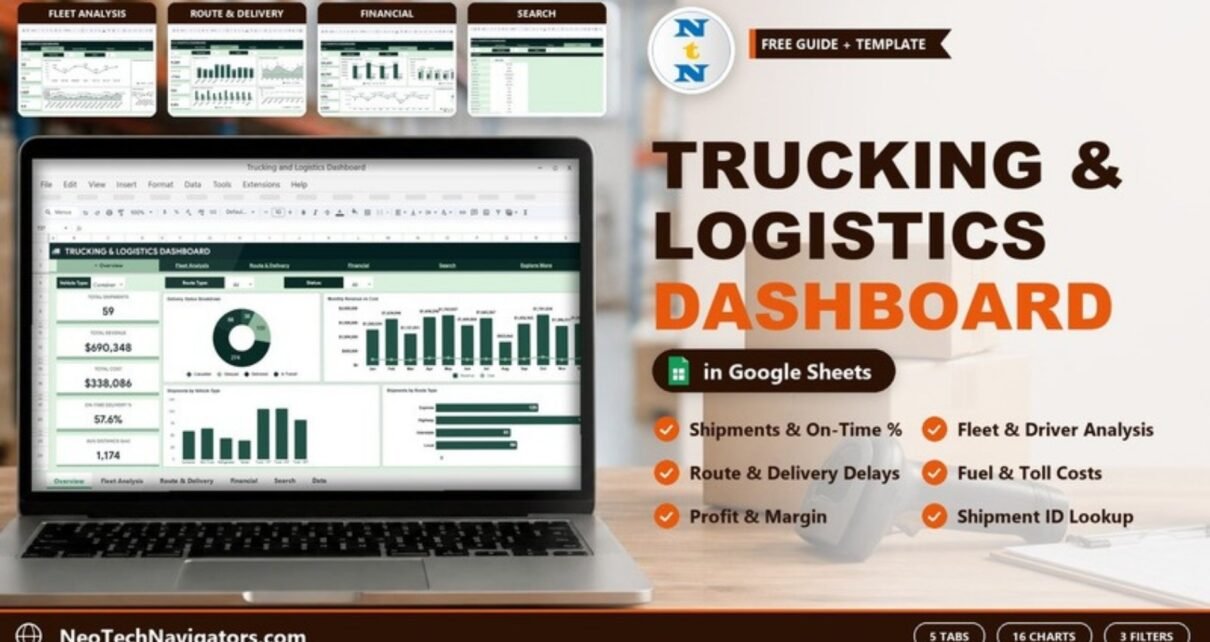
The Trucking and Logistics Dashboard in Google Sheets turns a list of shipments into a clear picture of volume, on-time delivery, fleet use, routes and profit. It is built for small and mid-size trucking companies, fleet managers, dispatch leads and logistics coordinators who already keep shipment records in a spreadsheet and want a dashboard on top of them.
The workbook has five dashboard tabs (Overview, Fleet Analysis, Route & Delivery, Financial and Search) plus a Data sheet and an Explore More tab. The four analysis tabs each have KPI cards and four charts, and every tab carries three dropdown filters for Vehicle Type, Route Type and Status. Because it lives in Google Sheets, your team can open it from any browser and work in the same file.
🎥 Watch the Video Tutorial
Get the Trucking and Logistics Dashboard
What the Trucking and Logistics Dashboard in Google Sheets Solves
Trucking data piles up quickly: hundreds of shipments, several vehicle types, a roster of drivers and a long list of cities. In a raw sheet it is hard to see which routes run late, which vehicle types cost the most in fuel and tolls, or which months were the most profitable. Managers end up building the same pivot tables again every month.
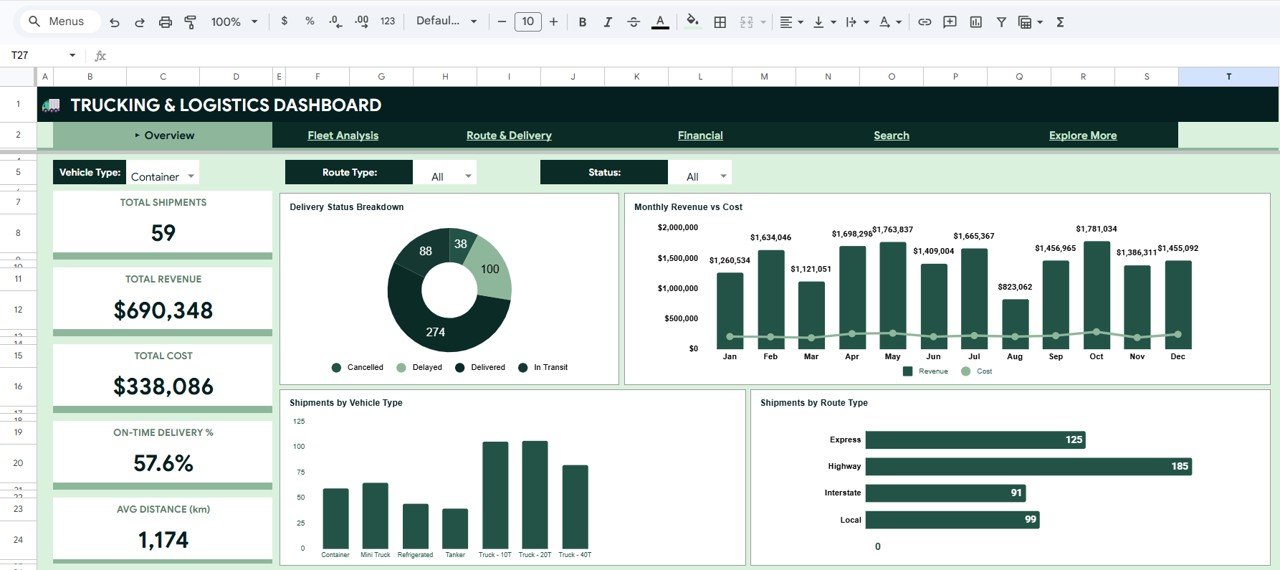
This template does that work once. Each row in the Data sheet is one shipment, and the dashboard tabs summarise it into KPI cards and charts. The KPI cards respond to the three filters; in the Overview screenshot below, Vehicle Type is set to Container and the cards show 59 shipments while the charts still show all 500, so check how each chart behaves in your copy before relying on a filtered chart. The sample data contains 500 shipments across 30 vehicles and 15 drivers, moving between Indian cities such as Ahmedabad, Bangalore, Mumbai, New Delhi and Pune.
KPI Cards on Each Tab
| Tab | KPI cards | Sample values |
|---|---|---|
| Overview | Total Shipments, Total Revenue, Total Cost, On-Time Delivery %, Avg Distance (km) | With Vehicle Type = Container: 59, $690,348, $338,086, 57.6%, 1,174 km |
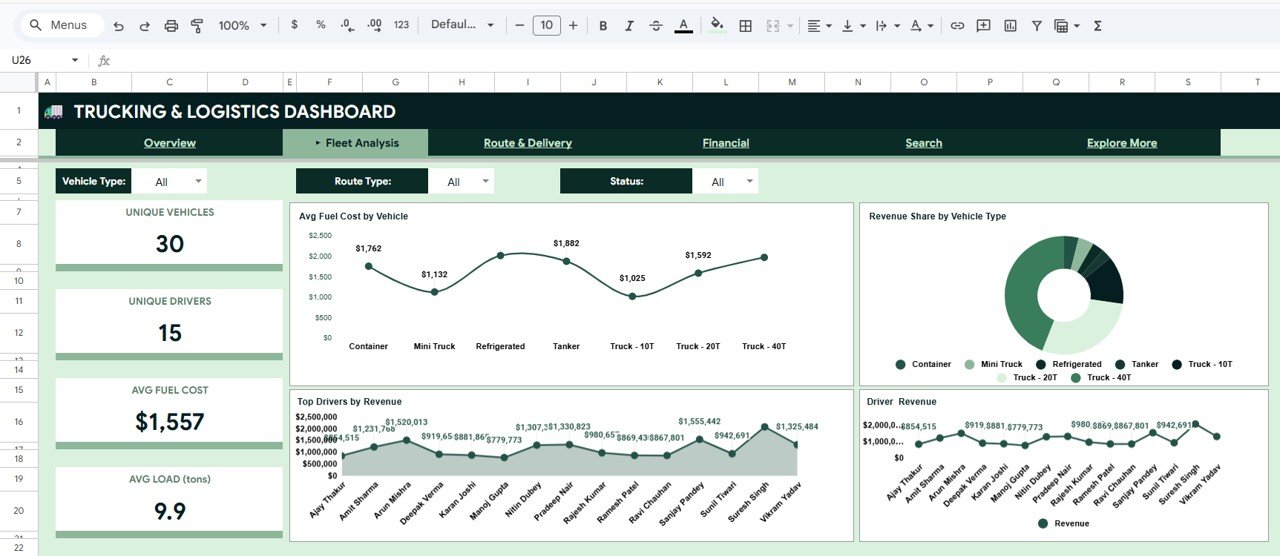
| Fleet Analysis | Unique Vehicles, Unique Drivers, Avg Fuel Cost, Avg Load (tons) | 30, 15, $1,557, 9.9 |
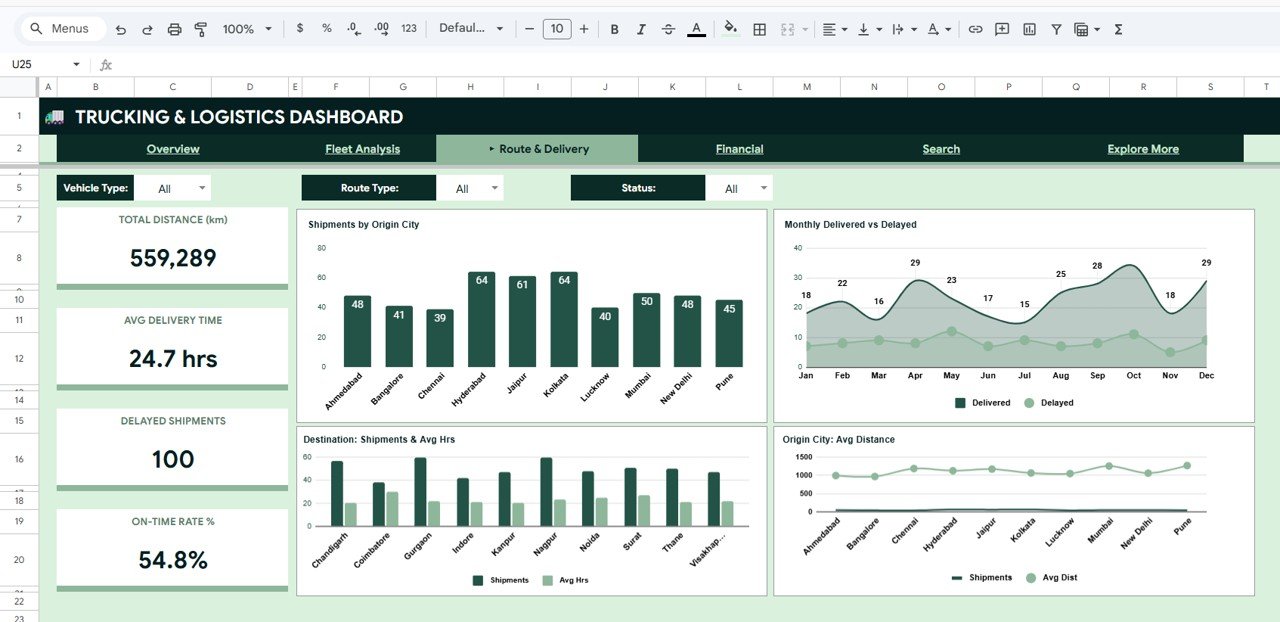
| Route & Delivery | Total Distance (km), Avg Delivery Time, Delayed Shipments, On-Time Rate % | 559,289 km, 24.7 hrs, 100, 54.8% |
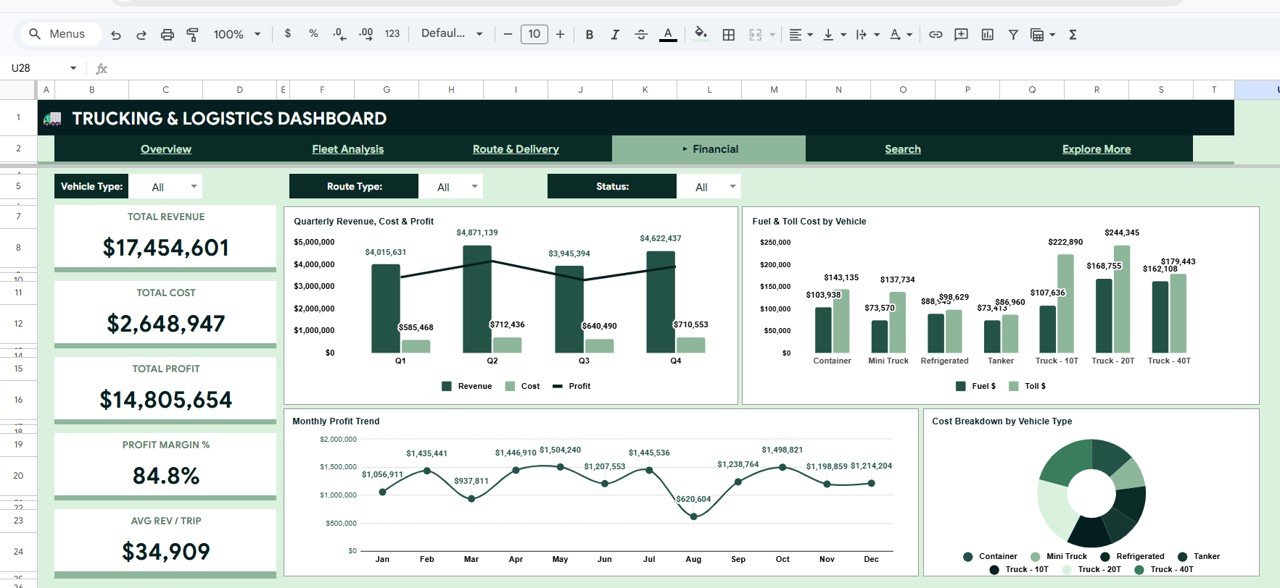
| Financial | Total Revenue, Total Cost, Total Profit, Profit Margin %, Avg Rev / Trip | $17,454,601, $2,648,947, $14,805,654, 84.8%, $34,909 |
The numbers tie together. Across all 500 shipments, 274 are Delivered, so the On-Time Rate is 274 ÷ 500 = 54.8%. Total Revenue of $17,454,601 ÷ 500 trips gives the $34,909 Avg Rev / Trip, and revenue minus cost gives the $14,805,654 Total Profit (84.8% margin). If you want to check the on-time figure in your own copy, a formula like this works on the Data sheet:
=COUNTIF(Data!L2:L, "Delivered") / COUNTA(Data!A2:A)Column L holds Delivery Status and column A holds Shipment ID in the sample layout; change the sheet name in the formula if your data tab is named differently.
Dashboard Tabs Explained
1. Overview
The Overview gives a one-screen summary. Next to the five KPI cards are Delivery Status Breakdown (Cancelled, Delayed, Delivered and In Transit), Monthly Revenue vs Cost from January to December, Shipments by Vehicle Type (Container, Mini Truck, Refrigerated, Tanker, Truck – 10T, Truck – 20T and Truck – 40T) and Shipments by Route Type. In the sample, Highway routes carry 185 shipments, Express 125, Local 99 and Interstate 91.
2. Fleet Analysis
Fleet Analysis looks at vehicles and drivers. Cards show Unique Vehicles, Unique Drivers, Avg Fuel Cost and Avg Load (tons). Charts include Avg Fuel Cost by Vehicle type, Revenue Share by Vehicle Type, Top Drivers by Revenue and Driver Revenue for the 15 drivers in the sample. It helps you see which vehicle types burn the most fuel per trip and which drivers handle the most valuable loads.
3. Route & Delivery
This tab focuses on service. Cards show Total Distance, Avg Delivery Time, Delayed Shipments and On-Time Rate %. Shipments by Origin City covers ten origin hubs, Monthly Delivered vs Delayed shows the months when delays build up, Destination: Shipments & Avg Hrs pairs volume with delivery time for each destination, and Origin City: Avg Distance compares typical trip length by hub.
4. Financial
The Financial tab shows whether the operation makes money. Cards cover Total Revenue, Total Cost, Total Profit, Profit Margin % and Avg Rev / Trip. Charts show Quarterly Revenue, Cost & Profit, Fuel & Toll Cost by Vehicle type, a Monthly Profit Trend and a Cost Breakdown by Vehicle Type. In the sample, Truck – 20T has the highest toll cost at $244,345.
5. Search (Shipment Lookup)
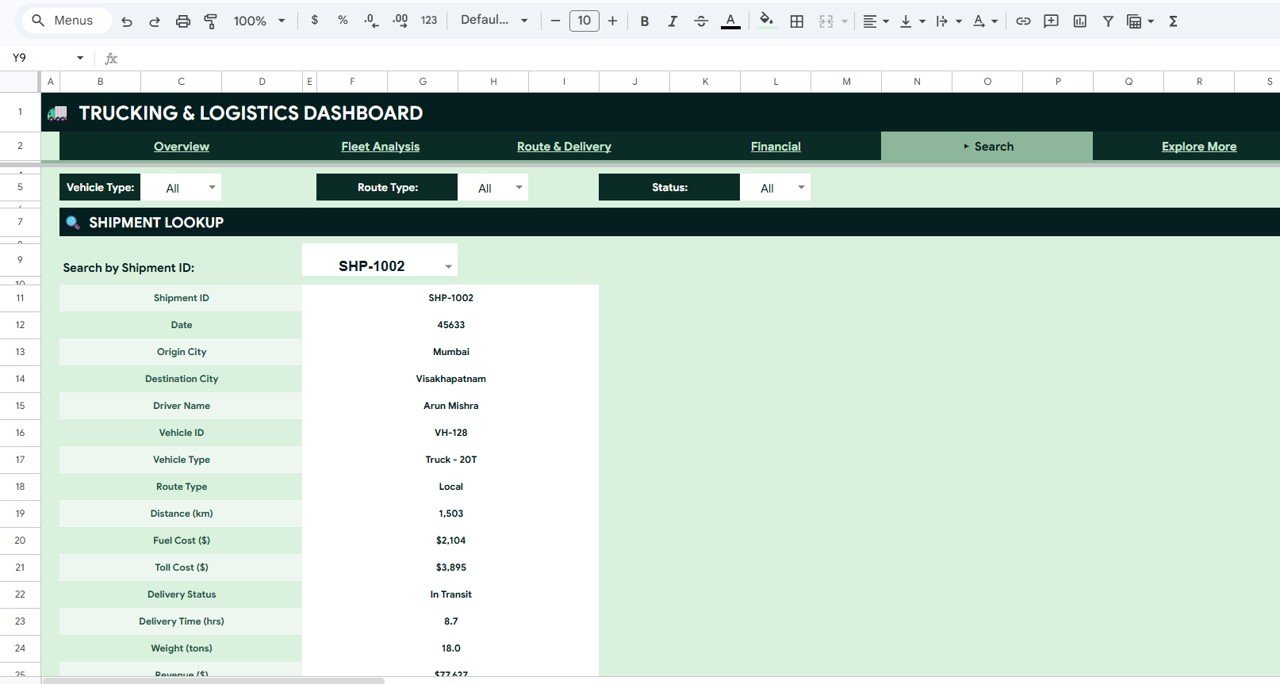
When someone asks about one load, pick its ID in Search by Shipment ID. The tab shows 15 fields: Shipment ID, Date, Origin City, Destination City, Driver Name, Vehicle ID, Vehicle Type, Route Type, Distance (km), Fuel Cost ($), Toll Cost ($), Delivery Status, Delivery Time (hrs), Weight (tons) and Revenue ($). For example, SHP-1002 runs from Mumbai to Visakhapatnam with driver Arun Mishra on a Truck – 20T and is In Transit.
6. Data Sheet
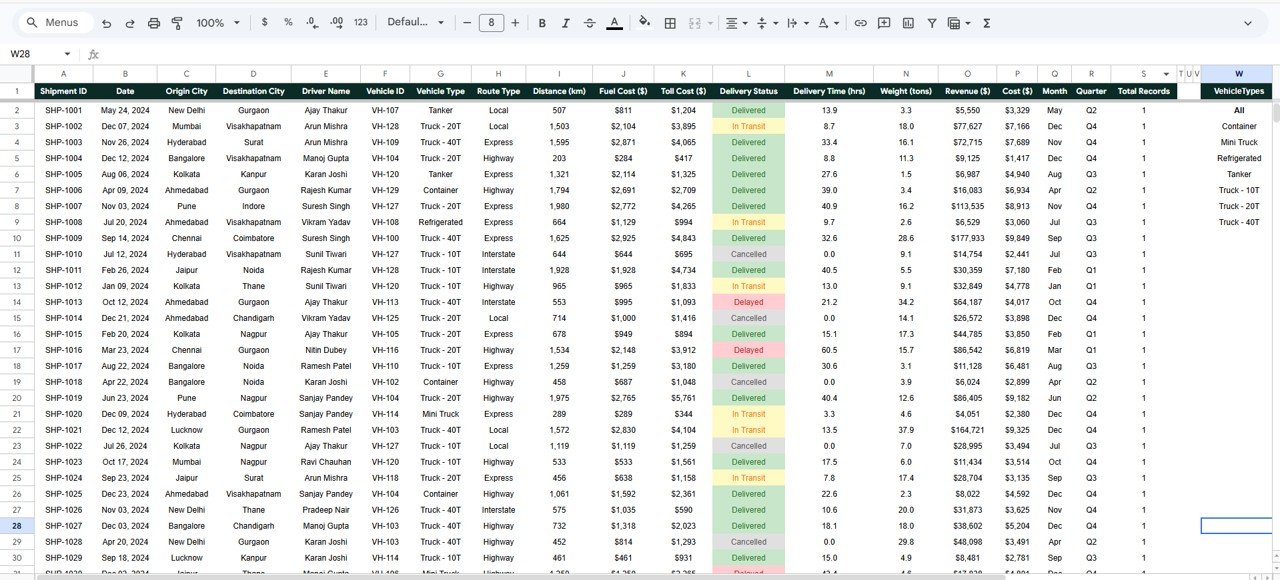
The Data sheet holds one row per shipment. Columns are Shipment ID, Date, Origin City, Destination City, Driver Name, Vehicle ID, Vehicle Type, Route Type, Distance (km), Fuel Cost ($), Toll Cost ($), Delivery Status, Delivery Time (hrs), Weight (tons), Revenue ($), Cost ($), Month, Quarter and Total Records. Delivery Status uses four values: Delivered, In Transit, Delayed and Cancelled.
How to Use It With Your Own Data
- Open the copy link from the PDF guide and choose File > Make a copy to save the workbook to your Google Drive.
- Go to the Data sheet and study the sample rows so you know what each column expects.
- Replace the sample rows with your shipments, keeping the same column order, and fill the Month, Quarter and Total Records columns for every new row the same way the sample rows do.
- Use consistent values for Vehicle Type, Route Type and Delivery Status, because the filters and charts group by these exact labels.
- Open each dashboard tab and use the Vehicle Type, Route Type and Status dropdowns to focus the KPI cards on what you need.
- If a date shows as a plain number in the Search tab (for example 45633), select the cell and apply Format > Number > Date.
Real-World Use Cases
- Weekly operations meeting. A fleet manager opens Route & Delivery, checks the Delayed Shipments card and the Monthly Delivered vs Delayed chart, then reviews Destination: Shipments & Avg Hrs to see which destinations take longest.
- Fuel and toll review. An owner compares Fuel & Toll Cost by Vehicle on the Financial tab before deciding whether to add more 20T or 40T trucks.
- Customer calls. A dispatcher uses the Search tab to answer “where is my shipment?” in seconds without scrolling the Data sheet.
Best Practices
- Update the Data sheet daily or at least weekly so on-time figures stay meaningful.
- Give drivers and vehicles fixed IDs and names; small spelling differences create extra chart bars.
- Add new columns at the far right rather than in the middle of the table.
- Protect the dashboard tabs with Data > Protect sheets and ranges so editors only change the Data sheet.
- Archive old years into a separate copy if the sheet becomes slow.
Limitations
- It is a reporting dashboard, not a dispatch, GPS or transport management system.
- Data is entered or pasted manually; there is no live feed from telematics or accounting software.
- Filters cover Vehicle Type, Route Type and Status. For driver or city-level filtering you would add your own filter views.
- Very large fleets with tens of thousands of shipments a month will be better served by a database and BI tool.
Google Sheets vs Excel vs TMS Software
| Need | This Google Sheets dashboard | Excel version | Transport management system |
|---|---|---|---|
| Team editing in one file | Yes, built in | Needs OneDrive or SharePoint | Yes |
| Works offline | Limited | Yes | Usually no |
| Dispatch and tracking | No | No | Yes |
| Ready-made KPI charts | Yes, 16 charts on four tabs | Yes | Varies |
| Ongoing subscription | No (one-time purchase) | No (one-time purchase) | Usually yes |
Related Guides and Templates
Prefer a browser file? See the Trucking and Logistics Dashboard in HTML. For vehicle-focused reporting, compare the Fleet Management Dashboard in Google Sheets, and if you log fuel per trip, the Fleet Fuel and Mileage Tracker is a good source sheet. Cost-focused teams can also look at the Freight Cost KPI Dashboard, and companies that need booking and tracking screens can explore the Logistics Management System Web App.
Related templates: the same dashboard is available as the Trucking and Logistics Dashboard in Excel and the Trucking and Logistics Dashboard in Power BI.
To learn how pivot-based dashboards like this are built from scratch, the Excel Pivot Tables and Dashboards course on NextGenTemplates Academy teaches the same ideas step by step.
Frequently Asked Questions
How is On-Time Delivery % calculated?
It is the share of shipments with a Delivered status. In the sample, 274 delivered out of 500 shipments gives 54.8%; with Vehicle Type set to Container, the Overview shows 57.6%.
Can several people use the dashboard at the same time?
Yes. Share your copy from Google Drive. Give edit access to people who update the Data sheet and view access to managers who only read the dashboard.
Do I need add-ons or Apps Script?
No add-ons are required. The dashboard is built with standard Google Sheets features.
Can I use kilometres and my own currency?
The sample uses kilometres and dollars. You can change the number formatting of the cost and revenue columns to your currency; keep distance in one unit throughout.
What does the Search tab show?
Pick a Shipment ID and it shows 15 fields for that shipment, from origin and destination to fuel cost, toll cost, delivery status, weight and revenue.
Is there an Excel or Power BI version?
Yes. The same topic is available as an Excel dashboard and a Power BI dashboard, linked in the Related Templates line above.
Wrapping Up
The Trucking and Logistics Dashboard in Google Sheets gives fleet and logistics teams one shared place to track shipments, on-time performance, fuel and toll costs and profit. Make your copy, paste in last month’s shipments and start with the Route & Delivery tab to see where delays come from.
Get the Trucking and Logistics Dashboard in Google Sheets
📅 Last updated: October 2026