Helpdesk Efficiency KPI Dashboard in Google Sheets is a powerful ready-to-use template built for IT managers, helpdesk supervisors, and support team leaders who want to track, measure, and improve their support team’s performance using clearly defined Key Performance Indicators. Whether you manage a small internal support desk or a large-scale customer service operation, this Google Sheets KPI dashboard gives you full visibility into your helpdesk metrics with zero coding or complex software required.Helpdesk Efficiency KPI Dashboard in Google Sheets
Monitoring helpdesk performance without a structured KPI framework often leads to missed SLA targets, unbalanced workloads, and blind spots in service quality. This template addresses that challenge by providing a complete system to input actual performance numbers, set monthly targets, compare against previous year data, and visualize everything through interactive trend charts and conditional formatting indicators. Every number on the dashboard updates dynamically when you select a different month, making monthly reporting effortless and insightful.Helpdesk Efficiency KPI Dashboard in Google Sheets
Get the Helpdesk Efficiency KPI Dashboard in Google Sheets
Key Features of Helpdesk Efficiency KPI Dashboard in Google Sheets
This Google Sheets KPI dashboard template is packed with features designed to give helpdesk teams a comprehensive view of their operational performance:
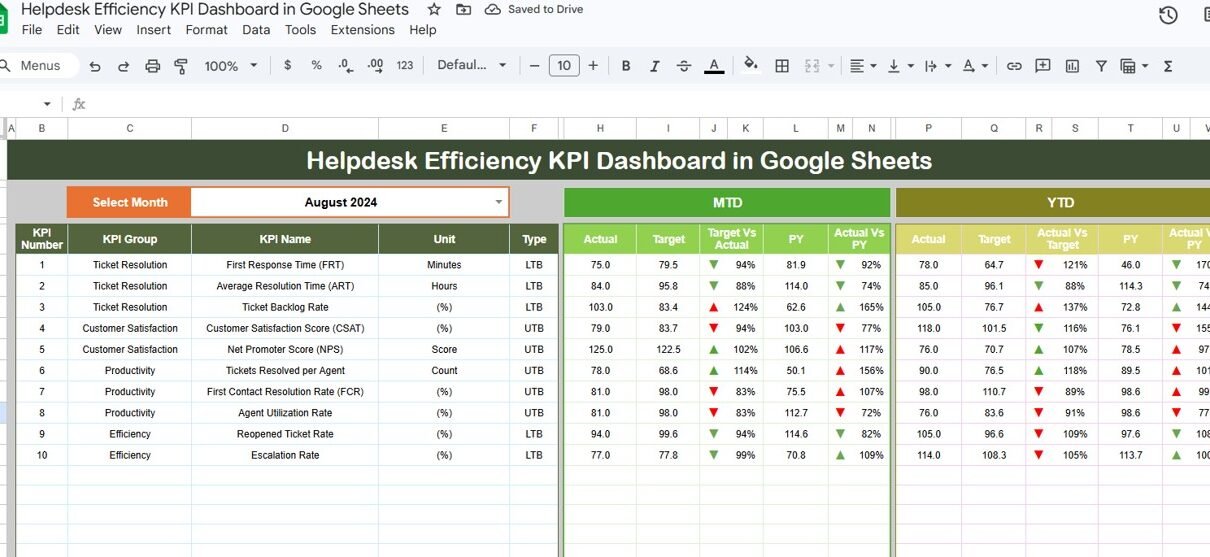
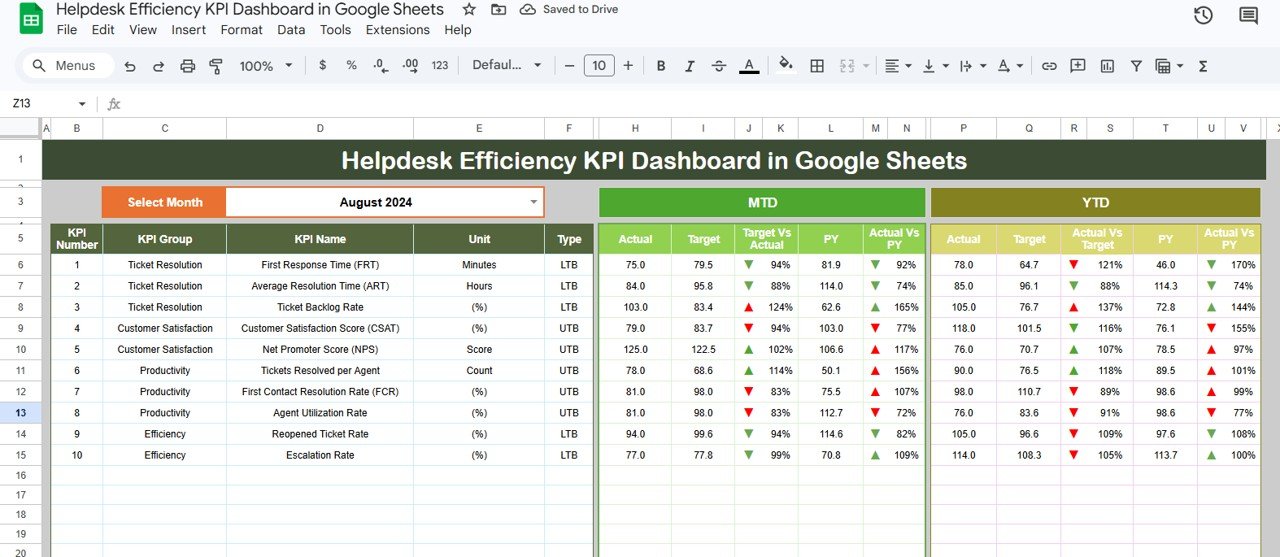
- Interactive Dashboard with Month Selector — Select any month from a dropdown and the entire dashboard refreshes to show MTD Actual, Target, Previous Year numbers along with YTD Actual, Target, and Previous Year data. Conditional formatting arrows instantly reveal whether each KPI is trending up or down.
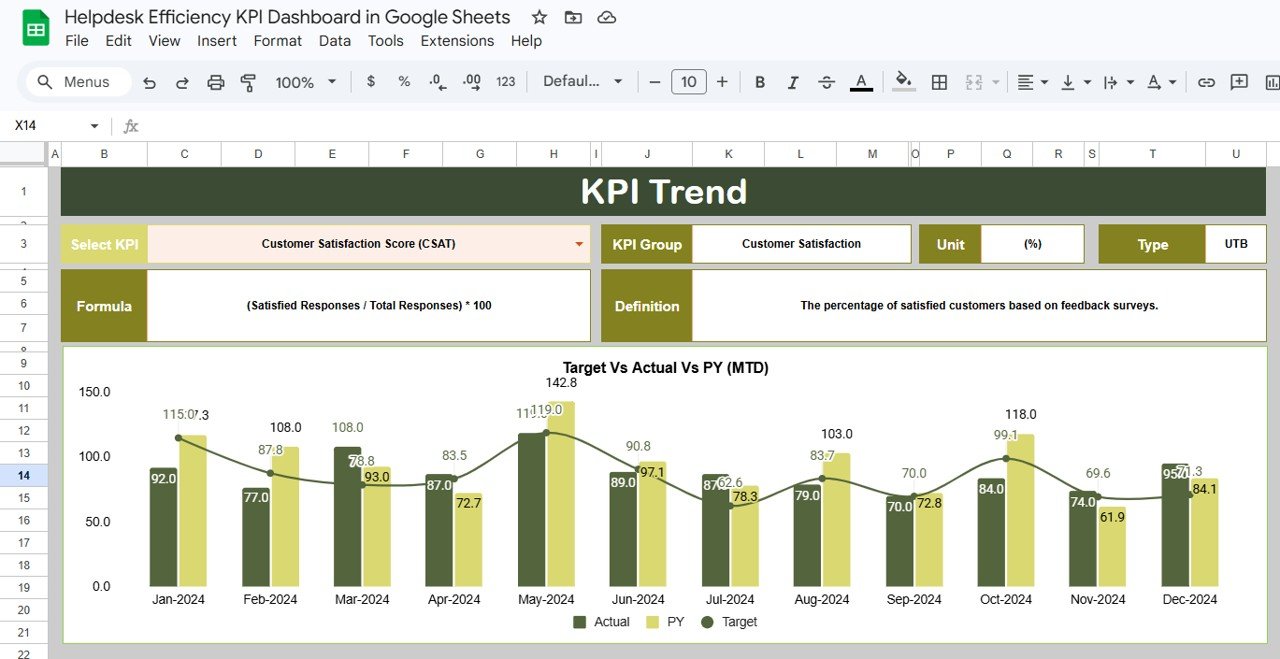
- Individual KPI Trend Analysis — A dedicated KPI Trend sheet lets you select any single KPI and view its detailed trend charts for both MTD and YTD alongside its group, unit, formula, definition, and KPI type.
- Target vs Actual and PY vs Actual Comparisons — Every KPI on the dashboard shows side-by-side comparisons of current performance against targets and prior year benchmarks for both monthly and cumulative views.
- Complete KPI Definition Library — Define each metric with its name, group, unit of measurement, calculation formula, full definition, and whether it is LTB (Lower the Better) or UTB (Upper the Better) to maintain organizational clarity.
- Separate Data Input Sheets — Cleanly organized sheets for Actual Numbers, Target Numbers, and Previous Year Numbers prevent data entry confusion and keep your reporting accurate.
- Conditional Formatting Visual Indicators — Up and down arrows with color coding make it instantly obvious which KPIs are exceeding targets and which ones need attention.
- Fully Automated Formulas — All calculations, comparisons, and chart updates happen automatically once you enter your data, saving hours of manual spreadsheet work every month.
- Cloud-Based Real-Time Collaboration — Since it runs entirely in Google Sheets, multiple team members can access and update the dashboard simultaneously from any device.
Dashboard Pages Explanation
The Helpdesk Efficiency KPI Dashboard in Google Sheets contains 6 well-structured worksheets. Here is a detailed breakdown of each sheet and how it contributes to your helpdesk performance tracking:
1. Dashboard Sheet
This is the main reporting sheet and the heart of the entire template. It displays all helpdesk KPIs in a clean tabular format with MTD Actual, Target, and Previous Year columns alongside YTD Actual, Target, and Previous Year columns. Each row includes Target vs Actual and PY vs Actual percentage comparisons with conditional formatting arrows that show green upward arrows for positive performance and red downward arrows for underperformance. On range D3, you can select the month from a dropdown and the entire dashboard recalculates for that specific period.Helpdesk Efficiency KPI Dashboard in Google Sheets
 Helpdesk Efficiency KPI Dashboard in Google Sheets
2. KPI Trend Sheet
The KPI Trend sheet allows you to deep-dive into any individual KPI. Select the KPI name from the dropdown on range C3 and the sheet displays the KPI Group, Unit of KPI, Type of KPI (Lower the Better or Upper the Better), Formula, and Definition. Below this information, two trend charts show MTD and YTD performance over time for Actual, Target, and Previous Year numbers, making it easy to identify seasonal patterns and long-term performance trends.
 KPI Trend Sheet
3. Actual Numbers Input Sheet
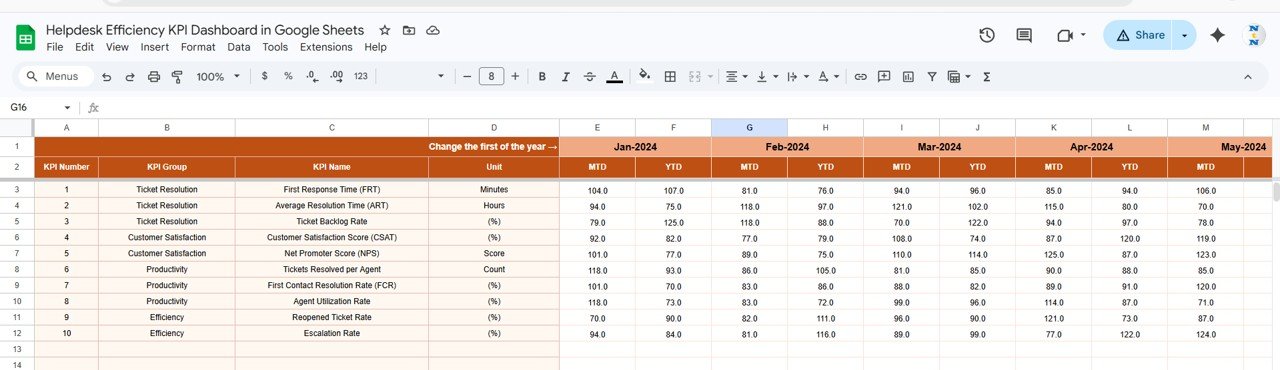
This is where you enter the real helpdesk performance numbers. The sheet has columns for each month and rows for each KPI, with separate sections for MTD and YTD values. You can change the starting month from range E1 to align with your organization’s fiscal year. As you update actual numbers here, the Dashboard and KPI Trend sheets refresh automatically.Helpdesk Efficiency KPI Dashboard in Google Sheets
 Actual Numbers Input Sheet
4. Target Number Input Sheet
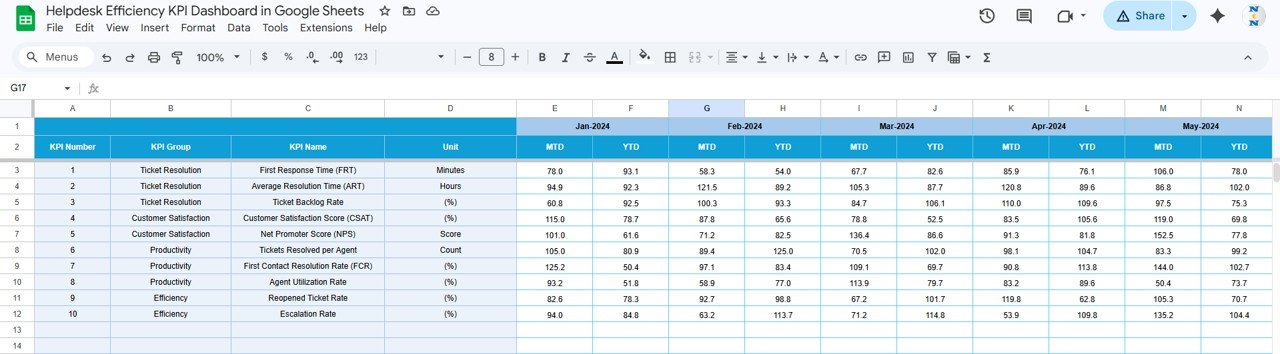
In this sheet, you enter the target numbers for each KPI for every month as both MTD and YTD values. These targets serve as the performance benchmarks against which all actual numbers are compared on the Dashboard sheet. Setting realistic yet ambitious targets is crucial for driving continuous improvement in helpdesk operations.
 Target Number Input Sheet
5. Previous Year Number Sheet
Enter the previous year’s actual helpdesk performance numbers here using the same format as the current year data entry sheets. This data powers the PY vs Actual comparison columns on the Dashboard sheet, enabling year-over-year performance analysis that reveals whether your helpdesk operations are genuinely improving over time.Helpdesk Efficiency KPI Dashboard in Google Sheets
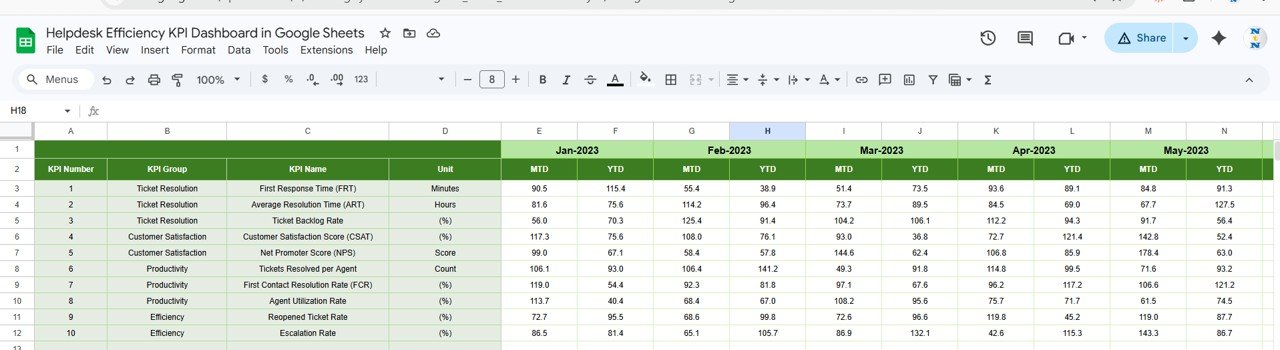 Previous Year Number Input Sheet
6. KPI Definition Sheet
The KPI Definition sheet is your central reference for all helpdesk metrics. For each KPI, you enter the KPI Name, KPI Group, Unit of measurement, Formula used to calculate it, a full text Definition, and the KPI Type as either LTB (Lower the Better) or UTB (Upper the Better). This sheet feeds the KPI Trend sheet’s information display and ensures every stakeholder understands exactly what each metric measures and how it is calculated.Helpdesk Efficiency KPI Dashboard in Google Sheets
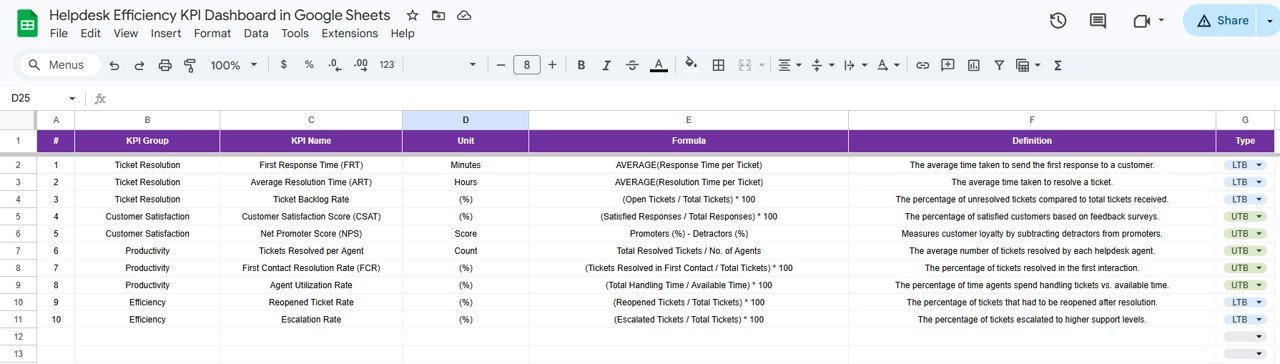 KPI Definition Sheet
Advantages of Helpdesk Efficiency KPI Dashboard in Google Sheets
- Eliminates Scattered Reporting — Consolidates all helpdesk performance data into one centralized template instead of relying on multiple disconnected spreadsheets and manual reports.
- Saves Hours Every Month — Pre-built formulas and automated chart updates mean you spend minutes entering data instead of hours building reports from scratch.
- Drives Data-Driven Decisions — With clear MTD vs YTD comparisons and year-over-year trends, managers can make informed decisions about staffing, training, and process improvements.
- No Software Costs — Runs entirely in Google Sheets, so there are no licensing fees, no installations, and no IT dependencies. Just open the file and start tracking.
- Team-Wide Transparency — The KPI Definition sheet ensures everyone on the team understands what each metric means, how it is calculated, and what direction indicates improvement.
- Scalable and Customizable — Easily add new KPIs, modify existing definitions, adjust targets, and expand the dashboard as your helpdesk operations grow.Helpdesk Efficiency KPI Dashboard in Google Sheets
Opportunities for Improvement
- Automated Data Import — Currently, all data must be entered manually. Integrating with helpdesk platforms like Zendesk, Freshdesk, or Jira Service Management through Google Apps Script could automate data refresh.
- Agent-Level Performance Tracking — The current template tracks KPIs at the team level. Adding individual agent performance breakdowns would provide more granular management insights.
- SLA Breach Alerting — Building in automated email or Slack notifications when specific KPIs fall below critical thresholds would enable proactive issue resolution.
- Customer Feedback Integration — Incorporating CSAT or NPS survey data directly into the dashboard would connect operational metrics with customer experience outcomes.
- Historical Trend Depth — Extending the previous year comparison to support multi-year historical data would enable deeper long-term trend analysis.Helpdesk Efficiency KPI Dashboard in Google Sheets
Best Practices for Using This Dashboard
- Define KPIs Before Data Entry — Start by completing the KPI Definition sheet thoroughly. Clear definitions prevent confusion and ensure consistent measurement across the team.
- Set Targets Based on Baselines — Use your previous year numbers as a baseline when setting targets. Aim for 5-15% improvement on key metrics for realistic goal-setting.
- Update Data Consistently — Enter actual numbers at the same time each month to build a reliable data history. Inconsistent updates lead to unreliable trend analysis.
- Review the KPI Trend Sheet Monthly — Do not just look at the main dashboard. Drill into individual KPIs using the Trend sheet to identify root causes behind performance changes.
- Share Read-Only Access — Give stakeholders and team members view-only access to the dashboard while restricting editing to designated data owners to prevent accidental changes.
- Align KPI Types Correctly — Make sure to properly classify each KPI as LTB or UTB. For example, Average Resolution Time should be LTB (lower is better) while First Contact Resolution Rate should be UTB (upper is better).Helpdesk Efficiency KPI Dashboard in Google Sheets
Explore Relevant Templates
If you are building a comprehensive helpdesk and IT management reporting system, check out these related templates from NextGenTemplates:Helpdesk Efficiency KPI Dashboard in Google Sheets
- Office IT Helpdesk Dashboard in Google Sheets — A full analytics dashboard for tracking helpdesk tickets, response times, and team performance.
- IT Helpdesk Ticket Tracker in Google Sheets — A detailed ticket tracking system for managing individual support requests from creation to resolution.
- Ticket Resolution Time KPI Dashboard in Google Sheets — Focused specifically on resolution time metrics to help you meet and exceed SLA commitments.
- Customer Service Dashboard in HTML — A browser-based interactive dashboard for visualizing customer service performance data.
- Office IT Helpdesk Dashboard in Power BI — An advanced Power BI helpdesk dashboard for organizations using Microsoft’s analytics platform.
Want to build skills like this step by step? The Excel Pivot Tables & Dashboards course on NextGenTemplates Academy walks you through it with practice files.
Get the Helpdesk Efficiency KPI Dashboard in Google Sheets
Frequently Asked Questions
What KPIs can I track with this helpdesk dashboard?
You can track any helpdesk KPI including Average Response Time, Average Resolution Time, First Contact Resolution Rate, Ticket Volume, SLA Compliance Rate, Customer Satisfaction Score, Escalation Rate, Agent Utilization Rate, Backlog Volume, and Reopened Ticket Rate. The template is fully customizable so you can add or remove KPIs based on your specific requirements.Helpdesk Efficiency KPI Dashboard in Google Sheets
Do I need any technical skills to use this template?
No technical skills are required. The template comes with all formulas and charts pre-built. You simply need to enter your KPI definitions, targets, previous year numbers, and actual performance data in the designated input sheets. Everything else updates automatically.Helpdesk Efficiency KPI Dashboard in Google Sheets
Can I customize the months and fiscal year starting month?
Yes, you can change the starting month from range E1 on the Actual Numbers Input sheet. This allows you to align the dashboard with any fiscal year starting month whether it is January, April, July, or any other month your organization uses.Helpdesk Efficiency KPI Dashboard in Google Sheets
How is this different from the Office IT Helpdesk Dashboard?
The Office IT Helpdesk Dashboard is an analytics dashboard that visualizes ticket-level data with charts and filters. This Helpdesk Efficiency KPI Dashboard focuses specifically on KPI tracking with MTD and YTD target comparisons, previous year benchmarks, and trend analysis, making it ideal for management-level performance reporting.
Can multiple team members use this dashboard simultaneously?
Absolutely. Since the dashboard runs in Google Sheets, it supports real-time collaboration. Multiple users can view the dashboard and update data at the same time. We recommend giving editing access only to designated data owners while sharing view-only access with the wider team.
Is there a way to automate data entry into this dashboard?
While the template is designed for manual data entry, you can use Google Apps Script to build custom automation that pulls data from your helpdesk platform API and populates the input sheets automatically.
Conclusion
The Helpdesk Efficiency KPI Dashboard in Google Sheets is an essential reporting tool for any organization that takes support team performance seriously. With its clean layout, automated calculations, interactive month selection, and comprehensive KPI tracking across MTD, YTD, targets, and previous year comparisons, this template transforms raw helpdesk data into actionable management insights. Whether you are running a small IT support desk or managing a large customer service operation, this dashboard gives you the visibility and control you need to drive continuous improvement in helpdesk efficiency.
Get your Helpdesk Efficiency KPI Dashboard in Google Sheets today and start making data-driven decisions that elevate your support operations.