In this article we have created a Product Expiration Date Calendar in Google Sheets.
U.S. retailers alone discard an estimated $18.2 billion worth of products annually due to missed or mismanaged expiration dates, according to FDA waste reports. A structured expiration tracking calendar can reduce product waste by 30-40% for businesses managing anywhere from 50 to 5,000 SKUs — saving thousands in preventable losses each year.Product Expiration Date Calendar in Google Sheets
Get the Product Expiration Date Calendar in Google Sheets
The Product Expiration Date Calendar in Google Sheets is a ready-to-use calendar template that tracks expiry events across 5 worksheets with annual, monthly, and daily views. It captures 7 data fields per event — ID, Date, Day, Event Name, Time, Location, and Description — and updates every calendar view automatically when new data is entered. No macros, no formulas to configure, no monthly subscription. Just enter your data and start tracking.
Key Features of Product Expiration Date Calendar in Google Sheets
The Product Expiration Date Calendar in Google Sheets includes 5 dedicated worksheets: Home, Annual View, Monthly View, Daily View, and Events. It tracks unlimited expiry events with fields for date, day, event name, time, location, and description — each entry receives an auto-generated unique ID for quick reference.Product Expiration Date Calendar in Google Sheets
The Annual View displays all 12 months of the selected year in a single overview, letting managers spot expiry clusters at a glance. The Monthly View lets you select any specific month and year from dropdown menus, showing individual expiry events on each calendar date with a “more than 1…” indicator when multiple events share a date.Product Expiration Date Calendar in Google Sheets
The Daily View sheet provides a filterable list of all events within a custom date range. Select your Start Date and End Date using the built-in date picker — double-click the cell to open the calendar selector — and the sheet instantly displays every expiry event in that window. The Home sheet acts as a navigation hub with 4 clickable buttons for jumping between sections in one click.Product Expiration Date Calendar in Google Sheets
This template is a Google Sheets Calendar Template built by NextGenTemplates, designed for store managers, warehouse teams, pharmacies, and food service businesses tracking product shelf life.
Template Sheets Explanation
This is a ready-to-use Calendar template in Google Sheets. In this template, we have 5 worksheets:
1. Home Sheet Tab
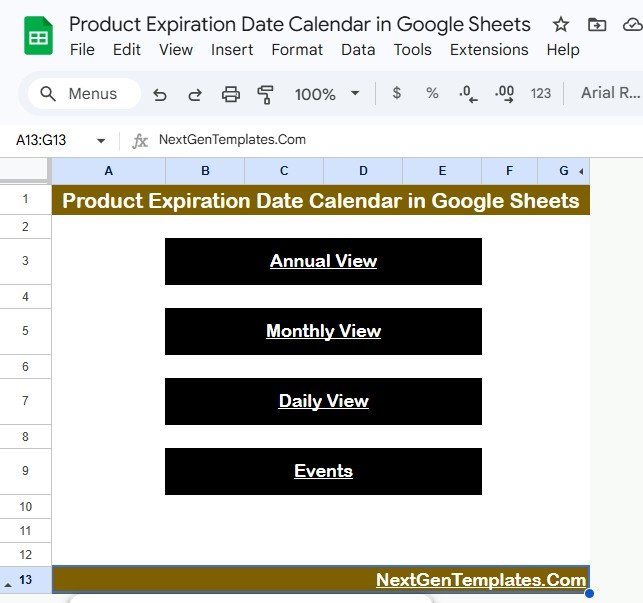
This is an index sheet where we have given 4 buttons to jump to the respective sheet: Annual View button, Monthly View button, Daily View button, and Events. The Home sheet provides one-click navigation so you never have to scroll through tabs manually.
Product Expiration Date Calendar in Google Sheets
2. Annual View Sheet Tab
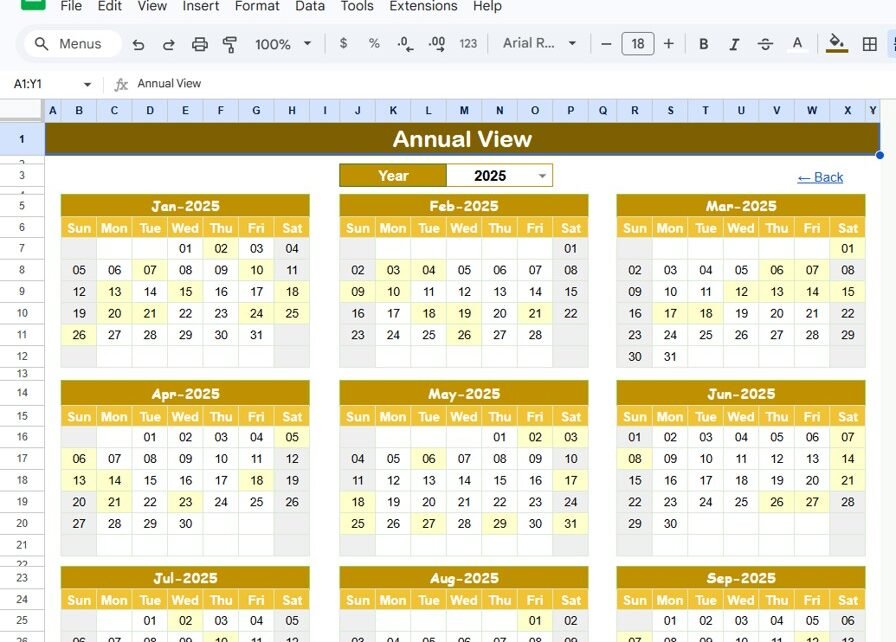
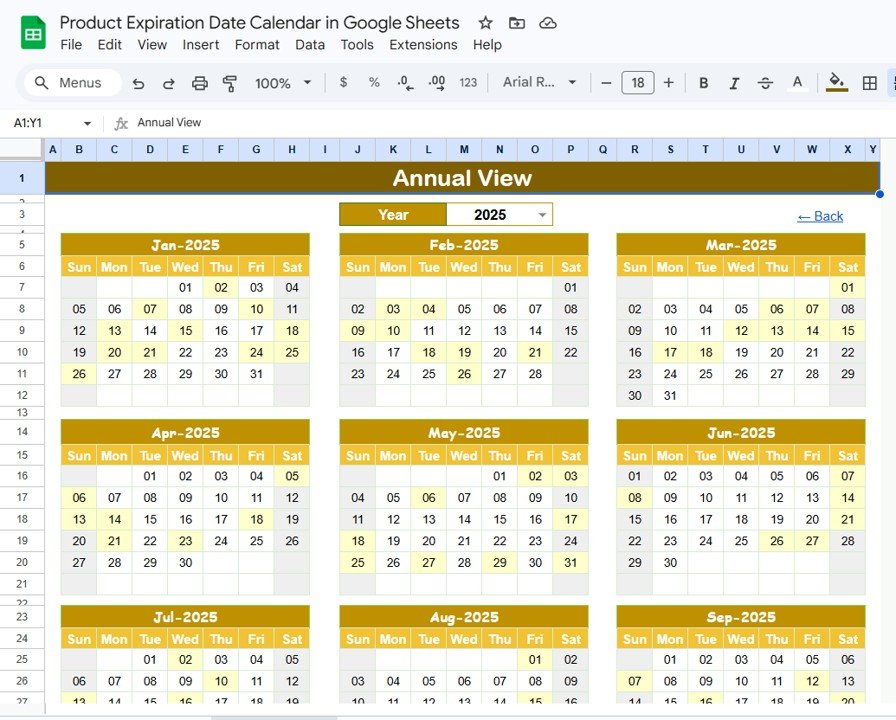
This is the Annual View Sheet. Here we are showing 12 months calendars in a single view. All expiry events from the Events sheet are plotted on their respective dates across the full year, giving you a bird’s-eye view of upcoming expirations. This helps managers identify months with high expiry volumes and plan inventory rotation accordingly.
Annual View Sheet tab
3. Monthly View Sheet Tab
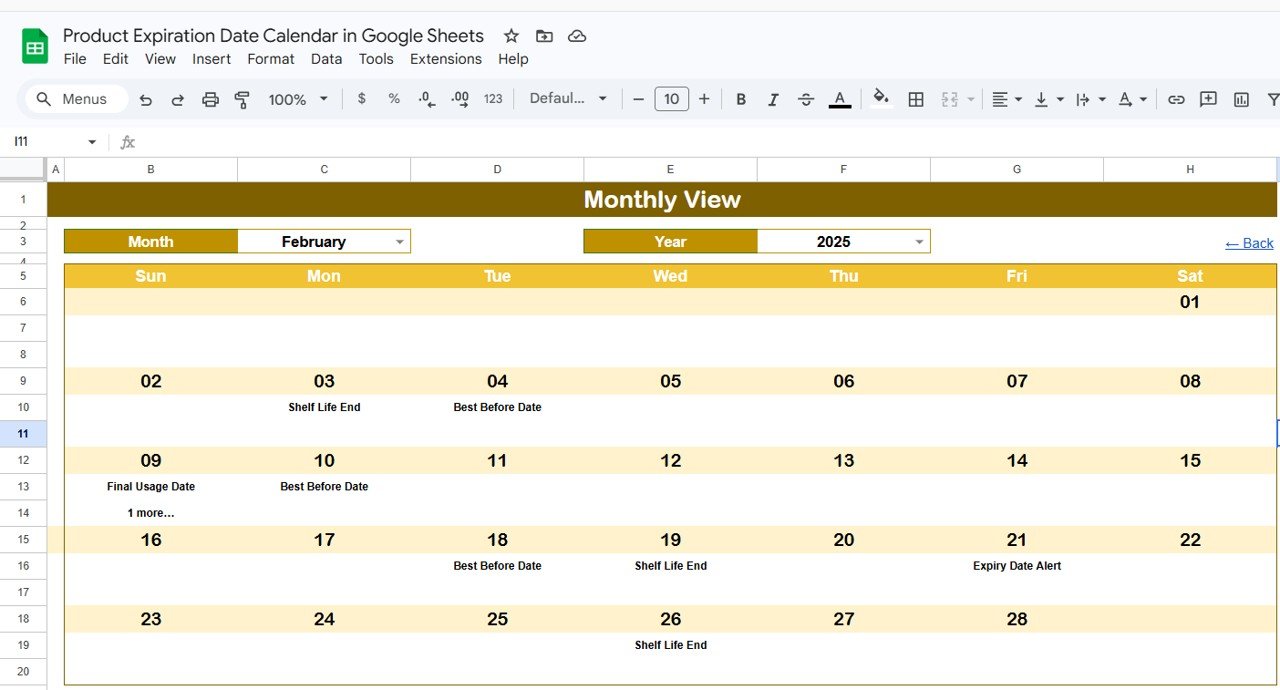
It is a single calendar for the selected month. You can select the Month and Year from the top, and accordingly it will show the information in the Calendar. We are showing 1 event on the calendar, and if there are more than 1 event on any date then it will display “more than 1…” as a visual indicator. Click through to the Events sheet to see all entries for that date. This is particularly useful for weekly review meetings where teams check upcoming expirations.
Monthly View Sheet tab
4. Daily View Sheet Tab
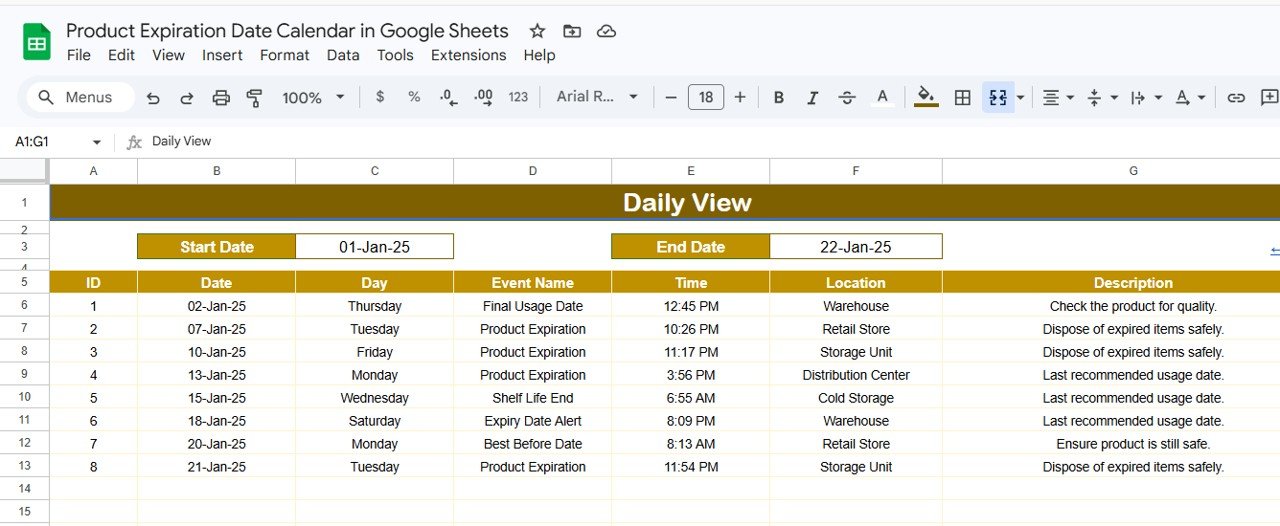
Here we are showing the list of events with details on the selected date range. You can put the date range on the top as Start Date and End Date. Double-click in the cell to open the calendar to select the date range. The sheet then lists every matching event with its ID, date, day, event name, time, location, and description — making it ideal for generating weekly pull lists of products approaching their expiry date.
Daily View Sheet tab
5. Events Sheet Tab
This is the database sheet. Here, we are capturing the details of all events. We are keeping here the below information:
- ID — Auto-generated number for each event
- Date — Date of the event (product expiry date)
- Day — Day of the event such as Sunday, Monday, etc. (auto-populated)
- Event Name — Name of the event (product name or batch identifier)
- Time — Time of the event (optional, for time-specific expiries)
- Location — Location of the event (warehouse section, shelf number, store aisle)
- Description — Short description about the event (batch number, supplier, quantity)
You can enter the data manually to add a new event. There is no limit to the number of rows — Google Sheets supports up to 10 million cells per spreadsheet, so performance stays smooth up to approximately 5,000-10,000 event entries.
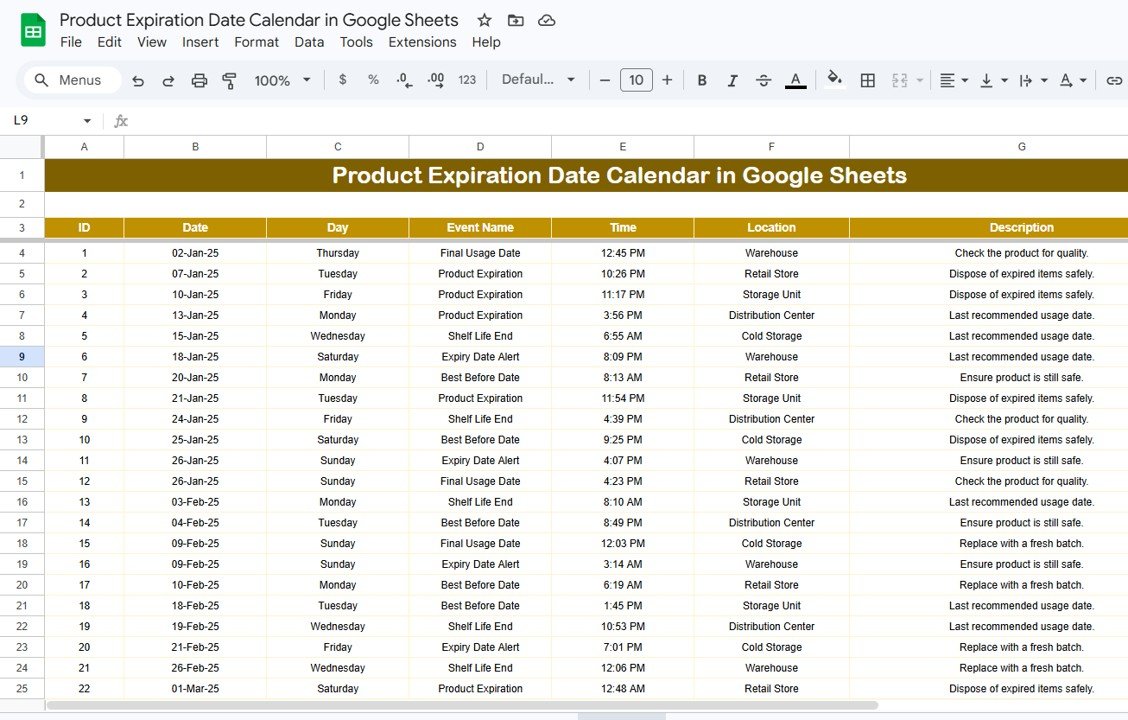
Events Sheet tab
Product Expiration Date Calendar vs. Microsoft Excel Calendar vs. Zoho Inventory — Feature Comparison
| Feature | Product Expiration Date Calendar in Google Sheets | Microsoft Excel Calendar | Zoho Inventory |
|---|---|---|---|
| Cost | $4.99 one-time | $6.99/month (Microsoft 365) | $29-249/month |
| Platform | Google Sheets (browser-based) | Desktop application | Cloud SaaS |
| Setup Time | Under 5 minutes | 15-30 minutes | 1-3 hours |
| Real-time Team Collaboration | ✅ Built-in (Google Sheets) | ❌ Limited without OneDrive | ✅ Yes |
| Mobile Access | ✅ Any browser | ❌ Requires app | ✅ Mobile app |
| Customizable Fields | ✅ Fully editable | ✅ Fully editable | ⚠️ Plan-dependent |
| Annual + Monthly + Daily Views | ✅ All 3 included | ⚠️ Usually 1 view | ❌ List-based only |
| Year-1 Cost at 5 Users | $4.99 total | $419.40 | $1,740-14,940 |
For teams that want a visual expiration tracking calendar without paying monthly SaaS fees, the Product Expiration Date Calendar in Google Sheets sits in the sweet spot.
Who Should Use This Template
✅ Perfect for:
- Grocery store owners and retail managers tracking product shelf life across 50-500 SKUs
- Pharmacy and clinic staff monitoring medication expiry dates for compliance
- Warehouse and inventory teams at small-to-mid-size businesses needing a visual calendar view
- Food service managers and caterers tracking perishable goods expiration across multiple kitchens
- Cosmetics retailers and distributors managing batch-level expiry tracking
❌ Not a fit if:
- You run an enterprise supply chain needing barcode/RFID scanning integration and automated reorder triggers
- You require automated SMS or email alerts — this template uses manual date entry and visual calendar checking
- You manage 10+ warehouse locations requiring real-time sync across distributed teams with role-based access
Real-World Use Cases
Priya manages inventory at a 200-product grocery store in Bangalore. She uses the Product Expiration Date Calendar in Google Sheets to log batch-wise expiry dates for dairy, packaged snacks, and beverages. Every Monday, she opens the Monthly View to check which products expire that week and pulls them for discount pricing — reducing her monthly spoilage loss from ₹45,000 to under ₹12,000.
James runs a small pharmacy in Austin, Texas. He enters medication expiry dates into the Events sheet whenever new stock arrives. The Daily View filtered to the next 30 days gives him a pull list of medications approaching expiration — he rotates stock accordingly and hasn’t had to write off expired drugs in 6 months.
Maria oversees food safety at a catering company in Miami. She tracks expiration dates for 80+ ingredients across two kitchens. The Annual View gives her a year-long overview so she can plan bulk purchases around existing inventory lifecycles — saving her team roughly 4 hours per week compared to their previous manual tracking system.
Advantages of Product Expiration Date Calendar in Google Sheets
- Zero setup cost beyond the template — No monthly fees, no per-user licenses. Google Sheets is free for anyone with a Google account, and the template costs $4.99 one-time.
- Three calendar views in one file — Annual, Monthly, and Daily views cover strategic planning, weekly reviews, and daily pull-list generation respectively.
- Real-time collaboration — Multiple team members can add expiry events simultaneously via Google Drive sharing. No version conflicts, no emailing files back and forth.
- Works on any device — Desktop, laptop, tablet, or phone. The Google Sheets mobile app lets warehouse staff add entries on the floor.
- Auto-generated IDs and day names — Reduces manual data entry errors and keeps the Events sheet consistent.
Opportunities for Improvement
- The template does not include automated email or SMS reminders — you need to manually check the calendar views for upcoming expirations.
- There is no barcode scanning integration. Products must be entered manually by name or batch number.
- The Monthly View shows only 1 event per date cell. Dates with multiple expirations display “more than 1…” and require checking the Events sheet for full details.
- Color-coding for urgency levels (e.g., expiring within 7 days vs. 30 days) is not built in but can be added using Google Sheets conditional formatting.
Best Practices
- Enter data as soon as stock arrives — Log expiry dates in the Events sheet immediately during receiving to avoid backlog.
- Use the Daily View for weekly pull lists — Set the date range to the upcoming 7 days every Monday to generate an actionable list of products to rotate or discount.
- Standardize Event Names — Use consistent naming conventions (e.g., “Amul Butter 500g – Batch 2026-04”) so you can sort and search the Events sheet easily.
- Add conditional formatting — Highlight rows in the Events sheet where the date is within the next 7 or 14 days using Google Sheets conditional formatting rules for visual urgency.
- Share with view-only access — Give floor staff view-only access and restrict editing to inventory managers to prevent accidental data changes.
Explore Relevant Templates
📌 Investment Maturity Calendar in Excel — Track investment maturity dates with annual and monthly calendar views in Excel.
📌 Construction Project Timeline in Google Sheets — Plan and track project milestones with a Gantt-style timeline in Google Sheets.
📌 Weekly Expense Tracker in Google Sheets — Monitor weekly spending patterns with category breakdowns and charts.
📌 Marketing Asset Creation Calendar in Google Sheets — Plan marketing content and asset creation with calendar views.
📌 Browse all Google Sheets Calendar Templates
If you would like to strengthen your general spreadsheet skills, the NextGenTemplates Academy learning paths take you through them step by step with practice files.
Get the Product Expiration Date Calendar in Google Sheets
Frequently Asked Questions
What does the Product Expiration Date Calendar in Google Sheets track?
The Product Expiration Date Calendar in Google Sheets tracks expiry events with 7 data fields: ID (auto-generated), Date, Day, Event Name, Time, Location, and Description. It displays events across Annual, Monthly, and Daily calendar views for quick visual scanning.
How many products can I track in this calendar?
There is no built-in limit. Google Sheets supports up to 10 million cells per spreadsheet, so you can track thousands of product expiry entries. Performance stays smooth up to approximately 5,000-10,000 rows in the Events sheet.
Can I share this calendar with my team?
Yes. Since it runs on Google Sheets, you can share the file with any number of team members via Google Drive. Multiple users can view and edit the calendar simultaneously in real time — no extra licenses required.
How does this compare to Zoho Inventory for expiration tracking?
Zoho Inventory starts at $29/month and includes barcode scanning and automated alerts. The Product Expiration Date Calendar costs $4.99 one-time with no monthly fees. If you need a visual calendar to track 50-500 products without automation, this template saves you $348+ per year compared to Zoho.
How long does setup take?
Setup takes under 5 minutes. Click the Google Sheets copy link from the PDF guide, open the Events sheet, and start entering your product expiry data. All calendar views update automatically — no formulas to configure, no macros to enable.
Does this template work on mobile devices?
Yes. Google Sheets works on any device with a browser — including phones, tablets, and Chromebooks. You can also use the Google Sheets mobile app on iOS and Android for on-the-go data entry.
Can I customize the fields in the Events sheet?
Yes. You can add, rename, or remove columns in the Events sheet to match your specific tracking needs. The calendar views reference specific columns, so if you modify the core columns (Date, Event Name), you may need to update the linked formulas accordingly.
About the Author
Built by PK — Microsoft Certified Professional with 15+ years of Excel, Google Sheets, and Power BI experience. Founder of NextGenTemplates, reaching 300K+ subscribers across YouTube channels. Every template is hand-built and tested before release.
Conclusion
The Product Expiration Date Calendar in Google Sheets gives store managers, warehouse teams, pharmacies, and food service businesses a simple visual way to track product expiry dates across annual, monthly, and daily calendar views — all from a single Google Sheets file with no recurring costs.
✅ Instant download · One-time payment · No subscription