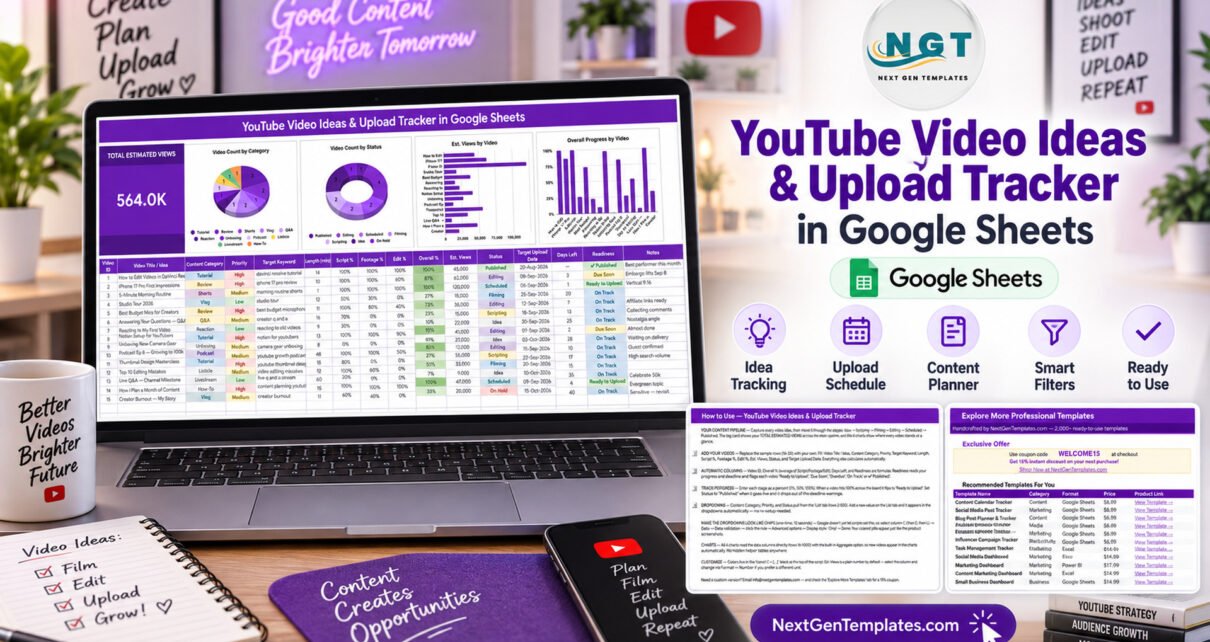
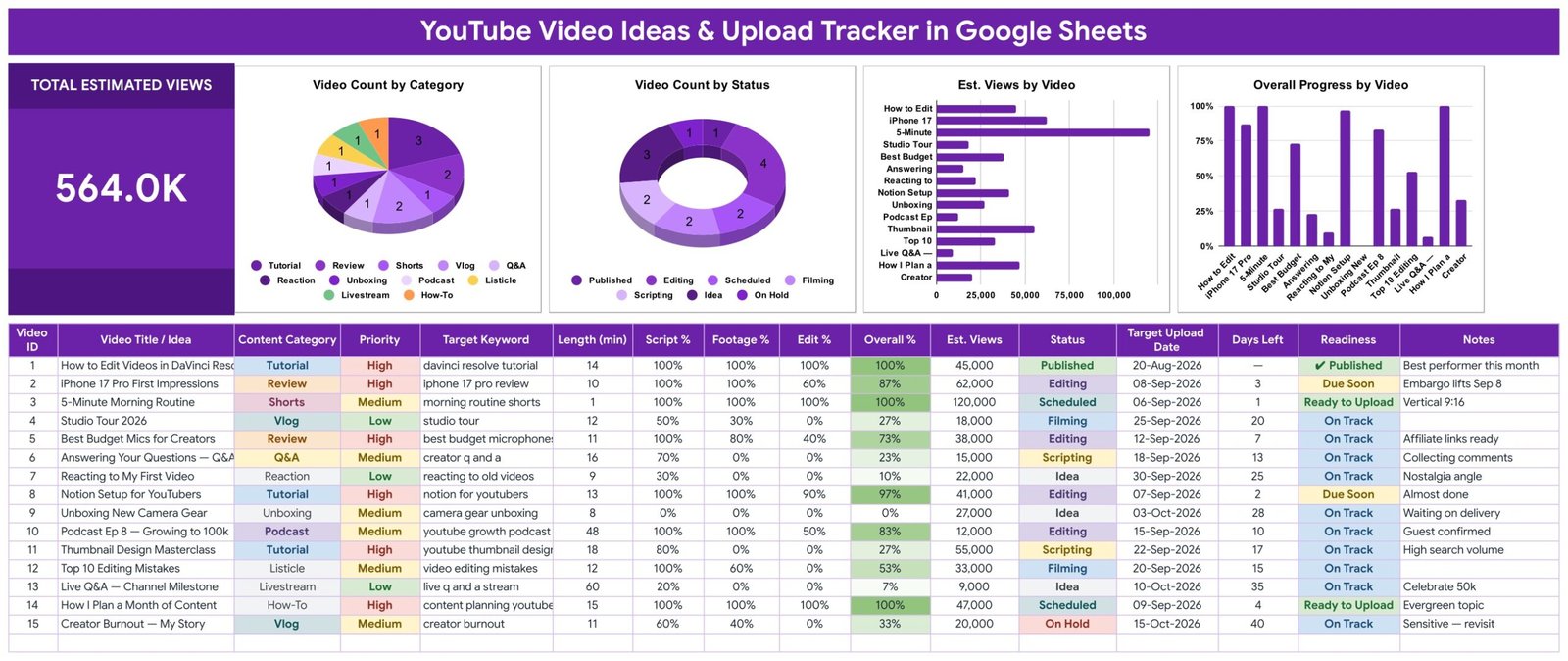
The YouTube Video Ideas Upload Tracker in Google Sheets is a one-page planner that follows every video from first idea to published upload. The sample file holds 15 videos across 11 content categories and 7 statuses, logged in 16 columns of which 4 are formulas. Four live charts and a Total Estimated Views card that reads 564.0K sit above the log.
Creators rarely fail for lack of ideas. They fail because ideas live in a notes app, scripts sit in a document, footage waits on a drive and upload dates exist only in their head. This tracker puts all of it in one Google Sheet, so you can see which video is ready to upload, which one is due soon and which one quietly stalled at 30% footage.

Key Features of the YouTube Video Ideas & Upload Tracker
- Total Estimated Views card. The headline card adds the Est. Views column for every row. With the 15 sample videos it shows 564.0K, and it recalculates as soon as you change an estimate or add a video.
- Six production stages plus On Hold. Each video moves through Idea, Scripting, Filming, Editing, Scheduled and Published. On Hold parks anything you want to revisit, such as a sensitive topic.
- Automatic Overall %. You enter Script %, Footage % and Edit %; the sheet averages them into Overall % and shades the cell greener as the video nears completion.
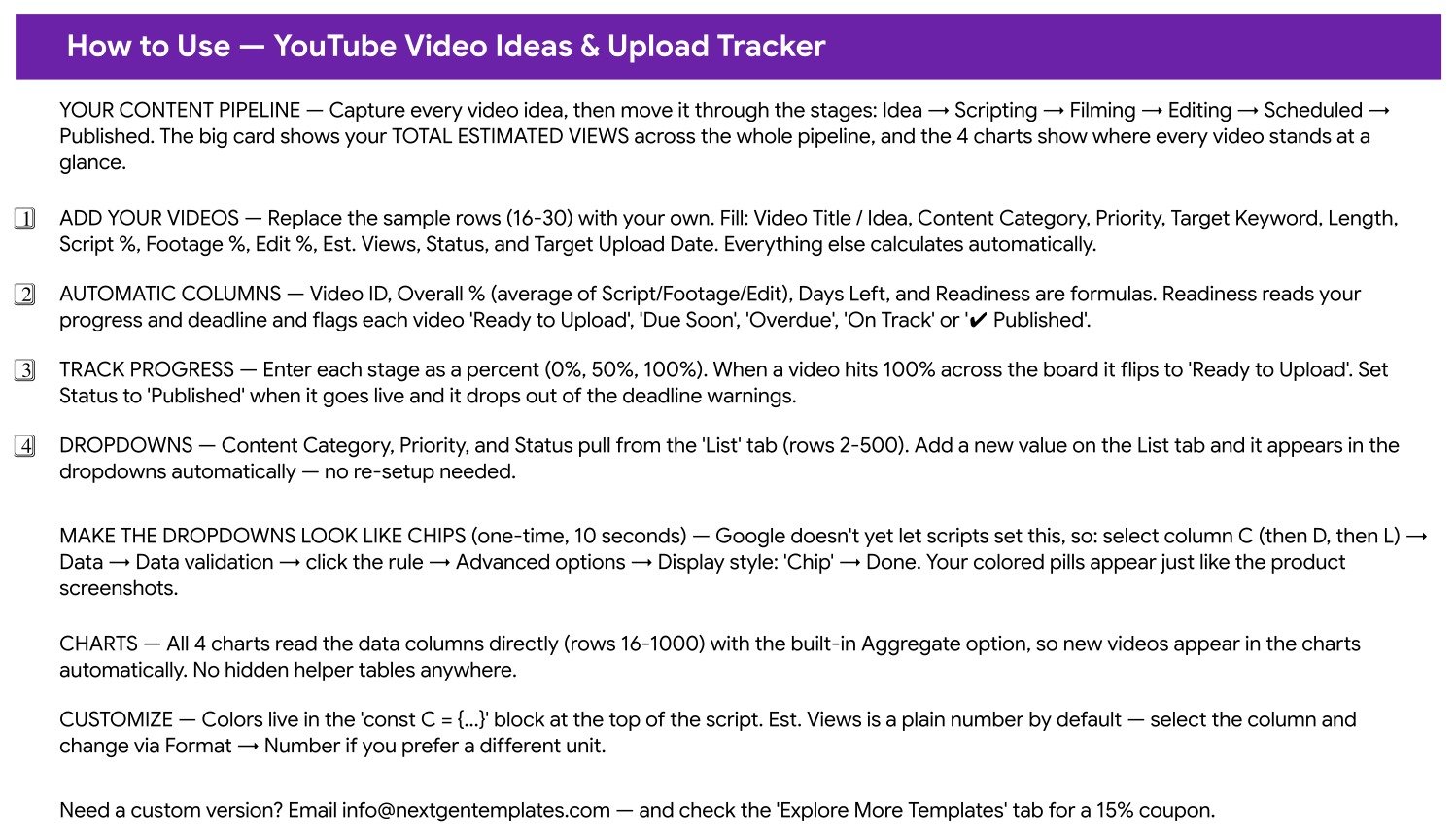
- Days Left and Readiness. Days Left counts down to the Target Upload Date. Readiness combines progress and deadline into one label: Ready to Upload, Due Soon, Overdue, On Track or ✔ Published.
- Planning fields that matter for YouTube. Every row carries a Content Category, a High, Medium or Low Priority, a Target Keyword, the planned Length in minutes and free-text Notes.
- Charts with no helper tables. All four charts read rows 16-1000 directly with the built-in Aggregate option, so new videos are charted automatically.
- Dropdowns that grow. Content Category, Priority and Status draw their values from the List tab, rows 2-500.
Tracker Pages Explained
YouTube Video Ideas & Upload Tracker
The main tab shows the Total Estimated Views card and four charts: Video Count by Category, Video Count by Status, Est. Views by Video and Overall Progress by Video. In the sample, Editing is the busiest status with 4 videos, Tutorial is the largest category with 3, and the 5-Minute Morning Routine Short carries the highest estimate at 120,000 views.
Below the charts is the video log with 16 columns: Video ID, Video Title / Idea, Content Category, Priority, Target Keyword, Length (min), Script %, Footage %, Edit %, Overall %, Est. Views, Status, Target Upload Date, Days Left, Readiness and Notes. Video ID, Overall %, Days Left and Readiness are calculated for you.
List
The List tab stores the dropdown values for Content Category, Priority and Status. Add a new value in rows 2-500 and it becomes available on the tracker immediately.
How to Use
The built-in guide explains the pipeline, which columns you fill in, how the formula columns and Readiness work, how to track stage progress and how to switch the dropdowns to chip style.
Explore More Templates
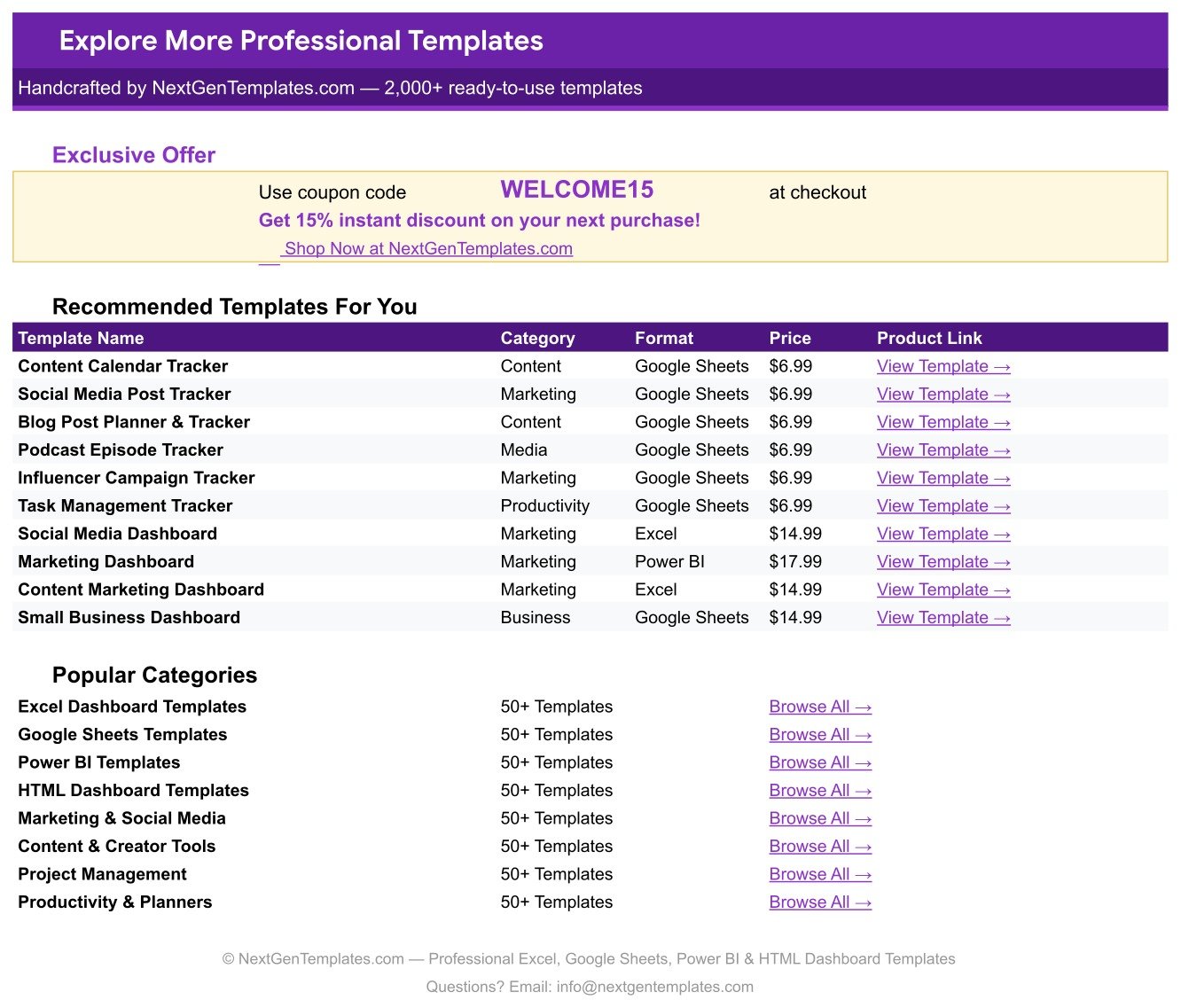
This tab lists recommended templates and popular categories and includes the WELCOME15 coupon for 15% off your next purchase.
YouTube Video Ideas Upload Tracker vs. an Excel Content Calendar vs. Paid Planning Apps – Feature Comparison
| Feature | YouTube Video Ideas & Upload Tracker (Google Sheets) | Excel content calendar | Notion / Airtable / Trello paid plans |
|---|---|---|---|
| Cost | $6.99 one-time | One-time template price, needs Excel | Monthly fee per member on paid plans |
| Platform | Any browser with a Google account | Excel desktop or Microsoft 365 | Web and mobile apps |
| Setup time | About a minute | Download and open | Build your own boards and fields |
| Real-time collaboration | Share the sheet with your editor | Through OneDrive or SharePoint | Yes |
| Mobile access | Google Sheets app | Excel mobile app | Native apps |
| Customizable fields | Any column and dropdown value | Yes | Limited by plan |
| Stage progress and Readiness flags | Built in | Usually manual | Needs formulas or automations |
| Views and progress charts | 4 charts plus a KPI card | Varies by template | Often needs a higher plan |
| Year-1 cost for a 5-person team | $6.99 total | Template plus licences | Five monthly seats |
For creators who want a structured idea-to-upload pipeline without another monthly subscription, the YouTube Video Ideas & Upload Tracker sits in the sweet spot.
Who Should Use This Template
Perfect for:
- Solo YouTubers publishing a mix of long videos, Shorts, podcasts and livestreams
- Creator-and-editor teams who need one shared view of stage progress
- Brands, agencies and course creators planning a keyword-led video series
Not a fit if:
- You want real views, subscribers or watch time imported from YouTube Analytics – the tracker does not connect to YouTube
- You need automatic uploading, reminders, approvals or a full production asset library
Real-World Use Cases
Maya runs a tech-review channel on her own. Review units arrive with embargo dates, so she logs each one as an Idea the day it lands, sets the Target Upload Date to the embargo lift and watches Readiness. When a review turns Due Soon while Edit % is still at 60%, she knows exactly where tonight goes.
Dev edits for two lifestyle creators. Both creators share a single copy of the tracker with him. He updates Edit % as each cut progresses, and the Overall Progress by Video chart tells the creators which uploads are nearly done without a single status message.
A software company plans a tutorial series. The marketing team enters a target keyword and a conservative view estimate for each episode, then uses Est. Views by Video and Priority to decide which tutorials get filmed first.
Advantages of the YouTube Video Ideas & Upload Tracker
- No idea gets lost. Ideas live in the same log as the videos in production, with a status of Idea until you are ready to script them.
- Bottlenecks are visible. The status chart shows immediately when too many videos are waiting in Editing or Scripting.
- Deadlines stay honest. Days Left and Readiness flag uploads that are due soon or overdue before your audience notices a gap.
- One payment. A one-time purchase replaces a per-seat planning subscription for a small team.
- Familiar tool. Anyone who can use Google Sheets can use it; there is no new app to learn.
Opportunities for Improvement
- Est. Views is a manual estimate; there is no import of actual views from YouTube Analytics.
- There is no reminder or notification when a video becomes Due Soon or Overdue – you need to open the sheet.
- There are no filter views or slicers on the tracker; use Google Sheets’ own Filter or sort tools if you need them.
- Dropdown chip styling is a one-time manual step because Google does not allow scripts to set it.
- There is no separate field for thumbnails, sponsors or publish URLs, although the Notes column or a new column can hold them.
Best Practices
- Log every idea the moment you have it, even with only a title and a category.
- Update Script %, Footage % and Edit % at the end of each work session so Readiness stays accurate.
- Keep view estimates conservative and consistent so the Est. Views chart helps you rank topics.
- Choose a realistic Target Upload Date, and move it deliberately rather than letting a video sit Overdue.
- Review the Video Count by Status chart weekly to spot where work is piling up.
- Learn how Google Sheets dropdown lists and data validation work before adding new values, and check YouTube’s own guide to uploading videos when you schedule a release.
Explore Relevant Templates
If you want to measure the channel once videos are live, read our walkthrough of the YouTube Channel Performance Tracker in Google Sheets. Creators earning from freelance work alongside their channel may also like the Side Hustle Income Tracker in Google Sheets, the Freelance Marketplace Gig Tracker in Google Sheets and the Freelance Gig & Deadline Tracker in Google Sheets.
On the store, browse the full collection of Google Sheets tracker templates or pair this planner with the Content Creator Revenue Dashboard in Google Sheets.
Frequently Asked Questions
How do I get the YouTube Video Ideas & Upload Tracker after buying?
The download is a PDF containing the Google Sheets copy link. Click it while signed in to Google and an editable copy of the YouTube Video Ideas & Upload Tracker is saved in your own Drive. You can start replacing the sample videos right away.
Does the tracker connect to my YouTube channel?
No. The YouTube Video Ideas & Upload Tracker is a planning sheet, not an analytics connector. Est. Views is a figure you type in, and the sheet does not import views, subscribers or upload data from YouTube or YouTube Analytics.
What does the Readiness column show?
Readiness combines each video’s Overall % with its Days Left to the Target Upload Date and returns Ready to Upload, Due Soon, Overdue, On Track or ✔ Published. Setting Status to Published removes the video from the deadline warnings.
Can I add more than 15 videos?
Yes. Add rows below the sample data; the four charts read rows 16 to 1000, so new videos are counted automatically. Replace or delete the sample rows 16-30 once you have entered your own videos.
Can I change the content categories and statuses?
Yes. Content Category, Priority and Status dropdowns read from the List tab, rows 2 to 500. Add or rename a value there and the dropdowns on the tracker pick it up without any re-setup.
How does this compare to planning in Notion or Airtable?
Notion and Airtable are general databases billed per member on paid plans, and you build the pipeline yourself. The YouTube Video Ideas & Upload Tracker costs $6.99 once and arrives with the stages, Readiness logic and charts already built.
How long does setup take?
About a minute to make your copy, then as long as it takes to type your video list. Optionally, spend ten seconds per column switching the dropdowns to chip style under Data, Data validation, Advanced options.
About the Author
Built by PK – Microsoft Certified Professional with 15+ years of Excel, Google Sheets and Power BI experience. Founder of NextGenTemplates, reaching 300K+ subscribers across YouTube channels. Every template is hand-built and tested before release.
Conclusion
A consistent upload schedule comes from seeing the whole pipeline at once. The YouTube Video Ideas & Upload Tracker gives you that view in a single Google Sheet: every idea, every stage percent, every upload date and a Readiness label that tells you what to finish next.
Click here to Purchase the YouTube Video Ideas & Upload Tracker in Google Sheets
Instant download · One-time payment · No subscription
Watch more tutorials at Youtube.com/@NeoTechNavigators
Last updated: September 2026