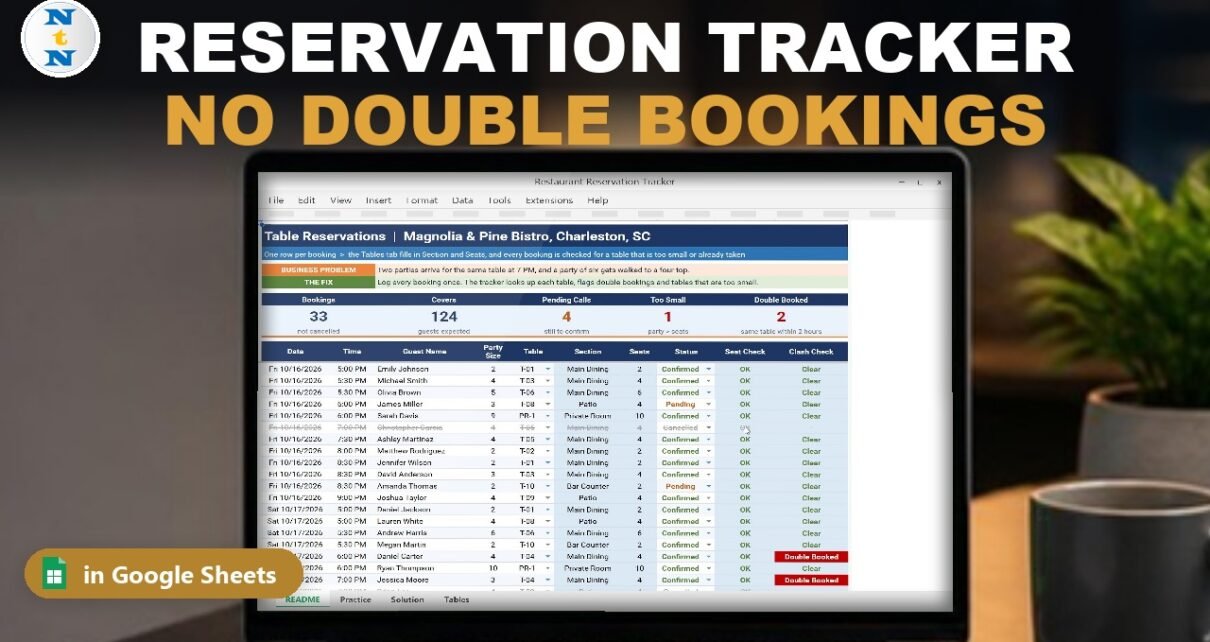
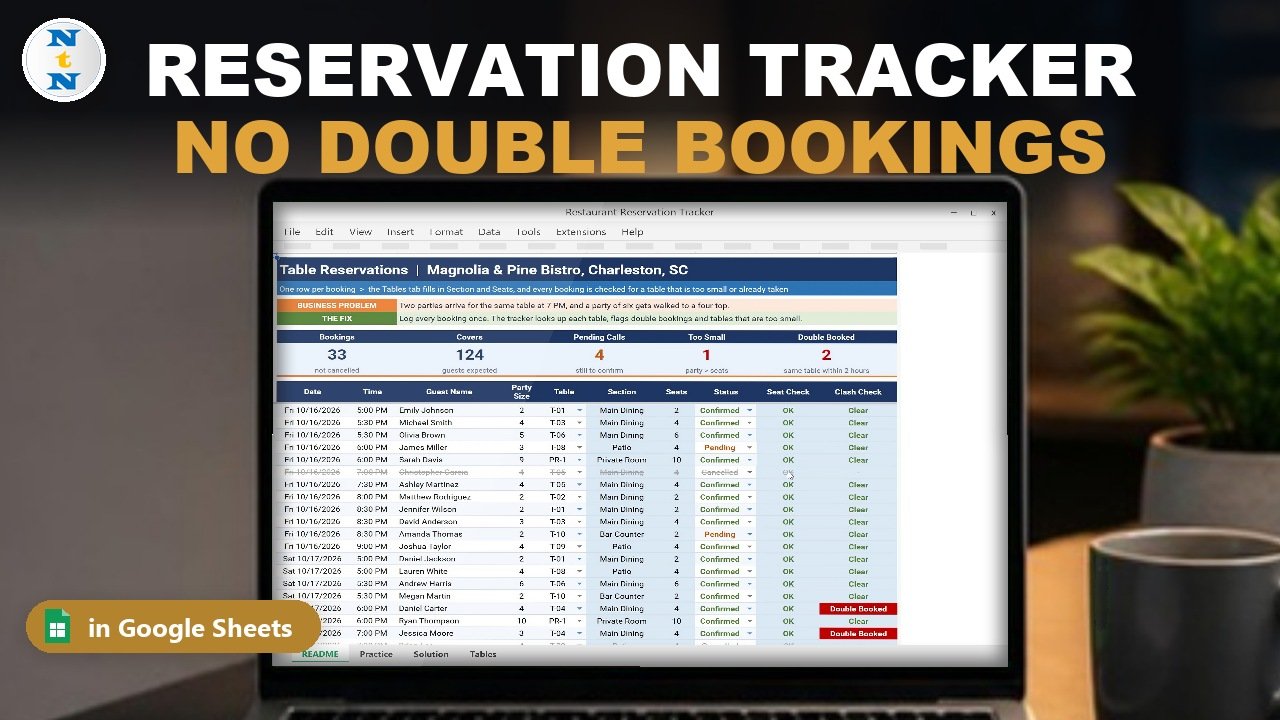
Two parties arrive for the same table at 7 PM, and a party of six gets walked to a four-top. In this tutorial you build a free restaurant reservation template in Google Sheets that catches both problems before your guests do: table and status dropdowns, the section and seats from one XLOOKUP, a Seat Check with IF, a double-booking Clash Check with COUNTIFS, conditional formatting badges and five summary cards. The example bistro has 36 bookings over one weekend, and the finished table reservation tracker shows 33 bookings, 124 covers, 4 pending calls, 1 table that is too small and 2 double-booked bookings. No add-ons, no scripts.
⬇️ Download the Free Practice File
Google Sheets · opens a Make a copy page · Practice + Solution + Tables tabs · no add-ons
Watch the Video Tutorial
Video Overview
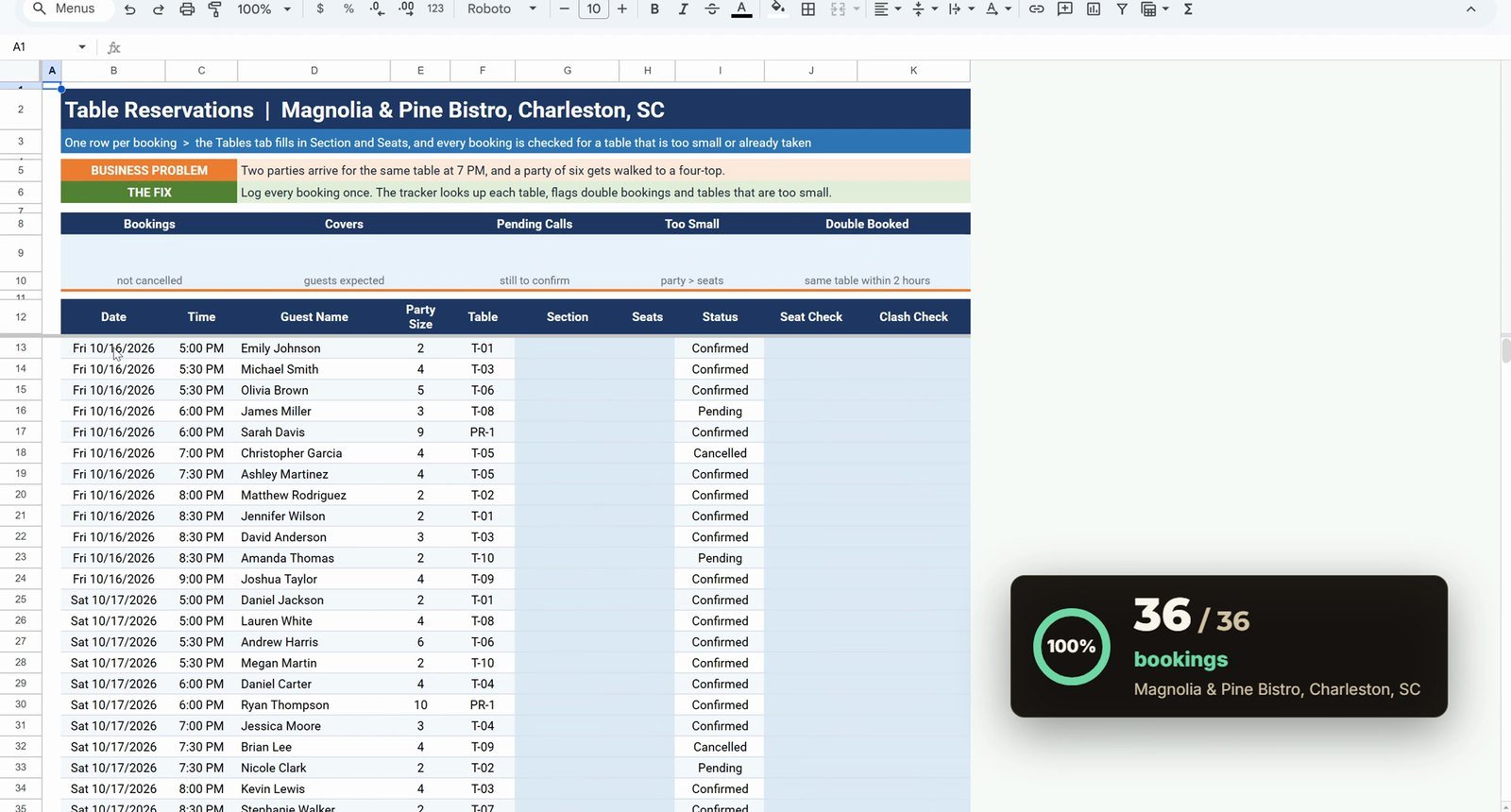
The 10-minute video builds the tracker on the free practice file for Magnolia & Pine Bistro in Charleston, South Carolina, with 36 bookings from Friday, October 16 to Sunday, October 18. Step one adds a table dropdown from the Tables tab and a status dropdown that Google Sheets detects by itself. Step two fills the Section and the Seats with one XLOOKUP that spills into two columns. Step three adds the Seat Check with IF. Step four builds the Clash Check in two moves, a COUNTIFS count and an IF wrapper, and shows why cancelled bookings and the dollar signs matter. Steps five and six add colors and five summary cards. In the bonus, Jessica Moore moves to a free Patio table and the Double Booked card drops from two to zero.
What You Will Build
- A booking log with a table dropdown from the floor plan and a status dropdown (Confirmed, Pending, Cancelled).
- Automatic section and seats for every booking with one XLOOKUP.
- A Seat Check that shows Too Small when the party is bigger than the table.
- A Clash Check that shows Double Booked when the same table is booked twice within two hours.
- Five summary cards: Bookings, Covers, Pending Calls, Too Small and Double Booked.
The Practice File
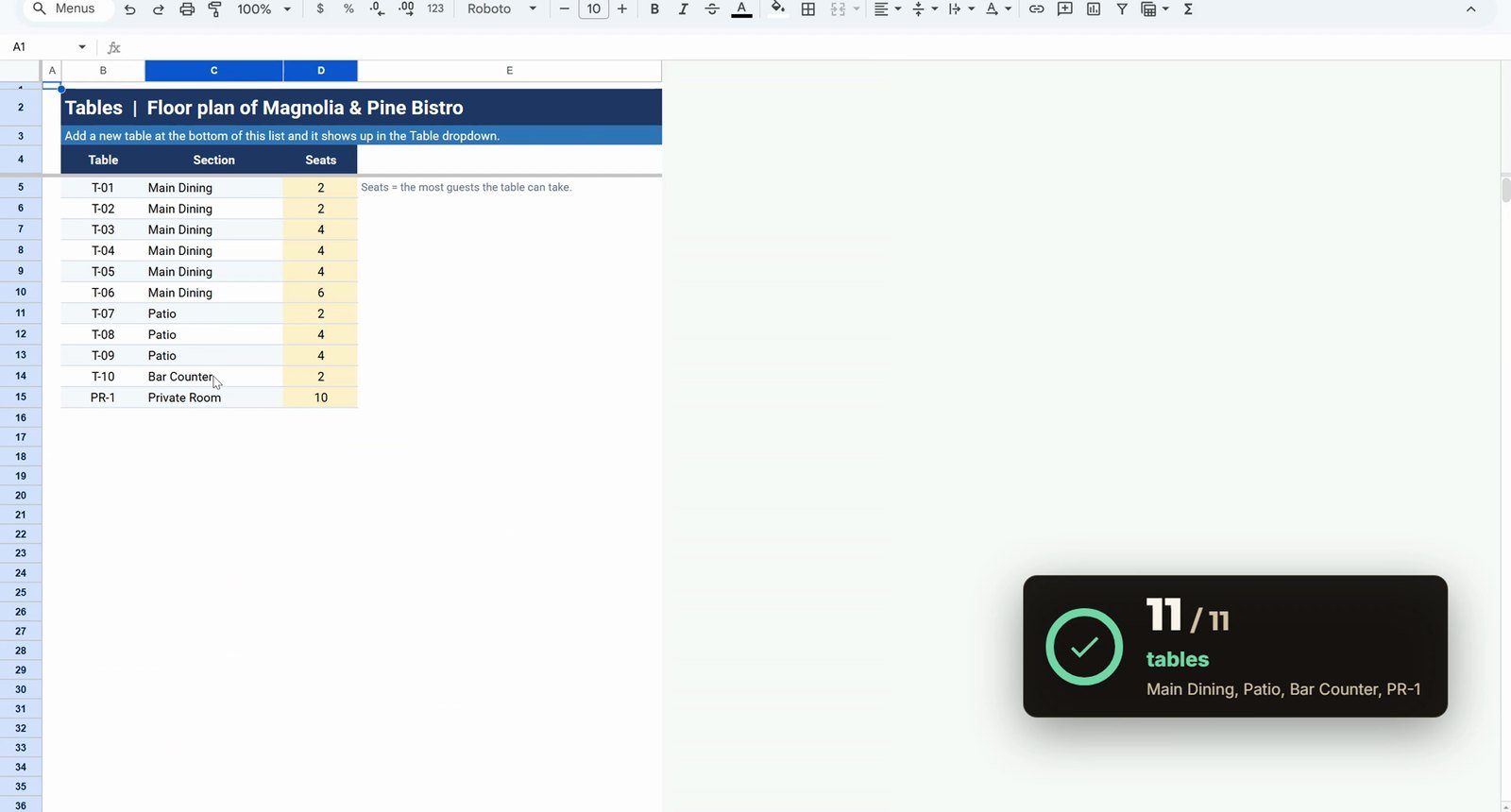
The free file opens a Make a copy page, so you get your own editable Google Sheet. It has a README, a Practice sheet with the 36 bookings (date, time, guest name, party size, table and status already filled, the light blue columns empty), a Solution sheet with the finished tracker and a Tables sheet: the floor plan with 11 tables in the Main Dining room, on the Patio, at the Bar Counter and one Private Room (PR-1) for up to ten guests. The seats are yellow because that is the number you change when you rearrange the room.
Step 1: Table and Status Dropdowns
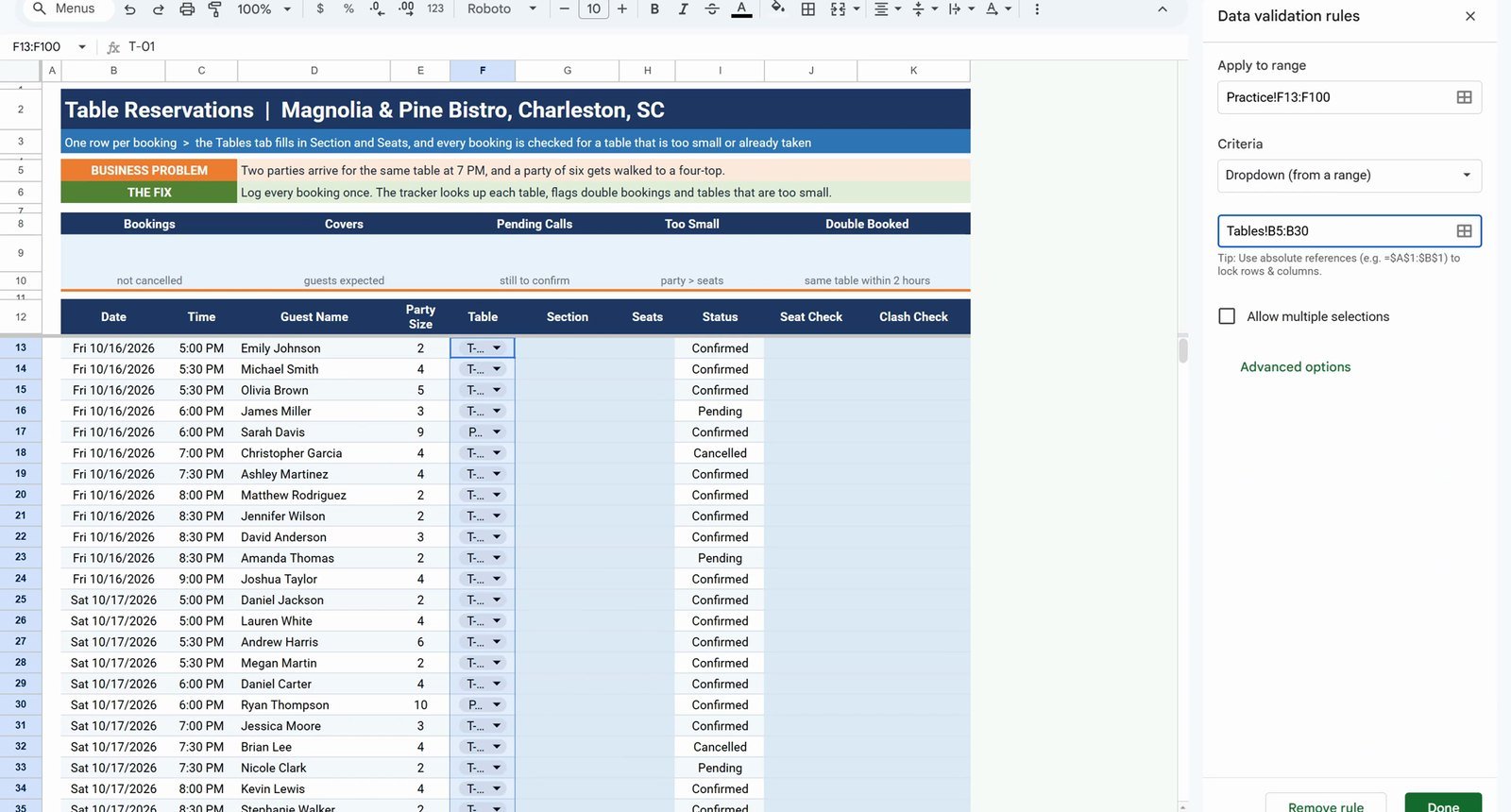
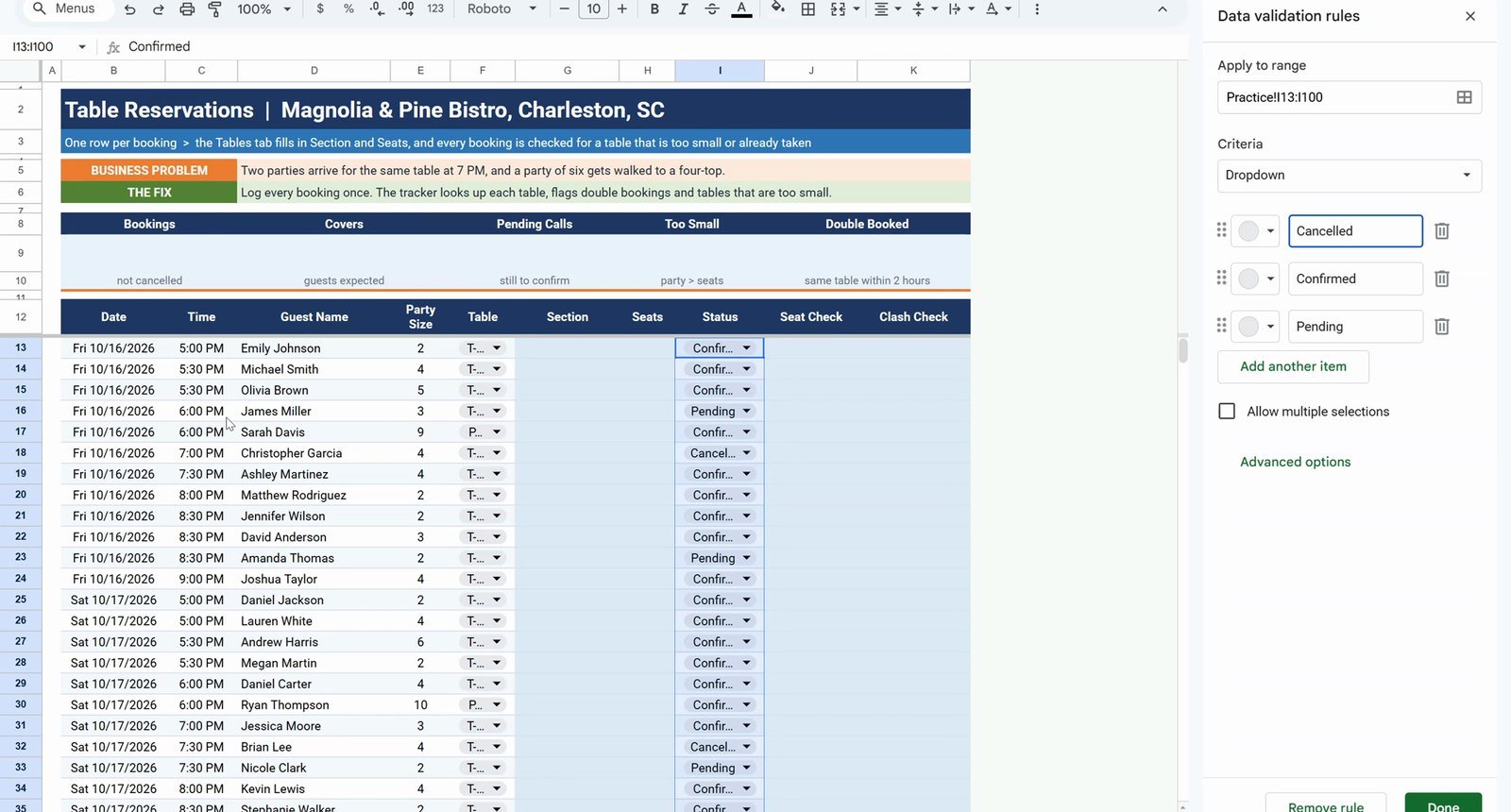
Type F13:F100 in the Name Box, then Data › Data validation › Add rule and choose Dropdown (from a range). Point it at the floor plan, down to row 30 on purpose so new tables show up later:
Tables!B5:B30For the Status column select I13:I100 and use Insert › Dropdown: Google Sheets reads the column and picks up Confirmed, Pending and Cancelled by itself.
Step 2: Section and Seats with One XLOOKUP
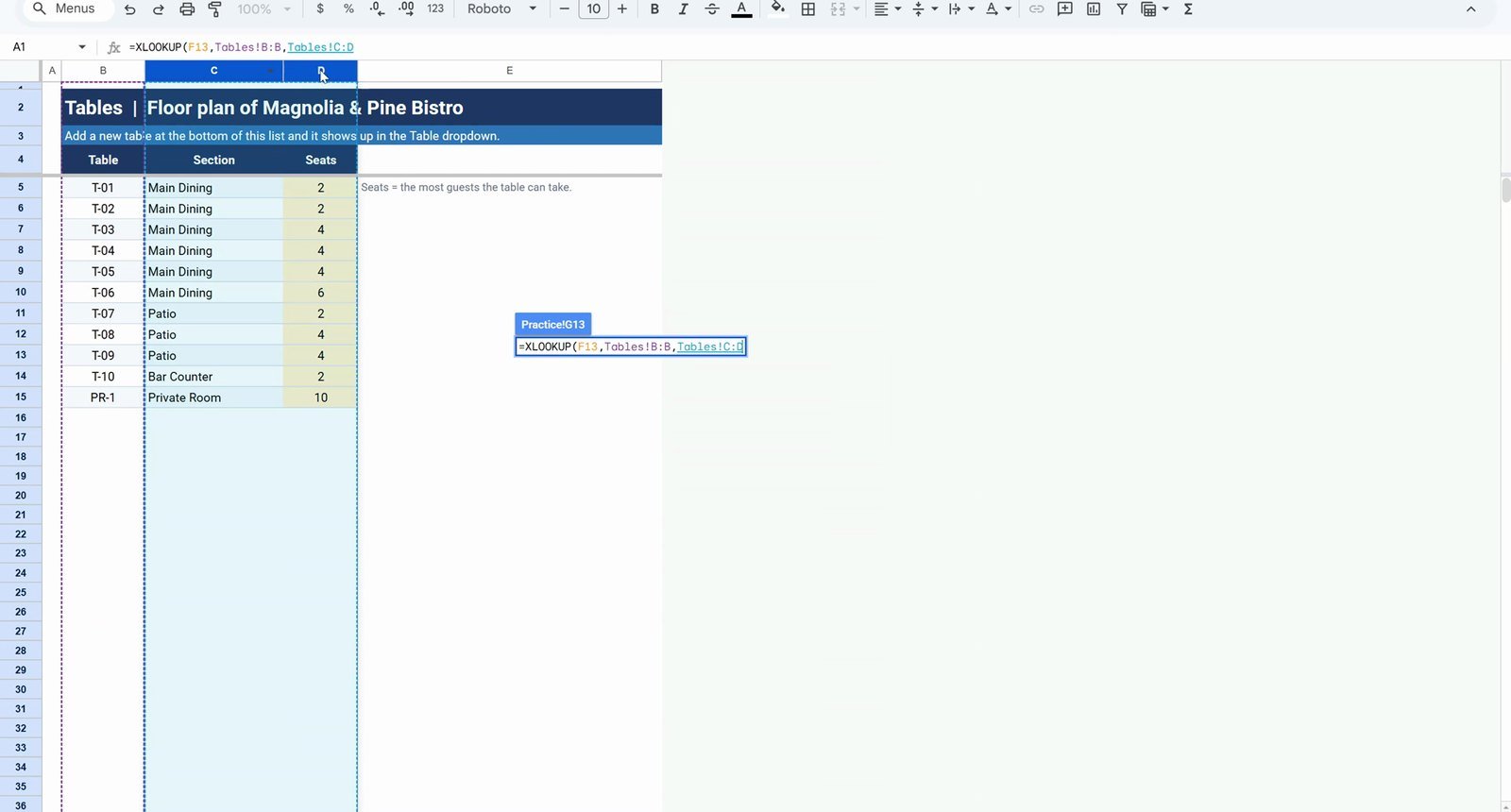
In G13, look up the table and return two columns at once, the section and the seats:
=XLOOKUP(F13,Tables!B:B,Tables!C:D,"Not found")It returns Main Dining and 2 seats, and the answer spills over into H13. Copy G13, select G14:G48 in the Name Box and paste.
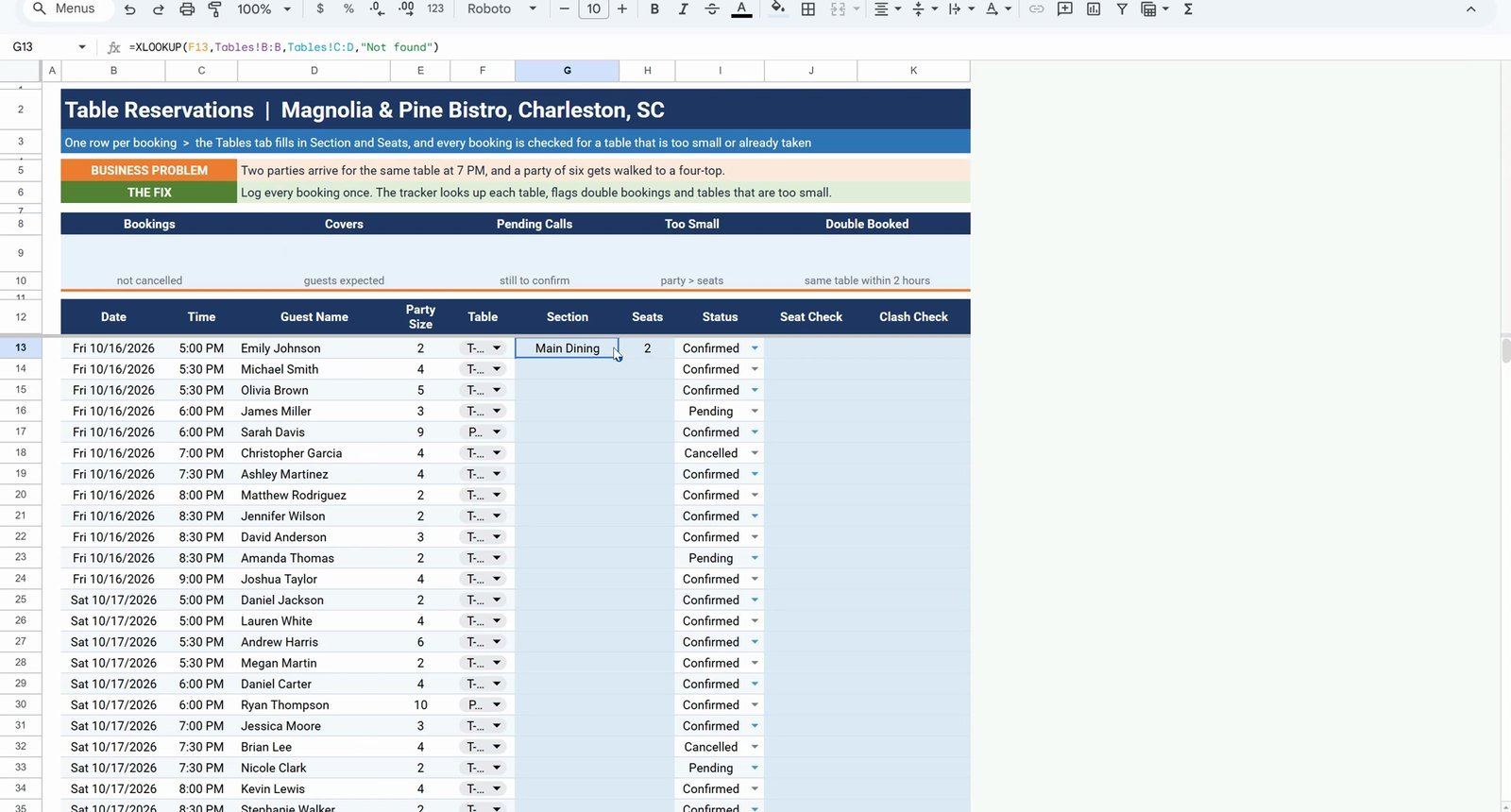
Gotcha: the Seats column must stay empty. If something is already typed in H13, the answer has no room to spill and you get a #REF! error.
Step 3: Seat Check with IF
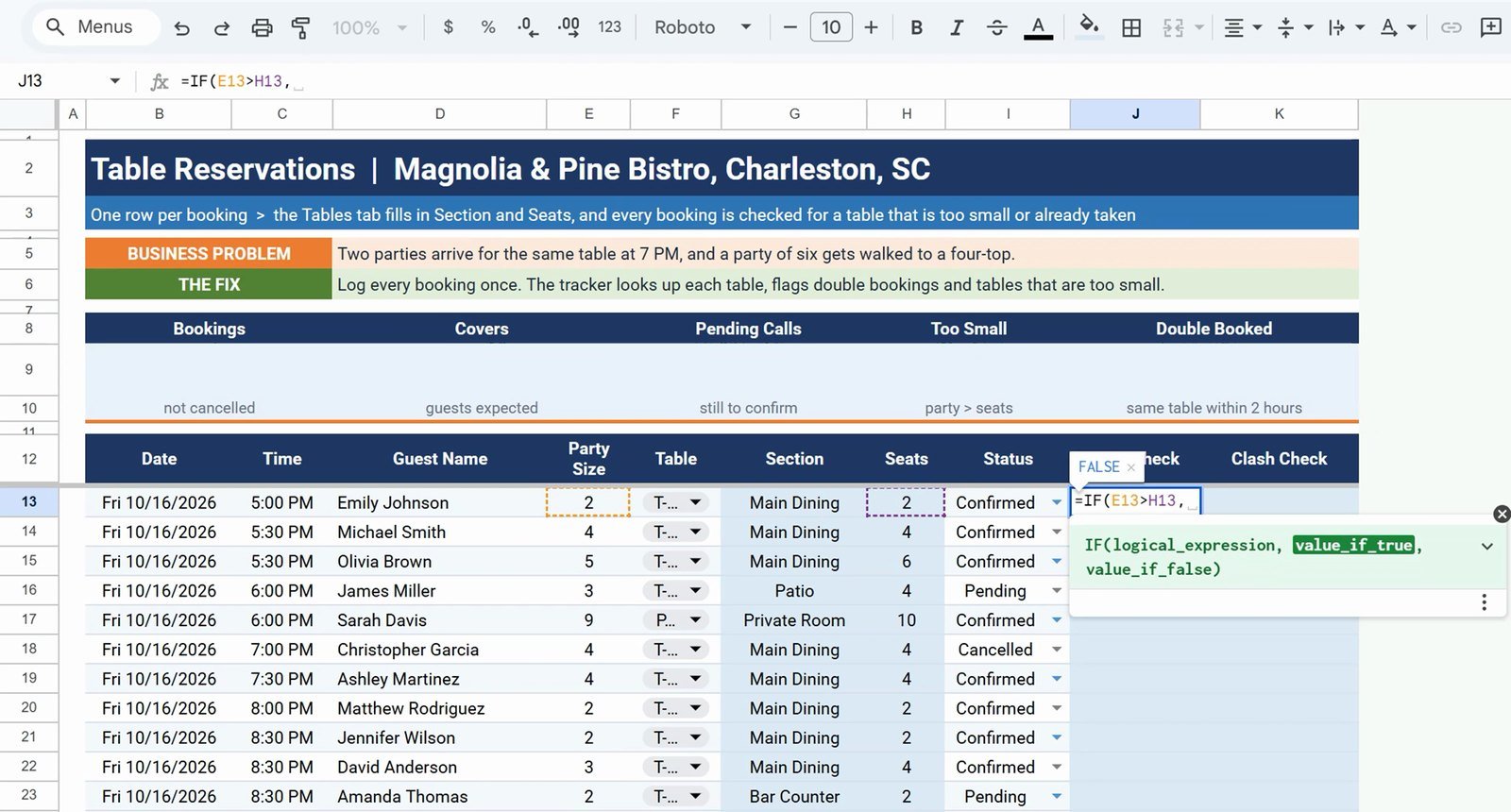
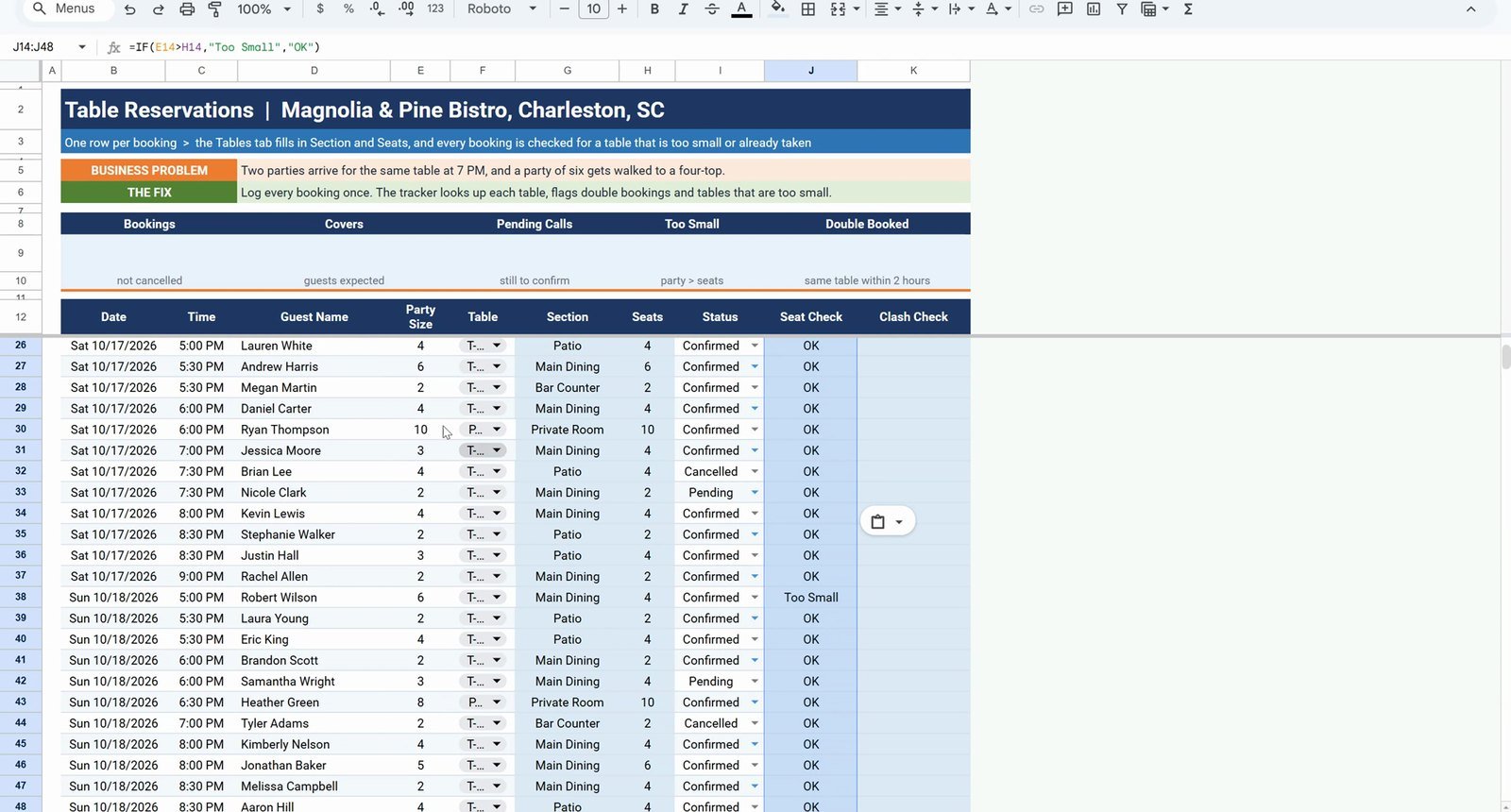
=IF(E13>H13,"Too Small","OK")Copy it down to row 48. On Sunday, row 38, Robert Wilson has a party of six on T-03, which seats four: Too Small. Andrew Harris on Saturday, also six people, on T-06 with six seats, is OK, because the test is greater than, not greater than or equal to.
Step 4: Double-Booking Clash Check with COUNTIFS
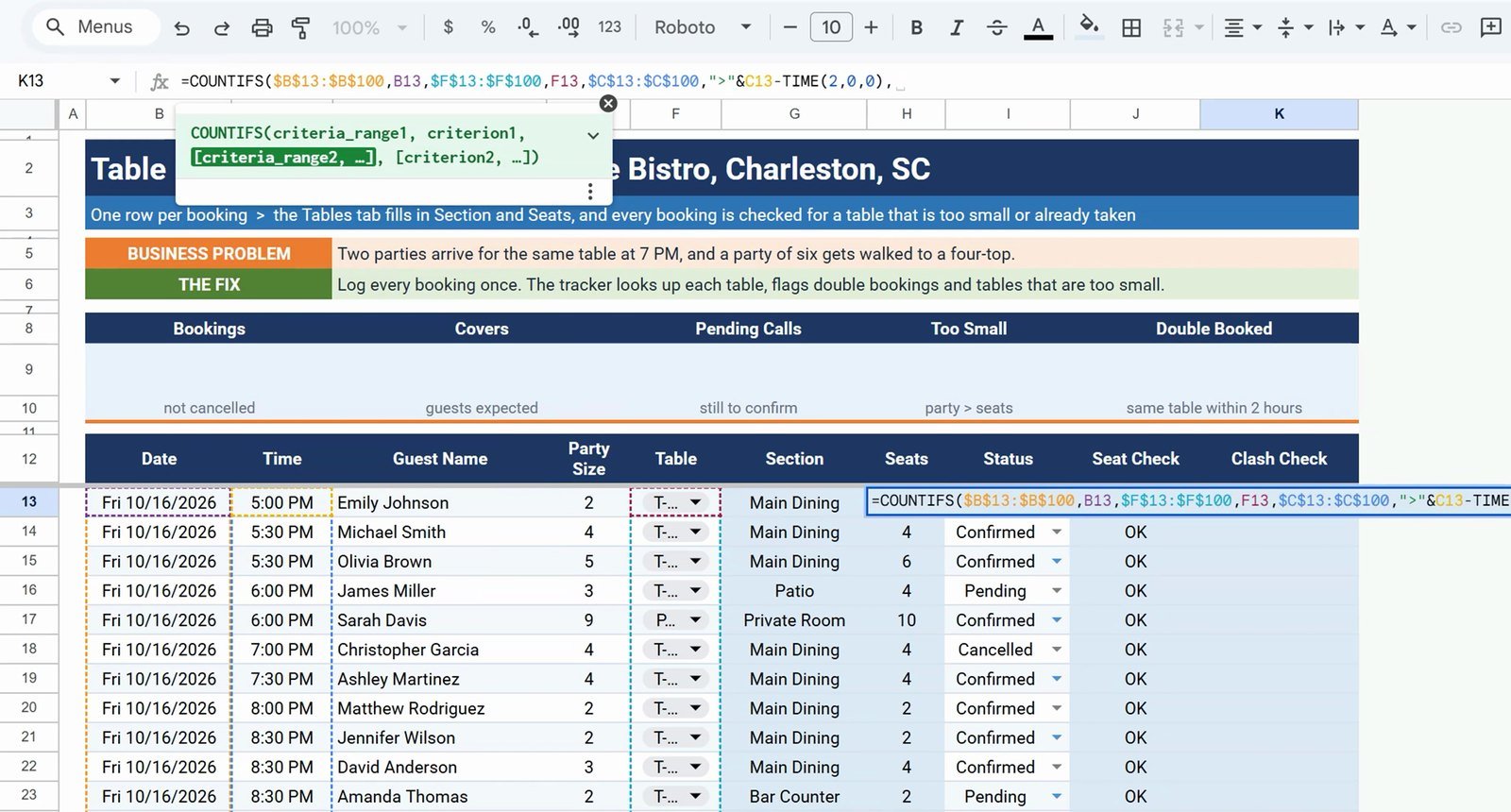
Two bookings clash when they are on the same day, at the same table and start less than two hours apart. Build it in two moves. First the count in K13, locking every range with F4:
=COUNTIFS($B$13:$B$100,B13,$F$13:$F$100,F13,$C$13:$C$100,">"&C13-TIME(2,0,0),$C$13:$C$100,"<"&C13+TIME(2,0,0),$I$13:$I$100,"<>Cancelled")Same date, same table, later than two hours before, earlier than two hours after, and not cancelled. A result of 1 means only the booking itself.
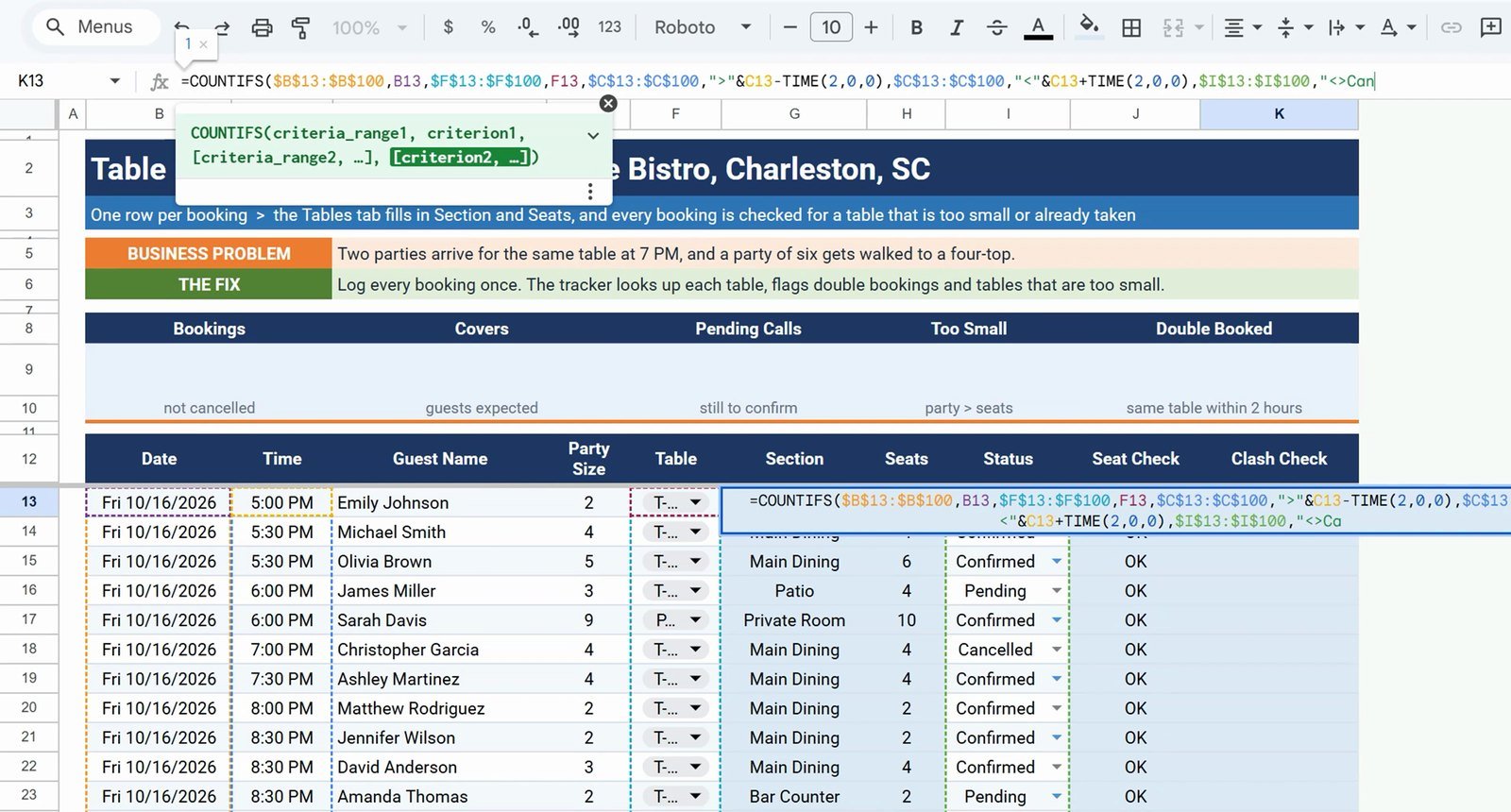
Then wrap it with IF, so cancelled rows show a dash and anything above 1 shows Double Booked:
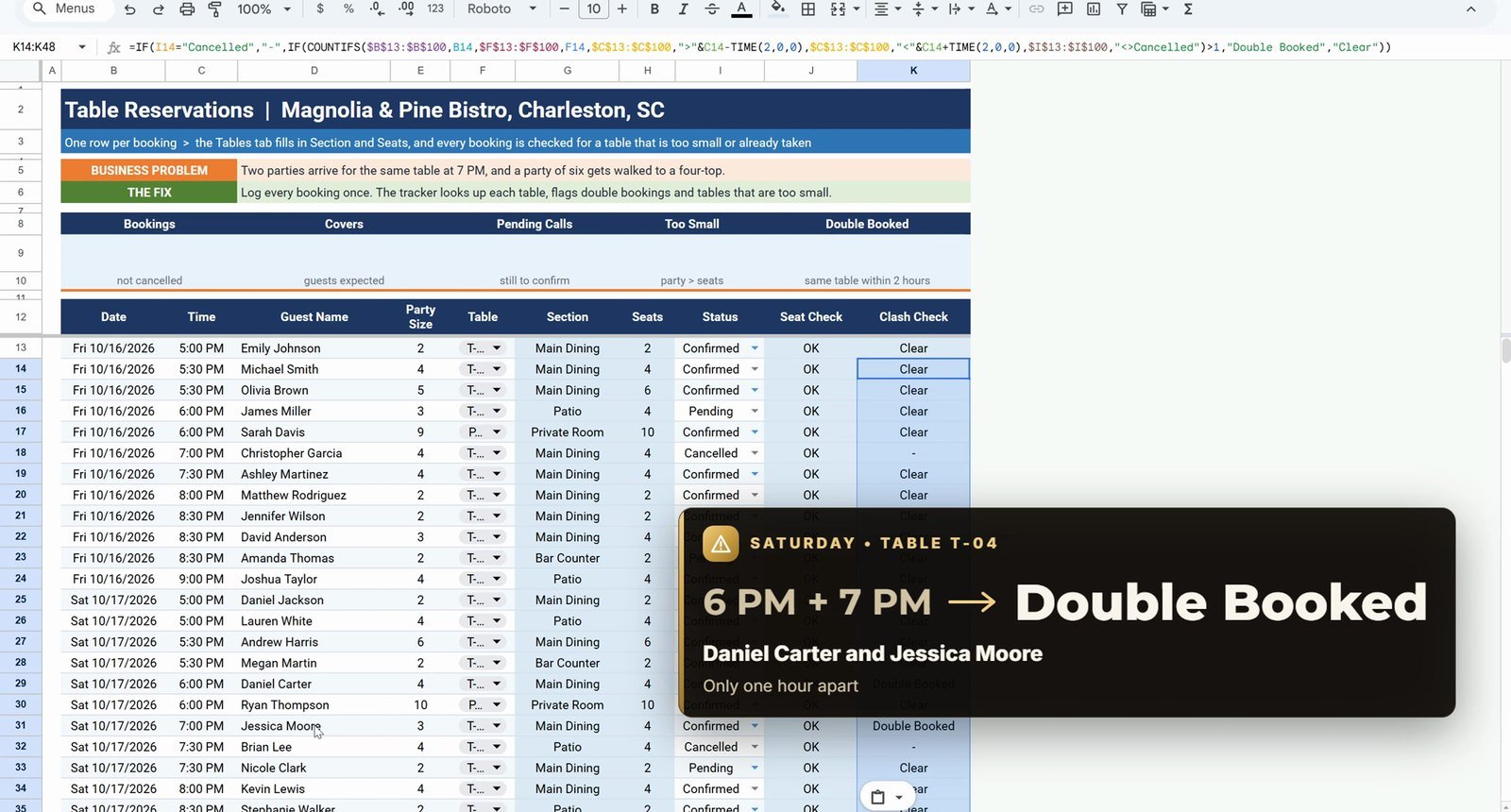
=IF(I13="Cancelled","-",IF(COUNTIFS($B$13:$B$100,B13,$F$13:$F$100,F13,$C$13:$C$100,">"&C13-TIME(2,0,0),$C$13:$C$100,"<"&C13+TIME(2,0,0),$I$13:$I$100,"<>Cancelled")>1,"Double Booked","Clear"))Copy K13 to K14:K48. On Saturday, Daniel Carter at 6:00 PM and Jessica Moore at 7:00 PM are both on T-04, only one hour apart: Double Booked, twice.
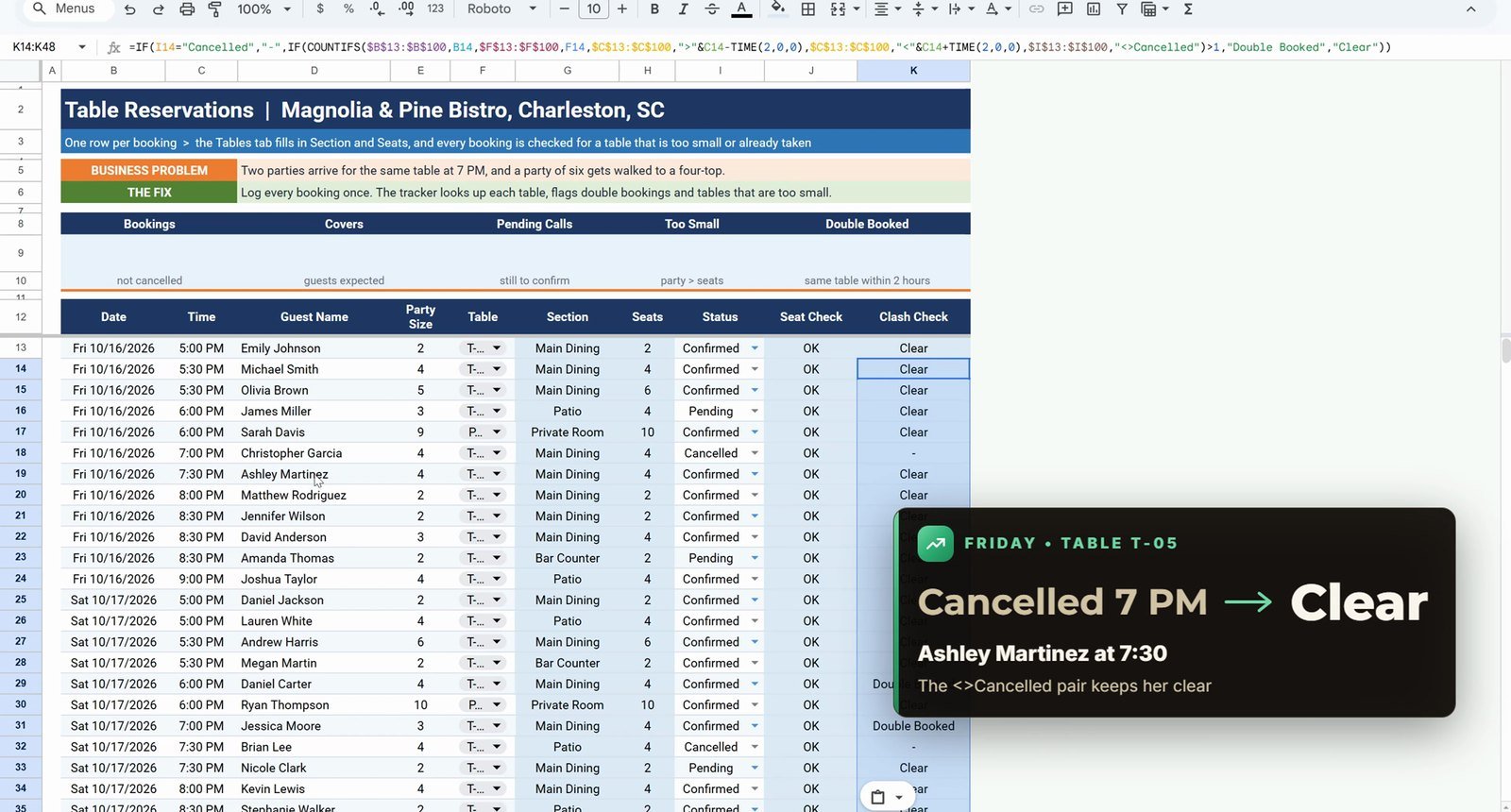
Why the Cancelled pair? On Friday, Christopher Garcia cancelled his 7:00 PM booking on T-05 and Ashley Martinez took that table at 7:30 PM. Without the last pair she would be flagged by mistake; with it she is Clear. Why the dollar signs? Without them the copied ranges slide down one row at a time and the badges near the bottom go wrong.
Step 5: Conditional Formatting
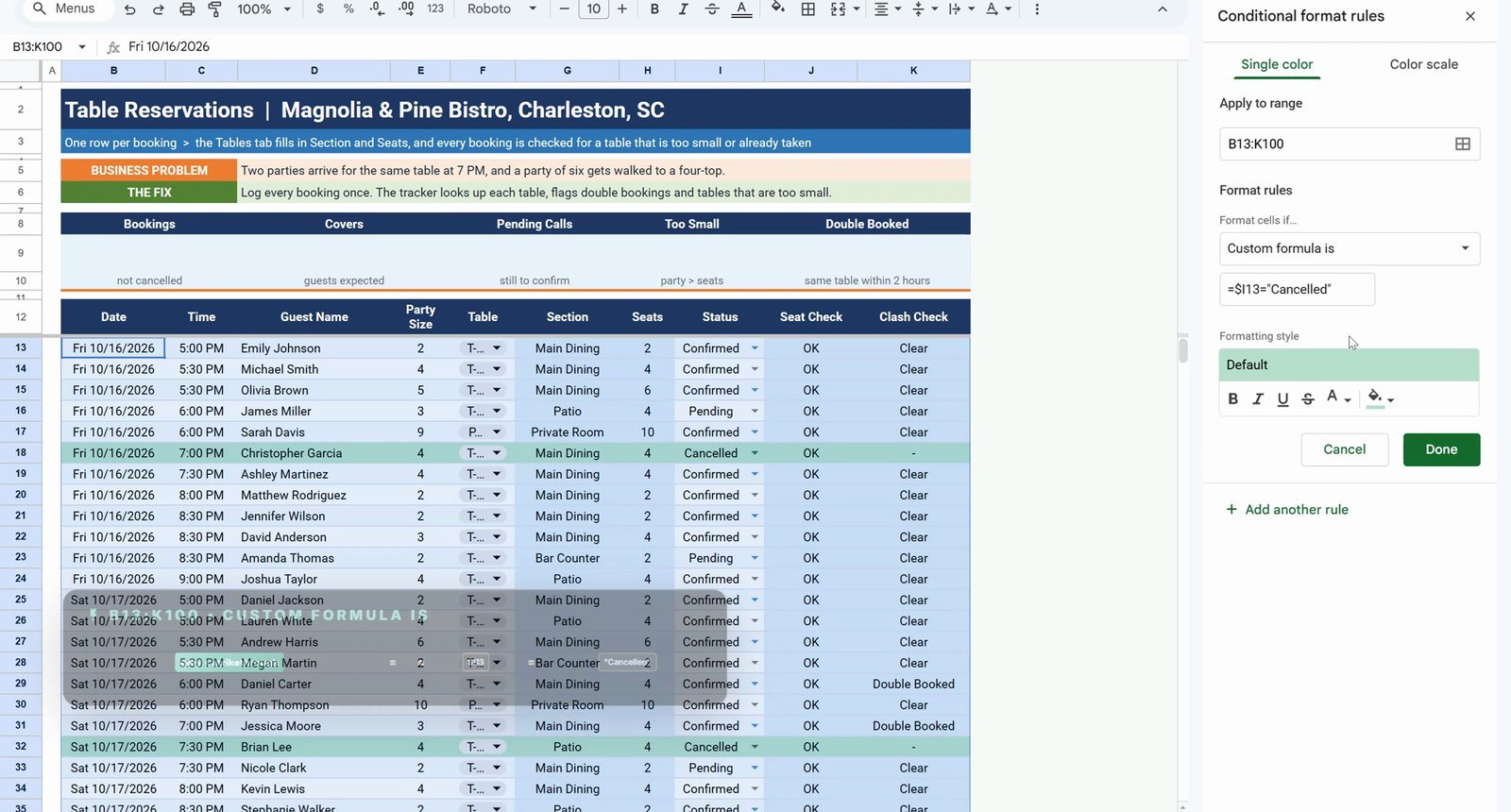
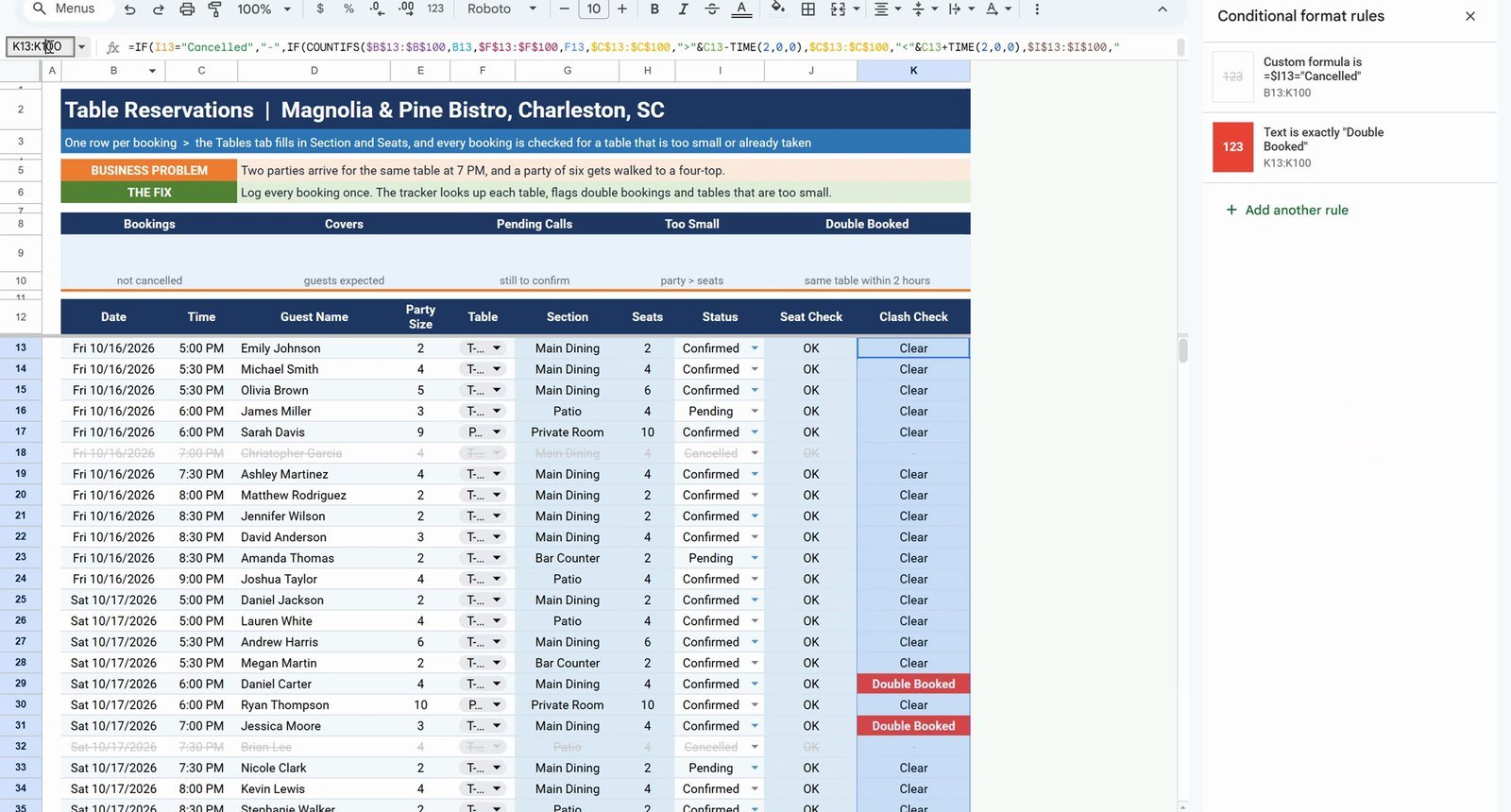
Select B13:K100, open Format › Conditional formatting, choose Custom formula is and enter:
=$I13="Cancelled"Set light grey text with strikethrough, so the three cancelled bookings are crossed out. Then add two Text is exactly rules with a red fill and white bold text: Double Booked on K13:K100 and Too Small on J13:J100.
Step 6: Summary Cards
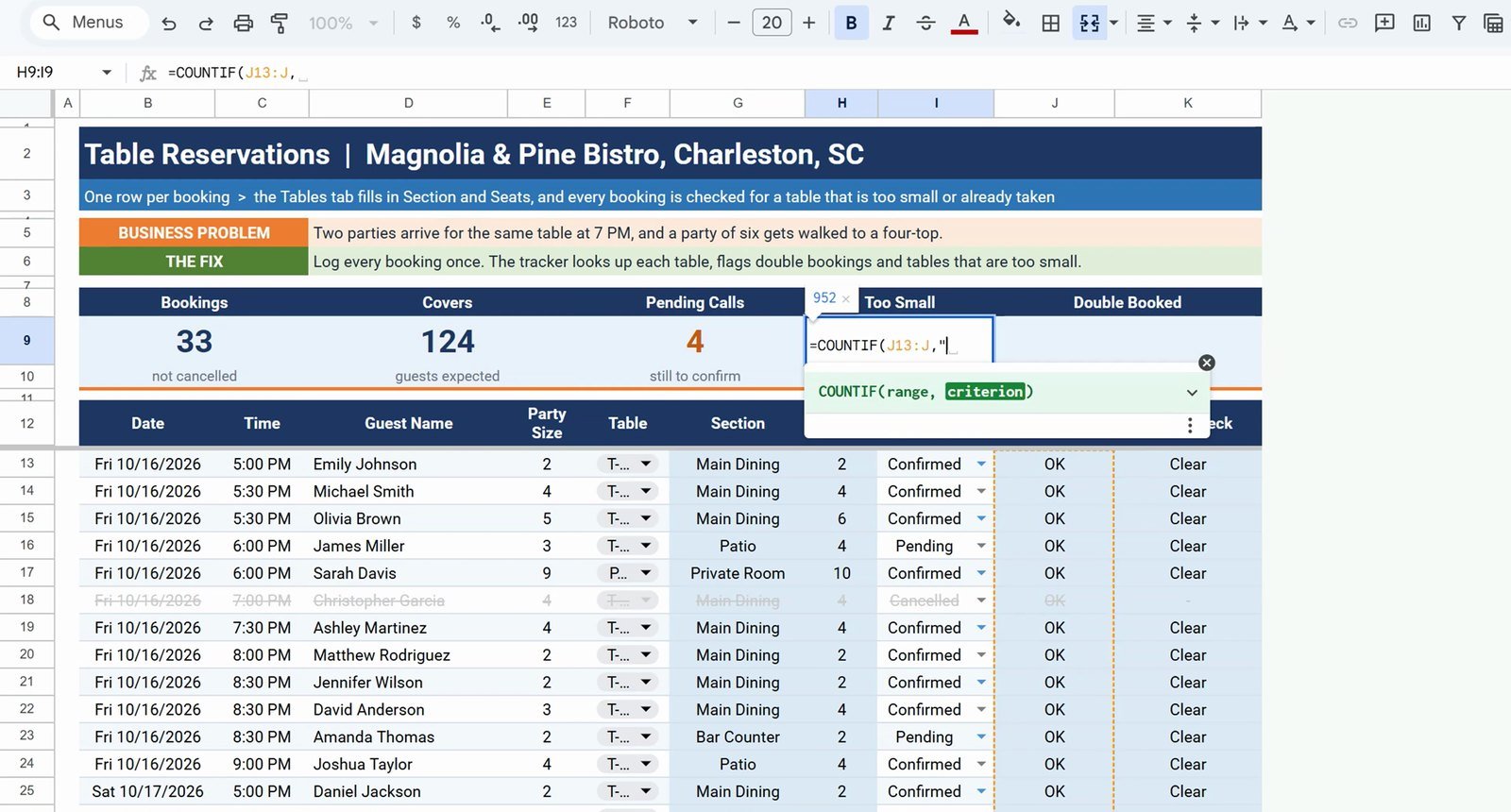
B9  =COUNTIFS(B13:B,"<>",I13:I,"<>Cancelled")
D9  =SUMIFS(E13:E,I13:I,"<>Cancelled")
F9  =COUNTIF(I13:I,"Pending")
H9  =COUNTIF(J13:J,"Too Small")
J9  =COUNTIF(K13:K,"Double Booked")
The cards show 33 bookings, 124 covers, 4 pending calls, 1 too small and 2 double booked. The not-empty part in B9 matters: without it every empty row below the table counts as not cancelled and the card shows hundreds of bookings.
Bonus: Fix the Double Booking
Move Jessica Moore (Saturday, 7:00 PM, party of three) from T-04 to T-09 on the Patio with the dropdown. That table is free because Brian Lee cancelled his booking there. The section and seats update, both red badges turn green and the Double Booked card drops from 2 to 0. Her Seat Check stays OK because T-09 seats four.
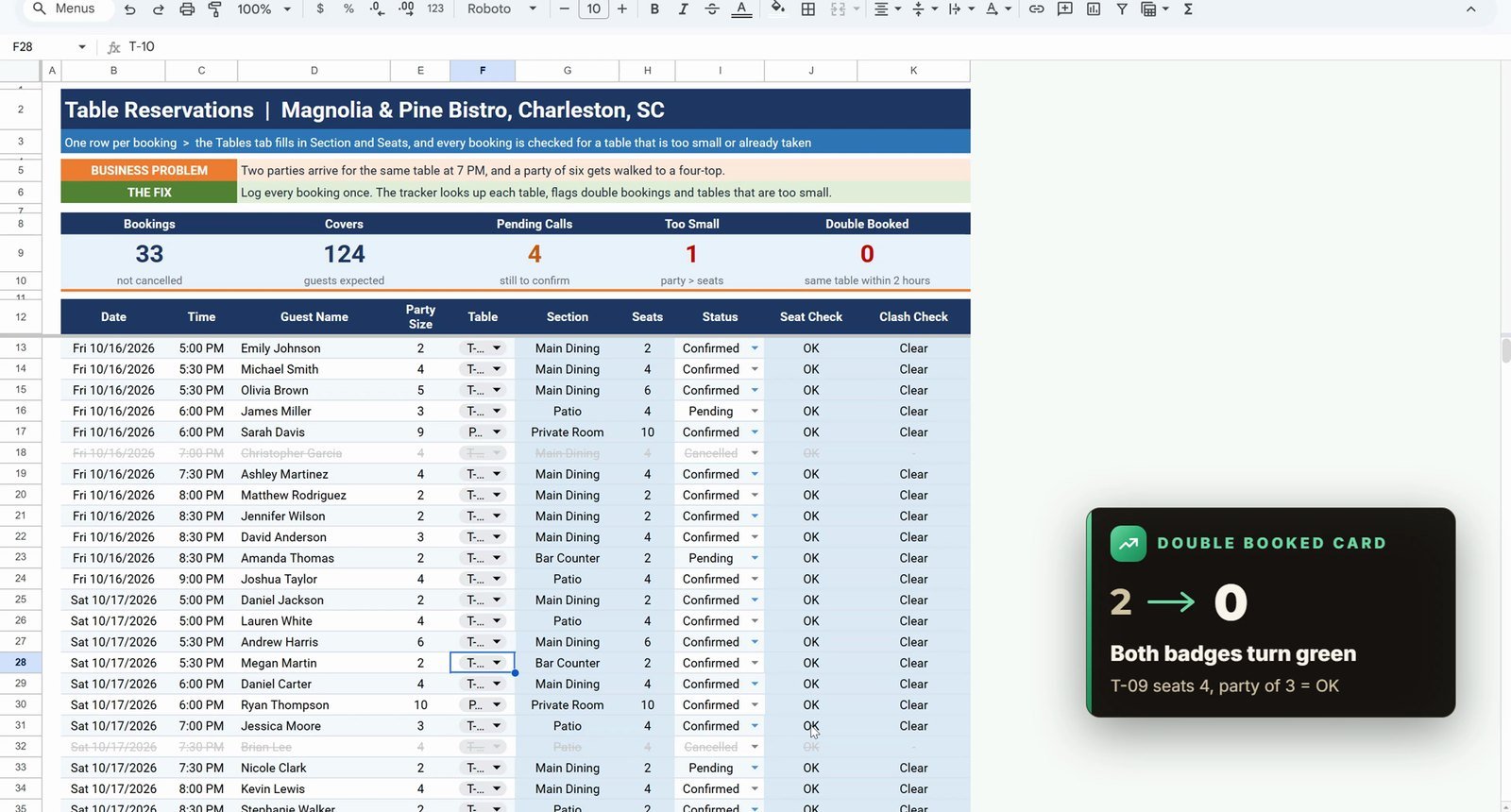
Your turn: Robert Wilson still has a party of six on a four-seat table. Move him to a table that fits (T-06 seats six) and watch Too Small drop to zero.
Free Restaurant Reservation Template vs Ready-Made Tools
| Need | This free tracker | Table Reservation Log (Excel) | Restaurant Management System web app |
|---|---|---|---|
| Booking log, seat check, double-booking check | Yes | Yes | Yes |
| Data entry form | Type in the sheet | Yes | Yes |
| Orders, menu, staff and multiple users | – | – | Yes |
| Price | Free | Paid | Paid |
Tips
- Point the table dropdown past the last table (row 30), so new tables appear without editing the rule.
- Leave the Seats column to the XLOOKUP; a typed value blocks the spill.
- Lock every COUNTIFS range with F4 before copying the Clash Check down.
- Exclude cancelled bookings everywhere a table or a guest is counted: the Clash Check, Bookings and Covers.
- Google’s COUNTIFS help page explains how multiple criteria combine.
Want It Ready-Made?
This free restaurant reservation tracker is perfect to learn the idea. For the full version, see the Table Reservation Log Data Entry System in Excel on NextGenTemplates.com, and for a whole restaurant there is the Restaurant Management System web app. If you also work in Excel, the full video course Excel + AI Mastery: 100 Essential Formulas and Real-World Projects teaches XLOOKUP, COUNTIFS and IF step by step. More on this site: build a bakery order tracker in Google Sheets, 5 ways to summarize data in Google Sheets and the Restaurants & Food Services Dashboard.
Frequently Asked Questions
How do I make a restaurant reservation tracker in Google Sheets?
Log one booking per row (date, time, guest, party size, table, status) and keep a Tables tab with each table's section and seats. Add a table dropdown from that tab, fill the section and seats with one XLOOKUP, flag parties that are too big with IF, flag double bookings with COUNTIFS, then add conditional formatting and summary cards.
Is this restaurant reservation template free?
Yes. The practice file opens a Make a copy page in Google Sheets with a Practice tab to build along with the video, a Solution tab with the finished tracker and a Tables tab with the 11-table floor plan.
How does the sheet catch a double-booked table?
COUNTIFS counts the bookings on the same date and the same table that start less than two hours before or after this one and are not cancelled. A count of 1 means only the booking itself, so anything above 1 shows Double Booked.
How can one XLOOKUP fill two columns?
Return two adjacent columns as the result range: =XLOOKUP(F13,Tables!B:B,Tables!C:D,"Not found"). The section lands in G13 and the seats spill into H13. Keep column H empty, or the spill is blocked and you get #REF!.
Why are cancelled bookings excluded from the clash check?
A cancelled booking frees the table. In the video Christopher Garcia cancels his 7:00 PM booking on T-05 and Ashley Martinez takes the table at 7:30 PM. With the "<>Cancelled" pair she shows Clear; without it she would be flagged by mistake.
Why does the Bookings card need the not-empty condition?
COUNTIFS on I13:I with "<>Cancelled" alone also counts every empty row below the bookings, so the card would show hundreds. Adding B13:B,"<>" counts only rows that have a date: 33 bookings.
Can I change the two-hour window?
Yes. Change TIME(2,0,0) in both time conditions, for example TIME(1,30,0) for a 90-minute table turn.
Is there a ready-made restaurant reservation system?
Yes. The Table Reservation Log Data Entry System in Excel on NextGenTemplates.com is the full version, and the Restaurant Management System web app covers a whole restaurant team.
Download the Practice File
Make your own copy of the practice file and build the restaurant reservation tracker along with the video.
⬇️ Download the Free Practice File
Google Sheets · opens a Make a copy page · Practice + Solution + Tables tabs · no add-ons
About the Author
PK (Priyendra Kumar) runs NeoTech Navigators, PK: An Excel Expert and NextGenTemplates.com, and builds Google Sheets and Excel tools for small businesses. Every number in this tutorial comes from the Solution tab of the free file.
Conclusion
A restaurant reservation template in Google Sheets needs no add-ons. Two dropdowns, one XLOOKUP, an IF, a COUNTIFS clash check and a few conditional formatting rules show the manager every double-booked table and every party that will not fit, before the doors open.