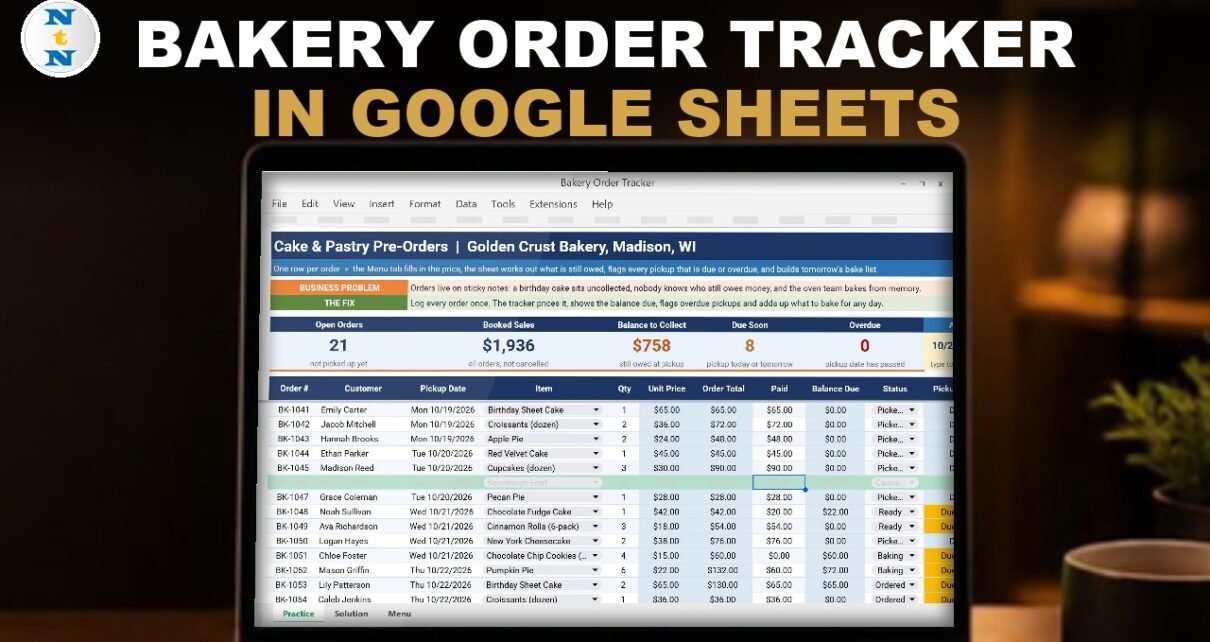
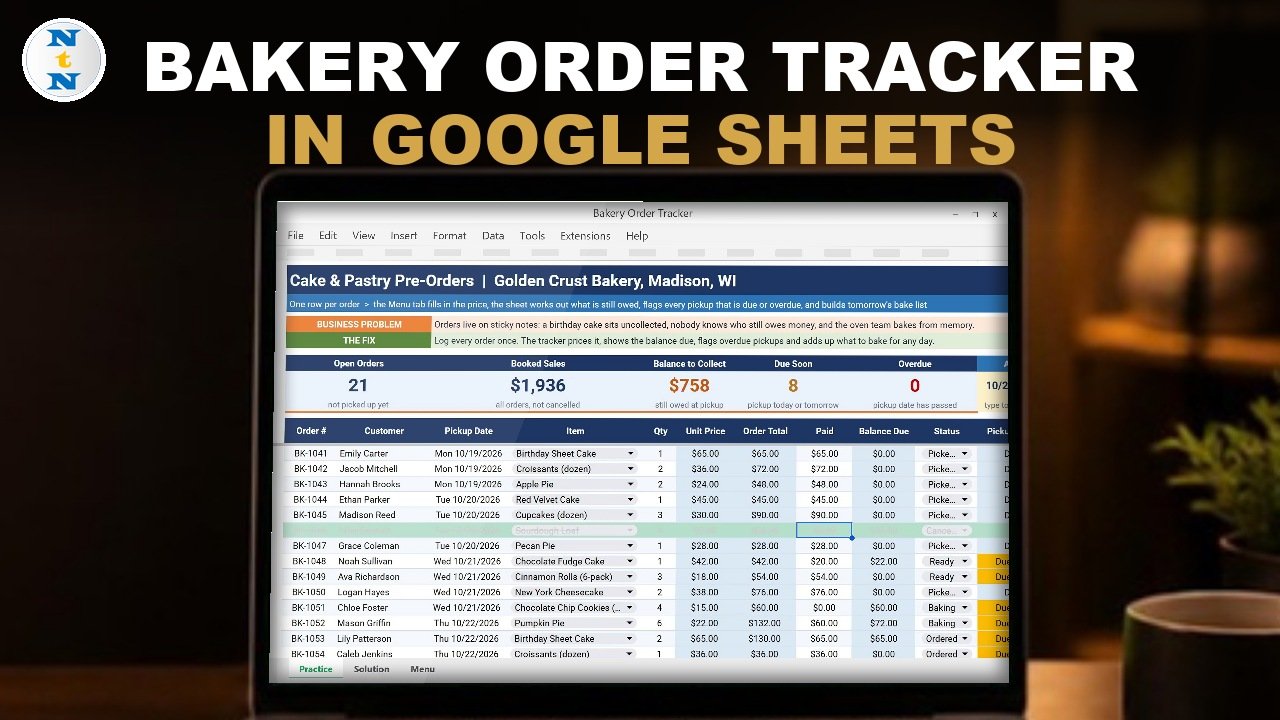
Orders on sticky notes, a birthday cake left in the fridge, nobody sure who still owes money, and an oven team baking from memory. In this tutorial you build a bakery order tracker in Google Sheets, step by step: item and status dropdowns, prices with XLOOKUP, order totals and balances with one ARRAYFORMULA, an Overdue / Due Soon pickup check, a bake list for any day with SUMIFS, conditional formatting and five summary cards. The example bakery has 30 pre-orders, and the finished tracker shows 22 open orders, $1,936 booked sales, $803 still to collect, 8 pickups due soon, 1 overdue and a Thursday bake list of 17 items. No add-ons, no scripts.
⬇️ Join Free on Skool & Download the Practice File
Free membership · takes 1 minute · the file is in Classroom → Free Downloads from YouTube
Google Sheets · opens a Make a copy page · Practice + Solution + Menu tabs · no add-ons
Watch the Video Tutorial
Video Overview
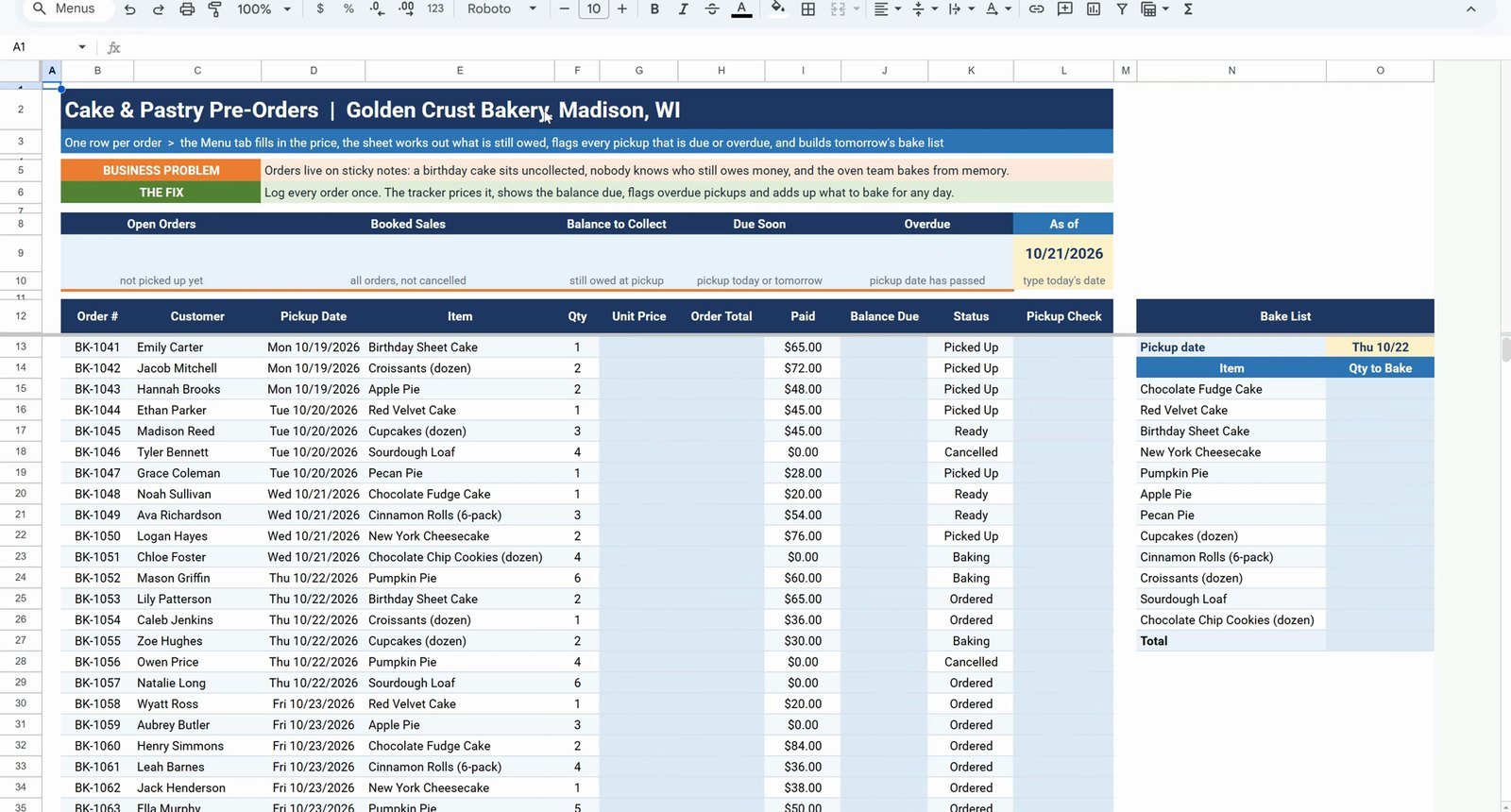
The 11-minute video builds the tracker on the free practice file for Golden Crust Bakery in Madison, Wisconsin, with 30 cake and pastry pre-orders for pickups from Monday, October 19 to Saturday, October 24. Step one adds an item dropdown from the Menu tab and a status dropdown that Google Sheets detects by itself. Step two looks up the unit price with XLOOKUP. Step three fills the Order Total and Balance Due columns with one ARRAYFORMULA each and shows the #REF! gotcha. Step four writes the Pickup Check with nested IFs and a locked As of date. Step five builds a bake list with SUMIFS that skips cancelled orders. Steps six and seven add colors and five summary cards. In the bonus, Madison Reed collects her cupcakes and pays the rest, and every card updates.
What You Will Build
- An order log with an item dropdown from the menu and a five-step status dropdown (Ordered, Baking, Ready, Picked Up, Cancelled).
- Automatic prices, totals and balances with XLOOKUP and ARRAYFORMULA.
- A Pickup Check that flags every order as Overdue, Due Soon, On Track, Done or a dash for cancelled.
- A bake list that adds up what to bake for any pickup date.
- Five summary cards: Open Orders, Booked Sales, Balance to Collect, Due Soon and Overdue.
The Practice File
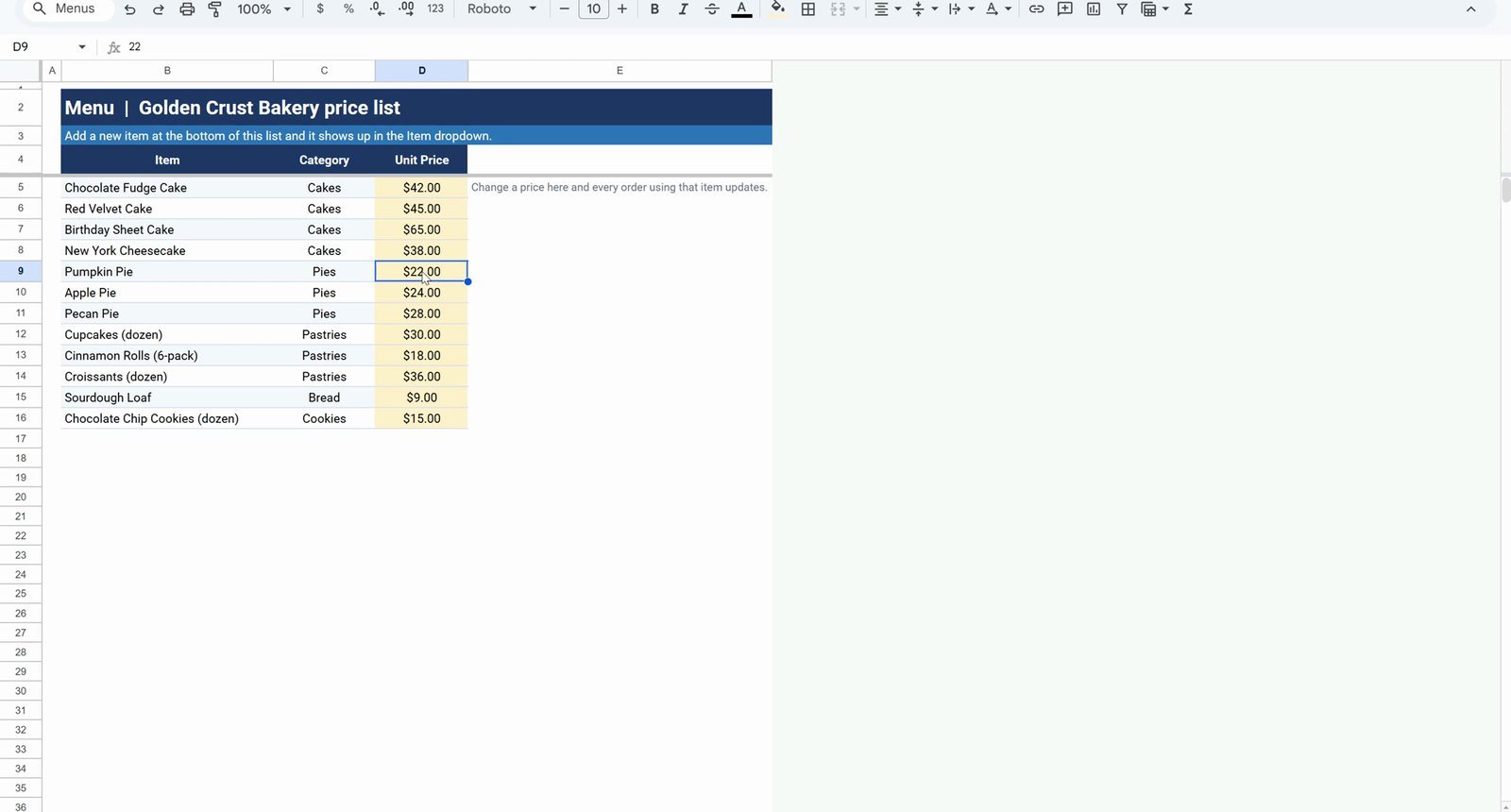
The free file opens a Make a copy page, so you get your own editable Google Sheet. It has a README, a Practice sheet with the 30 orders (order number, customer, pickup date, item, quantity, paid and status already filled, the light blue columns empty), a Solution sheet with the finished tracker and a Menu sheet with 12 items, their category and unit price. The As of date in L9 is 10/21/2026, a Wednesday.
Step 1: Item and Status Dropdowns
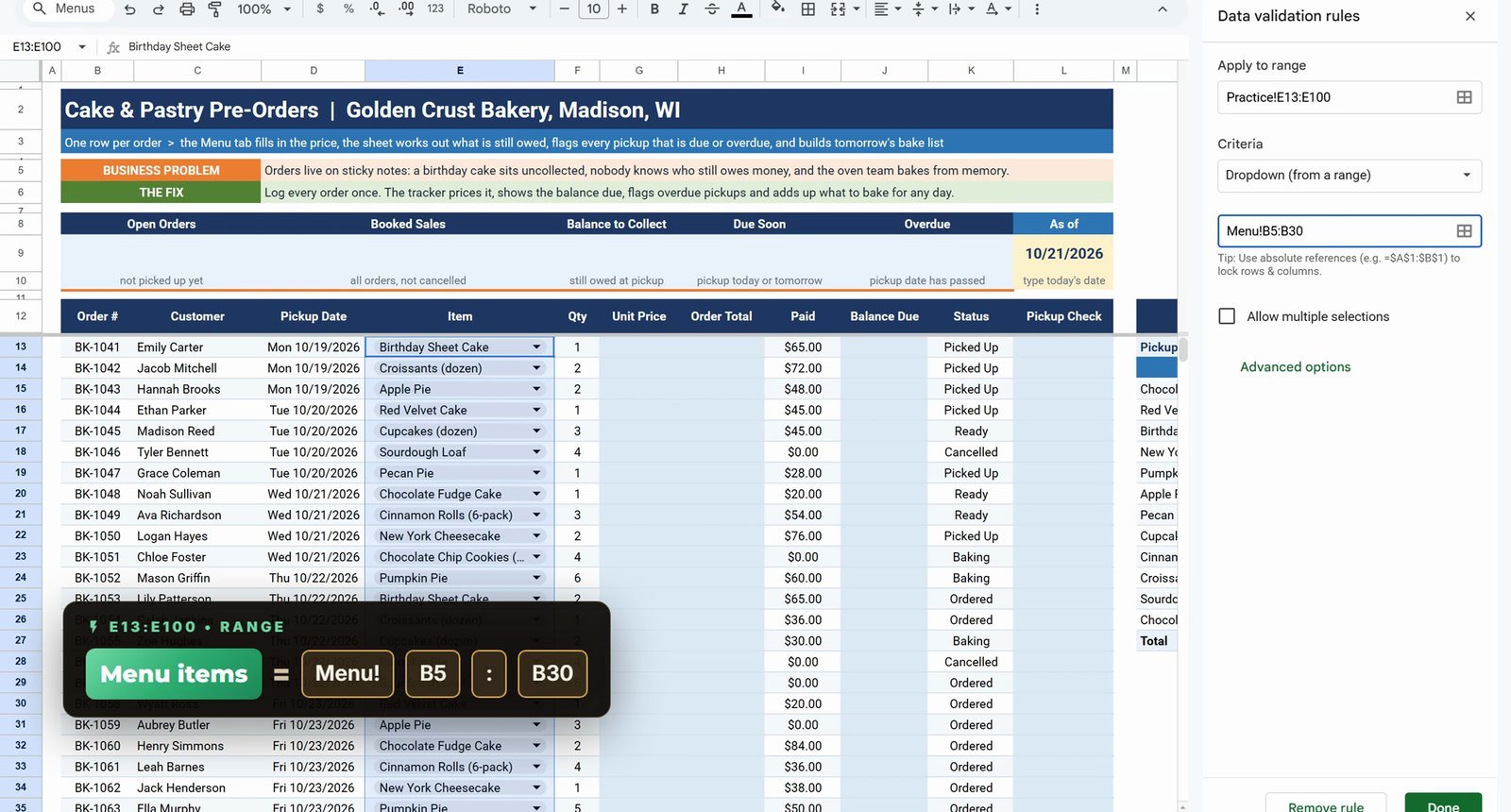
Select E13:E100 in the Name Box, then Data › Data validation › Add rule and choose Dropdown (from a range). Point it at the menu, down to row 30 on purpose so new menu items show up later:
Menu!B5:B30For the Status column select K13:K100 and use Insert › Dropdown: Google Sheets reads the column and picks up all five statuses by itself.
Step 2: Unit Price with XLOOKUP
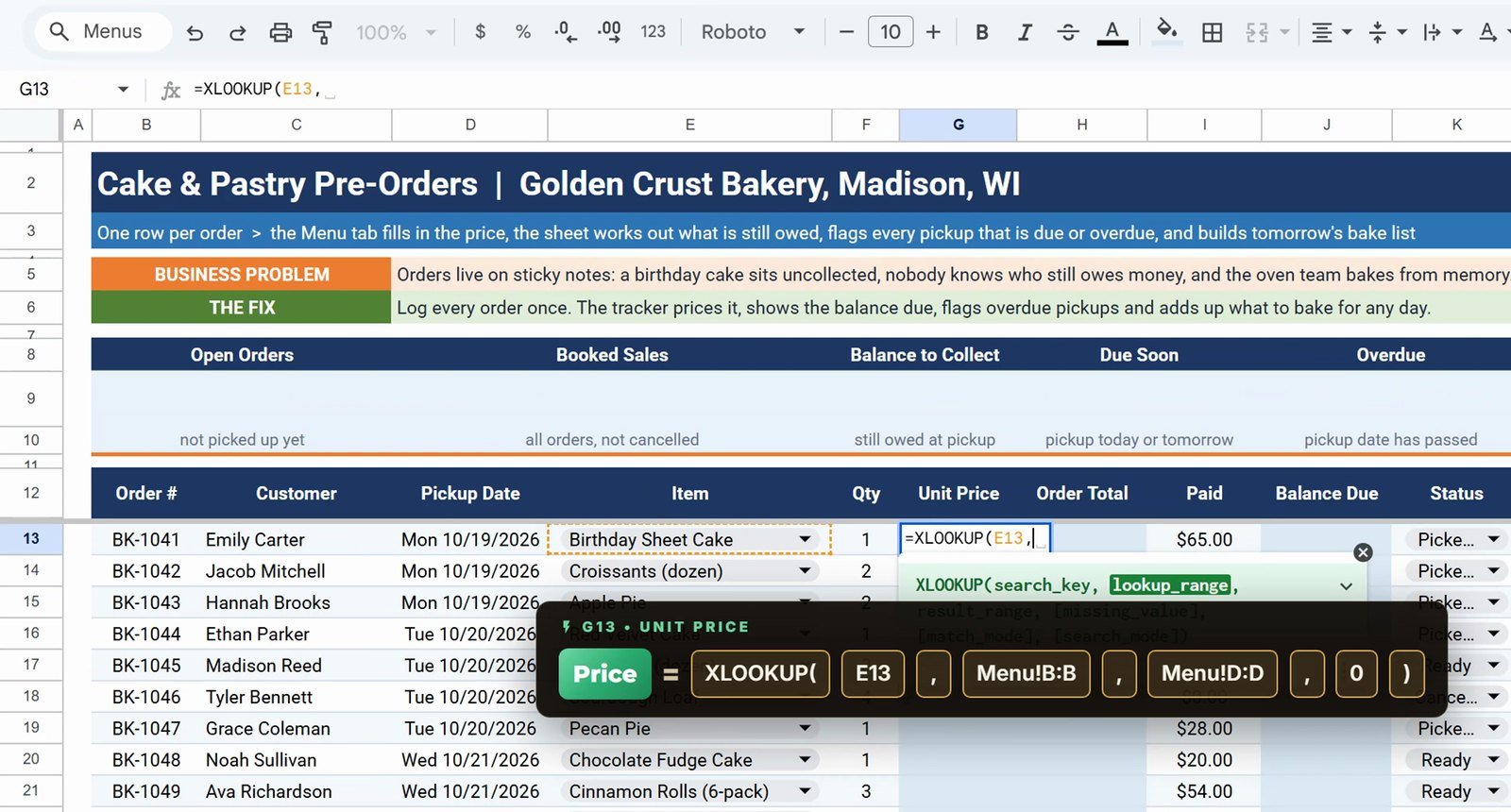
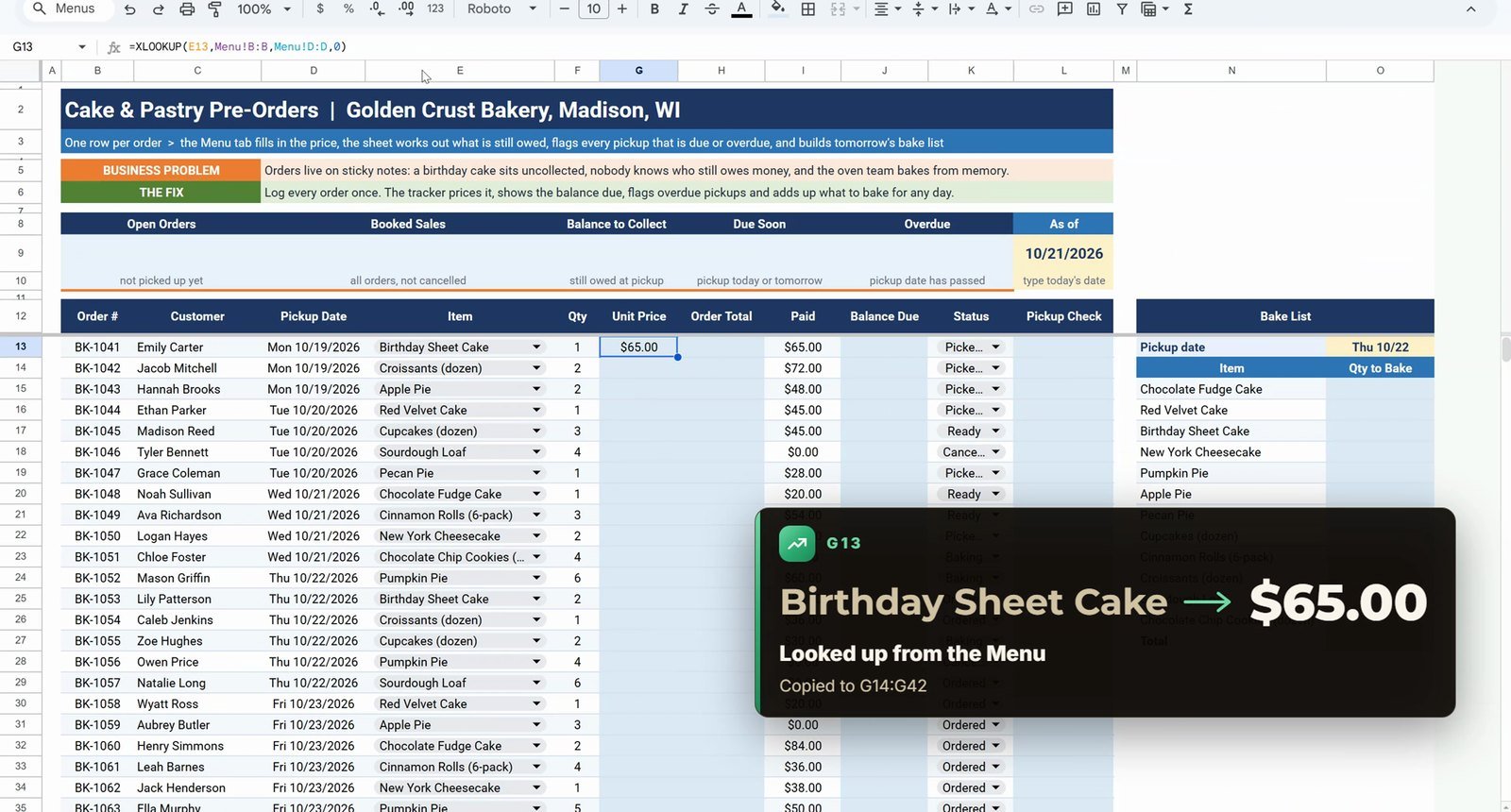
In G13, look up the price of the item from the menu. If the item is not found it returns zero:
=XLOOKUP(E13,Menu!B:B,Menu!D:D,0)It returns $65.00 for the Birthday Sheet Cake. Copy G13, select G14:G42 in the Name Box and paste. Change the Pumpkin Pie price on the Menu tab from $22 to $25 and every pumpkin pie order updates at once.
Step 3: Order Total and Balance with ARRAYFORMULA
A Google Sheets superpower: one formula for a whole column. In H13:
=ARRAYFORMULA(IF(F13:F100="","",F13:F100*G13:G100))All 30 order totals appear at once. The IF part keeps the empty rows blank, otherwise every empty row would show $0.00. The Balance Due in J13 works the same way:
=ARRAYFORMULA(IF(H13:H100="","",H13:H100-I13:I100))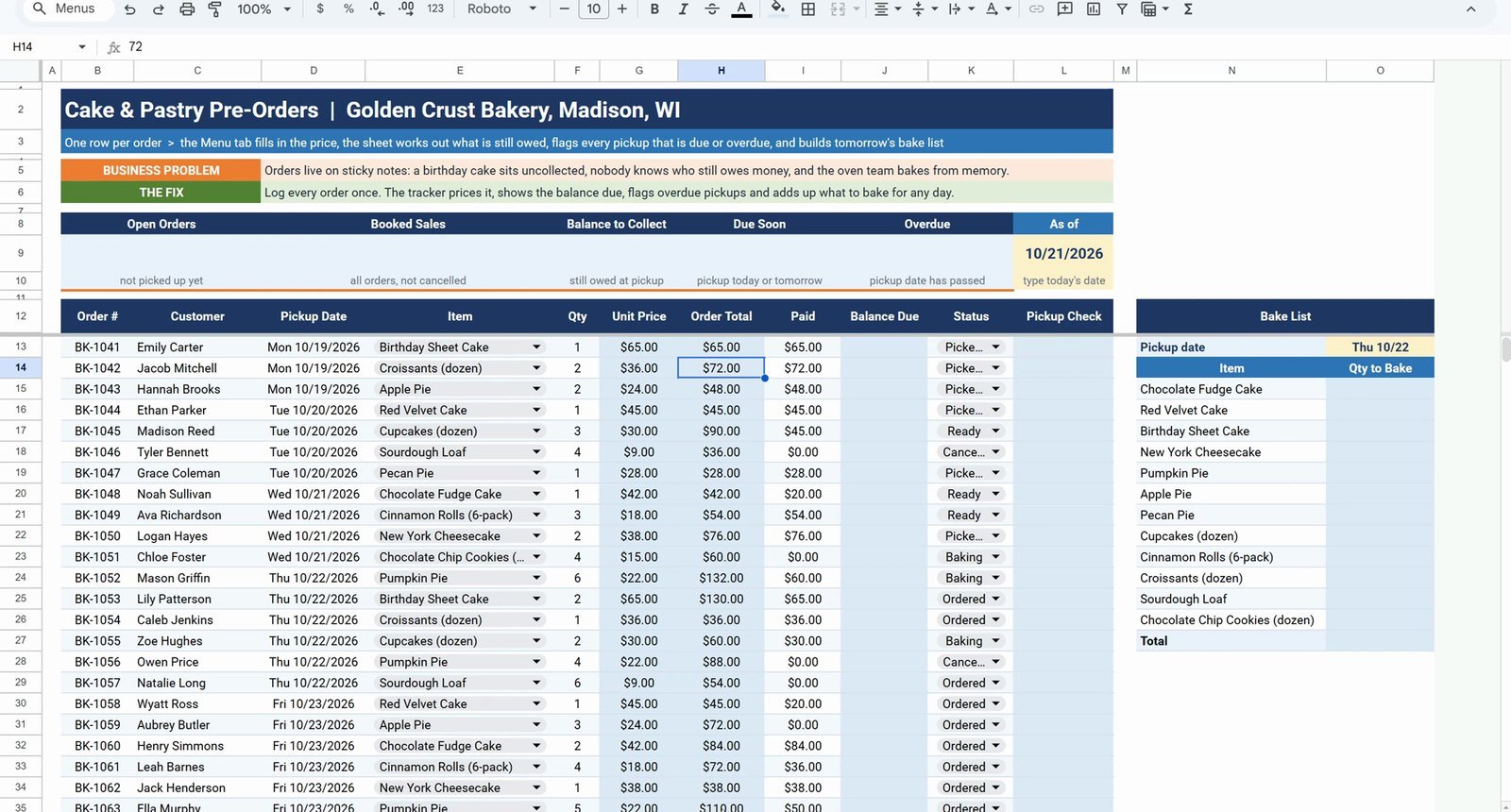
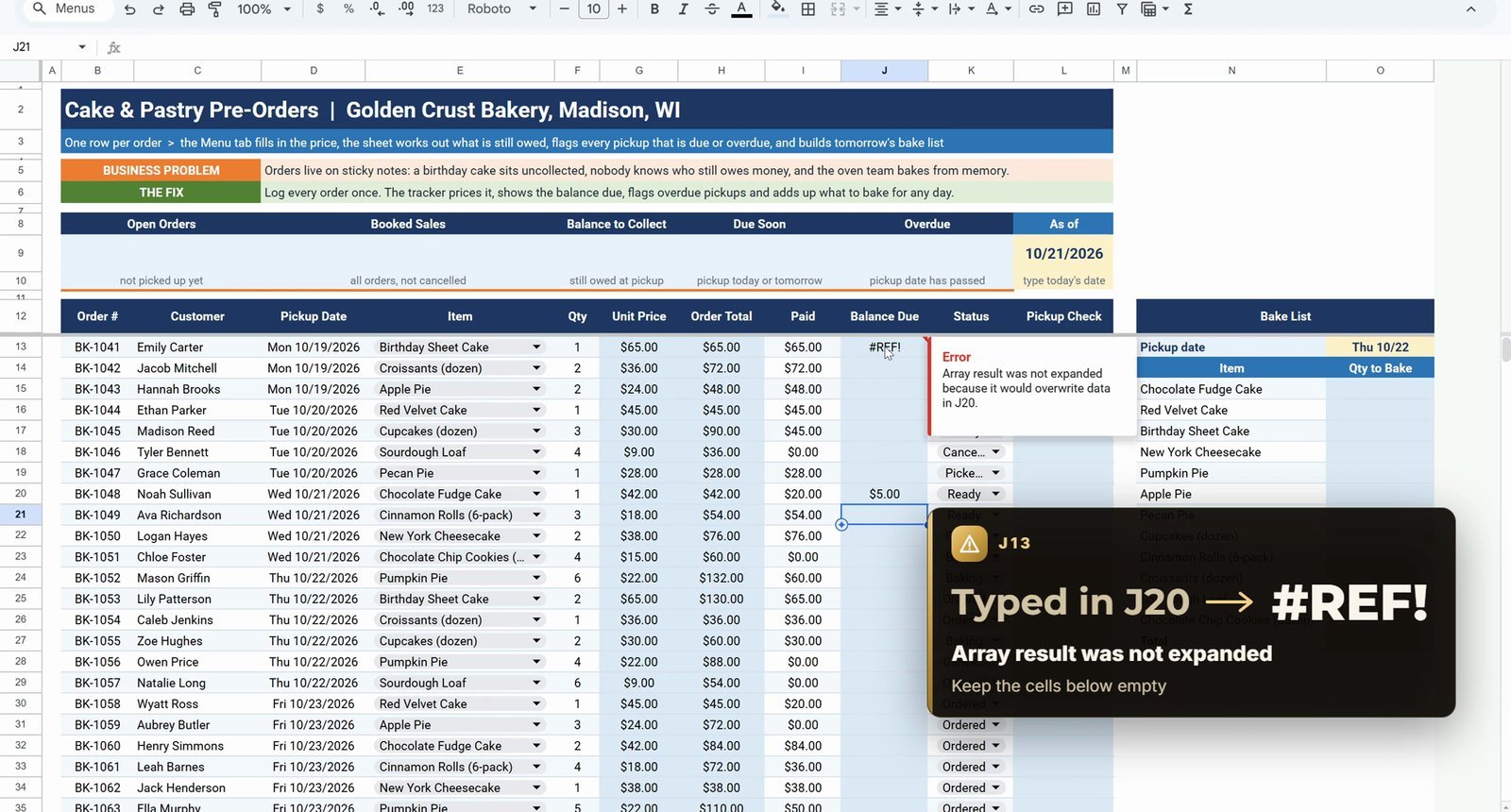
Gotcha: ARRAYFORMULA needs empty cells below it. Type a number in J20 and J13 shows #REF! with Array result was not expanded. Delete the number and the column comes back.
Step 4: Pickup Check (Overdue / Due Soon)
Build it in two moves. First the dates, comparing the pickup date with the As of date in L9:
=IF(D13<$L$9,"Overdue",IF(D13-$L$9<=1,"Due Soon","On Track"))Then check the status first, so cancelled and collected orders do not get a badge:
=IF(K13="Cancelled","-",IF(K13="Picked Up","Done",IF(D13<$L$9,"Overdue",IF(D13-$L$9<=1,"Due Soon","On Track"))))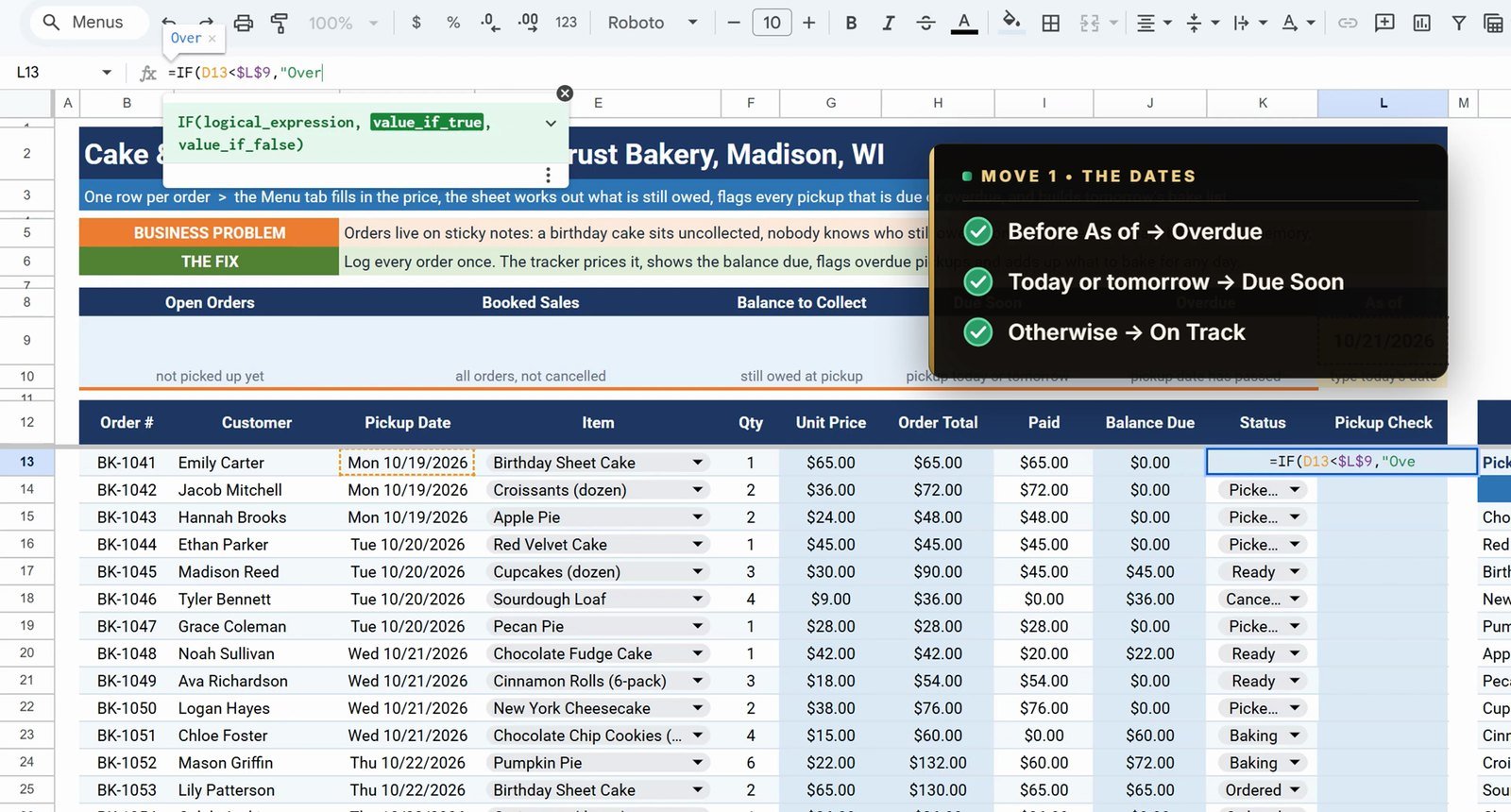
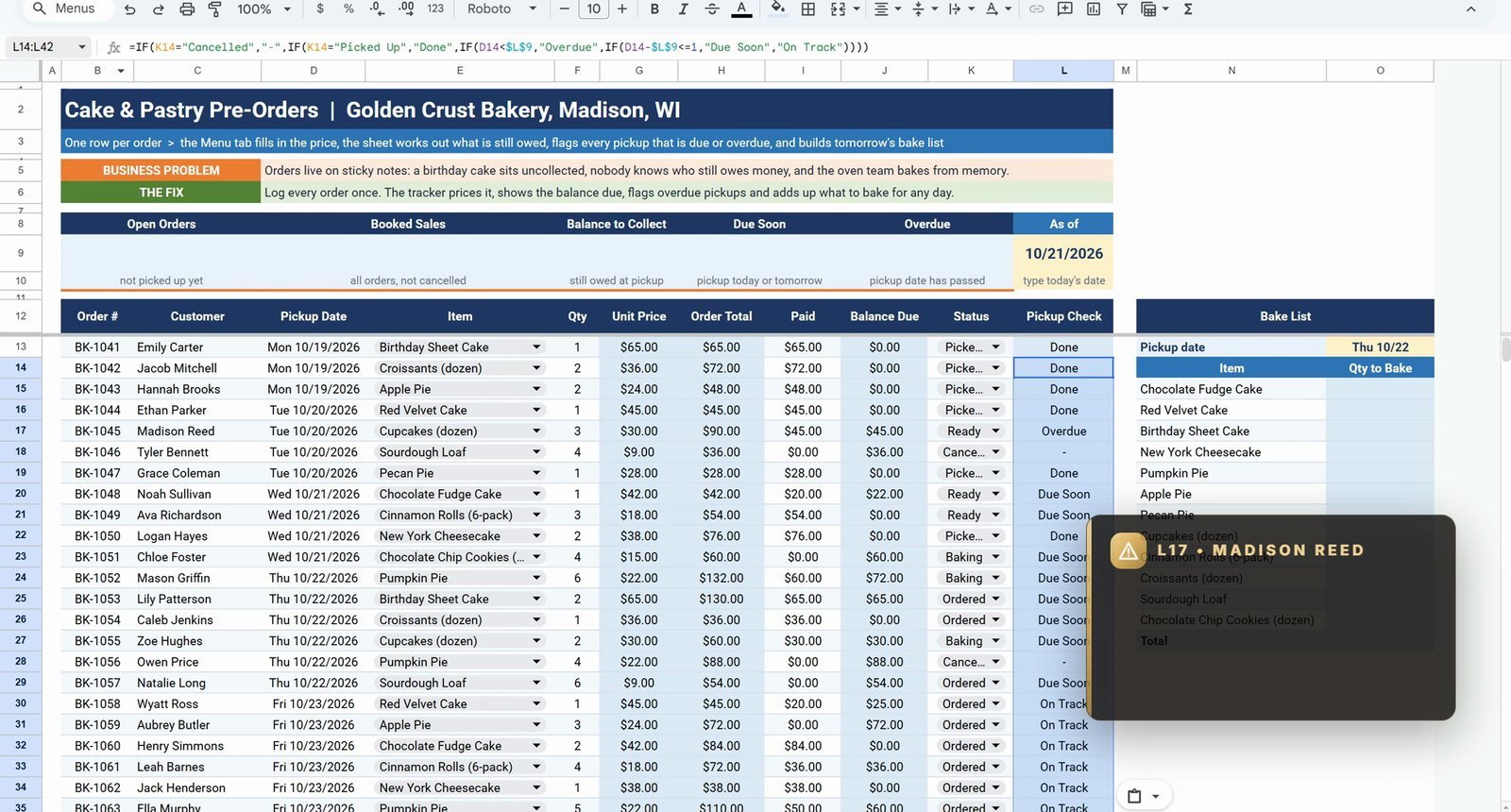
Copy L13 to L14:L42. One order is Overdue (Madison Reed, cupcakes due Tuesday), eight are Due Soon (today or tomorrow) and the two cancelled orders show a dash. The dollar signs on $L$9 matter: without them the copied formula looks at L10, L11 and every badge goes wrong.
Step 5: Bake List with SUMIFS
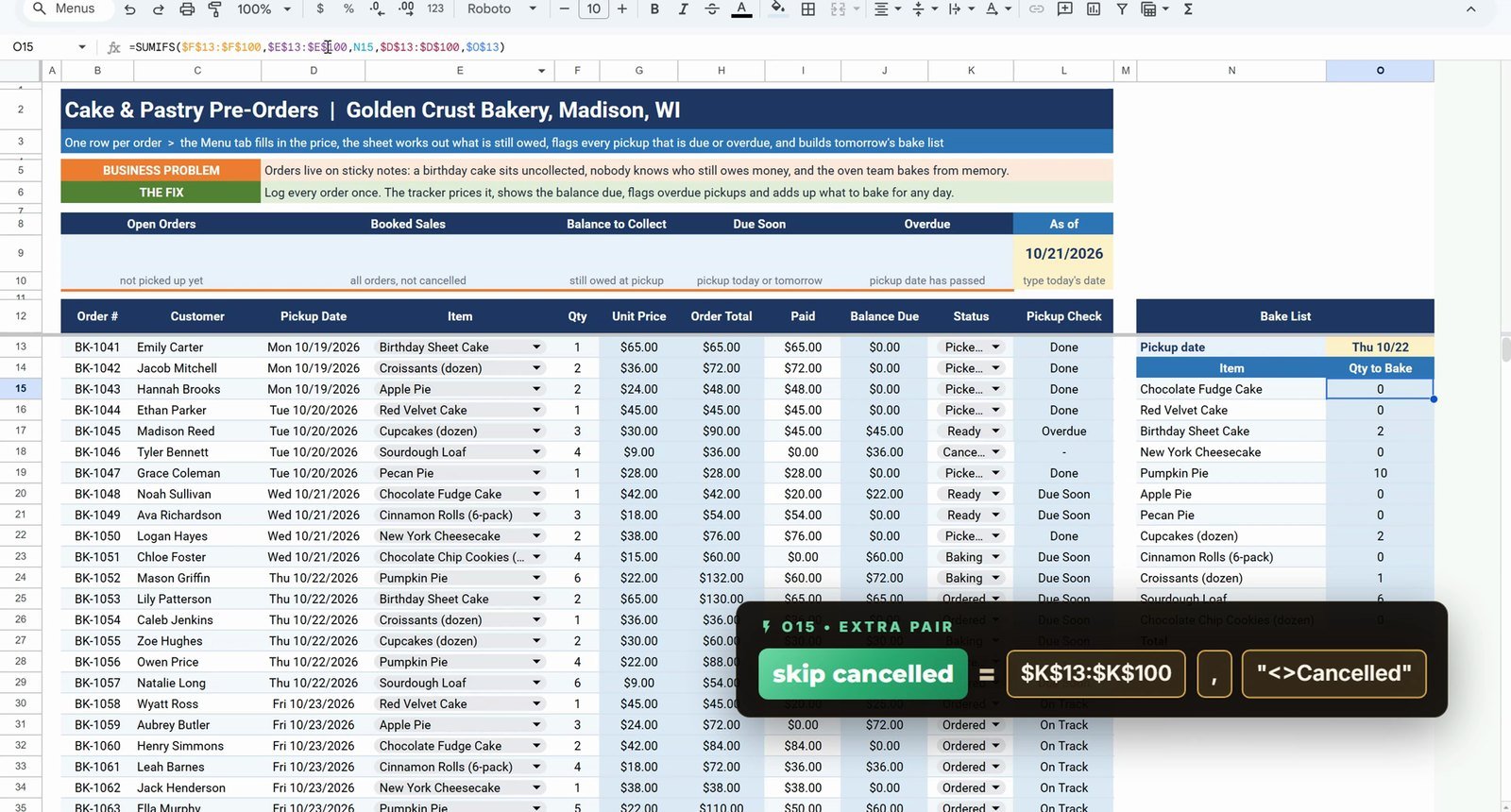
Pick a date in O13 (Thursday, 10/22) and add up how many of each item to bake. In O15:
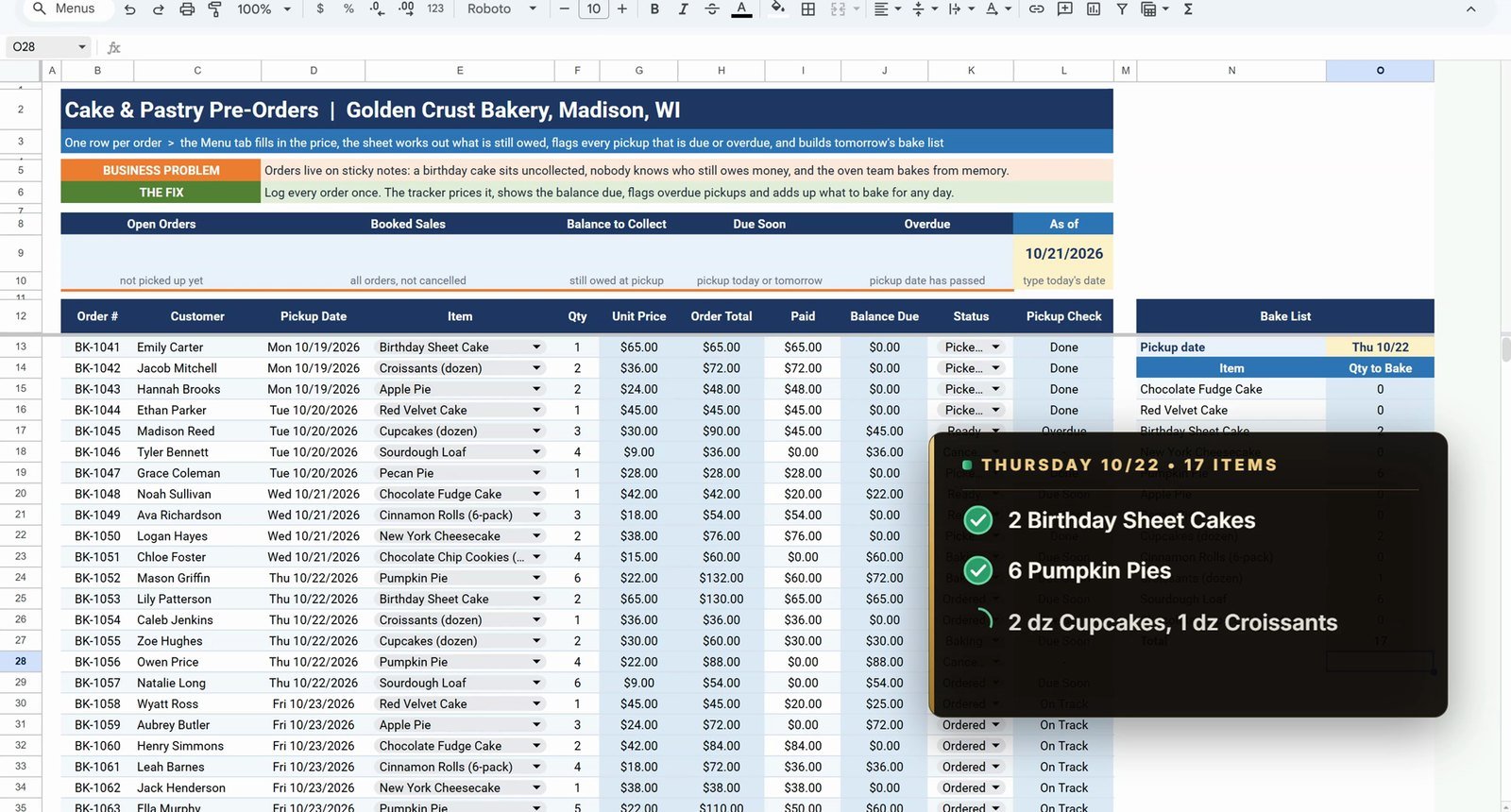
=SUMIFS($F$13:$F$100,$E$13:$E$100,N15,$D$13:$D$100,$O$13,$K$13:$K$100,"<>Cancelled")Without the last pair, Pumpkin Pie shows 10, because Owen Price’s cancelled order of 4 pies is still counted. With it, the list shows 6. Copy it to O16:O26 and total it in O27 with =SUM(O15:O26): 17 items for Thursday – 2 birthday sheet cakes, 6 pumpkin pies, 2 dozen cupcakes, 1 dozen croissants and 6 sourdough loaves. Change O13 to 10/24 and Saturday’s list totals 21.
Step 6: Conditional Formatting
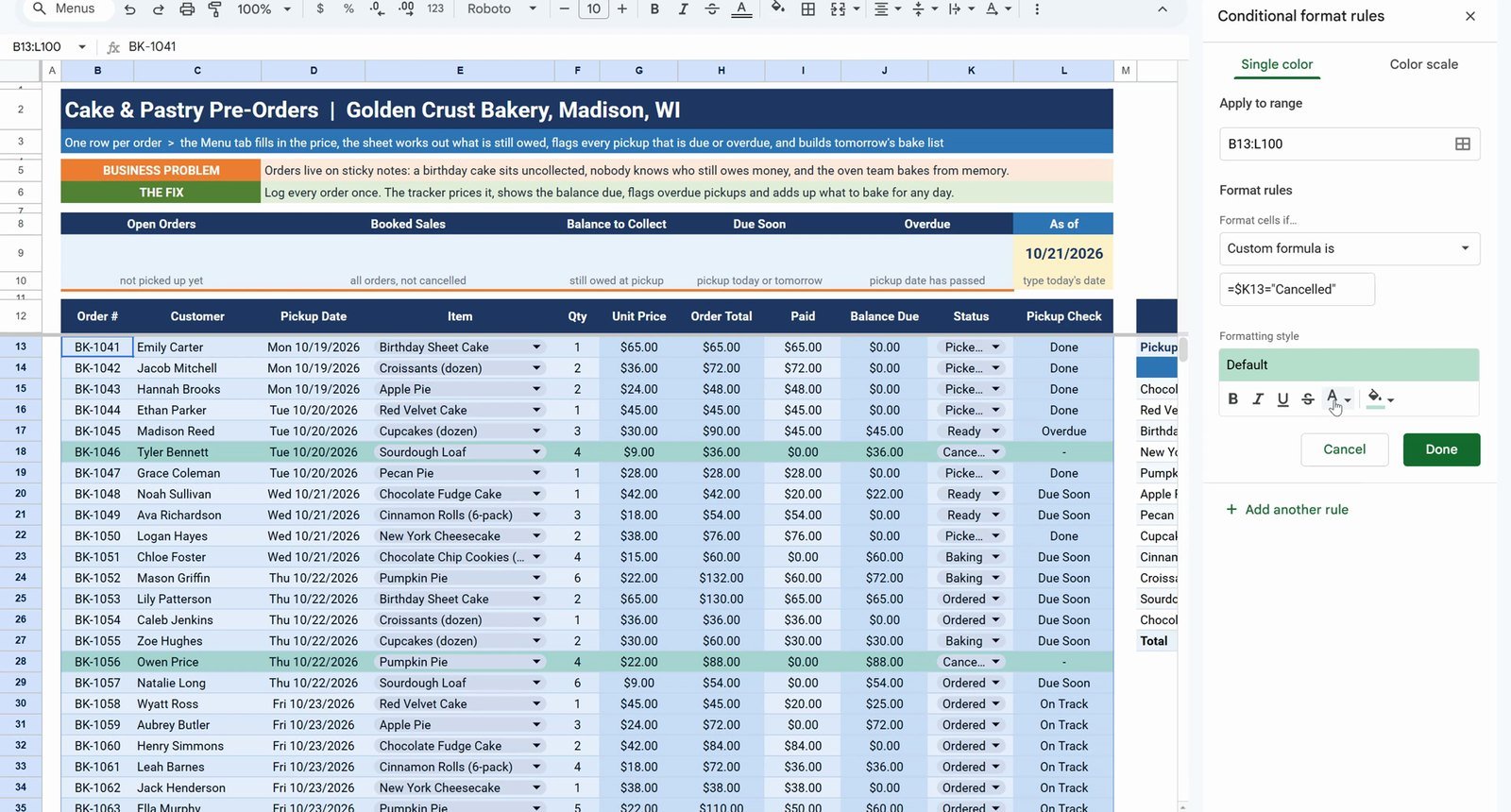
Select B13:L100, open Format › Conditional formatting, choose Custom formula is and enter:
=$K13="Cancelled"Set grey text with strikethrough, so every cancelled order is crossed out. Then on L13:L100 add two Text is exactly rules: Overdue with a red fill and white bold text, Due Soon with an amber fill.
Step 7: Summary Cards
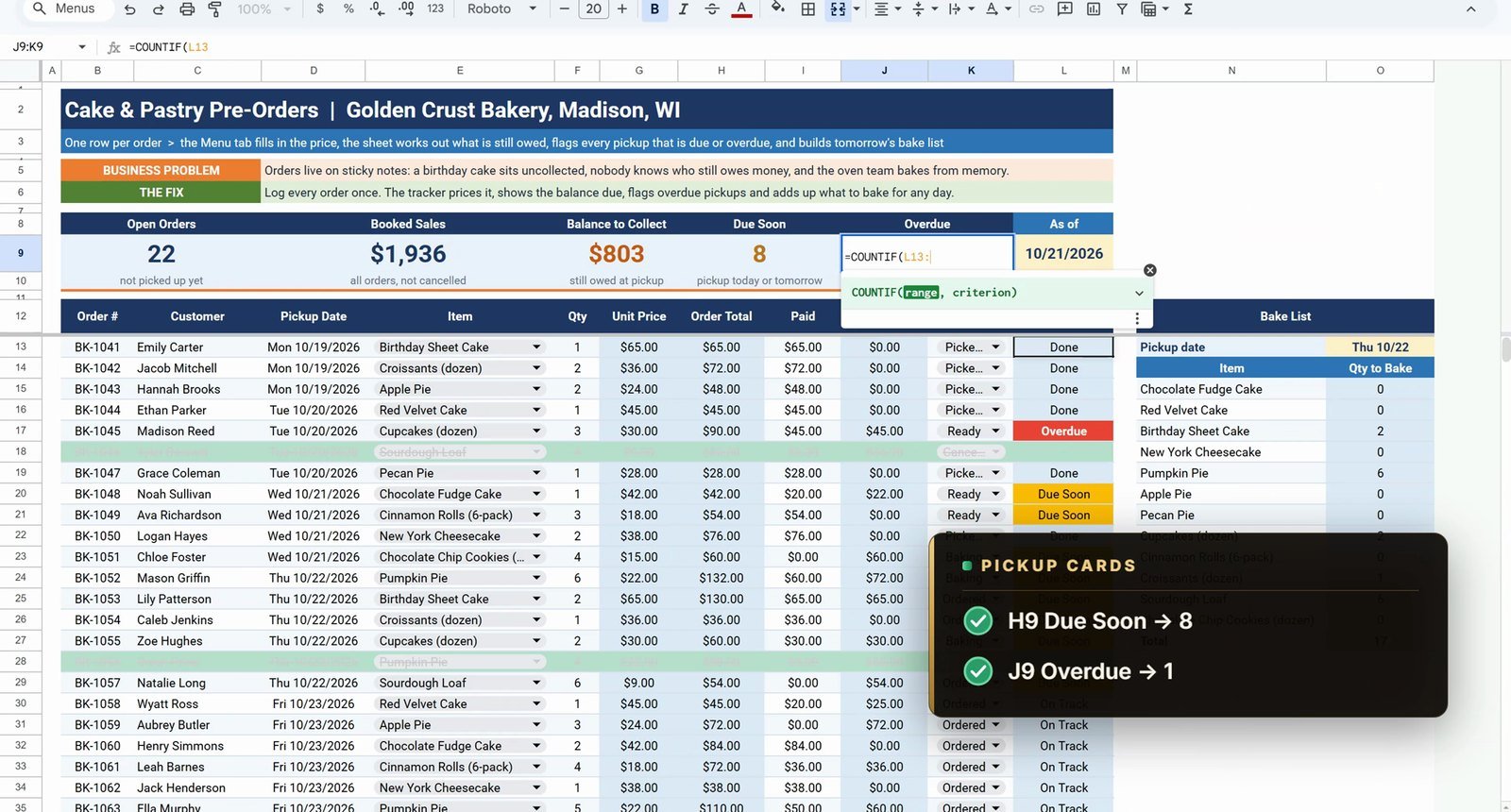
B9  =COUNTIFS(B13:B,"<>",K13:K,"<>Cancelled",K13:K,"<>Picked Up")
D9  =SUMIFS(H13:H,K13:K,"<>Cancelled")
F9  =SUMIFS(J13:J,K13:K,"<>Cancelled")
H9  =COUNTIF(L13:L,"Due Soon")
J9  =COUNTIF(L13:L,"Overdue")
The cards show 22 open orders, $1,936 booked sales, $803 to collect, 8 due soon and 1 overdue. Cancelled orders are skipped on purpose: they still show a balance due ($36 and $88) that nobody is going to pay.
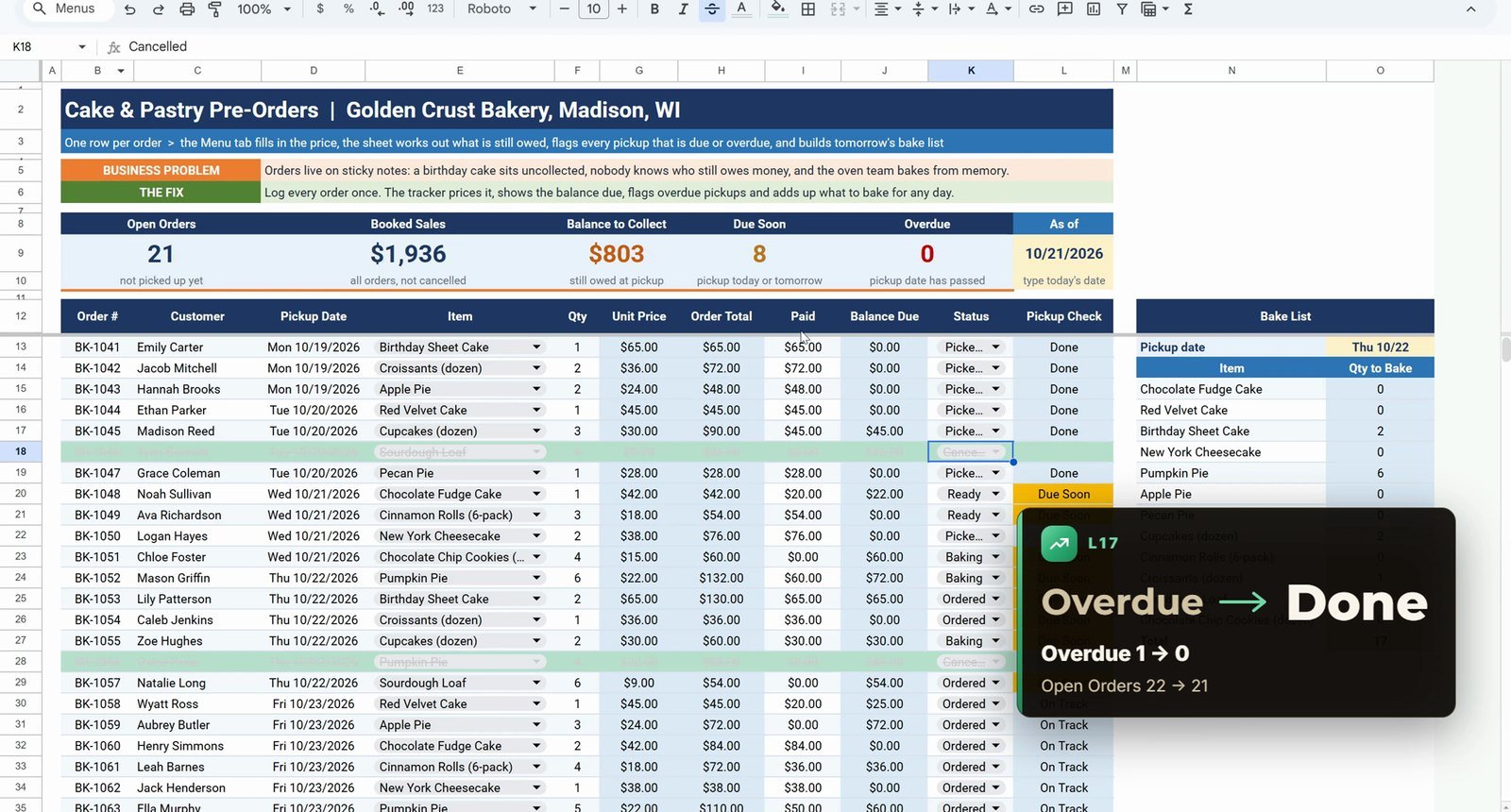
Bonus: A Customer Picks Up
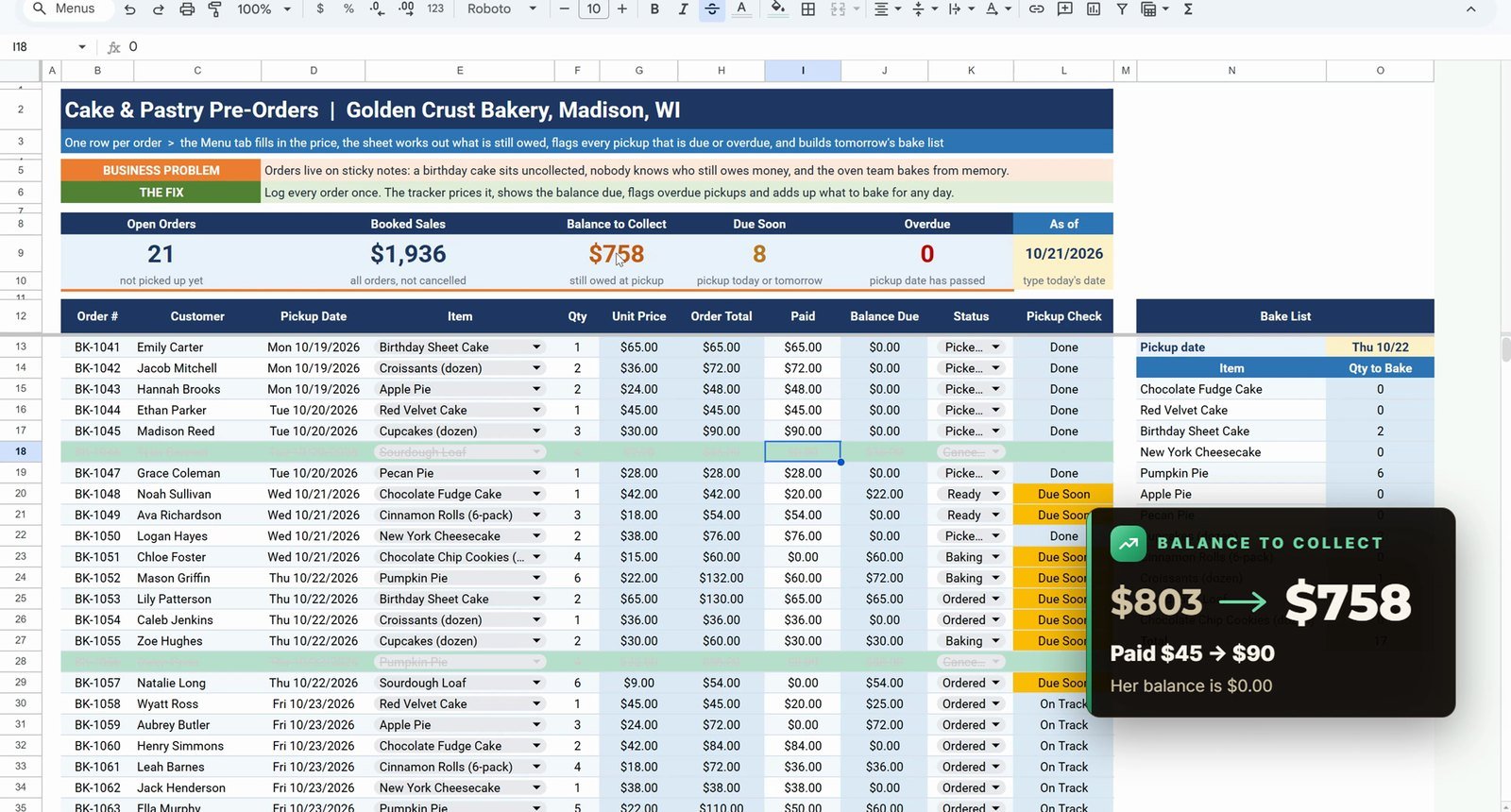
Madison Reed finally collects her cupcakes. Set her status to Picked Up: the red Overdue badge turns into Done, Overdue drops to 0 and Open Orders to 21. She pays the rest, so Paid goes from $45 to $90, her balance is $0 and Balance to Collect drops to $758.
Your turn: change the As of date in L9 to 10/22/2026 and four orders turn red (Overdue 4, Due Soon 11).
Free Tracker vs Ready-Made Bakery Tools
| Need | This free tracker | Bakery Order Booking System (Excel) | Bakery Production Planning web app |
|---|---|---|---|
| Order log, prices, balances, pickup badges | Yes | Yes | Yes |
| Data entry form | Type in the sheet | Yes | Yes |
| Production planning, multiple users | Bake list only | – | Yes |
| Price | Free | Paid | Paid |
Tips
- Point the item dropdown past the last menu row (row 30), so new items appear without editing the rule.
- Keep the cells below an ARRAYFORMULA empty, or the column shows #REF!.
- Lock the As of date with
$L$9before copying the Pickup Check down. - Exclude cancelled orders everywhere money or baking is counted: the bake list, Booked Sales and Balance to Collect.
- Google’s ARRAYFORMULA help page explains how array results expand.
Want It Ready-Made?
This free tracker is perfect to learn the idea. For the full version, see the Bakery Order Booking Data Entry System in Excel on NextGenTemplates.com. If you prefer Google Sheets, the Commission & Custom Order Tracker in Google Sheets handles custom orders, and for a bigger bakery there is the Bakery Production Planning Management System web app. If you also work in Excel, the full video course Excel + AI Mastery: 100 Essential Formulas and Real-World Projects teaches XLOOKUP, SUMIFS and IF step by step. More on this site: build an inventory tracker in Google Sheets, the Commission & Custom Order Tracker and the Bakery Production Planning Management System.
Frequently Asked Questions
How do I make a bakery order tracker in Google Sheets?
Log one order per row (customer, pickup date, item, quantity, paid, status). Add a menu tab with prices, look the price up with XLOOKUP, calculate totals and balances with ARRAYFORMULA, flag pickups with a nested IF against an As of date, add a bake list with SUMIFS and finish with conditional formatting and summary cards.
Can I use this as a cake order form template?
Yes. Each row is one cake or pastry order with the item picked from a dropdown, so it works as a simple cake order form and order log in one sheet. Make a copy of the free file and replace the sample orders with your own.
What does ARRAYFORMULA do in this tracker?
One ARRAYFORMULA in H13 fills the Order Total for every row at once: =ARRAYFORMULA(IF(F13:F100="","",F13:F100*G13:G100)). The IF keeps empty rows blank instead of showing $0.00.
Why does my ARRAYFORMULA show #REF! Array result was not expanded?
Something is typed in a cell the array needs to fill. In the video a 5 typed in J20 breaks the Balance Due column; delete that value and the whole column comes back.
How does the bake list skip cancelled orders?
Add a third condition pair to SUMIFS: $K$13:$K$100,"<>Cancelled". Without it Pumpkin Pie shows 10 for Thursday, because Owen Price's cancelled order of 4 is still counted; with it the list shows 6.
Why is the As of date typed instead of TODAY()?
A typed date (10/21/2026) keeps the numbers the same as in the video. In your own copy put =TODAY() in L9 and the Overdue and Due Soon badges update every morning.
Is this bakery order template free?
Yes. The practice file opens a Make a copy page in Google Sheets with a Practice tab to build along with the video, a Solution tab with the finished tracker and a Menu tab with 12 items and prices.
Is there a ready-made bakery order system?
Yes. The Bakery Order Booking Data Entry System in Excel on NextGenTemplates.com is the full version, the Commission & Custom Order Tracker covers custom orders in Google Sheets, and the Bakery Production Planning Management System web app is built for bigger bakeries.
Download the Practice File
Make your own copy of the practice file and build the bakery order tracker along with the video.
⬇️ Join Free on Skool & Download the Practice File
Free membership · takes 1 minute · the file is in Classroom → Free Downloads from YouTube
Google Sheets · opens a Make a copy page · Practice + Solution + Menu tabs · no add-ons
About the Author
PK (Priyendra Kumar) runs NeoTech Navigators, PK: An Excel Expert and NextGenTemplates.com, and builds Google Sheets and Excel tools for small businesses. Every number in this tutorial comes from the Solution tab of the free file.
Conclusion
A bakery order tracker in Google Sheets needs no add-ons. Two dropdowns, XLOOKUP, ARRAYFORMULA, a nested IF, SUMIFS and a few conditional formatting rules tell you who still owes money, which pickup is overdue and exactly what to bake tomorrow.