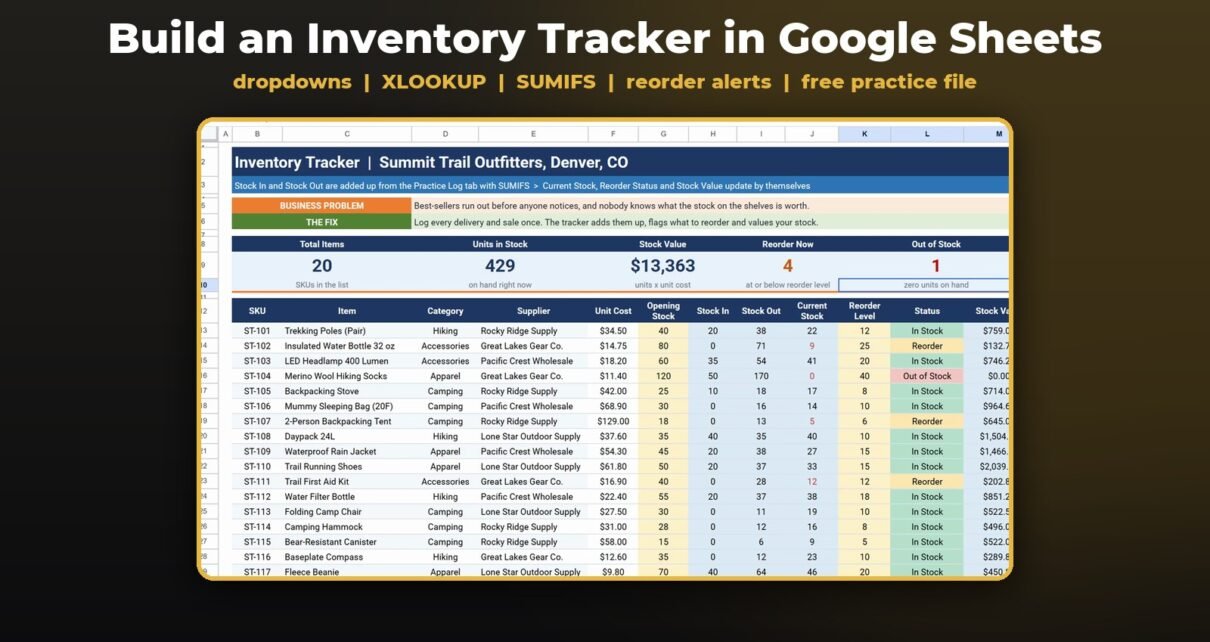
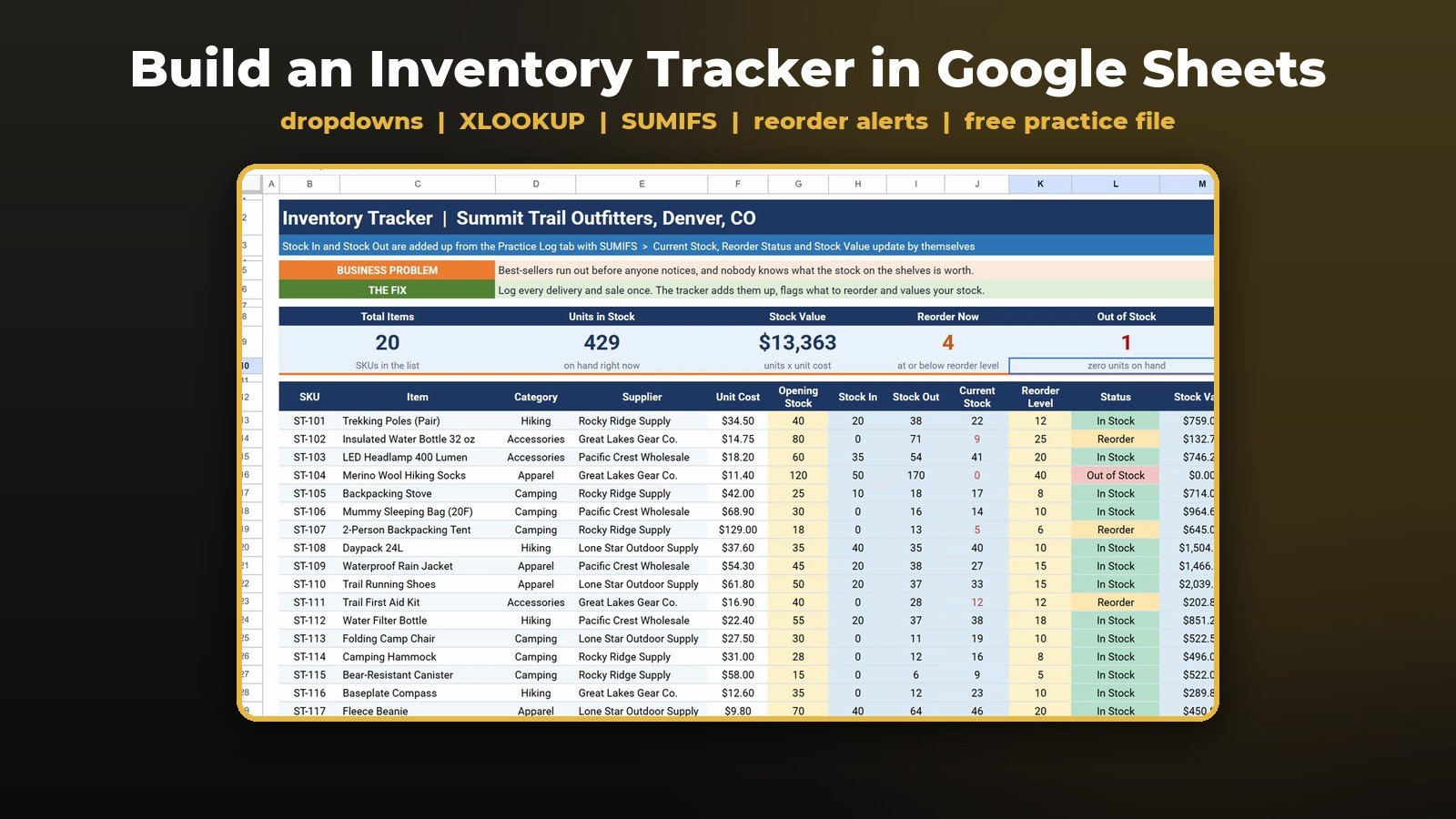
Best sellers run out and nobody notices, and nobody knows what the stock on the shelves is worth. In this tutorial you build an inventory tracker in Google Sheets, step by step: a stock log with dropdowns, item names with XLOOKUP, Stock In and Stock Out with SUMIFS, live current stock and stock value, a reorder status with colored badges, and five KPI cards. The example store has 20 products and 68 stock movements for September, and the finished tracker shows 389 units worth $11,859, 4 products to reorder and 2 out of stock. No add-ons, no scripts.
⬇️ Join Free on Skool & Download the Practice File
Free membership · takes 1 minute · the file is in Classroom → Free Downloads from YouTube
Google Sheets · opens a Make a copy page · Practice + Solution tabs · no add-ons
Watch the Video Tutorial
Video Overview
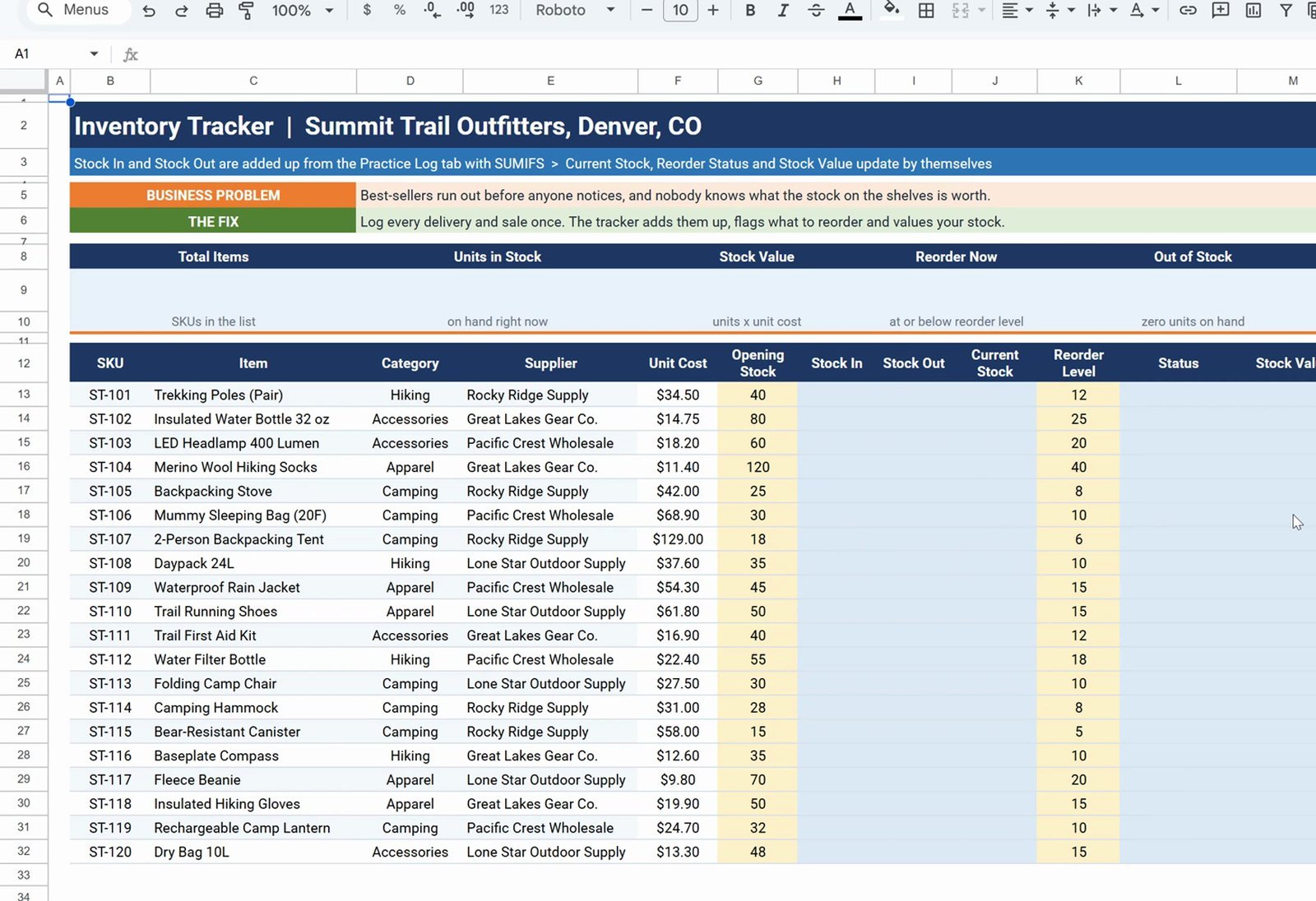
The 9-minute video builds the tracker on the free practice file for Summit Trail Outfitters, an outdoor gear store in Denver, Colorado. Step one adds two dropdowns to the stock log: a SKU dropdown from a range that rejects wrong SKUs, and an In / Out dropdown that Google Sheets detects by itself. Step two looks up the item name with XLOOKUP. Step three adds Stock In and Stock Out per product with SUMIFS, and step four turns them into current stock and stock value. Step five writes a nested IF for Out of Stock, Reorder and In Stock, then adds conditional formatting badges and a red-text rule with a locked dollar column. Step six builds the five summary cards. In the bonus, one delivery of 40 daypacks turns a red badge green and updates every card.
What You Will Build
- A stock log where every delivery (In) and sale (Out) is one row, with a SKU dropdown that rejects typos.
- Automatic item names pulled from the SKU with XLOOKUP.
- Stock In, Stock Out, Current Stock and Stock Value for each of the 20 products.
- A reorder status (Out of Stock / Reorder / In Stock) with colored badges.
- Five KPI cards: Total Items, Units in Stock, Stock Value, Reorder Now and Out of Stock.
The Practice File
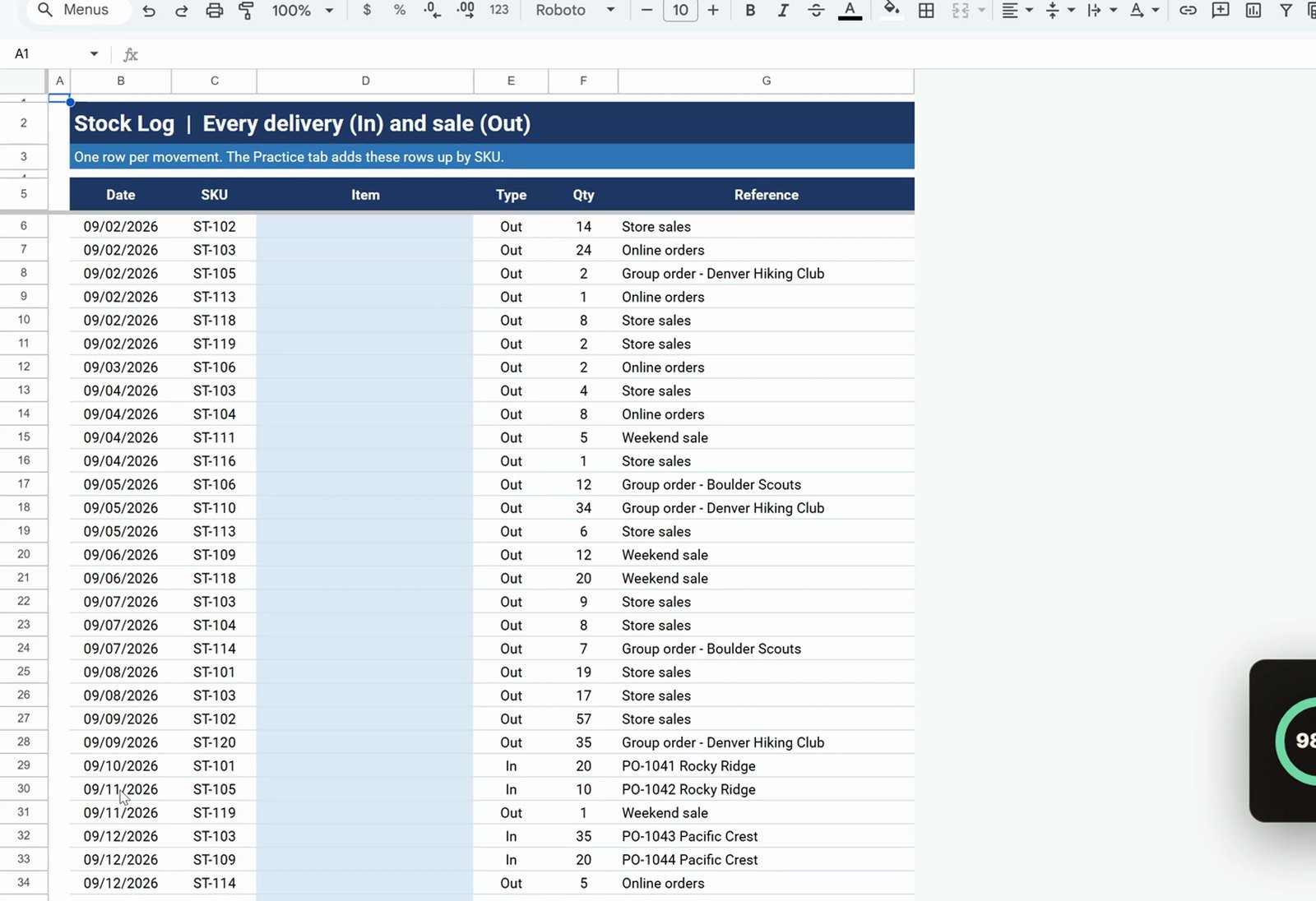
The free file opens a Make a copy page, so you get your own editable Google Sheet. It has a README, a Practice sheet with the 20 products (SKU, item, category, supplier, unit cost, and the yellow Opening Stock and Reorder Level columns already filled), a Practice Log with 68 September movements, and the finished Solution and Solution Log tabs to compare.
Step 1: Dropdowns on the Stock Log
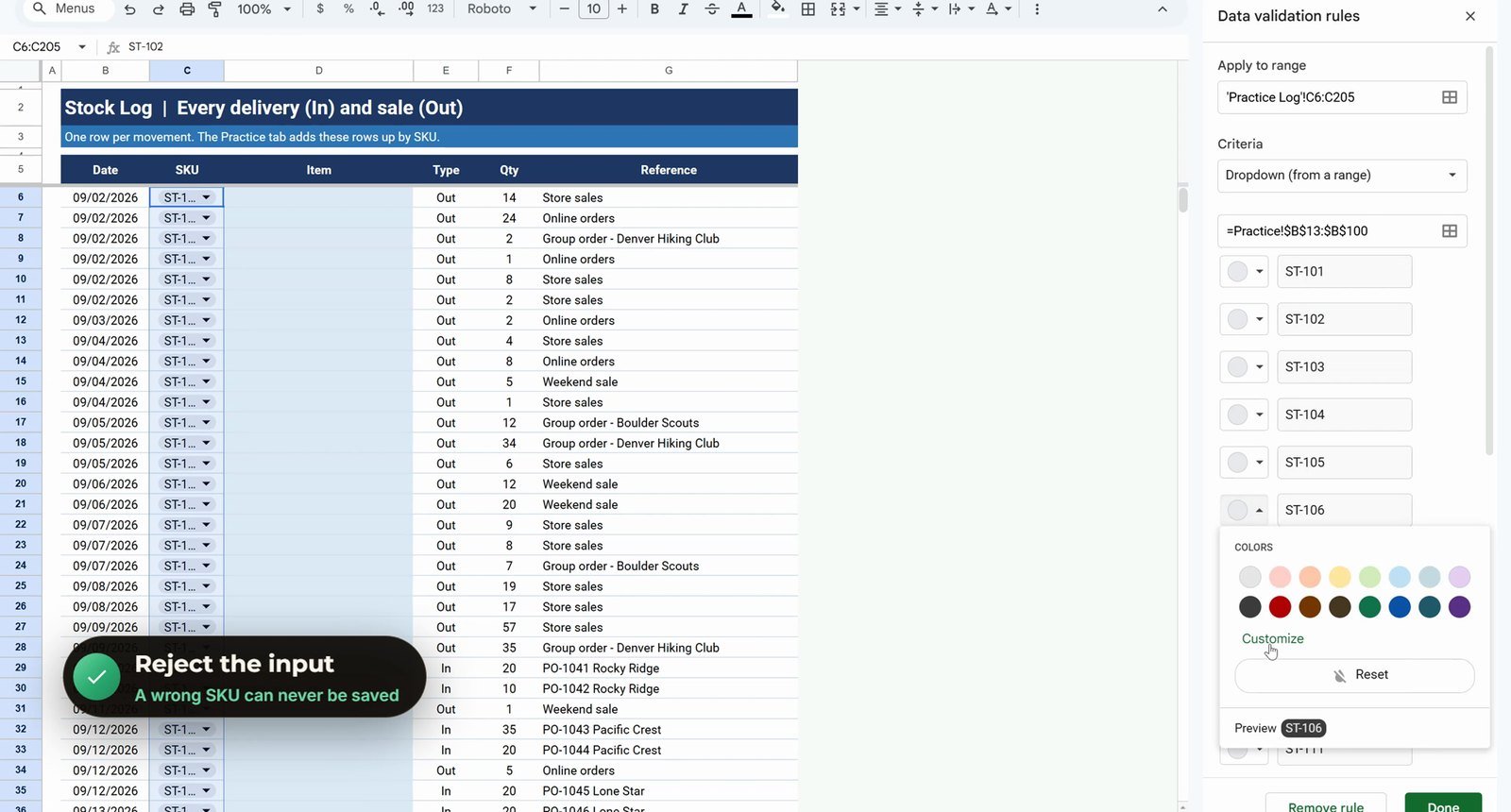
Select C6:C205 with the Name Box, then Data › Data validation › Add rule. Choose Dropdown (from a range) and type the SKU column of the Practice sheet. Going down to row 100 on purpose means new products show up in the dropdown later:
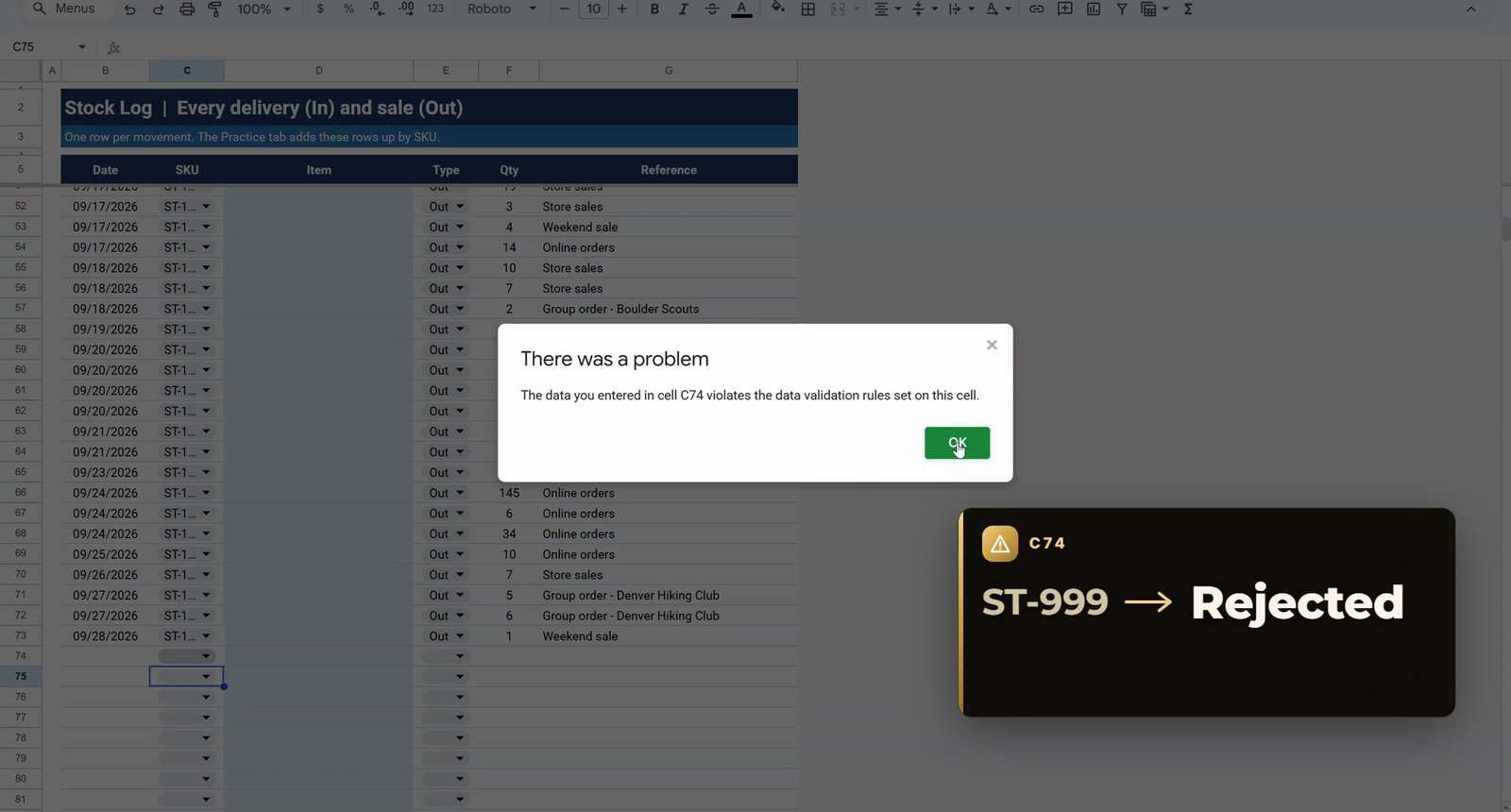
=Practice!$B$13:$B$100Under Advanced options choose Reject the input, so a wrong SKU can never be saved. For the Type column, select E6:E205 and use Insert › Dropdown: Google Sheets reads the column and picks up In and Out by itself.
Step 2: Item Names with XLOOKUP
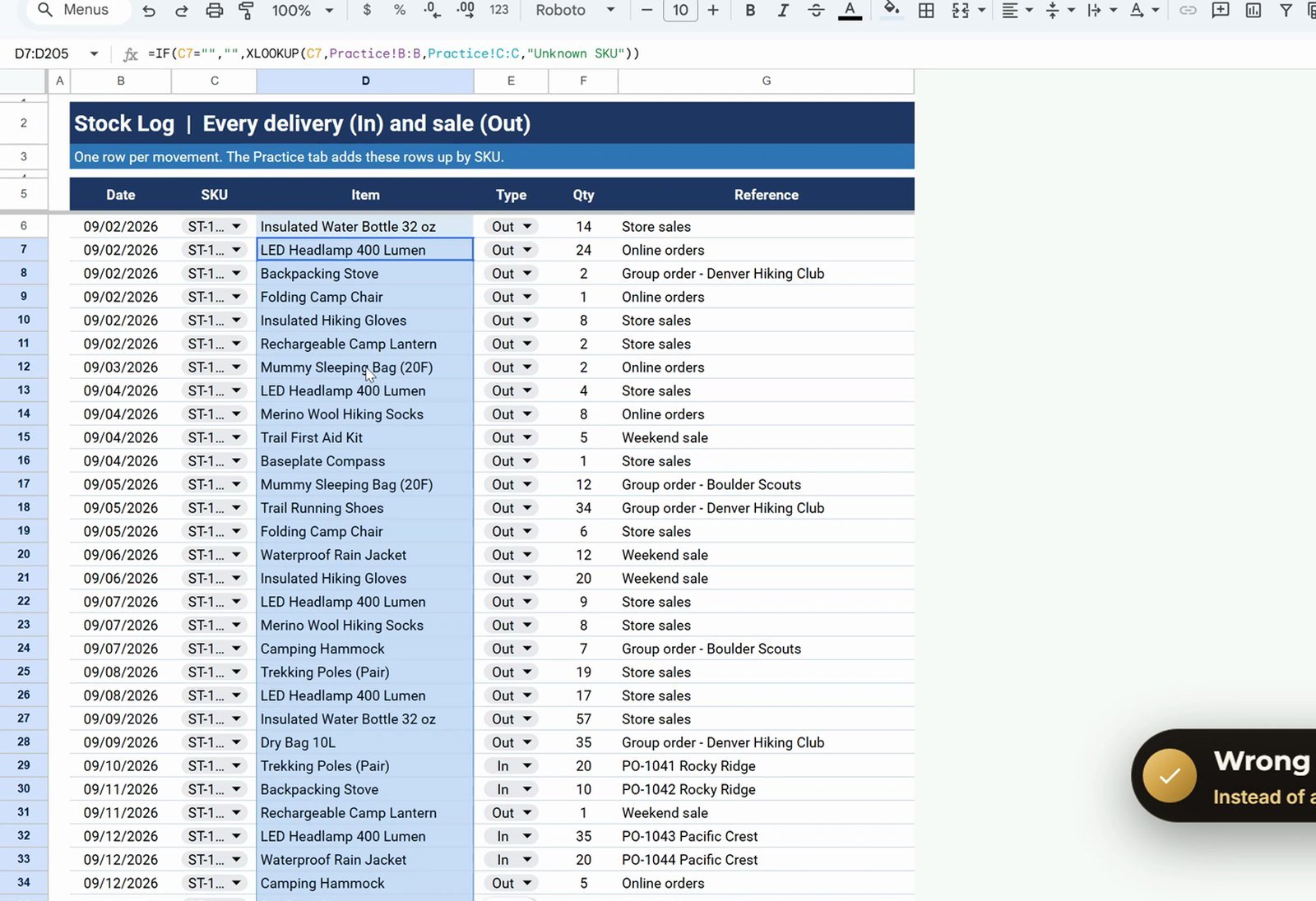
In D6 of the log, look up the item name from the SKU. The IF keeps empty rows blank, and a SKU that is not on the list shows Unknown SKU instead of an error:
=IF(C6="","",XLOOKUP(C6,Practice!B:B,Practice!C:C,"Unknown SKU"))It returns Insulated Water Bottle 32 oz. Copy D6 to D7:D205.
Step 3: Stock In and Stock Out with SUMIFS
Back on the Practice sheet, in H13, sum the quantity where the SKU matches and the type is In:
=SUMIFS('Practice Log'!F:F,'Practice Log'!C:C,B13,'Practice Log'!E:E,"In")Twenty units came in for Trekking Poles. Whole columns never move when you copy the formula down, so no dollar signs are needed and every new log row is counted. For Stock Out in I13, copy the formula text from the formula bar (a cell copy would shift F:F to G:G) and change In to Out: 38 units went out.
=SUMIFS('Practice Log'!F:F,'Practice Log'!C:C,B13,'Practice Log'!E:E,"Out")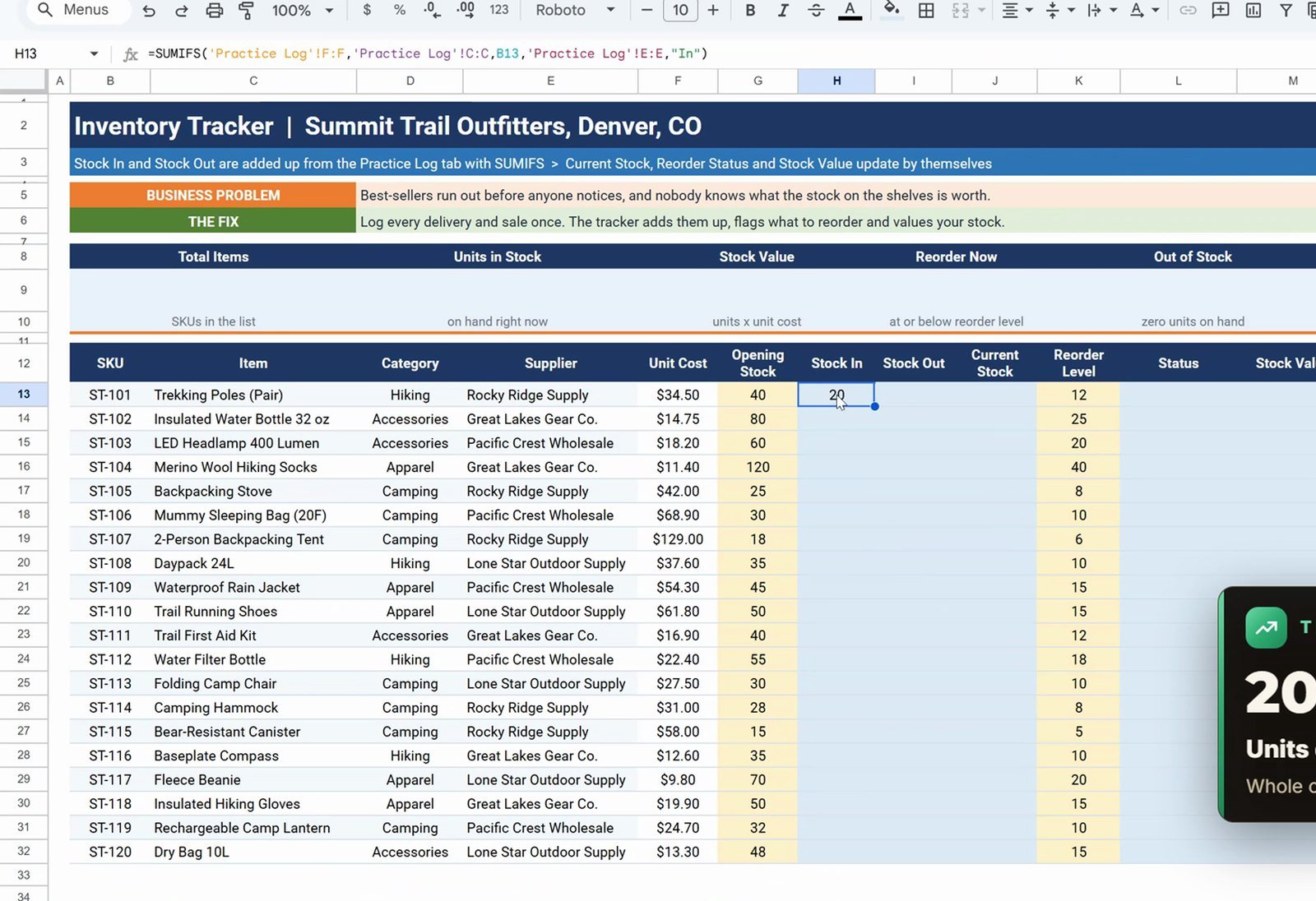
Step 4: Current Stock and Stock Value
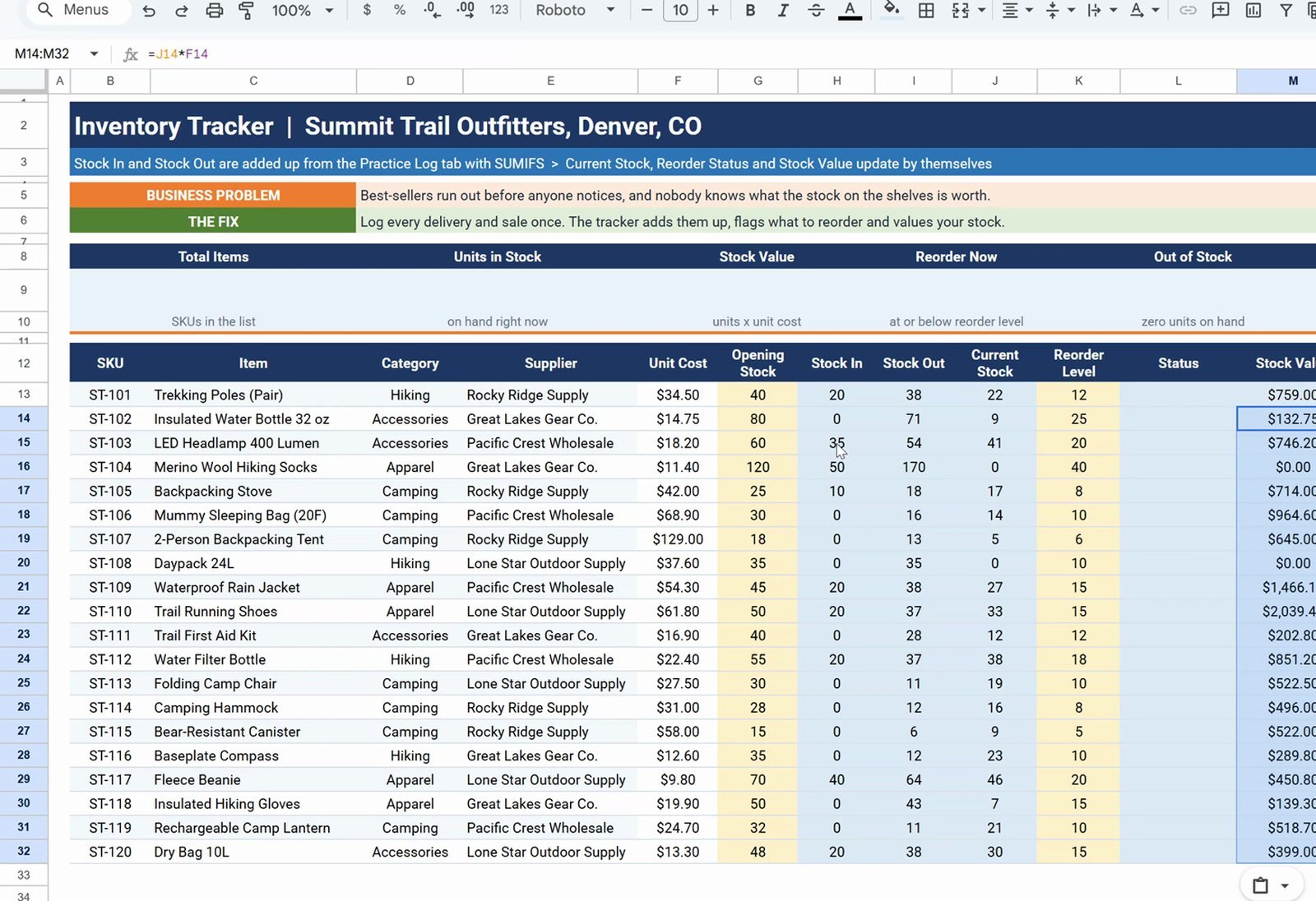
J13  =G13+H13-I13
M13  =J13*F13
Opening stock plus Stock In minus Stock Out gives 22 units on the shelf, worth $759.00 at the unit cost. Copy H13:J13 to H14:J32 and M13 to M14:M32.
Step 5: Reorder Status and Colored Badges
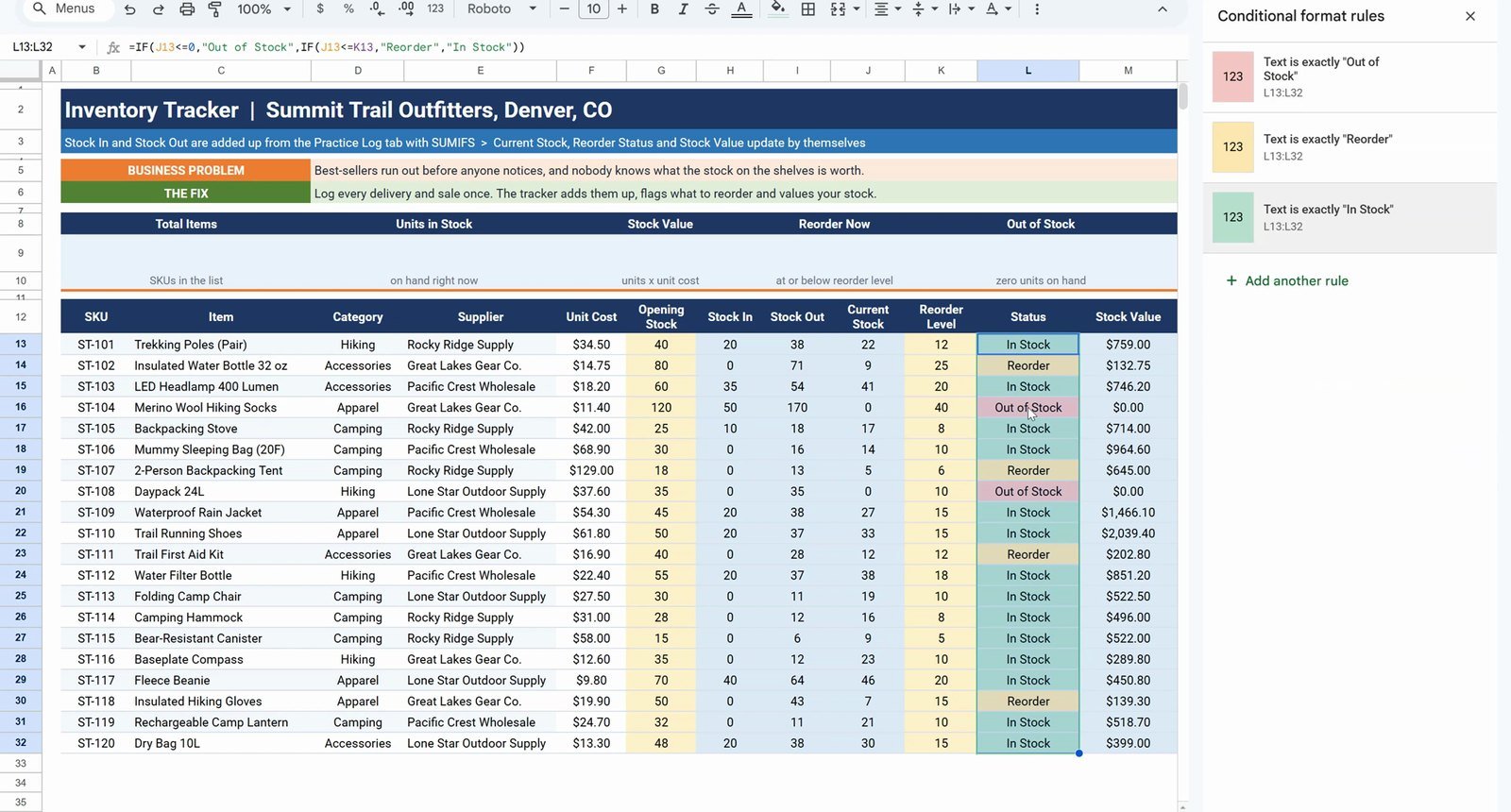
=IF(J13<=0,"Out of Stock",IF(J13<=K13,"Reorder","In Stock"))Copy it down to row 32. The Trail First Aid Kit has a current stock of 12 and a reorder level of 12, and it shows Reorder – that is why the formula uses less than or equal to.
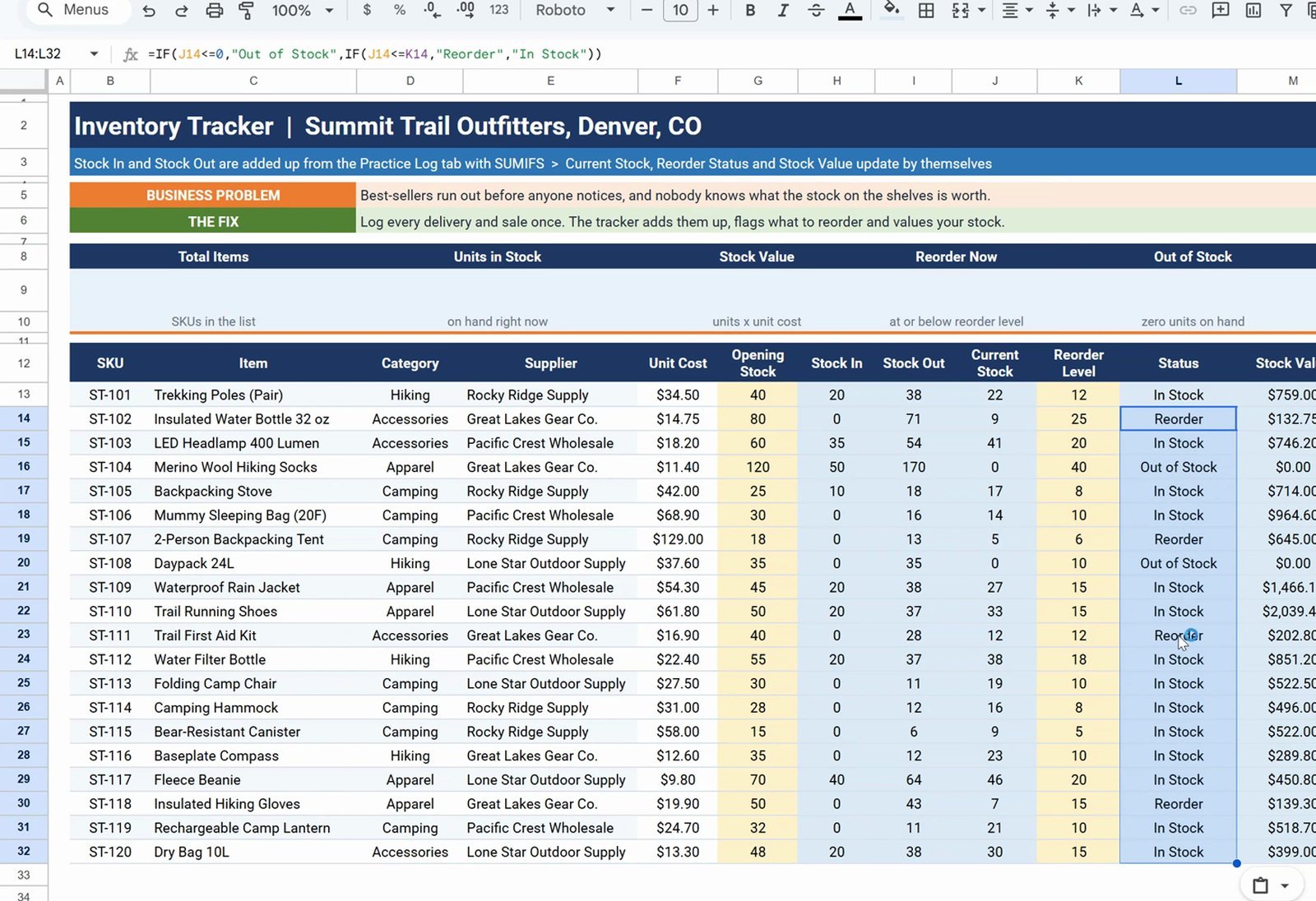
Now select L13:L32, open Format › Conditional formatting and add three rules with Text is exactly: Out of Stock in red, Reorder in orange and In Stock in green (pick them from the Default styles). Add one more rule on J13:J32 with Custom formula is and red text:
=$J13<=$K13The dollar sign locks the columns, so every row checks its own stock against its own reorder level.
Step 6: KPI Summary Cards
B9  =COUNTA(B13:B)
D9  =SUM(J13:J)
F9  =SUM(M13:M)
I9  =COUNTIF(L13:L,"Reorder")
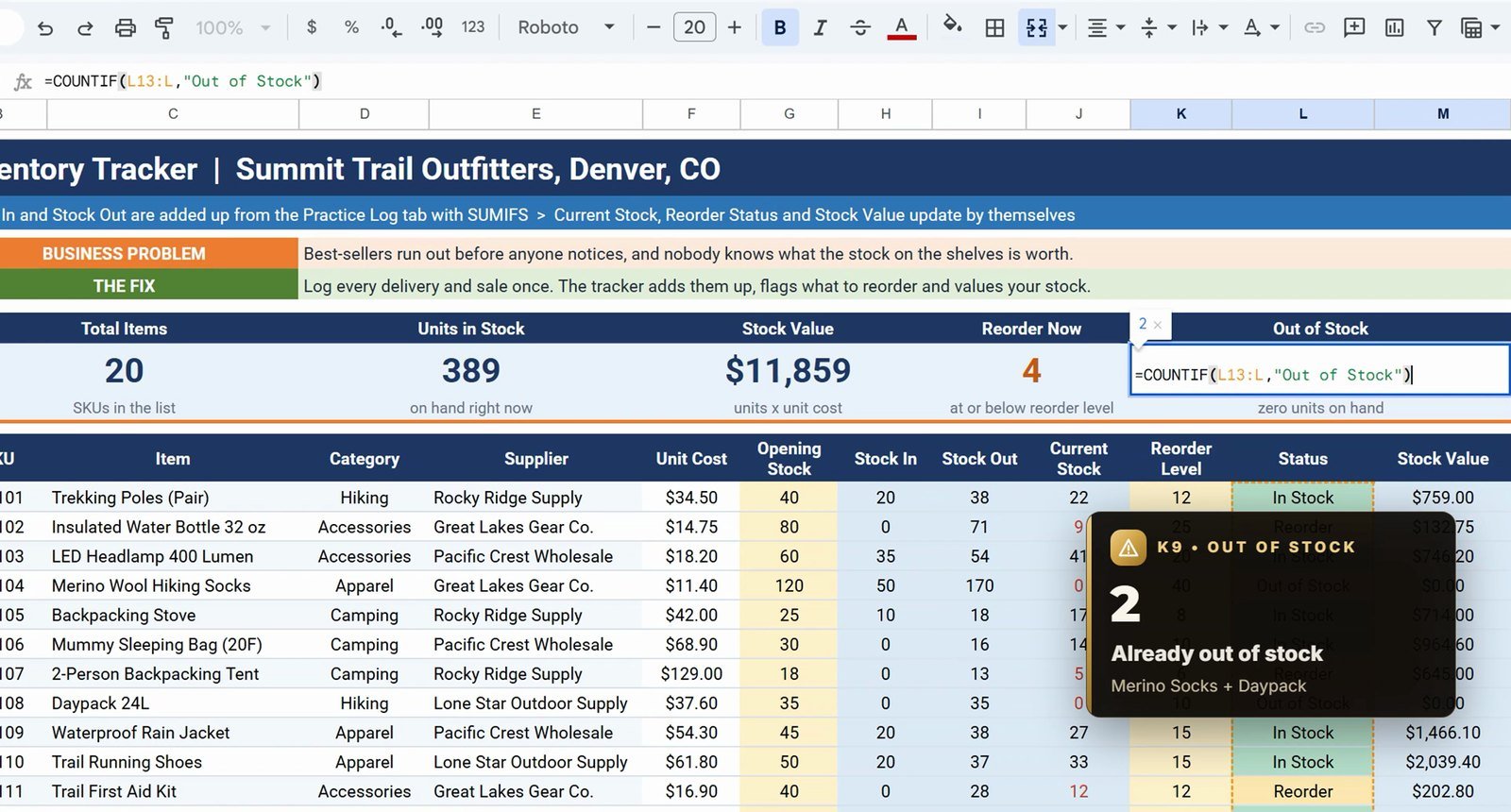
K9  =COUNTIF(L13:L,"Out of Stock")
The cards show 20 items, 389 units in stock, a stock value of $11,859, 4 products to reorder and 2 out of stock.
Bonus: One Delivery Updates Everything
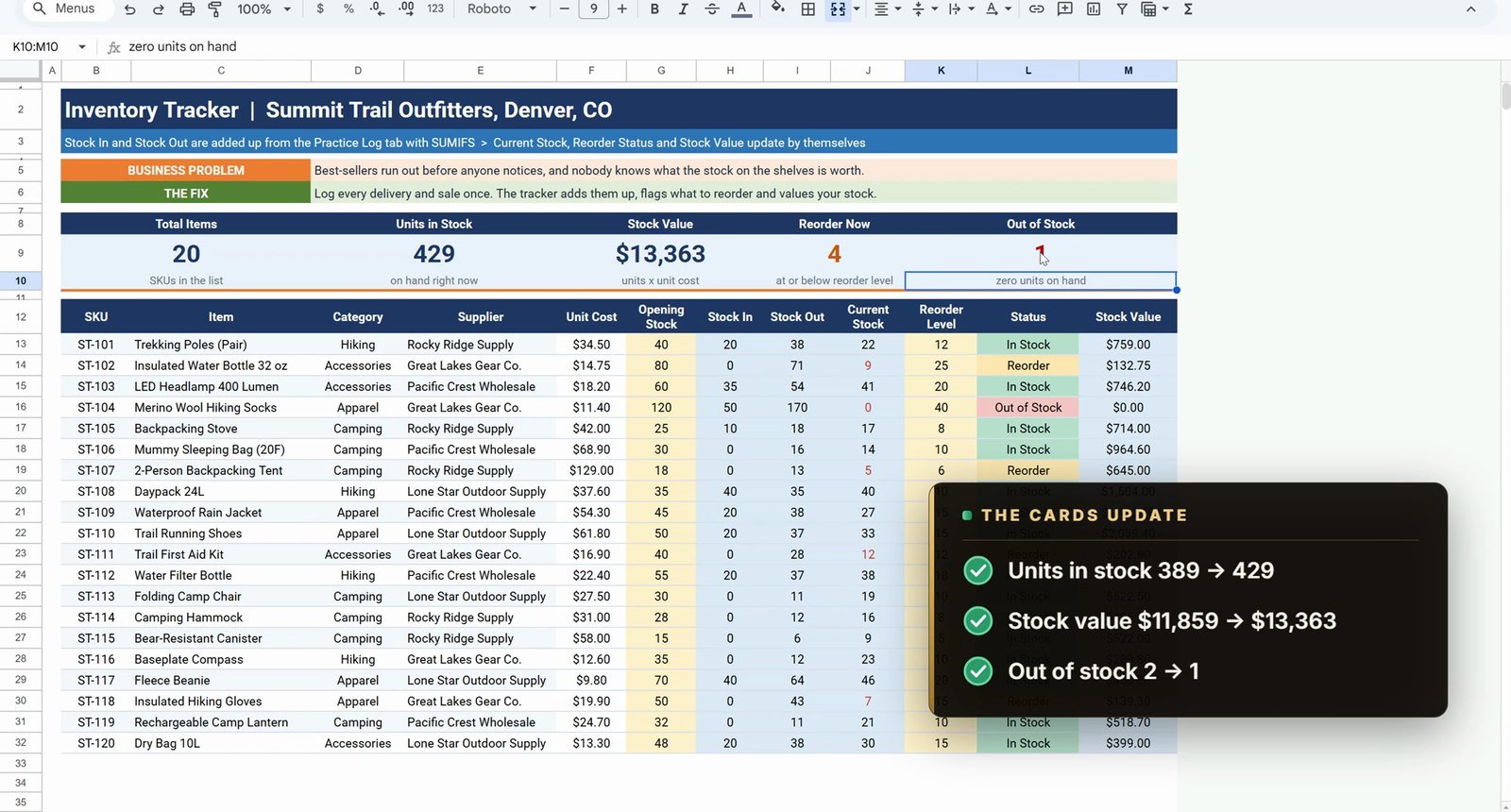
The Daypack 24L is out of stock and a delivery of 40 arrives. Add one row to the log – 09/30/2026, SKU ST-108 (the item name fills in by itself), In, 40, PO-1050 Lone Star – and the Practice sheet reacts: the Daypack shows 40 in Stock In and current stock, its red badge turns green, Units in Stock rises to 429, Stock Value to $13,363, and Out of Stock drops from 2 to 1.
Free Tracker vs Ready-Made Inventory Tools
| Need | This free tracker | Inventory Tracker in Google Sheets | Warehouse web app |
|---|---|---|---|
| Stock log, SUMIFS stock and reorder status | Yes | Yes | Yes |
| Reports and dashboard | 5 KPI cards | More reports + dashboard | Yes |
| Multiple users with logins | Shared sheet | Shared sheet | Yes |
| Price | Free | Paid | Paid |
Tips
- Point the SKU dropdown past the last product (row 100) so new products appear without editing the rule.
- Copy a formula with whole-column references as text from the formula bar – a cell copy shifts F:F to G:G.
- Use
<=, not<, for the reorder check, or items sitting exactly at the reorder level slip through. - Lock only the column in conditional formatting (
$J13), so each row compares its own values. - Google’s SUMIFS help page explains every argument used in step 3.
Want It Ready-Made?
This free tracker is perfect to learn the idea. For the full version with more reports and a dashboard, see the Inventory Tracker in Google Sheets on NextGenTemplates.com, and for a whole warehouse team the Warehouse Inventory Management System web app. If you also work in Excel, the full video course Excel Pivot Tables & Dashboards: Basic to Advanced teaches reports like this step by step. More on this site: 5 ways to summarize data in Google Sheets, a to do list in Google Sheets with checkboxes and the Inventory Management Dashboard in Google Sheets.
Frequently Asked Questions
How do I make an inventory tracker in Google Sheets?
Keep two tabs: a product list with opening stock and reorder levels, and a stock log where every delivery (In) and sale (Out) is one row. Add Stock In and Stock Out per product with SUMIFS, then Current Stock = Opening + In – Out, a reorder status with IF, and KPI cards with COUNTA, SUM and COUNTIF.
How do I add up stock in and stock out by product?
Use SUMIFS with two conditions: =SUMIFS('Practice Log'!F:F,'Practice Log'!C:C,B13,'Practice Log'!E:E,"In") sums the quantity where the SKU matches and the type is In. Change "In" to "Out" for the units sold.
How do I get a reorder alert in Google Sheets?
Compare current stock with the reorder level: =IF(J13<=0,"Out of Stock",IF(J13<=K13,"Reorder","In Stock")). Then add conditional formatting rules (Text is exactly) so each status gets its own color.
Why use less than or equal to in the reorder formula?
When stock equals the reorder level you have already hit the point where you should order. In the video the Trail First Aid Kit has 12 in stock and a reorder level of 12, and it correctly shows Reorder.
How do I stop people typing a wrong SKU?
Select the SKU column of the log, open Data > Data validation, choose Dropdown (from a range), point it at the SKU list and set Advanced options > Reject the input. A SKU that is not in the list cannot be saved.
Why does the formula use whole columns like F:F?
Whole-column references never shift when you copy the formula down, so no dollar signs are needed, and every new row you add to the log is counted automatically.
Is this inventory template free?
Yes. The practice file opens a Make a copy page in Google Sheets with a Practice tab to build along with the video and a Solution tab with the finished tracker.
Is there a ready-made inventory tracker for Google Sheets?
Yes. The Inventory Tracker in Google Sheets on NextGenTemplates.com adds more reports and a dashboard, and the Warehouse Inventory Management System web app is built for a whole warehouse team.
Download the Practice File
Make your own copy of the practice file and build the inventory tracker along with the video.
⬇️ Join Free on Skool & Download the Practice File
Free membership · takes 1 minute · the file is in Classroom → Free Downloads from YouTube
Google Sheets · opens a Make a copy page · Practice + Solution tabs · no add-ons
About the Author
PK (Priyendra Kumar) runs NeoTech Navigators, PK: An Excel Expert and NextGenTemplates.com, and builds Google Sheets and Excel tools for small businesses. Every number in this tutorial comes from the Solution tab of the free file.
Conclusion
An inventory tracker in Google Sheets needs no add-ons. Two dropdowns, XLOOKUP, SUMIFS, one nested IF and a few conditional formatting rules give you live stock levels, reorder alerts and summary cards that update the moment you log a delivery or a sale.