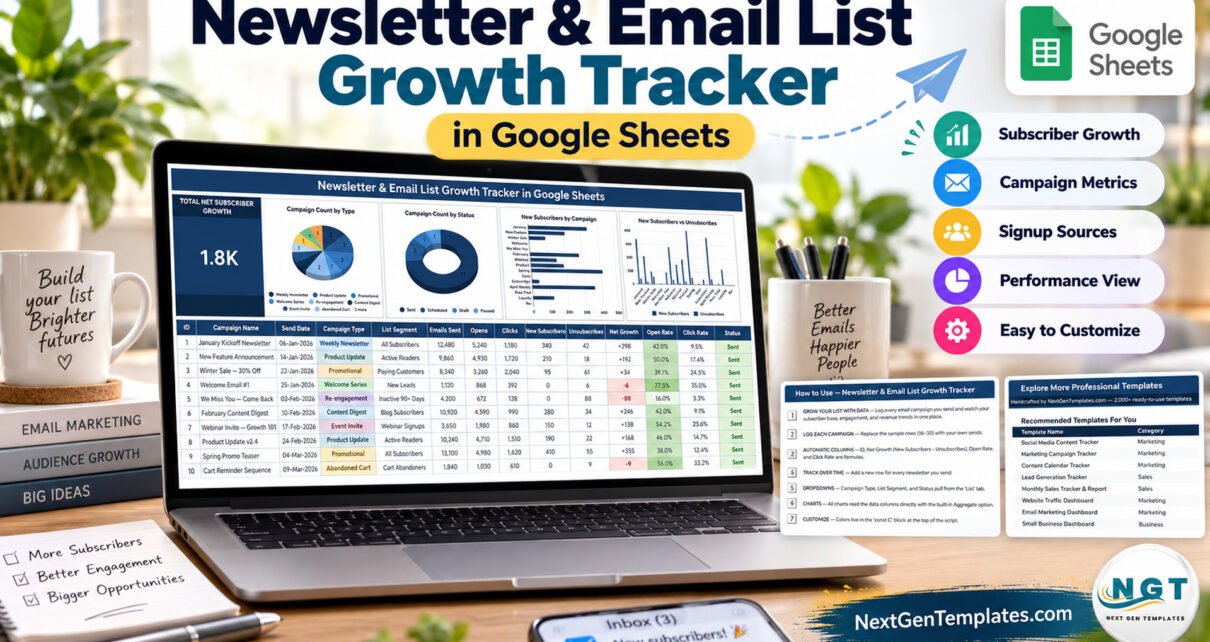
The Newsletter & Email List Growth Tracker in Google Sheets is a newsletter email list growth tracker that fits a whole email programme on one page: 16 columns per campaign, a Total Net Subscriber Growth card and 4 live charts. Its sample log holds 15 fictional campaigns sent between 06-Jan-2026 and 18-Apr-2026, spread across 11 campaign types and 10 list segments, adding up to 105,990 emails, 2,195 new subscribers and 415 unsubscribes.
Most senders read their numbers one campaign at a time inside an email platform, which makes it hard to answer the question that matters: is the list actually growing, and which emails grow it? This template puts every send side by side, subtracts unsubscribes from new sign-ups automatically and flags the campaigns that cost you readers. You type the totals, and Google Sheets does the rest.
Get the Newsletter & Email List Growth Tracker in Google Sheets
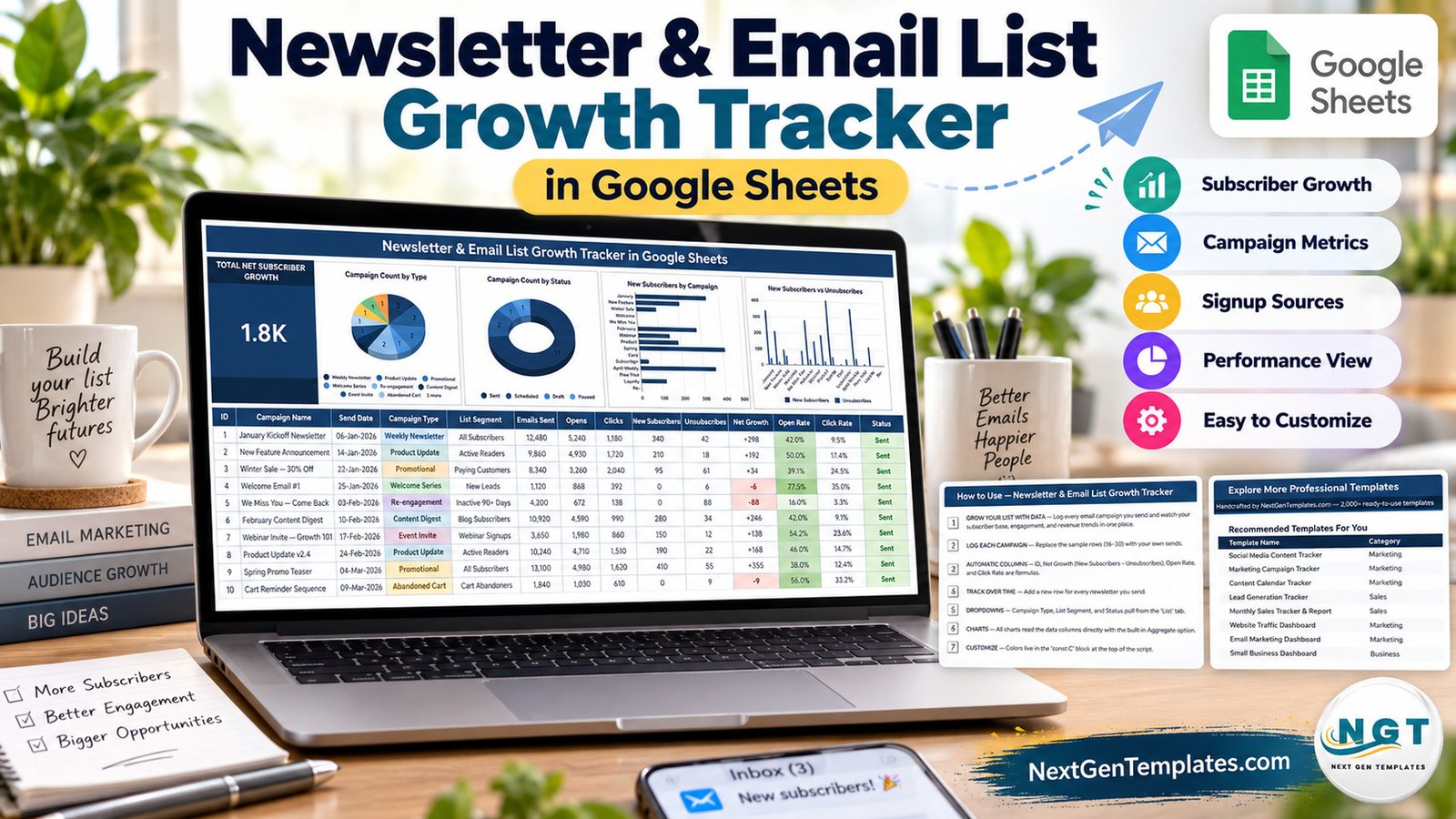
Key Features of the Newsletter Email List Growth Tracker
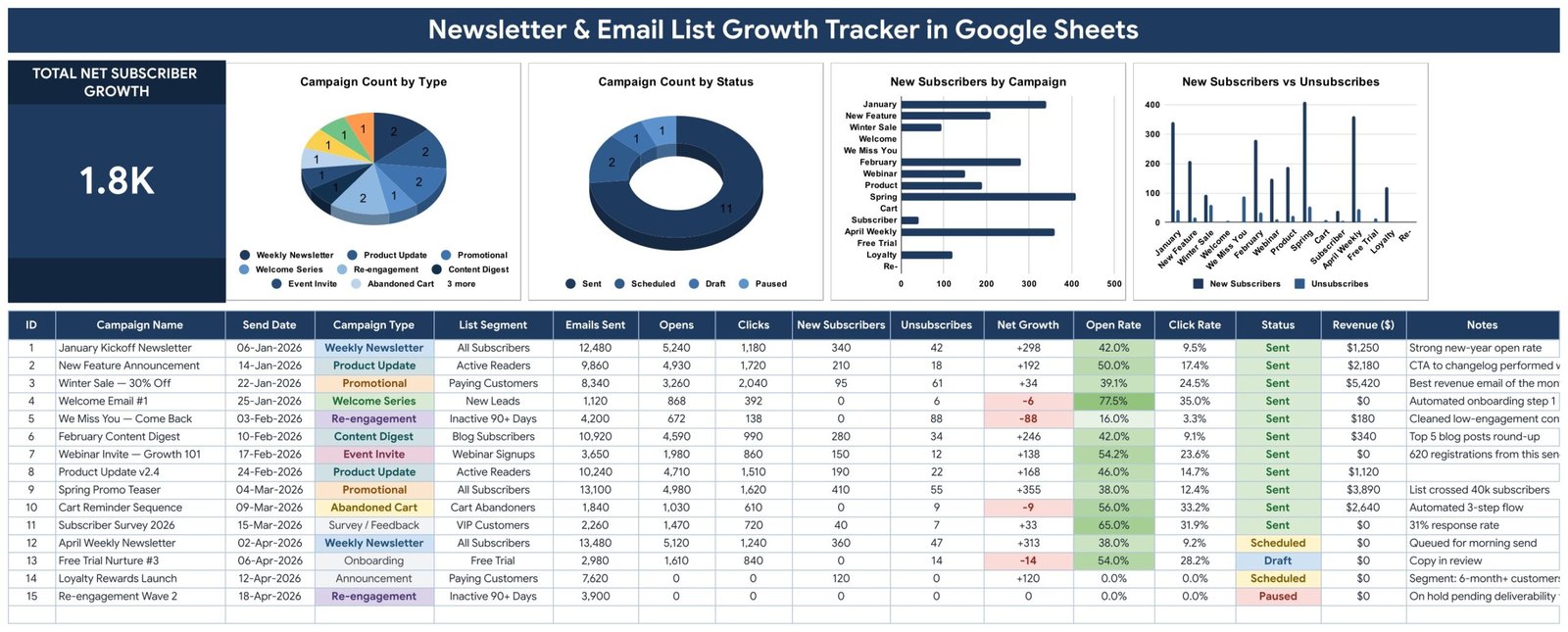
- Total Net Subscriber Growth card: adds New Subscribers minus Unsubscribes for every campaign logged. The sample data reads 1.8K, which is 1,780 net subscribers.
- Four automatic columns: ID, Net Growth, Open Rate (Opens ÷ Emails Sent) and Click Rate (Clicks ÷ Emails Sent) are formulas, so you never calculate a percentage by hand.
- Churn flag: a negative Net Growth turns red, and Open Rate cells are shaded green, so weak and strong sends are visible at a glance.
- Four charts linked straight to the data: Campaign Count by Type, Campaign Count by Status, New Subscribers by Campaign and New Subscribers vs Unsubscribes read rows 16-1000 with no hidden helper tables.
- Dropdowns that grow: Campaign Type, List Segment and Status come from the List tab (rows 2-500), so a new value appears in the dropdown the moment you add it.
- Revenue and notes: each campaign carries a Revenue ($) figure and a free-text note, and the currency can be switched to ₹, € or £.
- No subscriber records: the sheet stores campaign totals only. It has no columns for subscriber names or email addresses.
Tracker Structure
Sheet 1: Newsletter & Email List Growth Tracker
The main page opens with the title banner and the Total Net Subscriber Growth card, followed by Campaign Count by Type, Campaign Count by Status, New Subscribers by Campaign and New Subscribers vs Unsubscribes. Below the charts sits the campaign log: ID, Campaign Name, Send Date, Campaign Type, List Segment, Emails Sent, Opens, Clicks, New Subscribers, Unsubscribes, Net Growth, Open Rate, Click Rate, Status, Revenue ($) and Notes.
Sheet 2: How to Use
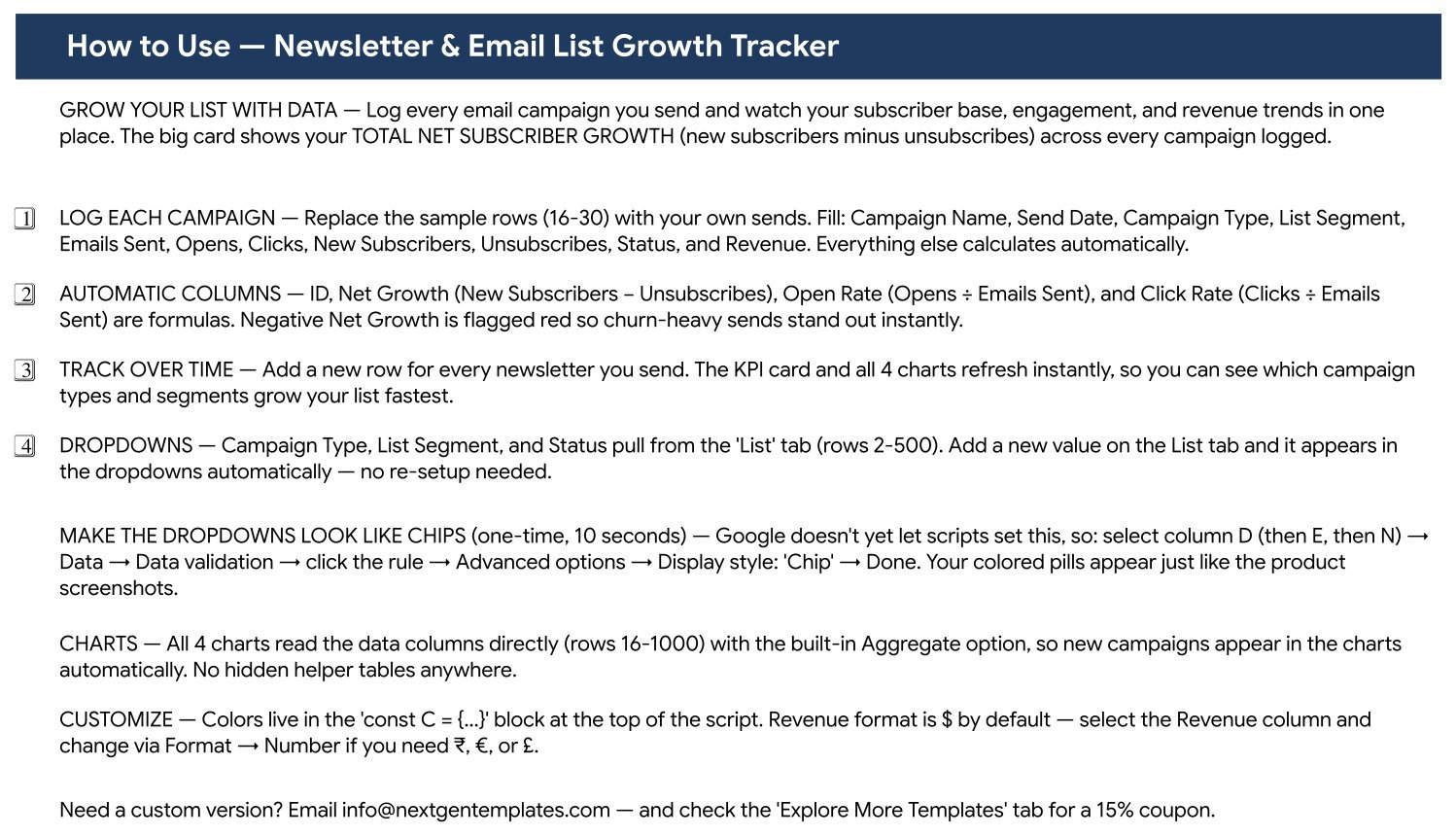
The instructions sheet explains which columns you fill, which ones calculate, how the List tab feeds the dropdowns, how to turn dropdowns into coloured chips and how to change the revenue currency.
Sheet 3: Explore More Templates
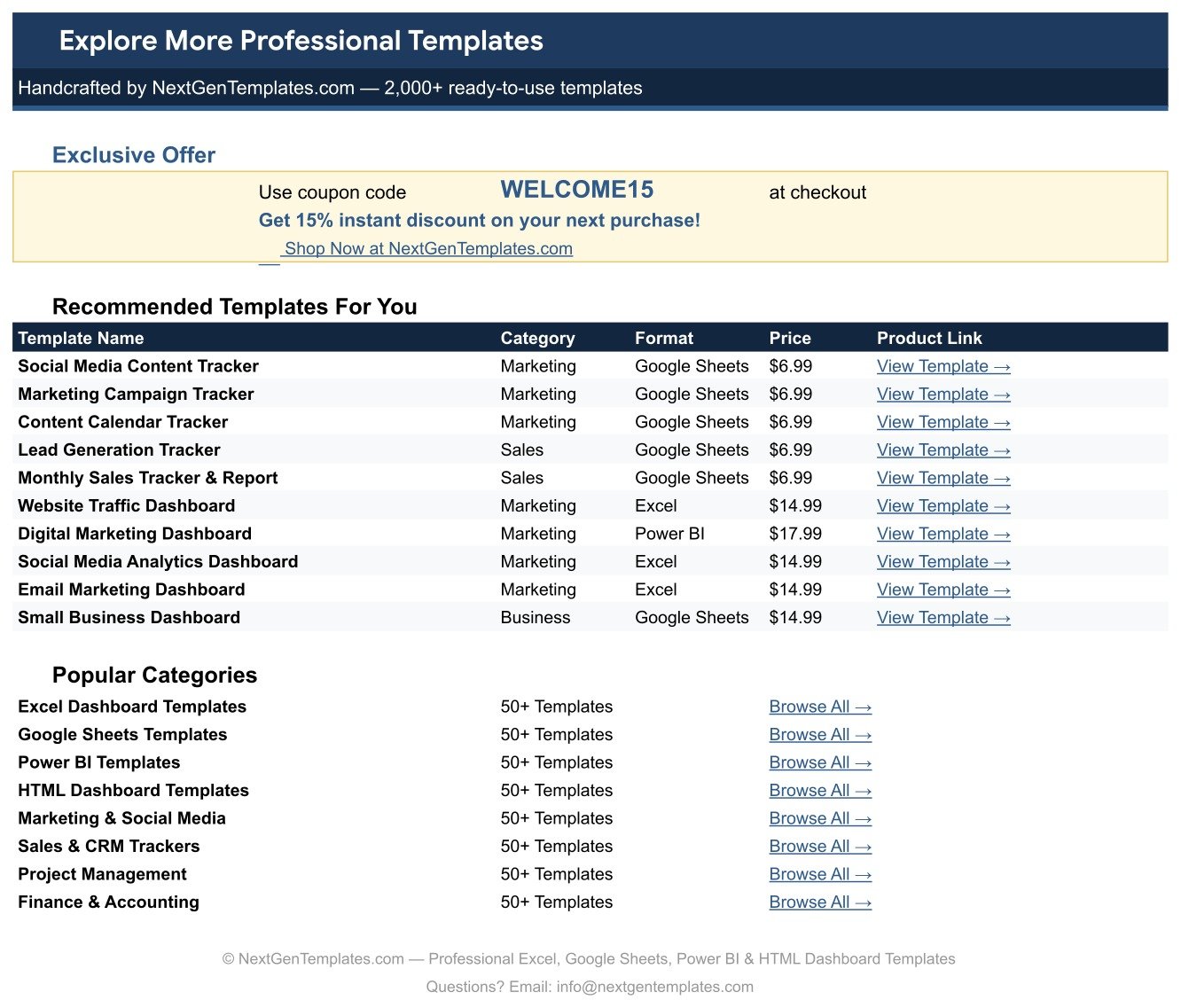
A page of recommended marketing and sales templates and popular template categories. A separate List tab (not pictured) holds the campaign types, list segments and statuses.
Newsletter & Email List Growth Tracker vs. Excel Dashboard vs. Paid Email Platform Reports — Feature Comparison
| Feature | Newsletter & Email List Growth Tracker | Microsoft Excel dashboard | Paid email platform reports (Mailchimp / HubSpot Marketing) |
|---|---|---|---|
| Cost | ✅ $6.99 one-time | Excel licence plus a template or build time | Recurring monthly plan |
| Platform | ✅ Google Sheets in any browser | Excel desktop or Microsoft 365 | The vendor’s web app |
| Setup time | ✅ Make a copy, replace 15 sample rows | Build or adapt a workbook | Account setup and list import |
| Real-time team collaboration | ✅ Google Sheets sharing | Co-authoring through OneDrive or SharePoint | ✅ Seats depend on the plan |
| Mobile access | ✅ Google Sheets app | ✅ Excel mobile app | ✅ Vendor app |
| Customizable fields | ✅ Edit columns and the List tab | ✅ Yes | Limited to the vendor’s report fields |
| Year-1 cost at 5 users | ✅ $6.99 total | Microsoft 365 licence per user | A year of plan fees |
| Compare campaigns from more than one platform in one log | ✅ Yes | Depends on the build | Only that platform’s own sends |
| Pulls campaign data automatically | ❌ Manual entry | ❌ Manual unless you build a connector | ✅ Yes |
For creators and small teams who want one honest record of list growth without paying for another reporting seat, the Newsletter & Email List Growth Tracker sits in the sweet spot.
Who Should Use This Template
Perfect for:
- Newsletter writers and creators who want to see which issues add readers and which lose them
- Small-business marketers comparing welcome, promotional, abandoned-cart and re-engagement emails
- Freelancers and agencies sharing monthly email results with clients in a Google Sheet
- Teams that send from more than one tool and want a single log of every campaign
Not a fit if:
- You need stats pulled automatically from your email platform; every figure is typed in
- You want a subscriber database, contact manager or a tool that sends email
Real-World Use Cases
Maya writes a weekly food newsletter. Every Sunday issue and every seasonal promo gets a row. After a quarter, the New Subscribers vs Unsubscribes chart shows her that recipe round-ups add readers steadily, while one discount blast lost more subscribers than it brought in. She plans the next quarter around the issues that grow the list.
Daniel runs email for a small online store. He tags each send by segment, such as Paying Customers, Cart Abandoners and Inactive 90+ Days, and compares open rate, click rate and revenue. The log shows his abandoned-cart reminders earn steady revenue from small sends, so he keeps them and trims a monthly promo that underperforms.
Priya manages newsletters for three clients. She keeps one copy of the tracker per client, shares it view-only, and uses the Notes column to explain spikes, so monthly reporting is a link rather than a slide deck.
Advantages of the Newsletter & Email List Growth Tracker
- Growth, not just opens: the Net Growth column and the headline card keep attention on whether the list is getting bigger.
- Less spreadsheet work: four formula columns and four linked charts mean a new campaign takes one row of typing.
- Low cost: a one-time $6.99 purchase, with no seat or subscription fee for sharing it with your team.
- Tool-agnostic: totals from any email platform can sit in the same log, so switching providers does not erase your history.
- Easy to adapt: the List tab lets you rename campaign types and segments to match how you actually send.
Opportunities for Improvement
- Manual entry only. There is no connection to Mailchimp, ConvertKit, Substack or any other email platform, so figures must be copied from each campaign report.
- No period filter. The card and charts cover every row in the log. To look at one quarter, copy the tracker or filter the table yourself.
- All statuses count. Scheduled, Draft and Paused rows feed the totals too. In the sample, a Scheduled campaign already carries 120 new subscribers, so clear placeholder figures until a send goes out.
- Click Rate uses emails sent as the base. It is not a click-to-open rate, so compare it only with figures calculated the same way.
- Short chart labels. The New Subscribers charts shorten long campaign names on the axis, so keep names distinctive in their first word or two.
- Chip-style dropdowns are a manual step. Google Sheets does not let a script set the chip display, so it takes a one-time change in Data validation.
Best Practices
- Log each campaign on the day its report settles, so opens and clicks are final rather than partial.
- Decide how you attribute new subscribers (for example, sign-ups in the seven days after a send) and use the same rule every time.
- Keep segment names identical to your email platform, so rows are easy to match with the source report.
- Use Notes for context: subject-line tests, list clean-ups or a deliverability problem explain a strange row months later.
- Review the red Net Growth rows once a month and ask whether that campaign type deserves its slot.
If you want to add your own campaign types, Google’s guide to creating an in-cell dropdown list covers the Data validation settings, and its help page on adding and editing charts shows how to restyle the four charts.
Explore Relevant Templates
Plan each send before it leaves with the Email Campaign Checklist in Google Sheets (walkthrough: Email Campaign Checklist guide), and schedule promotions in the Marketing Campaign Calendar in Google Sheets.
If your newsletter is paid, the Subscription and Membership Tracker in Google Sheets covers recurring members. Creators who publish video or audio as well can pair this tracker with the YouTube Video Ideas & Upload Tracker, the Podcast Episode Planning Tracker or the YouTube Channel Performance Tracker.
For a multi-channel view, see the Digital Marketing Campaign Dashboard in Google Sheets, or browse all Google Sheets trackers.
Building trackers like this one is a good way to sharpen general spreadsheet skills, and the NextGenTemplates Academy learning paths offer a step-by-step route with practice files.
Get the Newsletter & Email List Growth Tracker in Google Sheets
Frequently Asked Questions
What does the Newsletter & Email List Growth Tracker measure?
It records emails sent, opens, clicks, new subscribers, unsubscribes, status and revenue for each campaign, then calculates Net Growth, Open Rate and Click Rate. A headline card totals net subscriber growth, and four charts break campaigns down by type, status and subscriber movement.
Does it connect to Mailchimp, ConvertKit or Substack?
No. The Newsletter & Email List Growth Tracker is manual entry only. You copy totals from your email platform’s campaign report into a row. It does not connect to any email service provider, import contacts or send messages.
How long does setup take?
Around ten minutes. Open the PDF, make your copy, adjust the List tab if your campaign types or segments differ, and replace the 15 sample rows with your own sends. The formulas, formatting and charts are already in place.
How does it compare with paid email platform reports?
Platform reports fill in stats automatically, but only for that platform and on a recurring plan. The Newsletter & Email List Growth Tracker costs $6.99 once, adds revenue and notes, and keeps campaigns from any tool in one shareable Google Sheet.
Does the tracker store subscriber email addresses?
No. There is one row per campaign holding totals such as emails sent and new subscribers, with no columns for names or addresses. The campaigns that ship with the file are fictional sample data.
Can I track revenue in a currency other than dollars?
Yes. Revenue uses $ by default. Select the Revenue ($) column and choose Format, then Number, to switch to ₹, € or £. Nothing else in the newsletter email list growth tracker needs to change.
About the Author
Built by PK — Microsoft Certified Professional with 15+ years of Excel, Google Sheets and Power BI experience. Founder of NextGenTemplates, reaching 300K+ subscribers across YouTube channels. Every template is hand-built and tested before release.
Conclusion
A list only grows if you know which emails grow it. With a newsletter email list growth tracker in Google Sheets, every campaign, sign-up and unsubscribe lands in one log, with the maths and charts already done.
✅ Instant download · One-time payment · No subscription
Last updated: September 2026