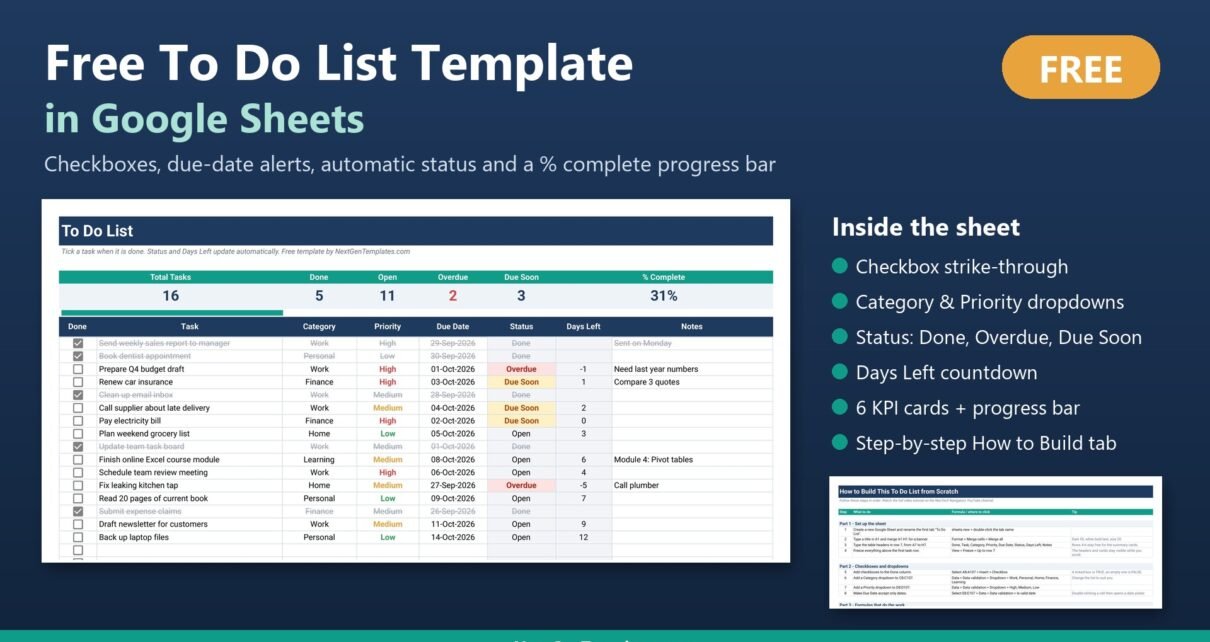
A Google Sheets to do list template does more than a paper list: tick a checkbox and the task is crossed out, miss a due date and the row turns red, and a progress bar shows how much of your list is finished. This tutorial shows how to make a to do list in Google Sheets that does exactly that, step by step, from a blank sheet. It takes about 20 minutes, needs only five functions (IF, TODAY, OR, COUNTIF and SPARKLINE), and every formula is shown in full below.
Prefer to skip the build? Download the finished To Do List Template in Google Sheets for free. It contains the same sheet plus a How to Build tab with all 21 steps.
🎥 Watch the Video Tutorial
🎥 Watch the 10-minute video version of this tutorial on the NeoTech Navigators YouTube channel: youtu.be/Kt5c94tSicY. It builds the same sheet in 6 steps.
⬇️ Download the Free Practice File
Free To Do List Template in Google Sheets · PDF with Make a copy link · no add-ons
What You Will Build
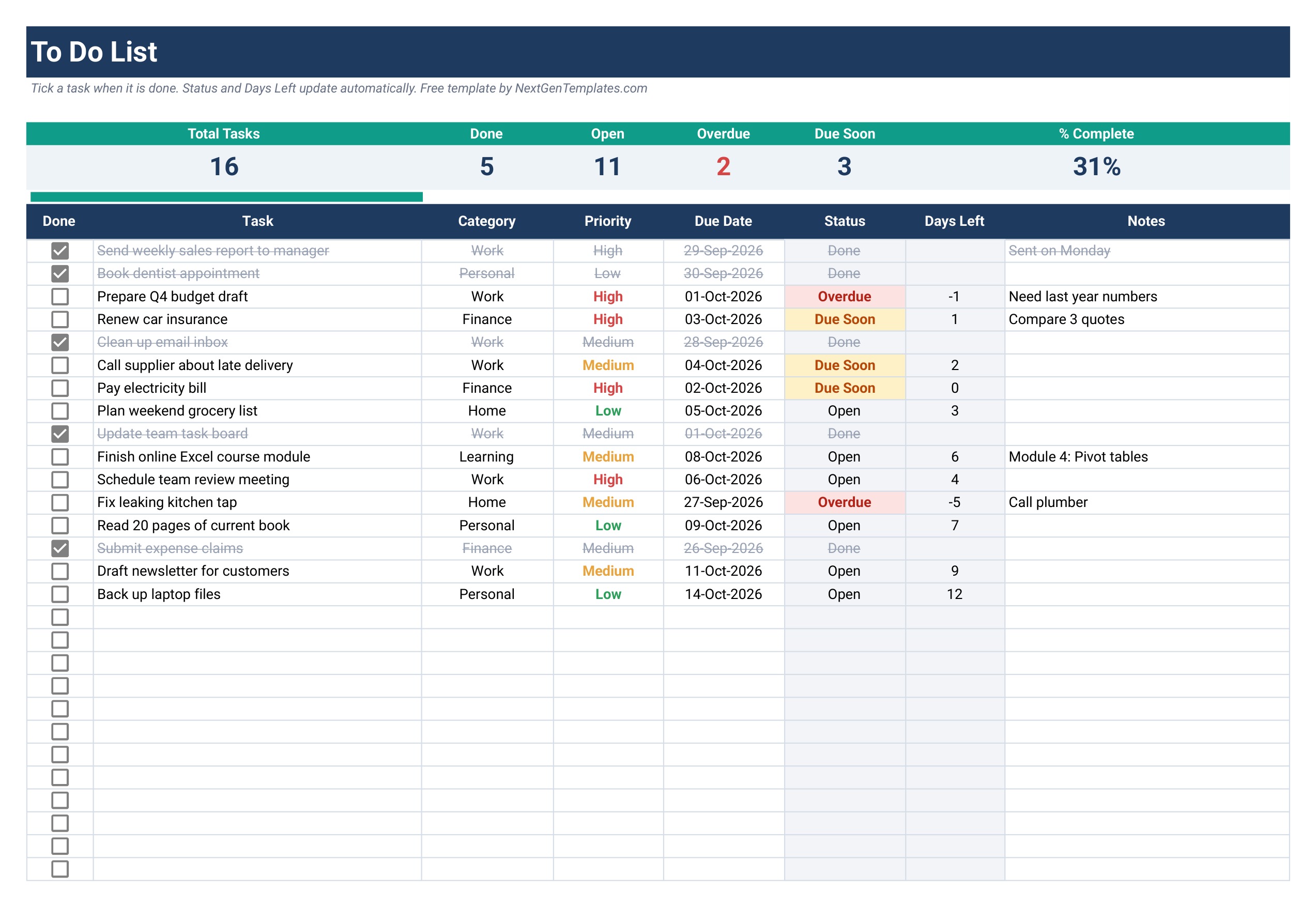
The finished to do list in Google Sheets has one table with eight columns and a summary strip on top:
- Done: a Google Sheets checkbox on every row
- Task, Category (dropdown) and Priority (dropdown)
- Due Date: accepts real dates only, with a date picker
- Status: Done, Overdue, Due Soon or Open, calculated automatically
- Days Left: a countdown to the due date
- Notes: free text
- Six KPI cards (Total Tasks, Done, Open, Overdue, Due Soon, % Complete) and a progress bar
The table runs from row 8 to row 107, so it holds 100 tasks. Rows 1 to 6 hold the banner, the cards and the bar, and row 7 holds the headers.
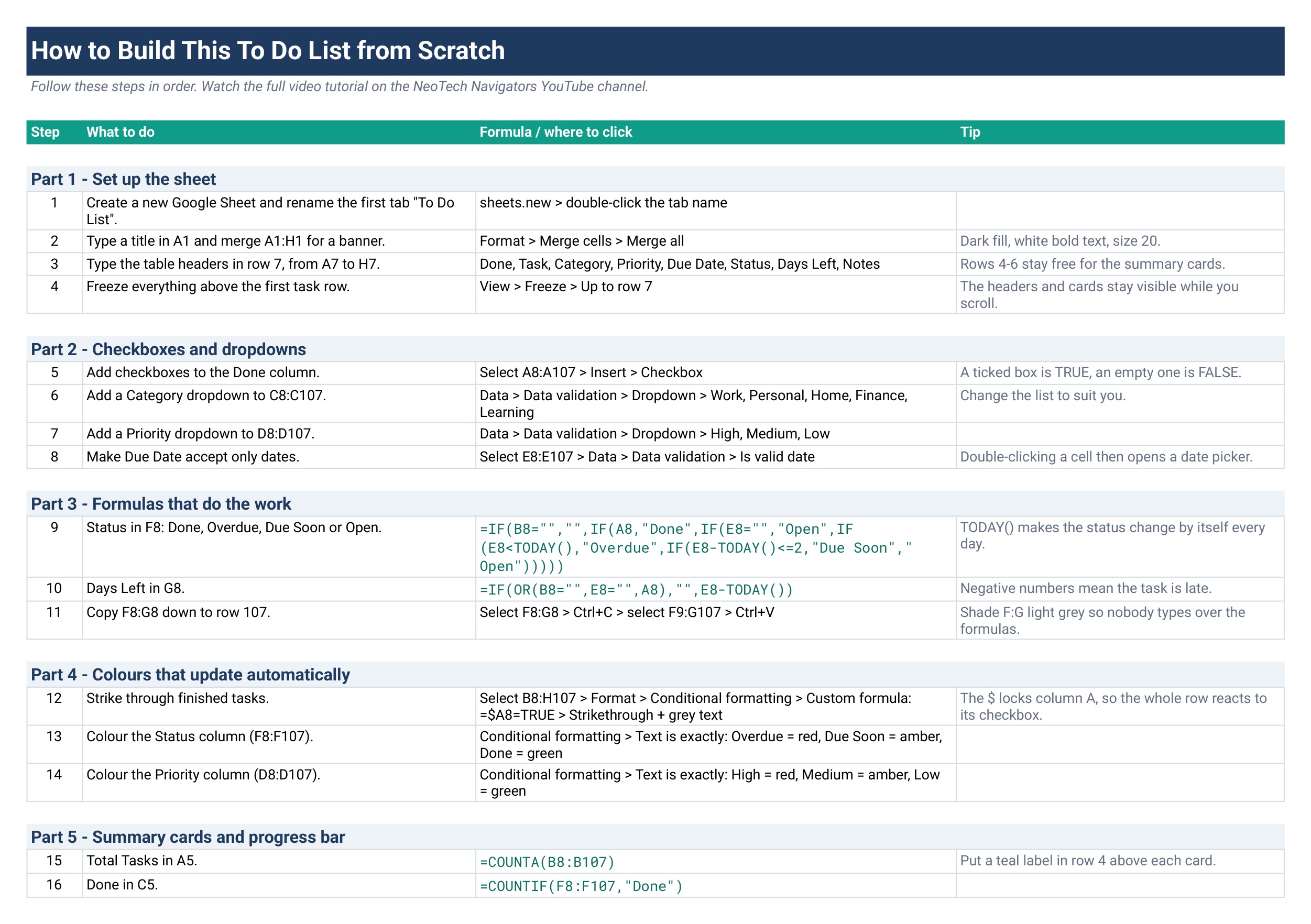
Part 1: Set Up the Sheet
Step 1: Create the sheet
Type sheets.new in your browser to open a blank Google Sheet. Double-click the first tab and rename it To Do List.
Step 2: Add a title banner
Type a title in A1, select A1:H1 and choose Format > Merge cells > Merge all. Give it a dark fill with white, bold, size 20 text.
Step 3: Type the headers in row 7
From A7 to H7 type: Done, Task, Category, Priority, Due Date, Status, Days Left, Notes. Leave rows 4 to 6 empty for now; the summary cards go there later.
Step 4: Freeze the top rows
Choose View > Freeze > Up to row 7. The headers and cards now stay visible while you scroll through a long list.
Part 2: Add the Google Sheets Checkbox and Dropdowns
Step 5: Insert checkboxes in the Done column
Select A8:A107 and choose Insert > Checkbox. A ticked box is TRUE and an empty box is FALSE. That TRUE/FALSE value is what turns a plain list into a working google sheets checklist, because every formula below can read it.
Step 6: Add a Category dropdown
Select C8:C107, open Data > Data validation, choose Dropdown and enter Work, Personal, Home, Finance and Learning. Change the list to suit your life.
Step 7: Add a Priority dropdown
Do the same for D8:D107 with High, Medium and Low.
Step 8: Make Due Date accept only dates
Select E8:E107, open Data > Data validation and pick Is valid date. Double-clicking a cell now opens a date picker, and typos like “next Friday” are rejected.
Part 3: Formulas That Do the Work
Step 9: The Status formula
In F8, enter:
=IF(B8="","",IF(A8,"Done",IF(E8="","Open",IF(E8<TODAY(),"Overdue",IF(E8-TODAY()<=2,"Due Soon","Open")))))Read it from left to right: if there is no task, show nothing; if the box is ticked, show Done; if there is no due date, show Open; if the date has passed, show Overdue; if it is two days away or less, show Due Soon; otherwise show Open. Because TODAY() recalculates every day, the status changes by itself.
Step 10: The Days Left formula
In G8, enter:
=IF(OR(B8="",E8="",A8),"",E8-TODAY())It stays blank for empty rows, rows without a date and finished tasks. Everywhere else it shows the days remaining, and a negative number means the task is late.
Step 11: Copy the formulas down
Select F8:G8, press Ctrl+C, select F9:G107 and press Ctrl+V. Shade F and G light grey so nobody types over the formulas.
If you want more practice with formulas like these, our guide on how to summarize data in Google Sheets covers COUNTIF and friends in more depth.
Part 4: Colours That Update Automatically
Step 12: Strike through finished tasks
Select B8:H107 and open Format > Conditional formatting. Choose Custom formula is and enter =$A8=TRUE, then set strikethrough and grey text. The dollar sign locks column A, so the whole row reacts to its own checkbox.
Step 13: Colour the Status column
Select F8:F107 and add three rules with Text is exactly: Overdue in red, Due Soon in amber and Done in green.
Step 14: Colour the Priority column
Select D8:D107 and add the same kind of rules: High in red, Medium in amber, Low in green.
Part 5: Summary Cards and a Progress Bar
Put a coloured label in row 4 above each card and the formula in row 5:
| Step | Card | Cell | Formula |
|---|---|---|---|
| 15 | Total Tasks | A5 | =COUNTA(B8:B107) |
| 16 | Done | C5 | =COUNTIF(F8:F107,"Done") |
| 17 | Open | D5 | =COUNTA(B8:B107)-COUNTIF(F8:F107,"Done") |
| 18 | Overdue | E5 | =COUNTIF(F8:F107,"Overdue") |
| 18 | Due Soon | F5 | =COUNTIF(F8:F107,"Due Soon") |
| 19 | % Complete | G5 | =IFERROR(COUNTIF(F8:F107,"Done")/COUNTA(B8:B107),0) |
Format G5 as a percentage with Format > Number > Percent.
Step 20: Add the progress bar
Merge A6:H6 and enter:
=SPARKLINE(G5,{"charttype","bar";"max",1;"color1","#0F9D8A"})The bar fills from left to right as you tick tasks off. With the 16 sample tasks in the free template, 5 are done, so the bar sits at 31%.
Step 21: Start Using Your To Do List
Type a task, pick a category, priority and due date, and tick the checkbox when it is finished. Status, Days Left, the cards and the bar all update without any further work. If you want someone else to see the list, use Share and give them a link.
Tidying up a list you pasted in from somewhere else? Our post on how to clean messy data in Google Sheets shows how to fix spacing, case and duplicates first.
Get the Free Google Sheets To Do List Template
If you would rather start using the list today, the finished version is free on NextGenTemplates. It is the same sheet you just read about, with 16 sample tasks, all formulas, all colour rules and the How to Build tab.
⬇️ Download the Free Practice File
Free To Do List Template in Google Sheets · PDF with Make a copy link · no add-ons
When You Outgrow It: The Task Management Tracker
A to do list google sheets template like this one is built for one person. Teams usually need more. The Task Management Tracker in Google Sheets, the best-selling template on NextGenTemplates, adds:
- Task owners, so you can assign work across your team
- Progress tracking from 0% to 100% with a colour-coded progress bar
- A dashboard with total, completed and overdue counts plus breakdowns by priority and status
- Real-time collaboration in one shared sheet
- A one-time purchase with no subscription
For deadline-heavy freelance work, the Freelance Gig and Deadline Tracker in Google Sheets is another option worth a look.
Want to build more trackers and templates like this one? The NextGenTemplates Academy learning paths teach the spreadsheet skills step by step, with practice files.
Free To Do List vs. Task Tracker vs. Task Apps
| Feature | Free To Do List (this tutorial) | Task Management Tracker | Asana / Todoist |
|---|---|---|---|
| Cost | Free | One-time purchase | Free tier, then monthly plans |
| Checkbox to mark done | Yes | Yes | Yes |
| Automatic Overdue / Due Soon | Yes | Yes | Yes |
| Assign tasks to people | No | Yes | Yes |
| 0-100% progress per task | No | Yes | Varies |
| Dashboard | KPI cards only | Yes | Yes |
| Edit every formula | Yes | Yes | No |
Frequently Asked Questions
How do I add a checkbox in Google Sheets?
Select the cells and choose Insert > Checkbox. Each Google Sheets checkbox stores TRUE when ticked and FALSE when empty, so formulas such as IF and COUNTIF can react to it. That is the basis of the whole to do list template.
How do I cross out a row when a checkbox is ticked?
Select the row range, open Format > Conditional formatting, choose Custom formula is and enter =$A8=TRUE, then pick strikethrough. The dollar sign keeps every cell pointing at its own row’s checkbox.
How do I highlight overdue tasks in Google Sheets?
Compare the due date with TODAY() in a Status column, as in Step 9, then add a conditional formatting rule that colours the cell red when it says Overdue. The status refreshes every day on its own.
Is there a free task tracker template I can copy?
Yes. The To Do List Template in Google Sheets on NextGenTemplates is a free task tracker template with checkboxes, auto status, Days Left, KPI cards and a progress bar. Download the PDF and click Make a copy.
Is there a video tutorial for this to do list?
Yes. A 10-minute step-by-step video on the NeoTech Navigators YouTube channel builds this Google Sheets to do list template in 6 steps: checkboxes, dropdowns and date validation, the Status formula, Days Left, conditional formatting, and the summary cards with the progress bar. Watch it at youtu.be/Kt5c94tSicY or in the player near the top of this post.
Can I use this to do list on my phone?
Yes. The Google Sheets app on Android and iPhone lets you add tasks and tick checkboxes. Building the sheet is easier on a computer.
Wrapping Up
You now have a Google Sheets to do list template that marks tasks done with a checkbox, flags overdue work, counts down the days and shows your progress, all from five functions. Build it yourself with the steps above, or grab the free template and start today. When your team needs owners and a dashboard, move up to the Task Management Tracker in Google Sheets.
📅 Last updated: October 2026