In this article we have created a Digital Advertising Calendar in Google Sheets. This is a ready to use Calendar template in Google Sheets for planning paid ads, launch dates, creative reviews, daily tasks, and campaign events in one shared file. The template uses 5 worksheet tabs, a 12-month annual calendar, a selected-month calendar, a date-range daily view, and a 7-field Events database so digital marketing teams can stop tracking campaign dates across scattered notes and messages.Digital Advertising Calendar in Google Sheets
Get the Digital Advertising Calendar in Google Sheets
Because the template runs in Google Sheets, teams can share it through Google Drive, review changes in the browser, and keep campaign schedules visible to managers, media buyers, designers, copywriters, and clients. For Google Sheets sharing and collaboration basics, you can also refer to the official Google Docs Editors Help Center.
Key Features of Digital Advertising Calendar in Google Sheets
- 5 worksheet structure – Home, Annual View, Monthly View, Daily View, and Events.
- Annual campaign view – see all 12 months of advertising activities in one planning sheet.
- Monthly calendar view – select Month and Year from the top and review the selected month in detail.
- Daily date-range view – enter Start Date and End Date to show all campaign events in that range.
- Events database – capture ID, Date, Day, Event Name, Time, Location, and Description.
- Multiple-event indicator – when a date has more than one event, the monthly calendar shows a more-than-one notice.
- Google Sheets collaboration – share the template with team members and control access through Google Drive.
Calendar Pages Explanation
1. Home Sheet Tab
The Home sheet is an index sheet where we have given four buttons to jump to the respective sheets: Annual View, Monthly View, Daily View, and Events. This is helpful when you are running a campaign planning meeting and want to move quickly between yearly planning, month-level scheduling, daily execution, and the event database.
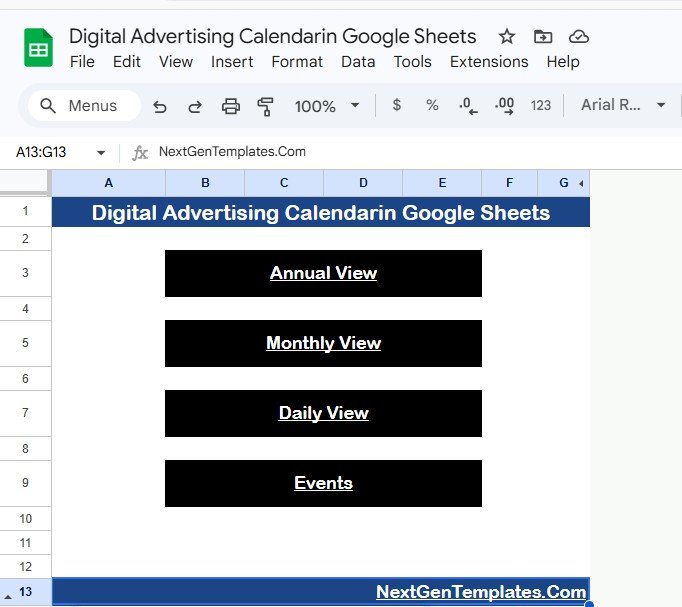
Digital Advertising Calendar in Google Sheets
2. Annual View Sheet Tab
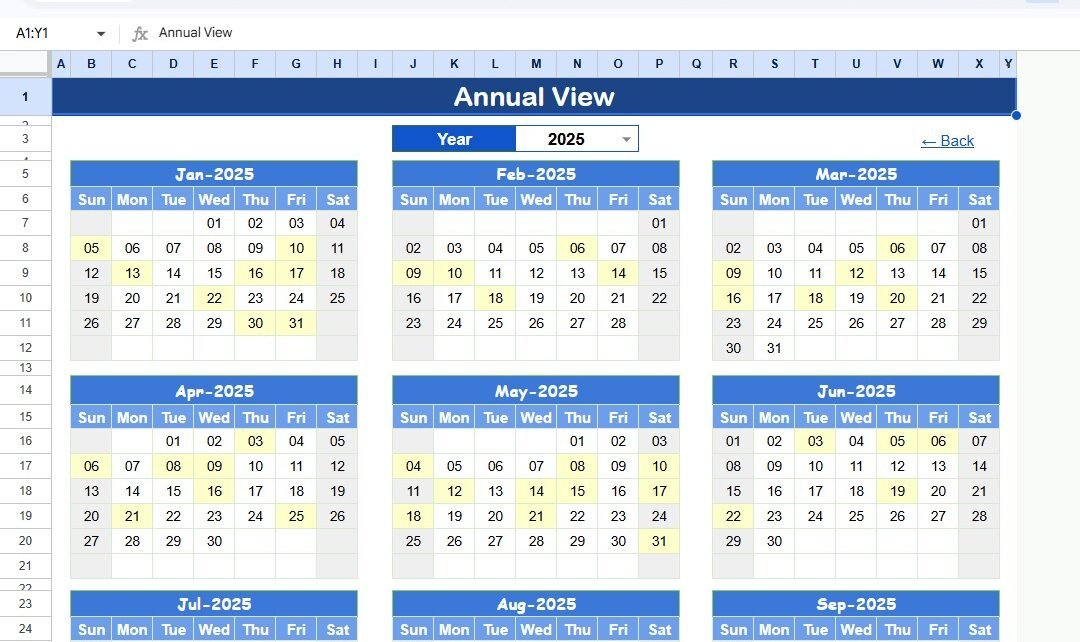
This is the Annual View sheet. Here we are showing 12 months calendars on one page. Marketing teams can use this view to plan product launches, paid search campaigns, paid social pushes, influencer dates, retargeting windows, seasonal promotions, and reporting checkpoints across the full year.

Annual View Sheet tab
The biggest benefit of the annual sheet is visibility. Instead of discovering campaign conflicts at the last minute, a marketing manager can see busy weeks, quiet months, overlapping launches, and planned reporting dates in advance.
3. Monthly View Sheet Tab
The Monthly View sheet is a single calendar for the selected month. You can select the Month and Year from the top, and the calendar will show the information accordingly. The template shows one event on the calendar date. If more than one event exists on any date, it will display a more-than-one indicator so the user knows to check the detailed event listDigital Advertising Calendar in Google Sheets

Monthly View Sheet tab
This monthly view is useful for active campaign management. A PPC specialist can see when ad groups go live, when creative assets are due, when audiences need to be refreshed, and when reporting reviews are scheduled.
4. Daily View Sheet Tab
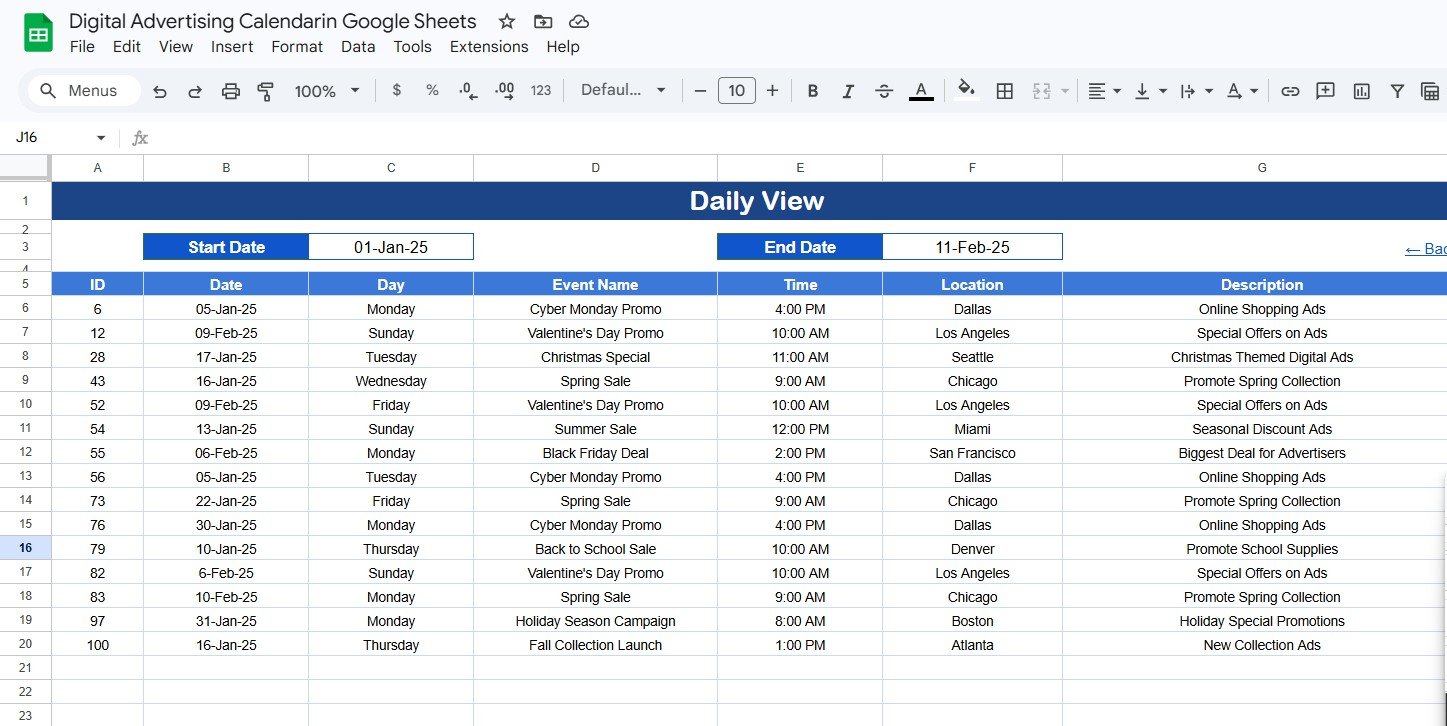
The Daily View sheet shows the list of events with details for the selected date range. You can put the date range on the top as Start Date and End Date. Double click in the cell to open the calendar and select the date range in Google Sheets.
Daily View Sheet tab
This page is practical for weekly standups and launch-day reviews. If your team wants to know what is happening between Monday and Friday, enter that range and the sheet returns the matching events with details.
5. Events Sheet Tab
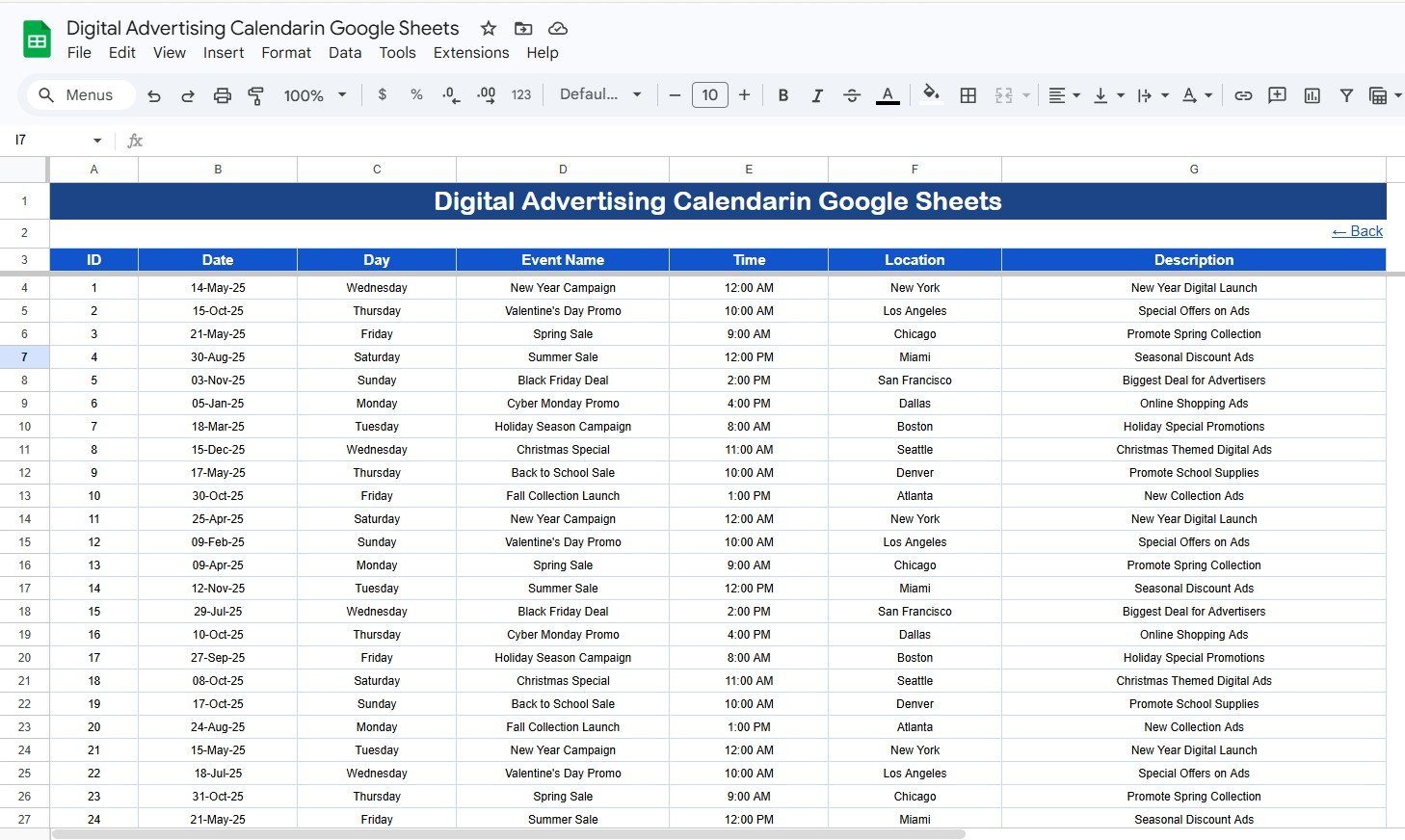
The Events sheet is the database sheet. Here, we are capturing the details of all events. Each row can be used for an ad launch, platform review, budget check, reporting date, design deadline, landing page task, or campaign meeting.
Events Sheet tab
The Events sheet keeps the following information:
- ID: Auto generated number.
- Date: Date of event.
- Day: Day of event such as Sunday, Monday, Tuesday, and so on.
- Event Name: Name of the event.
- Time: Time of the event.
- Location: Location, platform, meeting room, or campaign channel.
- Description: Short description about the event.
You can enter the data manually to add a new event. For advertising teams, this can include Google Ads reviews, Meta Ads creative changes, LinkedIn Ads launches, landing page updates, A/B test dates, budget approvals, and monthly performance calls.
Digital Advertising Calendar in Google Sheets vs. Excel vs. Paid Marketing SaaS – Feature Comparison
| Feature | Digital Advertising Calendar in Google Sheets | Microsoft Excel Calendar | Paid Marketing SaaS |
|---|---|---|---|
| Cost | $4.99 one-time | $4.99-$12.99 template cost plus Excel access | Monthly subscription, often per user |
| Platform | Google Sheets in browser | Excel desktop or cloud | Browser SaaS |
| Setup time | Under 5 minutes after copy link setup | 5-15 minutes | Several hours or more |
| Real-time team collaboration | Native Google Sheets sharing | Requires OneDrive or SharePoint | Usually included on paid plans |
| Mobile access | Google Sheets app or browser | Limited on mobile | Mobile app or browser |
| Customizable fields | Fully editable | Fully editable | Depends on plan and permissions |
| Share with link | Yes | Varies by Microsoft setup | Account-based access |
| Year-1 cost at 5 users | $4.99 total | Template cost plus licenses | Often hundreds or thousands per year |
| Best use case | Campaign date planning | Offline planning | Workflow automation and integrations |
Who Should Use This Template
This template is a good fit for PPC managers, digital marketers, marketing agencies, startup founders, freelancers, social media managers, ecommerce teams, and small business owners who need one shared calendar for advertising activities.
It is also useful for teams that already use Google Sheets and want a practical planning layer before moving into ad platforms or analytics dashboards. The template is not meant to replace Google Ads, Meta Ads Manager, HubSpot, Monday.com, or a full project management system. It is best for planning dates, organizing campaign events, and giving everyone calendar visibility.
Real-World Use Cases
Anika, PPC specialist: Anika uses the Events sheet to log ad launch dates, keyword review sessions, conversion tracking checks, creative upload deadlines, and weekly performance review calls. Monthly View gives her a clean schedule for the active month.
Marcus, marketing agency owner: Marcus creates one copy of the calendar for each client. He uses Annual View during quarterly planning calls and Daily View during weekly production meetings with designers and media buyers.
Priya, startup growth marketer: Priya runs search, social, and email promotions with a small team. She uses the calendar to coordinate landing page updates, ad copy reviews, budget approvals, and launch-day tasks without buying another SaaS tool.
Advantages of Digital Advertising Calendar in Google Sheets
- Low cost – one-time purchase instead of a monthly subscription.
- Easy collaboration – share the Google Sheet with internal team members or clients.
- Clear calendar views – annual, monthly, and daily views support different planning levels.
- Editable structure – add columns for platform, owner, budget, approval status, landing page URL, or campaign type.
- Simple database – the Events sheet keeps all records in one tab for easy updates.
Opportunities for Improvement
This template is intentionally simple and spreadsheet-based. Depending on your workflow, you may want to enhance it further:
- Add a Platform column for Google Ads, Meta Ads, LinkedIn Ads, TikTok Ads, or Display.
- Add an Owner column to assign responsibility to each task or event.
- Add a Budget column for campaign spend planning.
- Add conditional formatting for launch dates, overdue creative tasks, or high-priority events.
- Use a separate dashboard template if you also need spend, clicks, conversions, ROAS, or channel performance reporting.
Best Practices
- Keep the Events sheet updated after every planning meeting.
- Use clear event names such as “Google Ads Launch – Brand Campaign” instead of vague labels.
- Review the Monthly View weekly so missed deadlines do not pile up.
- Use Daily View for execution during launch weeks and reporting weeks.
- Protect formula cells before sharing edit access with a large team.
- Create one copy per client if you are an agency managing multiple accounts.
Explore Relevant Templates
- Marketing Asset Creation Calendar in Google Sheets
- Digital Marketing Campaign Dashboard in Google Sheets
- PPC Campaign Checklist in Google Sheets
- Online Ad Performance Checklist in Google Sheets
- Browse Google Sheets Calendar Templates
Want to build spreadsheet skills like these step by step? The NextGenTemplates Academy learning paths take you from the basics to templates you can run yourself, with practice files.
Get the Digital Advertising Calendar in Google Sheets
Frequently Asked Questions
What is the Digital Advertising Calendar in Google Sheets?
It is a ready-to-use Google Sheets calendar template for planning advertising events, campaign dates, creative deadlines, and daily marketing tasks.
How many worksheets are included?
The template includes 5 worksheets: Home, Annual View, Monthly View, Daily View, and Events.
Can I use it for Google Ads and Meta Ads?
Yes. You can use the Events sheet to track Google Ads, Meta Ads, LinkedIn Ads, TikTok Ads, display campaigns, and other advertising activities.
Does it automatically pull data from ad platforms?
No. This is a planning calendar, not an API-connected reporting dashboard. You can manually enter campaign events and use another dashboard for performance metrics.
Can multiple people edit it?
Yes. Since it runs in Google Sheets, multiple people can work in the file if you share edit access through Google Drive.
Can I add extra columns?
Yes. You can add fields like campaign owner, platform, budget, approval status, campaign type, or landing page URL.
Is this useful for agencies?
Yes. Agencies can create one copy for each client and use the calendar during planning calls, weekly meetings, and launch reviews.
About the Author
Built by PK – Microsoft Certified Professional with 15+ years of Excel, Google Sheets, and Power BI experience. Founder of NextGenTemplates, reaching 300K+ subscribers across YouTube channels. Every template is hand-built and tested before release.
Conclusion
The Digital Advertising Calendar in Google Sheets gives marketers a clean way to plan campaign events without adding another monthly subscription. With Annual View, Monthly View, Daily View, and a structured Events database, it gives teams a shared calendar for campaign dates, creative deadlines, launch windows, and daily advertising work.
Last updated: May 18, 2026