The E-learning Course Calendar in Google Sheets is a 5-sheet course scheduling template built around 4 navigation buttons, 3 calendar views, and a 7-field Events database. Instead of keeping lesson dates in one file, test dates in another, and course-location notes in chat, the template puts Annual View, Monthly View, Daily View, and Events into one shareable Google Sheet. The sample file uses January 2025 events such as Feature Testing, Bug Fixing, Usability Test, Performance Test, and Security Check, so buyers can see how date-based course operations flow before replacing the demo rows.education calendar in Google Sheets
For online courses, the calendar is often the operational backbone. A missed assessment window, late content review, or forgotten live session can create more learner friction than a complex technical issue. This template is meant for the practical layer: what happens, when it happens, where it happens, and what the team needs to know.
Get the E-learning Course Calendar in Google Sheets
You can view the product draft here once published: E-learning Course Calendar in Google Sheets.
Key Features of E-learning Course Calendar in Google Sheets
- 5 linked worksheet tabs: Home, Annual View, Monthly View, Daily View, and Events.
- 4 Home-sheet navigation buttons: each button opens the relevant calendar section, which helps non-technical users move through the file quickly.
- Annual View: all 12 months of the selected year appear on one planning sheet.
- Monthly View: select a month and year to see scheduled course activity in a clean month grid.
- Daily View: set a start date and end date to return the matching event list with details.
- Events database: ID, Date, Day, Event Name, Time, Location, and Description columns drive the schedule.
- Google Sheets collaboration: share the copied file with instructors, course assistants, curriculum teams, or managers through normal Google Drive access controls.
Calendar Sheets Explanation
Home Sheet
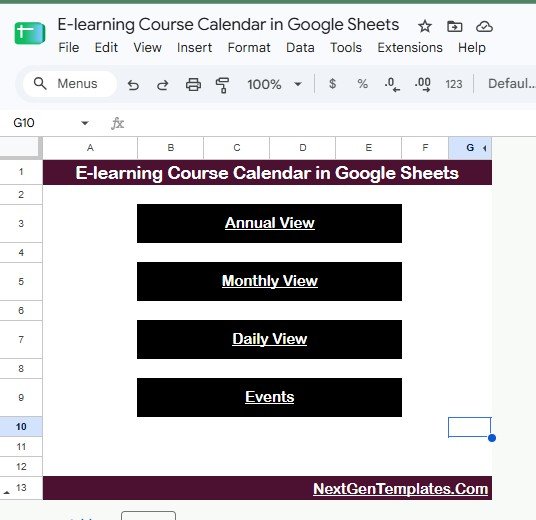
The Home sheet is the index page. Four large buttons point to Annual View, Monthly View, Daily View, and Events. This matters more than it seems: course teams often include instructors, designers, support staff, and administrators, and not everyone wants to hunt through sheet tabs or remember where the database lives.
Annual View
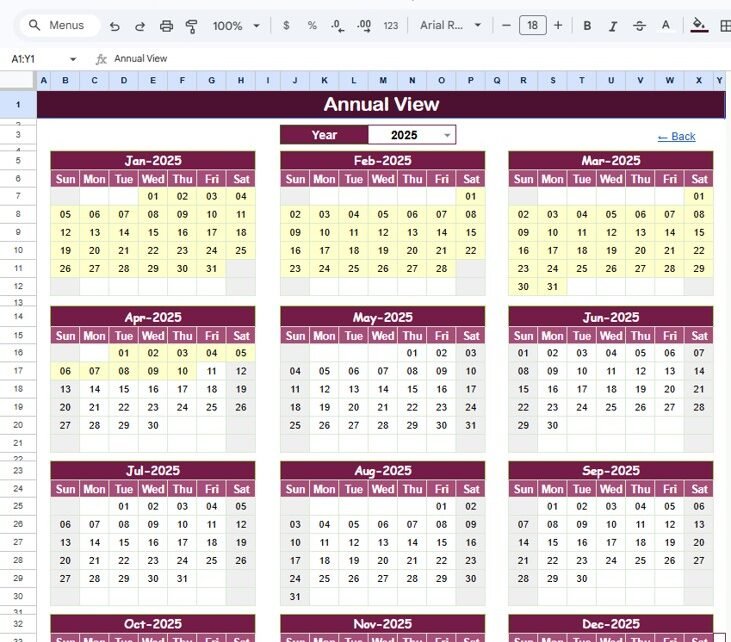
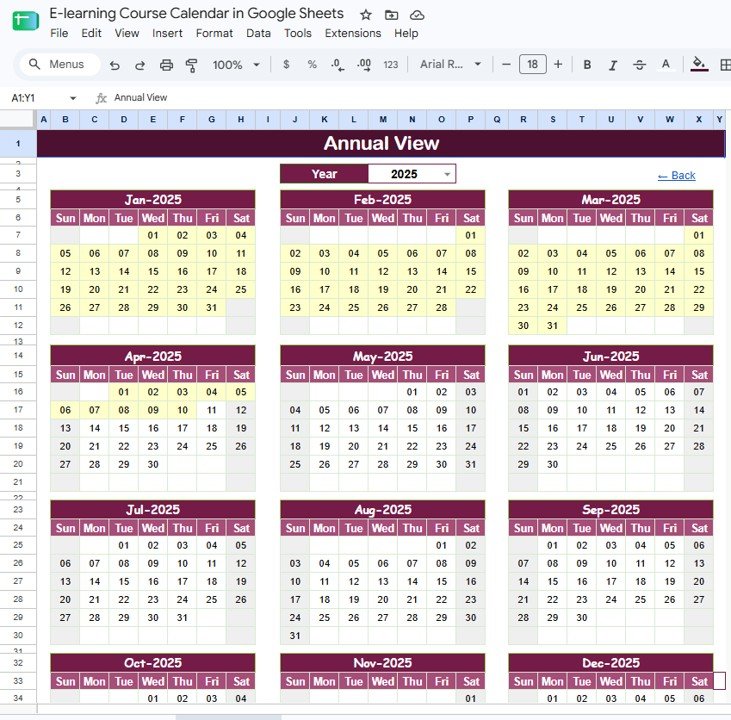
The Annual View shows a 12-month calendar for the selected year. It is the best place to review the whole course cycle: launch windows, assessment periods, review weeks, security checks, content updates, and support-heavy weeks. If a training team wants to avoid scheduling a test during a major content update, this is the first sheet to check.
Monthly View
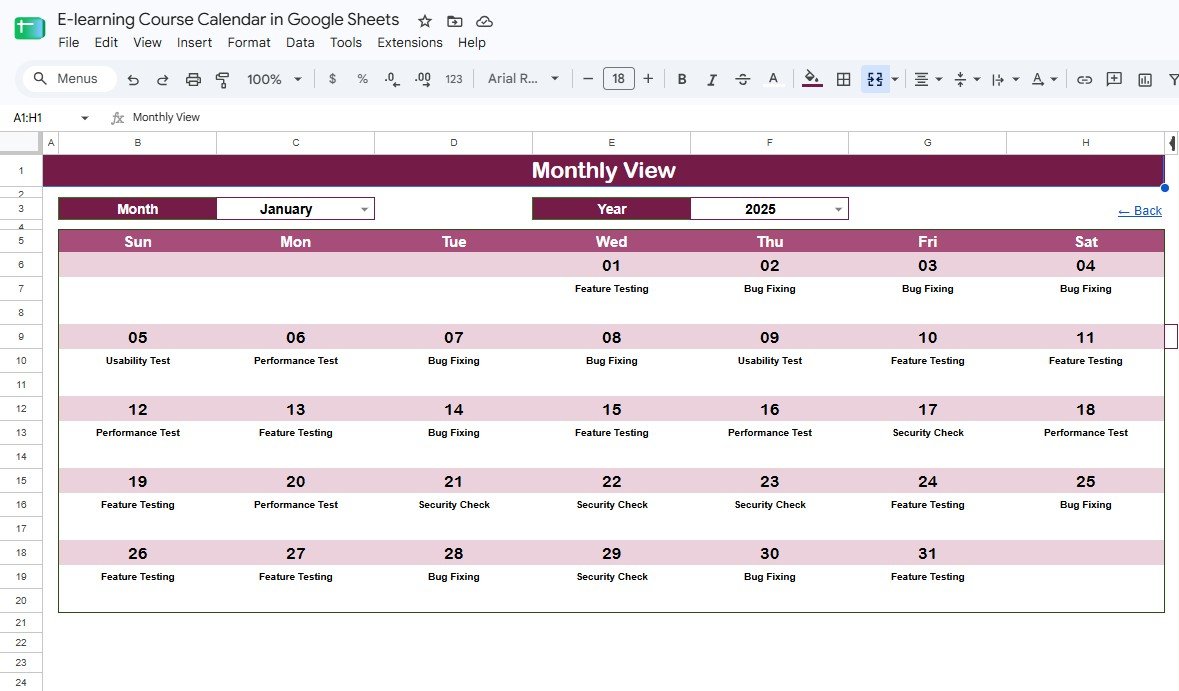
The Monthly View focuses on one selected month and year. In the screenshot, January 2025 shows course-related activities across the calendar grid. A course creator can use this view to see whether one week is overloaded with tests, instructor meetings, and release tasks, then rebalance dates before learners feel the pressure.
Daily View
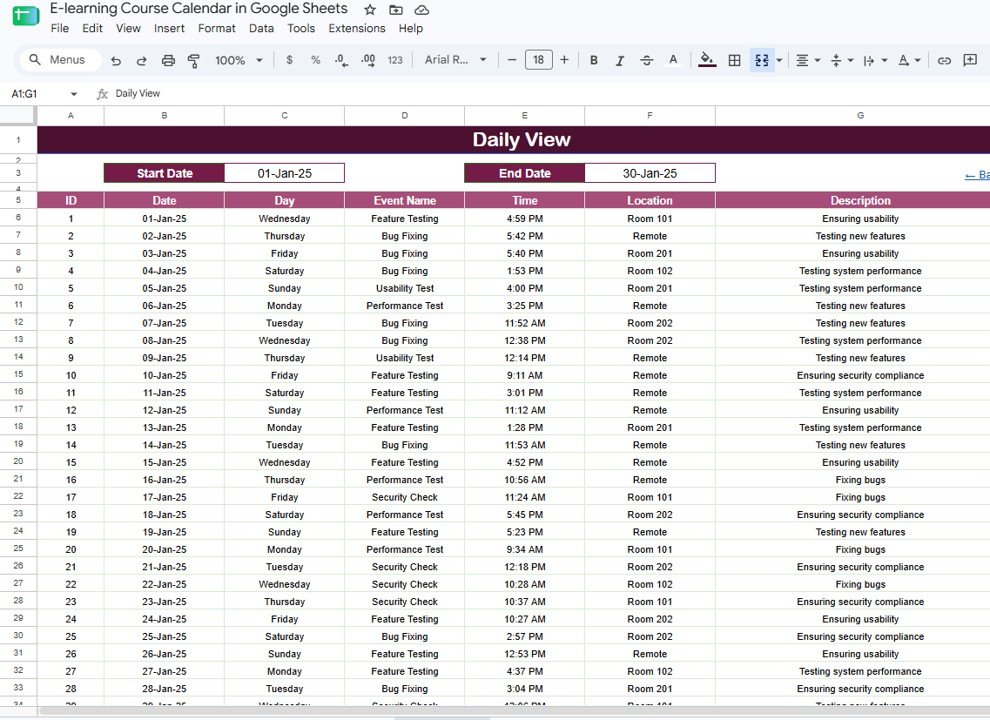
The Daily View is a date-range report. Set the start date and end date, and the sheet returns events in that period with ID, Date, Day, Event Name, Time, Location, and Description. It works well for weekly operations meetings, instructor briefings, and short-term course support planning.
Events Sheet
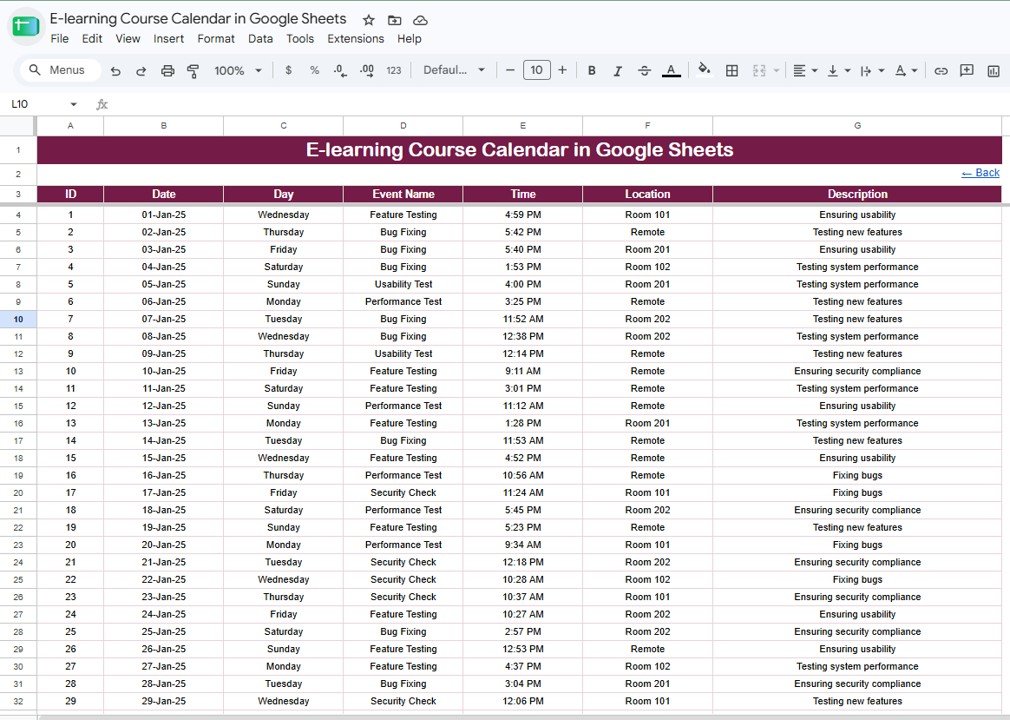
The Events sheet is the source database. Add, edit, or remove course events here first, then use the other views to read the schedule. Because every event row keeps date, time, location, and description together, the sheet is easier to audit than a loose calendar grid where important details can be typed into random cells.
E-learning Course Calendar in Google Sheets vs. Excel vs. Paid LMS/SaaS – Feature Comparison
| Feature | Google Sheets calendar template | Excel calendar alternative | Paid LMS/SaaS calendar |
|---|---|---|---|
| Cost | $4.99 one-time | One-time file purchase plus software access | Subscription, usually monthly or annual |
| Platform | Google Sheets in a browser | Excel desktop or web | Vendor web app |
| Setup time | Under 10 minutes once copied | Under 15 minutes | Onboarding and configuration |
| Real-time collaboration | Native multi-user editing | Requires OneDrive or SharePoint | Usually included by seat |
| Mobile access | Google Sheets mobile app or browser | Excel mobile app | Vendor app or responsive portal |
| Customizable fields | Editable columns and labels | Editable workbook | Often limited by plan |
| Share with link | Yes, via Google Drive | Only through cloud storage | Seat-based permissions |
| Year-1 cost at 5 users | $4.99 total | Template plus licenses | Can become a recurring team cost |
| Course hosting and learner logins | No | No | Usually yes |
Who Should Use This Template
This template is a fit for course creators, LMS coordinators, corporate training teams, instructional designers, online academies, webinar organizers, continuing-education teams, and students managing multiple online courses. It is especially useful when the team already uses Google Workspace and wants one editable planning file rather than another paid application.
It is not a fit if you need learner accounts, automatic calendar invitations, payment collection, lesson hosting, assignment grading, certificates, attendance tracking, or direct LMS integration. Those are platform features. This template focuses on the shared planning calendar.
Real-World Use Cases
An independent course creator plans weekly lesson drops, office hours, and assessment windows before opening enrollment. The Annual View gives the year shape, while the Monthly View helps adjust crowded weeks.
A corporate training coordinator keeps instructor-led sessions, performance tests, onboarding refreshers, and feedback reviews in the Events sheet, then uses Daily View to send the next two weeks of activity to facilitators.
An instructional design lead tracks feature testing, bug fixing, security checks, and usability tests for a learning portal rollout. Instead of mixing project work into learner-facing dates, the Events sheet keeps each activity labeled and searchable.
Advantages of E-learning Course Calendar in Google Sheets
- Low cost: the sale price is $4.99, with no subscription or per-user fee.
- Easy sharing: Google Sheets makes it simple to share one file with different permission levels.
- Clear structure: annual, monthly, daily, and event database views each have a separate purpose.
- Editable sample data: the January 2025 example events can be replaced with your own course operations.
- Useful beyond courses: the same structure can schedule webinars, certification cohorts, instructor training, product-learning rollouts, or internal learning sprints.
Opportunities for Improvement
There are a few honest limits to understand before buying. First, the template does not send automatic reminders. If reminders are important, pair the sheet with Google Calendar or your LMS. Second, it does not sync directly with learner records or course-completion data. Third, the screenshots show sample event names, not a fixed curriculum. You should replace the examples with your own lesson, test, review, and support dates.
Best Practices
- Keep Events as the source of truth. Add or edit events there first, then use Annual, Monthly, and Daily views for reporting.
- Use consistent event names. For example, choose either “Assessment” or “Test” and stick with it.
- Review the Annual View before adding major milestones. It helps catch collisions early.
- Give most users view or comment access. Reserve editor access for the people responsible for maintaining the calendar. Google’s file-sharing help explains viewer, commenter, and editor roles: Share files from Google Drive.
- Archive old course cycles. At the end of a cohort, duplicate the file or copy the Events sheet before clearing it for the next group.
Explore Relevant Templates
- E-learning Course Calendar in Google Sheets – the product covered in this article.
- E-learning Course Calendar in Excel – the closest Excel version for teams that prefer desktop workbooks.
- EdTech Dashboard in Google Sheets – a dashboard for learner, course, revenue, and engagement analysis.
- E-learning Platform KPI Dashboard in Power BI – a KPI scorecard for learning-platform performance.
- Investor Relations Calendar in Google Sheets – another Google Sheets calendar with annual, monthly, daily, and events views.
If you are building your own planners and trackers, the NextGenTemplates Academy learning paths teach the underlying spreadsheet skills step by step, with practice files.
Get the E-learning Course Calendar in Google Sheets
Frequently Asked Questions
How many sheets are included in the E-learning Course Calendar in Google Sheets?
It includes 5 sheets: Home, Annual View, Monthly View, Daily View, and Events.
Can I use it for multiple courses?
Yes. Add all course events to the Events sheet, and use event names or descriptions to separate courses, modules, cohorts, or instructors.
Does it work with Google Drive sharing?
Yes. After you make your own copy, you can share it like any other Google Sheets file with viewer, commenter, or editor access.
Does the template send reminders automatically?
No. It is a planning and visibility template. For automated reminders, pair it with Google Calendar, your LMS, or another notification tool.
Can students use it too?
Yes. Students can track lesson dates, assignment windows, test dates, and study milestones in the same structure.
Is this the same as an LMS?
No. It does not host content, collect payments, manage learners, issue certificates, or track attendance. It organizes course events in Google Sheets.
About the Author
Built by PK – Microsoft Certified Professional with 15+ years of Excel, Google Sheets, and Power BI experience. Founder of NextGenTemplates, reaching 300K+ subscribers across YouTube channels. Every template is hand-built and tested before release.
Conclusion
The E-learning Course Calendar in Google Sheets is deliberately simple: one database, three practical calendar views, and one Home sheet for navigation. That simplicity is the point. If your course team needs learner accounts and automated workflows, use an LMS. If you need a shared planning calendar that instructors and coordinators can understand in minutes, this template gives you the structure without the subscription.