Work orders help organizations manage maintenance tasks, service requests, repairs, and operational activities. However, when teams track work orders using scattered spreadsheets or emails, monitoring progress, costs, and performance becomes difficult.
That is exactly why a Work Order Dashboard in Google Sheets becomes a powerful and practical solution.
This ready-to-use dashboard helps operations, facilities, and maintenance teams track work orders, costs, priorities, departments, and asset categories using one centralized and visual dashboard.
In this article, we explain how the dashboard works, its sheet structure, charts, search functionality, and best practices.
What Is a Work Order Dashboard in Google Sheets?
A Work Order Dashboard is a centralized reporting and analytics tool designed to monitor work order status, costs, trends, and departmental performance. Instead of reviewing raw work order logs, teams can view insights through charts and summary cards.
Because this dashboard runs in Google Sheets, it provides:
- Real-time data updates
- Easy collaboration
- Automatic chart refresh
- Cloud-based access
- No need for expensive maintenance software
This dashboard suits facilities teams, operations managers, maintenance departments, and leadership.
Key Features of the Work Order Dashboard
Click to Buy Work Order Dashboard in Google Sheets
This dashboard is ready to use and includes structured analysis through multiple sections and charts.
Overview Sheet Tab
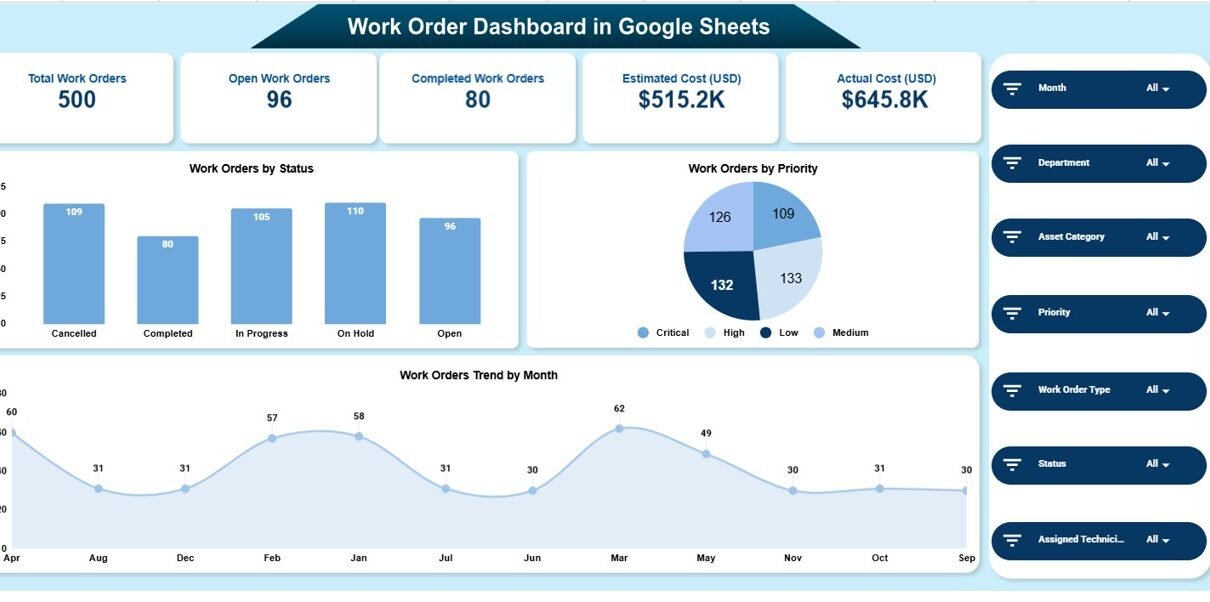
The Overview Sheet gives a quick snapshot of overall work order performance.
KPI Cards Display:
-
Total Work Orders
-
Open Work Orders
-
Completed Work Orders
-
Estimated Cost (USD)
-
Actual Cost (USD)
These cards help managers instantly understand workload and cost exposure.
Overview Charts
Work Orders by Status
Shows distribution of work orders such as Open, In Progress, and Completed.
Work Orders by Priority
Highlights how many work orders fall under High, Medium, or Low priority.
Work Orders Trend by Month
Displays month-wise trends to identify workload fluctuations.

Click to Buy Work Order Dashboard in Google Sheets
Department Performance Analysis
This section helps evaluate how different departments handle work orders.
Charts Included:
-
Work Orders by Department
-
Estimated Cost (USD) by Department
-
Completed vs. Open Work Orders by Department
-
Actual Cost (USD) by Department
These charts help identify cost overruns and department-wise efficiency.
Order Type Analysis
This section analyzes work orders based on order type such as maintenance, repair, inspection, or service.
Charts Included:
-
Work Orders by Order Type
-
Estimated Cost (USD) by Order Type
-
Completed vs. Open Work Orders by Order Type
-
Actual Cost (USD) by Order Type
It helps teams understand which work types consume the most time and cost.

Click to Buy Work Order Dashboard in Google Sheets
Asset Category Analysis
This section focuses on assets involved in work orders.
Charts Included:
-
Work Orders by Asset Category
-
Actual Cost (USD) by Asset Category
-
Completed vs. Open Work Orders by Asset Category
-
Estimated Cost (USD) by Asset Category
It supports better asset maintenance planning and budgeting.

Click to Buy Work Order Dashboard in Google Sheets
Monthly Trend Analysis
This section shows time-based performance trends.
Charts Included:
-
Actual Cost (USD) by Month
-
Work Orders by Month
-
Completed vs. Open Work Orders by Month
-
Estimated Cost (USD) by Month
These trends help organizations forecast workload and control expenses.

Click to Buy Work Order Dashboard in Google Sheets
Search Feature – Search by Keyword and Field Name
The dashboard includes a smart search option that allows users to instantly locate specific work orders.
You can search by:
- Work Order ID
- Department
- Priority
- Order Type
- Asset Category
- Status
By entering a Search Keyword and selecting the Field Name, records filter automatically without manual scrolling.
Why Organizations Need a Work Order Dashboard
Without a dashboard, work order management becomes reactive and inefficient. This dashboard helps organizations:
- Track open and completed work orders
- Monitor estimated vs. actual costs
- Improve department accountability
- Control maintenance expenses
- Support operational planning
A centralized dashboard improves visibility and decision-making.
Advantages of the Work Order Dashboard
Click to Buy Work Order Dashboard in Google Sheets
- Centralized work order tracking
- Clear cost visibility
- Better priority management
- Improved departmental performance tracking
- Faster decision-making
- Cost-effective Google Sheets solution
Opportunities for Improvement
You can enhance this dashboard by adding:
- SLA compliance tracking
- Technician productivity metrics
- Downtime analysis
- Preventive vs. corrective maintenance KPIs
- Automated alerts for overdue work orders
These additions further strengthen maintenance analytics.
Best Practices for Using the Work Order Dashboard
Click to Buy Work Order Dashboard in Google Sheets
- Update work order data daily
- Standardize priority and status values
- Review cost variance monthly
- Share insights with department heads
- Restrict edit access to authorized users
- Maintain historical data for trend analysis
Conclusion
A Work Order Dashboard in Google Sheets provides a structured and visual way to manage work orders, costs, and performance. It replaces manual tracking with real-time insights, supports cost control, and improves operational efficiency. Because it is ready to use and cloud-based, teams can start using it immediately without technical complexity.
For organizations focused on efficient maintenance and operations management, this dashboard becomes an essential tool.
Frequently Asked Questions (FAQs)
Click to Buy Work Order Dashboard in Google Sheets
1. Who should use this dashboard?
Facilities teams, maintenance teams, operations managers, and leadership.
2. Can it handle large volumes of work orders?
Yes, Google Sheets supports large datasets.
3. Is the dashboard customizable?
Yes, all charts, KPIs, and fields can be modified.
4. Can it support cost control?
Yes, it compares estimated and actual costs clearly.
5. Does it require technical expertise?
No, basic Google Sheets knowledge is enough.
6. Is the data secure?
Yes, with proper Google Sheets sharing permissions.
Visit our YouTube channel to learn step-by-step video tutorials
Youtube.com/@NeotechNavigators
Watch the step-by-step video tutorial: