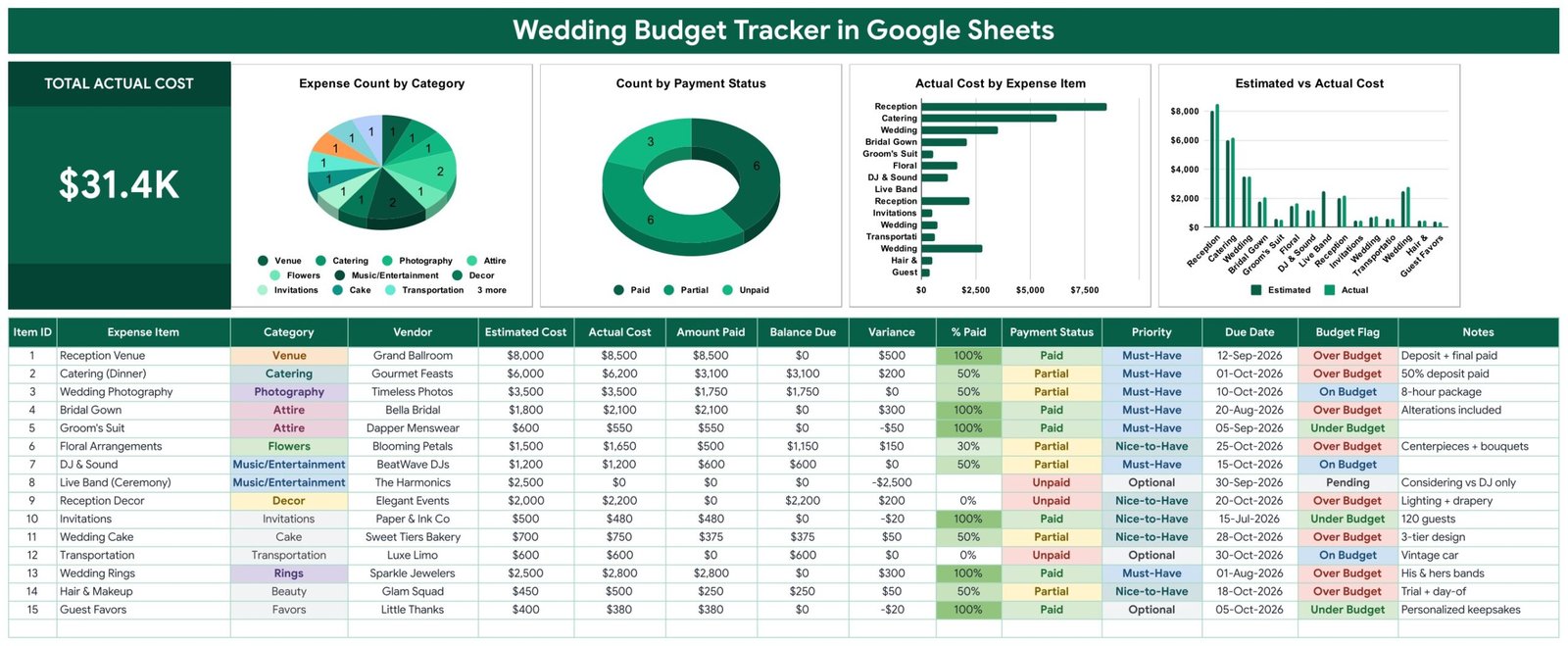
Wedding budgets almost never break in one dramatic moment. They drift – a nicer venue, an upgraded gown, another hundred on flowers – and the total only becomes real once the deposits are gone. The Wedding Budget Tracker in Google Sheets is built to make that drift visible while you can still do something about it: 15 columns per expense, 5 of them calculated automatically, 4 live charts, 13 expense categories and a Total Actual Cost card at the top. Every line carries an estimate, an actual, the vendor, what you have paid, what is still due and a Budget Flag that turns red as soon as you cross the plan.
This article covers what is on each page, which columns you fill and which the sheet fills, how it compares to a paid wedding app, and the handful of habits that keep an engagement-length budget honest. The template is available here.Wedding Budget Tracker in Google Sheets
Get the Wedding Budget Tracker in Google Sheets
Key Features of the Wedding Budget Tracker
- Total Actual Cost card. The real running total rather than the estimate you started from – the number to check before agreeing to anything.
- Expense Count by Category. A pie chart across Venue, Catering, Photography, Attire, Flowers, Music/Entertainment, Decor, Invitations, Cake, Transportation, Rings, Beauty and Favors.
- Count by Payment Status. A doughnut chart splitting Paid, Partial and Unpaid, which tells you how much of the wedding is still an open commitment.
- Actual Cost by Expense Item. A horizontal bar chart ranking every line by cost. In most weddings, four items carry the majority of the budget and this is where you see which four.
- Estimated vs Actual Cost. Paired columns per line. This is where creep shows up: a gown at 2,100 against an 1,800 estimate is obvious in a way a single total never is.
- Vendor column. Each expense carries the supplier’s name, so quotes, deposits and chasing live beside the money instead of in a separate list.
- Amount Paid and Balance Due. Deposits are what couples lose track of. Enter what has gone out and the sheet keeps the outstanding balance and % Paid current.
- Budget Flag. Over Budget, On Budget, Under Budget or Pending, calculated per line and colour-coded.Wedding Budget Tracker in Google Sheets
- Priority column. Must-Have, Nice-to-Have, Optional – the column you sort by when the total has to come down.
- Due Date column. Deposit and final-payment deadlines sit in the same table as the amounts.Wedding Budget Tracker in Google Sheets
Tracker Pages Explained
Page 1 – the Tracker
The banner runs across the top, then the Total Actual Cost card sits at the left with the four charts beside it on one row, so the whole summary fits on one screen. Under that is the expense table: Item ID, Expense Item, Category, Vendor, Estimated Cost, Actual Cost, Amount Paid, Balance Due, Variance, % Paid, Payment Status, Priority, Due Date, Budget Flag and Notes.Wedding Budget Tracker in Google Sheets
You fill nine of those; Item ID, Balance Due, Variance, % Paid and Budget Flag are formulas. Conditional formatting does the reading for you: Budget Flag shows Over Budget in red, Under Budget in green and On Budget in blue, while Payment Status colours Paid green, Partial amber and Unpaid red.
Fifteen realistic sample rows ship with the file – reception venue, catering, photography, bridal gown, groom’s suit, floral arrangements, DJ, live band, reception decor, invitations, cake, transportation, rings, hair and makeup and guest favours – with vendor names and part-paid deposits, so you can see a wedding mid-planning before you replace them with your own.
Page 2 – How to Use
A plain-language setup page: which columns to fill, which calculate, how the dropdowns are wired to the List tab, and the one-time ten-second trick to switch data validation to Chip display so the dropdowns render as coloured pills. Google does not expose that setting to scripts, so it has to be done by hand once; Google’s own guide to drop-down lists and data validation covers the same menu.Wedding Budget Tracker in Google Sheets
Page 3 – Explore More Templates
Related NextGenTemplates products with a discount code and category links.
The List tab
Category, Vendor, Payment Status and Priority all read from here across roughly 500 rows. Entering your real vendors once means you stop typing the florist’s name three different ways – which matters, because a chart groups by exact text.Wedding Budget Tracker in Google Sheets
Wedding Budget Tracker vs. an Excel Sheet vs. a Paid Wedding App – Feature Comparison
| This Google Sheets tracker | A hand-built Excel sheet | Paid wedding planning app | |
|---|---|---|---|
| Cost | Under 10 once | Free, plus your build time | 10 to 30 per month |
| Platform | Google Sheets, any browser | Excel on desktop | Mobile app, sometimes web |
| Setup time | Under 10 minutes | 3 to 5 hours | An evening plus account setup |
| Partner edits at the same time | Yes, native sharing | Only via OneDrive co-authoring | Usually, sometimes a paid tier |
| Mobile access | Yes, free Sheets app | Limited | Yes – its main strength |
| Your own categories and vendors | Yes, via the List tab | Yes, if you rebuild the charts | Only what the app allows |
| Deposit and balance tracking | Yes, per line | Build it yourself | Usually yes |
| Estimate vs actual per line | Yes, with variance and a flag | Build it yourself | Varies by app |
| Still yours after the wedding | Yes, it stays in your Drive | Yes | No, the account lapses |
| Cost over a 12-month engagement | Under 10 | 0 plus most of a weekend | 120 to 360 |
Who Should Use This Template
It fits couples planning their own wedding and splitting the tracking between them; parents contributing to the cost who want to see where it goes without asking; anyone planning a smaller ceremony where every line matters; couples juggling deposits across ten or more vendors; and planners who would rather hand a client one clear budget sheet than a portal login.
It is not the right tool if you want a seating chart, RSVP list or vendor directory – those are separate jobs. If you run a wedding business rather than planning one wedding, the Banquet Hall Tracker or the Catering Business Management Tracker is the right shape. And there are no automatic payment reminders; the Due Date column shows what is coming, but somebody still has to look.
Real-World Use Cases
Estimates before bookings. Sofia and James filled every estimate before signing anything. Six months in, the Estimated vs Actual chart showed venue and gown over, suit and invitations under – roughly 900 over plan, visible in month six rather than month eleven, and absorbed by moving the live band from Nice-to-Have to Optional.
A contributing parent, without the awkward conversation. Sofia’s father was given view-only access to the same sheet. He could check the Total Actual Cost card whenever he wanted, and the monthly update conversation simply stopped being necessary.
Deposits across eleven vendors. With Amount Paid and Balance Due on every line, the couple always knew their outstanding commitment across catering, floral, decor and cake. That figure – what you still owe, as opposed to what you have spent – is the one most couples cannot answer off the top of their head.
Advantages of the Wedding Budget Tracker
- Nothing to install. Native formulas, data validation, conditional formatting and charts – no add-on, no macro, no account.
- Shareable at three levels. Edit access for your partner, comment access for a planner, view access for whoever is contributing.
- Estimate and actual side by side. Most wedding sheets record only what you spent; the pairing is what makes overspend visible early.
- Deposits are first-class. Balance Due per line means the outstanding commitment is always one glance away.
- It survives the wedding. The file stays in your Drive as a record of what things actually cost – genuinely useful the next time someone in the family plans one.
Opportunities for Improvement
The limits, stated plainly: there is no guest list, RSVP tracking or seating chart – this is the money side only. Payments are held as a running Amount Paid rather than a dated schedule of individual deposits, so a payment-by-payment history needs a second sheet and a SUMIFS. There are no automated reminders on due dates. The chip styling on dropdowns has to be applied by hand once. And the currency is formatted in dollars out of the box, needing a one-time format change.
Best Practices
- Share it with your partner on day one. A budget only one person can see is the single most common reason wedding budgets drift.
- Fill in every estimate before you book anything. The variance columns are worthless if the estimate was written after the invoice.
- Set the List tab up first with your real vendors and categories, so nothing has to be re-labelled later.
- Update Amount Paid the day a deposit leaves. Balance Due is only useful if it is current.
- Use Priority honestly. Cutting two genuinely Optional lines is a far easier conversation than trimming everything by ten percent.
- Check the Due Date column weekly in the last two months. Final balances cluster there, and that is where late fees happen.
Explore Relevant Templates
- Wedding Budget Tracker in Google Sheets – the template covered in this article.
- Complete Wedding Budget Tracker Dashboard in Google Sheets – the larger multi-page version.
- Shared Expense Splitter Tracker in Google Sheets – for splitting costs between two families.
- Cash Envelope Budget Tracker in Google Sheets – keeps normal life funded while you save.
- Bank Account Balance Tracker in Google Sheets – the accounts behind the deposits.
If you would like to build spreadsheet skills for projects like this, the NextGenTemplates Academy learning paths work through them step by step, with practice files.
Get the Wedding Budget Tracker in Google Sheets
Frequently Asked Questions
Do I need a paid Google account?
No. A free personal Google account is enough. The download is a PDF with a Make a copy link that puts an editable copy in your own Drive.
Can my partner and I both edit it?
Yes, simultaneously. You can also give a parent or planner view-only or comment access so they can follow along without changing figures.
Does it handle deposits and final payments?
It tracks the running total paid per line. Enter what has gone out in Amount Paid and Balance Due and % Paid stay current, with Payment Status marking each line Paid, Partial or Unpaid.
Can I add my own categories and vendors?
Yes. Add them on the List tab and they appear in the dropdowns immediately. The charts pick up new categories automatically because they read the data columns directly.
Can I change the currency?
Yes, through Format then Number on the money columns. The sample data uses dollars as a placeholder only.
Why do my dropdowns look like plain text?
The chip display style cannot be set by a script. Select the column, then Data, Data validation, click the rule, Advanced options, Display style: Chip.
Is there a guest list or seating chart?
No, and deliberately so. Keeping the budget on one uncluttered page is what makes it usable day to day.
About the Author
Built by PK – Microsoft Certified Professional with 15+ years of Excel, Google Sheets, and Power BI experience. Founder of NextGenTemplates, reaching 300K+ subscribers across YouTube channels. Every template is hand-built and tested before release.
Conclusion
The difference between planning a wedding and finding out what it cost is whether the estimate existed before the spending. Fifteen columns, four charts and a flag that turns red on its own is enough to hold that line for a twelve-month engagement. Put your ten biggest costs in tonight with an estimate against each; that is usually 80% of the total
.
Get the template here: Wedding Budget Tracker in Google Sheets.