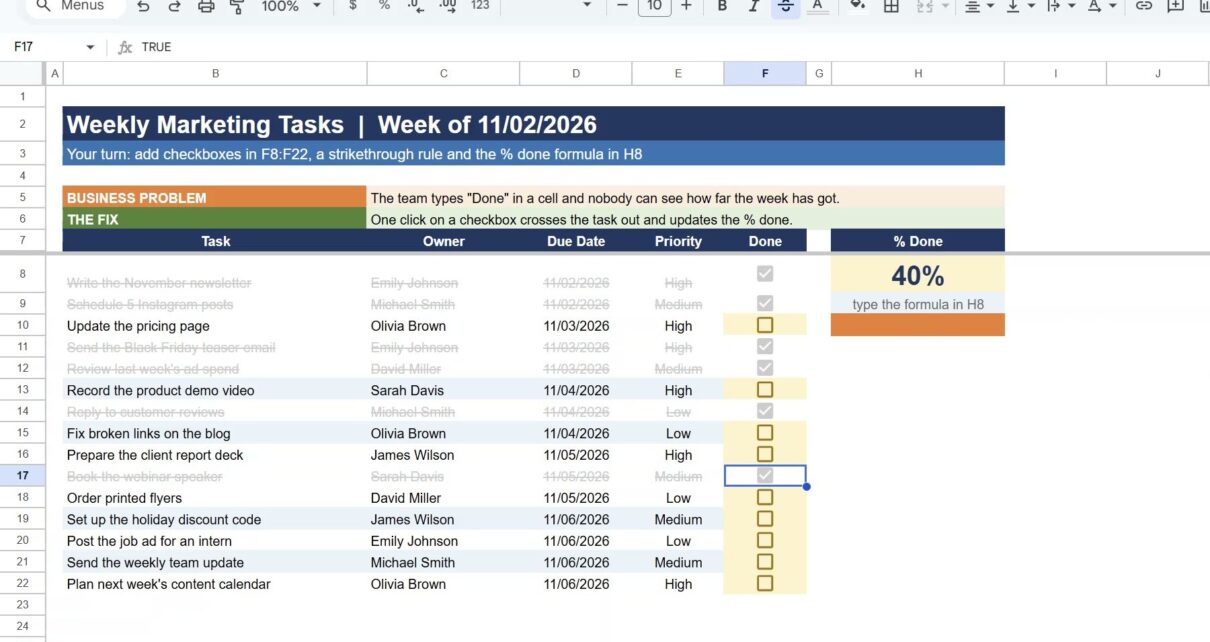
Your team types “Done” next to a task, someone else types “done”, a third person types “yes”, and nobody can tell how far the week has got. A Google Sheets checkbox fixes that. One click ticks the task, the whole row crosses itself out, and a single COUNTIF shows the % done at the top.
In this quick tutorial we use a weekly marketing task list with 15 fictional tasks. We add checkboxes, a strikethrough rule and a progress formula, then tick 6 tasks and watch the sheet show 40%.
The whole trick in 43 seconds.
⬇️ Join Free on Skool & Download the Practice File
Free membership · takes 1 minute · the file is in Classroom → Free Downloads from YouTube
What Does a Google Sheets Checkbox Do?
A checkbox is a cell that holds TRUE when it is ticked and FALSE when it is not. That is all it is, and that is why it is so useful. Because the value is TRUE or FALSE, you can point conditional formatting and formulas at it. The tick becomes the switch that formats the row and feeds your progress number.
How to Build a Checkbox Task List in Google Sheets (5 Steps)
Open the practice sheet, click Make a copy, and go to the Practice tab. The Solution tab has the finished version if you want to check your work.
Step 1: Start with the task list
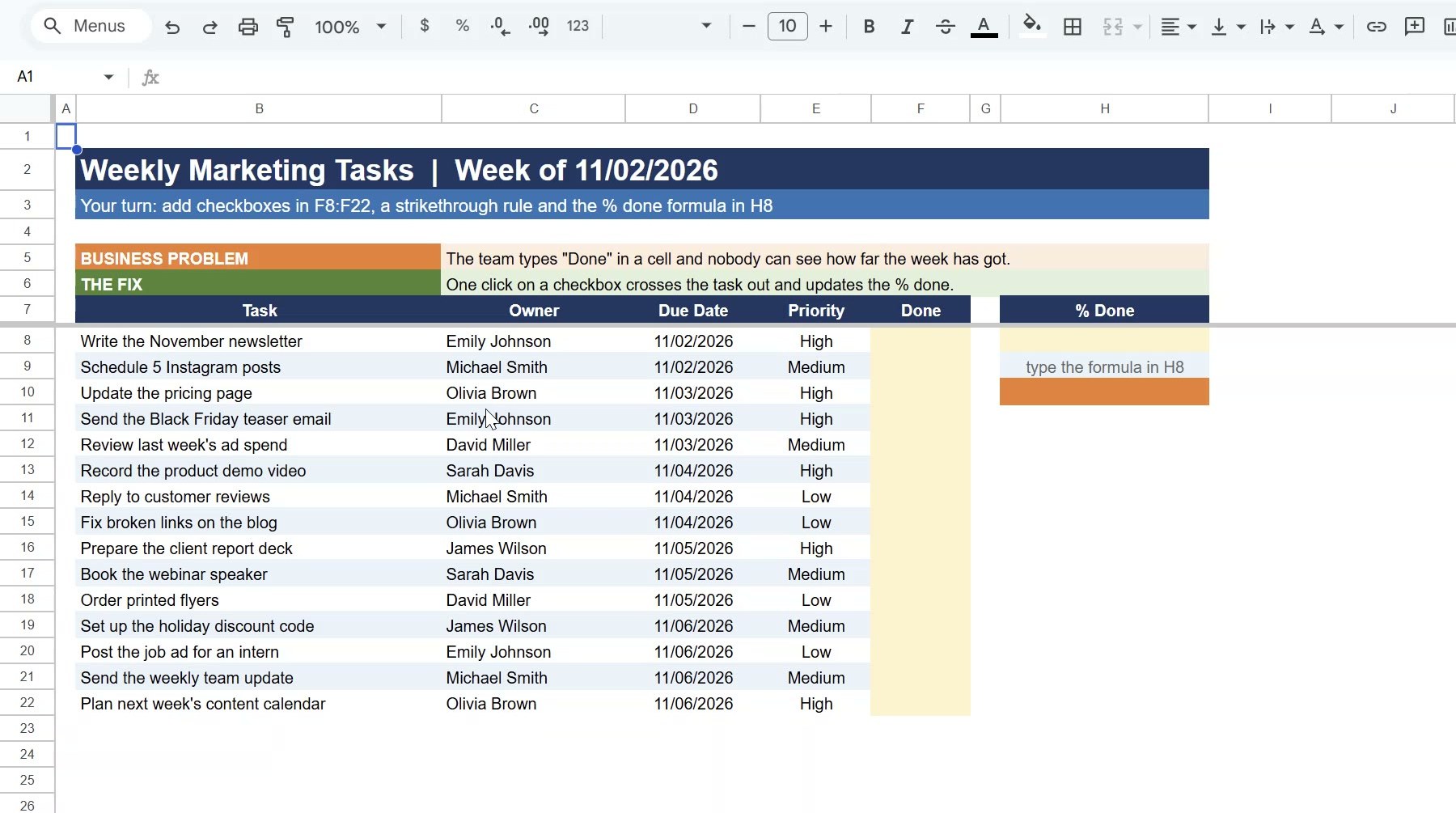
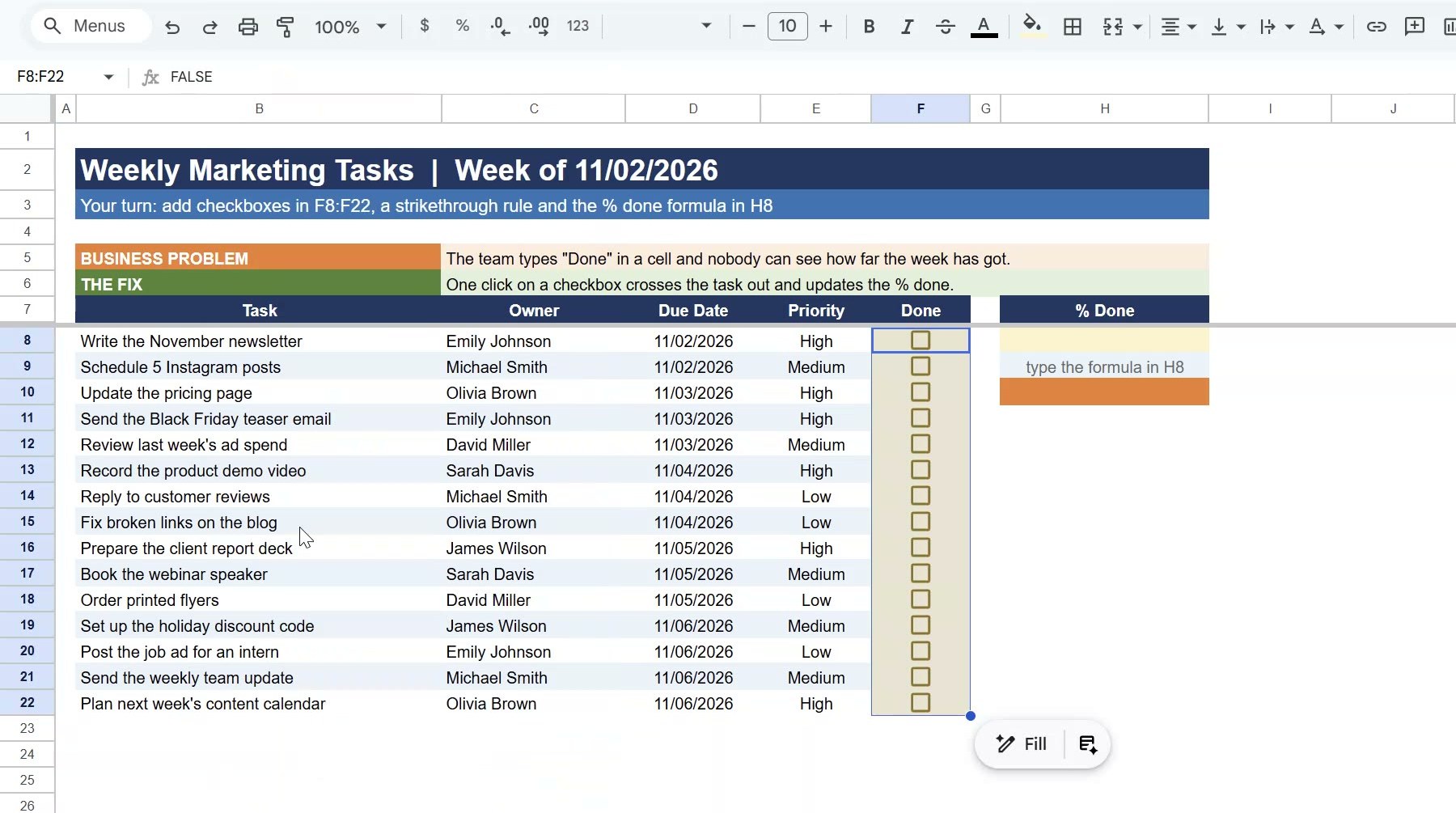
The list sits in B8:F22: Task, Owner, Due Date, Priority and an empty Done column. Cell H8 is where the % done will go.
Step 2: Insert checkboxes in the Done column
Select F8:F22, then go to Insert > Checkbox. Every cell in the column gets an empty box. The formula bar shows FALSE for an unticked box.
Step 3: Add a strikethrough rule with a custom formula
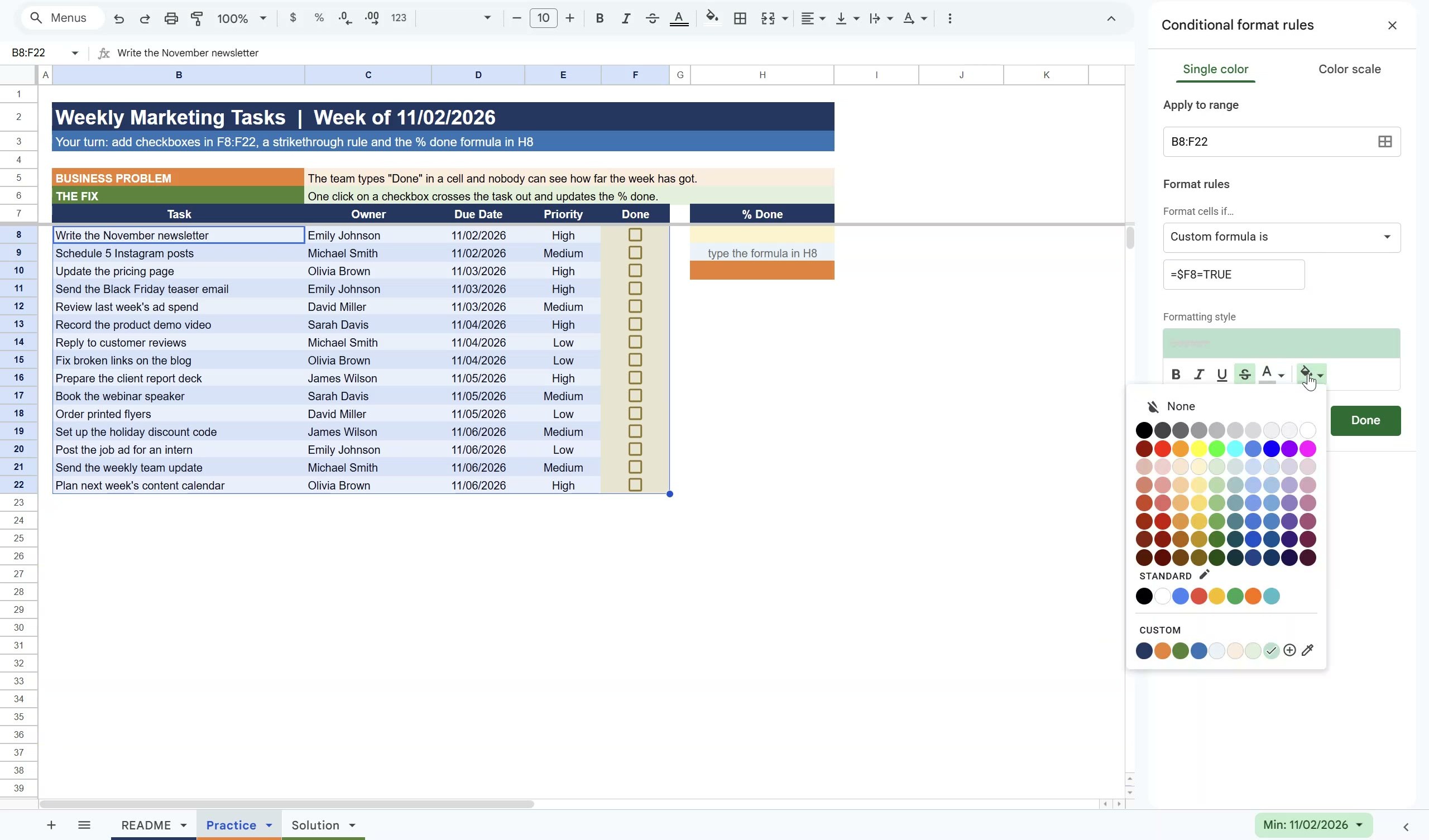
Select B8:F22 and open Format > Conditional formatting. Under Format cells if pick Custom formula is and type:
=$F8=TRUEPick strikethrough as the formatting style (a grey text colour looks good too) and click Done. Keep the dollar sign before F. It locks the rule to the Done column, so the whole row looks at its own checkbox. Without it, only one cell in each row gets crossed out.
Step 4: Count the ticked boxes for % done
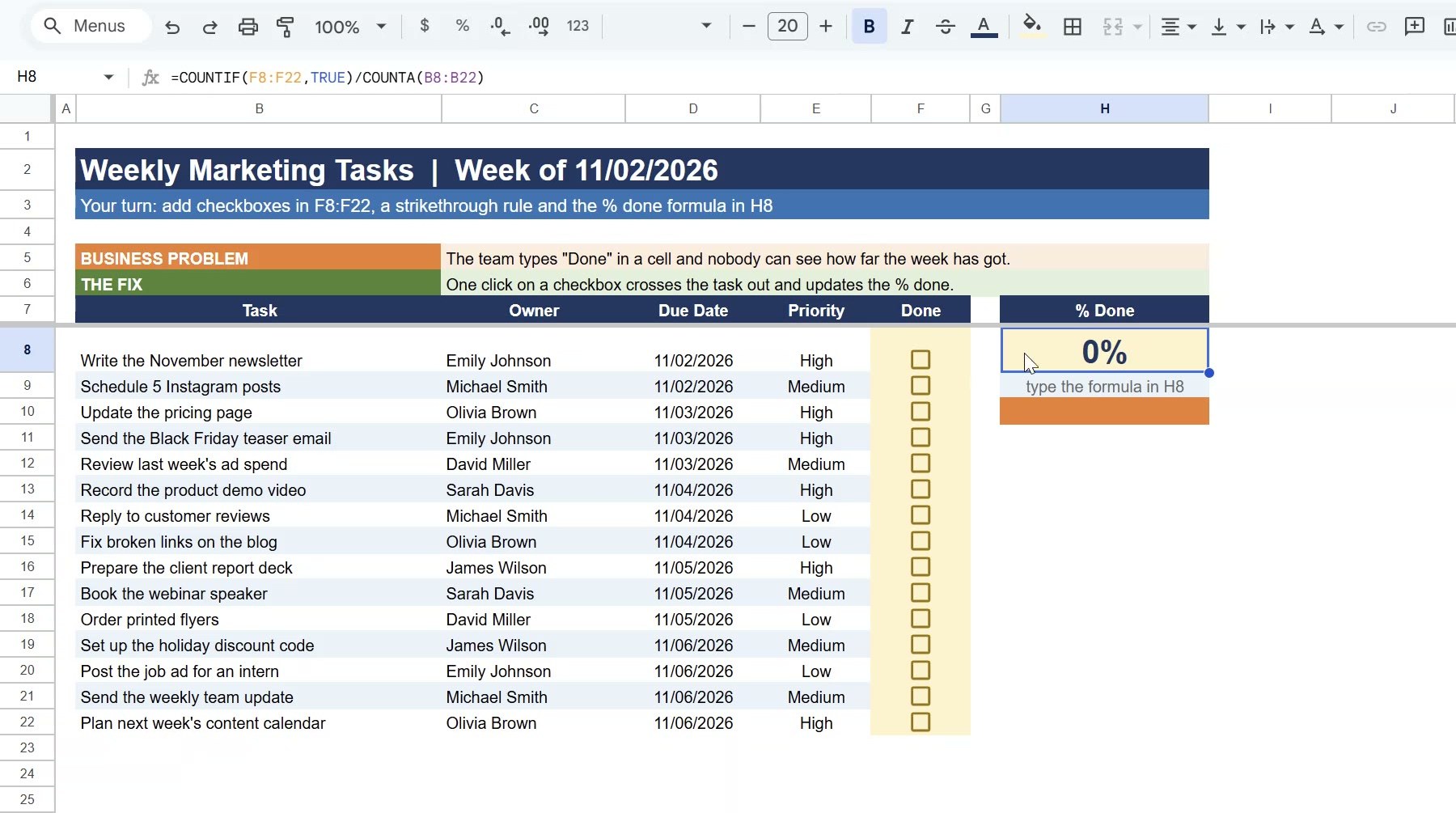
Click H8 and enter:
=COUNTIF(F8:F22,TRUE)/COUNTA(B8:B22)COUNTIF counts the ticked boxes and COUNTA counts the tasks. Format the cell with Format > Number > Percent. With nothing ticked it shows 0%.
Step 5: Tick tasks and watch it update
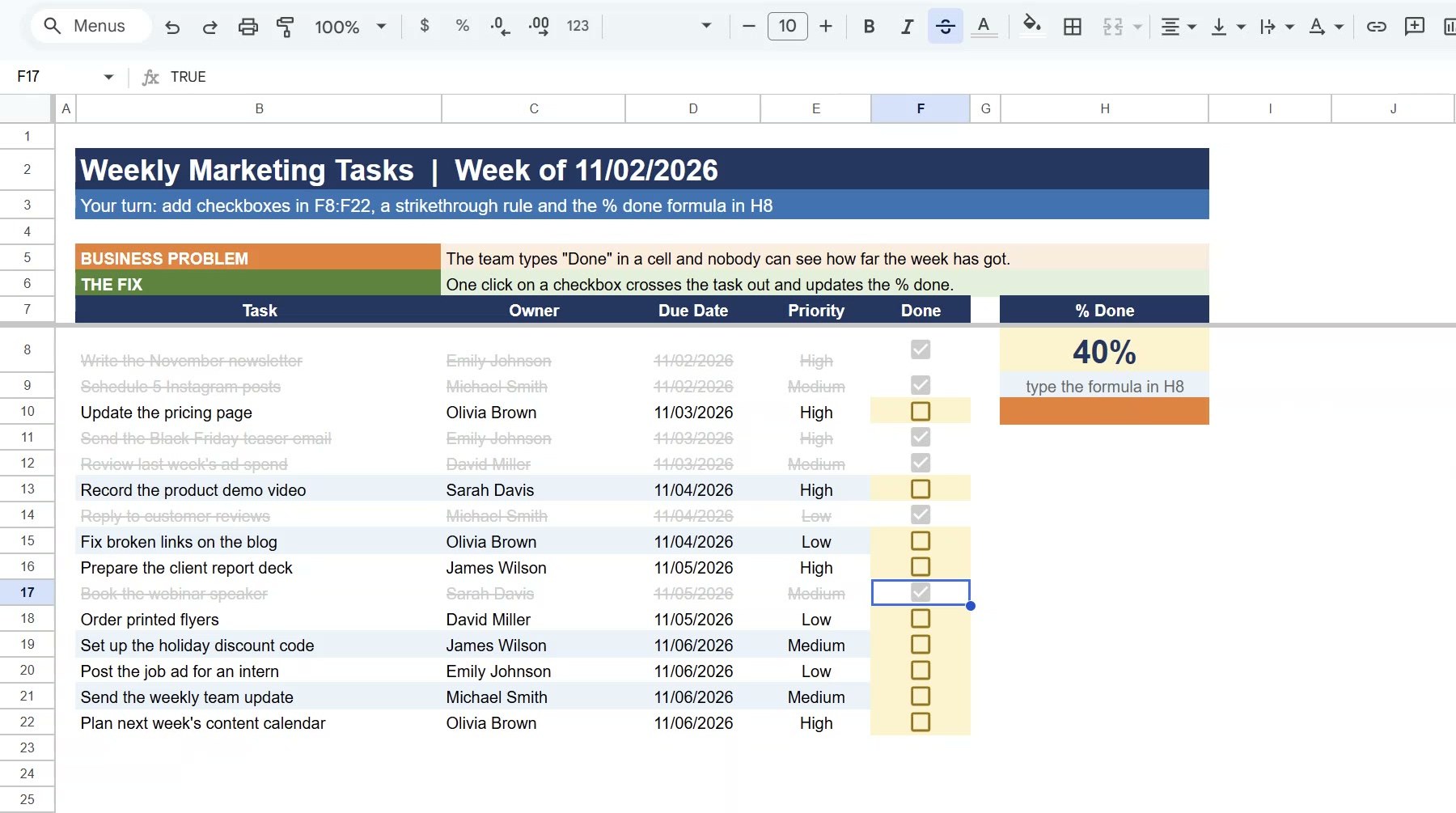
Tick a few tasks. Each ticked row crosses itself out and H8 climbs. In the practice file, ticking 6 of the 15 tasks gives 40%.
Google Sheets Checkbox Tips
- Count unticked tasks: use
=COUNTIF(F8:F22,FALSE)to see how many are still open. - Uncheck everything at once: select the Done column and press the Space bar to toggle all the boxes.
- Grey the whole row: add a grey text colour to the same rule so finished tasks fade back.
- New rows: if you add tasks below row 22, widen the ranges in the rule and in the formula.
Want a bigger version with due dates, Overdue flags and a progress bar? See our Google Sheets to do list template with checkboxes, or the project task list in Google Sheets.
Frequently Asked Questions
How do I add a checkbox in Google Sheets?
Select the cells, then go to Insert > Checkbox. You can also use Data > Data validation and choose Checkbox as the criteria.
How do I cross out a row when a checkbox is ticked?
Select the rows, open Format > Conditional formatting, choose Custom formula is, type =$F8=TRUE (with your own checkbox column and first row), and set the style to strikethrough.
How do I count checkboxes in Google Sheets?
Use =COUNTIF(range,TRUE) for ticked boxes and =COUNTIF(range,FALSE) for unticked ones. Divide the ticked count by the number of tasks to get a percentage.
Why does only one cell get crossed out?
The dollar sign is missing. Write =$F8=TRUE, not =F8=TRUE, so every column in the row checks the same checkbox column.