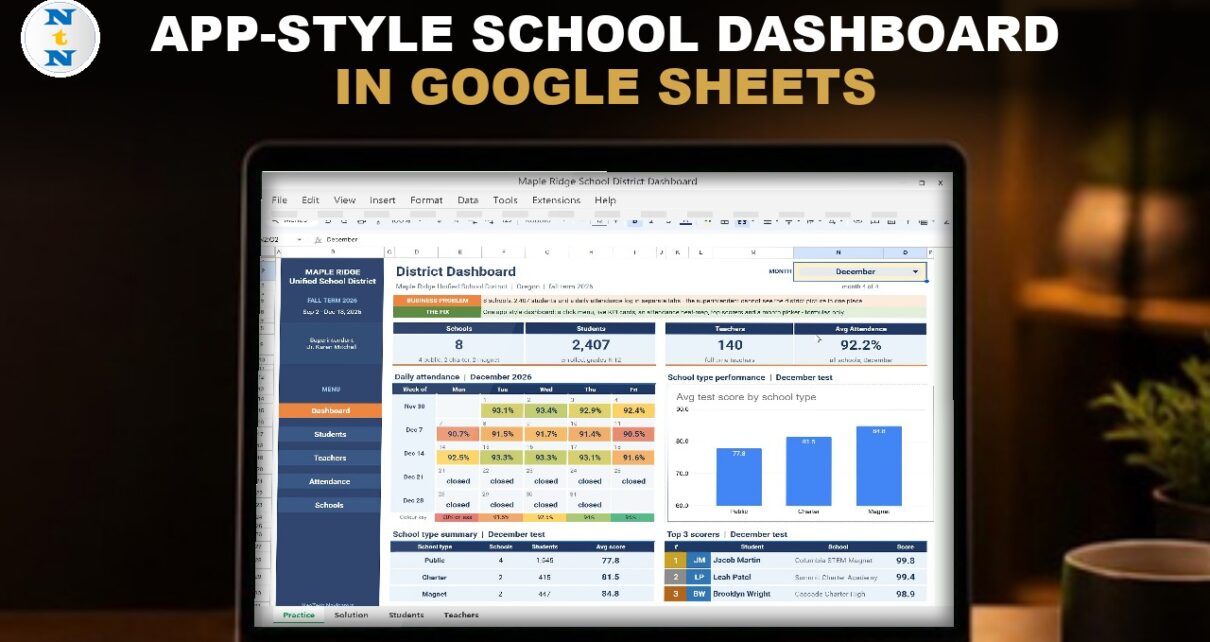
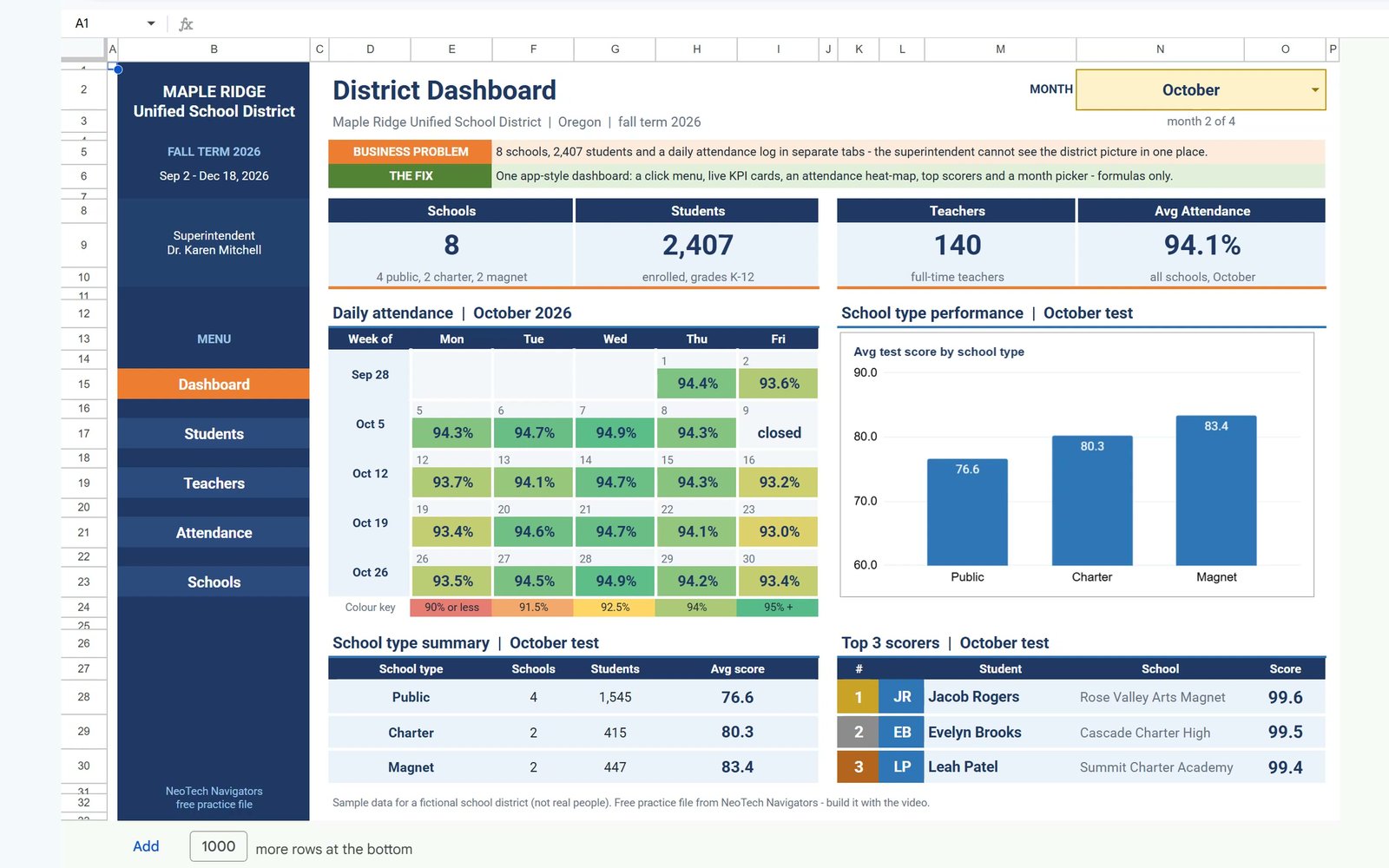
One superintendent, eight schools, 2,407 students and a daily attendance log spread over separate tabs. In this tutorial you turn them into a free school dashboard in Google Sheets that works like an app: a clickable menu, live summary cards, a colour-coded attendance heat map, a top 3 scorers list, a school type chart and one month picker that changes everything. You use COUNTA, SUMIFS, IFERROR, SORTN, INDEX and AVERAGEIFS, plus conditional formatting and a dropdown. Formulas only: no Apps Script, no add-ons.
⬇️ Join Free on Skool & Download the Practice File
Free membership · takes 1 minute · the file is in Classroom → Free Downloads from YouTube
Google Sheets · opens a Make a copy page · Practice + Solution + 4 data sheets · no add-ons
Watch the Video Tutorial
Video Overview
The 10-minute video builds the dashboard on the free practice file for the fictional Maple Ridge Unified School District: 8 schools (4 public, 2 charter, 2 magnet), 2,407 students, 140 teachers and 576 daily attendance rows from September 2 to December 18, 2026. Step 1 turns five cells into a click menu. Step 2 fills the summary cards with COUNTA and SUMIFS. Step 3 builds the attendance heat map with one IFERROR formula and a colour scale. Step 4 lists the top three scorers with SORTN, step 5 averages the test scores by school type with AVERAGEIFS and adds a chart. The bonus adds a month dropdown and shows the flu week in December.
School Dashboard in Google Sheets: What You Will Build
- A click menu with five buttons that jump to Dashboard, Students, Teachers, Attendance and Schools.
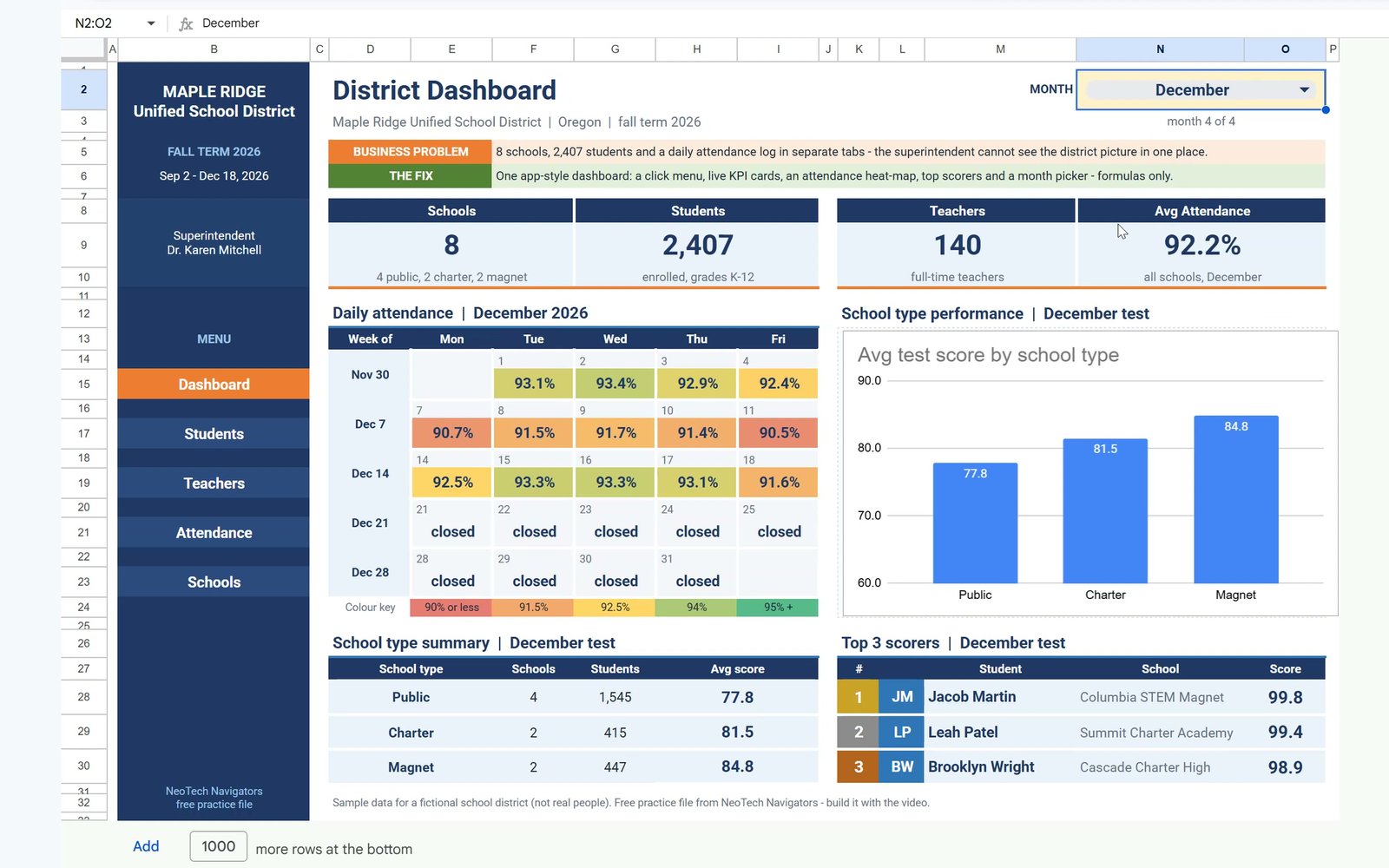
- Four summary cards: Schools, Students, Teachers and Average Attendance.
- An attendance heat map calendar from red (90% or less) through yellow to green (95%+), with the word closed on non-school days.
- A top 3 scorers list with initials badges, school and score for the chosen month.
- A school type chart of the average test score for public, charter and magnet schools.
- A month picker for September, October, November or December.
The Practice File
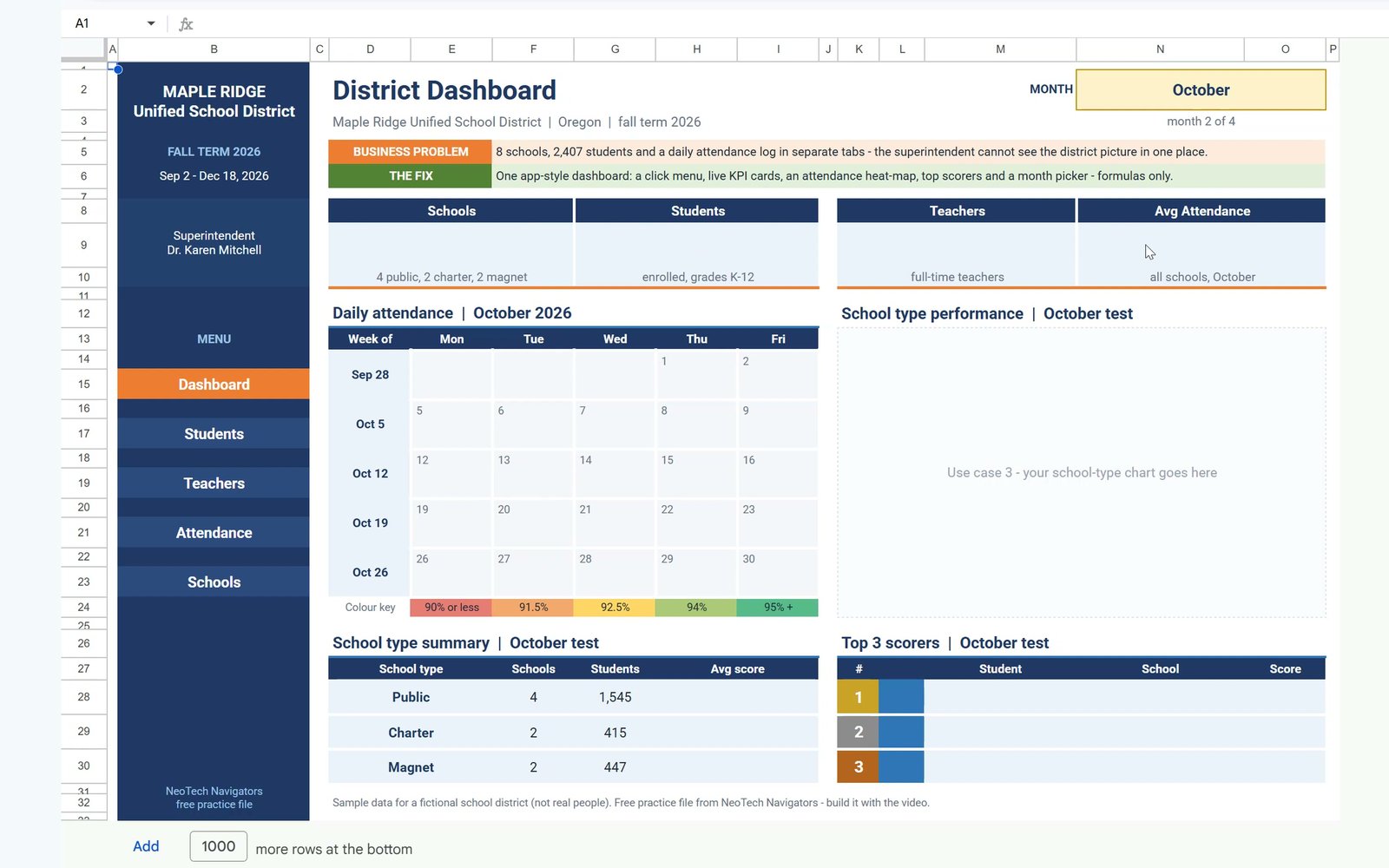
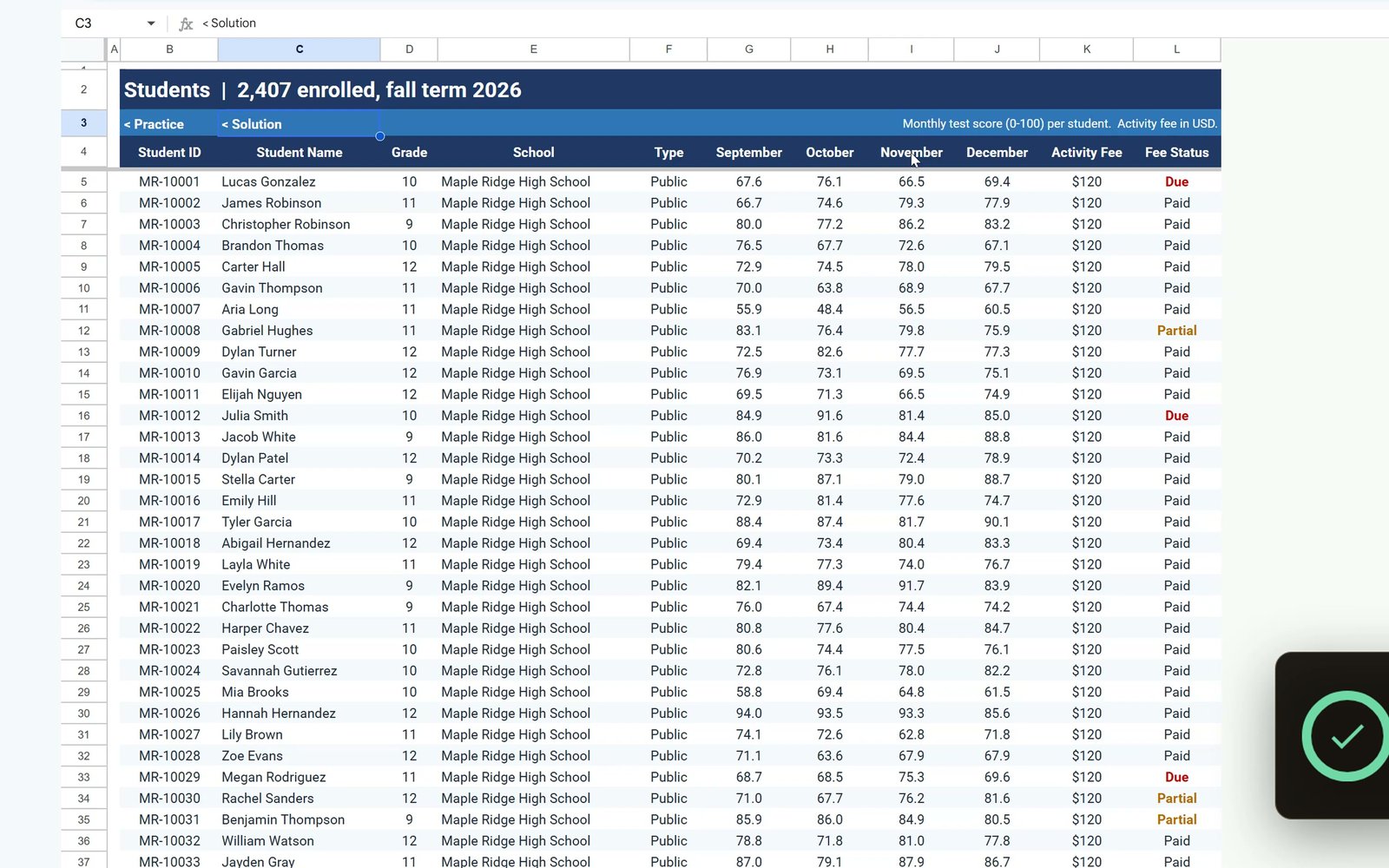
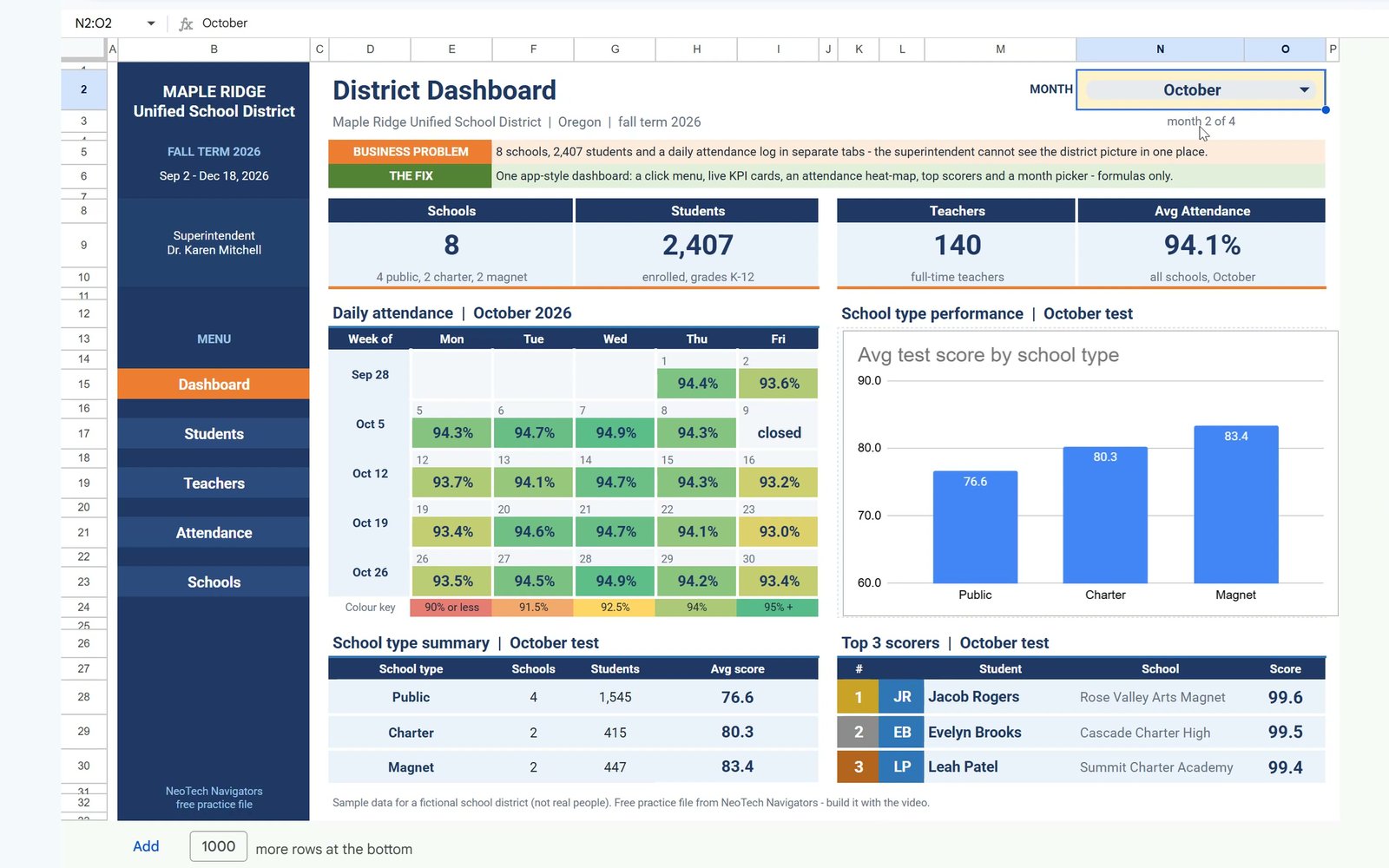
The free file opens a Make a copy page, so you get your own editable Google Sheet. The Practice sheet has the layout, the navy menu, the calendar dates and the school type table, with the cards, the calendar values, the chart and the top three empty. The Solution sheet has the finished dashboard. Four data sheets feed it: Students (a test score for each month), Teachers, Attendance (one row for each school and school day) and Schools. The month cell N2 says October and N3 turns it into a number with =MATCH(N2,{"September","October","November","December"},0): month 2 of 4. Every formula follows these two cells.
Step 1: Build the Click Menu
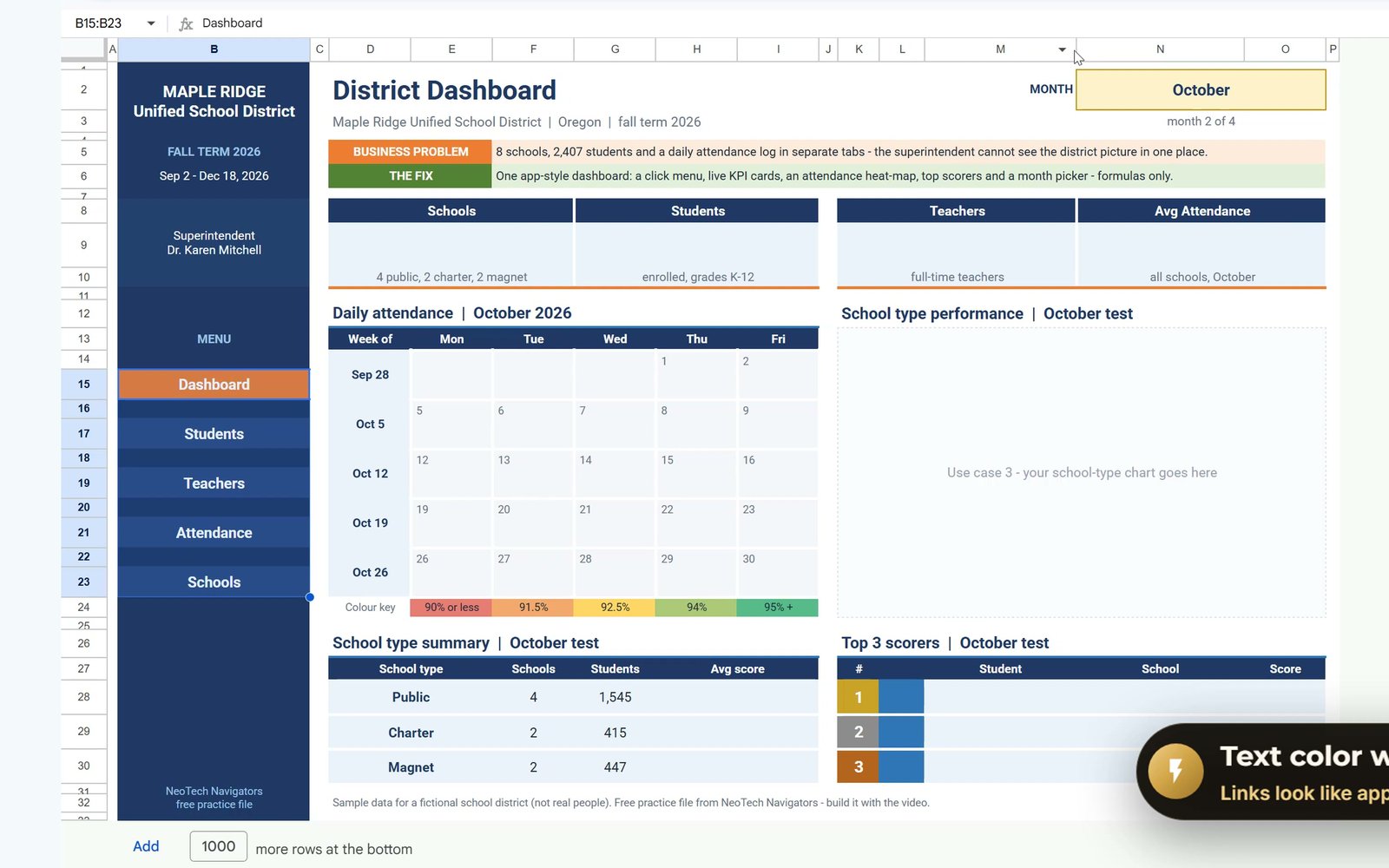
Click B17 (Students), choose Insert › Link, open Sheets and named ranges, pick Students and click Apply. Repeat for B19 (Teachers), B21 (Attendance), B23 (Schools) and B15 (Dashboard, which links back to the Practice sheet).
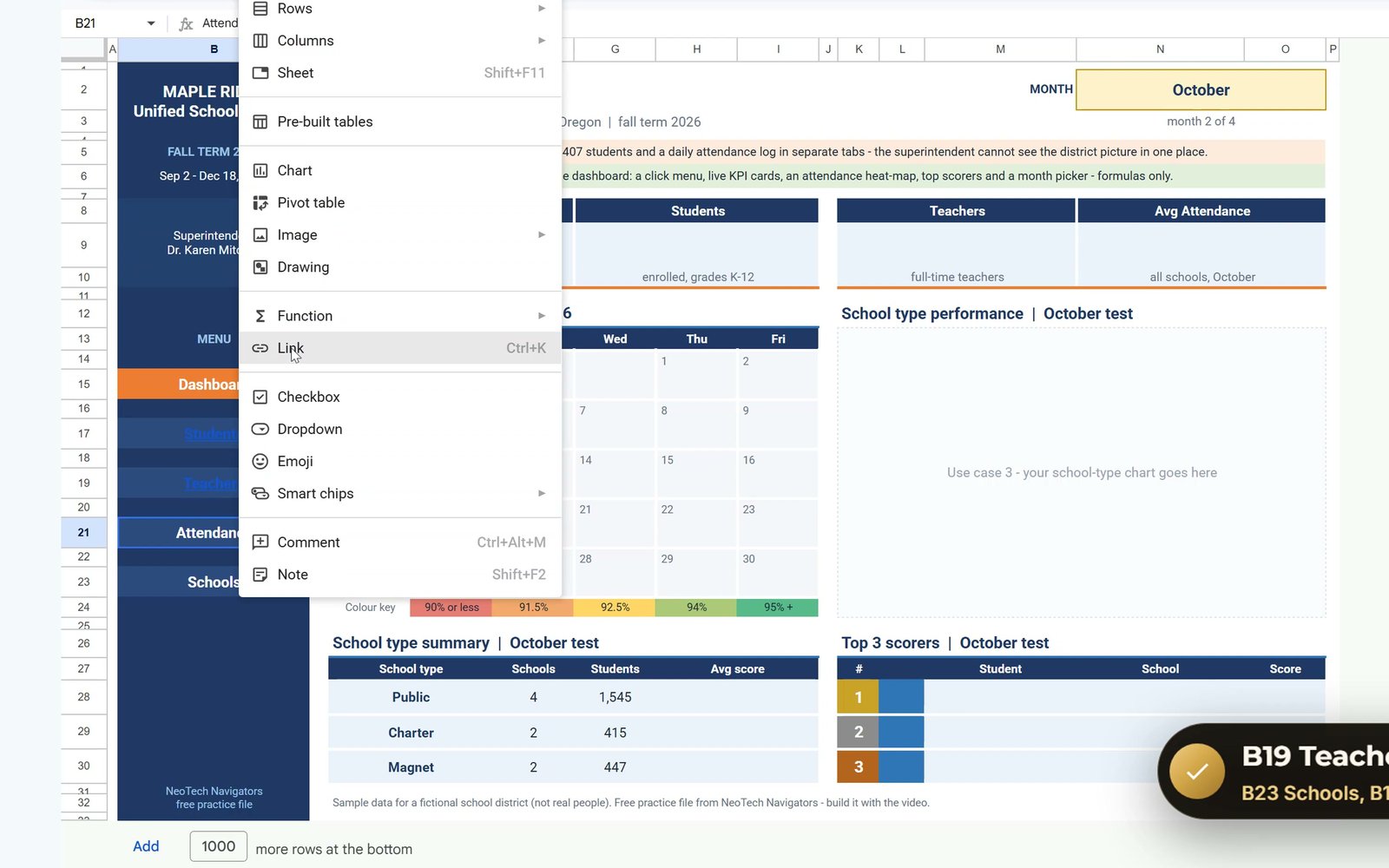
Links turn blue and underlined, which does not look like an app. Select B15:B23, set the text colour back to white and remove the underline. Click Teachers: it jumps to the Teachers sheet, and the Practice link at the top brings you back.
Step 2: Summary Cards with COUNTA and SUMIFS
Schools in D9, students in G9 and teachers in K9 are simple counts. Using a whole column means new rows are counted by themselves:
D9  =COUNTA(Schools!B5:B12)
G9  =COUNTA(Students!C5:C)
K9  =COUNTA(Teachers!C5:C)
The district has 8 schools, 2,407 students and 140 teachers.
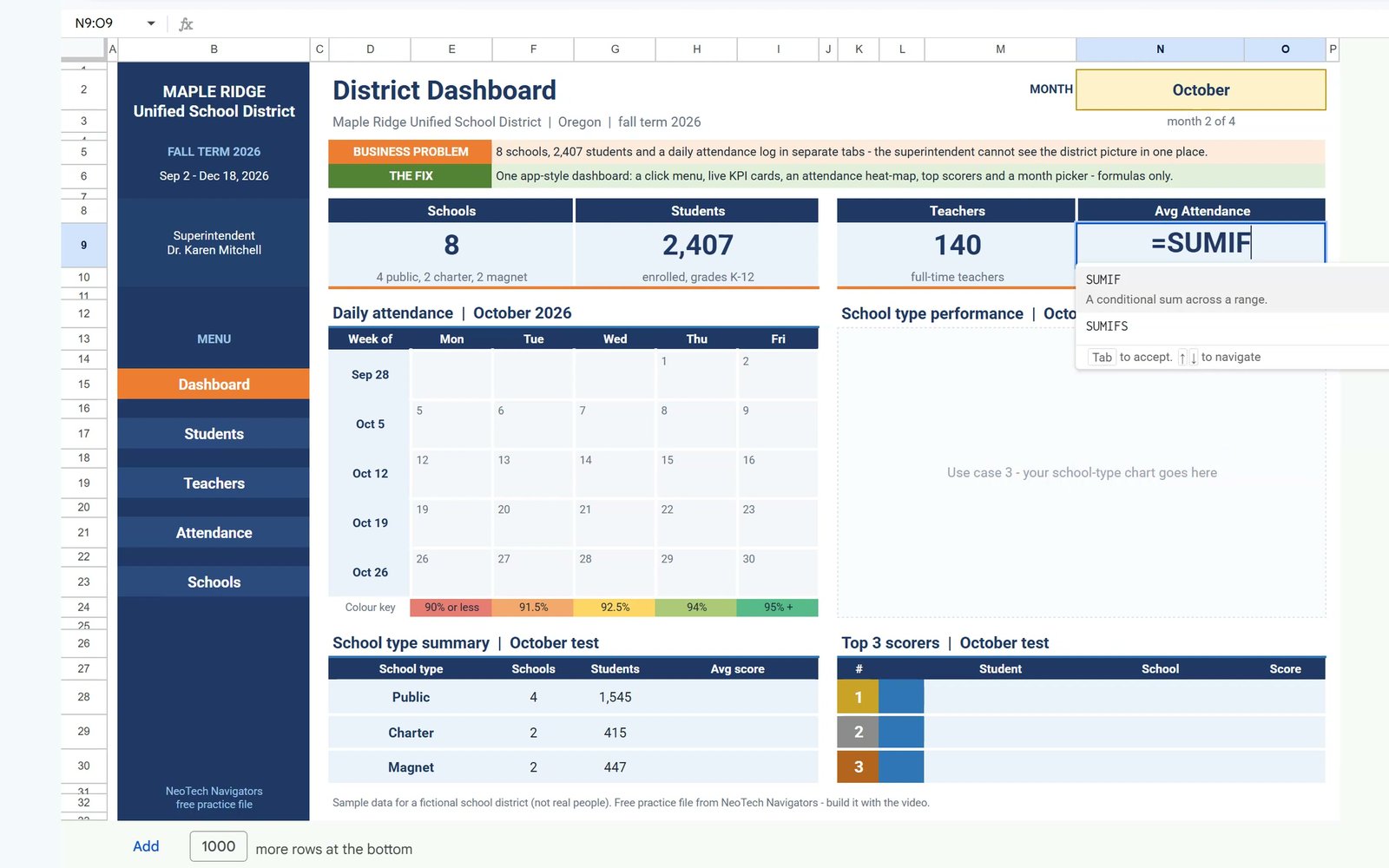
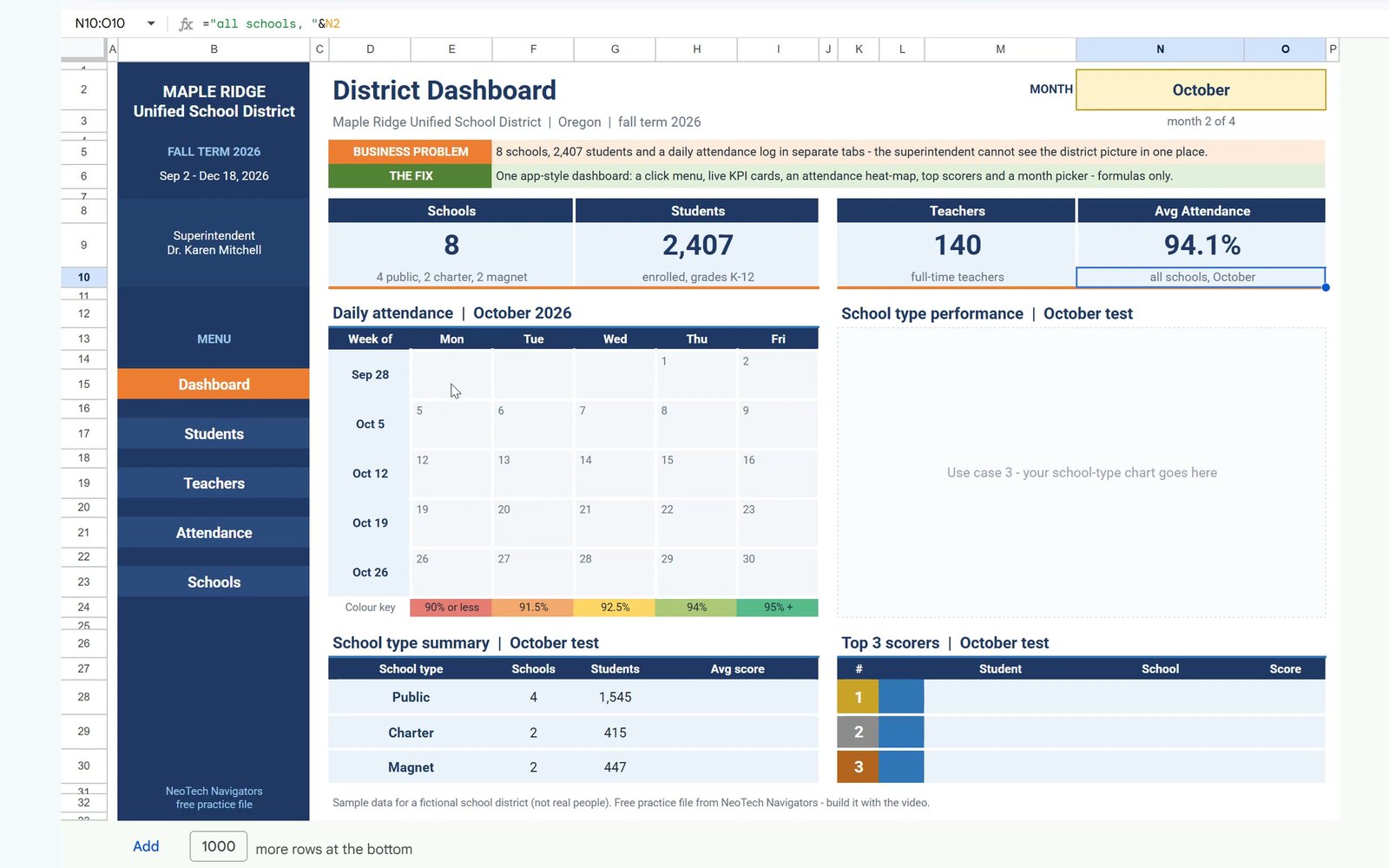
The important card is Average Attendance in N9: total present divided by total enrolled for the chosen month.
=SUMIFS(Attendance!F5:F,Attendance!C5:C,N2)/SUMIFS(Attendance!E5:E,Attendance!C5:C,N2)October gives 94.1%. Why not average the daily percentages? A big school and a small school would count the same, so total present over total enrolled is the true district number.
Step 3: Attendance Heat Map
The calendar already shows the October day numbers in row 14. The empty row 15 under them is where the attendance goes. In E15:
=IF(E14="","",IFERROR(SUMIFS(Attendance!$F$5:$F,Attendance!$B$5:$B,E14)/SUMIFS(Attendance!$E$5:$E,Attendance!$B$5:$B,E14),"closed"))If the date cell is empty the result stays empty (Monday, September 28 is not part of October). Otherwise IFERROR divides the present total by the enrolled total for that date, and shows closed when the school was shut, like the teacher in-service day on October 9. Press F4 on every range so it stays locked, but leave E14 relative. Copy E15 to F15:I15, then type E17:I17, E19:I19, E21:I21 and E23:I23 in the Name Box and paste. Because E14 is relative, every row reads the dates right above it. Thursday, October 1 shows 94.4%.
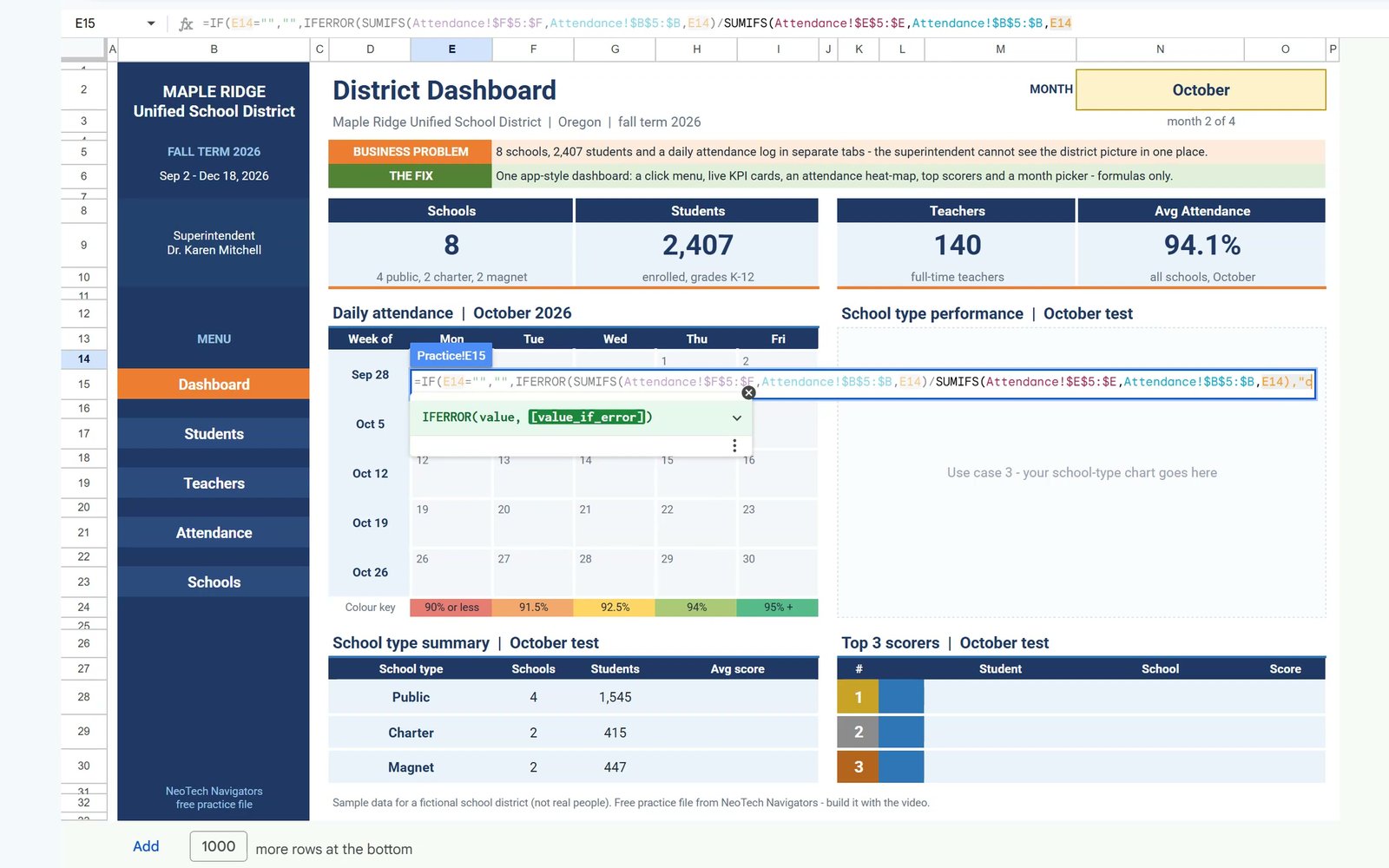
Now the colours. Open Format › Conditional formatting, and in Apply to range type the five value rows separated by commas. Choose Color scale with a Number minpoint of 0.9 in red, a midpoint of 0.925 in yellow and a maxpoint of 0.95 in green, then click Done.
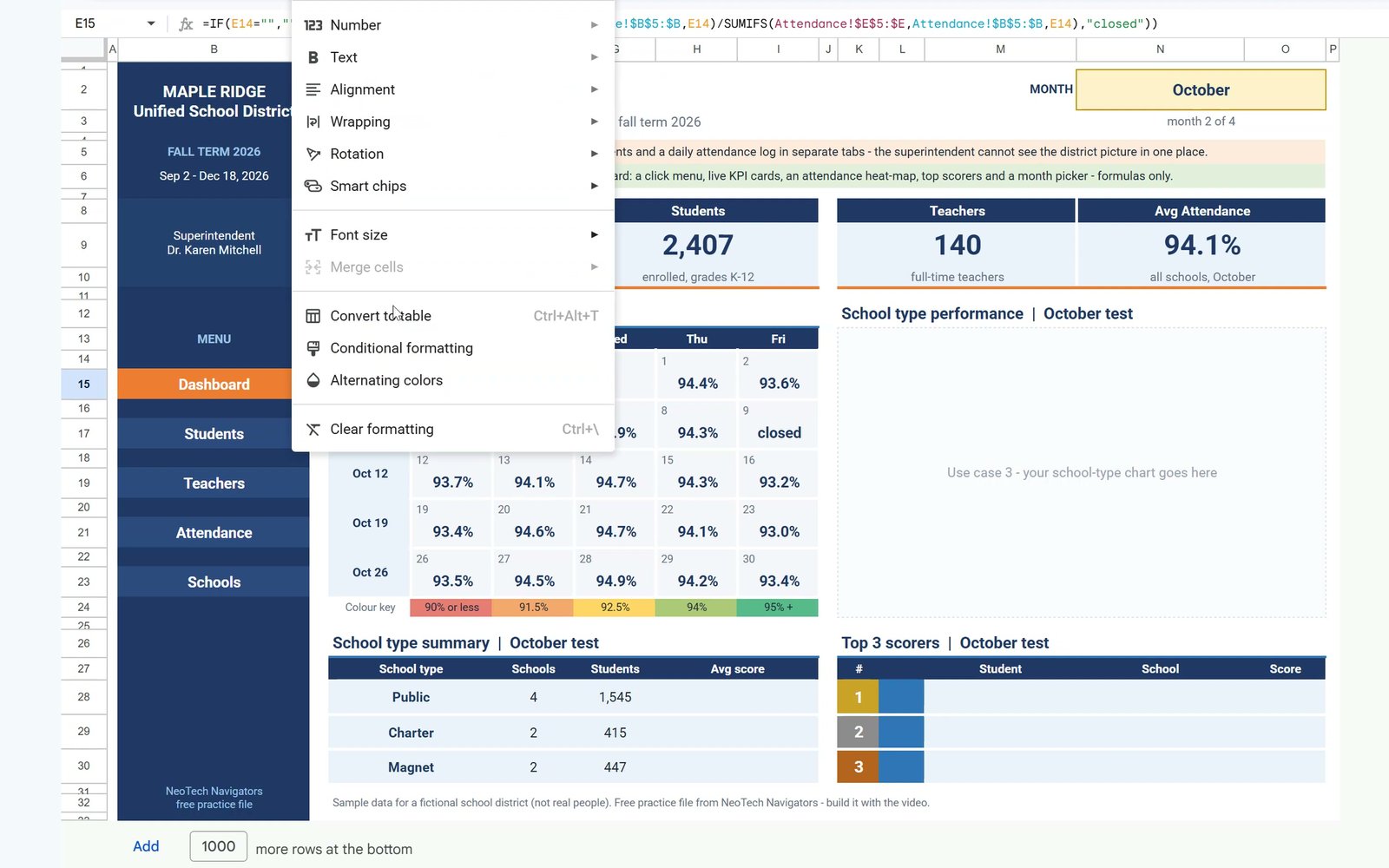
Trap 1: if you apply the colour scale to the whole calendar, E14:I23, the date rows join the scale. Dates are big numbers, so every day number turns dark green. Colour only the value rows.
Step 4: Top 3 Scorers with SORTN
In M28 type one formula that returns the three best students of the month:
=SORTN({Students!$C$5:$C,Students!$E$5:$E,INDEX(Students!$G$5:$J,0,$N$3)},3,0,3,FALSE)The curly brackets put name, school and score side by side. INDEX(...,0,$N$3) picks this month’s score column: October is the second. Then 3 is the number of rows, 0 the ties mode, 3 sorts by the third column (the score) and FALSE puts the highest first. October gives Jacob Rogers 99.6, Evelyn Brooks 99.5 and Leah Patel 99.4, and the initials badges fill in by themselves.
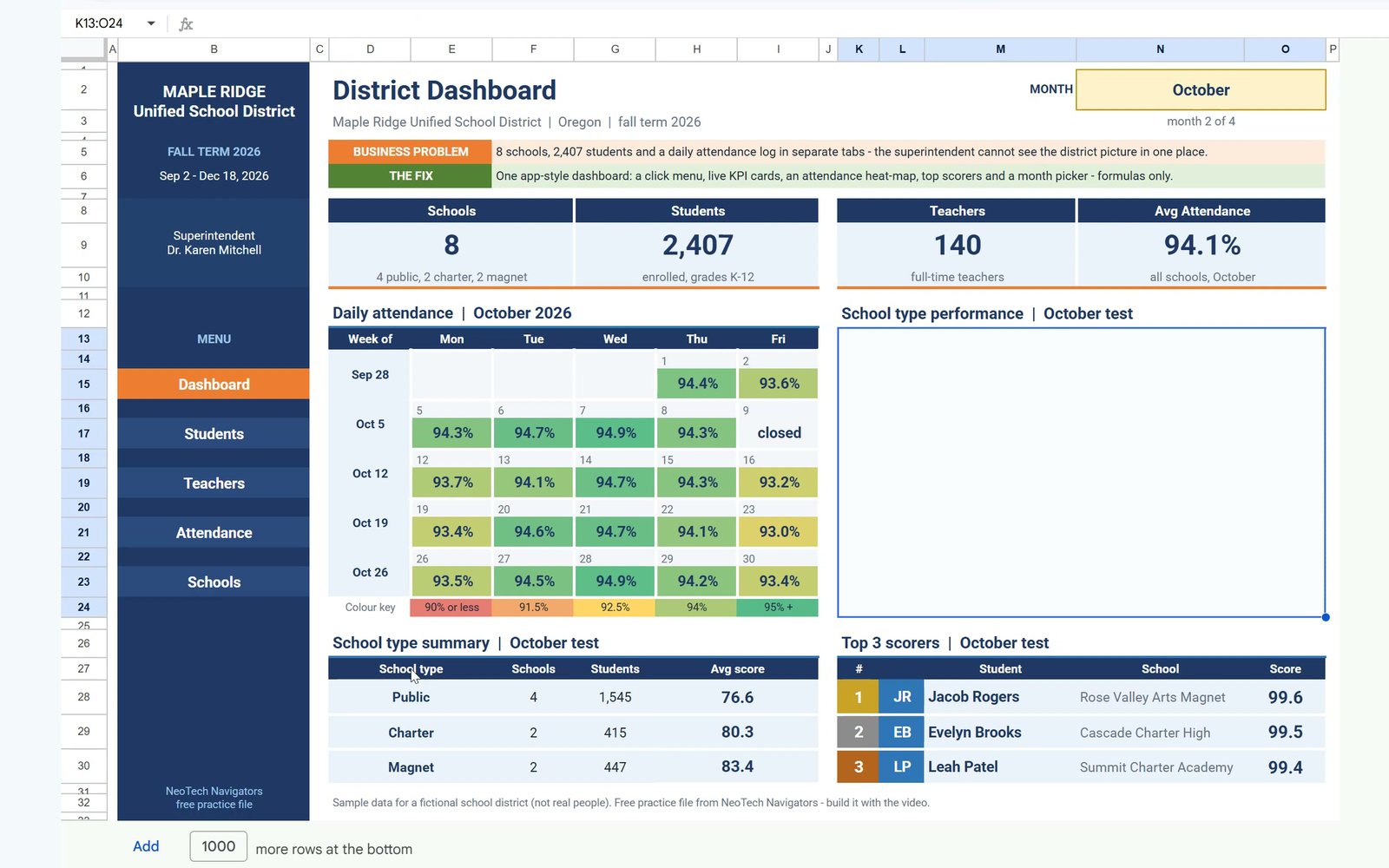
Trap 2: SORTN needs empty cells below and beside it. Type an x in N29 and you get #REF! with the message Array result was not expanded. Delete the x and the list comes back.
Step 5: School Type Chart with AVERAGEIFS
In H28 work out the average score for each school type, using the same INDEX trick for the month:
=AVERAGEIFS(INDEX(Students!$G$5:$J,0,$N$3),Students!$F$5:$F,D28)Copy it down to H30: Public 76.6, Charter 80.3, Magnet 83.4.
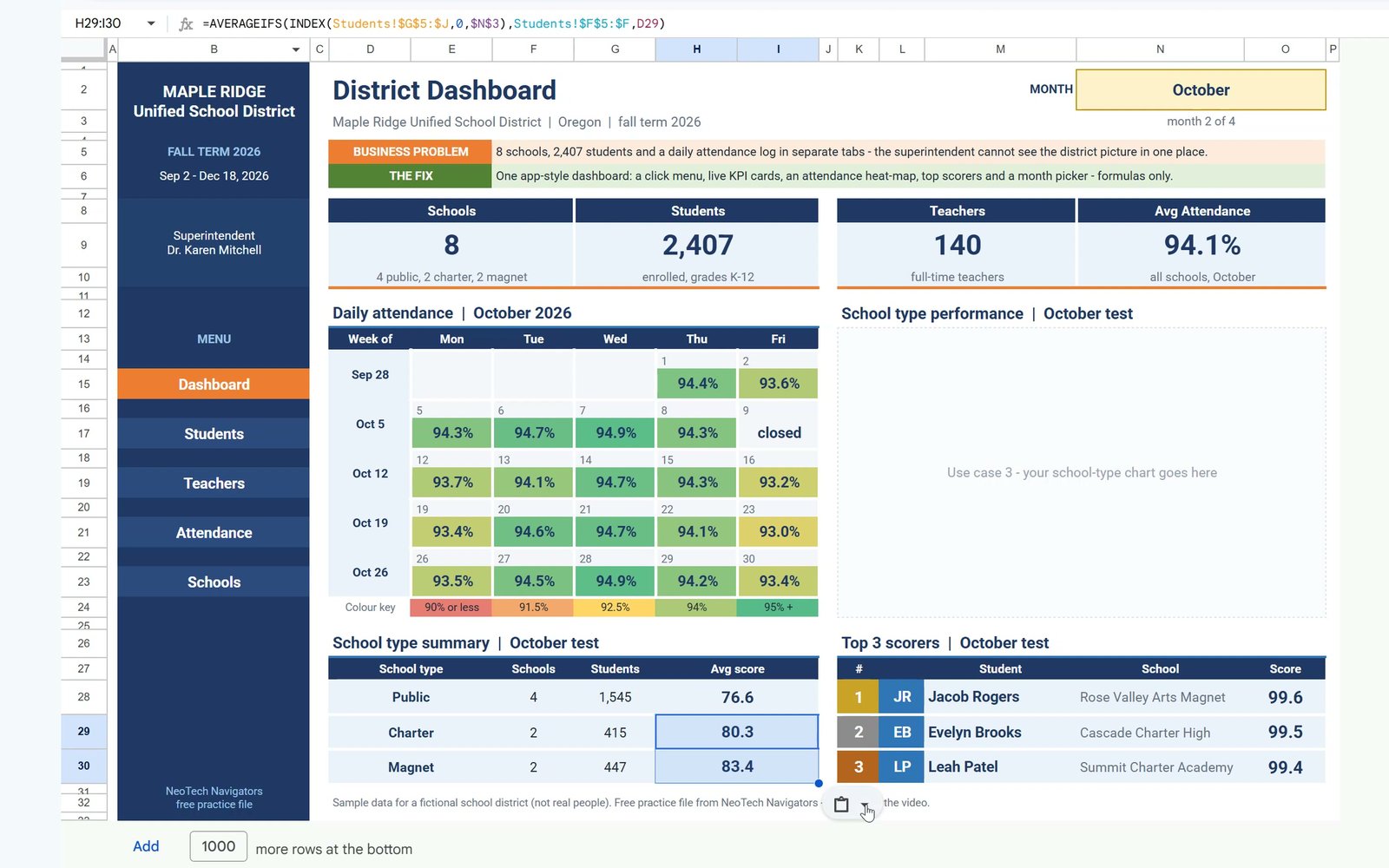
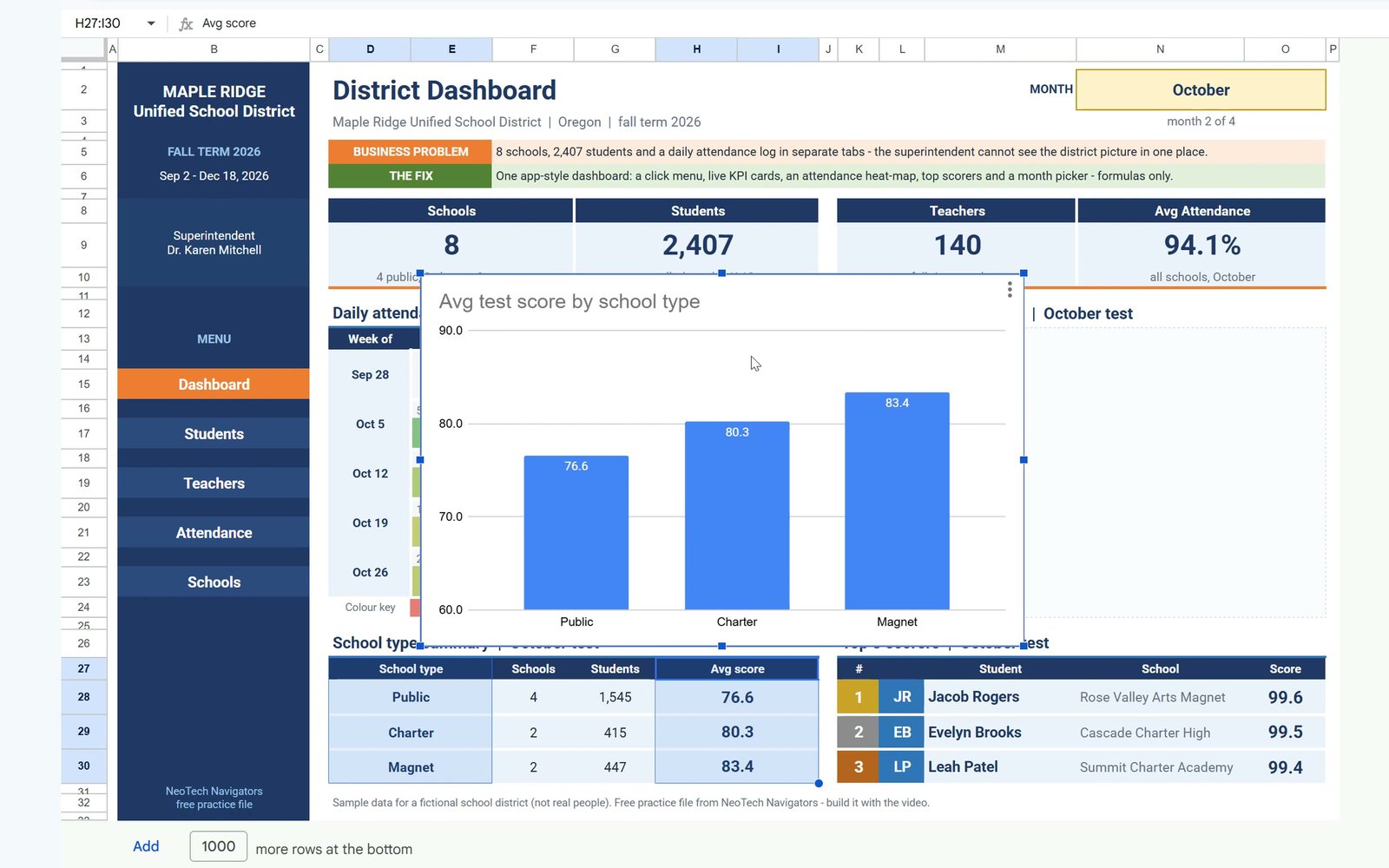
For the chart, clear the placeholder in K13, select D27:D30, hold Ctrl and select H27:H30, then choose Insert › Chart and the column chart. In the Customize tab set the title to Avg test score by school type, the vertical axis minimum to 60 and maximum to 90, turn the data labels on and set the legend to none. Move the chart into the empty area.
Bonus: Month Dropdown
Select N2, open Data › Data validation › Add rule, choose Dropdown and add four options: September, October, November and December. Click Done.
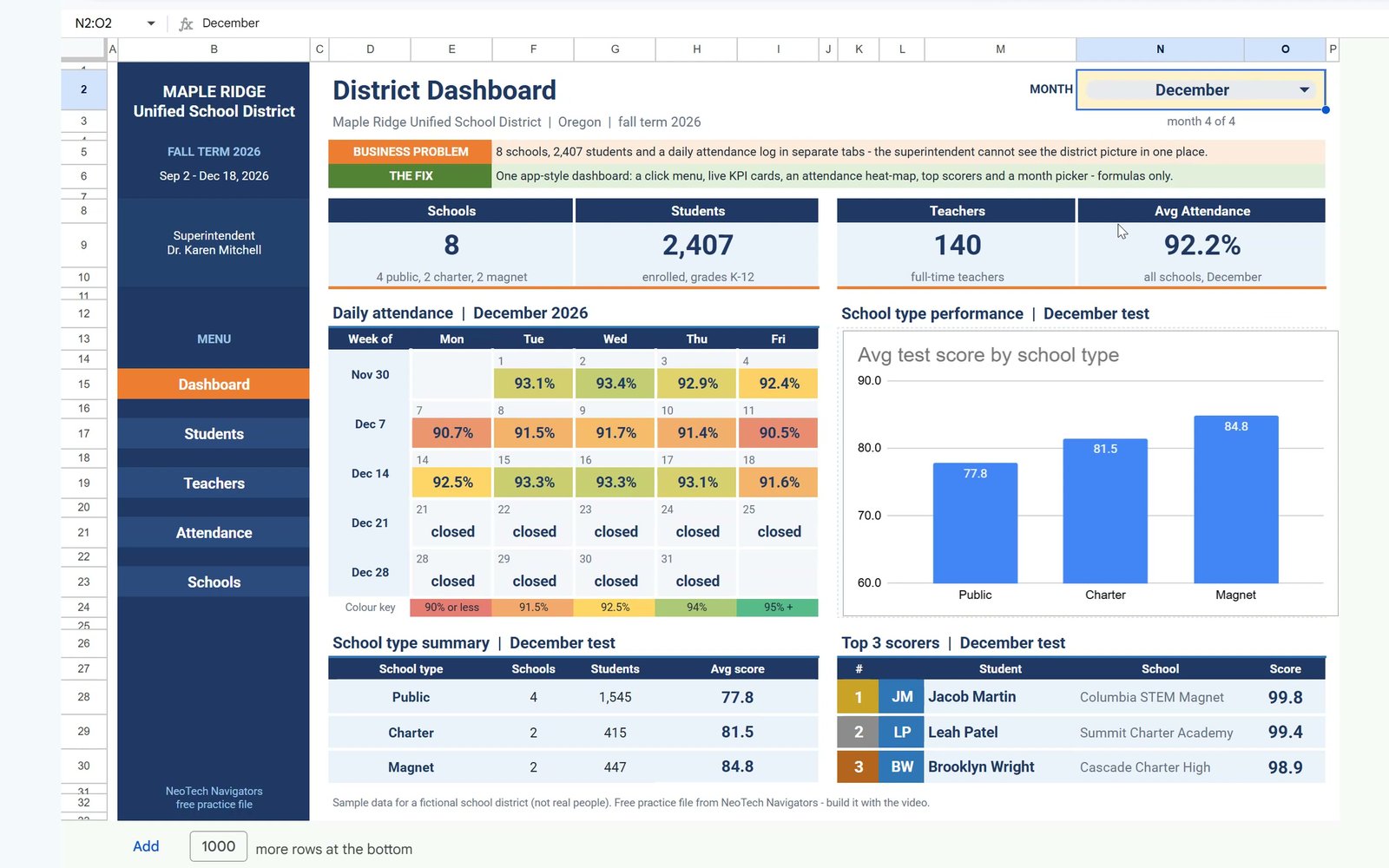
Pick December and the whole dashboard follows: Average Attendance drops to 92.2%, the week of December 7 turns red (flu week, as low as 90.5% on Friday), every day from December 21 shows closed for winter break and the top three becomes Jacob Martin 99.8, Leah Patel 99.4 and Brooklyn Wright 98.9. September gives 94.5% and a mostly green calendar.
Free Dashboard vs Ready-Made School Dashboards
| Need | This free dashboard | Secondary / Primary Schools Dashboard |
|---|---|---|
| Click menu, cards, heat map, top 3, chart, month picker | Yes | Yes |
| Ready-made layouts for your school level and extra reports | – | Yes |
| Price | Free | Paid |
Tips
- Press F4 on the Attendance ranges, but keep the date cell (E14) relative so the formula copies down the calendar.
- Apply the colour scale to the value rows only, never to the date rows.
- Keep M28:O30 empty so SORTN has room to spill.
- Use the Solution sheet to compare your formulas whenever a number looks different.
- Google’s SORTN help page explains every argument in detail.
Want It Ready-Made?
This free dashboard is perfect to learn the idea. For the complete version see the Secondary Schools Dashboard in Google Sheets and the Primary Schools Dashboard in Google Sheets on NextGenTemplates.com. If you also work in Excel, the full video course Excel Pivot Tables & Dashboards: Basic to Advanced teaches dashboards step by step. More on this site: the budget dashboard in Google Sheets, the loan and EMI tracker in Google Sheets and 5 ways to summarize data in Google Sheets.
Frequently Asked Questions
How do I make a dashboard in Google Sheets?
Put your data on separate tabs, then build one dashboard tab with summary cards (COUNTA, SUMIFS), a colour-scaled calendar, a ranked list (SORTN), a chart and a dropdown that drives every formula. This tutorial builds all of that for a school district with formulas only.
Is this school dashboard template free?
Yes. The practice file opens a Make a copy page in Google Sheets. It has a Practice sheet to build along with the video, a Solution sheet with the finished dashboard and four data sheets: Students (2,407 rows), Teachers (140), Attendance (576 daily rows) and Schools (8).
How do I make a clickable menu in Google Sheets without Apps Script?
Select a cell, choose Insert, then Link, and under Sheets and named ranges pick the tab. The cell now jumps to that sheet. Links turn blue and underlined, so set the text colour back to white and remove the underline to get the app-style button look.
Why not average the daily attendance percentages?
A big school and a small school would count the same. Total present divided by total enrolled, as in SUMIFS(Present)/SUMIFS(Enrolled), gives the true district number: 94.1% for October.
Why did my colour scale turn every day number dark green?
The date rows were included in the range. Dates are big numbers, so they sit at the top of the scale. Apply the rule only to the five value rows: E15:I15, E17:I17, E19:I19, E21:I21 and E23:I23.
Why does SORTN show a #REF! error?
SORTN spills into the cells below and to the right. If anything is typed in M28:O30, the result cannot expand and you see Array result was not expanded. Delete the stray value and the top three list comes back.
What does the month dropdown change?
Every formula reads the month in N2 and its number in N3. Switch to December and Average Attendance drops from 94.1% to 92.2%, the week of December 7 turns red (as low as 90.5% on Friday), December 21 onward shows closed for winter break and the top three scorers change.
Download the Practice File
Make your own copy of the practice file and build the school dashboard along with the video.
⬇️ Join Free on Skool & Download the Practice File
Free membership · takes 1 minute · the file is in Classroom → Free Downloads from YouTube
Google Sheets · opens a Make a copy page · Practice + Solution + 4 data sheets · no add-ons
About the Author
PK (Priyendra Kumar) runs NeoTech Navigators, PK: An Excel Expert and NextGenTemplates.com, and builds Google Sheets and Excel tools for small businesses. The sample school district and its students are fictional, and every number in this tutorial comes from the Solution sheet of the free file.
Conclusion
An app-style school dashboard in Google Sheets needs no add-ons or scripts. Sheet links make the menu, COUNTA and SUMIFS fill the cards, one IFERROR formula and a colour scale make the attendance heat map, SORTN lists the top three, AVERAGEIFS feeds the chart and a dropdown on the month cell drives all of it.