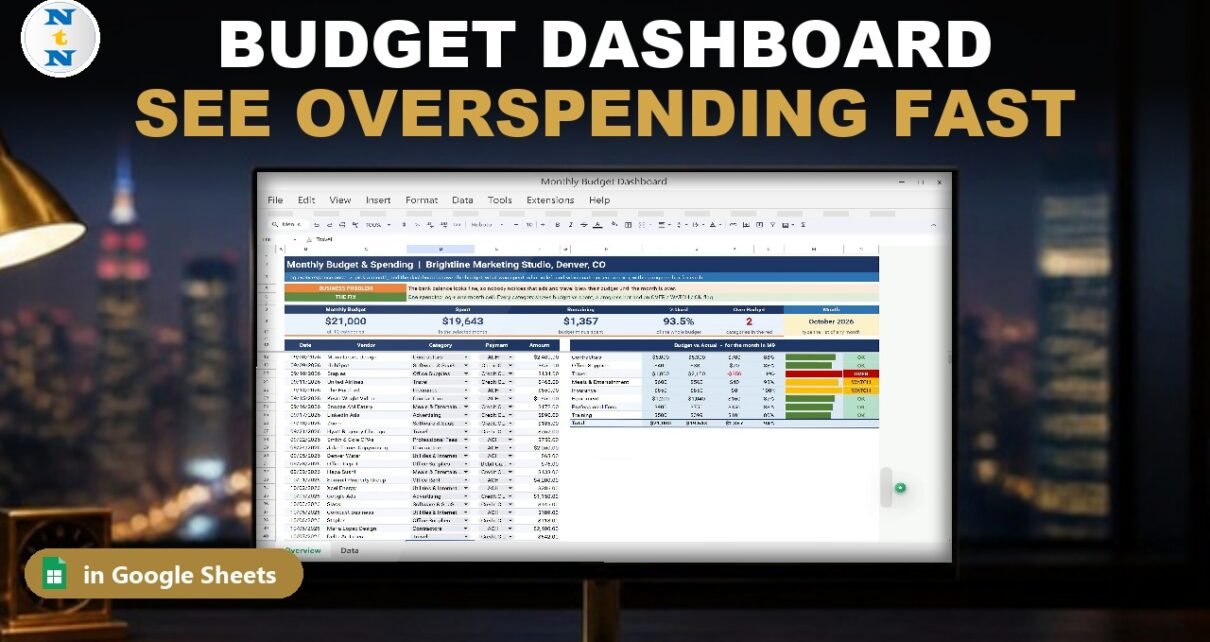
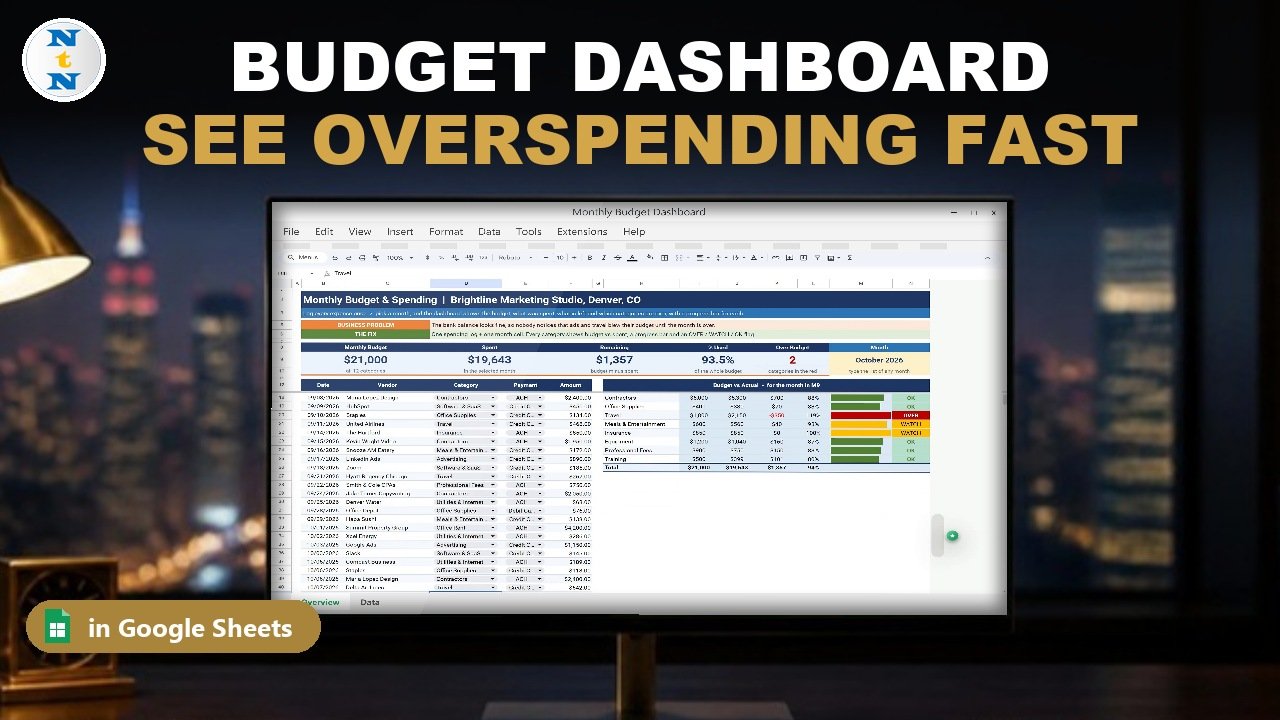
The bank balance looks fine, so nobody checks the categories, and the month closes with advertising and travel already over budget. In this tutorial you build a free budget dashboard Google Sheets template for a small business that shows it before month-end: category dropdowns, budgets with XLOOKUP, spending for one month with SUMIFS and EOMONTH, ARRAYFORMULA columns, an Over / Watch / OK status, SPARKLINE progress bars and live summary cards. The example studio has a $21,000 monthly budget, spends $19,643 in October (93.5% used, $1,357 left) and still has 2 categories over budget. No add-ons, no scripts.
⬇️ Download the Free Practice File
Google Sheets · opens a Make a copy page · Practice + Solution + Budget sheets · no add-ons
Watch the Video Tutorial
Video Overview
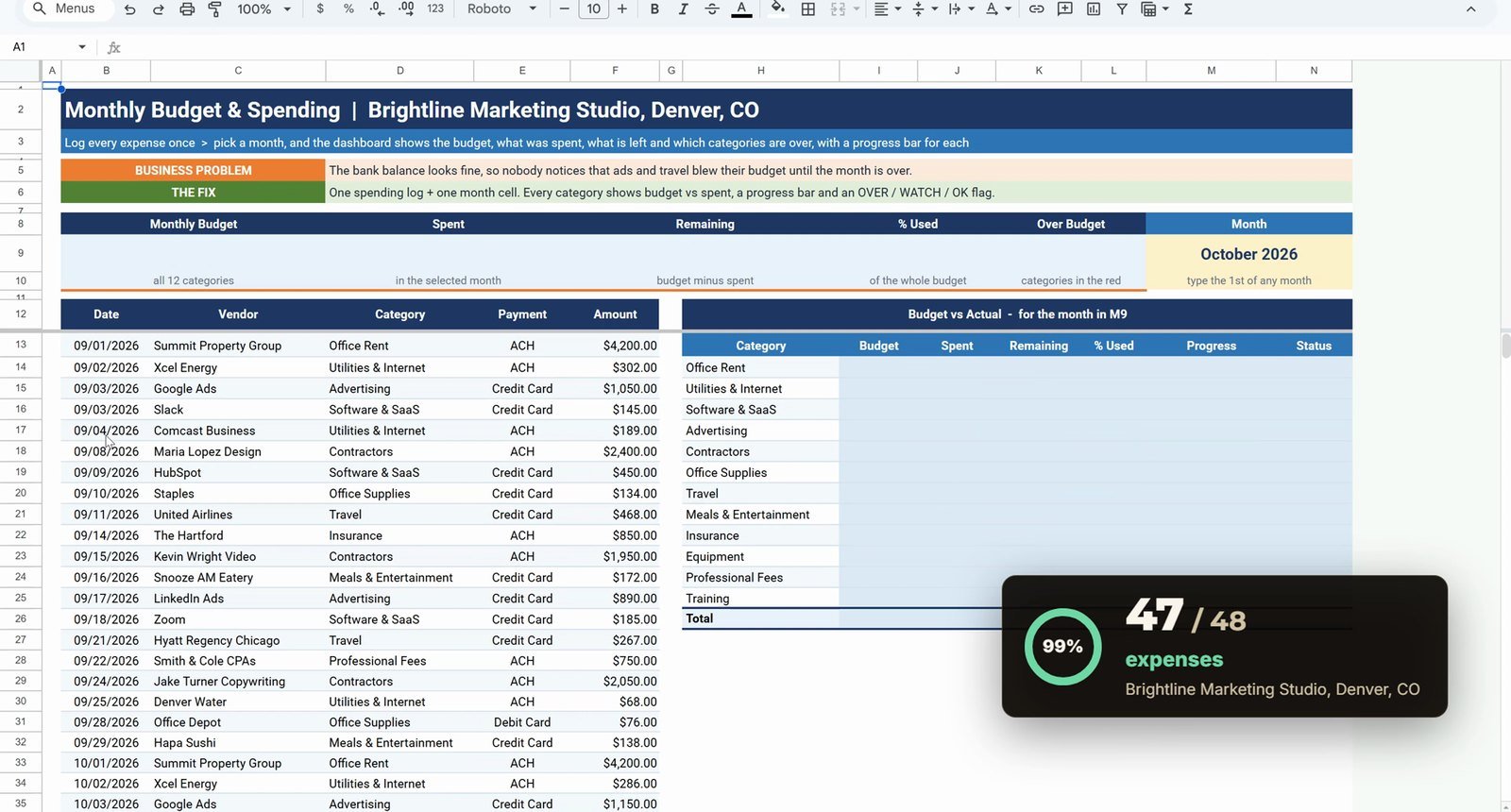
The 10-minute video builds the dashboard on the free practice file for Brightline Marketing Studio in Denver, Colorado, with 48 expenses for September and October. Step one adds category and payment dropdowns. Step two looks up each category’s budget with XLOOKUP. Step three builds the key formula, spending for one month, in two passes and shows the gotcha that adds two months together. Step four adds Remaining and Percent Used with one ARRAYFORMULA each. Step five adds the Over / Watch / OK status and colored SPARKLINE bars, step six the conditional formatting badges and step seven the totals and cards. In the bonus, one mis-filed expense is moved to the right category and the whole dashboard is switched to September.
Budget Dashboard Google Sheets: What You Will Build
- A spending log with category and payment dropdowns.
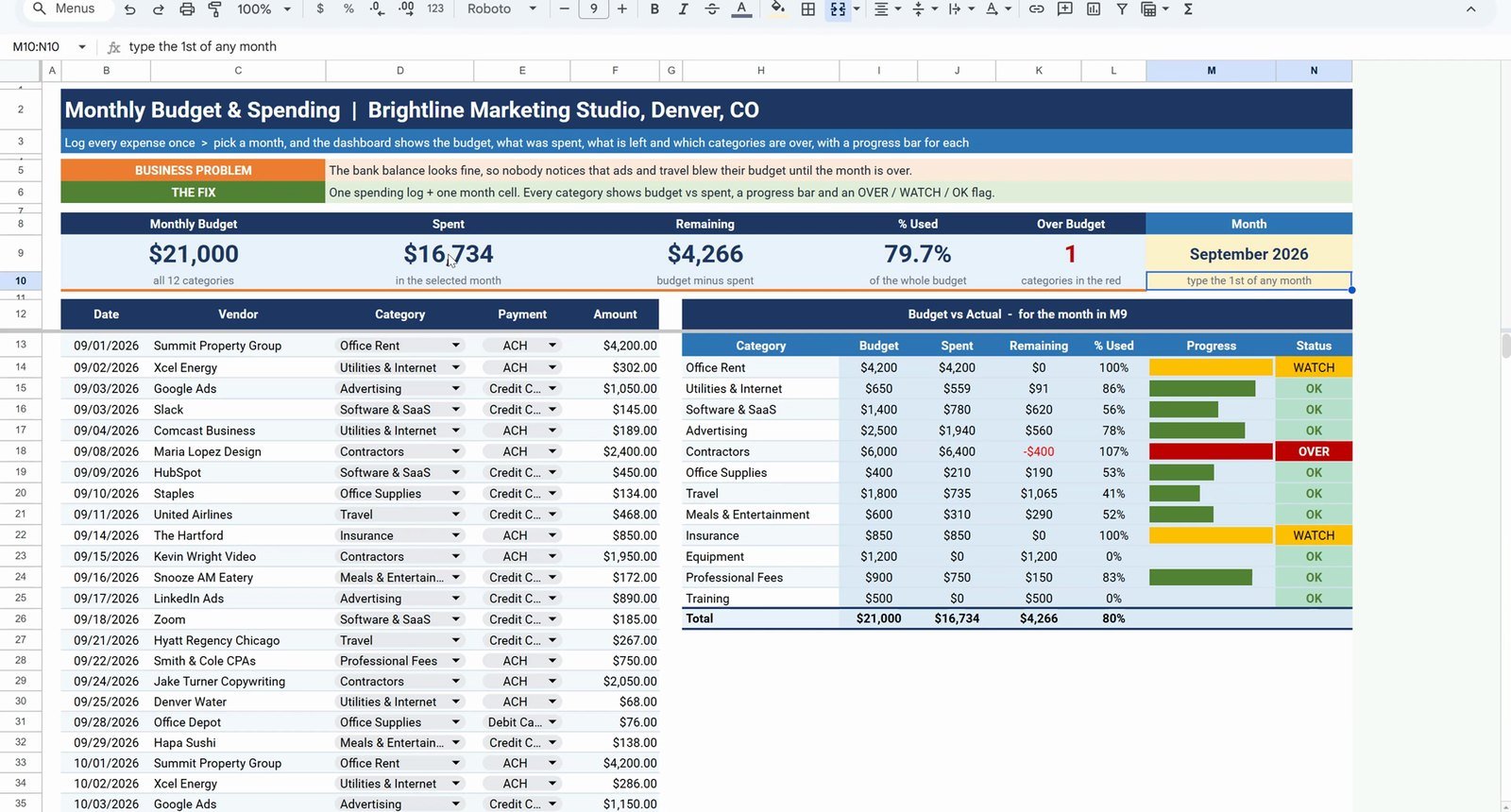
- A Budget vs Actual panel: budget, spent, remaining and percent used for 12 categories.
- One month cell (M9) that drives every number on the dashboard.
- Status badges and progress bars: Over in red, Watch in amber, OK in green.
- Five summary cards: Monthly Budget, Spent, Remaining, Percent Used and Over Budget.
The Practice File
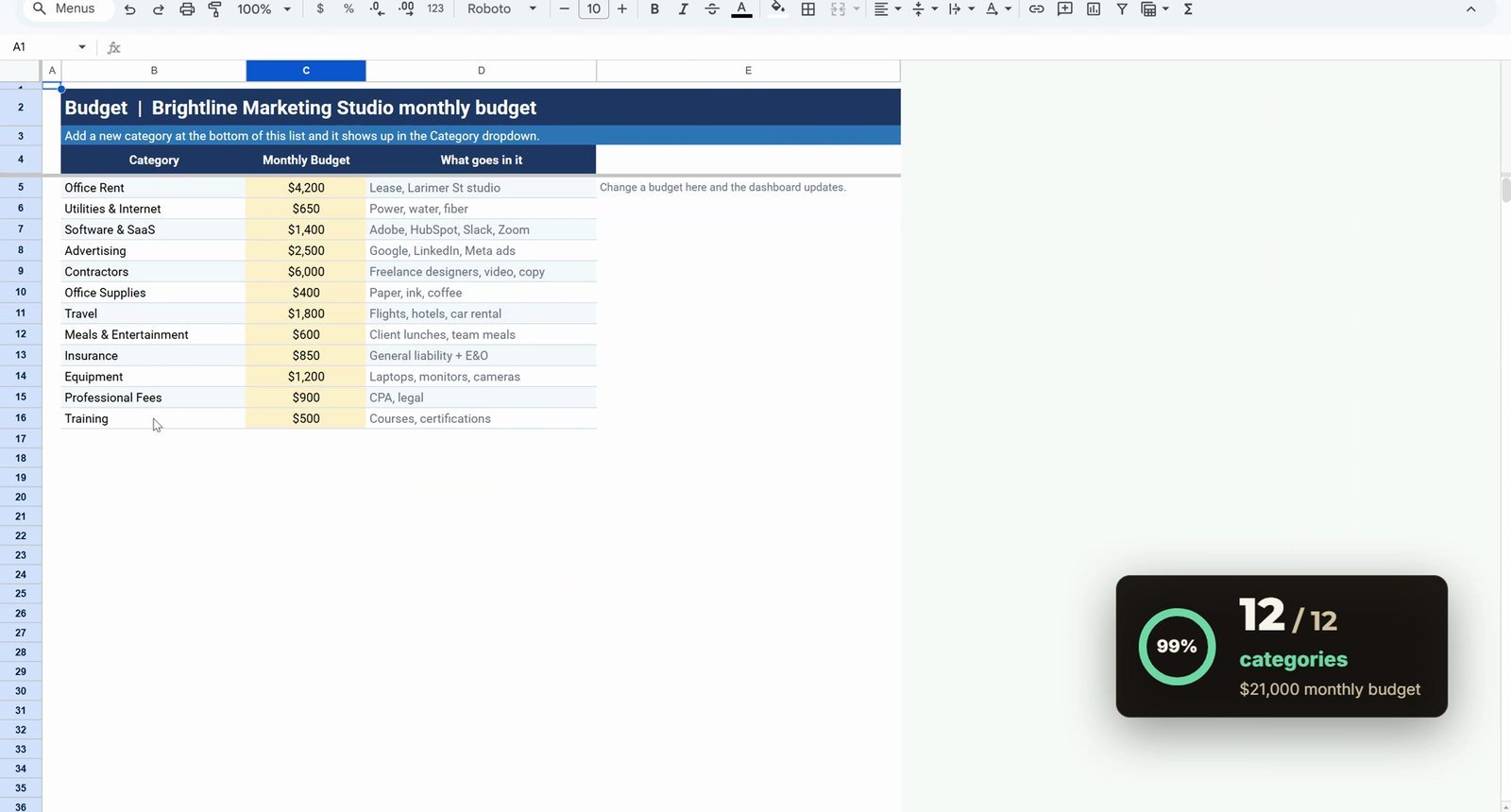
The free file opens a Make a copy page, so you get your own editable Google Sheet. It has a README, a Practice sheet with the 48 expenses (date, vendor, category, payment and amount) and the Budget vs Actual panel left empty in light blue, a Solution sheet with the finished dashboard and a Budget sheet with 12 categories and a monthly budget for each, $21,000 in total. The Month input in M9 is set to October 1, 2026.
Step 1: Category and Payment Dropdowns
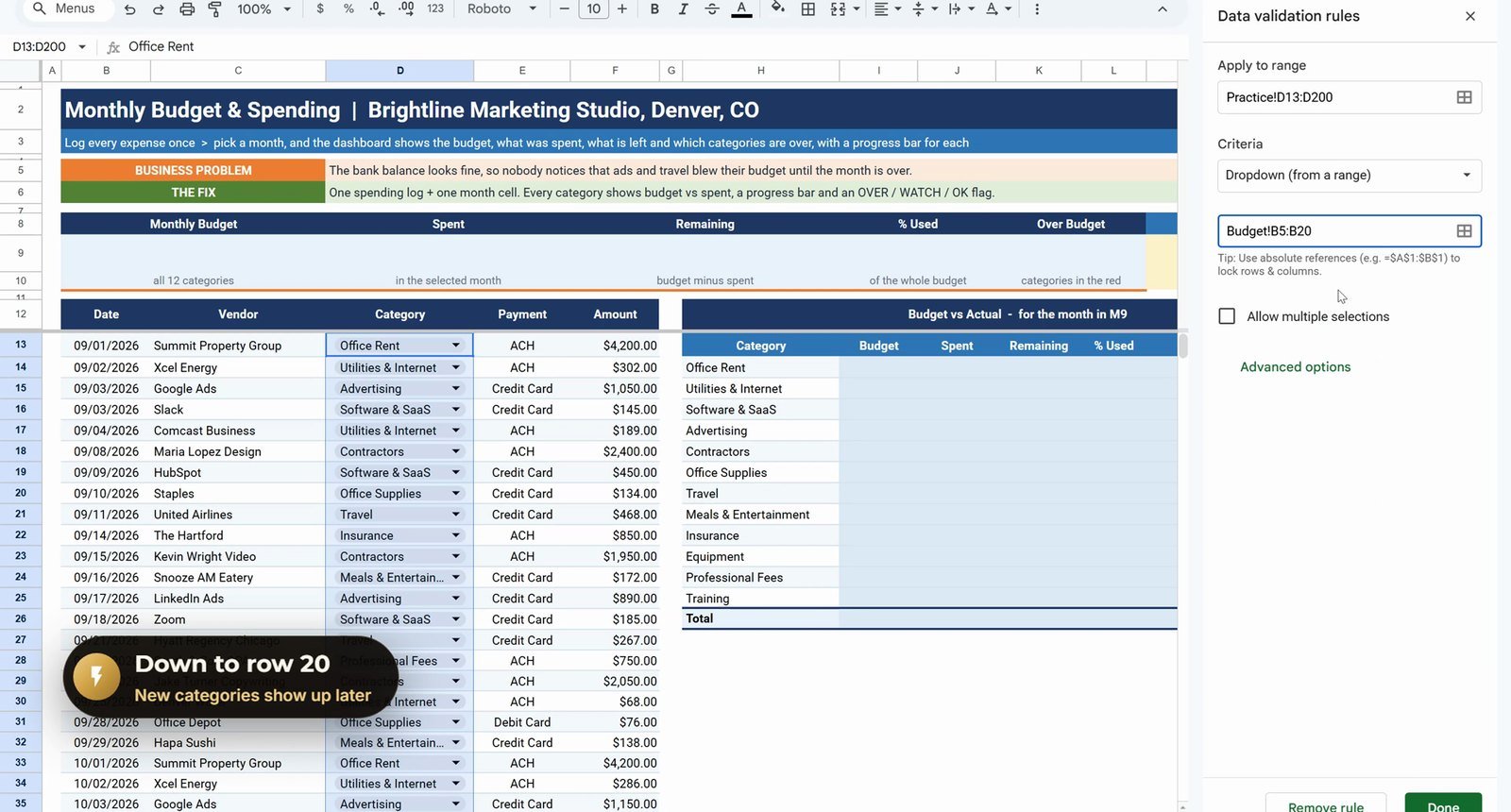
Type D13:D200 in the Name Box, then Data › Data validation › Add rule and choose Dropdown (from a range). Point it at the Budget sheet, down to row 20 on purpose so a new category shows up later:
Budget!B5:B20Then select E13:E200, add a Dropdown rule and type the four options: Credit Card, Debit Card, ACH and Check.
Step 2: Budget Lookup with XLOOKUP
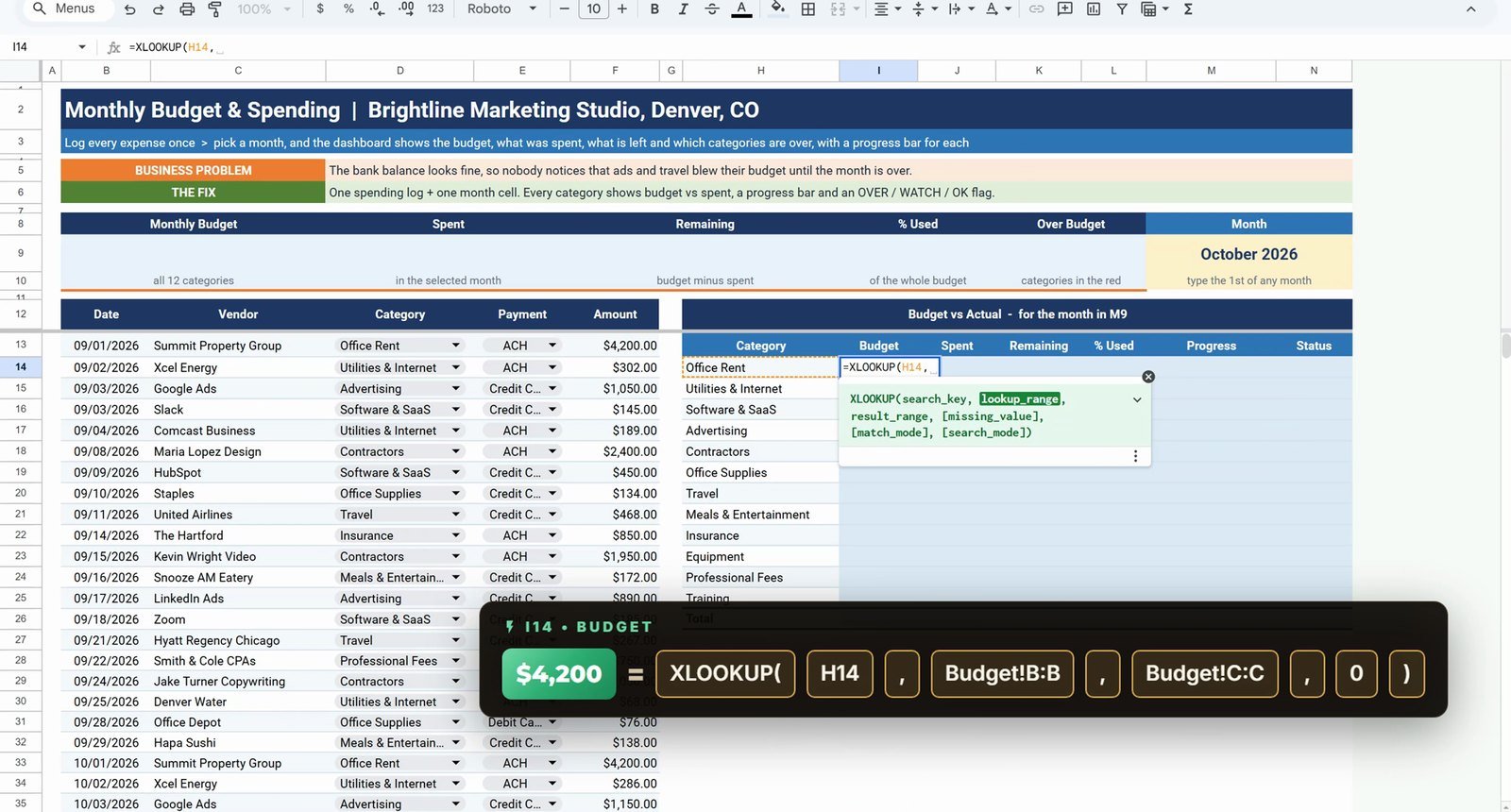
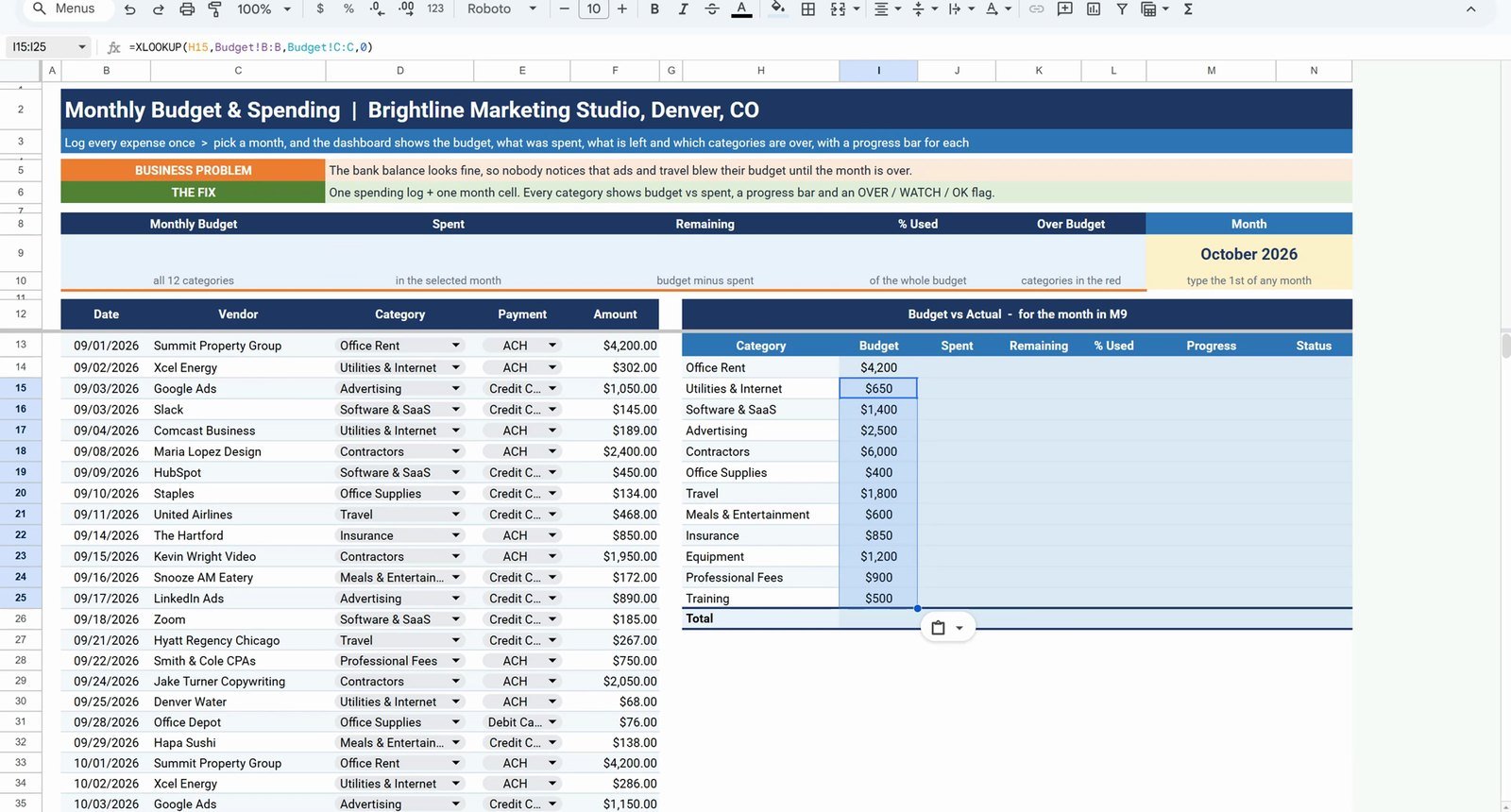
In I14 look up the category’s monthly budget from the Budget sheet, with zero if it is not found:
=XLOOKUP(H14,Budget!B:B,Budget!C:C,0)Office Rent returns $4,200. Copy I14, select I15:I25 in the Name Box and paste.
Step 3: Spent This Month with SUMIFS and EOMONTH
This is the key formula. First the plain version in J14, locking both ranges with F4:
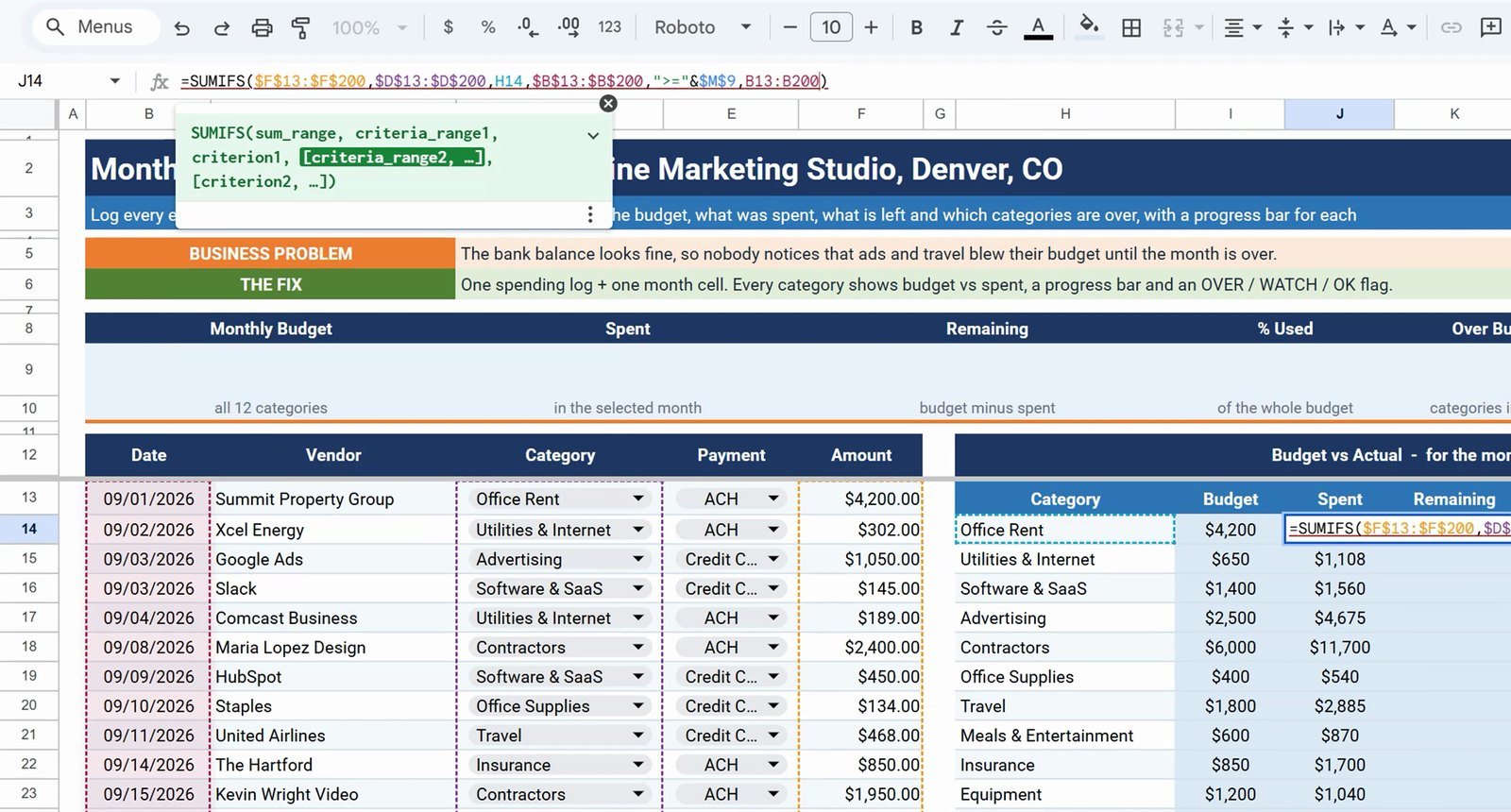
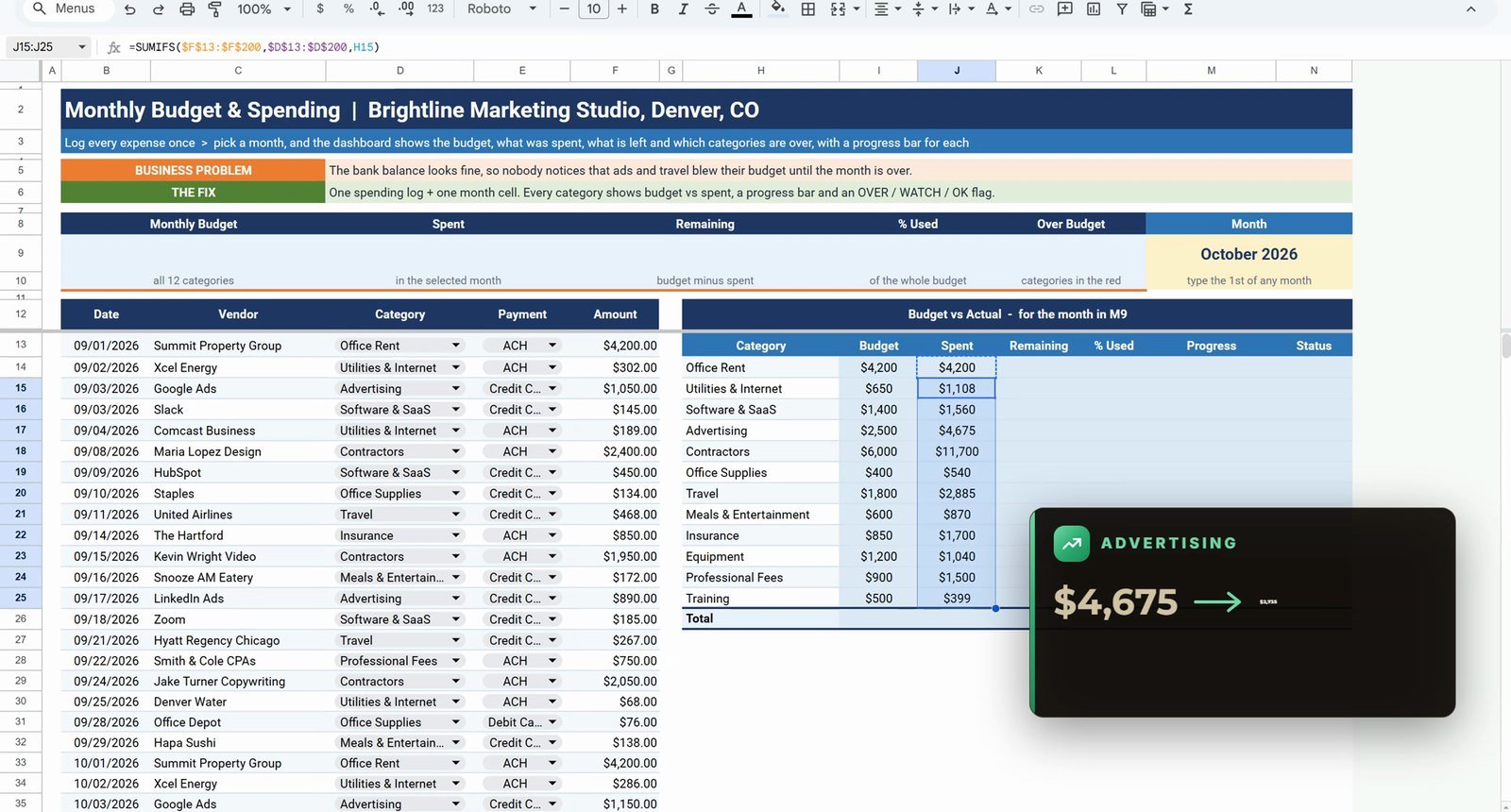
=SUMIFS($F$13:$F$200,$D$13:$D$200,H14)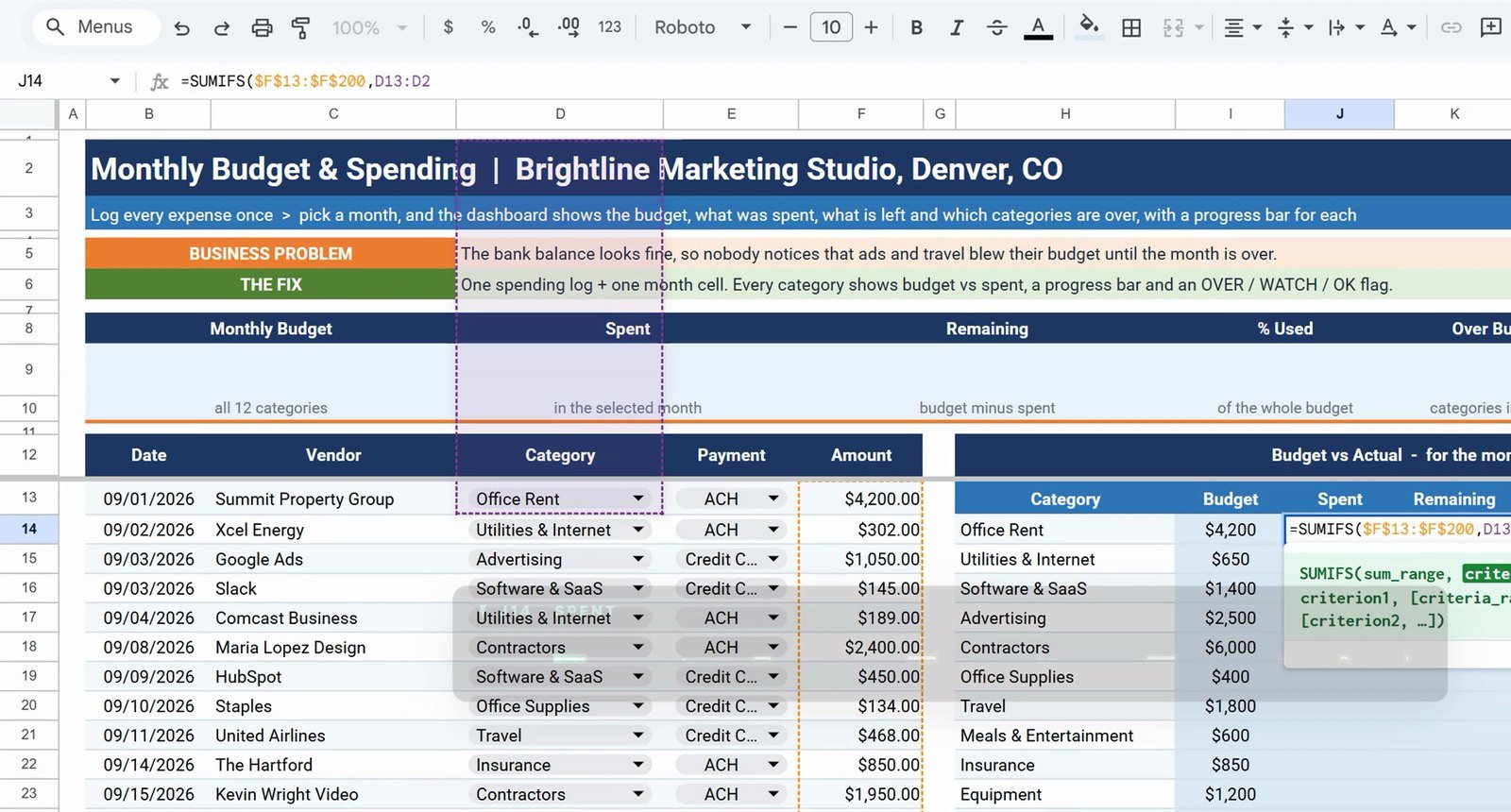
The gotcha: copy it down and Advertising shows $4,675. That is September and October added together, and we only want the month in M9.
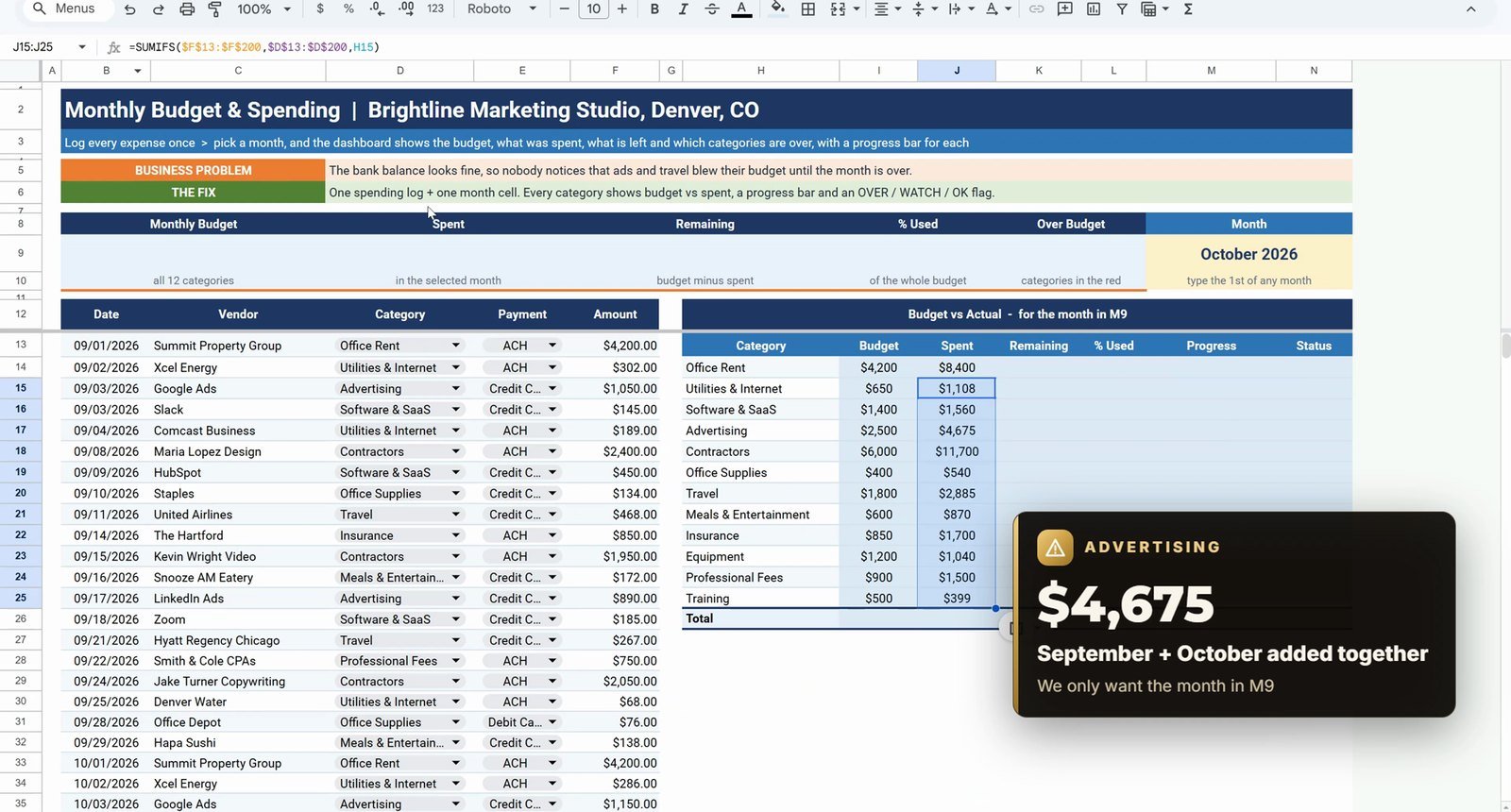
Add two more criteria pairs before the closing bracket, the date column on or after M9 and on or before the last day of that month:
=SUMIFS($F$13:$F$200,$D$13:$D$200,H14,$B$13:$B$200,">="&$M$9,$B$13:$B$200,"<="&EOMONTH($M$9,0))EOMONTH(M9,0) gives the last day of the month, so the formula takes everything from October 1 to October 31. The operator goes inside the double quotes and is joined to the cell with an ampersand. Advertising is now $2,735, October only.
Step 4: Remaining and Percent Used with ARRAYFORMULA
A Google Sheets superpower: one formula fills a whole column. In K14:
=ARRAYFORMULA(I14:I25-J14:J25)All twelve rows fill at once. Advertising is -$235 and Travel -$350, shown in red. In L14 add the percent used and format it with Format › Number › Percent, removing the decimals:
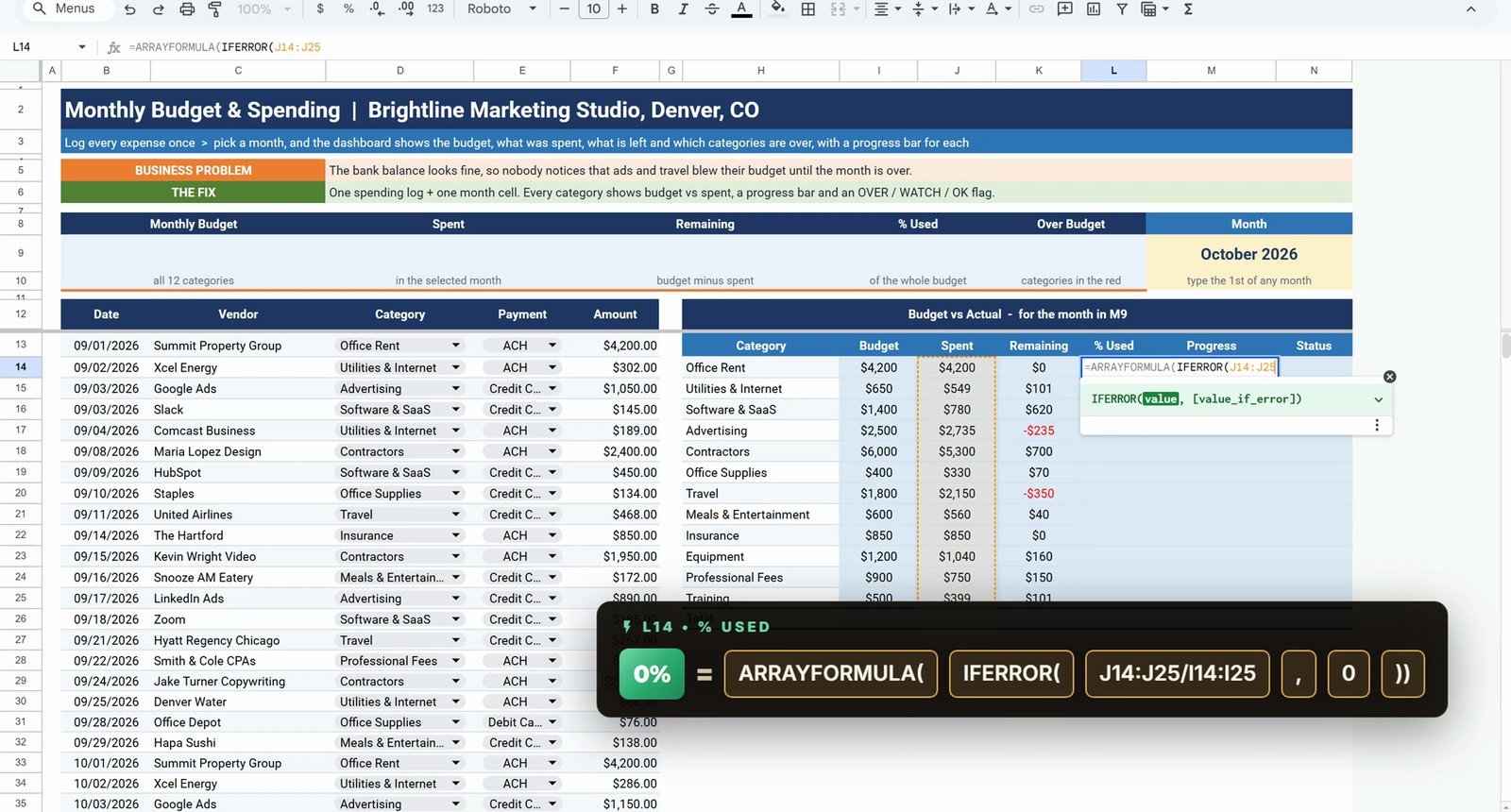
=ARRAYFORMULA(IFERROR(J14:J25/I14:I25,0))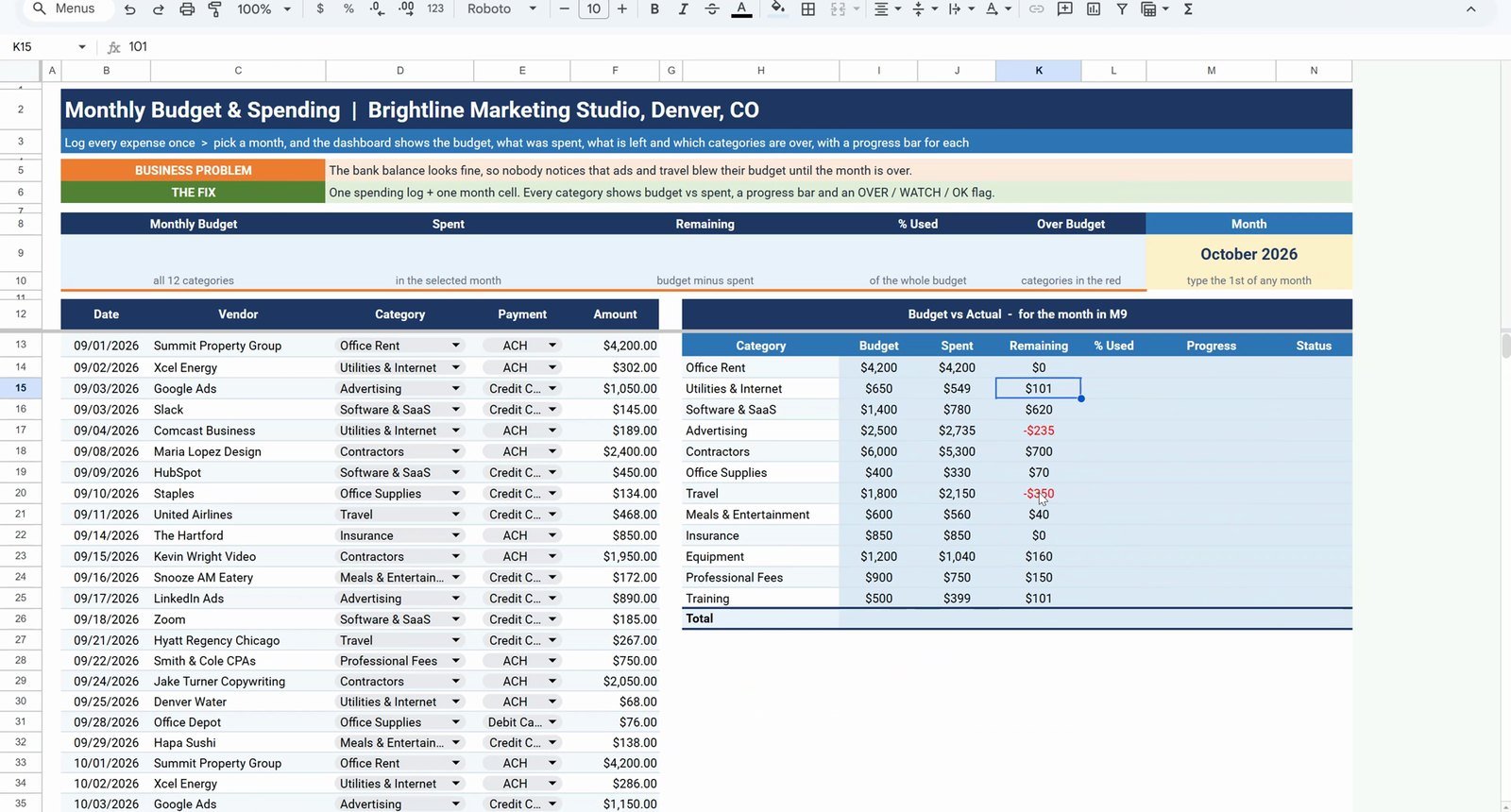
Step 5: Status and SPARKLINE Progress Bars
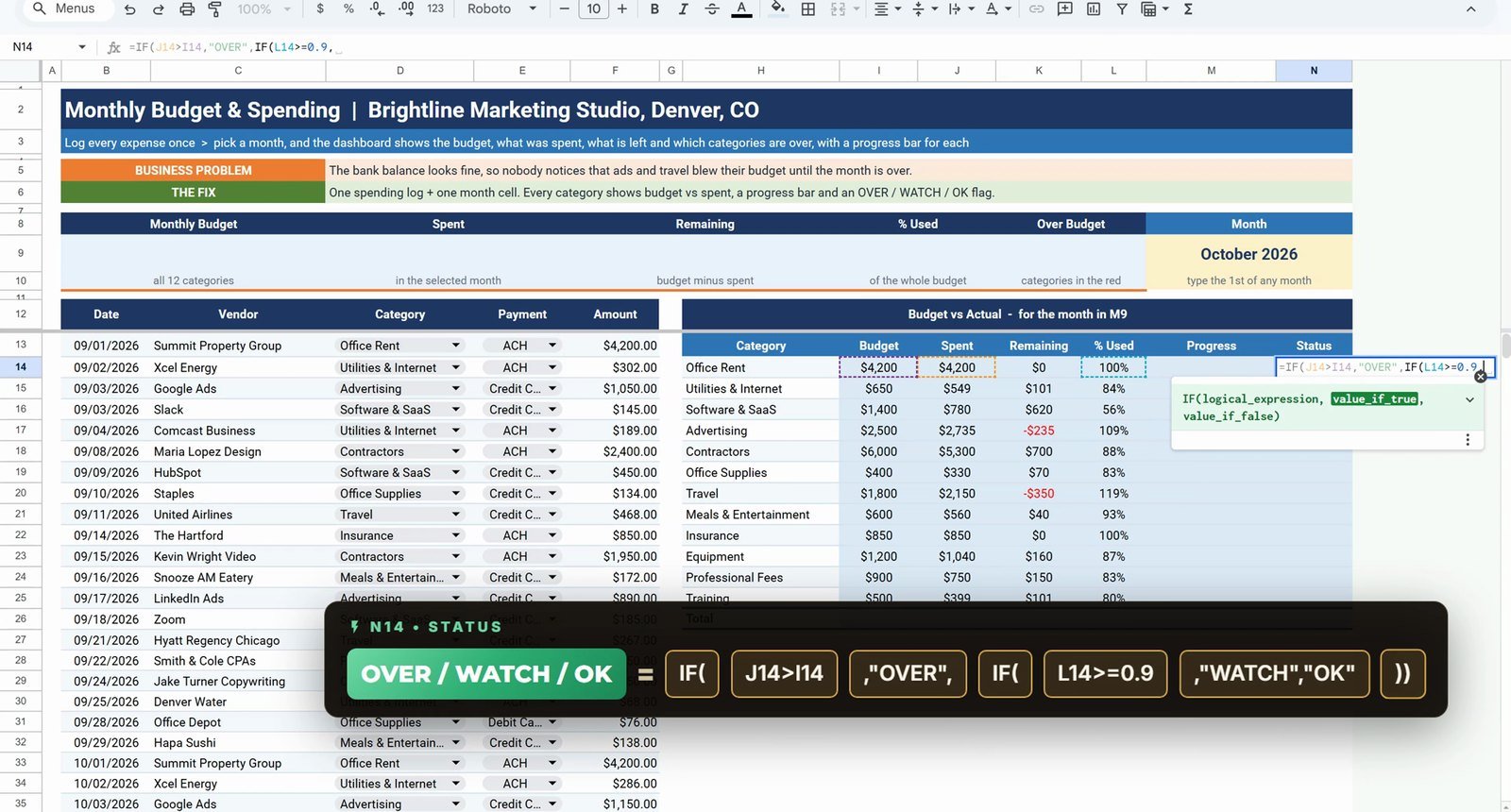
In N14 a nested IF gives the status, then copy it down to N25:
=IF(J14>I14,"OVER",IF(L14>=0.9,"WATCH","OK"))Office Rent and Insurance show Watch at 100%. That is expected, because they are fixed bills paid in full every month.
For the progress bar use SPARKLINE in M14. Start with the plain bar:
=SPARKLINE(L14,{"charttype","bar";"max",1})Why max of 1? Without it every bar is scaled to its own value and every bar looks full. Then add the color inside the curly brackets, red above 100%, amber from 90%, otherwise green, and copy it down to M25:
=SPARKLINE(L14,{"charttype","bar";"max",1;"color1",IF(L14>1,"#C00000",IF(L14>=0.9,"#FFC000","#548235"))})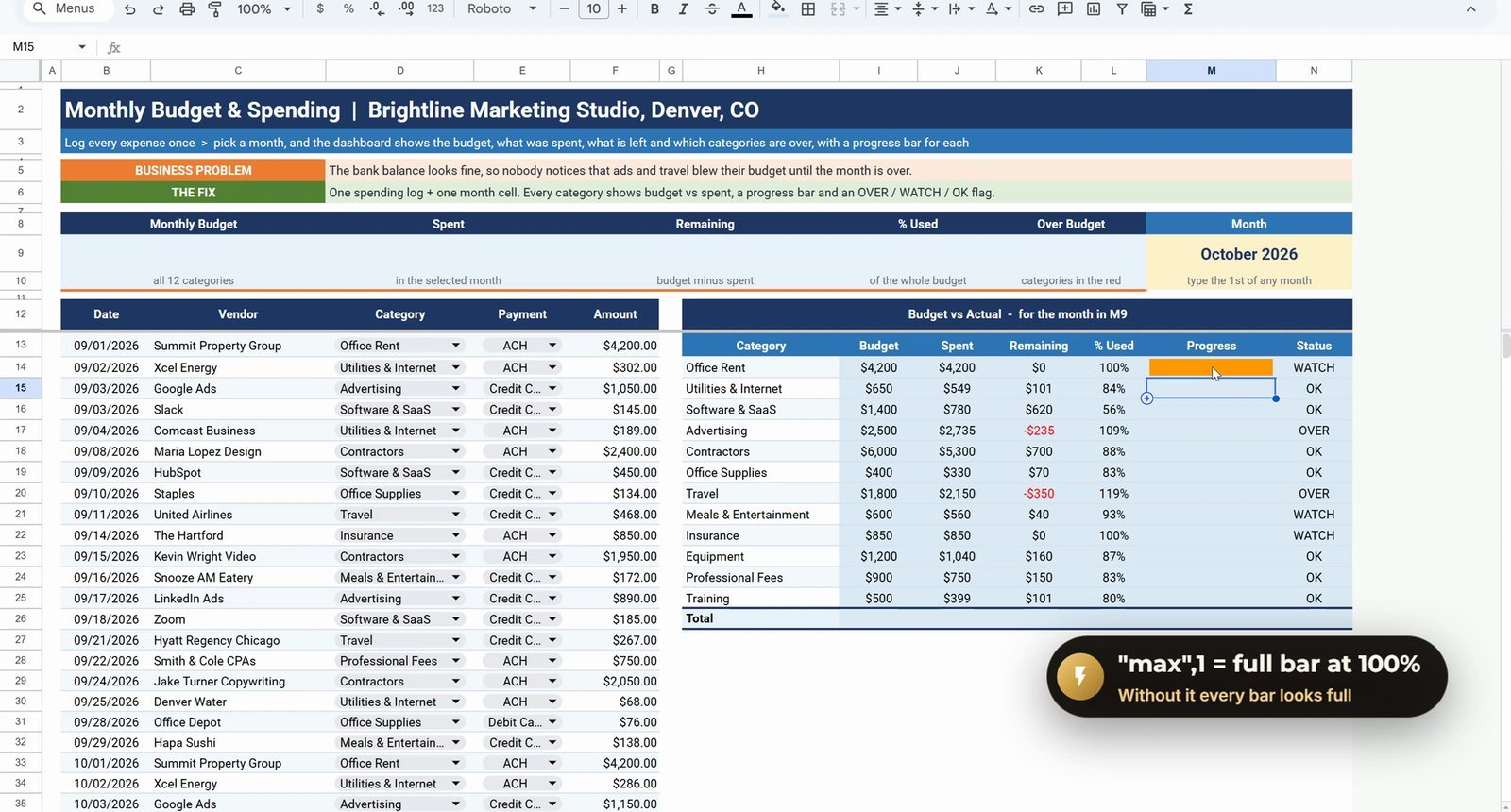
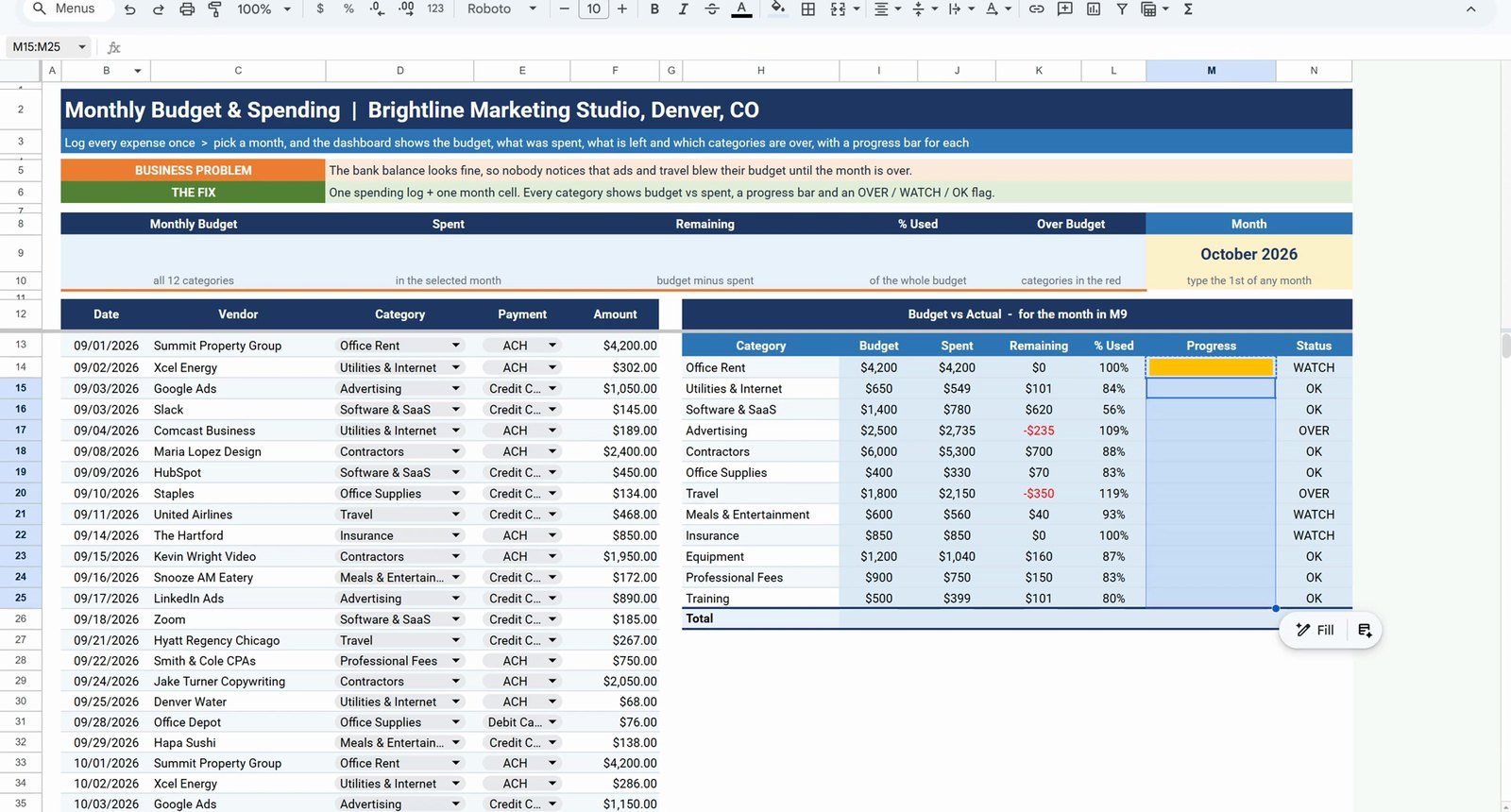
Step 6: Conditional Formatting Badges
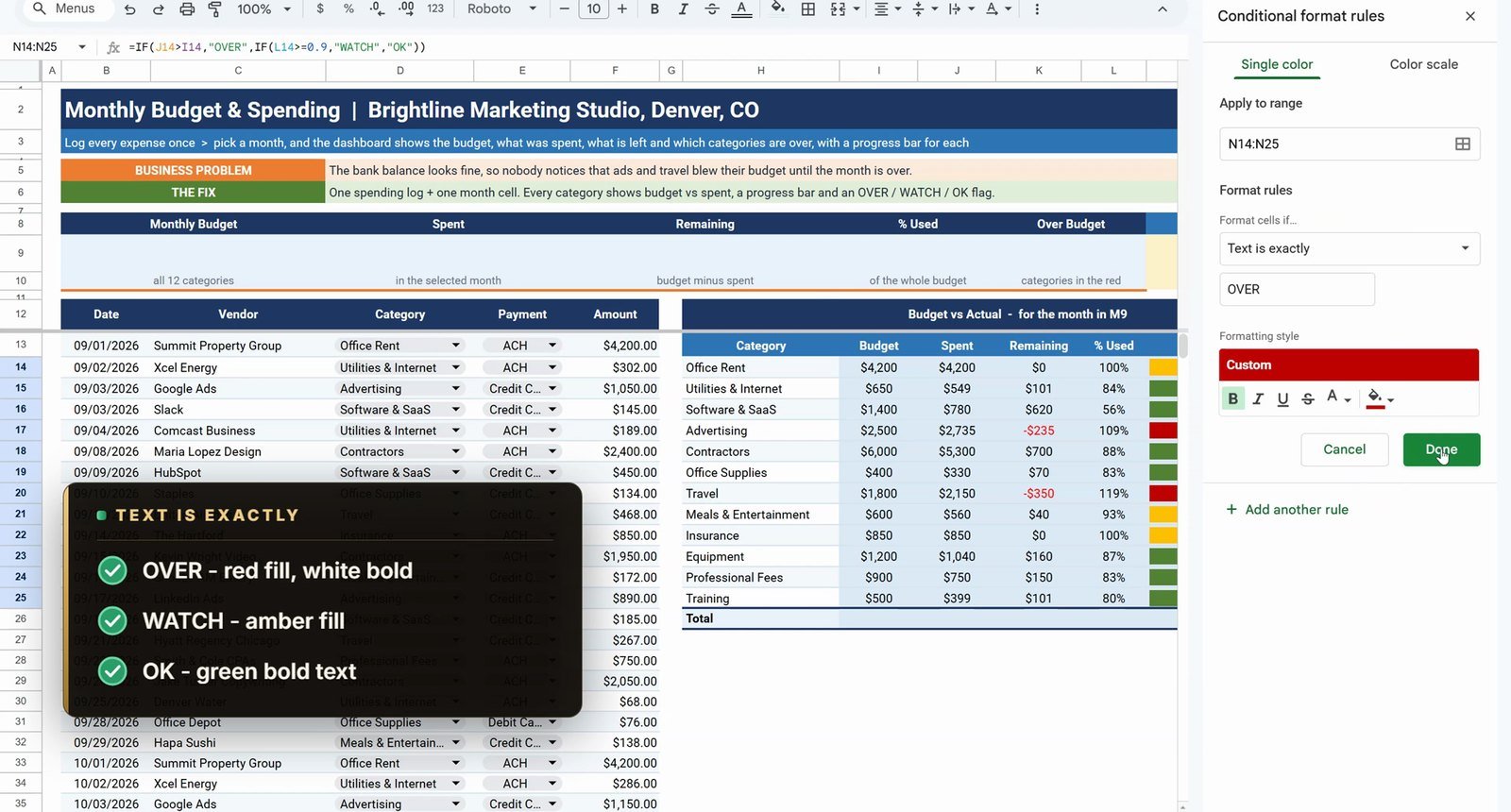
Select N14:N25 and open Format › Conditional formatting. Add three Text is exactly rules: OVER with a red fill and white bold text, WATCH with an amber fill and OK with green bold text.
Step 7: Totals and Summary Cards
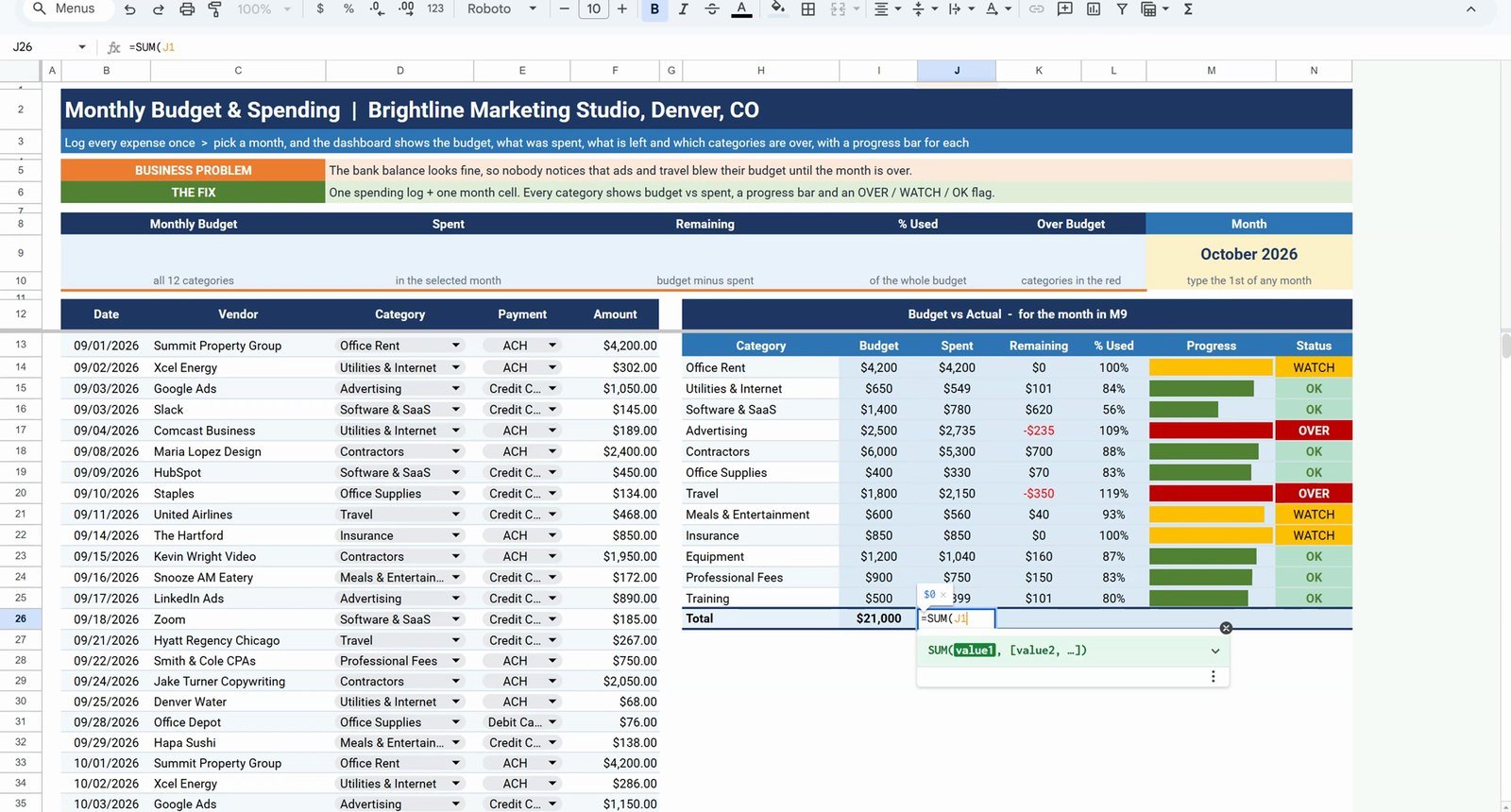
I26  =SUM(I14:I25)
J26  =SUM(J14:J25)
K26  =I26-J26
L26  =J26/I26
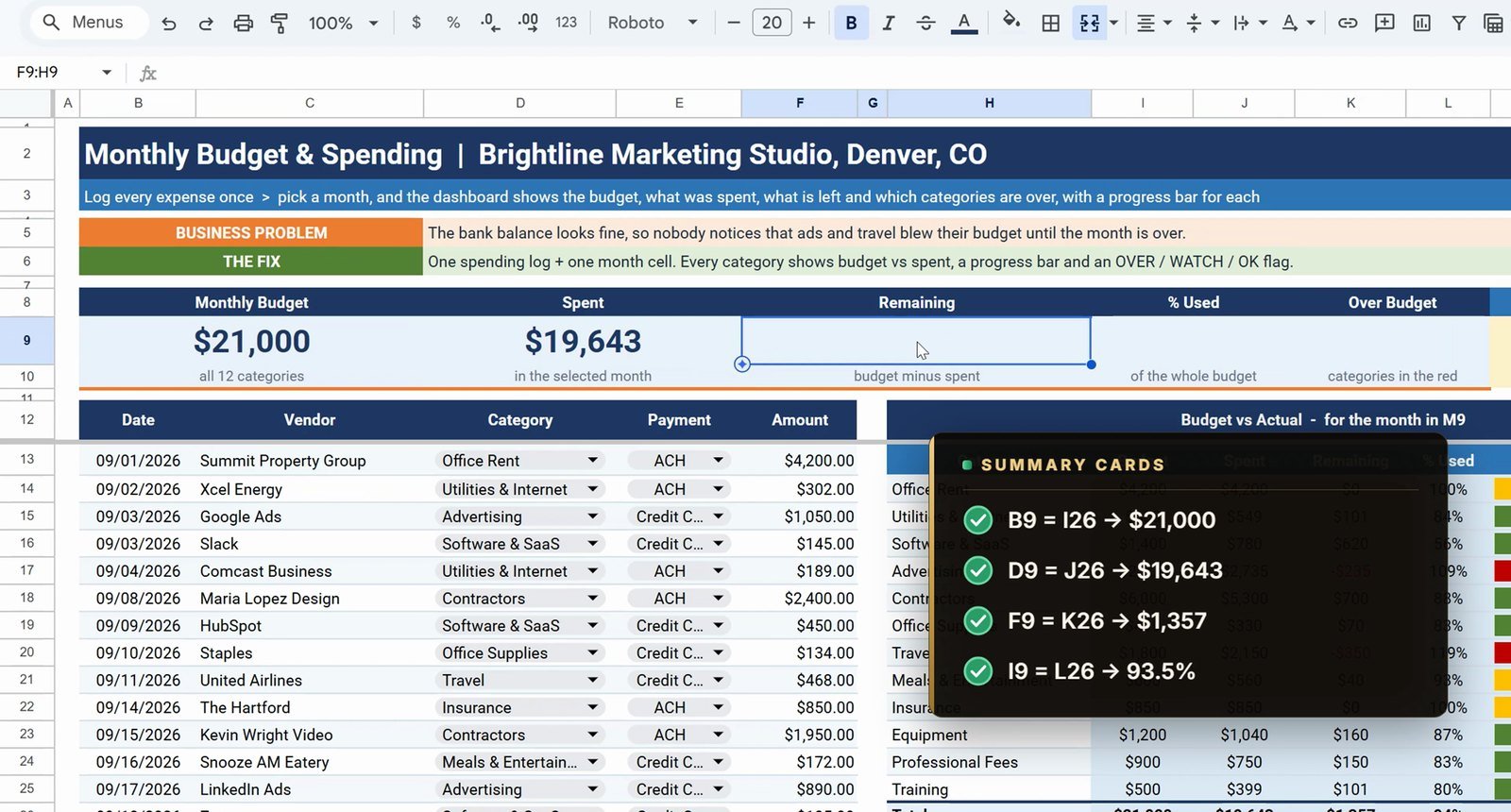
B9   =I26
D9   =J26
F9   =K26
I9   =L26
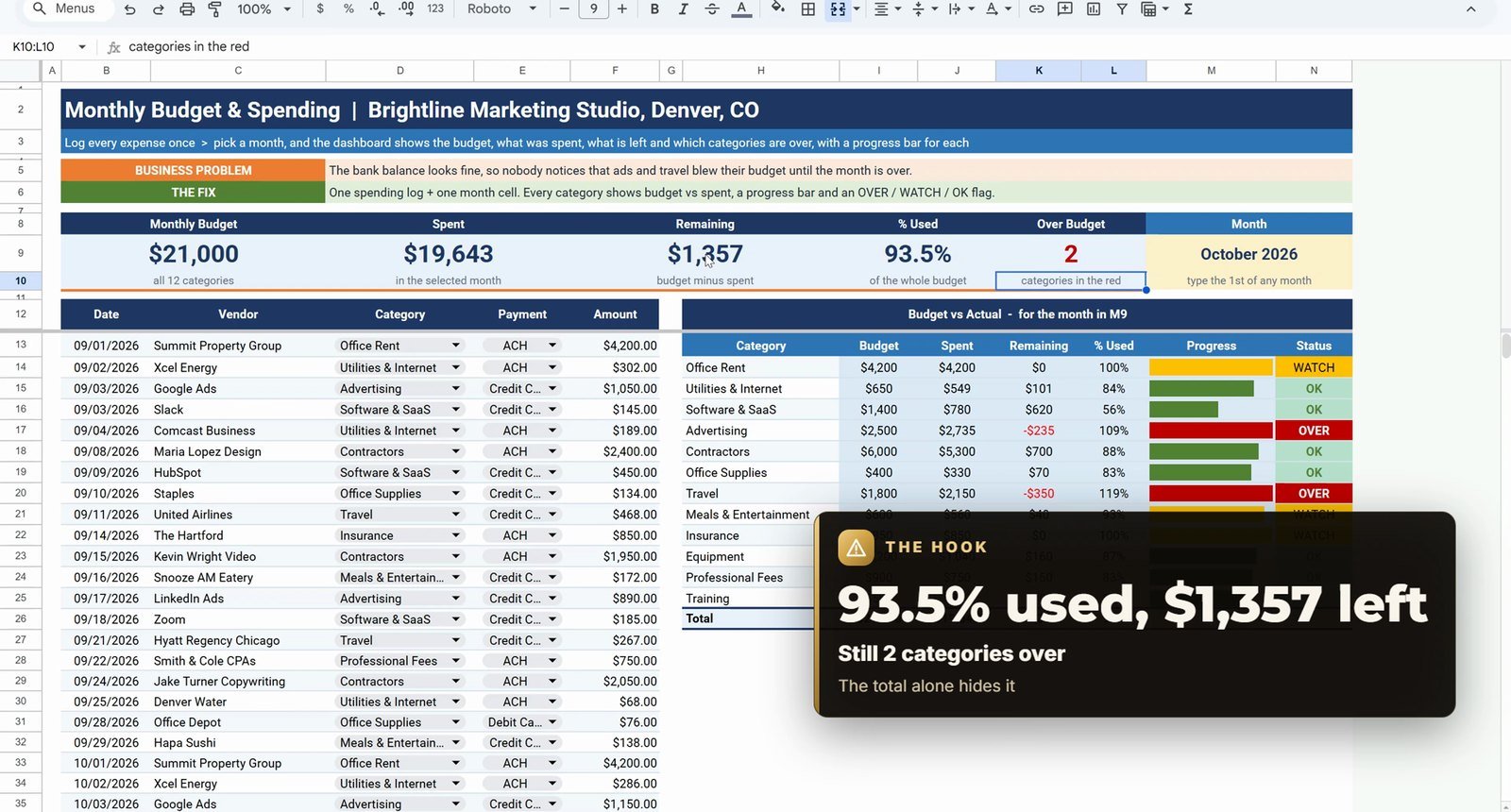
K9   =COUNTIF(N14:N25,"OVER")
The totals show $21,000 budget, $19,643 spent and $1,357 remaining. I9 is formatted with one decimal: 93.5% used. The Over Budget card shows 2.
Bonus: Fix a Mis-Filed Expense and Switch the Month
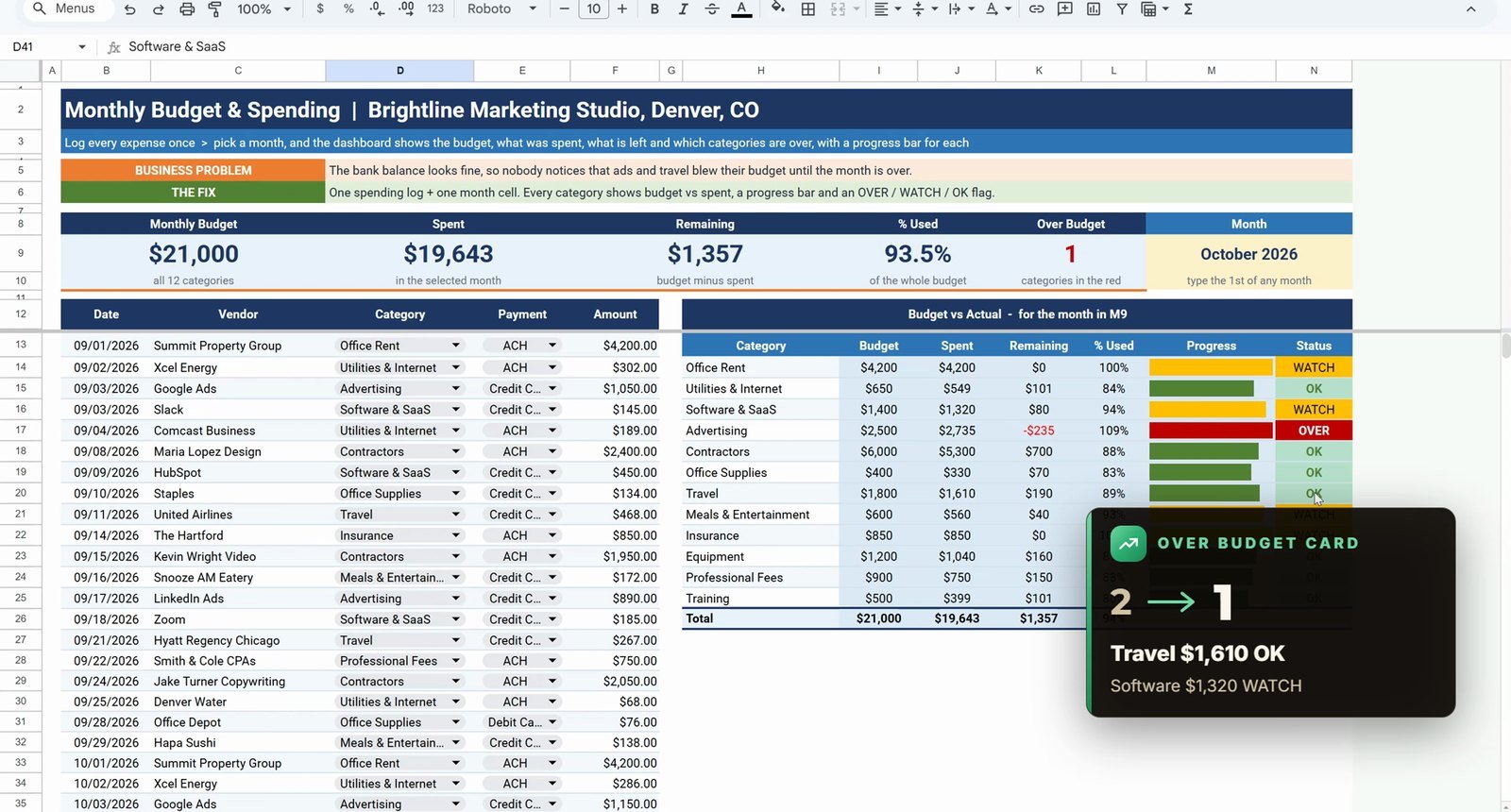
The Adobe Creative Cloud renewal in row 41, $540, was filed under Travel. Jump to D41 with the Name Box, open the dropdown and choose Software & SaaS. Travel drops to $1,610 and turns OK, Software goes up to $1,320 and turns Watch, and the Over Budget card drops from 2 to 1. One wrong category was hiding a problem that did not exist.
Now change M9 to September 1, 2026. The whole dashboard switches to September: $16,734 spent and only Contractors over ($6,400 against $6,000). Set it back to October when you are done.
Free Budget Dashboard vs Ready-Made Dashboards
| Need | This free dashboard | Revenue and Expense Monitoring Dashboard |
|---|---|---|
| Budget vs actual by category with status | Yes | Yes |
| Revenue tracking and trend charts | – | Yes |
| Price | Free | Paid |
Tips
- Point the category dropdown past the last category (row 20) so new categories appear without editing the rule.
- Lock every SUMIFS range with F4 and keep the month cell as $M$9 before copying down.
- Type the month as the first of the month; EOMONTH then finds the last day.
- Use
maxof 1 in every progress-bar SPARKLINE so the bars are comparable. - Google’s SUMIFS help page explains how multiple criteria combine.
Want It Ready-Made?
This free dashboard is perfect to learn the idea. For the full version see the Revenue and Expense Monitoring Dashboard in Google Sheets and the Expense Management KPI Dashboard in Google Sheets on NextGenTemplates.com. If you also work in Excel, the full video course Excel + AI Mastery: 100 Essential Formulas and Real-World Projects teaches XLOOKUP, SUMIFS and IF step by step. More on this site: the monthly budget plan template in Google Sheets, build a bakery order tracker in Google Sheets and 5 ways to summarize data in Google Sheets.
Frequently Asked Questions
How do I make a budget dashboard in Google Sheets?
Keep one spending log with a category column and one month cell. Look up each category's budget with XLOOKUP, total the spending for the chosen month with SUMIFS and EOMONTH, then add remaining, percent used, an Over / Watch / OK status, SPARKLINE progress bars and summary cards.
Is this budget dashboard template free?
Yes. The practice file opens a Make a copy page in Google Sheets with a Practice sheet to build along with the video, a Solution sheet with the finished dashboard and a Budget sheet with 12 categories.
Why does my SUMIFS show too much for one month?
Without a date window SUMIFS adds every month in the log. In the video Advertising shows $4,675 because September and October are added together. Adding a start date of M9 and an end date of EOMONTH(M9,0) brings it to $2,735, October only.
What does EOMONTH do in this formula?
EOMONTH(M9,0) returns the last day of the month in M9. Together with the first-of-month date in M9 it gives the window from October 1 to October 31. The comparison operator goes inside the double quotes and is joined to the cell with an ampersand.
Why does the progress bar need max 1?
Without the max option every SPARKLINE bar is scaled to its own value, so every bar looks full. With max set to 1, 100% fills the cell and an overspent category such as Advertising at 109% shows as full and red.
Why can the total be under budget while two categories are over?
The total adds every category together, so categories with room left hide the ones that are overspent. In the example 93.5% of the budget is used and $1,357 is left, yet Advertising and Travel are over. Only a category-level status shows it.
Can I add a new category later?
Yes. The category dropdown reads Budget!B5:B20, so a new row on the Budget sheet appears in the dropdown without editing the rule. Add the category and its monthly budget there and the dashboard picks it up.
Download the Practice File
Make your own copy of the practice file and build the budget dashboard along with the video.
⬇️ Download the Free Practice File
Google Sheets · opens a Make a copy page · Practice + Solution + Budget sheets · no add-ons
About the Author
PK (Priyendra Kumar) runs NeoTech Navigators, PK: An Excel Expert and NextGenTemplates.com, and builds Google Sheets and Excel tools for small businesses. Every number in this tutorial comes from the Solution sheet of the free file.
Conclusion
A budget dashboard in Google Sheets needs no add-ons. Two dropdowns, one XLOOKUP, a SUMIFS with an EOMONTH window, two ARRAYFORMULAs, an IF status, SPARKLINE bars and a few conditional formatting rules show every overspent category before the month closes.