The Monthly Budget Plan Template in Google Sheets gives you a simple, repeatable way to plan your income, set spending limits and compare what you planned with what you actually spent. Instead of guessing where the money went at the end of the month, you see it category by category, with the variance already worked out.
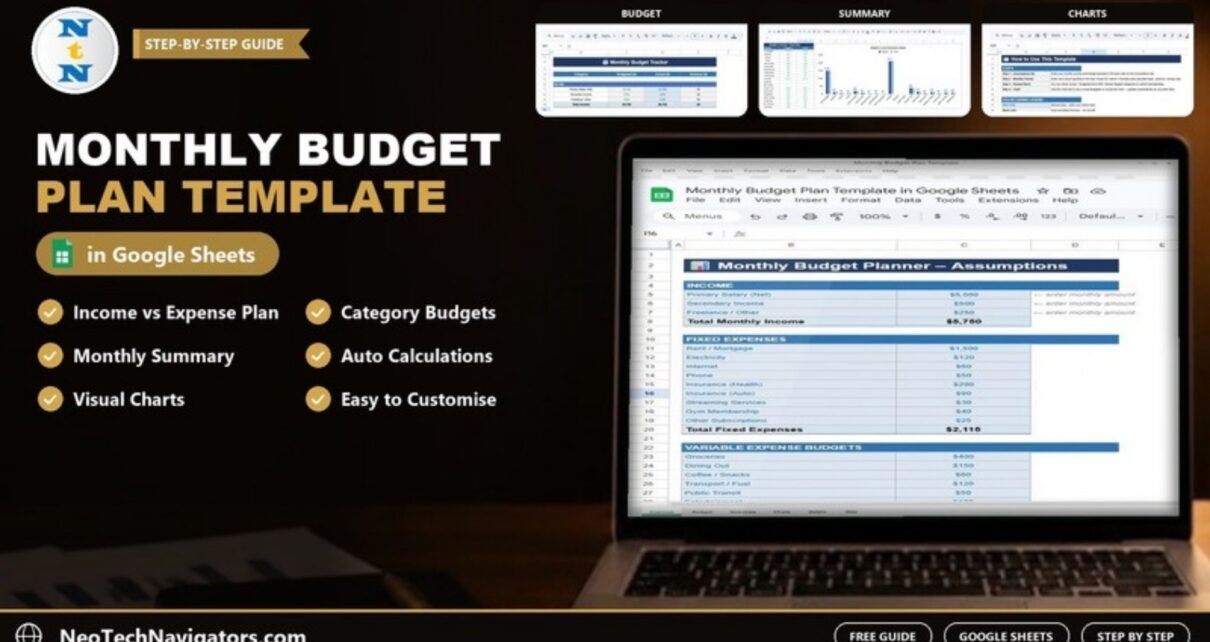
It is built for working professionals, students, families, freelancers and anyone who manages a household budget. Inside you get three connected sheets: an Assumptions sheet for planned income and expenses, a Monthly Budget Tracker for actual spending, and a Budget vs Actual Chart that turns the numbers into a picture. Totals, variances and colour-coded overspending alerts are all formula-driven, so you only type the amounts.
Below you will find what each sheet does, a worked example with real numbers, how to set it up with your own data, and some honest advice on when a simpler or bigger tool would suit you better.
🎥 Watch the Video Tutorial
Get the Monthly Budget Plan Template
What Problem Does a Monthly Budget Plan Solve?
Most people do not overspend because they are careless. They overspend because small, regular costs are invisible until the bank balance drops. A coffee every morning, a few streaming subscriptions and one extra dinner out a week can quietly add up to more than a utility bill.
A monthly budget plan fixes that by doing three things:
- It makes income explicit. You list every source, so you know the real ceiling for spending.
- It separates fixed and variable costs. Rent and insurance are predictable; groceries and dining out are where most savings are found.
- It compares plan with reality. The variance column tells you, in one number per category, whether you stayed on track.
If you have never built a budget before, our guide on how to make a budget tracker in Google Sheets explains the underlying logic step by step. This template gives you the finished version, ready to fill in.
What Is Inside the Monthly Budget Plan Template in Google Sheets
The template has three sheets. Each one has a single job, which keeps it easy to use even if you are not comfortable with spreadsheets.
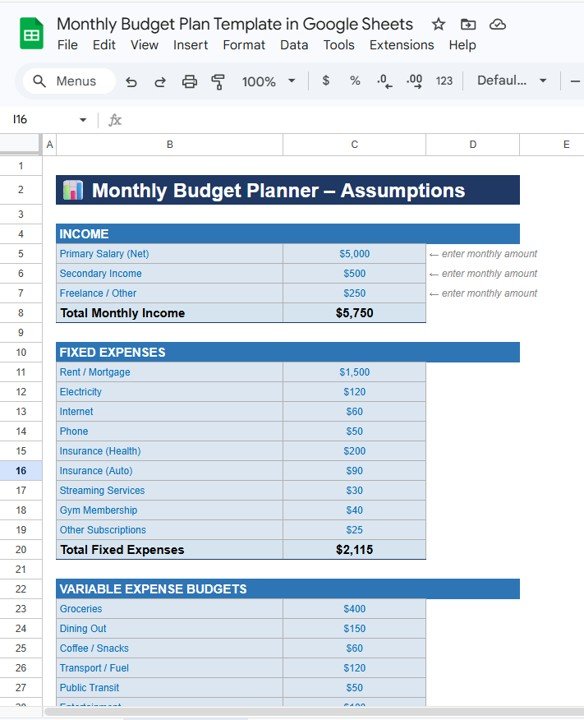
1. Assumptions Sheet (Your Plan)
This is where you set up the month before any spending happens. It has three blocks:
- Income: Primary Salary (Net), Secondary Income and Freelance or Other Income. The sheet adds these into Total Monthly Income.
- Fixed expenses: Rent or Mortgage, Electricity, Internet, Phone, Health Insurance, Auto Insurance, Streaming Services, Gym Membership and Other Subscriptions. These roll up into Total Fixed Expenses.
- Variable expense budget: Groceries, Dining Out, Coffee and Snacks, Transportation or Fuel, Public Transit, Entertainment, Shopping, Personal Care, Health and Pharmacy, and Miscellaneous. You set a monthly limit for each.
2. Monthly Budget Tracker Sheet (Your Reality)
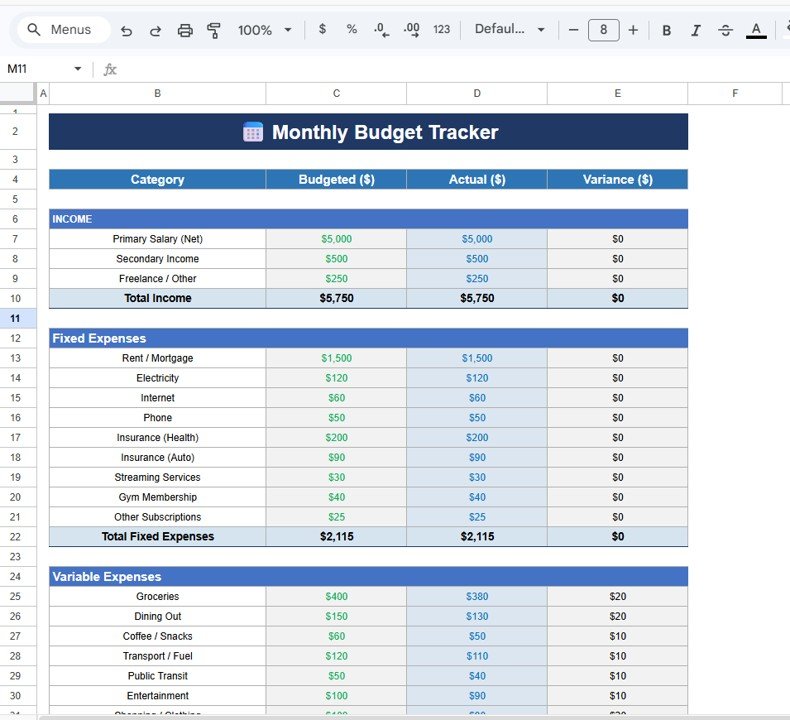
The tracker lists every category in four columns: Category, Budgeted Amount, Actual Amount and Variance. The budgeted figures come from your plan; you only type the actual amounts as you spend. The variance is calculated for you.
A positive variance means you spent less than planned (money saved). A negative variance means you went over. Colour-coded cells separate manual inputs from formulas and flag overspending in red, so problem categories stand out at a glance.
3. Budget vs Actual Chart Sheet (Your Picture)
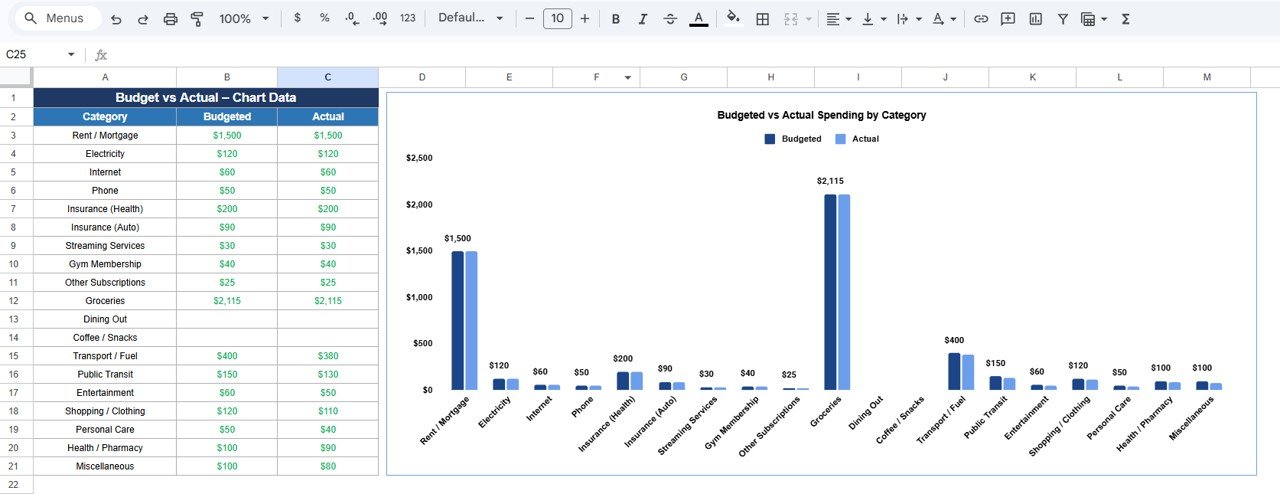
The chart sheet draws a bar chart of budgeted versus actual spending for each expense category. Because it reads directly from the tracker, it updates as soon as you enter a new amount. Tall “actual” bars next to short “budget” bars show you where to cut back next month.
Template Summary at a Glance
| Sheet | What you enter | What it calculates or shows |
|---|---|---|
| Assumptions | Income sources, fixed costs, variable spending limits | Total Monthly Income, Total Fixed Expenses, total planned budget |
| Monthly Budget Tracker | Actual amount spent per category | Variance per category, overspending highlights |
| Budget vs Actual Chart | Nothing (fully automatic) | Bar chart of budgeted vs actual spending |
Worked Example: One Month in the Template
Here is how a typical month looks with sample numbers. On the Assumptions sheet you enter:
- Primary Salary: $5,000
- Secondary Income: $500
- Freelance Income: $250
Total Monthly Income becomes $5,750. The logic behind that total is a simple sum of the income cells:
Total Monthly Income = SUM(Primary Salary, Secondary Income, Freelance Income)
= 5,000 + 500 + 250 = 5,750
Now suppose you budgeted $600 for Groceries and $200 for Dining Out. By month end the tracker shows Groceries actual $540 and Dining Out actual $285. The variance works like this:
Variance = Budgeted Amount - Actual Amount
Groceries:  600 - 540 = 60   (under budget, saved $60)
Dining Out: 200 - 285 = -85  (over budget by $85)
Dining Out turns red, and the chart shows its actual bar clearly above the budget bar. The decision for next month is obvious: either raise the Dining Out limit and lower another category, or cook at home more often. That is the whole point of a budget plan, and the template makes the decision visible without any manual maths.
How to Use It With Your Own Data
- Make your copy. Open the template link and use File > Make a copy so you have your own editable version in Google Drive.
- Enter your income. On the Assumptions sheet, type your take-home (net) amounts, not gross salary. Leave unused income rows at zero.
- List fixed expenses. Use last month’s bank statement for exact rent, insurance and subscription amounts.
- Set variable limits. Start with what you actually spent last month in each category, then trim 5–10% where you want to save.
- Log spending as you go. Add actual amounts in the Monthly Budget Tracker every few days. Small, frequent updates are far more accurate than a big monthly catch-up.
- Review the chart weekly. Open the Budget vs Actual Chart sheet and look for categories trending over budget before the month ends.
- Roll forward. At month end, duplicate the file or the tracker tab for the next month and adjust limits based on what you learned.
Real-World Use Cases
A salaried professional building savings
Someone with one main salary uses the template to cap variable spending and see exactly how much is left for savings each month. The variance column becomes a monthly “savings found” number.
A family managing a household budget
Two partners share the Google Sheet and both log spending from their phones. Shared visibility removes arguments about where the money went. For a full-year view of family spending, pair it with our annual family budget tracker in Google Sheets.
A freelancer with irregular income
Freelance income changes month to month. Entering a conservative income estimate on the Assumptions sheet and adjusting limits monthly keeps spending in line with what was actually earned. If you prefer a cash-style approach, the cash envelope budget tracker is another good option.
Best Practices for Monthly Budgeting in Google Sheets
- Budget on net income. Planning on gross salary is the most common reason budgets fail.
- Keep categories stable. Changing category names every month makes month-to-month comparison meaningless.
- Pay yourself first. Treat savings as a fixed expense line so it is not left to whatever remains.
- Do not ignore small categories. Coffee and Snacks or Streaming Services often hide the easiest savings.
- Act on red cells. An overspending alert only helps if you adjust the plan or your habits next month.
- Keep a history. Save each month’s file so you can compare trends over a year.
If you want a broader picture that goes beyond one month, look at the personal finance dashboard in Google Sheets or the income expense dashboard, which track trends across many months.
Who Should Not Use This Template
To be honest about its limits:
- Businesses. It is a personal and household budget. Companies need a profit and loss or cash flow model instead.
- People who want automatic bank imports. The template does not connect to bank accounts; you enter amounts yourself. Budgeting apps with bank sync suit people who will not log spending manually.
- Multi-year net worth tracking. It focuses on one month at a time and does not track assets, debts or investments.
If any of these apply, a different tool will serve you better. For most individuals and households, though, a clear monthly plan is the foundation everything else builds on.
New to spreadsheets? The learning paths on NextGenTemplates Academy walk beginners through the basics of formulas, tables and charts, which makes it much easier to adjust a template like this one to your own categories.
Start Budgeting With the Google Sheets Template
Frequently Asked Questions
How do I make a monthly budget in Google Sheets?
List your net income sources, add fixed expenses, set limits for variable categories, then record actual spending and compare it with the plan. The Monthly Budget Plan Template already has these sections and the formulas built in, so you only enter amounts.
What does a negative variance mean in the budget tracker?
Variance is budgeted amount minus actual amount. A negative number means you spent more than planned in that category. The template highlights these cells so you can see overspending immediately.
Can I add or rename expense categories?
Yes. You can rename existing categories to match your life, for example changing Public Transit to Childcare. Keep the same row structure so the totals and chart continue to pick up the values.
Can two people use the same budget sheet?
Yes. Because it runs in Google Sheets, you can share it with a partner or family member using Share and both edit it from a phone or computer.
Does the template work on mobile?
It works in the Google Sheets mobile app for entering actual amounts. Reviewing the chart is more comfortable on a larger screen.
How often should I update my budget?
Every few days or at least weekly. Frequent small updates keep the variance accurate and let you correct course before the month ends.
Wrapping Up
A monthly budget does not need to be complicated to work. Plan your income and limits on the Assumptions sheet, log what you actually spend, and let the variance and chart show you where to adjust. Make your copy of the Monthly Budget Plan Template in Google Sheets, fill in this month’s numbers today, and review the chart at the end of the week. For a ready-made alternative focused on day-to-day logging, see our personal monthly budget tracker in Google Sheets.
📅 Last updated: October 2026