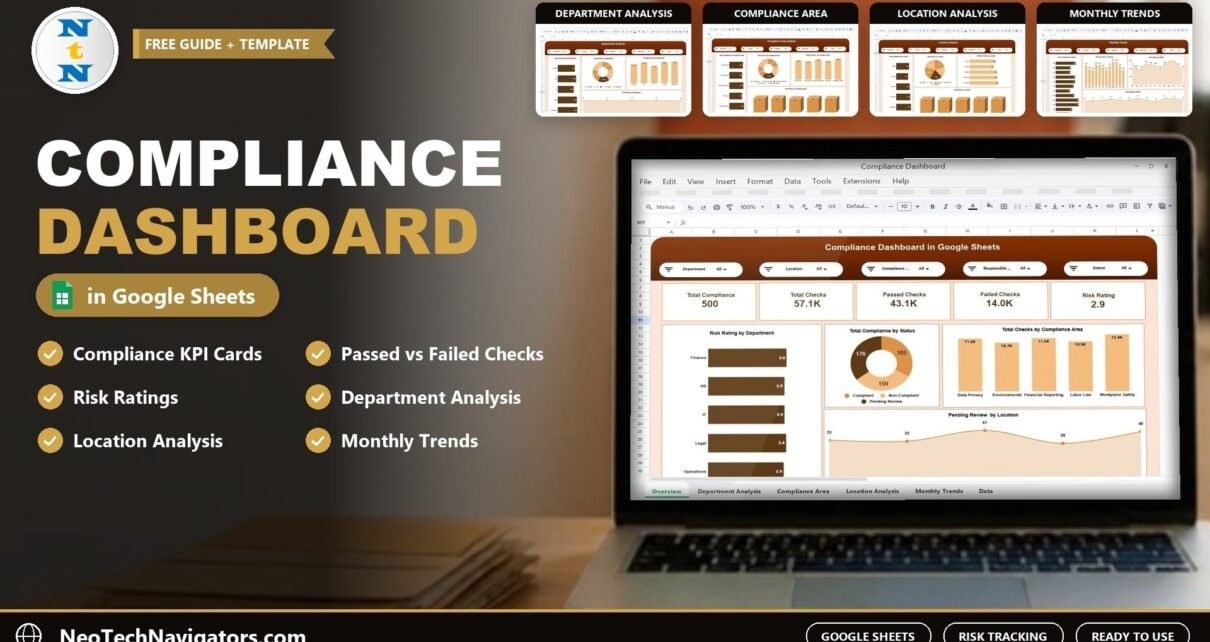
The Compliance Dashboard in Google Sheets gives compliance, legal and operations teams one place to see how regulatory checks are going. Five KPI cards show total compliance records, total checks, passed checks, failed checks and the average risk rating, and four analysis pages break those numbers down by department, compliance area, location and month.
It is built for compliance officers, internal auditors, risk managers and operations leaders in organisations that run recurring checks across areas such as data privacy, financial reporting, labour law, environmental rules and workplace safety. Slicers filter every page by Department, Location, Compliance Area, Responsible Person or Team, and Status. All charts and cards update from a single dataset sheet.
Below you will find what each page shows, how the KPIs are defined, a worked example using the sample data, and practical guidance on loading your own compliance records.
🎥 Watch the Video Tutorial
Why Use a Compliance Dashboard in Google Sheets?
Compliance work produces a steady stream of check results, often from different teams, sites and spreadsheets. When those results stay scattered, three problems appear: failing areas are noticed late, risk is described in opinions rather than numbers, and preparing for an audit means days of collating files.
A dashboard fixes this by putting every check in one dataset and answering the core questions immediately:
- How many checks have we run, and what share passed?
- Which departments, locations or compliance areas carry the highest risk rating?
- Is performance improving month by month, or are failures creeping up?
- Who is responsible for the areas that need attention?
Google Sheets keeps it accessible: several team members can update records at the same time, and managers can view it from any browser without extra licences. If you mainly need to schedule and log individual audits, the compliance audit tracker in Google Sheets is a simpler starting point.
Dashboard Pages Explained
1. Overview: Overall Compliance Performance
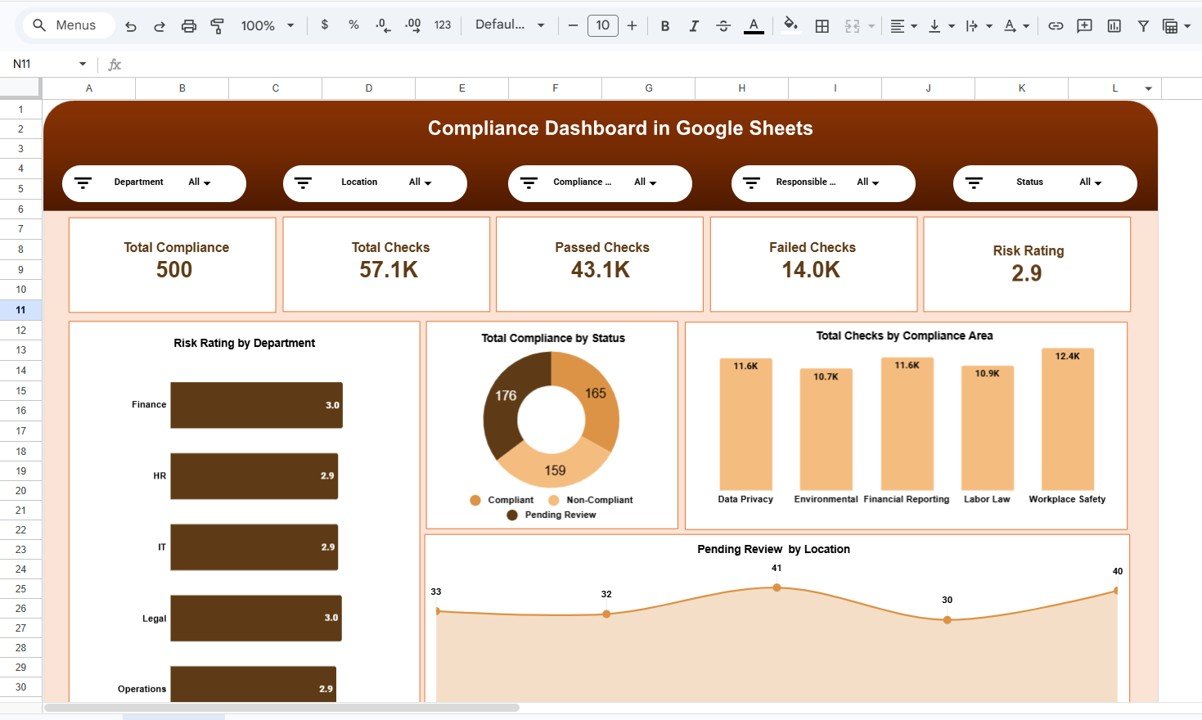
The Overview is the control centre. With the sample data, its KPI cards show Total Compliance Records: 500, Total Checks: 57.1K, Passed Checks: 43.1K, Failed Checks: 14.0K and an average Risk Rating of 2.9. Slicers for Department, Location, Compliance Area, Responsible Person or Team, and Status let you narrow the view instantly.
2. Department Analysis
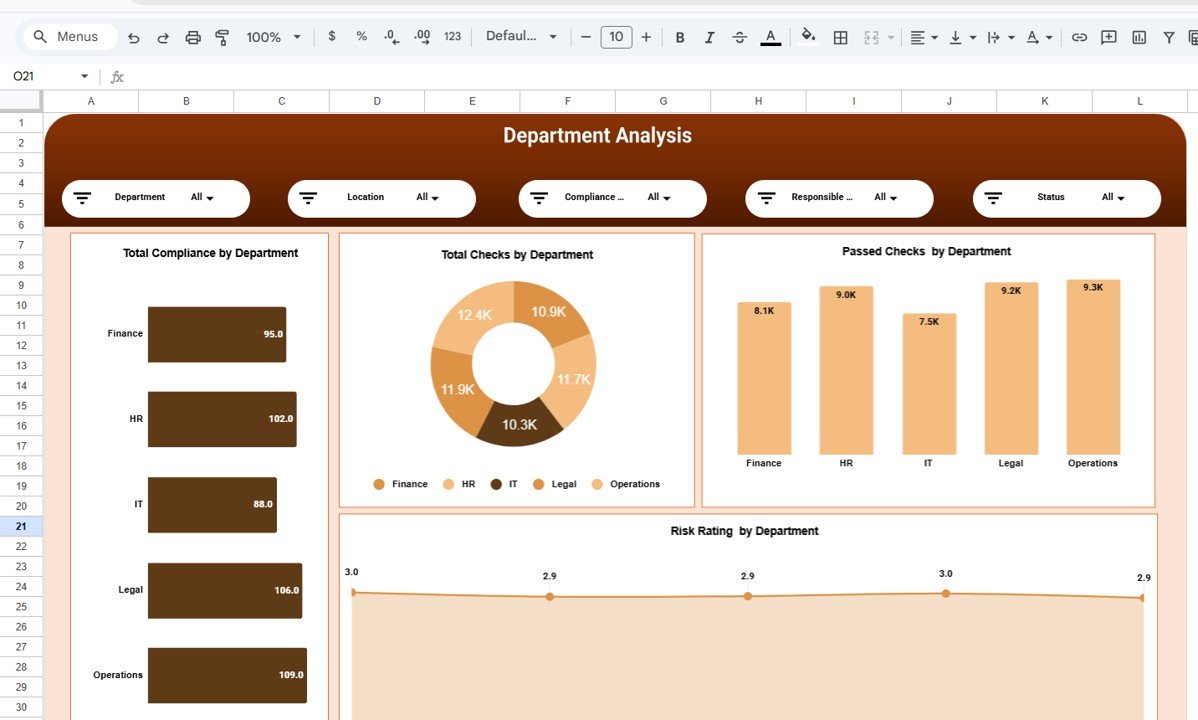
Charts show Total Compliance by Department, Total Checks by Department, Passed Checks by Department and Risk Rating by Department for teams such as Finance, HR, IT, Legal and Operations. A department with many checks but a below-average pass count is the first place to look.
3. Compliance Area Analysis
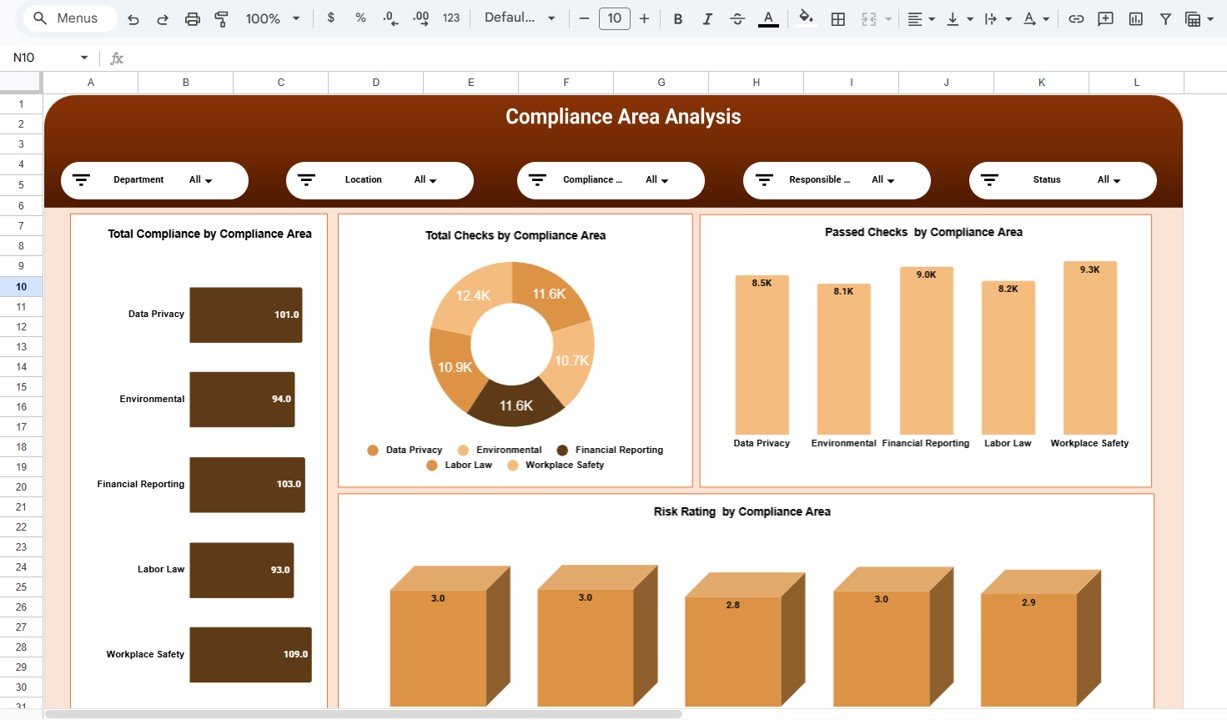
This page compares regulatory areas such as Data Privacy, Environmental Regulations, Financial Reporting, Labor Law Compliance and Workplace Safety, using Total Compliance, Total Checks, Passed Checks and Risk Rating by Compliance Area.
4. Location Analysis
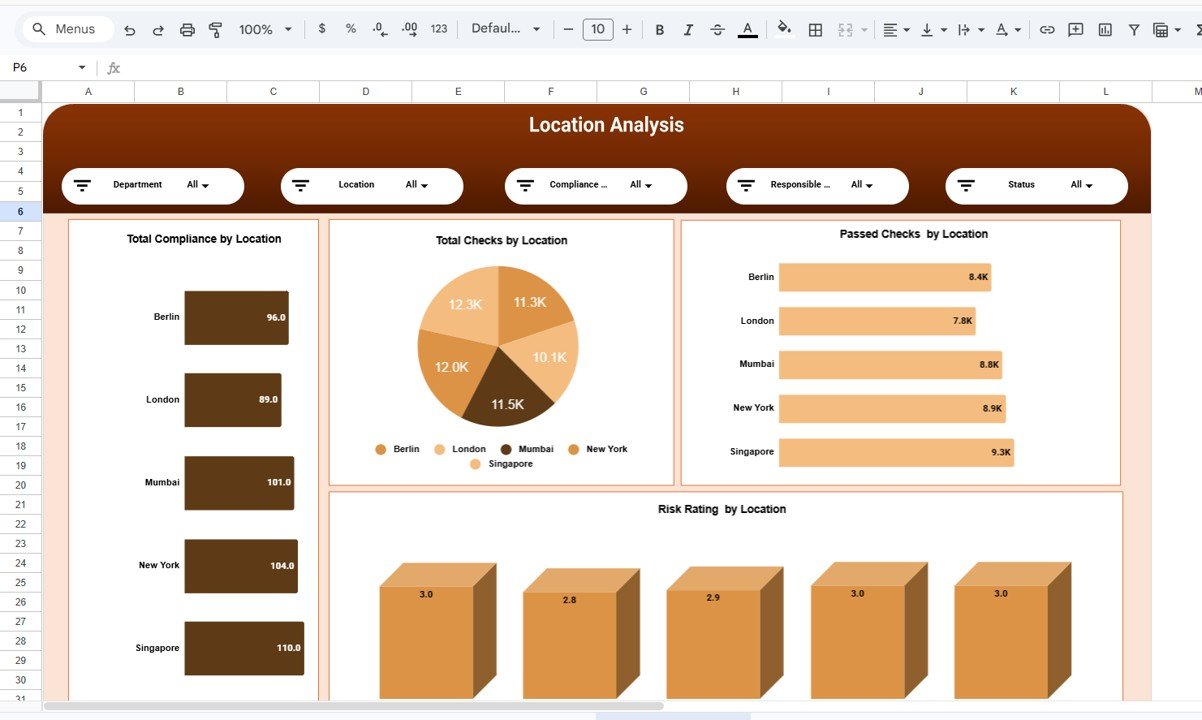
For organisations operating in several places, the same four measures are shown by location, with sample sites in Berlin, London, Mumbai, New York and Singapore. Because rules differ by country, this view helps prioritise local reviews.
5. Monthly Trends
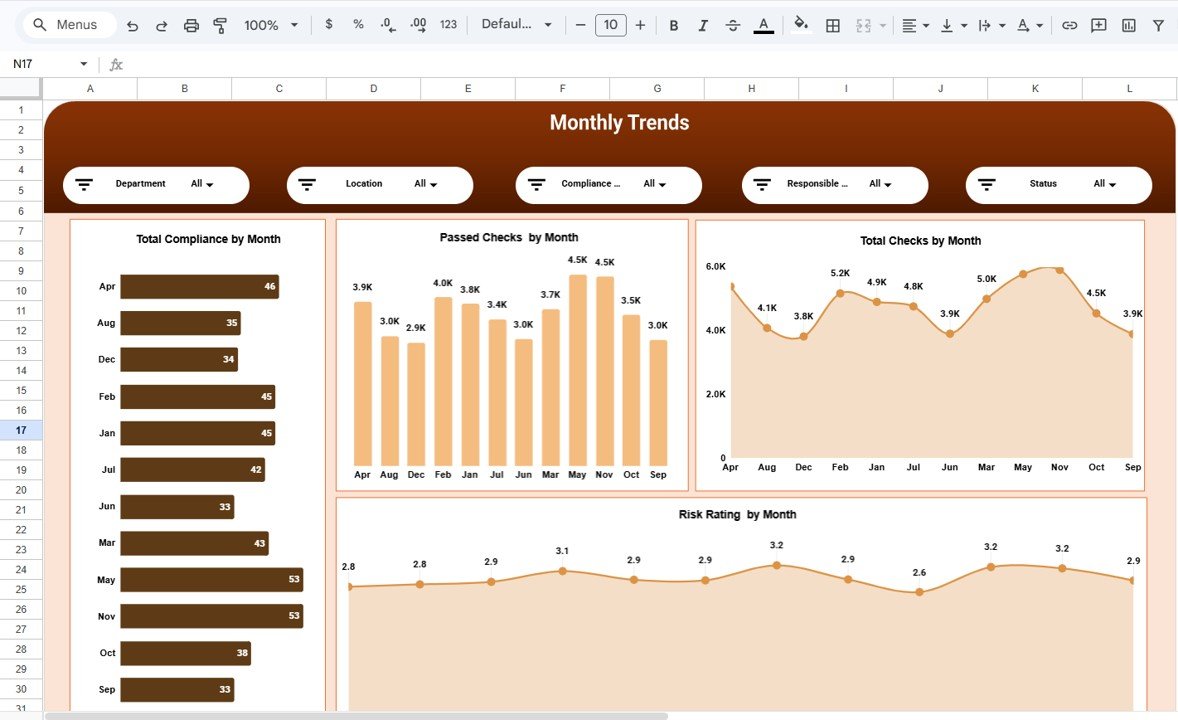
Trend charts track Total Compliance, Passed Checks, Total Checks and Risk Rating by Month. Use them to confirm that corrective actions are working and to spot seasonal spikes, for example around reporting deadlines.
6. Dataset Sheet
All pages read from one dataset where each row is a compliance record: date, department, location, compliance area, responsible person or team, status, number of checks, passed and failed checks, and a risk rating.
Compliance KPIs and How to Read Them
| KPI | What it measures | Formula | Better when |
|---|---|---|---|
| Total Compliance Records | Number of compliance items being monitored | Count of records | Complete coverage (not higher or lower) |
| Total Checks | Volume of checks performed | Sum of checks | Higher coverage |
| Passed Checks | Checks that met the requirement | Sum of passed checks | Higher |
| Failed Checks | Checks that did not meet the requirement | Sum of failed checks | Lower |
| Pass Rate (derived) | Share of checks passed | Passed Checks ÷ Total Checks | Higher |
| Risk Rating | Average assessed risk of records | Average of risk rating | Lower |
Worked example with the sample data: 43.1K passed out of 57.1K total checks gives a pass rate of 43.1 ÷ 57.1 ≈ 75.5%, meaning roughly one check in four fails. The 14.0K failed checks are where corrective action should focus, starting with the departments and areas that also show the highest risk rating.
To add a pass rate per area next to the dashboard, the Google Sheets logic looks like this (illustrative ranges):
Pass rate (all)        = SUM(Passed_Checks) / SUM(Total_Checks)
Pass rate (one area)   = SUMIFS(Passed_Checks, Compliance_Area, "Data Privacy") / SUMIFS(Total_Checks, Compliance_Area, "Data Privacy")
Avg risk (one site)    = AVERAGEIFS(Risk_Rating, Location, "London")
How to Use It With Your Own Compliance Data
- Make a copy using File > Make a copy.
- Define your scale. Agree how risk ratings are scored (for example 1 = low to 5 = critical) and what each status means.
- Standardise lists. Fix the exact names for departments, locations, compliance areas and responsible teams, and apply them with Data > Data validation.
- Replace the sample rows in the dataset with your records, one row per compliance item and period.
- Verify the Overview against your source logs: totals for checks, passes and failures should match.
- Use slicers in reviews to show each owner only their area during monthly compliance meetings.
- Add new periods below existing data so Monthly Trends keeps a full history for auditors.
Real-World Use Cases
Multi-site manufacturer
A manufacturer with plants in three countries uses Location Analysis to see that one site has a much higher risk rating on Workplace Safety and schedules an extra safety audit there. Our risk management dashboard in Google Sheets complements this for wider operational risks.
Financial services firm preparing for an audit
Before an external audit, the compliance team filters Financial Reporting and Data Privacy, exports the charts and presents twelve months of trends instead of assembling evidence by hand.
Growing company assigning ownership
A fast-growing company uses the Responsible Person or Team slicer so each owner reviews their own failed checks every month. Failures fall as accountability becomes visible. For legal-specific obligations, see the legal compliance dashboard in Google Sheets.
Best Practices
- Record checks promptly. A dashboard updated quarterly will always show problems too late.
- Keep risk scoring objective. Write criteria for each rating level so different assessors score alike.
- Track failed checks to closure. Add a remediation status or due date column if you need to follow actions.
- Focus on high risk first. Combine the risk rating and failed checks to rank where to act.
- Control access. Limit edit rights to compliance staff and share view-only links with management.
- Keep evidence elsewhere. Link to policy documents or evidence folders instead of storing them in the sheet.
Limitations and Who Should Not Use It
- It is a monitoring tool, not a GRC system. It does not manage policies, workflows, approvals or evidence storage.
- Manual data entry. Results from other systems must be exported and pasted in.
- Not legal advice. The dashboard shows your data; it does not tell you which regulations apply to you.
- Large regulated enterprises with thousands of controls will likely need dedicated compliance software or the Compliance Dashboard in Power BI for larger datasets.
Teams that prefer Excel can use the Compliance Dashboard in Excel, and a KPI-focused alternative is the compliance KPI dashboard in Google Sheets.
If you would like to build or adapt reporting dashboards like this one yourself, the Excel Pivot Tables and Dashboards course on NextGenTemplates Academy covers summarising, charting and slicing data step by step.
Get the Google Sheets Compliance Dashboard
Frequently Asked Questions
What is a compliance dashboard?
A compliance dashboard is a report that summarises compliance checks, results and risk ratings in KPI cards and charts, so managers can see where the organisation meets requirements and where it does not.
What KPIs should a compliance dashboard track?
Common KPIs are total checks, passed and failed checks, pass rate and average risk rating, broken down by department, compliance area, location and month.
Can several people update the dashboard at once?
Yes. Because it runs in Google Sheets, multiple team members can add records at the same time while managers view the results.
How is the risk rating calculated?
The dashboard averages the risk rating recorded on each compliance record. Define a clear scoring scale so ratings from different assessors are comparable.
Can I add my own compliance areas or locations?
Yes. Enter the new names in your dataset and they appear in the charts and slicers. Keep spelling consistent so each area is grouped correctly.
Is Google Sheets suitable for compliance data?
For most small and mid-sized teams, yes, provided you restrict sharing, use view-only links for wider audiences and keep sensitive evidence in controlled storage.
Wrapping Up
Compliance is easier to manage when every check, result and risk score sits in one view. The Compliance Dashboard in Google Sheets gives you that view across departments, areas, locations and months. Load your latest check results, calculate your pass rate and bring the Department and Compliance Area pages to your next review meeting. If you prefer a browser-based option, the compliance tracking dashboard in HTML is worth exploring.
📅 Last updated: October 2026