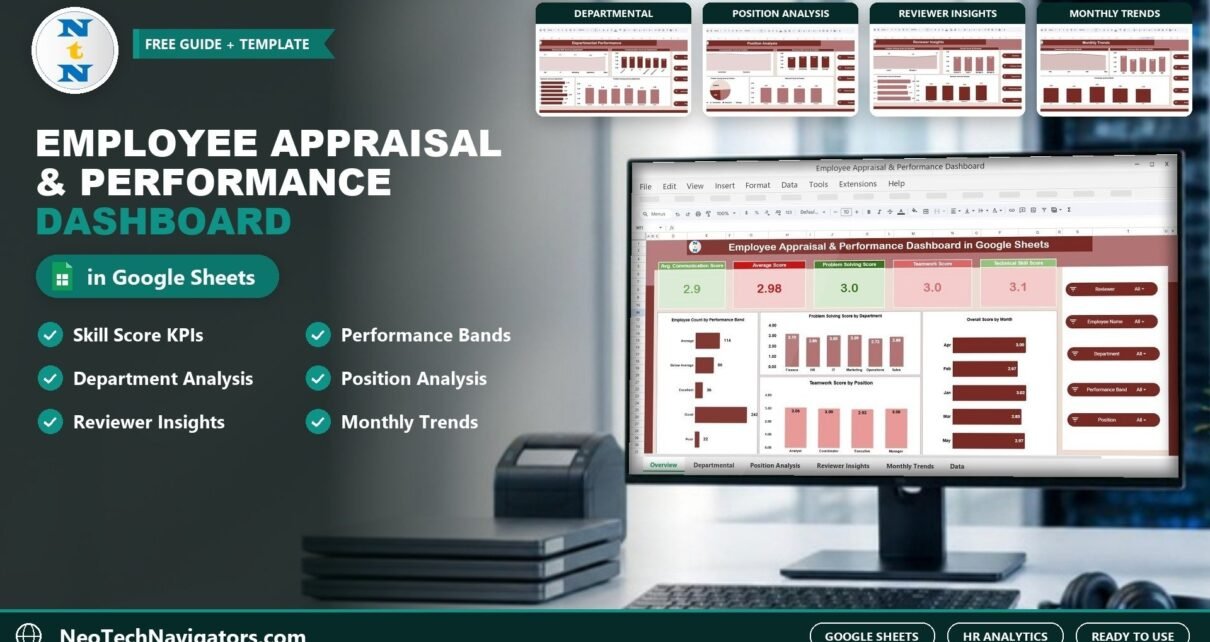
The Employee Appraisal & Performance Dashboard in Google Sheets turns appraisal scores into a visual report HR teams can actually use in review meetings. Instead of scrolling through rows of ratings, this employee appraisal dashboard in Google Sheets shows average communication, technical skill, teamwork and problem-solving scores at the top, then 19 charts that compare performance by department, position, reviewer and month.
It is built for HR managers, HR business partners, team leads and small-business owners who run regular appraisal cycles. The workbook contains five analysis pages (Overview, Departmental Performance, Position Analysis, Reviewer Insights and Monthly Trends) plus a Data Sheet where scores are entered. Slicers filter everything by employee, department, reviewer, position and performance band.
This guide walks through each page, explains the KPIs, shows how to load your own appraisal data and covers the limits you should know about before relying on it.
🎥 Watch the Video Tutorial
Get the Employee Appraisal Dashboard
Why Use an Employee Appraisal Dashboard in Google Sheets?
Appraisal cycles produce a lot of numbers: several skill scores per employee, from several reviewers, across several months. In a plain spreadsheet that data is hard to read, so decisions about training, promotions and team changes end up based on impressions rather than patterns.
A dashboard makes the patterns visible:
- Skill gaps by team, for example a department strong on technical skill but weak on communication.
- Role-level differences that point to training needs for a specific position.
- Reviewer consistency, so one unusually strict or generous reviewer does not distort results.
- Trends over time that show whether coaching and training are working.
If you are earlier in the process and still collecting reviews, the performance review tracker in Google Sheets helps you manage the review schedule itself.
Dashboard Pages Explained
1. Overview: Organisation-Wide Summary
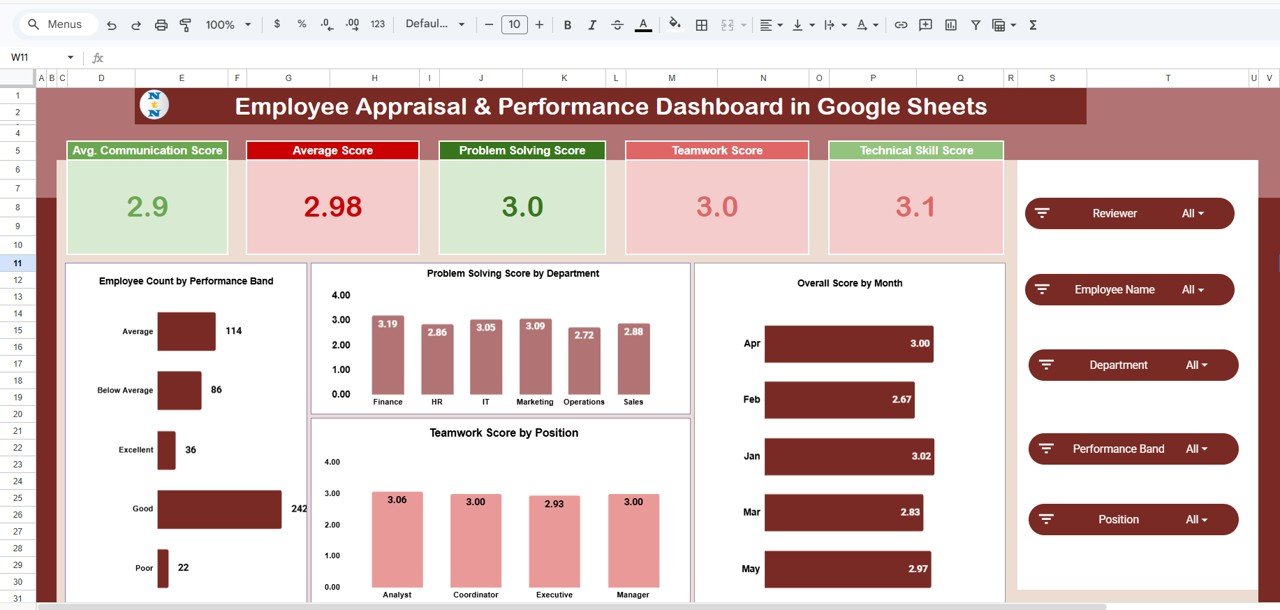
KPI cards show Average Communication Score, Overall Average Score, Problem Solving Score, Teamwork Score and Technical Skill Score. Four charts follow: Employee Count by Performance Band (for example Excellent, Good, Average and Poor), Problem Solving Score by Department, Teamwork Score by Position and Overall Score by Month.
2. Departmental Performance
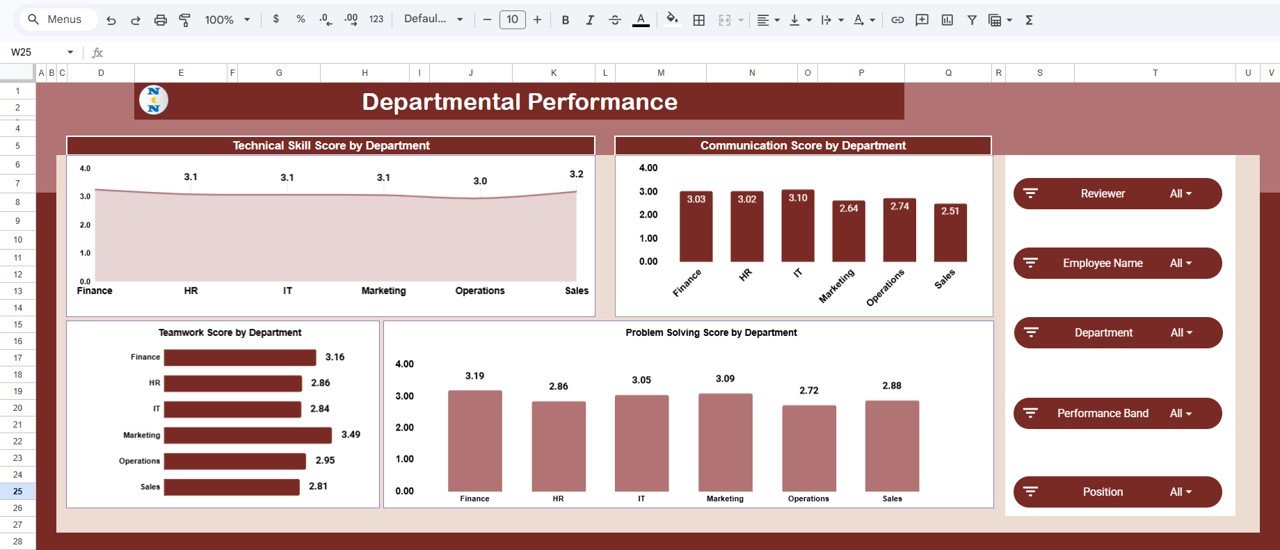
Four charts compare departments such as Finance, HR, IT, Marketing, Operations and Sales on Technical Skill, Communication, Teamwork and Problem Solving. This is the page to use when deciding where to invest training budget.
3. Position Analysis
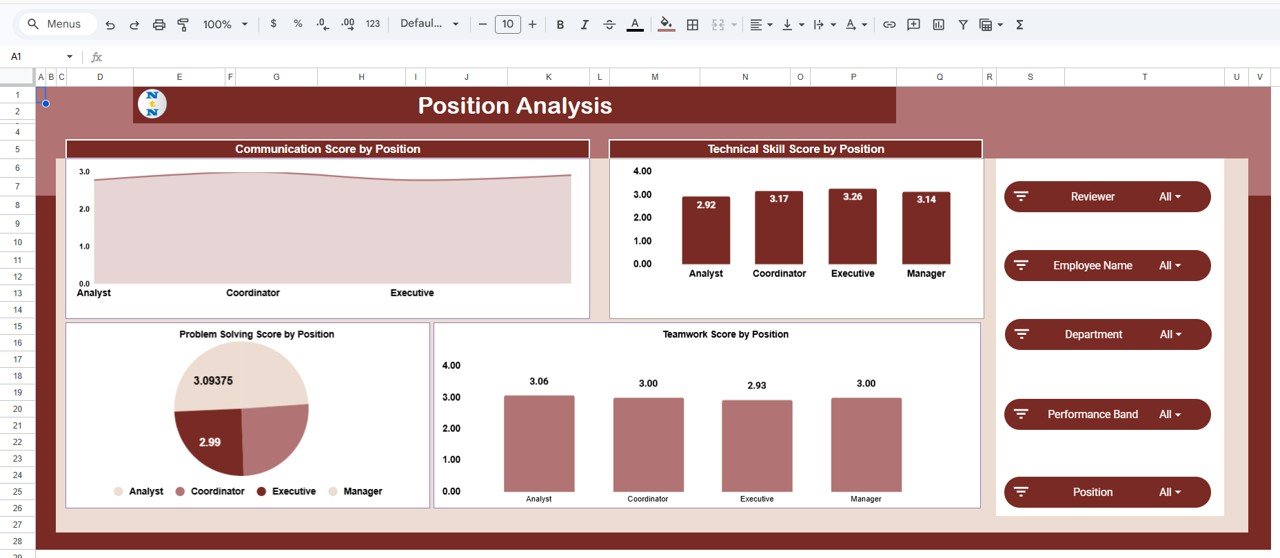
The same four skills broken down by job role, such as analyst, coordinator, executive and manager. It shows which positions need technical upskilling and which need communication or teamwork coaching.
4. Reviewer Insights
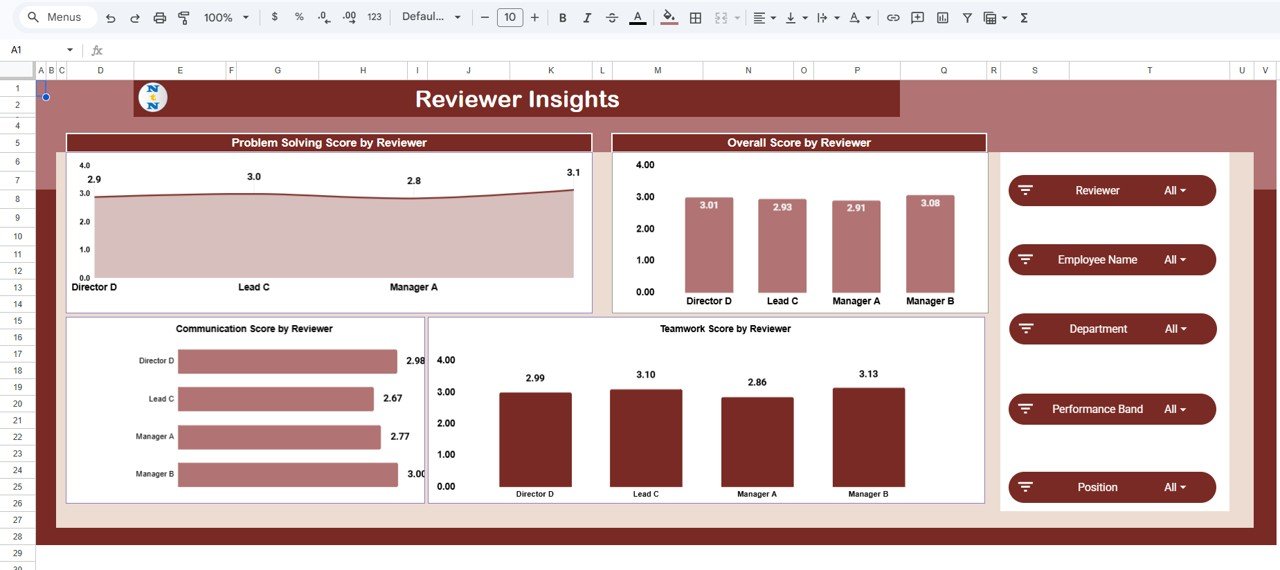
Charts show Problem Solving, Overall, Communication and Teamwork scores by reviewer. If one reviewer’s averages sit well above or below the others for similar teams, it is a prompt to calibrate rating standards before final decisions are made.
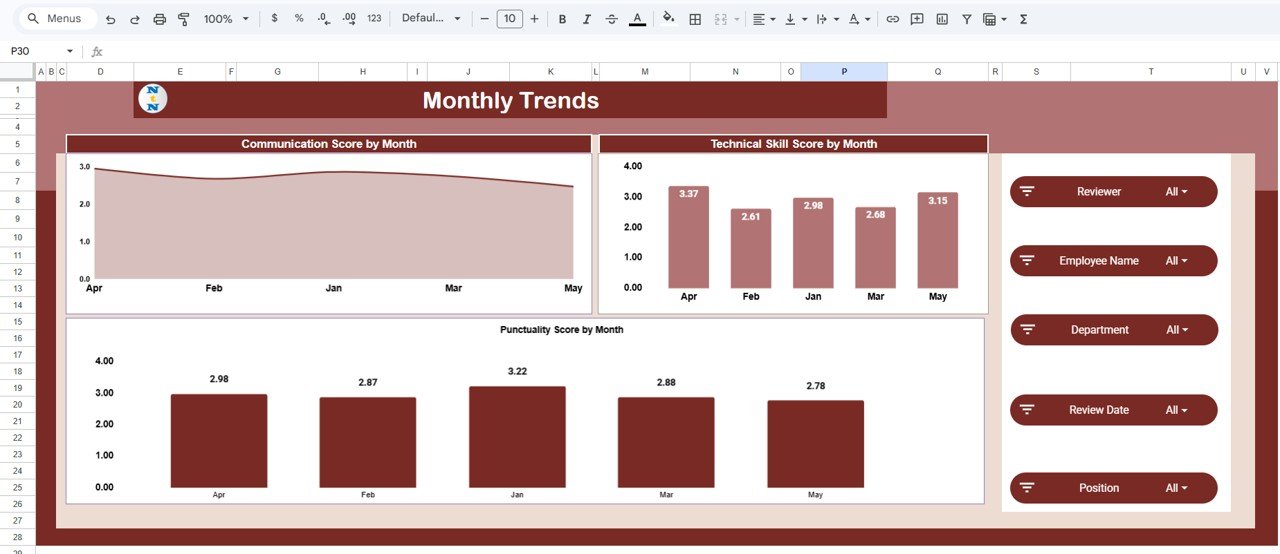
5. Monthly Trends
Three trend charts track Communication, Technical Skill and Punctuality scores by month. Use them to see whether a training programme or a new manager changed results over the following months.
6. Data Sheet
All pages read from the Data Sheet, which holds Employee Name, Department, Position, Reviewer, Review Date, Communication Score, Technical Skill Score, Teamwork Score, Problem Solving Score, Punctuality Score, Overall Score and Performance Band.
The KPIs at a Glance
| KPI | What it measures | Formula | Better when |
|---|---|---|---|
| Average Communication Score | How clearly employees share information and collaborate verbally | Average of Communication Score | Higher |
| Average Technical Skill Score | Job-specific skill and knowledge | Average of Technical Skill Score | Higher |
| Average Teamwork Score | Cooperation and contribution to team goals | Average of Teamwork Score | Higher |
| Average Problem Solving Score | Ability to analyse issues and find solutions | Average of Problem Solving Score | Higher |
| Overall Average Score | Combined appraisal result | Average of Overall Score | Higher |
| Employees by Performance Band | Spread of employees across rating bands | Count of employees per band | More in top bands |
If you want to add your own summaries alongside the dashboard, these Google Sheets formulas follow the same logic:
Avg teamwork for one department  = AVERAGEIFS(Teamwork_Score, Department, "Sales")
Avg overall score by reviewer    = AVERAGEIFS(Overall_Score, Reviewer, "A. Mehta")
Employees in the Excellent band  = COUNTIFS(Performance_Band, "Excellent")
Worked example: if Sales has teamwork scores of 4.2, 3.8, 4.5 and 3.9, AVERAGEIFS returns (4.2 + 3.8 + 4.5 + 3.9) ÷ 4 = 4.1. Compare it with the company teamwork card; if the company average is 3.6, Sales is a strong team you might ask to mentor others.
How to Use It With Your Own Appraisal Data
- Make a copy of the file with File > Make a copy.
- Agree your scoring scale. Decide the scale (for example 1–5) and what each number means. Use the same scale for every skill and every reviewer.
- Define performance bands. Set the score ranges for Excellent, Good, Average and Poor so bands are applied consistently.
- Replace the sample rows on the Data Sheet with one row per employee per review, including the reviewer and review date.
- Keep names consistent. Department, position and reviewer names must match exactly so charts group correctly.
- Use the slicers to review one department or reviewer at a time during calibration meetings.
- Add each new cycle below the existing rows so Monthly Trends builds a history.
Real-World Use Cases
Annual review calibration
Before finalising ratings, an HR lead opens Reviewer Insights and sees one reviewer averaging almost a full point higher than peers. Scores are discussed and recalibrated so promotions are fair across teams.
Training needs analysis
An L&D manager uses Departmental Performance and Position Analysis to find that coordinators across all departments score lowest on communication, then plans a targeted workshop instead of a company-wide course.
Quarterly check-ins for a growing startup
A 60-person startup records quarterly check-in scores and watches Monthly Trends for punctuality and technical skill as the team grows. For attrition risk alongside performance, see the employee performance and attrition dashboard in Google Sheets.
Best Practices for Fair, Useful Appraisal Data
- Write rating guidance. A short description of what a 3 versus a 5 looks like for each skill reduces reviewer bias more than any chart.
- Use more than one reviewer where possible. It makes Reviewer Insights meaningful and individual scores more reliable.
- Review trends, not single scores. One low month can be noise; three in a row is a pattern.
- Protect personal data. Share the file only with people who need it and use view-only access for managers.
- Pair numbers with conversations. The dashboard shows where to look; the appraisal discussion explains why.
For a KPI-style view of the appraisal process itself (completion rates and timelines), see the performance appraisal KPI dashboard in Google Sheets.
Limitations and Who Should Not Use It
- It does not collect reviews. Scores need to be gathered through forms or meetings and then entered.
- No goal or OKR tracking. It focuses on skill scores, not goal completion.
- Not a full HRIS. Large organisations with formal performance systems will already have this reporting built in.
- Scores are only as good as the process. Without a clear scale and calibration, charts can make biased ratings look precise.
Teams that prefer Excel can look at the Employee Performance Review Dashboard in Excel as a related option.
If you want to build HR dashboards like this one yourself, the Excel Pivot Tables and Dashboards course on NextGenTemplates Academy teaches the grouping, averaging and charting techniques behind it.
Get the Google Sheets Appraisal Dashboard
Frequently Asked Questions
What does an employee appraisal dashboard show?
It summarises appraisal scores into KPI cards and charts, such as average communication, technical skill, teamwork and problem-solving scores, broken down by department, position, reviewer and month.
Which filters does the dashboard include?
Slicers for employee name, department, reviewer, position and performance band let you focus on any group in seconds.
Can I change the skills being rated?
You can rename score columns to match your framework, but keep the same number of columns and update chart titles so the pages still make sense.
How do I spot reviewer bias?
Open Reviewer Insights and compare average scores by reviewer for similar teams. Large, consistent gaps suggest reviewers are using the scale differently and need calibration.
Can several HR managers work on it at once?
Yes. Google Sheets supports real-time collaboration, so multiple people can enter and review data simultaneously.
How often should appraisal data be updated?
After each review cycle, whether that is monthly, quarterly or annually. Regular updates make the Monthly Trends page more useful.
Wrapping Up
Good appraisal decisions come from seeing patterns across teams, roles and reviewers, not from reading individual scores in isolation. The Employee Appraisal & Performance Dashboard in Google Sheets gives you those patterns on five focused pages. Define your rating scale, load your latest cycle and use Reviewer Insights in your next calibration meeting. For a broader HR view, continue with the HR KPI dashboard in Google Sheets.
📅 Last updated: October 2026