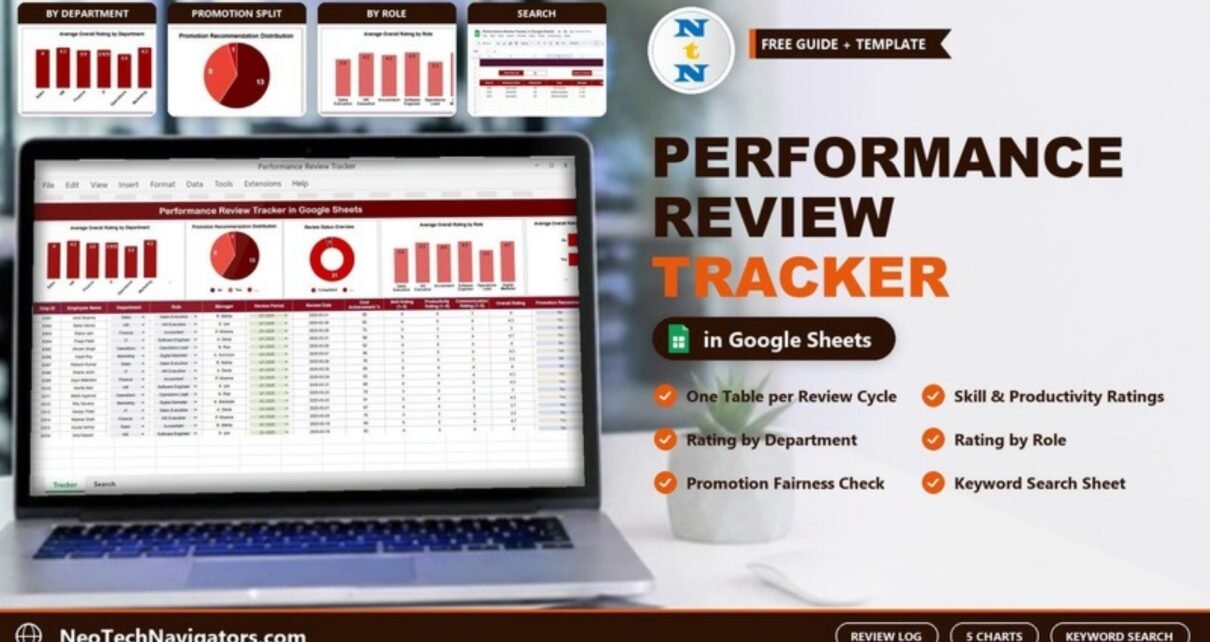
The Performance Review Tracker in Google Sheets keeps every employee appraisal for a review cycle in one shared table. For each person, it records goal achievement, skill, productivity and communication ratings, the overall rating, the promotion recommendation and the review status. Five charts summarise the results by department, role and promotion decision.
It is built for HR teams, line managers and founders of growing companies who run quarterly or annual reviews and want a clear, comparable record without buying an HR suite. A Search sheet lets you pull up all reviews for a department, manager or status in seconds.
🎥 Watch the Video Tutorial
Get the Performance Review Tracker
Why Track Performance Reviews in One Place?
Review cycles often end with ratings spread across documents, emails and managers’ private notes. When it is time to calibrate ratings or decide promotions, HR has to collect everything by hand. Inconsistencies, such as one manager rating everyone 5 or a promotion recommended for a below-average score, are easy to miss.
A single tracker with the same columns for every employee solves this. You can compare departments and roles side by side, check that promotion recommendations match performance, and see which reviews are still incomplete.
What Is Inside the Performance Review Tracker in Google Sheets
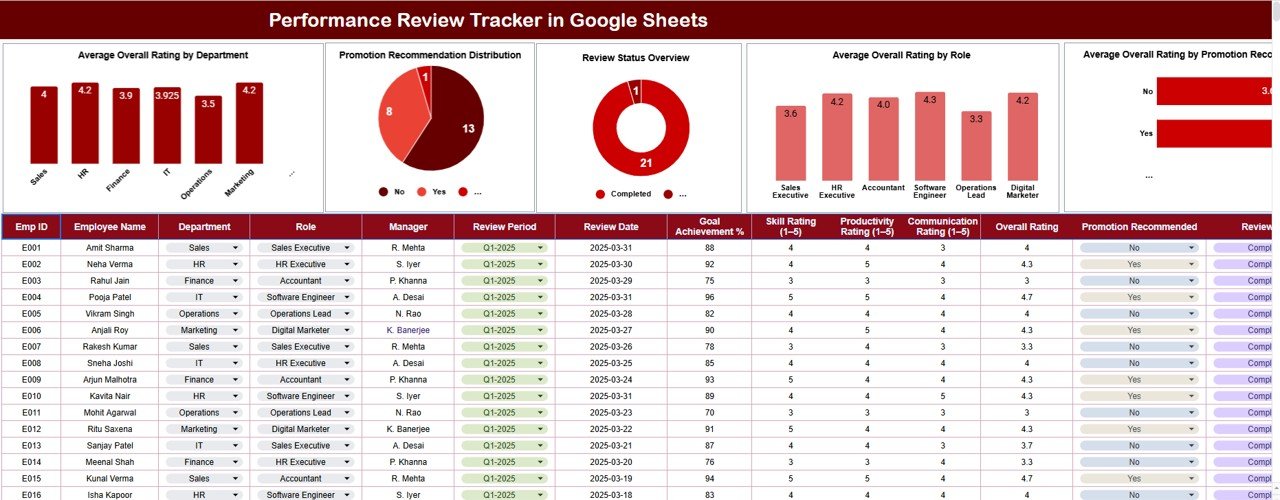
The file has a tracker sheet (review table plus five charts) and a Search sheet titled “Search by Search Keyword and Field Name”.
Review table columns
| Column | What it holds | Sample value |
|---|---|---|
| Emp ID | Employee reference | E001 |
| Employee Name | Full name | Amit Sharma |
| Department | Team (dropdown) | Sales, HR, Finance, IT, Operations, Marketing |
| Role | Job title (dropdown) | Sales Executive, HR Executive, Accountant, Software Engineer, Operations Lead, Digital Marketer |
| Manager | Reviewer | R. Mehta, S. Iyer |
| Review Period | Cycle being reviewed | Q1-2025 |
| Review Date | Date the review was held | 2025-03-31 |
| Goal Achievement % | Share of goals met | 88 |
| Skill Rating (1–5) | Technical or role skills | 4 |
| Productivity Rating (1–5) | Output and reliability | 5 |
| Communication Rating (1–5) | Collaboration and clarity | 4 |
| Overall Rating | Summary score | 4.3 |
| Promotion Recommended | Manager’s recommendation | Yes / No |
| Review Status | Progress of the review | Completed |
The five charts
- Average Overall Rating by Department: in the sample, HR and Marketing lead at 4.2, Sales is 4.0, Finance 3.9, IT 3.925 and Operations 3.5.
- Promotion Recommendation Distribution: a pie of No vs. Yes. In the sample, 13 employees are not recommended and 8 are.
- Review Status Overview: a doughnut of review statuses, so you can see at a glance how much of the cycle is done. In the sample, all 21 reviews are Completed.
- Average Overall Rating by Role: Software Engineer is highest at 4.3, HR Executive and Digital Marketer are 4.2, Accountant 4.0, Sales Executive 3.6 and Operations Lead 3.3.
- Average Overall Rating by Promotion Recommended: compares the average rating of the “Yes” group with the “No” group, a quick fairness check.
Worked Example: How the Overall Rating Lines Up
In almost every sample row, Overall Rating matches the average of the three 1–5 ratings, rounded to one decimal (E001 is the one exception: 4, 4 and 3 would give 3.7, but the sheet shows 4):
Overall Rating = AVERAGE(Skill, Productivity, Communication)

E002 Neha Verma:   (4 + 5 + 4) / 3 = 4.33  → 4.3
E004 Pooja Patel:  (5 + 5 + 4) / 3 = 4.67  → 4.7
E007 Rakesh Kumar: (3 + 4 + 3) / 3 = 3.33  → 3.3
In Google Sheets, with Skill, Productivity and Communication in columns I, J and K, that is:
=ROUND(AVERAGE(I2:K2),1)Department averages work the same way. The three HR reviews in the search example score 4.3, 4.3 and 4.0, which average 4.2. That is exactly the HR bar in the department chart. To reproduce any bar yourself, use:
=AVERAGEIF(C2:C,"HR",L2:L)Here C is Department and L is Overall Rating. Adjust the letters if your layout differs. If you want to practise AVERAGE, AVERAGEIF and ROUND with more examples, the Excel AI Mastery: 100 Formulas course on NextGenTemplates Academy covers them, and the logic carries straight over to Google Sheets.
Search by Keyword and Field Name
The Search sheet has a Select Column dropdown, a Search Keyword box and a Total Record counter. In the screenshot, Department = hr returns 3 reviews: Neha Verma (4.3, promotion Yes), Kavita Nair (4.3, Yes) and Isha Kapoor (4.0, No), all Completed. This is useful for calibration meetings, manager one-to-ones and promotion panels.

How to Use It With Your Own Data
- Make a copy (File > Make a copy) and clear the sample employees.
- Update the dropdowns for Department and Role (Data > Data validation) to match your organisation.
- Agree on the rating scale with managers before the cycle starts, for example what a 3 means compared with a 4.
- Enter one row per employee per review period. Use the Review Period column (for example Q1-2025, Q2-2025) to keep cycles apart.
- Update Review Status as each review is held, and check the status chart weekly until every review is Completed.
- Use the promotion chart in your calibration meeting to confirm that “Yes” recommendations carry higher ratings than “No”.
Real-World Use Cases
- Growing startup (30–150 people): run its first structured review cycle without buying HR software.
- Department head: compare ratings across their own teams and roles before submitting promotion lists.
- HR consultant: give each client a clean, consistent review log they can keep using after the engagement.
Best Practices
- Keep ratings and comments separate. Store detailed written feedback in your HR documents and keep this sheet for scores and decisions.
- Watch for rating inflation. If one department averages much higher than the rest, review that manager’s ratings.
- Link Goal Achievement % to agreed goals. Do not estimate it after the fact.
- Archive each cycle. Copy the sheet at the end of every period so history is preserved.
- Limit access. Performance data is sensitive, so share the file only with HR and the relevant managers.
A Simple Calibration Routine Using the Charts
- Start with Review Status Overview. Do not calibrate until every review for the period is Completed.
- Open Average Overall Rating by Department. Note any department more than about half a point above or below the company average. In the sample, Operations (3.5) stands out.
- Check Average Overall Rating by Role. A low role average, such as Operations Lead at 3.3, may point to unclear expectations rather than weak people.
- Compare the promotion groups. The “Yes” group should clearly out-score the “No” group. If it does not, revisit the recommendations.
- Use the Search sheet to pull the individual rows behind any outlier before you change a rating.
Limitations: Who Should Not Use This Tracker
This tracker records results. It does not run the review process. It has no self-assessment forms, 360-degree feedback, approval workflow, competency library or automatic reminders. Larger organisations with formal calibration processes, or teams that need audit trails for legal reasons, will be better served by a dedicated performance-management system. Google Sheets permissions also work at the file level, so you cannot hide one employee’s row from another manager in the same file.
Related Guides
To present review results visually, see the Employee Performance Review Dashboard and the Performance Appraisal KPI Dashboard. To plan the cycle itself, use the Performance Review Calendar and the Monthly Performance Review Checklist. Goal setting before the review is covered in the Employee Performance Goal Submission Tracker.
Frequently Asked Questions
What does the Performance Review Tracker in Google Sheets record?
For each employee, it records Emp ID, name, department, role, manager, review period, review date, Goal Achievement %, skill, productivity and communication ratings, overall rating, promotion recommendation and review status.
How is the Overall Rating calculated?
In nearly all sample rows it equals the average of the Skill, Productivity and Communication ratings, rounded to one decimal. Check the column in your copy before relying on it. You can change the method, for example by weighting productivity more heavily, if your policy requires it.
Can I track more than one review cycle?
Yes. Add rows with a new Review Period value, or keep one copy of the sheet per cycle for a cleaner history.
Is it safe to keep performance data in Google Sheets?
It can be, if you limit sharing to named HR staff and managers, avoid public links and follow your company’s data-protection policy.
Can I add more rating criteria?
Yes. Insert a new 1–5 column, such as Leadership, and include it in the Overall Rating calculation.
Wrapping Up
Fair reviews need consistent data. The Performance Review Tracker in Google Sheets gives you one table for every appraisal, five charts for comparing departments, roles and promotion decisions, and a search for calibration meetings. Load your current cycle, check the promotion-vs-rating chart, and you will know quickly whether your decisions line up with performance.
Get the Performance Review Tracker
📅 Last updated: October 2026