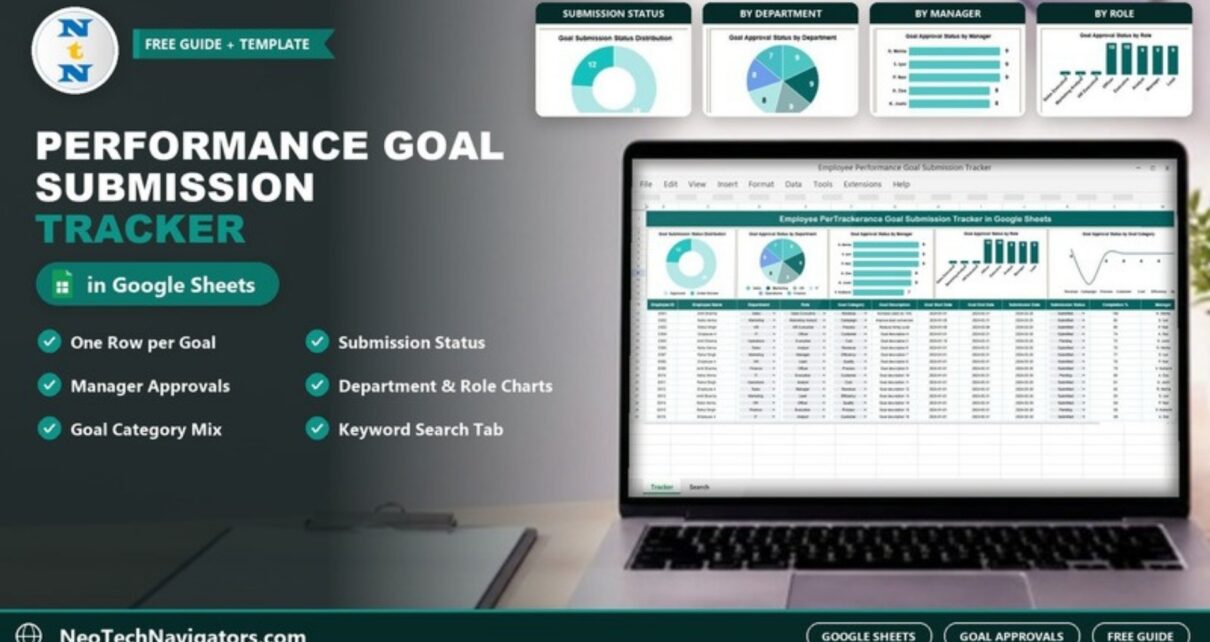
Every appraisal cycle starts the same way: employees set their goals, managers review them, and HR tries to find out who has submitted and who has not. When those goals live in emails and separate documents, that last step can take weeks. The Employee Performance Goal Submission Tracker in Google Sheets keeps every employee’s goal in one table and shows submission and approval progress by department, manager, role and goal category.
This guide describes what is actually in the template – the Tracker sheet with its five charts, the columns you fill in, and the Search sheet – and explains how to run your own goal-setting cycle with it. It is written for HR business partners, people managers and small HR teams that run quarterly or annual goal setting in Google Sheets.
🎥 Watch the Video Tutorial
Get the Goal Submission Tracker
Why a Goal Submission Tracker Helps
Goal setting has a short window. If goals are not submitted and approved in the first weeks of a quarter or year, the rest of the performance cycle starts late. HR usually needs answers to a few simple questions:
- How many employees have submitted their goals, and how many are still pending?
- Which managers have approved their team’s goals, and which have goals sitting under review?
- Are goals spread sensibly across categories such as Revenue, Cost and Quality, or is one area missing?
The tracker answers these from a single list of goals. Each row is one goal for one employee, and the charts at the top of the sheet summarise the list as you update it.
What Is Inside the Employee Performance Goal Submission Tracker
The file has two tabs: Tracker (charts plus the goal table) and Search.
The Goal Table – Column by Column
| Column | What it holds | Values in the sample data |
|---|---|---|
| Employee ID | Staff reference | E001, E002 … |
| Employee Name | Goal owner | Amit Sharma, Neha Verma, Rahul Singh … |
| Department | Dropdown | Sales, Marketing, HR, IT, Operations, Finance |
| Role | Dropdown | Officer, Executive, Analyst, Manager, Lead, Sales Executive, Marketing Analyst, HR Executive |
| Goal Category | Dropdown | Revenue, Campaign, Process, Customer, Cost, Efficiency, Quality |
| Goal Description | The goal in one line | Increase sales by 15%, Improve lead conversion, Reduce hiring cycle |
| Goal Start Date / Goal End Date | Period the goal covers | 2024-01-01 to 2024-03-31 |
| Submission Date | When the employee submitted it | 2024-03-28 |
| Submission Status | Dropdown | Submitted, Pending |
| Completion % | Progress against the goal | For example 75, 90, 100 |
| Manager | Approving manager (typed) | R. Mehta, S. Iyer, P. Nair, A. Das, K. Joshi, V. Kulkarni |
| Approval Status | Manager’s decision | Approved, Under Review |
| Review Comments | Short note from the reviewer | Reviewed, Effective |
The Five Charts on the Tracker Sheet
The sample holds 50 goals. Across the top of the Tracker tab you will find:
- Goal Submission Status Distribution – a doughnut showing 38 goals Approved and 12 Under Review.
- Goal Approval Status by Department – a pie across Sales, Marketing, HR, IT, Operations and Finance (7 to 9 goals each).
- Goal Approval Status by Manager – R. Mehta, S. Iyer and P. Nair 9 each; A. Das and K. Joshi 8; V. Kulkarni 7.
- Goal Approval Status by Role – Officer and Executive 10 each; Analyst, Manager and Lead 9 each; Sales Executive, Marketing Analyst and HR Executive one each.
- Goal Approval Status by Goal Category – Revenue leads with 9 goals, Process, Customer, Cost and Efficiency follow with 8 each, and Campaign has the fewest.
Together they tell you where approvals are stuck and whether any department, manager or goal type is under-represented.

The Search Tab
The Search by Search Keyword and Field Name tab filters the goal list without changing it. Pick a field in Select Column, type a value in Search Keyword, and the matching goals appear with a Total Record count. In the sample, Department + “hr” returns 9 goals, all managed by P. Nair, showing which are Approved and which are still Under Review – exactly what you need before a one-to-one with that manager.

How to Use It for Your Own Goal-Setting Cycle
- Copy the file to your Google Drive and remove the sample rows from the goal table, keeping the header row.
- Set your dropdown values. Edit the Department, Role, Goal Category and Submission Status dropdowns under Data > Data validation so they match your organisation, and type your own manager names in the Manager column.
- Add one row per goal. An employee with three goals gets three rows, each with its own Goal Category and Goal Description.
- Enter the cycle dates in Goal Start Date and Goal End Date (for example, the first and last day of the quarter).
- Record submissions as they come in: fill Submission Date and switch Submission Status from Pending to Submitted.
- Let managers update Approval Status (Approved or Under Review) and add a short Review Comment.
- Check the charts weekly. A large Under Review slice, or one manager with many open goals, tells you where to follow up.
- Update Completion % at mid-cycle and at the end, so the same file supports the review conversation.
Real-World Use Cases
- Quarterly goal setting in a mid-sized company: HR shares the tracker with six department managers, who approve their team’s goals in the sheet. HR uses the Manager chart to chase the last few approvals.
- Annual appraisal preparation: at year end, the Search tab pulls each employee’s goals and Completion % into one view for the appraisal meeting.
- Balanced goal mix check: leadership uses the Goal Category chart to confirm that goals cover Revenue, Customer and Quality, not just Cost.
Best Practices
- Publish a submission deadline and a separate approval deadline before the cycle starts.
- Write goals as measurable outcomes (“Reduce hiring cycle” works better with a target number and date).
- Limit edit access to HR and managers; employees can submit goals through their manager or a separate form.
- Keep one row per goal – do not put several goals in one Goal Description cell, or the charts will undercount.
- Archive each cycle in its own copy of the file so history is preserved.
Limitations – Who Should Not Use It
- It tracks goal submission and approval; it does not calculate ratings, weightages or bonuses.
- There are no automatic reminders. Follow-ups are done by HR or managers using the charts and Search tab.
- Employees do not get a personal portal. If you need self-service goal entry, workflow approvals and audit logs, a dedicated performance management system is a better fit.
- Very large organisations with thousands of goals per cycle may find a single Google Sheet slow to manage.
Related Guides and Templates
To help employees draft their goals in the first place, see the Employee Goal Setting Tracker in Google Sheets. Once goals are approved, the Employee Performance Review Dashboard and the Performance Appraisal KPI Dashboard help you report on results. For a wider HR view, read about the HR Performance Dashboard in Google Sheets and the Employee Appraisal & Performance Dashboard.
Prefer Excel for goal setting? The Employee Goal Setting Tracker in Excel covers the drafting stage in a desktop file.
If you would like to build charts and summary views like these yourself, the Pivot Tables & Dashboards course on NextGenTemplates Academy walks through the techniques step by step.
Frequently Asked Questions
What is the difference between Submission Status and Approval Status?
Submission Status shows whether the employee has handed in the goal (Submitted or Pending). Approval Status shows the manager’s decision on a submitted goal (Approved or Under Review).
Can one employee have several goals?
Yes. Add one row per goal. The charts count goals, so an employee with four goals appears four times across the category and approval charts.
Can I change the departments, roles and goal categories?
Yes. They are dropdown lists. Edit them under Data > Data validation and the new values will appear in the charts once you use them in the table.
Does the tracker work for quarterly and annual cycles?
Yes. Set Goal Start Date and Goal End Date to the cycle you run. Many teams keep one copy of the file per cycle.
Is Google Sheets safe enough for employee goal data?
Goal data is usually less sensitive than pay data, but you should still share the file only with HR and approving managers, using view-only access where editing is not needed.
Do I need any add-ons or scripts?
No. The tracker runs in a standard Google Sheets file with a free Google account.
Wrapping Up
The Employee Performance Goal Submission Tracker in Google Sheets gives HR one place to see who has submitted goals, which managers still have approvals pending and how goals are spread across departments and categories. Set your dropdown lists, load this cycle’s goals and use the five charts to close the gaps before the deadline.
Get the Goal Submission Tracker
📅 Last updated: October 2026