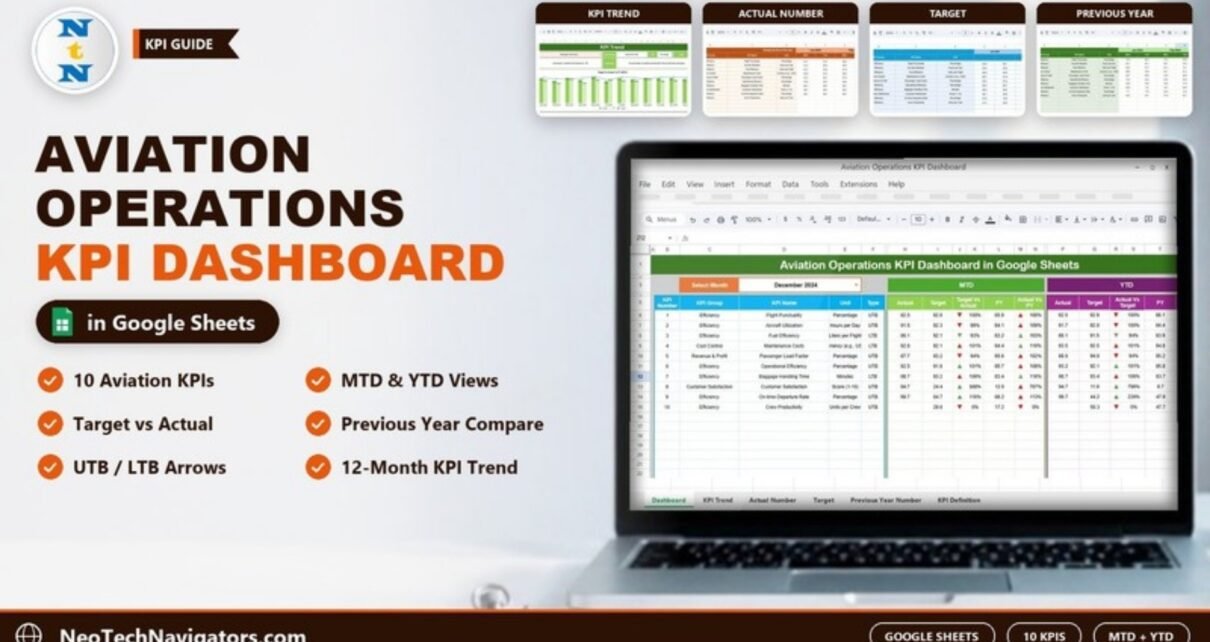
Airline and airport operations produce a long list of numbers every month: punctuality, aircraft utilisation, fuel burn, maintenance cost, baggage handling time, load factor. Looking at each one in a separate report makes it hard to tell what improved, what slipped and how this year compares with last year. The Aviation Operations KPI Dashboard in Google Sheets brings 10 operational KPIs onto one screen and compares each with its target and its previous-year value, for the month (MTD) and the year to date (YTD).
This guide explains the six sheets in the template, lists every KPI with its formula and direction, walks through a worked example from the sample data, and shows how to load your own monthly numbers. It is for airline operations analysts, airport and ground-handling managers, and anyone who reports aviation KPIs to leadership from a spreadsheet.
🎥 Watch the Video Tutorial
Get the Aviation Operations KPI Dashboard
What the Dashboard Solves
A KPI on its own says little. “92.5% flight punctuality” only becomes useful when you know the target was 92.6% and last year’s figure was 85.9%. This template is built around that comparison. You type monthly actuals, targets and previous-year values into three input sheets, and the Dashboard sheet calculates the variances and marks each one with an up or down arrow. In the Target Vs Actual columns the arrow is also coloured according to whether a higher or lower value is better for that KPI.
The 10 KPIs in the Aviation Operations KPI Dashboard
These are the KPIs exactly as defined on the template’s KPI Definition sheet. UTB means “upper the better” (higher is good) and LTB means “lower the better”.
| # | KPI | Group | Unit | Formula | Better when |
|---|---|---|---|---|---|
| 1 | Flight Punctuality | Efficiency | Percentage | (On-time Flights / Total Flights) * 100 | Higher (UTB) |
| 2 | Aircraft Utilization | Efficiency | Hours per Day | (Total Flight Hours / Available Aircraft Hours) | Higher (UTB) |
| 3 | Fuel Efficiency | Efficiency | Liters per Flight | (Fuel Used / Distance Traveled) * 100 | Lower (LTB) |
| 4 | Maintenance Costs | Cost Control | Currency (e.g., USD) | (Total Maintenance Cost / Total Flights) | Lower (LTB) |
| 5 | Passenger Load Factor | Revenue & Profit | Percentage | (Passengers / Available Seat Kilometers) * 100 | Higher (UTB) |
| 6 | Operational Efficiency | Efficiency | Percentage | (Output / Input) * 100 | Higher (UTB) |
| 7 | Baggage Handling Time | Efficiency | Minutes | (Total Baggage Handling Time / Total Baggage) | Lower (LTB) |
| 8 | Customer Satisfaction | Customer Satisfaction | Score (1-10) | Average of Customer Ratings | Higher (UTB) |
| 9 | On-time Departure Rate | Efficiency | Percentage | (On-time Departures / Total Departures) * 100 | Higher (UTB) |
| 10 | Crew Productivity | Efficiency | Units per Crew | (Total Output / Total Crew) | Higher (UTB) |
You can rename, replace or add KPIs on the KPI Definition sheet if your operation measures things differently.
The Six Sheets, One by One
1. Dashboard – MTD and YTD at a Glance
Choose a month in the Select Month dropdown (cell D3). The sheet then shows each KPI’s number, group, name, unit and type, followed by two blocks:
- MTD: Actual, Target, Target Vs Actual, PY (previous year) and Actual Vs PY.
- YTD: Actual, Target, Actual Vs Target, PY and Actual Vs PY.
Each variance cell carries an arrow that points up or down with the comparison. In the Target Vs Actual columns the colour also tells you whether that movement is good or bad for the KPI – a down arrow is green for Fuel Efficiency (LTB) but red for Flight Punctuality (UTB). For the Actual Vs PY columns, read the percentage itself: above 100% means a higher value than last year, which is good for a UTB KPI and bad for an LTB KPI.

Worked Example: Reading the December 2024 Row
The comparison columns divide the actual by the comparison value. Using the sample figures for Flight Punctuality (UTB):
Target Vs Actual = MTD Actual / MTD Target = 92.5 / 92.6 = 99.9%  → shown as 100%, red down arrow (just below target)
Actual Vs PY     = MTD Actual / MTD PY     = 92.5 / 85.9 = 107.7% → shown as 108%, up arrow (better than last year)
Now a “lower the better” KPI, Fuel Efficiency (LTB):
Target Vs Actual = 86.1 / 92.1 = 93.5% → shown as 93%, green down arrow (using less fuel than planned is good)And Baggage Handling Time (LTB): 98.7 / 93.2 = 106%, shown with a red up arrow because handling took longer than the target. In the Target Vs Actual columns, reading the colour first and the percentage second is the fastest way to scan the sheet.
In the sample file, Crew Productivity has no December actual yet, so its comparisons show 0% – a reminder that empty input cells appear as 0% rather than being skipped.
2. KPI Trend – One KPI, Twelve Months
Pick a KPI in Select KPI (cell C3). The sheet fills in its KPI Group, Unit, Type, Formula and Definition, and draws a Target Vs Actual Vs PY (MTD) chart across the year. In the sample, Passenger Load Factor runs between 80.2% (Jun-2024) and 95.5% (May-2024), which makes the seasonal dip easy to spot.

3. Actual Number – Where You Enter This Year’s Results
Each KPI has an MTD and a YTD column for every month. Set the first month of your year in cell E1 (labelled Change the first of the year) – the month headers follow from it, so the template works for a calendar year or a financial year starting in April.

4. Target – Your Plan for the Year
The Target sheet has the same layout: one row per KPI and two target columns (MTD and YTD) for each month.

5. Previous Year Number – Last Year for Comparison
Enter last year’s MTD and YTD values here (2023 in the sample). These feed the PY and Actual Vs PY columns on the Dashboard and the PY bars on the KPI Trend chart.

6. KPI Definition – The Master List
Columns: #, KPI Group, KPI Name, Unit, Formula, Definition and Type (UTB or LTB from a dropdown). Whatever you change here flows through to the Dashboard and KPI Trend sheets.

How to Use It With Your Own Data
- Make a copy of the file in Google Drive.
- Review the KPI Definition sheet. Keep, rename or replace KPIs, and set each Type to UTB or LTB correctly – the arrow colours depend on it.
- Set the first month of your reporting year in cell E1 of the Actual Number sheet.
- Enter targets for every month on the Target sheet before the year starts.
- Enter last year’s figures on the Previous Year Number sheet.
- Each month, add actuals (MTD and YTD) on the Actual Number sheet.
- Select the month on the Dashboard and review red arrows first; open KPI Trend for any KPI that needs explaining.
Real-World Use Cases
- Regional airline operations control: a monthly pack for the operations director showing punctuality, on-time departures and utilisation against plan.
- Ground-handling company: track Baggage Handling Time and Customer Satisfaction for each airline client by keeping one copy of the file per client.
- Charter or cargo operator: replace Passenger Load Factor with a payload KPI and use the same MTD/YTD/PY structure.
Best Practices
- Agree each KPI’s formula and data source before the year starts, and write it on the KPI Definition sheet.
- Keep values consistent with the Unit column; Customer Satisfaction is defined as Score (1-10), so enter its targets, actuals and previous-year values on that same scale.
- Enter YTD values carefully – for percentages, YTD is usually a weighted figure for the year so far, not the sum of monthly values.
- Lock the formula areas with Data > Protect sheets and ranges and leave only the input sheets editable.
- Review LTB KPIs separately; it is easy to misread “93%” as poor when, for fuel or cost, it is a good result.
Limitations
- It is a monthly KPI summary. It does not connect to flight operations, maintenance or booking systems; you enter the figures yourself.
- It reports at one level (the whole operation). Route-, airport- or fleet-level analysis needs separate copies or a more detailed model.
- It is not a safety management system and does not replace regulatory reporting.
Other Aviation KPIs Worth Tracking
The template does not include these, but many operators add them on the KPI Definition sheet: cancellation rate, average delay minutes per departure, technical dispatch reliability, turnaround time and cost per available seat kilometre.
Related Guides and Templates
The same MTD/YTD structure is used in the Transportation KPI Dashboard in Google Sheets and the Fleet Management KPI Dashboard. For travel businesses, see the Travel & Tourism KPI Dashboard; for a general operations view, the Operations KPI Dashboard in Google Sheets. Airport teams may also find the Airport Checklist in Google Sheets useful.
Prefer Excel? The Airlines KPI Dashboard in Excel covers airline KPIs in a desktop file.
If you want to understand how dashboards like this are built and summarised, the Pivot Tables & Dashboards course on NextGenTemplates Academy covers it in structured lessons.
Frequently Asked Questions
What is the difference between MTD and YTD in this dashboard?
MTD (month to date) shows the selected month on its own. YTD (year to date) shows the figure from the first month of your year up to the selected month. Both are entered on the input sheets and compared with targets and the previous year.
What do UTB and LTB mean?
UTB is “upper the better” – a higher value is good, as with Flight Punctuality. LTB is “lower the better” – a lower value is good, as with Fuel Efficiency, Maintenance Costs and Baggage Handling Time.
How are the Target Vs Actual percentages calculated?
They divide the actual by the target (and by the previous-year value for Actual Vs PY). For example, 92.5 ÷ 92.6 gives 99.9%, displayed as 100%.
Can I add more than 10 KPIs?
Yes. The input sheets and Dashboard have empty rows below the sample KPIs. Add the KPI on the KPI Definition sheet first, then enter its numbers on the Actual, Target and Previous Year sheets.
Can I use a financial year instead of January to December?
Yes. Change the first month in cell E1 of the Actual Number sheet and enter your data from that month.
Does it need add-ons or scripts?
No. It runs in a standard Google Sheets file with a free Google account.
Wrapping Up
The Aviation Operations KPI Dashboard in Google Sheets gives you a disciplined monthly view of 10 operational KPIs: actual against target, actual against last year, for the month and the year. Set up your KPI definitions and targets once, add actuals each month, and use the arrows to decide where to look first.
Get the Aviation Operations KPI Dashboard
📅 Last updated: October 2026