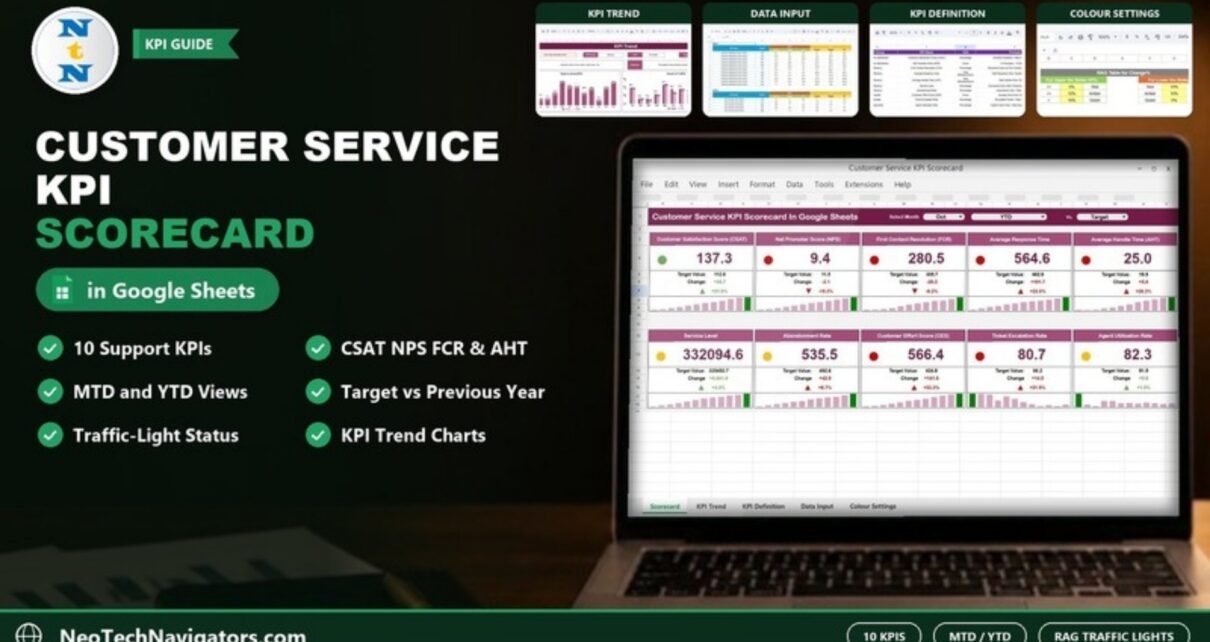
The Customer Service KPI Scorecard in Google Sheets puts ten support KPIs on one page, from CSAT and NPS to Average Handle Time and Agent Utilization Rate. Each KPI card shows a traffic light, the target, the change and an arrow. You pick a month, switch between MTD and YTD, and compare against target or the previous year.
It is made for customer service managers, call-centre supervisors, helpdesk leads and QA teams who report monthly performance and need a consistent, easy-to-read scorecard. The file has five tabs: the Scorecard, a KPI Trend sheet, a KPI Definition sheet, a Data Input sheet and a Colour Settings sheet. All the numbers come from the monthly values you enter.
🎥 Watch the Video Tutorial
Get the Customer Service KPI Scorecard
Why Use a KPI Scorecard for Customer Service?
Support teams collect plenty of numbers: survey scores, call statistics, ticket counts and staffing hours. The problem is usually not a lack of data. It is that nobody sees all of it in one place each month. A scorecard fixes the definitions, compares each KPI with its target, and uses colour to show what needs attention. Weekly or monthly reviews then become a five-minute conversation instead of a spreadsheet hunt.
The 10 KPIs in the Customer Service KPI Scorecard in Google Sheets
These are the exact KPIs, groups, units and formulas from the template’s KPI Definition sheet. UTB means “Upper the Better” (higher is better) and LTB means “Lower the Better”.
| KPI | Group | What it measures | Formula | Better when |
|---|---|---|---|---|
| Customer Satisfaction Score (CSAT) | Customer Satisfaction | Satisfaction based on feedback after a service interaction | (Positive Feedback / Total Feedback) * 100 | Higher (UTB) |
| Net Promoter Score (NPS) | Customer Satisfaction | How likely customers are to recommend you | % Promoters – % Detractors | Higher (UTB) |
| First Contact Resolution (FCR) | Efficiency | Cases resolved on the first contact with no follow-up | (Resolved Cases at First Contact / Total Cases) * 100 | Higher (UTB) |
| Average Response Time | Efficiency | Average time to respond to customer inquiries | Total Response Time / Number of Responses | Lower (LTB) |
| Average Handle Time (AHT) | Efficiency | Average time spent resolving an issue, including talk, hold and follow-up | Total Handle Time / Total Cases | Lower (LTB) |
| Service Level | Efficiency | Calls answered within a set time threshold (e.g. 30 seconds) | (Answered Calls within Threshold / Total Calls) * 100 | Higher (UTB) |
| Abandonment Rate | Efficiency | Customers who hang up before reaching a representative | (Abandoned Calls / Total Calls) * 100 | Lower (LTB) |
| Customer Effort Score (CES) | Quality | How easy it is for customers to get their issue resolved | Average Score from CES Survey | Lower (LTB) |
| Ticket Escalation Rate | Quality | Tickets escalated to higher-level support teams | (Escalated Tickets / Total Tickets) * 100 | Lower (LTB) |
| Agent Utilization Rate | Productivity | Share of an agent’s time spent on productive tasks | (Agent Active Time / Total Available Time) * 100 | Higher (UTB) |

Inside the Template: Sheet by Sheet
1. Scorecard
The header has three dropdowns: Select Month, an MTD / YTD switch and a Vs. selector (set to Target in the screenshot). Each of the ten KPI cards shows:
- a traffic-light dot (green, amber or red)
- the actual value for the selected period
- the Target Value
- the Change, as an absolute number and a percentage, with an up or down arrow
- a small 12-month column chart with one bar highlighted in green

2. KPI Trend
Choose a KPI in the Select KPI dropdown, and the sheet shows its KPI Group, Unit, Type, Formula and Definition, plus two monthly charts: Target Vs Actual (MTD) and Actual Vs PY (MTD). In the screenshot, First Contact Resolution is selected. It belongs to the Efficiency group, uses Percentage as its unit and is UTB.

3. Data Input
Each KPI has its own block (KPI-1, KPI-2 and so on) with a row for every month and six value columns: MTD Actual, Target, PY and YTD Actual, Target, PY. This is the only place you type numbers.

4. Colour Settings
The RAG Table for Change% controls the traffic lights, with separate rules for each KPI direction:
| Colour | Upper the Better (UTB) | Lower the Better (LTB) |
|---|---|---|
| Red | Change% ≤ 0% | Change% > 10% |
| Amber | Change% ≤ 10% | Change% ≤ 10% |
| Green | Change% > 10% | Change% ≤ 0% |
You can edit these thresholds to match your own tolerance.

Worked Example: Reading Three Cards
The screenshot shows October, YTD, compared with Target. Change is Actual minus Target, and Change% is Change divided by Target:
Change  = Actual - Target
Change% = (Actual - Target) / Target- CSAT (UTB): 137.3 vs. 112.6 → +24.7 → +21.9%. That is above 10% for a higher-is-better KPI, so the light is green. These values match the October YTD row in the Data Input sheet.
- NPS (UTB): 9.4 vs. 11.5 → -2.1 → -18.3%. That is at or below 0% for a UTB KPI, so the light is red.
- Customer Effort Score (LTB): 566.4 vs. 424.8 → +141.6 → +33.3%. For a lower-is-better KPI, an increase above 10% is red.
Service Level (+2.0%) and Agent Utilization Rate (+1.0%) are both UTB and between 0% and 10%, so they show amber.
The sample numbers are placeholders that demonstrate the mechanics. Replace them with your real figures, for example CSAT as a 0–100 percentage.
How to Use It With Your Own Data
- Make a copy of the file (File > Make a copy).
- Review the KPI Definition sheet. Keep the ten KPIs or rename them, and confirm each one’s UTB/LTB type.
- Enter targets and previous-year values for every month in the Data Input sheet.
- Add actuals at the end of each month, in both the MTD and YTD columns.
- Adjust the RAG thresholds in Colour Settings if 10% is too tight or too loose for your team.
- Open the Scorecard, select the month, choose MTD or YTD, and review the red and amber cards first.
To build similar scorecards or the charts behind them from scratch, the Pivot Tables & Dashboards course on NextGenTemplates Academy covers the reporting techniques step by step.
Real-World Use Cases
- Call centre: track Service Level, Abandonment Rate and AHT monthly against contract targets.
- SaaS support team: compare FCR, CES and Ticket Escalation Rate with last year to show the effect of a new knowledge base.
- E-commerce customer care: report CSAT and NPS to leadership each month with one shareable link.
Best Practices
- Fix the data source for each KPI, such as your phone system for Service Level or the survey tool for CSAT, so numbers stay comparable.
- Set realistic targets based on last year’s results, not wishful thinking.
- Look at pairs of KPIs. A falling AHT is only good news if FCR and CSAT hold steady.
- Use YTD for strategy and MTD for operations.
- Lock the Scorecard, Trend and Definition sheets (Data > Protect sheets and ranges) so only the Data Input sheet is editable.
Limitations
The scorecard does not connect to your phone system, helpdesk or survey tool. You enter monthly figures by hand, so it is a reporting layer, not a live monitor. It also works at team level. If you need per-agent leaderboards or intraday queue monitoring, use your contact-centre platform’s reports alongside it.
Related Guides and Templates
If you prefer charts over cards, read the Customer Service KPI Dashboard in Google Sheets and the Customer Service Performance Dashboard. For call-centre-specific measures, see the Call Center KPI Scorecard and the Call Center KPI Dashboard. To collect the feedback behind CSAT, use the Customer Service Quality Feedback Tracker.
Related templates: the Customer Service KPI Dashboard in Google Sheets and the Excel version.
Frequently Asked Questions
Which KPIs are in the Customer Service KPI Scorecard?
CSAT, NPS, First Contact Resolution, Average Response Time, Average Handle Time, Service Level, Abandonment Rate, Customer Effort Score, Ticket Escalation Rate and Agent Utilization Rate.
What do UTB and LTB mean?
UTB (Upper the Better) means a higher value is better, as with CSAT. LTB (Lower the Better) means a lower value is better, as with Abandonment Rate. The traffic-light rules are reversed for each type.
How are the traffic lights decided?
They are based on Change% from the Colour Settings sheet. For UTB KPIs, above 10% is green, 0–10% is amber and 0% or below is red. For LTB KPIs, 0% or below is green, up to 10% is amber and above 10% is red.
Can I compare with last year instead of the target?
Yes. The Data Input sheet stores previous-year (PY) values, and the header has a comparison selector next to the MTD/YTD switch.
Can I replace a KPI with one of my own?
Yes. Update the KPI’s name, group, unit, formula, definition and type in the KPI Definition sheet, then enter its monthly values in the matching Data Input block.
Do I need formulas to use it?
No. You only type monthly values into the Data Input sheet. The cards, arrows, colours and trend charts are already built.
Wrapping Up
Ten well-defined KPIs, a clear rule for red, amber and green, and one page to review them is all most support teams need for a strong monthly review. The Customer Service KPI Scorecard in Google Sheets gives you exactly that, with MTD/YTD views and a trend sheet for any KPI that needs a closer look. Set your targets, enter this month’s actuals, and start with the red cards.
Get the Customer Service KPI Scorecard
📅 Last updated: October 2026