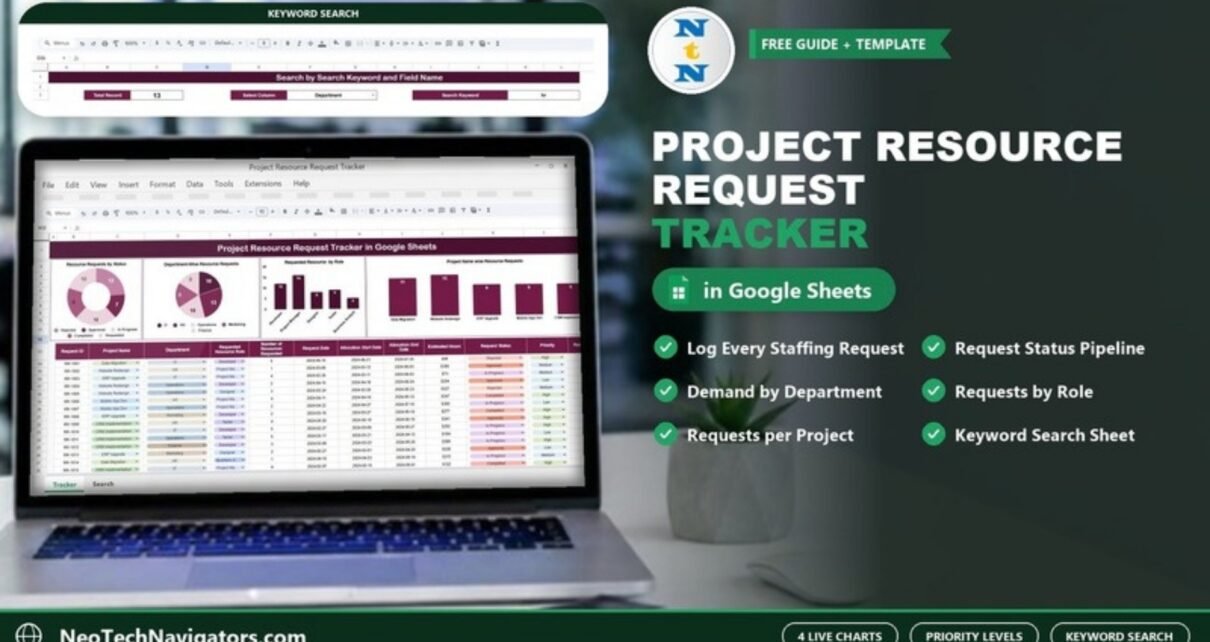
The Project Resource Request Tracker in Google Sheets gives project managers and PMO teams one log for every request for people: which project needs them, which department is asking, which role, how many resources, for which dates, how many hours and at what priority. Four charts on the same sheet show the request pipeline by status, demand by department, demand by role and requests per project.
This guide is for PMO leads, project and delivery managers, resource managers and HR workforce planners who juggle developers, project managers, designers, testers and business analysts across several projects. It covers the tracker’s columns, each chart with the sample numbers, the keyword search sheet, setup steps, real use cases and limitations.
🎥 Watch the Video Tutorial
Get the Project Resource Request Tracker
Why Project Resource Requests Need a Tracker
When several projects run at once, everyone wants the same senior developer or the one available business analyst. Requests arrive in chat messages and emails, and decisions depend on who asks first. The result is double-booked people, idle capacity in other teams and projects that start late because nobody approved the staffing in time.
A request tracker makes demand visible. Every request has the same fields, so you can answer the questions that matter in a resource meeting:
- How many requests are waiting, approved, in progress, completed or rejected?
- Which department is asking for the most resources?
- Which roles are in short supply?
- Which projects are consuming the most requests?
- When does each allocation start and end, and how many hours does it need?
What Is Inside the Project Resource Request Tracker
| Part | What it shows | What you do there |
|---|---|---|
| Chart panel | Requests by status, department, role and project | Read the summary; charts refresh from the data |
| Tracker table | One row per request, from Request ID to Requested By | Log requests and update their status |
| Search sheet | Matching requests for a chosen column and keyword, with a Total Record count | Select a column and type a keyword |
The Tracker Sheet: Columns Explained
Each request is one row. Sample IDs run from RR-1001 onwards. The 12 columns are:
- Request ID: a unique reference.
- Project Name: Data Migration, Website Redesign, ERP Upgrade, Mobile App Dev and CRM Implementation in the sample.
- Department: IT, HR, Operations, Marketing and Finance.
- Requested Resource Role: Developer, Project Manager, Designer, Tester and Business Analyst.
- Number of Resources Requested: how many people of that role are needed.
- Request Date, Allocation Start Date and Allocation End Date.
- Estimated Hours: the effort expected for the allocation.
- Request Status: Requested, Approved, In Progress, Completed or Rejected.
- Priority: High, Medium or Low.
- Requested By: the person who raised it (User1, User2 and so on in the sample).
Small tip: in the sample file the Estimated Hours values display with a currency symbol (for example $49). If you use the column for hours, select it and set Format > Number > Number so the values read as plain hours.

The Four Charts and What They Tell You
The sample file contains 50 resource requests. Here is what each chart shows.
1. Resource Requests by Status
A donut chart that splits all requests across Requested, Approved, In Progress, Completed and Rejected. It is your approval pipeline at a glance: a large Requested slice means decisions are waiting, while a large Rejected slice may mean requests are poorly scoped.
2. Department-Wise Resource Requests
A pie chart by department. In the sample, HR raises 13 requests, IT 10, Operations 10, Marketing 9 and Finance 8. Use it to see which business areas are driving demand.
3. Requested Resource by Role
A column chart by role: Developer 12, Project Manager 16, Designer 8, Tester 9 and Business Analyst 5. In the sample, Project Managers are the most requested role, which could point to a hiring or training need.
4. Project Name wise Resource Requests
A column chart by project: Data Migration 11, Website Redesign 12, ERP Upgrade 9, Mobile App Dev 9 and CRM Implementation 9. It shows which projects are pulling the most people.
Search by Search Keyword and Field Name
The search sheet lists every request that matches a value in one column. Choose the column in Select Column, type the value in Search Keyword, and the matching rows appear with a Total Record count.
In the example, searching the Department column for “hr” returns 13 requests, the same as the HR slice in the department chart, with each request’s project, role, dates, hours, status and priority.

How to Use It With Your Own Data
- Make your own copy with File > Make a copy.
- Edit the dropdowns for Project Name, Department, Requested Resource Role, Request Status and Priority to match your portfolio.
- Clear the sample rows, keeping the header row and dropdowns.
- Log each request with project, department, role, number of resources, request date, planned allocation dates, estimated hours, priority and requester. Set the status to Requested.
- Review requests weekly in a resource meeting and change the status to Approved or Rejected.
- Update progress: move approved requests to In Progress when the person starts and Completed when the allocation ends.
- Use the charts to discuss demand by role, department and project, and the search sheet to answer project-specific questions.
Real-World Use Cases
Weekly PMO resource meeting
The PMO opens the tracker, filters new requests, approves or rejects them in the meeting and checks the role chart to see which skills are oversubscribed.
Hiring and upskilling decisions
If Project Manager and Developer requests keep outnumbering available people quarter after quarter, HR can use the role chart as evidence for new hires or internal training.
Agency or consulting staffing
A small consultancy uses the tracker to log client project staffing requests, plan allocation dates and see which projects need the most hours.
Best Practices
- Use one standard list of role names across all departments.
- Agree on what High, Medium and Low priority mean before people start using them.
- Always fill in allocation start and end dates, even if they are estimates.
- Review the status of every open request at least once a week.
- Archive completed requests at the end of each quarter to keep the file fast.
- Limit edit access to the PMO and give project managers view or comment access.
Who Should Not Use This Tracker (Limitations)
- No capacity calendar. It records requests, not each person’s availability. It will not warn you if someone is double-booked.
- No named-person assignment. Requests are by role; if you need to assign named people, add a column for the assigned resource.
- No approval notifications. Status changes are manual and nobody is emailed automatically.
- Large portfolios with hundreds of people and complex utilisation rules are better served by dedicated resource management software.
Related Templates and Guides
To see how allocated people are being used once requests are approved, try the resource allocation dashboard in Google Sheets. For other project requests, see the project budget request tracker and the IT project request tracker. Once people are on board, the project task assignment tracker helps assign work, and the multiple project management dashboard gives a portfolio-level view.
Related template: the Resource Allocation Dashboard in Google Sheets on NextGenTemplates.
If you want to go further with structured spreadsheet lessons, the learning paths on NextGenTemplates Academy take you from the basics to building your own trackers and reports.
Frequently Asked Questions
What is a project resource request tracker?
It is a log of every request for people on a project, recording the project, department, role, number of resources, dates, hours, status and priority, so managers can approve and plan staffing in one place.
Can it handle many projects at once?
Yes. Project Name is a column, so you can track as many projects as you need. The project chart shows how requests are spread across them.
Can I change the roles and departments?
Yes. Edit the dropdown lists to match your organisation and keep the spelling consistent so the charts group requests correctly.
What status values does it use?
Requested, Approved, In Progress, Completed and Rejected. You can rename them, but update the dropdown and use the new values consistently.
Does it show whether a person is available?
No. It tracks requests by role, not individual availability. Pair it with a resource allocation dashboard or capacity plan for that.
Do I need advanced Google Sheets skills?
No. You enter requests in a table and use dropdowns; the charts and search sheet do the rest.
Wrapping Up
Staffing decisions are easier when every request is visible in one place. The Project Resource Request Tracker in Google Sheets gives you a clean request log, four charts that show demand by status, department, role and project, and a search sheet for quick answers. Set up your projects and roles, log the open requests you already have and review them in your next resource meeting.
Get the Project Resource Request Tracker
📅 Last updated: October 2026