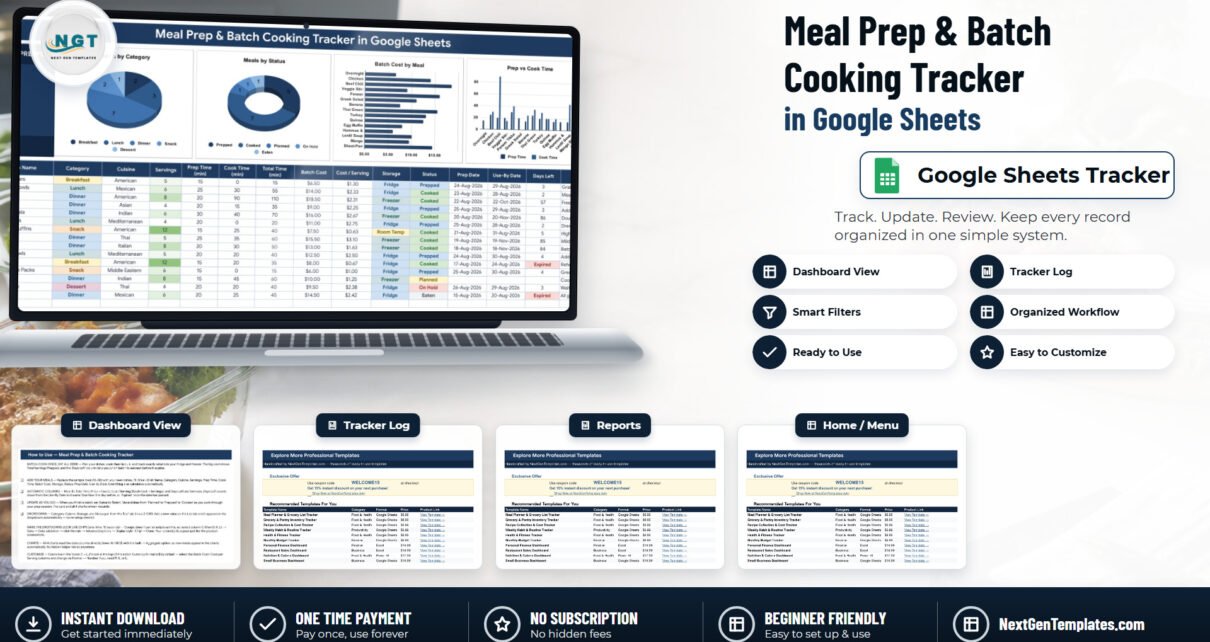
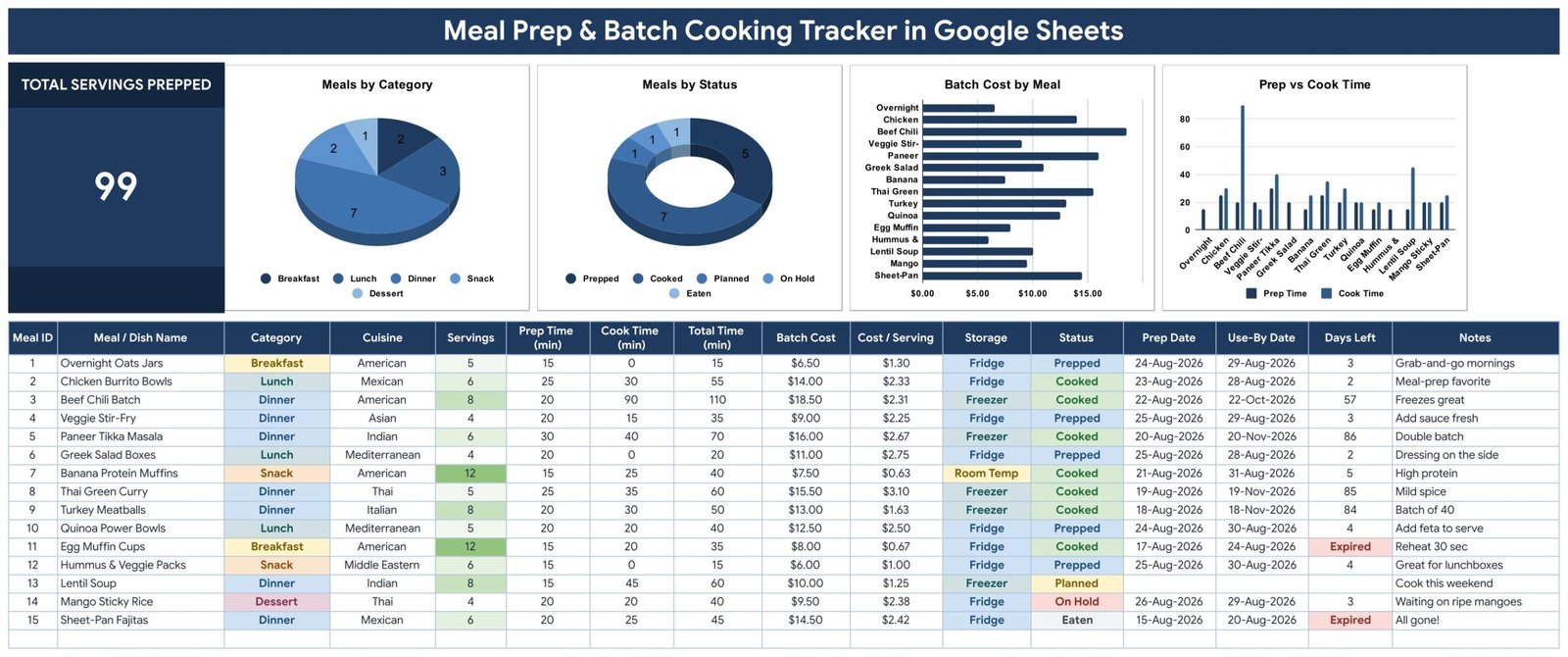
Most batch-cooking systems collapse for the same unglamorous reason: nobody writes anything down. You cook eight things on Sunday, and by Wednesday you are opening containers to find out what is in them and guessing whether the chili is still good. The Meal Prep & Batch Cooking Tracker in Google Sheets is a deliberately small answer to that — four tabs, a 16-column log of which 4 columns calculate themselves, one KPI card, 4 charts reading the log directly, 15 worked sample rows and 25 seeded dropdown values. No macros, no add-ons, no helper tabs hidden behind the scenes.
What makes it worth a page of its own is the arithmetic it does without being asked. Enter a Batch Cost and a number of Servings and the sheet gives you Cost / Serving. Enter a Use-By Date and it gives you Days Left, which shows Use Now the day before and Expired after. Those two columns are the whole argument for tracking batch cooking in a spreadsheet rather than in your head.
Get the Meal Prep & Batch Cooking Tracker in Google Sheets
Key Features of the Meal Prep & Batch Cooking Tracker in Google Sheets
- Total Servings Prepped card. One large figure, top left of the tracker page, summing the Servings column. In the shipped sample data it reads 99 across 15 dishes.
- Four charts wired to the raw log. Meals by Category, Meals by Status, Batch Cost by Meal and Prep vs Cook Time. Each uses the built-in Aggregate option over rows 16–1000 of the data columns, so nothing needs refreshing and there is no pivot or helper table to break.
- Four automatic columns. Meal ID numbers each row, Total Time adds Prep and Cook, Cost / Serving divides Batch Cost by Servings, and Days Left counts down from the Use-By Date.
- Dropdowns that grow with you. Category, Cuisine, Storage and Status read rows 2–500 of the List tab. Add a value there and it is available immediately in the dropdown.
- Storage as a first-class field. Fridge, Freezer, Pantry and Room Temp ship as options, so a three-day salad box and a three-month freezer batch coexist in one table without confusion.
- Notes on every row. “Freezes great”, “double batch”, “mild spice” — the small operational memory that otherwise lives on a sticky note.
Every Tab Explained
1. Meal Prep Tracker
The entire product on one page. A title banner, the Total Servings Prepped card on the left, four charts across the top, and the log beneath them. The log’s sixteen columns are Meal ID, Meal / Dish Name, Category, Cuisine, Servings, Prep Time (min), Cook Time (min), Total Time (min), Batch Cost, Cost / Serving, Storage, Status, Prep Date, Use-By Date, Days Left and Notes. Sample rows sit in rows 16–30; formulas, formatting and validation are provisioned through row 1000.
The sample data is worth reading before you delete it, because it demonstrates the design. Beef Chili Batch costs $18.50 — the largest single batch cost in the file — but across eight servings that is $2.31 each, cheaper per portion than the $11.00 Greek Salad Boxes at $2.75. Banana Protein Muffins come out at $0.63 a serving because twelve of them come out of one $7.50 batch. That inversion between total spend and cost per portion is exactly the insight the Batch Cost by Meal chart and the Cost / Serving column exist to surface.
2. List
Four columns feeding the four dropdowns. Category ships with Breakfast, Lunch, Dinner, Snack, Dessert, Sauce / Base, Beverage and Side. Cuisine ships with American, Italian, Mexican, Indian, Asian, Mediterranean, Thai and Middle Eastern. Storage ships with Fridge, Freezer, Pantry and Room Temp. Status ships with Planned, Prepped, Cooked, Eaten and On Hold. Twenty-five values in total, and the sheet reads to row 500 of each column so your own additions need no re-setup.
3. Instructions
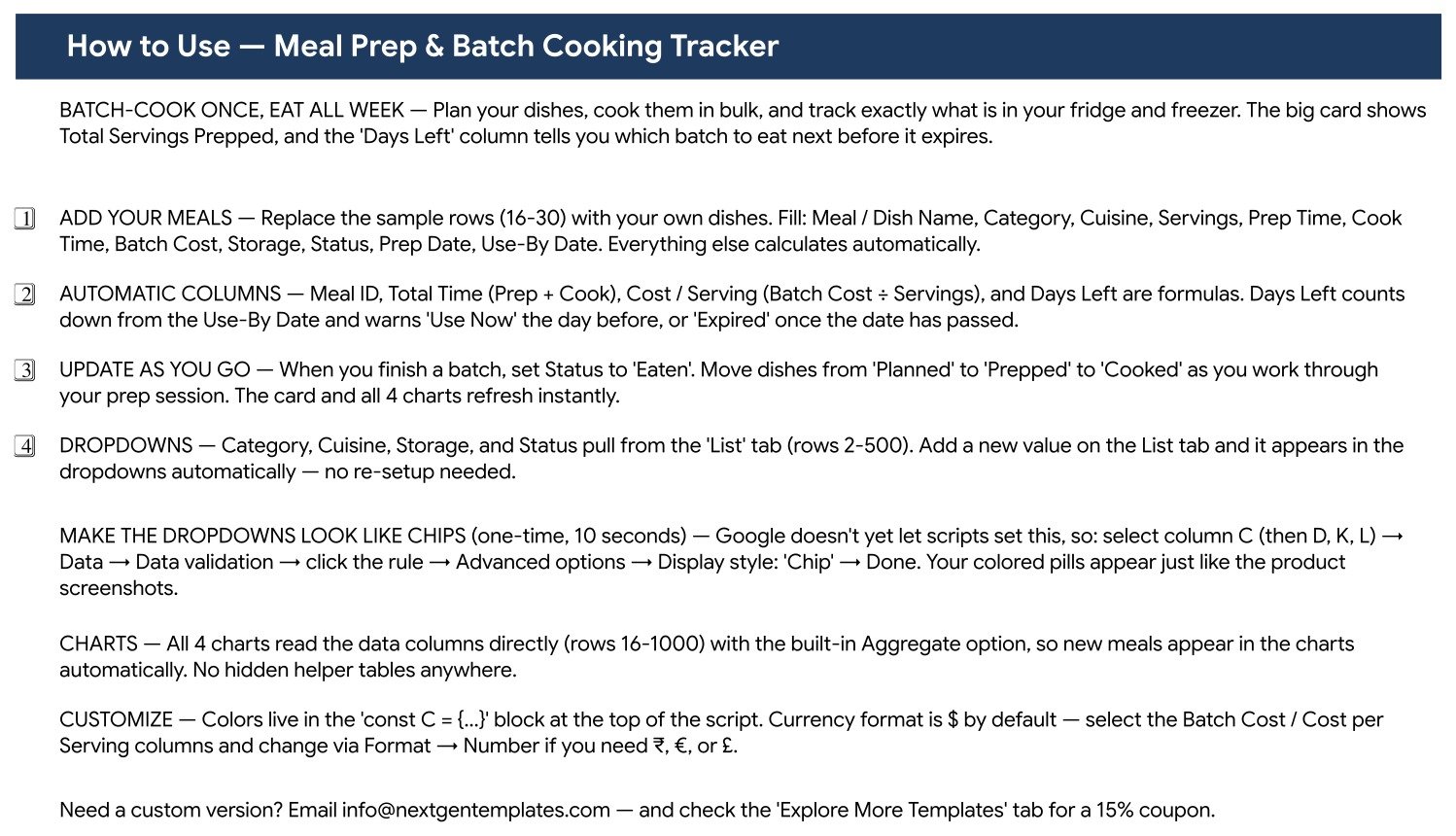
A one-screen How to Use page: four numbered setup steps, a note on which columns are formulas, the chip-styling trick, how the charts read the data, and how to change the currency format. It is written for someone who has never used a Google Sheets template before.
4. Explore More Templates
Recommended NextGenTemplates products by category, format and price, plus a WELCOME15 coupon worth 15% off the next purchase.
Meal Prep & Batch Cooking Tracker vs. an Excel Workbook vs. a Paid Meal-Planning App — Feature Comparison
| This Google Sheets tracker | A DIY Excel workbook | Paid meal-planning app | |
|---|---|---|---|
| Cost | One payment | Free, if your time is free | Recurring subscription |
| Platform | Google Sheets, browser and mobile | Excel desktop plus OneDrive | Vendor app and cloud |
| Setup time | Copy the sheet, replace 15 rows | Hours of formula and chart work | Minutes, after account creation |
| Real-time collaboration | Native Google Sheets sharing | OneDrive co-authoring only | Often a paid household tier |
| Mobile access | Google Sheets app, same file | Excel mobile, with sync caveats | Yes, it is the primary interface |
| Cost per serving | Built in as a column | You write the formula | Rarely offered |
| Use-By countdown | Days Left, with Use Now and Expired | You write the formula | Sometimes, as pantry expiry |
| Customisable fields | Add columns and list values freely | Fully | Fixed by the vendor |
| Share with a link | Yes | Attachment or OneDrive link | Invite based |
| Recipes and nutrition | Not included | Only if you build it | Yes — the core of the product |
Who Should Use This Template
It suits anyone who already batch-cooks and wants a record rather than a plan: a household that shares a freezer and needs one list everybody can see; a person trying to cut food spending who needs per-portion numbers instead of a monthly total; a student or shift worker cooking four days ahead; and small home-based food sellers — tiffin services, lunchbox rounds, bake-at-home operations — who need a lightweight production log with cost per unit.
It does not suit someone looking for a recipe manager. There is no ingredient list, no method field, no shopping-list output and no nutrition data anywhere in the file. If you want calories and macros, that is a different template.
Real-World Use Cases
The Sunday cook. Eight dishes go in on Sunday afternoon. Storage records which went to the freezer and which are fridge-only. On Wednesday, sorting by Days Left answers “what do we eat tonight” in one glance instead of three opened containers.
The budget cut. Someone trying to get dinner under two dollars a head does not need calorie data; they need Cost / Serving. Two months of entries make it obvious which dishes are cheap per portion and which merely look cheap because the batch was small.
The home food business. Twenty lunchboxes a week, one row per production run. Prep vs Cook Time shows which dishes consume a Saturday; Cost / Serving sets the price floor; Status separates what is planned from what is cooked and sold.
Advantages of the Meal Prep & Batch Cooking Tracker in Google Sheets
- Nothing is hidden. Every figure on the page comes from a visible column. There are no helper tabs, no pivot caches and no scripts running in the background, which means nothing silently breaks six months from now.
- It is genuinely mobile. Google Sheets on a phone edits the same file as the laptop, which matters because you update a meal-prep log standing at the counter, not sitting at a desk.
- Extending it is trivial. New cuisines, new storage locations and new statuses go on the List tab. New columns can be inserted without disturbing the charts, which read named data columns rather than fixed ranges.
- The sample data is honest. Fifteen rows with real arithmetic you can check by hand — a rarer property in template screenshots than it should be.
- One payment. A tracked household food system that never renews, never gates a feature and never emails you about a plan change.
Opportunities for Improvement
Being specific about what a template does not do is more useful than another paragraph of praise, so:
- Chip styling is a manual step. The coloured pills you see in the screenshots for Category, Cuisine, Storage and Status cannot be applied by a script — Google does not expose that setting to Apps Script. You set it once by hand: select column C, then Data → Data validation → the rule → Advanced options → Display style: Chip, and repeat for D, K and L. Ten seconds, but it is not automatic, and a buyer who skips it will wonder why their sheet looks plainer than the pictures.
- There are no notifications. Days Left is a formula you have to look at. The sheet sends no email, no push alert and no reminder of any kind. Anyone who wants a Wednesday nudge has to add a Google Sheets notification rule or an Apps Script trigger themselves.
- There are no built-in filter views or slicers. The four charts always show the whole log. To look at only the freezer batches, use Google Sheets’ own Data → Create a filter on the log; the charts will not follow it.
- Use-By Dates are unvalidated. The sheet accepts whatever date you type and does no food-safety checking. Days Left is arithmetic on your own entry, not guidance on whether something is safe to eat.
- No ingredient or nutrition layer. One row per dish is the design, and it means the template cannot roll up ingredient costs from a pantry list or total your macros for the week.
Best Practices
- Enter the row before you cook, not after. Set Status to Planned on Saturday, move it to Prepped and then Cooked as you work. The Meals by Status donut then doubles as a live prep-session checklist.
- Be honest about Batch Cost. Include the oil, the spices and the packaging, not just the headline protein. Cost / Serving is only as useful as the number you feed it.
- Set Use-By conservatively for freezer items and use the Notes column to record how the dish actually held up. After a month you will know which of your recipes really freeze well.
- Sort by Days Left every few days rather than by date cooked. It is the column that tells you what to eat next.
- Keep one sheet per household, not one per person. The entire benefit of doing this in Google Sheets rather than a notebook is that everyone opening the fridge sees the same list. Google’s own guide to sharing files from Google Drive covers the permission settings.
- Archive rather than delete. When a dish is Eaten, leave the row. A year of entries is what turns this from a fridge inventory into a record of what your food actually costs.
Explore Relevant Templates
- Meal Planner & Grocery List in Google Sheets — the planning and shopping side of the same week.
- Calorie & Macro Tracker in Google Sheets — the nutrition layer this tracker deliberately omits.
- Product Expiration Date Calendar in Google Sheets — use-by dates on a month grid instead of a countdown column.
- Meal Prep Business KPI Dashboard in Google Sheets — a different product entirely: commercial analytics for a meal-prep company, not a kitchen log.
- Browse all Google Sheets trackers.
Related Templates
More related walkthroughs on this blog: Meal Planner Grocery List in Google Sheets, Intermittent Fasting Tracker in Google Sheets and Meditation Mindfulness Tracker in Google Sheets. Each is a separate template with its own layout and sample data.
New to building trackers like this? The NextGenTemplates Academy learning paths teach the underlying spreadsheet skills one step at a time, with practice files.
Get the Meal Prep & Batch Cooking Tracker in Google Sheets
Frequently Asked Questions
Do I need a paid Google account?
No. A free personal Google account is enough. The download is a PDF carrying the Google Sheets link; clicking it puts an editable copy in your own Drive.
Does the tracker hold recipes or ingredients?
No. It is one row per finished batch. There is no ingredient field, no method field and no shopping-list output.
Does it count calories or macros?
No. It records servings, prep and cook time, batch cost, cost per serving, storage, status and dates. There is no nutrition data anywhere in the file.Meal Prep & Batch Cooking Tracker in Google Sheets
Will it warn me before something expires?
On the page, yes: Days Left shows Use Now the day before the Use-By Date and Expired afterwards. Off the page, no — there are no emails, alerts or notifications.Meal Prep & Batch Cooking Tracker in Google Sheets
Why are my dropdowns plain instead of coloured pills?
Chip display style has to be switched on by hand once, because Apps Script cannot set it. Data → Data validation → the rule → Advanced options → Display style: Chip, for columns C, D, K and L.Meal Prep & Batch Cooking Tracker in Google Sheets
How many rows can I use?
Formulas, validation and charts run to row 1000, roughly 985 dishes beyond the sample data.Meal Prep & Batch Cooking Tracker in Google Sheets
Can I use a currency other than dollars?
Yes. Select the Batch Cost and Cost / Serving columns and change the format via Format → Number.
About the Author
Built by PK – Microsoft Certified Professional with 15+ years of Excel, Google Sheets, and Power BI experience. Founder of NextGenTemplates, reaching 300K+ subscribers across YouTube channels. Every template is hand-built and tested before release.Meal Prep & Batch Cooking Tracker in Google Sheets
Conclusion
Batch cooking does not need software. It needs a written record of what you cooked, how much of it there is, where it is, what it cost and when it stops being good — and it needs that record somewhere every member of the household can open. Sixteen columns, four of which fill themselves, one card and four charts do that job without a subscription, without macros and without anything to maintain.Meal Prep & Batch Cooking Tracker in Google Sheets
Instant download · One-time payment · No subscription
Last updated: September 2026