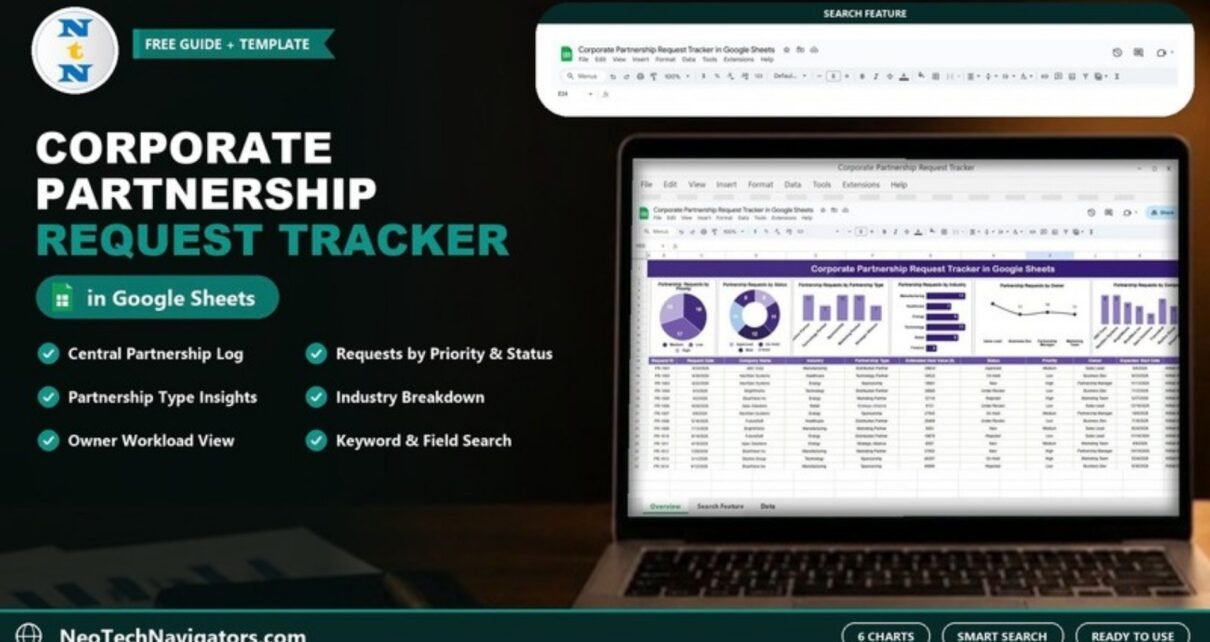
The Corporate Partnership Request Tracker in Google Sheets gives business development and strategy teams one shared log for every partnership enquiry, whether it arrives from a sales rep, a website form or a CEO’s inbox. Each request gets a Request ID, company, industry, partnership type, estimated deal value, status, priority and owner, and six charts update automatically so you can see where opportunities are piling up.
This guide explains how the corporate partnership request tracker is laid out, what each chart tells you, how to search records by keyword and column, and how to set it up with your own pipeline. It suits partnership managers, BD leads, alliance teams and founders who handle partnership requests without a dedicated CRM module.
🎥 Watch the Video Tutorial
Get the Corporate Partnership Request Tracker
The Problem It Solves
Partnership requests rarely arrive through one channel. A technology vendor emails the CTO, a distributor messages a sales manager on LinkedIn, a sponsorship proposal lands in a shared inbox. Without one log, three things happen: requests wait weeks for a reply, nobody knows who owns a conversation, and leadership cannot see which kinds of partnerships the market is actually offering.
A request tracker fixes the basics. Every enquiry becomes a row, every row has an owner, a status and an estimated value, and the charts show the pipeline by priority, status, type, industry, owner and company. Because it lives in Google Sheets, the whole team can update it at the same time and share it with leadership through a normal link.
How the Corporate Partnership Request Tracker Is Organised
The template has two working areas: the Tracker sheet, with six auto-updating charts across the top and the request log underneath, and a separate search sheet titled Search by Search Keyword and Field Name.
Tracker Sheet – the Central Partnership Log
The request log below the charts is the single source of truth. It has eleven columns, shown here with values taken from the sample data.
| Column | What to enter | Sample value |
|---|---|---|
| Request ID | A unique reference for the request | PR-1001 |
| Request Date | When the request was received | 4/24/2026 |
| Company Name | The organisation proposing or receiving the partnership | ABC Corp |
| Industry | The partner’s industry | Manufacturing, Healthcare, Energy, Technology, Retail, Finance |
| Partnership Type | The nature of the partnership | Distribution Partner, Technology Partner, Sponsorship, Marketing Partner, Strategic Alliance |
| Estimated Deal Value ($) | Your best estimate of what the partnership is worth | 28824 |
| Status | Where the request stands | New, Under Review, On Hold, Approved, Rejected |
| Priority | How important the opportunity is | High, Medium, Low |
| Owner | The team responsible for the next step | Sales Lead, Business Dev, Partnership Manager, Marketing Team |
| Expected Start Date | When the partnership would begin if approved | 6/6/2026 |
| Remarks | Short notes, next action or decision reason | Initial discussion completed |
As soon as a row is added or changed, every chart refreshes.
The Six Charts
The sample log holds 50 requests, and the counts below are what the charts show for that data.
- Partnership Requests by Priority – Medium 18, Low 17 and High 15, so high-impact opportunities can be handled first.
- Partnership Requests by Status – the split across New, Under Review, On Hold, Approved and Rejected, which shows where requests are stalling.
- Partnership Requests by Partnership Type – Distribution Partner, Sponsorship and Marketing Partner (12 each) against Technology Partner and Strategic Alliance (7 each).
- Partnership Requests by Industry – Manufacturing and Technology lead with 11 each, followed by Energy and Retail (9), Healthcare (7) and Finance (3).
- Partnership Requests by Owner – workload for Sales Lead, Business Dev, Partnership Manager and Marketing Team, useful for balancing assignments and spotting follow-up gaps.
- Partnership Requests by Company Name – repeat requesters such as ABC Corp and NextGen Systems (8 each) stand out at a glance.

Search by Keyword and Field Name
On the search sheet you pick a column in the Select Column drop-down (for example Company Name), type a Search Keyword, and the matching rows appear with all eleven columns. A Total Record box shows how many rows matched; in the screenshot, the keyword “abc” on Company Name returns 8 ABC Corp requests. It is handy in weekly reviews (“show me everything owned by Business Dev”) or before a call with a partner (“what else has this company asked for?”).

If you are curious how this kind of search works in Google Sheets, it is usually a FILTER combined with SEARCH. In the Tracker log the columns run from B (Request ID) to L (Remarks), with Owner in column J, so an owner search would look like this (the sheet name and row numbers are illustrative):
=FILTER(Tracker!B15:L, ISNUMBER(SEARCH("Business Dev", Tracker!J15:J)))The template’s search is already built, so you do not need to write this yourself.
How to Use It With Your Own Data
- Make your own copy of the template in Google Drive after purchase with File > Make a copy.
- Agree your values for Partnership Type, Priority, Status and Owner before anyone starts logging, so the charts group cleanly.
- Clear the sample rows and log your open requests first, then backfill recent closed ones if you want history.
- Assign one owner per request. Shared ownership usually means no ownership.
- Enter an Estimated Deal Value, even a rough one, so you can rank opportunities by size as well as priority.
- Update Status after every decision and add a one-line reason in Remarks for approvals, rejections and anything put On Hold.
- Review the charts weekly in your BD meeting and share a view-only link with leadership.
Useful Review Metrics You Can Add
The charts give counts. If leadership wants a couple of headline numbers, these are easy to add beside the log. They use the Tracker column letters (G = Estimated Deal Value, H = Status, I = Priority); the starting row is illustrative.
| Metric | What it tells you | Example formula | Better when |
|---|---|---|---|
| Open requests | Requests still waiting for a decision | =COUNTIF(H15:H,"New")+COUNTIF(H15:H,"Under Review")+COUNTIF(H15:H,"On Hold") |
Lower |
| Approval rate | Share of decided requests that were approved | =COUNTIF(H15:H,"Approved")/(COUNTIF(H15:H,"Approved")+COUNTIF(H15:H,"Rejected")) |
Depends on strategy |
| High-priority backlog | Important requests not yet decided | =COUNTIFS(I15:I,"High",H15:H,"Under Review") |
Lower |
| Approved deal value | Total estimated value of approved partnerships | =SUMIF(H15:H,"Approved",G15:G) |
Higher |
Real-World Use Cases
- B2B software company: logs technology-partner and distribution requests, and uses the Partnership Type chart to show product leadership where most inbound interest sits.
- Consumer brand: tracks marketing-partner and sponsorship proposals, with the Owner chart keeping each team accountable for follow-ups.
- University or non-profit: records corporate sponsorship and strategic alliance requests so the partnerships office can report requests by industry each term.
A Simple 15-Minute Weekly Review
- Open the Status chart and note how many requests are still New, Under Review or On Hold.
- Use the search sheet to list each owner’s open requests and confirm the next step for each.
- Check the Priority chart: every High request should have a decision date agreed.
- Glance at Industry and Partnership Type to spot new patterns worth raising with leadership.
- Close the meeting by updating Status and Remarks live in the sheet, so the log is current before everyone leaves.
Best Practices
- Log every request on the day it arrives, even if the answer is likely to be no.
- Define what High, Medium and Low priority mean in one sentence each and share it with the team.
- Review Under Review and On Hold items weekly; anything older than a month needs a decision or a reason.
- Keep company names consistent (“ABC Corp”, not sometimes “ABC Corporation”) so the Company chart is accurate.
- Archive closed requests to a separate tab once a year to keep the log fast.
Limitations and Who Should Not Use It
This is a lightweight request log, not a partner relationship management (PRM) system. It records an estimated deal value, but it does not track contract terms, partner portals, revenue sharing or automated reminders out of the box. If you manage hundreds of active partners with co-selling workflows, a CRM or PRM tool is a better fit. For teams that receive a steady stream of requests and mainly need ownership, status and visibility, the spreadsheet is quicker to adopt.
Related Templates and Guides
Once a partnership is approved, the Partnership Events Calendar in Google Sheets helps plan joint activities. For other request and onboarding workflows, see the Vendor Registration Tracker, the Team Collaboration Request Tracker, the Marketing Collateral Request Tracker and the Vendor Performance Dashboard.
Related template on NextGenTemplates: Partnership Events Calendar in Google Sheets.
If you want to build your own search boxes and summary counts like the ones above, the Excel AI Mastery (100 Formulas) course on NextGenTemplates Academy covers FILTER, COUNTIFS and lookup formulas with practical lessons that translate directly to Google Sheets.
Frequently Asked Questions
What is a corporate partnership request tracker?
It is a structured log that records every incoming or internal partnership request with its company, industry, partnership type, estimated value, status, priority and owner, so teams can respond on time and leadership can see the partnership pipeline.
Who should use this tracker?
Business development teams, partnership and alliance managers, strategy teams, founders and anyone who receives partnership proposals and needs clear ownership and status.
Can I add my own partnership types and statuses?
Yes. The values can be changed. Keep them spelled consistently so the charts count them correctly.
Does it track deal value?
Yes. Every request has an Estimated Deal Value ($) column. The charts count requests rather than sum value, so add a SUMIF such as the Approved deal value formula above if you want a value total.
Is Google Sheets secure enough for partnership data?
For most teams, yes, provided you share it only with named people and give view-only access to anyone who does not need to edit. Avoid storing confidential contract terms in the sheet itself.
Do I need technical skills to use it?
No. You enter rows in the Tracker sheet; the charts and search are already built.
Wrapping Up
The Corporate Partnership Request Tracker in Google Sheets replaces scattered emails with one shared log, clear ownership and charts that show where the pipeline stands. Agree your values, log every request on arrival, and use the weekly review to make sure no promising partnership waits for a reply.
Get the Corporate Partnership Request Tracker
📅 Last updated: October 2026