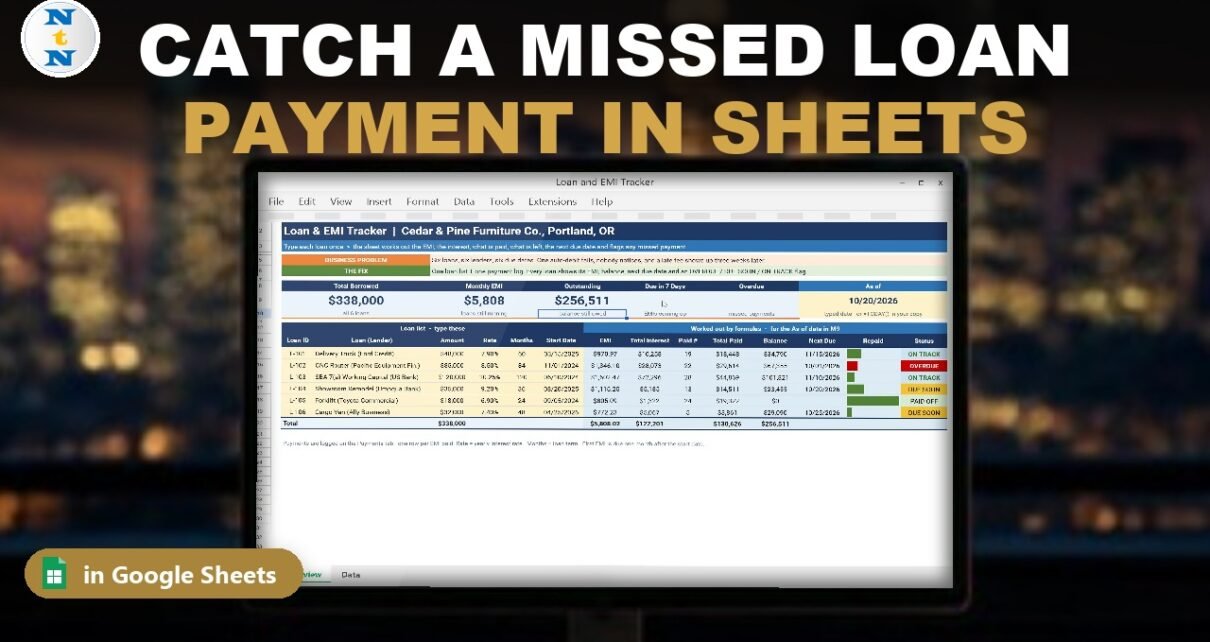
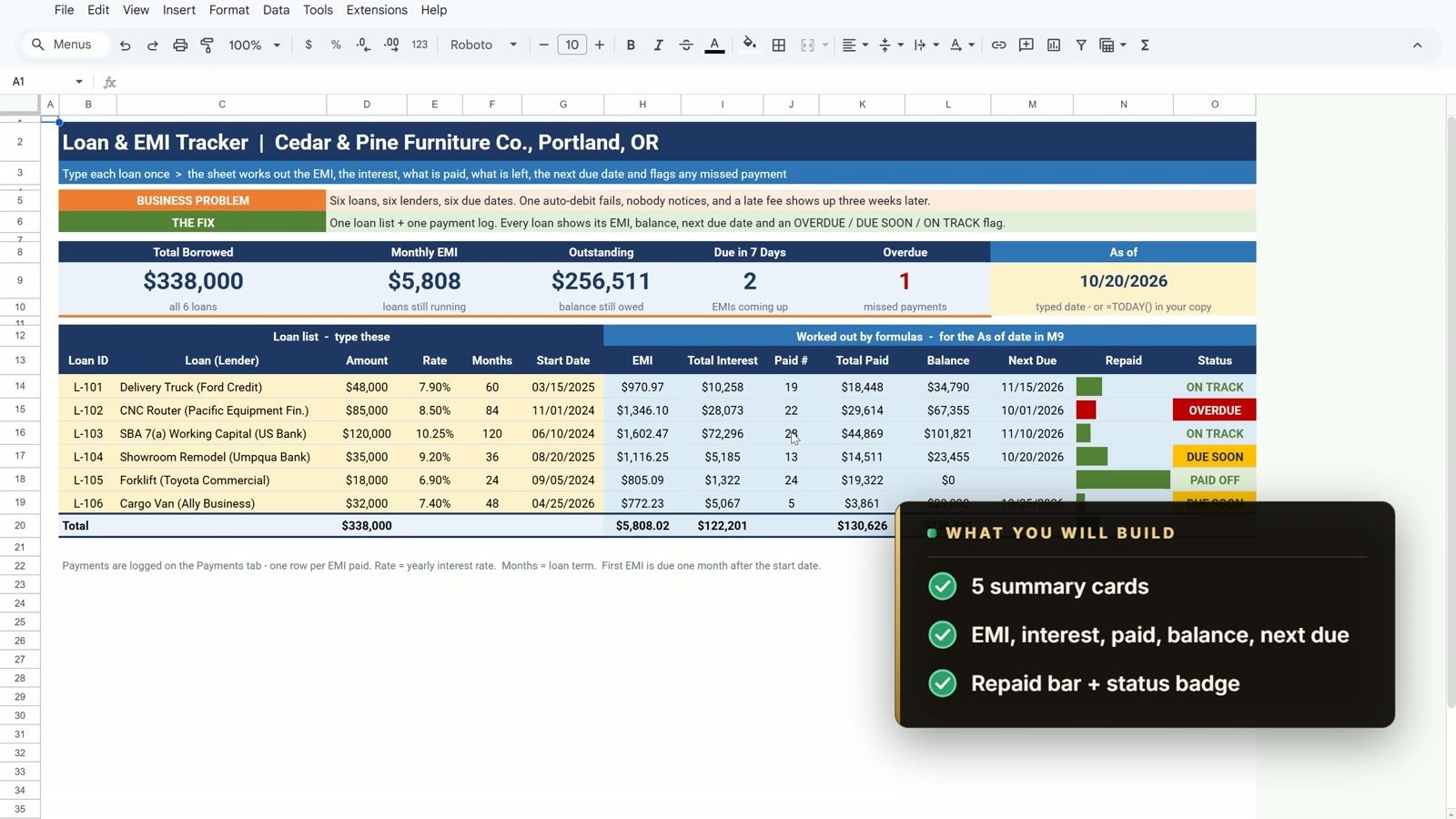
Six business loans, six lenders and six due dates. One auto-debit fails, nobody notices, and three weeks later a late fee shows up. In this tutorial you build a free loan tracker Google Sheets template (an EMI tracker for a small business) that catches the missed payment the same day. You use PMT for the EMI, ARRAYFORMULA for total interest, COUNTIF and SUMIFS for payments made, FV for the balance, EDATE for the next due date, a nested IF status, SPARKLINE repaid bars and live summary cards. The example company has $338,000 borrowed, $256,511 outstanding and 1 overdue loan. No add-ons, no scripts.

⬇️ Download the Free Practice File
Google Sheets · opens a Make a copy page · Practice + Solution + Payments sheets · no add-ons
Watch the Video Tutorial
Video Overview
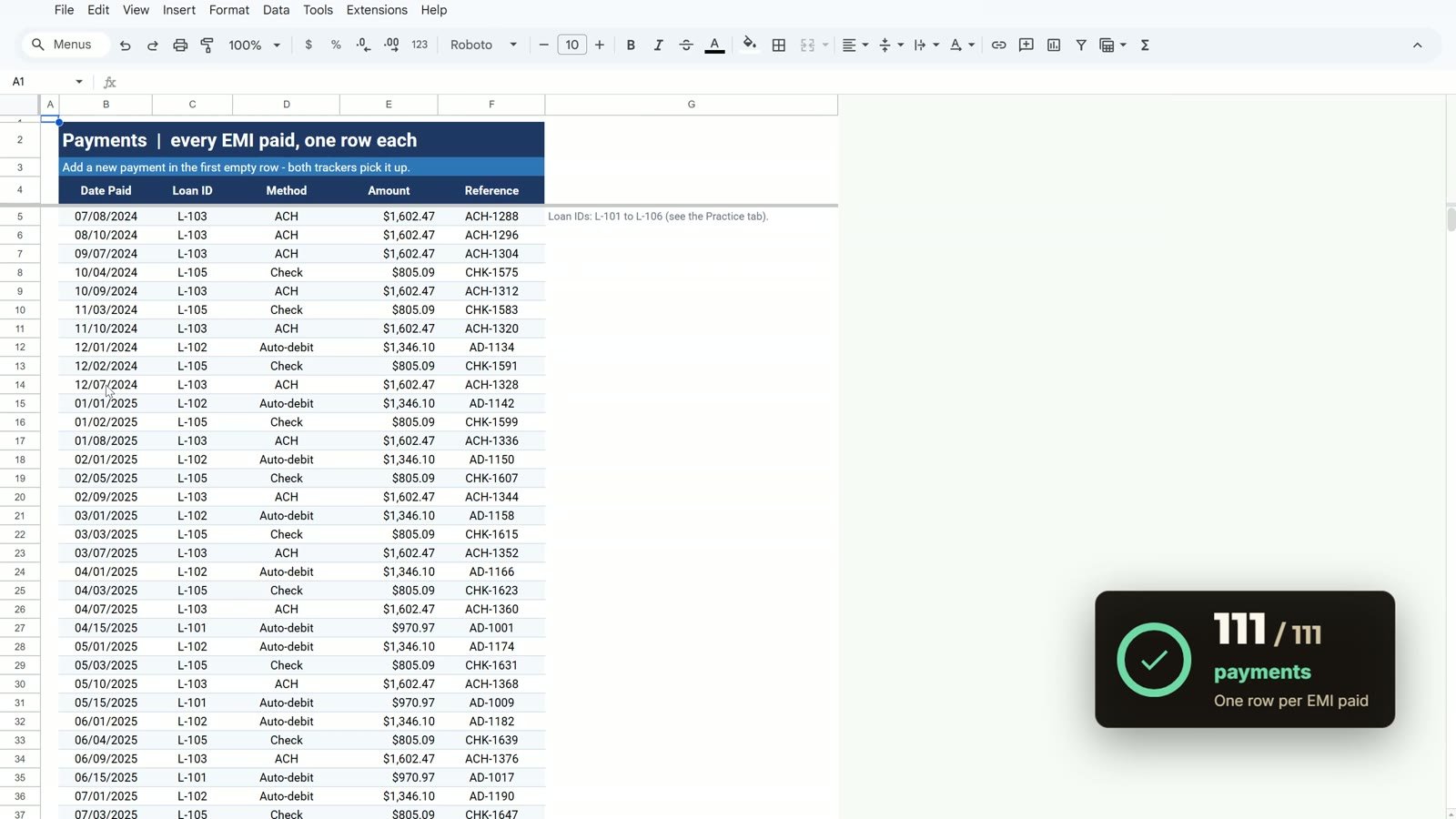
The 10-minute video builds the tracker on the free practice file for Cedar & Pine Furniture Co. in Portland, Oregon: six loans (a delivery truck, a CNC router, an SBA working capital loan, a showroom remodel, a forklift and a cargo van) and 111 logged payments. Step one works out the EMI with PMT and shows why the amount needs a minus sign. Step two adds total interest for all six loans with one ARRAYFORMULA. Step three counts and adds the payments from the Payments sheet. Step four finds the balance with FV, step five the next due date with EDATE and the status with nested IFs, step six the repaid bars and badges and step seven the totals and cards. In the bonus, the missed router payment is logged and the whole tracker updates.
Loan Tracker Google Sheets: What You Will Build
- A loan list with amount, yearly rate, months and start date for six loans.
- A payment log with one row for every EMI paid.
- Per-loan results: EMI, total interest, payments made, total paid, balance and next due date.
- Status badges and repaid bars: Overdue in red, Due Soon in amber, On Track in green, Paid Off in light green.
- Five summary cards: Total Borrowed, Monthly EMI, Outstanding, Due in 7 Days and Overdue.
The Practice File
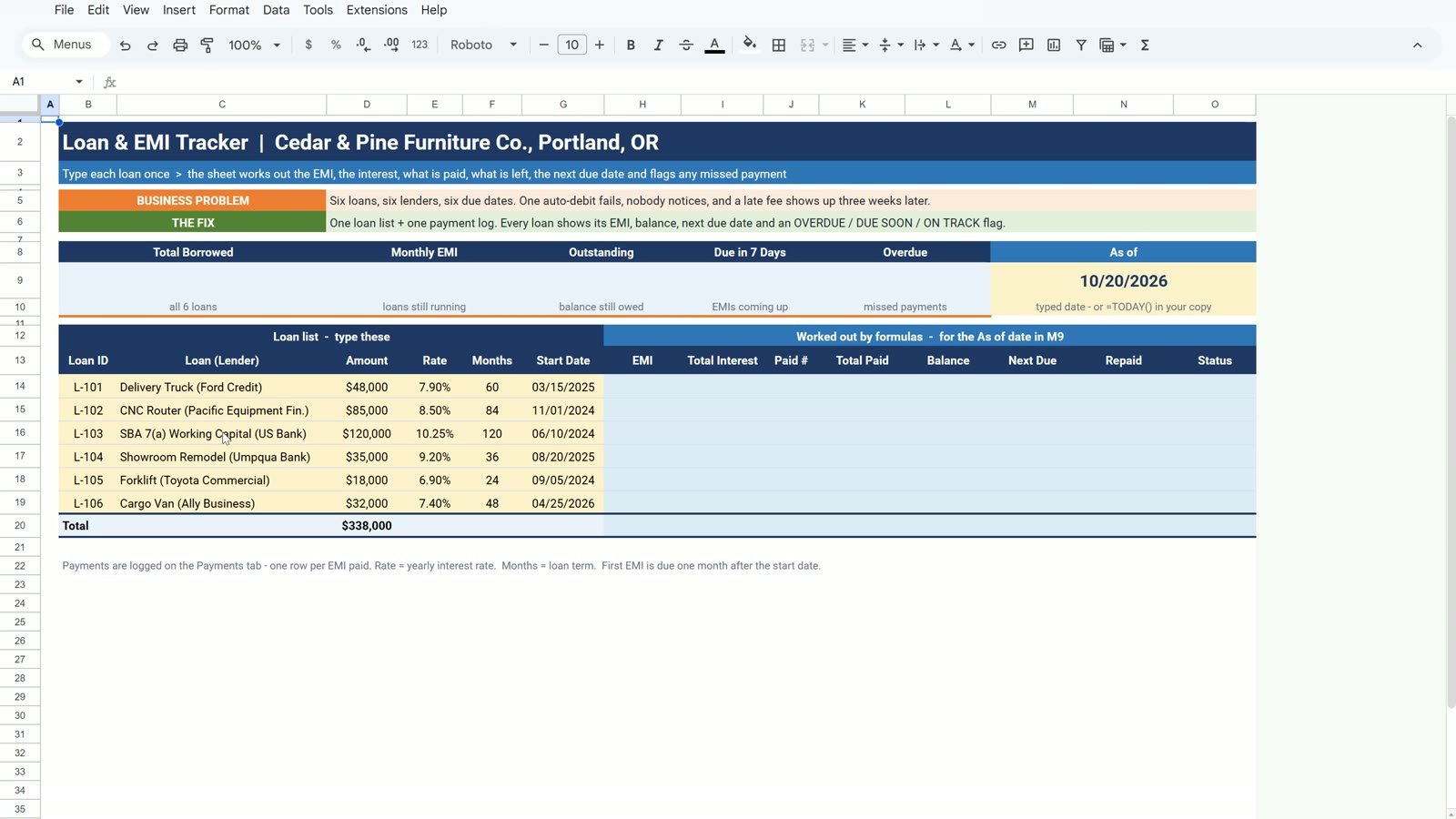
The free file opens a Make a copy page, so you get your own editable Google Sheet. It has a Practice sheet with the loan list filled in and the light blue formula columns empty, a Solution sheet with the finished tracker and a Payments sheet with 111 payments (date, loan ID, method and amount). The As of date in M9 is typed as October 20, 2026, so every status follows that one date.
Step 1: EMI with PMT
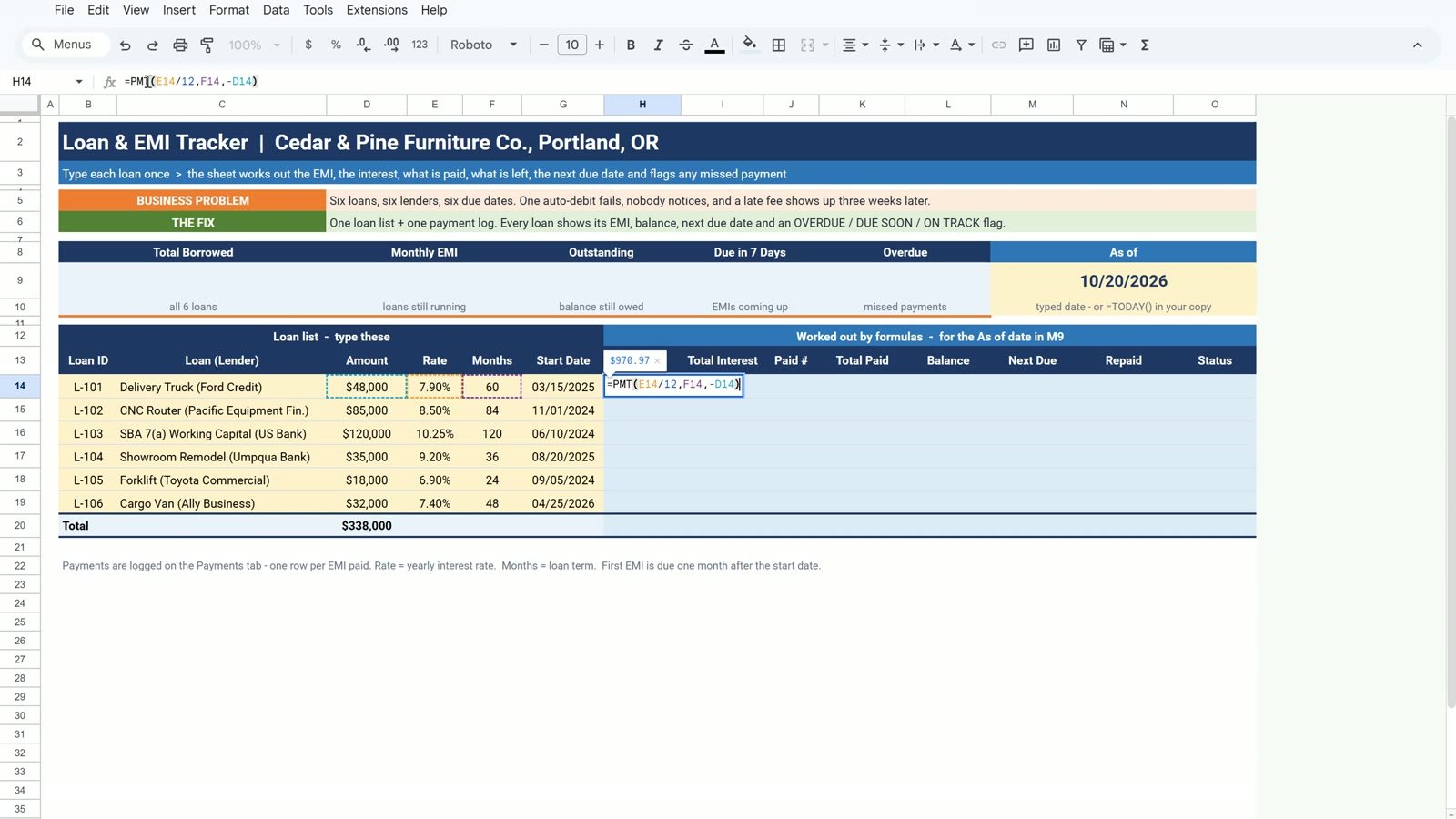
In H14 work out the monthly EMI. The rate is yearly, so divide it by 12, then the number of payments and the loan amount with a minus sign in front:
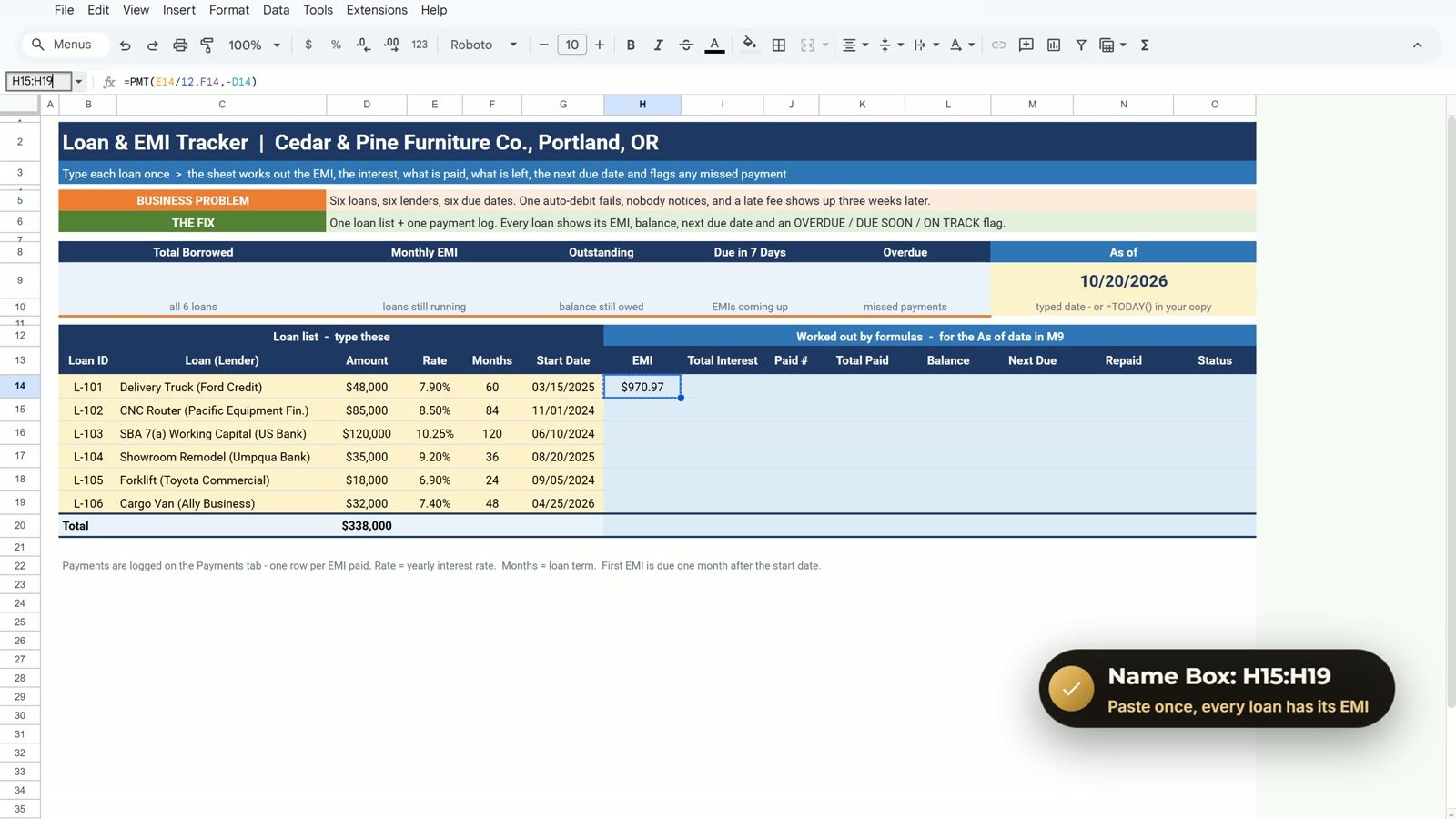
=PMT(E14/12,F14,-D14)PMT treats the loan as money coming in, so without the minus sign the answer is negative. The delivery truck gives $970.97 a month. Copy H14, type H15:H19 in the Name Box and paste.
Step 2: Total Interest with ARRAYFORMULA
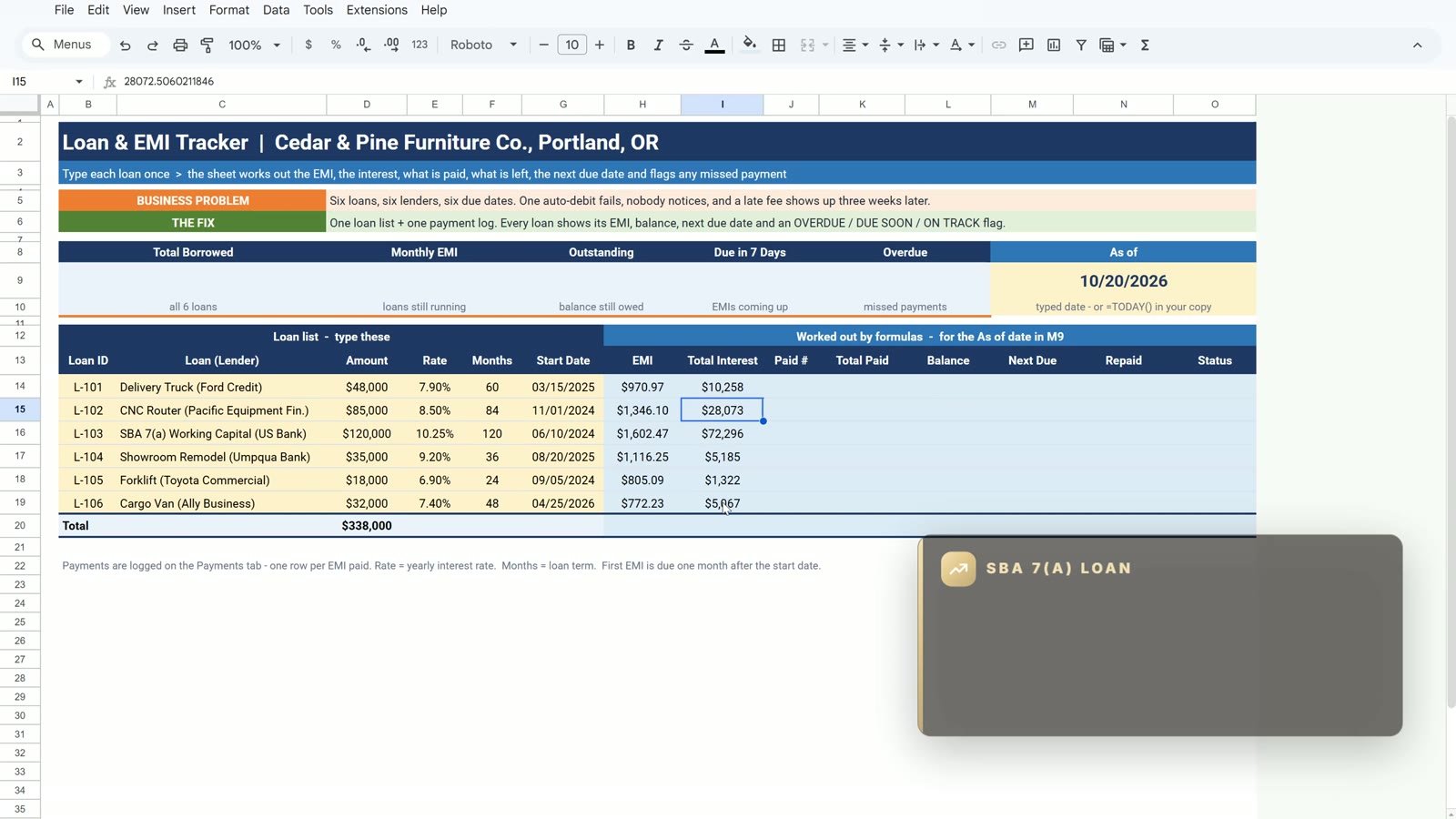
A Google Sheets superpower: one formula fills a whole column. In I14:
=ARRAYFORMULA(H14:H19*F14:F19-D14:D19)EMI times months, minus the amount borrowed, for all six rows at once. The SBA loan costs $72,296 in interest on $120,000 borrowed.
Step 3: Payments Made with COUNTIF and SUMIFS
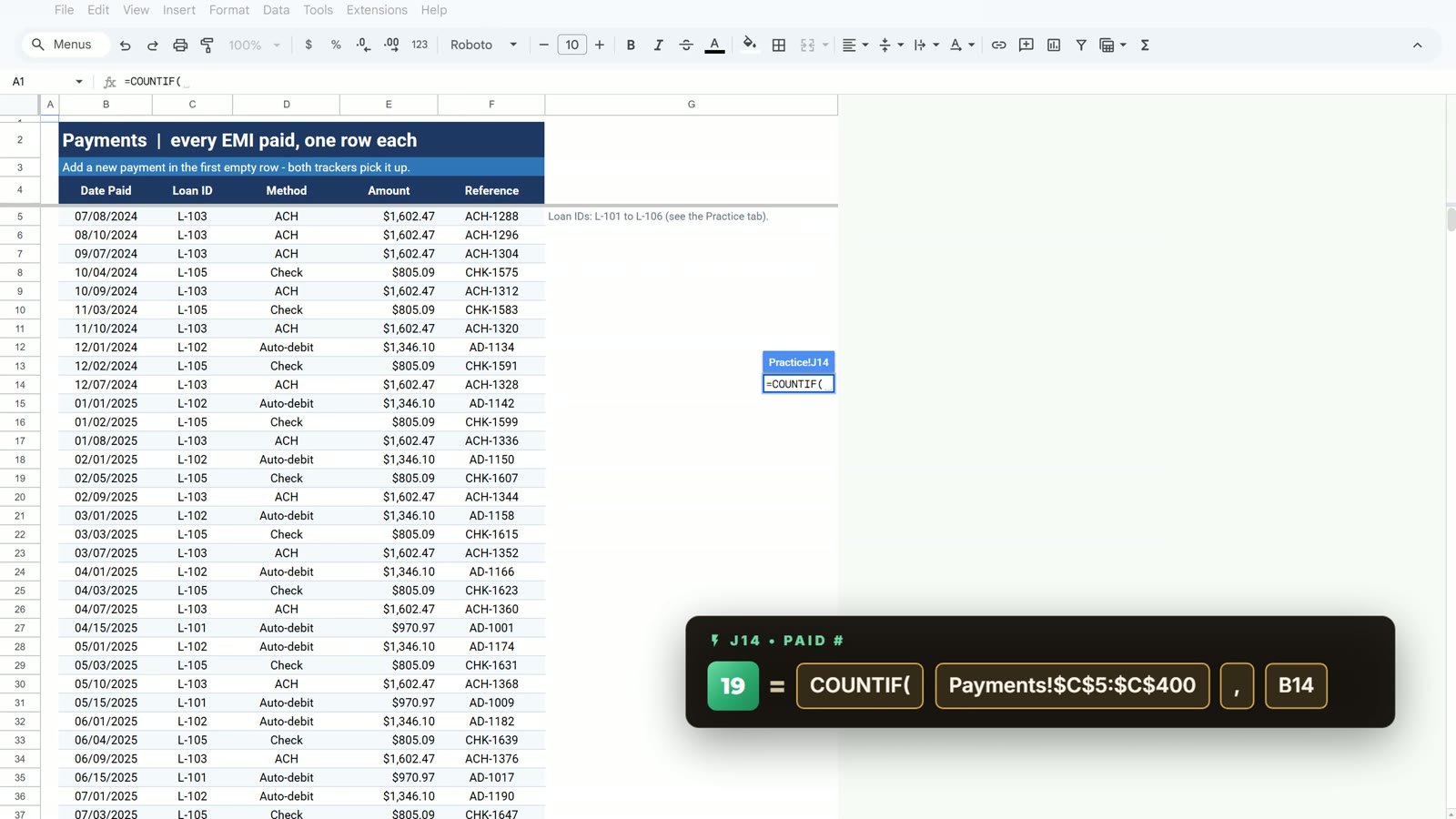
How many EMIs are paid on each loan? In J14 click the Payments tab to pick the Loan ID column and press F4 to lock it:
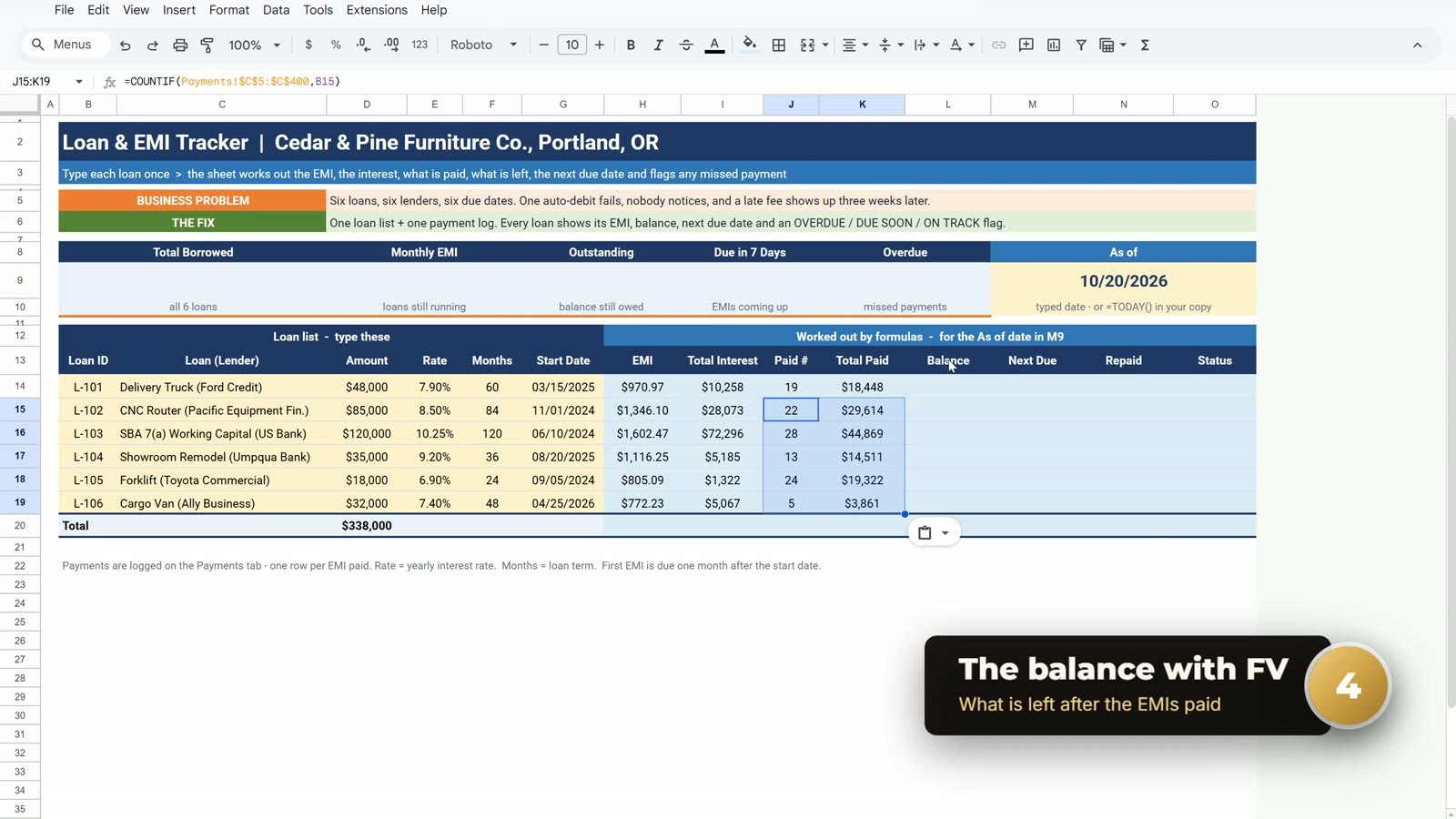
=COUNTIF(Payments!$C$5:$C$400,B14)The truck shows 19 payments. Next to it, in K14, the total paid:
=SUMIFS(Payments!$E$5:$E$400,Payments!$C$5:$C$400,B14)That is $18,448 so far. Select J14:K14, copy and paste into J15:K19.

Step 4: Balance with FV
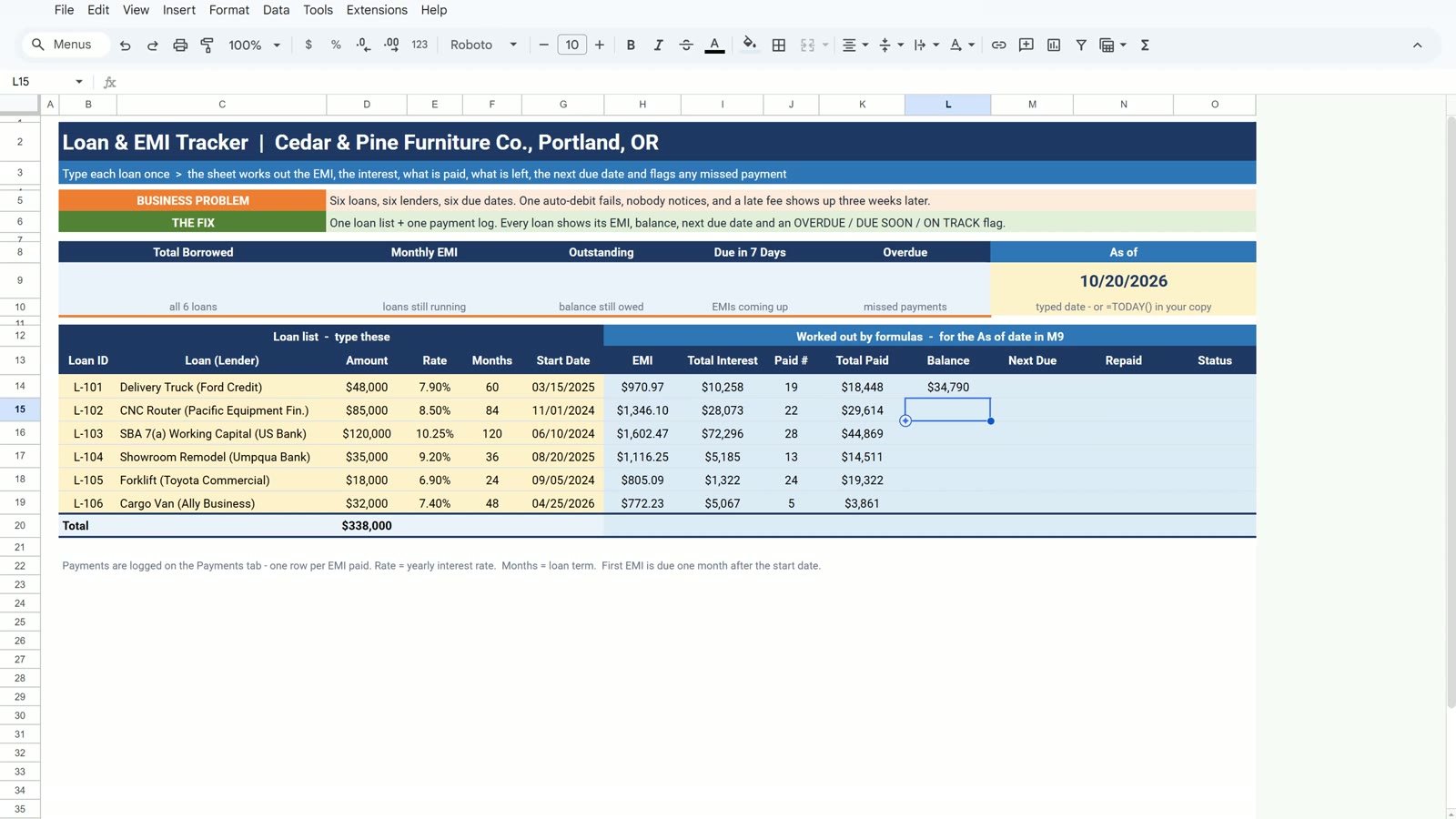
How much do we still owe? In L14 use FV: the monthly rate, the payments already made, the EMI and the loan amount as a negative number:
=FV(E14/12,J14,H14,-D14)The truck still has $34,790 to pay. A fully paid loan can show minus zero, so wrap it:
=MAX(0,FV(E14/12,J14,H14,-D14))Copy it down to L19. The paid-off forklift shows a clean $0.
Step 5: Next Due Date with EDATE and the Status
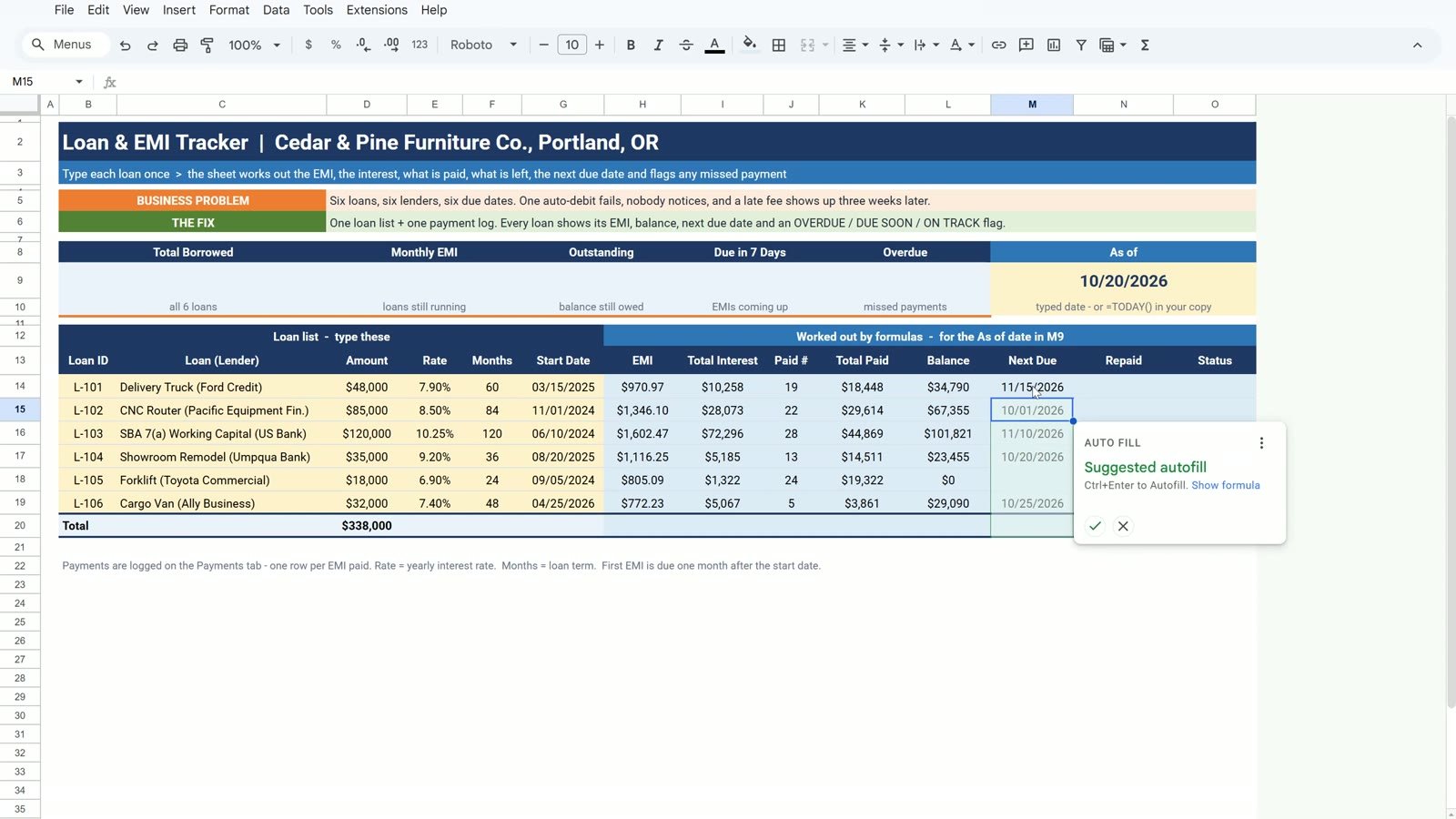
In M14, leave the cell empty when the loan is finished, otherwise add one month to the start date for each EMI paid plus one:
=IF(J14>=F14,"",EDATE(G14,J14+1))EDATE gives the same day of the month, any number of months later. The truck started on March 15 and 19 EMIs are paid, so the next one is due on 11/15/2026. Then the status in O14:
=IF(J14>=F14,"PAID OFF",IF(M14<$M$9,"OVERDUE",IF(M14-$M$9<=7,"DUE SOON","ON TRACK")))The gotcha: click M9 inside the formula and press F4 so it becomes $M$9. Without it the copied rows compare against empty cells and the flags are wrong. Copy M14 and O14 down to row 19, and the CNC router turns OVERDUE: its October 1 payment never came in.
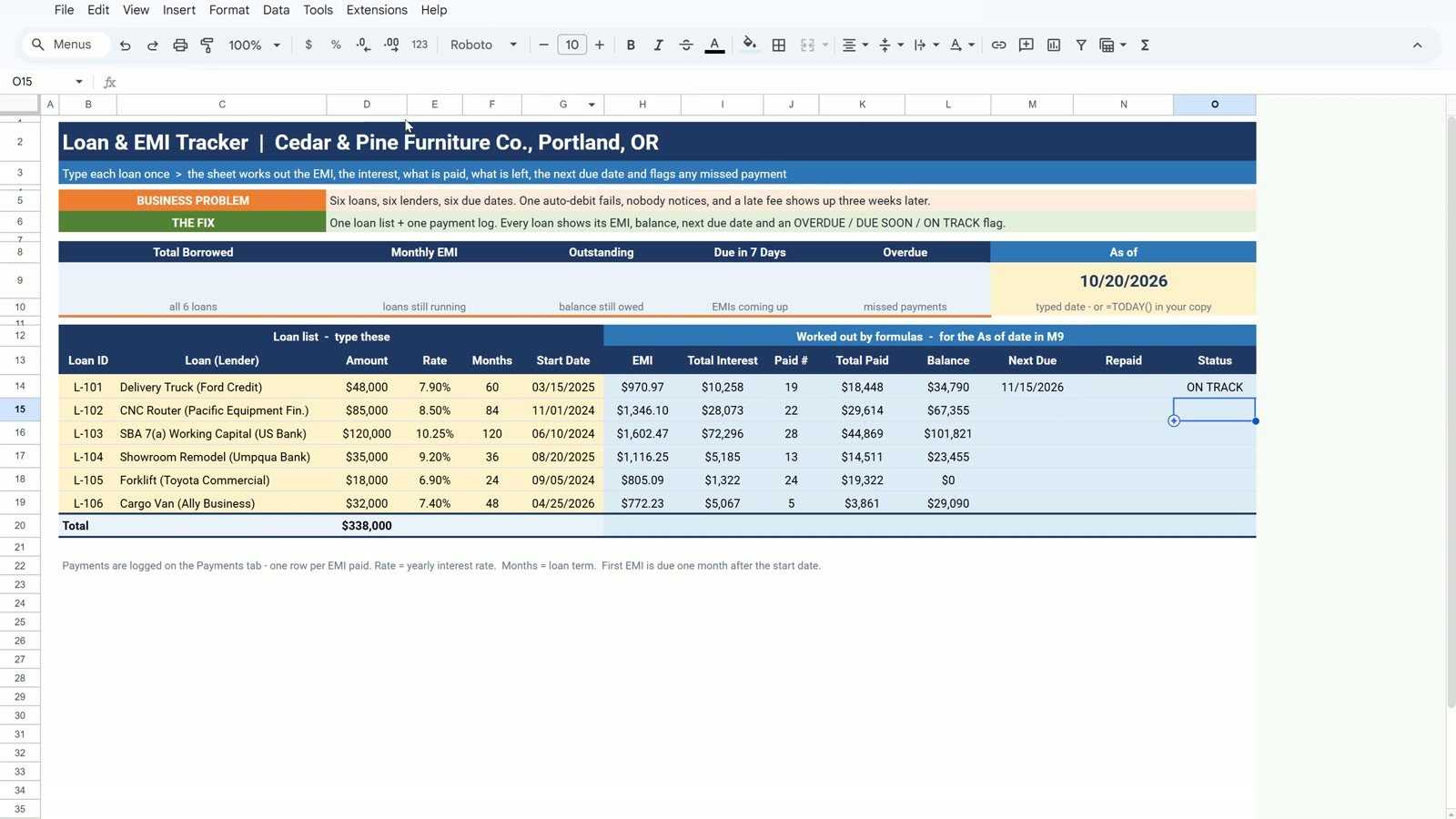
Step 6: Repaid Bars with SPARKLINE and Badges
In N14 start with the plain bar:
=SPARKLINE(1-L14/D14,{"charttype","bar";"max",1})The max of 1 keeps every bar on the same 0 to 100 percent scale. Then add the color inside the curly brackets, red when the loan is overdue and green otherwise, and copy it down to N19:
=SPARKLINE(1-L14/D14,{"charttype","bar";"max",1;"color1",IF(O14="OVERDUE","#C00000","#548235")})
For the badges select O14:O19 and open Format › Conditional formatting. Add four Text is exactly rules: OVERDUE with a red fill and white bold text, DUE SOON with an amber fill, ON TRACK with green bold text and PAID OFF with a light green fill.
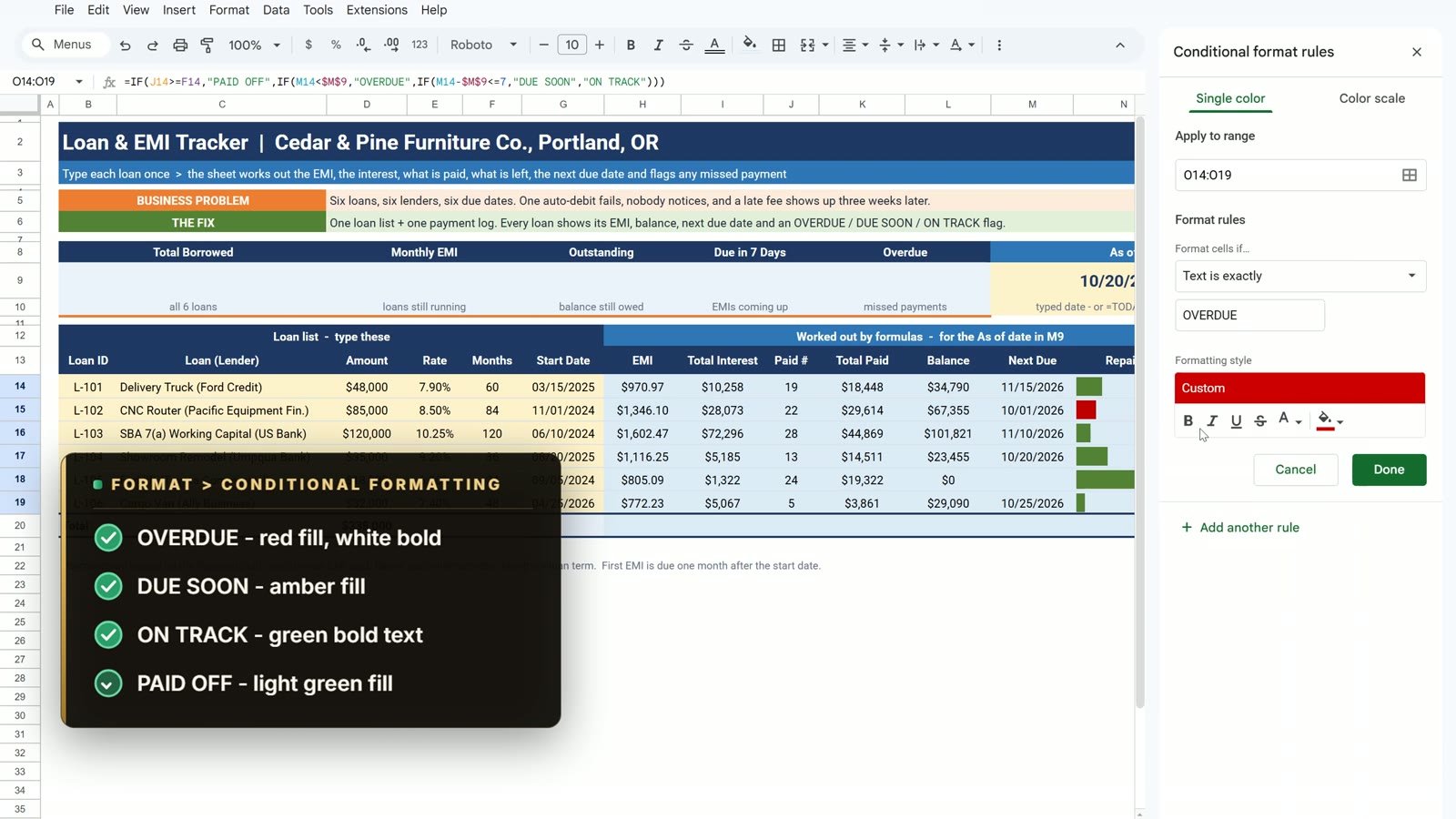
Step 7: Totals and Summary Cards
H20  =SUMIFS(H14:H19,O14:O19,"<>PAID OFF")
I20  =SUM(I14:I19)
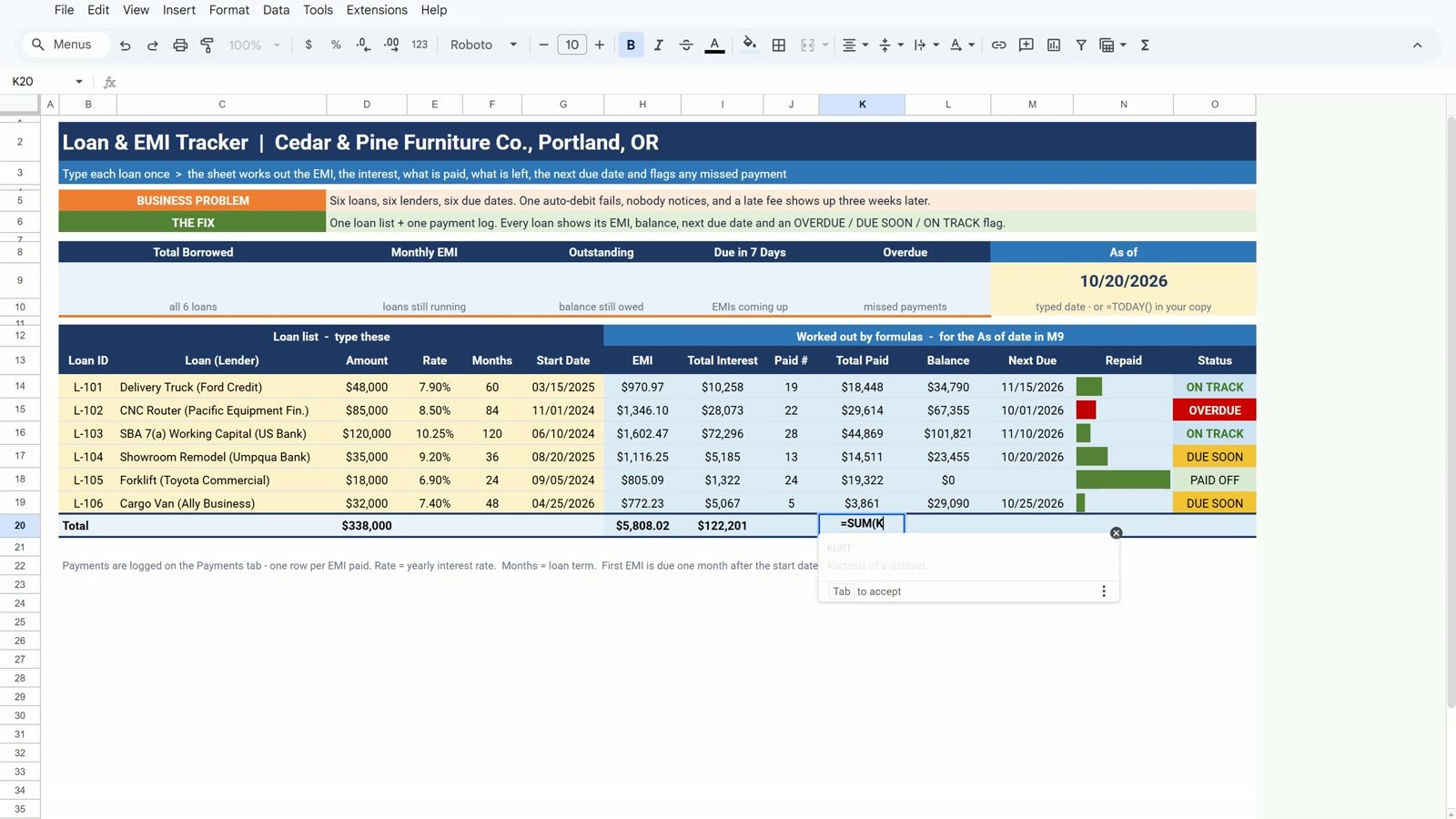
K20  =SUM(K14:K19)
L20  =SUM(L14:L19)
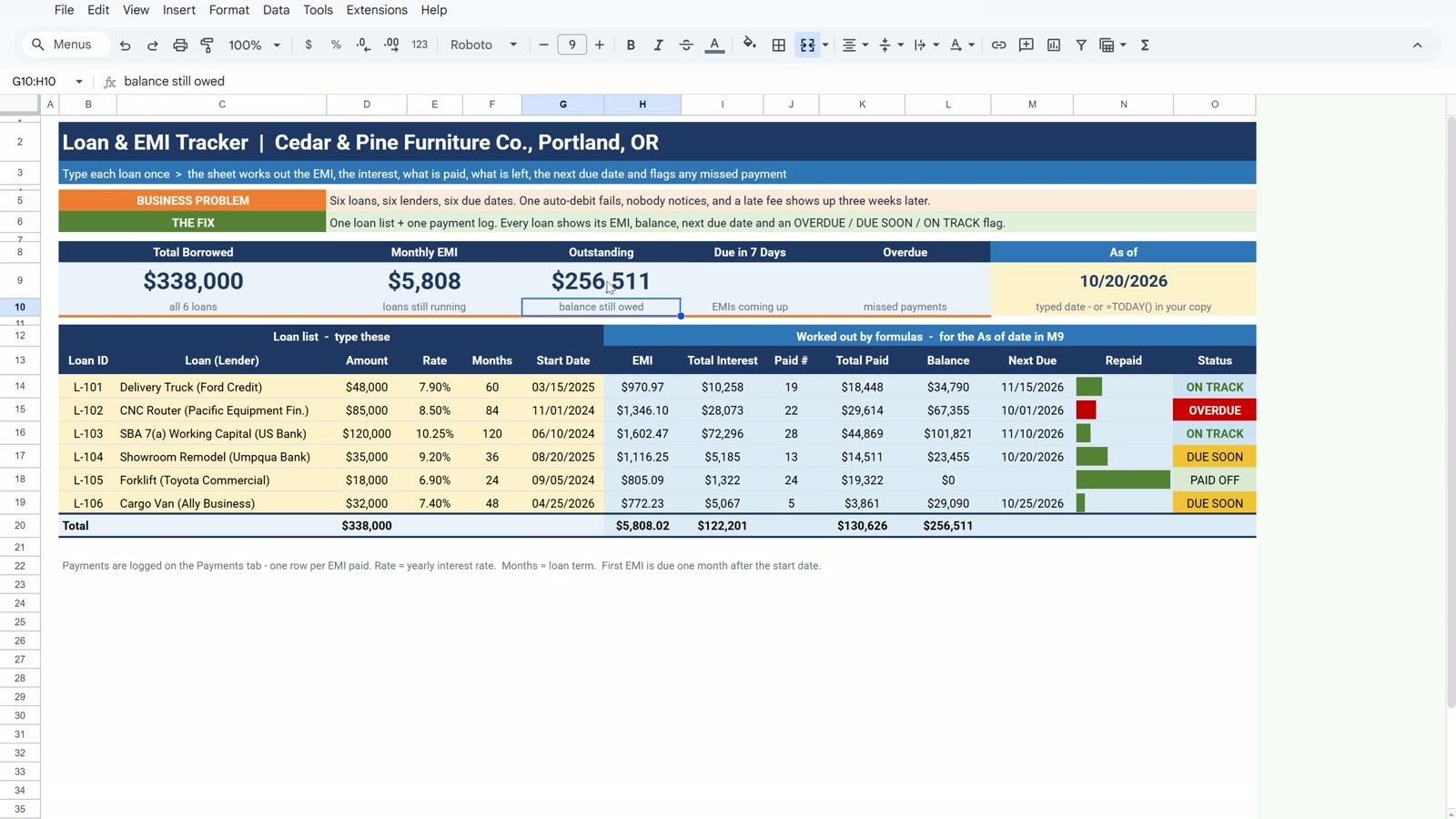
B9   =D20
D9   =H20
G9   =L20
I9   =COUNTIF(O14:O19,"DUE SOON")
K9   =COUNTIF(O14:O19,"OVERDUE")
The monthly EMI total skips the paid-off forklift, because it is not part of this month’s bill: $5,808.02. Total interest is $122,201 and the outstanding balance $256,511. The cards show $338,000 borrowed, 2 loans due in 7 days and 1 overdue.
Bonus: Log the Missed Payment
The bank confirms the missed router payment and it is paid today. On the Payments sheet jump to B116 with the Name Box and type 10/20/2026, L-102, ACH and 1346.10, pressing Tab between the cells.
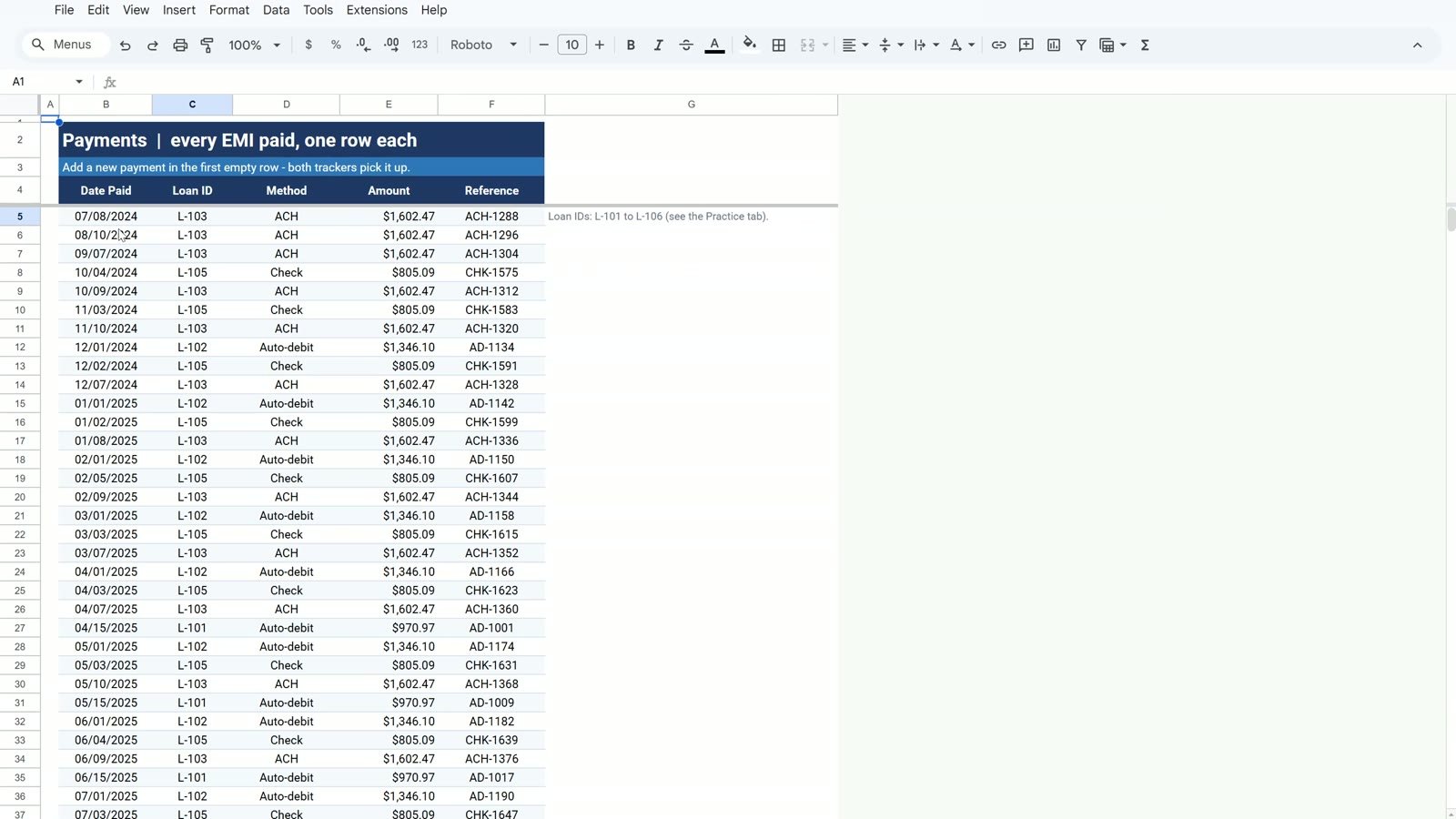
Back on the Practice sheet the CNC router turns ON TRACK, its paid count goes from 22 to 23, the next due date is 11/01/2026 and the Overdue card drops from 1 to 0. The outstanding balance falls to $255,642 by itself.
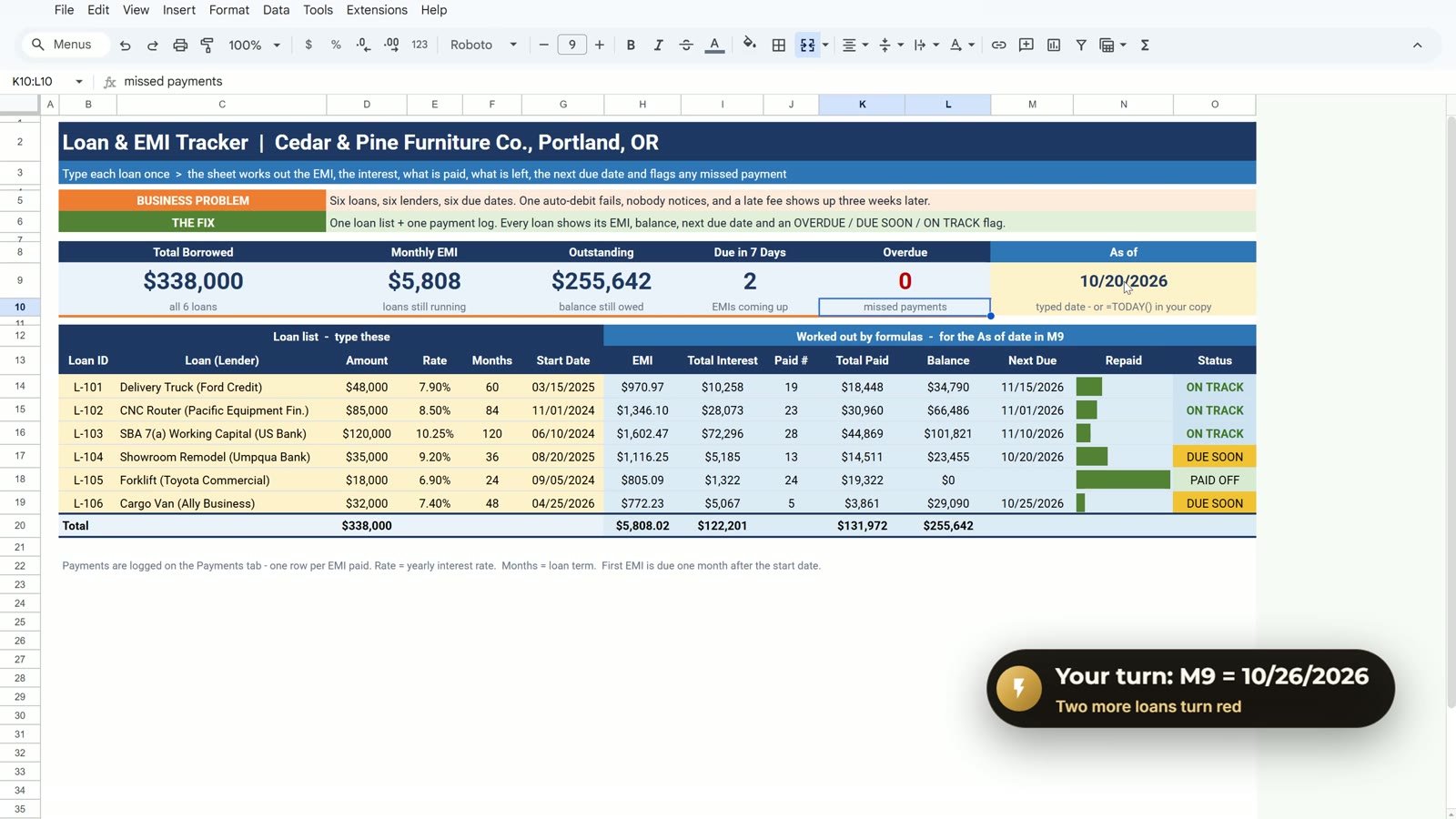
Your turn: change the As of date in M9 to 10/26/2026. The showroom remodel and the cargo van turn red because their due dates have passed.
Free Loan Tracker vs Ready-Made Tools
| Need | This free tracker | Loan EMI Repayment Tracker |
|---|---|---|
| EMI, balance, next due date and status per loan | Yes | Yes |
| Ready-made layout and extra reports | – | Yes |
| Price | Free | Paid |
Tips
- Lock the Payments ranges with F4 and write the As of cell as $M$9 before copying down.
- Type the As of date instead of TODAY() while you learn, so the numbers match the video.
- Keep the Loan ID in the payment log as plain text so every payment matches its loan exactly.
- Use
maxof 1 in every progress-bar SPARKLINE so the bars are comparable. - Google’s PMT help page explains the arguments in detail.
Want It Ready-Made?
This free tracker is perfect to learn the idea. For the full version see the Loan EMI Repayment Tracker in Google Sheets, the Loan Portfolio KPI Dashboard in Google Sheets and the Loan & EMI Management System Web App on NextGenTemplates.com. If you also work in Excel, the full video course Excel + AI Mastery: 100 Essential Formulas and Real-World Projects teaches SUMIFS, IF and more step by step. More on this site: the budget dashboard in Google Sheets, the loan and EMI management system web app and 5 ways to summarize data in Google Sheets.
Frequently Asked Questions
How do I make a loan tracker in Google Sheets?
Keep one loan list (amount, yearly rate, months, start date) and one payment log. Work out the EMI with PMT, the interest with ARRAYFORMULA, the payments made with COUNTIF and SUMIFS, the balance with FV, the next due date with EDATE and an Overdue / Due Soon / On Track status with nested IF.
Is this loan tracker template free?
Yes. The practice file opens a Make a copy page in Google Sheets with a Practice sheet to build along with the video, a Solution sheet with the finished tracker and a Payments sheet with 111 logged EMIs.
Why is the PMT result negative?
PMT treats the loan as money coming in, so the payment comes out negative. Put a minus sign in front of the loan amount, as in PMT(E14/12,F14,-D14), and the EMI is a normal positive number.
How do I calculate the balance left on a loan in Google Sheets?
Use FV with the monthly rate, the number of EMIs already paid, the EMI and the loan amount as a negative number. Wrap it in MAX(0, …) so a fully paid loan shows 0 instead of minus 0.00.
How does the tracker find the next due date?
EDATE(G14,J14+1) returns the same day of the month, that many months after the start date. With 19 EMIs paid on a loan that started on March 15, the next one is due on November 15.
Why do I need a dollar sign on M9 in the status formula?
M9 holds the As of date. Without F4 the reference moves down when you copy the formula, so the other rows compare against empty cells and show wrong flags. $M$9 keeps every row on the same date.
What happens when I log the missed payment?
Add the payment in the first empty row of the Payments sheet. The CNC router goes from Overdue to On Track, its paid count goes from 22 to 23, the next due date moves to November 1 and the Overdue card drops from 1 to 0.
Download the Practice File
Make your own copy of the practice file and build the loan tracker along with the video.
⬇️ Download the Free Practice File
Google Sheets · opens a Make a copy page · Practice + Solution + Payments sheets · no add-ons
About the Author
PK (Priyendra Kumar) runs NeoTech Navigators, PK: An Excel Expert and NextGenTemplates.com, and builds Google Sheets and Excel tools for small businesses. Every number in this tutorial comes from the Solution sheet of the free file.
Conclusion
A loan tracker in Google Sheets needs no add-ons. PMT, ARRAYFORMULA, COUNTIF and SUMIFS, FV, EDATE, a nested IF, SPARKLINE bars and a few conditional formatting rules show every loan’s balance and next due date, and flag a missed payment on the same day.