This monthly attendance template in Google Sheets lets you mark each employee present or absent with a single tick. You pick the month, and the sheet fills in the dates and day names, greys out weekends, and counts present days, absent days and the absenteeism percentage for you. The template is free to copy.
It is built for small teams, supervisors, office administrators and teachers who want a simple attendance register without buying HR software. In this guide you will see what each part of the sheet does and every formula behind it (EOMONTH, MONTH, TEXT and COUNTIFS), and how to reset it for a new month in under a minute.
🎥 Watch the Video Tutorial
Open the Free Attendance Template

What the Monthly Attendance Template in Google Sheets Contains
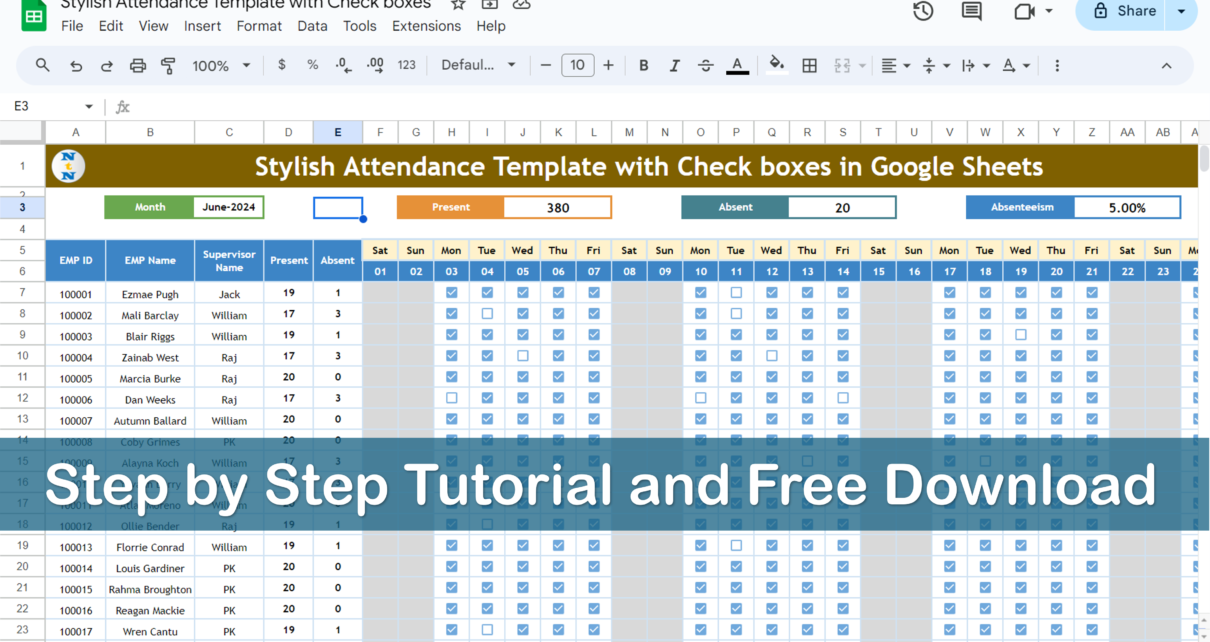
Everything sits on one sheet, so there is nothing to link or import. The table below summarises each part and the sample values visible in the screenshot.
| Part | Cell / range | What it does | Sample value (June 2024) |
|---|---|---|---|
| Month card | C3 | The month the sheet covers; all dates are built from it | June-2024 |
| Present card | Top row | Total ticked boxes on weekdays for all employees | 380 |
| Absent card | Top row | Total unticked boxes on weekdays for all employees | 20 |
| Absenteeism card | Top row | Absent ÷ (Present + Absent) | 5.00% |
| Employee details | Columns A to C | EMP ID, EMP Name, Supervisor Name | 100001, Ezmae Pugh, Jack |
| Present / Absent counts | Columns D and E | Per-employee weekday totals | 19 / 1 for Ezmae Pugh |
| Day names and dates | Rows 5 and 6, columns F to AJ | 31 day columns filled from the month | Sat 01, Sun 02, Mon 03… |
| Attendance check boxes | F7:AJ26 | One tick per working day per employee | 20 employee rows |
The Four Summary Cards
- Month – enter the first day of any month (shown as June-2024 in the sample). The date row, day names and weekend shading all update from this one cell.
- Present – counts every ticked box for the month, ignoring Saturdays and Sundays.
- Absent – counts every unticked box on a weekday.
- Absenteeism – the share of working days missed, calculated as Absent ÷ (Present + Absent).
In the June 2024 sample, 20 employees each have 20 working days, which gives 400 employee-days. With 380 present and 20 absent, absenteeism is 20 ÷ 400 = 5.00%, exactly what the card shows.
How the Dates and Day Names Are Built
Row 6 holds the dates and row 5 the day names. The first date comes from the month in C3:
F6: =EOMONTH(C3,-1)+1EOMONTH(C3,-1) returns the last day of the previous month, so adding 1 gives the first day of the selected month (1 June 2024 in the sample). Each following column adds one day, but only while it is still in the same month:
G6: =IF(MONTH(F6+1)<>MONTH($C$3),"",F6+1)This is why a 30-day month such as June leaves column AJ empty and February stops after day 28 or 29. The day name above each date is a simple TEXT formula:
F5: =TEXT(F6,"DDD")“DDD” returns the short day name (Sat, Sun, Mon…), which the counting formulas and the weekend shading both rely on.
The Present and Absent Formulas
Each check box stores TRUE when ticked and FALSE when empty. COUNTIFS counts them for each employee row while skipping weekends and blank dates:
Present (D7):  =COUNTIFS(F7:AJ7,TRUE,$F$5:$AJ$5,"<>Sat",$F$5:$AJ$5,"<>Sun",$F$6:$AJ$6,">0")
Absent (E7): =COUNTIFS(F7:AJ7,FALSE,$F$5:$AJ$5,"<>Sat",$F$5:$AJ$5,"<>Sun",$F$6:$AJ$6,">0")| Argument | Meaning |
|---|---|
F7:AJ7, TRUE |
Count ticked boxes in this employee’s row (FALSE for the Absent version) |
$F$5:$AJ$5, "<>Sat" |
Ignore columns whose day name is Saturday |
$F$5:$AJ$5, "<>Sun" |
Ignore columns whose day name is Sunday |
$F$6:$AJ$6, ">0" |
Ignore the empty date columns at the end of shorter months |
Worked example: Ezmae Pugh (EMP ID 100001) has an unticked box on Tuesday 11 June and ticks on every other weekday. June 2024 has 20 weekdays, so the formulas return Present = 19 and Absent = 1. The row’s own absenteeism would be 1 ÷ 20 = 5%. Fill the two formulas down to row 26 and the cards at the top add up all 20 rows.
If you want to learn more about counting with conditions, our guide to the UNIQUE and COUNTIF functions in Google Sheets covers the same logic from a different angle.
Check Boxes and Weekend Shading
The check boxes were added with Insert > Checkbox across F7:AJ26. Three conditional formatting rules, set in Format > Conditional formatting > Custom formula is, keep the grid readable:
Highlight Saturday:     =F$5="Sat"
Highlight Sunday:       =F$5="Sun"
Hide next-month dates:  =F$5=" "
The dollar sign before the row number (F$5) locks every rule to the day-name row, so a whole column turns grey on a weekend. If you would like to colour charts the same way, see conditional formatting in a Google Sheets chart.
How to Use It With Your Own Team
- Open the free template from the button above and choose File > Make a copy so you have your own editable version.
- Replace the sample EMP ID, EMP Name and Supervisor Name values in columns A to C with your team.
- Type the first day of the month you want to track in C3. The dates, day names and weekend columns refresh on their own.
- Each working day, tick the box for everyone who attended. Leave the box empty for an absence.
- Read the Present, Absent and Absenteeism cards at the end of the week or month.
- To start a new month, change C3, then type FALSE in any check box cell, copy it and paste it over the whole check box range. All boxes clear and the sheet is ready again.
Tip: save a copy of the finished month (or duplicate the tab) before you reset it, so you keep a record of each month’s attendance.
Real-World Uses
- Small office or shop: a manager ticks attendance each morning and shares the sheet with the owner, who only reads the absenteeism card.
- Team supervisors: the Supervisor Name column makes it easy to filter by supervisor and compare teams.
- Classrooms and training batches: replace employee names with student names and track attendance for a course month.
Limitations to Know About
- It is a present/absent register only. There are no separate codes for half days, paid leave or holidays.
- Public holidays falling on a weekday count as working days unless you add your own rule for them.
- The sample covers 20 employee rows (7 to 26). For more people, insert rows inside the range and fill the formulas down.
- Each month overwrites the previous one, so keep a copy before resetting.
If you need leave codes or a weekly view, compare it with our attendance sheet template in Google Sheet, the weekly attendance sheet in Google Sheets and the attendance sheet with checkboxes to count workdays. For a visual summary across months, the employee attendance dashboard in Google Sheets is a good next step.
Related templates: prefer Excel? There is a Monthly Attendance Sheet in Excel with Check Boxes on NextGenTemplates.
If you want to get comfortable with COUNTIFS, EOMONTH and other everyday formulas through structured lessons, the Excel AI Mastery: 100 Formulas course on NextGenTemplates Academy covers them step by step. The same functions work in Google Sheets.
Frequently Asked Questions
How do I change the month in the attendance sheet?
Type the first day of the new month in cell C3 (the Month card). The dates in row 6, the day names in row 5 and the weekend shading all update. Then clear the old ticks by pasting FALSE over the check box range.
Why are weekends not counted as absent?
The COUNTIFS formulas include the conditions “<>Sat” and “<>Sun” on the day-name row, so any box ticked or left empty on a Saturday or Sunday is ignored in both the Present and Absent counts.
How is the absenteeism percentage calculated?
Absent ÷ (Present + Absent). In the June 2024 sample that is 20 ÷ (380 + 20) = 5.00%.
Can I change the weekend to Friday and Saturday?
Yes. Change “Sat” and “Sun” in both COUNTIFS formulas and in the two conditional formatting rules to the days your team takes off, for example “Fri” and “Sat”.
How do I mark a public holiday?
The template has no holiday list. The simplest approach is to tick the box for everyone on that day so it does not count as an absence, or add a third “<>” condition for the holiday date in the COUNTIFS formulas.
Can several people update the sheet at the same time?
Yes. It is a normal Google Sheet, so you can share it with supervisors and everyone sees ticks as they are made. Use edit access only for the people who mark attendance.
Wrapping Up
A monthly attendance template in Google Sheets with check boxes is one of the quickest ways to replace a paper register. One month cell drives the whole calendar, COUNTIFS handles the counting, and the cards tell you at a glance how many days were missed. Copy the free template, add your team and start ticking.
Get the Free Monthly Attendance Template
📅 Last updated: October 2026