The AVERAGEIF formula in Google Sheets calculates the average of only those values that meet one condition, such as the average sale for one city, one department or one product. Instead of filtering the data and averaging by hand, you write one formula and it recalculates whenever the data changes.
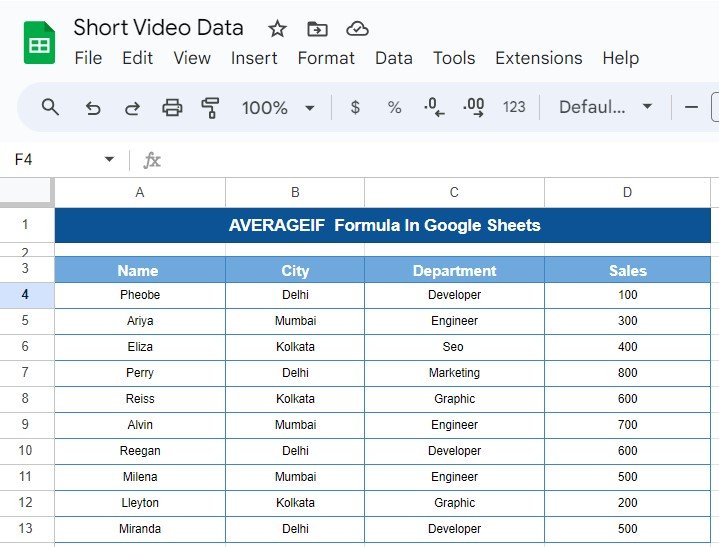
This tutorial uses a ten-row sales list with Name, City, Department and Sales columns and finds the average sale for Delhi. You will see the syntax, a worked example with the expected result (500), five variations including wildcards and number conditions, the errors you are likely to meet and when to switch to AVERAGEIFS. It is aimed at anyone who reports on sales, budgets or team results in Google Sheets.
The Sample Data
The data sits in A3:D13: headers in row 3 and ten sales records in rows 4 to 13. Delhi appears four times, Mumbai three times and Kolkata three times.
AVERAGEIF Syntax
=AVERAGEIF(criteria_range, criterion, [average_range])| Argument | What it means | In this example |
|---|---|---|
criteria_range |
The cells that are tested against the condition. | B4:B13 (City) |
criterion |
The condition: text, a number, a cell reference or an expression such as ">400". |
B15 (contains Delhi) |
average_range (optional) |
The cells to average. If left out, the criteria range itself is averaged. | D4:D13 (Sales) |
Worked Example: Average Sales for Delhi
Step 1: Put the city in a cell
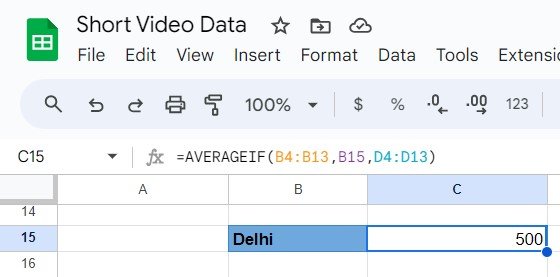
Type Delhi in B15. Keeping the condition in a cell means you can change the city later without touching the formula.
Step 2: Enter the formula
In C15 enter:
=AVERAGEIF(B4:B13, B15, D4:D13)You can also type the city straight into the formula: =AVERAGEIF(B4:B13, "Delhi", D4:D13). Both return the same answer.
Step 3: Check the result
The Delhi rows are Pheobe (100), Perry (800), Reegan (600) and Miranda (500). Their total is 2,000 and 2,000 ÷ 4 = 500, which is what C15 shows.
Results for Every City
Change B15 to another city and the result updates. Here is what the sample data returns:
| City | Sales values | AVERAGEIF result |
|---|---|---|
| Delhi | 100, 800, 600, 500 | 500 |
| Mumbai | 300, 700, 500 | 500 |
| Kolkata | 400, 600, 200 | 400 |
| All cities (AVERAGE) | 10 values, total 4,700 | 470 |
5 Practical Variations
1. Average by a different column
Average sales for the Developer department instead of a city:
=AVERAGEIF(C4:C13, "Developer", D4:D13)Developers Pheobe (100), Reegan (600) and Miranda (500) average 400.
2. Use a number condition
Average only the sales above 400:
=AVERAGEIF(D4:D13, ">400")The six values 800, 600, 700, 600, 500 and 500 total 3,700, so the result is about 616.67. The average range is left out because the condition and the values are in the same column.
3. Combine an operator with a cell
If the threshold is in F2, join the operator and the cell with an ampersand:
=AVERAGEIF(D4:D13, ">="&F2)4. Use wildcards for partial matches
An asterisk matches any characters, so "K*" picks every city starting with K:
=AVERAGEIF(B4:B13, "K*", D4:D13)Only Kolkata qualifies, so the result is 400.
5. Exclude one value
Average sales for every city except Delhi:
=AVERAGEIF(B4:B13, "<>Delhi", D4:D13)The six Mumbai and Kolkata values total 2,700, giving 450.
Common Errors and Fixes
| Problem | Why it happens | Fix |
|---|---|---|
| #DIV/0! | No cell meets the condition, for example “Chennai”. | Check spelling, or wrap it: =IFERROR(AVERAGEIF(…), 0). |
| Result is lower or higher than expected | The criteria range and average range are different sizes or start on different rows. | Make both ranges cover the same rows, such as B4:B13 and D4:D13. |
| A matching row is ignored | An extra space, as in “Delhi “, or a number stored as text in the Sales column. | Use Data > Data cleanup > Trim whitespace and Format > Number. |
| Formula parse error with an operator | The operator is not inside quotes, e.g. >400 instead of ">400". |
Always quote the operator and join cells with &. |
AVERAGEIF vs AVERAGEIFS
AVERAGEIF accepts one condition. When you need two or more, such as Delhi and Developer, use AVERAGEIFS, which puts the average range first:
=AVERAGEIFS(D4:D13, B4:B13, "Delhi", C4:C13, "Developer")Pheobe (100), Reegan (600) and Miranda (500) are all Delhi developers, so the result is 400. Our step-by-step AVERAGEIFS function guide covers more multi-condition examples, and the AVERAGE function tutorial explains the plain average.
Where the AVERAGEIF Formula in Google Sheets Helps
Averages answer a different question from totals. A total tells you how much a group produced, while an average tells you what a typical result looks like, which is fairer when groups have different sizes. In the sample, Delhi has four records and Mumbai three, yet both average 500. Some common uses:
- Sales by region: compare the typical sale in each city or territory, as in the example above.
- Team performance: average calls handled, tickets closed or hours logged per department.
- Expense control: find the average spend per category to spot unusually expensive purchases.
- School results: average marks per class, subject or section.
- Quality checks: average defect counts per machine or shift.
When you present these numbers, put the count next to the average with COUNTIF, for example =COUNTIF(B4:B13, B15) returns 4 for Delhi. An average based on two records is far less reliable than one based on two hundred, and showing the count makes that clear to readers.
Tips for Using AVERAGEIF
- Text conditions are not case-sensitive, so “delhi” and “Delhi” give the same result.
- Blank cells and text in the average range are skipped, but zeros are included and pull the average down.
- Build a summary table: list each city once with
=UNIQUE(B4:B13)and put an AVERAGEIF beside each one. The UNIQUE and COUNTIF guide shows the same pattern with counts. - Need totals rather than averages? SUMIFS uses the same condition rules.
If you want structured practice with conditional formulas like these, the 100 formulas course on NextGenTemplates Academy works through them lesson by lesson.
Frequently Asked Questions
What does AVERAGEIF return if nothing matches?
It returns #DIV/0! because there are no values to divide. Wrap the formula in IFERROR to show 0 or a message instead.
Can AVERAGEIF use a condition from another cell?
Yes. Point the criterion at the cell, as in =AVERAGEIF(B4:B13, B15, D4:D13). For operators, join them: ">"&F2.
Does AVERAGEIF ignore blank cells?
Yes. Blank cells in the average range are ignored. Cells containing 0 are counted.
Can I average by date with AVERAGEIF?
Yes, with a date condition such as ">="&DATE(2024,4,1) on a date column. For a date range with a start and end, use AVERAGEIFS with two conditions.
Why is my AVERAGEIF result different from a manual average?
Usually because zeros or extra rows are included. AVERAGEIF counts cells containing 0 but skips blanks, so a missing sale entered as 0 lowers the result. Also check that the criteria range and the average range cover exactly the same rows, such as B4:B13 and D4:D13, and that no number in the Sales column is stored as text.
Is AVERAGEIF the same in Excel?
Yes. The arguments, wildcards and #DIV/0! behaviour are the same in Excel.
Wrapping Up
One formula, =AVERAGEIF(B4:B13, B15, D4:D13), gave the Delhi average of 500, and changing B15 gives Mumbai (500) and Kolkata (400) instantly. Recreate the ten-row table above, try the five variations, then move on to AVERAGEIFS when you need more than one condition.
📅 Last updated: October 2026