Introduction
Customer churn is a critical metric for businesses aiming to retain customers and grow sustainably. Monitoring churn rates effectively can guide strategic decisions and operational improvements. This article presents a detailed overview of a Customer Churn KPI Dashboard in Google Sheets, a ready-to-use template designed to help businesses track and analyze their churn metrics with ease.Customer Churn Dashboard, KPI Dashboard Google Sheets, Retention Analytics, Business Analytics, Google Sheets Dashboard, Data Visualization, KPI Tracking, Customer Retention, SaaS Analytics, Marketing Analytics
Key Features of Customer Churn KPI Dashboard in Google Sheets
- Interactive monthly selection for dynamic KPI updates.
- Comprehensive tracking of Month-To-Date (MTD) and Year-To-Date (YTD) KPI values.
- Comparison with Target and Previous Year data to spot trends and gaps.
- Conditional formatting with up/down arrows highlighting performance improvement or decline.
- Multiple worksheets organizing inputs, targets, definitions, and visual trends.
- Easy-to-understand KPI explanations and formulas.
Dashboard Pages Explanation
1. Dashboard Sheet Tab
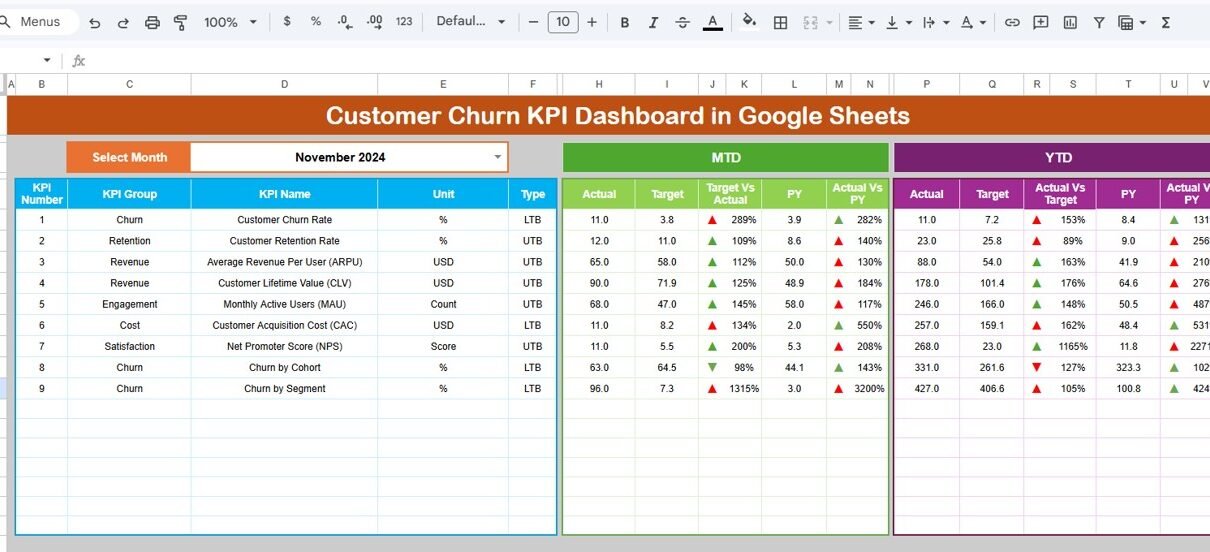
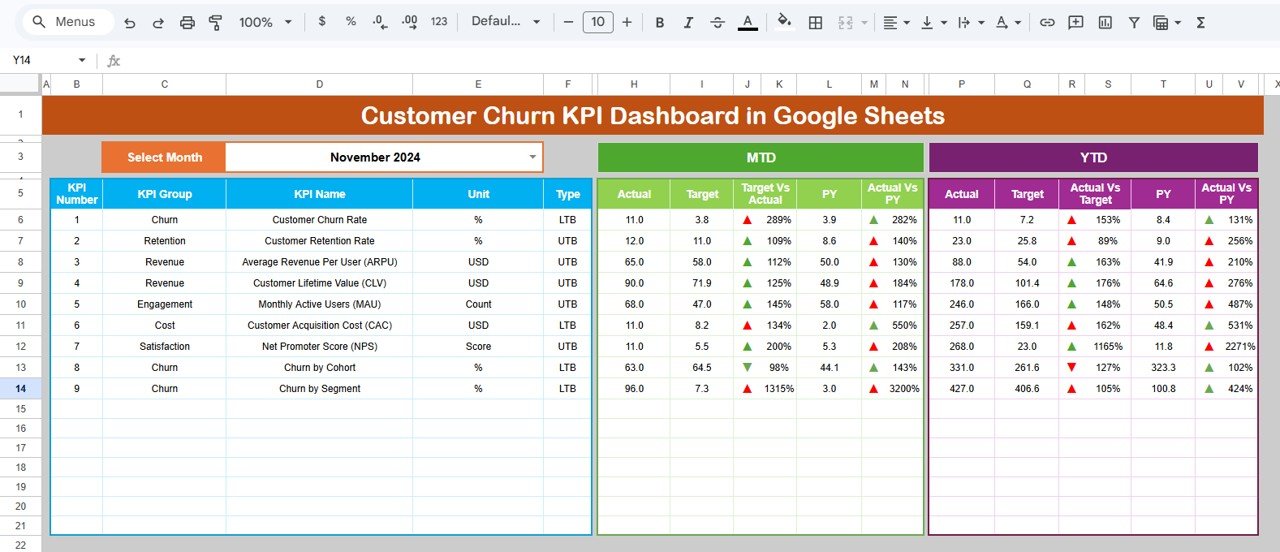
This is the main sheet where you’ll find all the key information for each KPI. At cell D3, you can select the month from a dropdown menu, and the dashboard automatically updates to reflect that month’s data.
- Displays MTD Actual, Target, and Previous Year data.
- Shows Target vs Actual and Previous Year vs Actual with intuitive conditional formatting arrows indicating positive or negative performance.Customer Churn Dashboard, KPI Dashboard Google Sheets, Retention Analytics, Business Analytics, Google Sheets Dashboard, Data Visualization, KPI Tracking, Customer Retention, SaaS Analytics, Marketing Analytics
- Also features YTD Actual, Target, and Previous Year values with similar comparative insights.
Click to Buy Customer Churn KPI Dashboard in Google Sheets
2. KPI Trend Sheet Tab
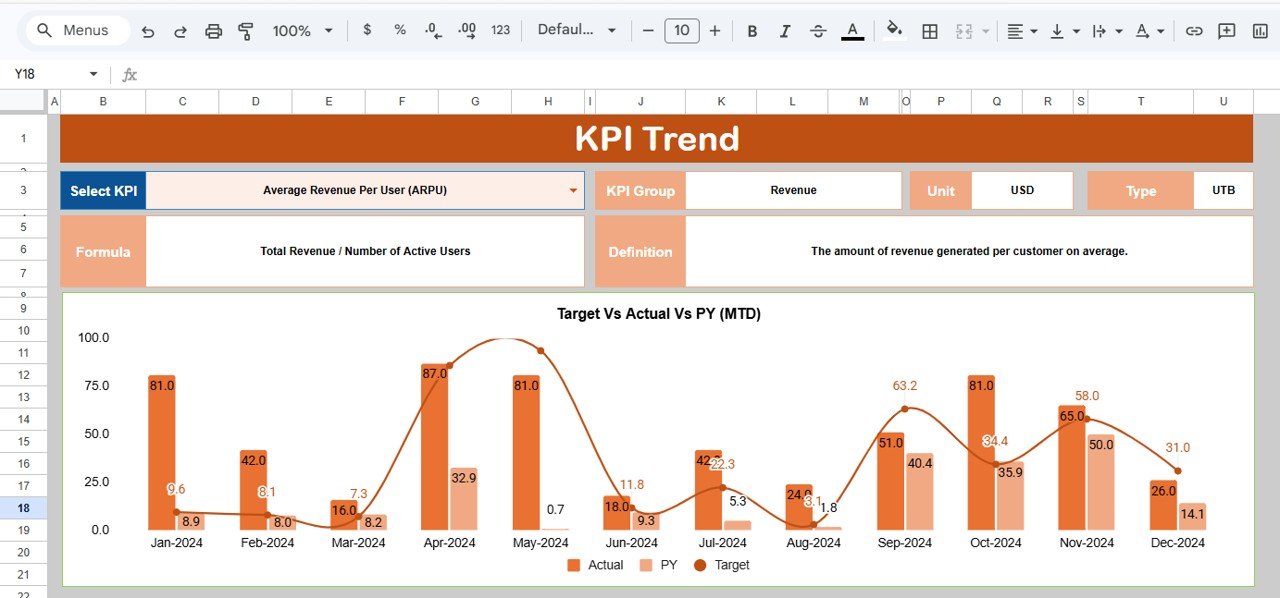
This sheet allows you to analyze trends for specific KPIs. Select the KPI name from the dropdown at C3.
- Displays KPI Group, Unit of measurement, Type (whether lower or upper the better), formula, and definition for clarity.
- Includes trend charts for MTD and YTD actual, target, and previous year data visually presenting performance over time.
3. Actual Numbers Input Sheet
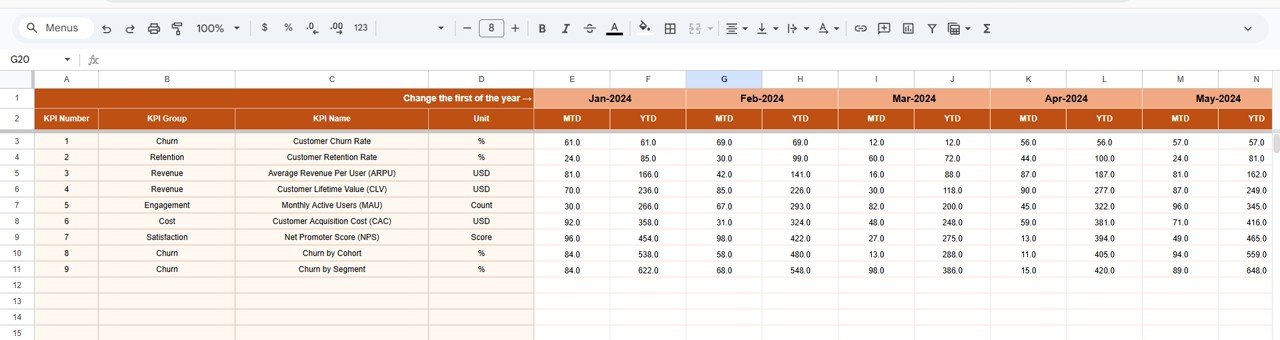
This sheet is where you input the actual churn numbers for MTD and YTD for the selected month.
- Adjust the starting month of the year in cell E1 to align data entry with your fiscal calendar.
Click to Buy Customer Churn KPI Dashboard in Google Sheets
4. Target Number Input Sheet
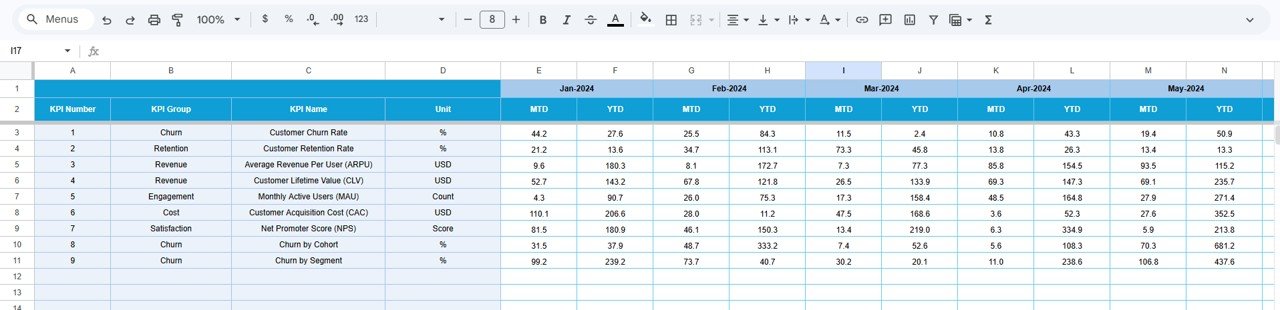
Enter monthly target numbers for each KPI here, including both MTD and YTD figures to set performance benchmarks.
5. Previous Year Number Sheet Tab
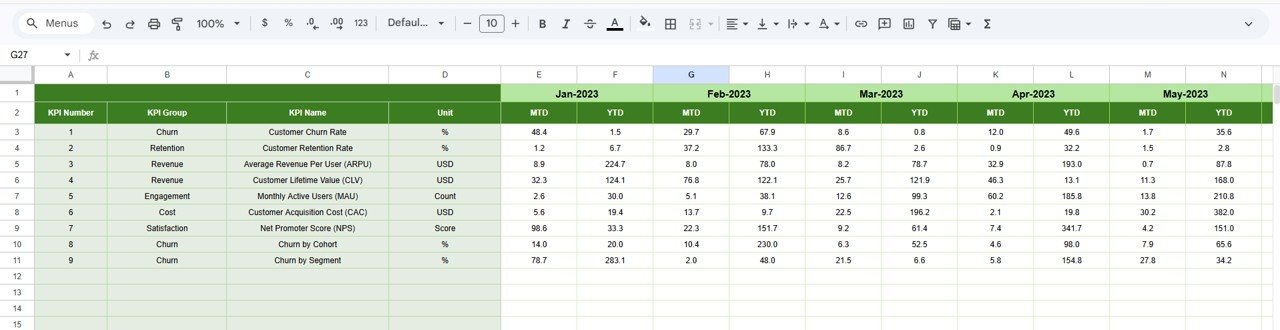
Input the previous year’s data here to enable effective YOY comparisons on the dashboard and trend sheets.
Click to Buy Customer Churn KPI Dashboard in Google Sheets
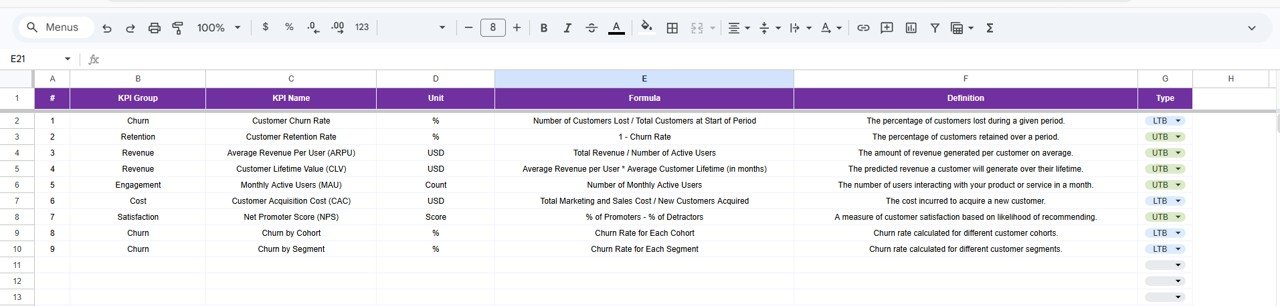
6. KPI Definition Sheet Tab
Here, define your KPIs with essential details to ensure consistent understanding and application.
- Enter KPI Name, Group, Unit, Formula, and detailed definition.
- Specify KPI Type as LTB (Lower The Better) or UTB (Upper The Better) in the last column for conditional formatting logic.
Click to Buy Customer Churn KPI Dashboard in Google Sheets
Advantages of Customer Churn KPI Dashboard in Google Sheets
- User-friendly and accessible: Google Sheets makes the template easy to share and collaborate in real-time.
- Dynamic data visualization: Immediate updating of charts and KPIs enables quick insights.
- Customizable inputs: Easily adjust target and actual data without complex software.
- Comprehensive KPI monitoring: Combines data, trends, and benchmarks all in one place.
- Cost-effective: No expensive BI tools needed; Google Sheets is free to use.
Opportunities for Improvement
Click to Buy Customer Churn KPI Dashboard in Google Sheets
- Automation with Apps Script: Automate data imports and alerts for ease of upkeep.
- Advanced visualization: Integrate with Google Data Studio for enhanced report aesthetics.
- Multi-year comparisons: Add functionality for multi-year time series analysis.
- Mobile responsiveness: Optimize view for mobile devices to support on-the-go monitoring.
Best Practices
- Maintain consistent and accurate data entry for reliable KPIs.
- Regularly update Target and Previous Year data to keep comparisons relevant.
- Review KPI definitions periodically to ensure alignment with business objectives.
- Use conditional formatting cues as visual prompts for prompt action.
- Share dashboard access with stakeholders to foster transparency and data-driven decisions.
FAQs
Click to Buy Customer Churn KPI Dashboard in Google Sheets
Can I add more KPIs to this dashboard?
Yes, the dashboard is designed to be scalable. Simply add new KPIs in the KPI Definition sheet and update the data input sheets accordingly.
Is this dashboard compatible with Excel?
While it’s optimized for Google Sheets, the basic structure and formulas should work in Excel with minor adjustments.
How do I set the fiscal year start for monthly data?
Change the first month of the year in the Actual Numbers Input sheet cell E1. This will align all monthly dropdown and calculations.
Can I integrate this with other CRM or analytics tools?
Integration can be achieved with Google Sheets API or through automation tools like Zapier, though it requires some setup.
Conclusion
Click to Buy Customer Churn KPI Dashboard in Google Sheets
The Customer Churn KPI Dashboard in Google Sheets is a powerful yet simple tool to help businesses stay on top of customer retention metrics. With interactive features, clear trending analysis, and multiple input tabs, it streamlines churn monitoring in an accessible platform. By adopting this dashboard, you empower your team with actionable insights to reduce churn and improve customer loyalty.
Explore this template today and transform your churn data into growth opportunities.
For expert insights and tutorials:
Visit Google Docs Help Center for advanced tips on Google Sheets.
Visit our YouTube channel to watch the demo: Youtube.com/@NextGenTemplates