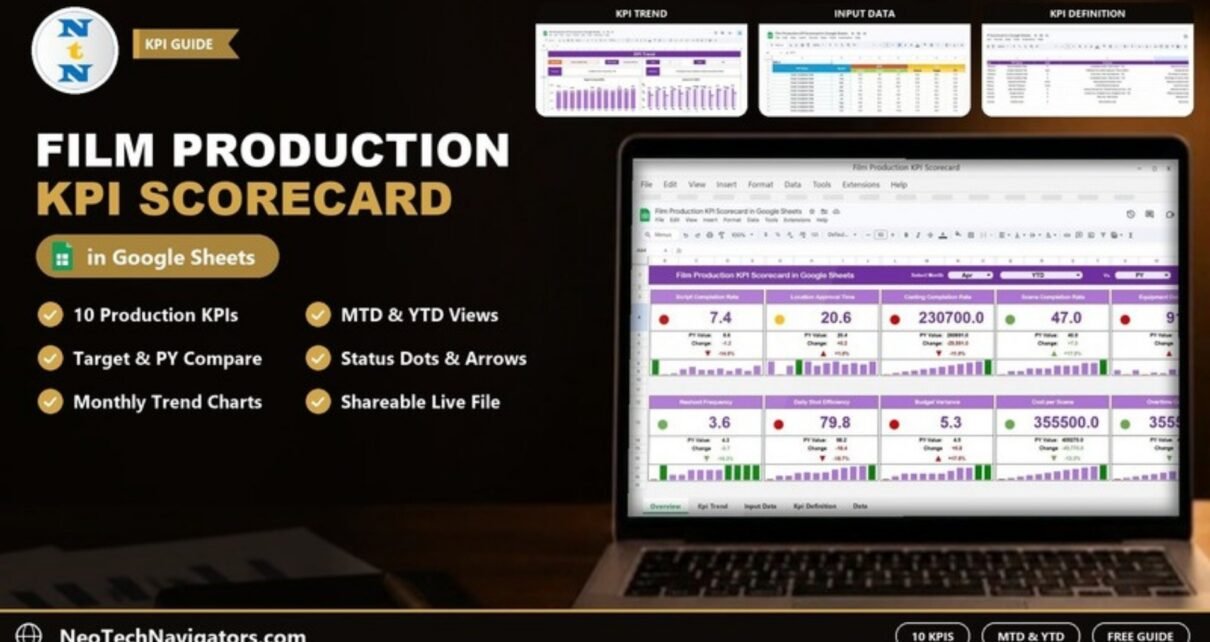
The Film Production KPI Scorecard in Google Sheets is a ready-made template that tracks 10 production KPIs on one screen, from Script Completion Rate in pre-production to Overtime Costs in the budget. It is built for line producers, production managers and studio teams who want a monthly view of progress and spend without building their own reporting file.
The file has four tabs: Scorecard, KPI Trend, Input Data and KPI Definition. You type monthly Actual, Target and Previous Year (PY) numbers once, and the scorecard cards, status dots and trend charts update for whichever month and MTD/YTD view you pick.
Get the Film Production KPI Scorecard
What Problem Does the Film Production KPI Scorecard Solve?
A film shoot produces numbers every day: scenes completed, hours lost to equipment failures, reshoots, cost per scene, overtime. On most productions those numbers live in call sheets, cost reports and emails, so nobody sees the overall trend until the wrap report. By then a slipping schedule or a growing budget variance has already cost money.
This scorecard gives you one place to record the month’s results for the KPIs that matter most and to compare them with last year or with target. Because it is a Google Sheet, the producer, the production accountant and the studio executive can all open the same live file.
The 10 Film Production KPIs in the Template
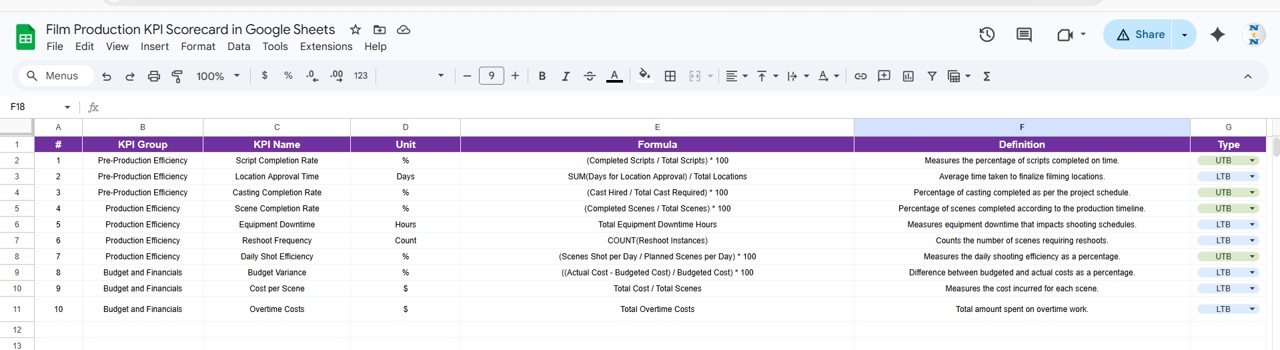
The KPI Definition tab lists every KPI with its group, unit, formula, definition and type. UTB means “upper the better” (higher is good) and LTB means “lower the better”. These are the KPIs exactly as they appear in the template:
| # | KPI Group | KPI | Unit | Formula (from the template) | Better when |
|---|---|---|---|---|---|
| 1 | Pre-Production Efficiency | Script Completion Rate | % | (Completed Scripts / Total Scripts) * 100 | Higher (UTB) |
| 2 | Pre-Production Efficiency | Location Approval Time | Days | SUM(Days for Location Approval) / Total Locations | Lower (LTB) |
| 3 | Pre-Production Efficiency | Casting Completion Rate | % | (Cast Hired / Total Cast Required) * 100 | Higher (UTB) |
| 4 | Production Efficiency | Scene Completion Rate | % | (Completed Scenes / Total Scenes) * 100 | Higher (UTB) |
| 5 | Production Efficiency | Equipment Downtime | Hours | Total Equipment Downtime Hours | Lower (LTB) |
| 6 | Production Efficiency | Reshoot Frequency | Count | COUNT(Reshoot Instances) | Lower (LTB) |
| 7 | Production Efficiency | Daily Shot Efficiency | % | (Scenes Shot per Day / Planned Scenes per Day) * 100 | Higher (UTB) |
| 8 | Budget and Financials | Budget Variance | % | ((Actual Cost – Budgeted Cost) / Budgeted Cost) * 100 | Lower (LTB) |
| 9 | Budget and Financials | Cost per Scene | $ | Total Cost / Total Scenes | Lower (LTB) |
| 10 | Budget and Financials | Overtime Costs | $ | Total Overtime Costs | Lower (LTB) |
The grouping is useful in practice: three KPIs tell you whether pre-production is ready, four tell you how the shoot is running and three tell you what it is costing.
Inside the Template: Sheet by Sheet
1. Scorecard
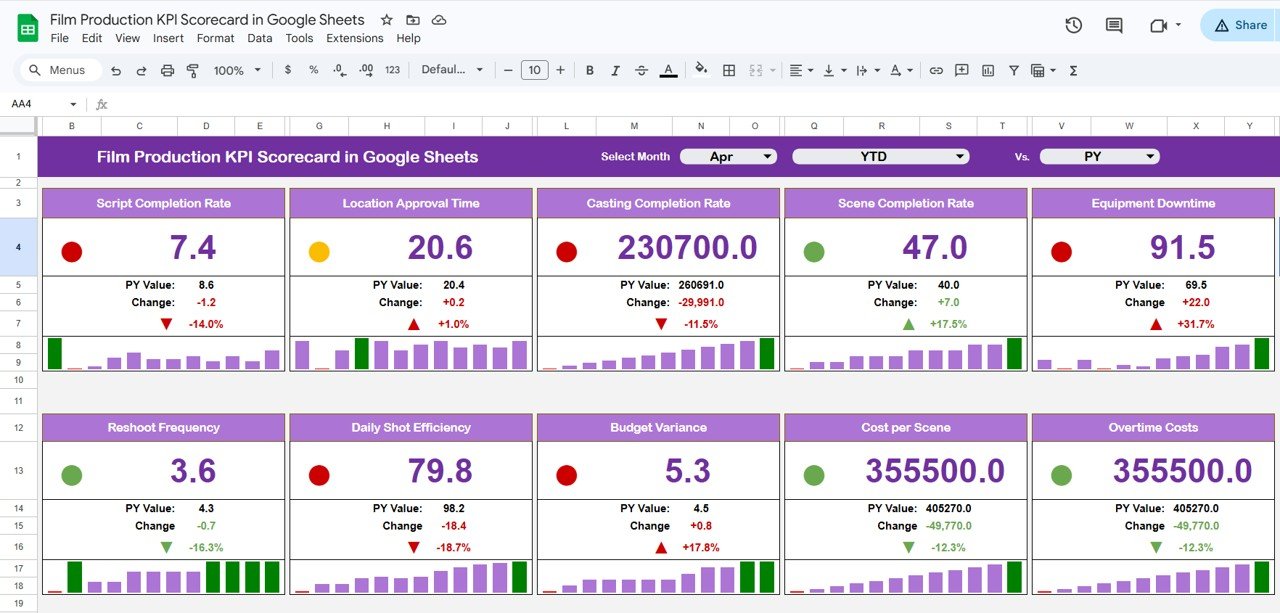
The Scorecard shows all 10 KPIs as cards in two rows of five. Across the top bar you choose:
- Select Month – the reporting month (April in the screenshot).
- MTD or YTD – month-to-date or year-to-date figures.
- Vs. – the comparison base (PY is selected in the screenshot).
Each card shows the KPI value in large type, a coloured status dot, the PY Value, the Change in units, the Change in percent with an up or down arrow, and a small 12-month bar strip so you can see the pattern behind the number.
Worked example: reading three cards
With April and YTD selected against PY, the sample data shows:
- Script Completion Rate: 7.4 against a PY Value of 8.6. Change is 7.4 − 8.6 = −1.2, and −1.2 ÷ 8.6 = −14.0%. Because this KPI is UTB, a fall is bad, so the dot is red.
- Scene Completion Rate: 47.0 against 40.0. Change is +7.0, or 7.0 ÷ 40.0 = +17.5%. Higher is better, so the dot is green.
- Equipment Downtime: 91.5 against 69.5. Change is +22.0, or +31.7%. The number went up, but this KPI is LTB, so the dot is red.
That last card is the reason the Type column matters: the arrow tells you the direction of the change, while the dot tells you whether that direction is good or bad for that KPI.
2. KPI Trend
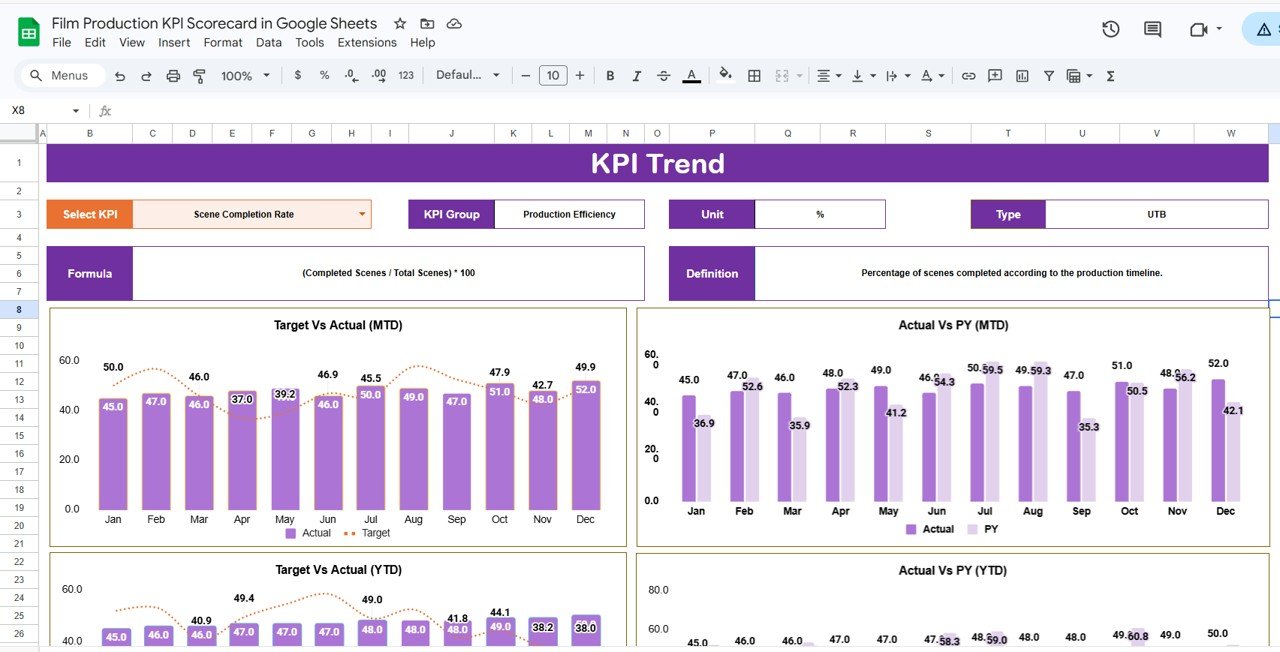
Pick any KPI from the Select KPI dropdown and the sheet fills in its KPI Group, Unit, Type, Formula and Definition. Below that are four charts: Target Vs Actual (MTD), Actual Vs PY (MTD), Target Vs Actual (YTD) and Actual Vs PY (YTD), each showing January to December.
3. Input Data
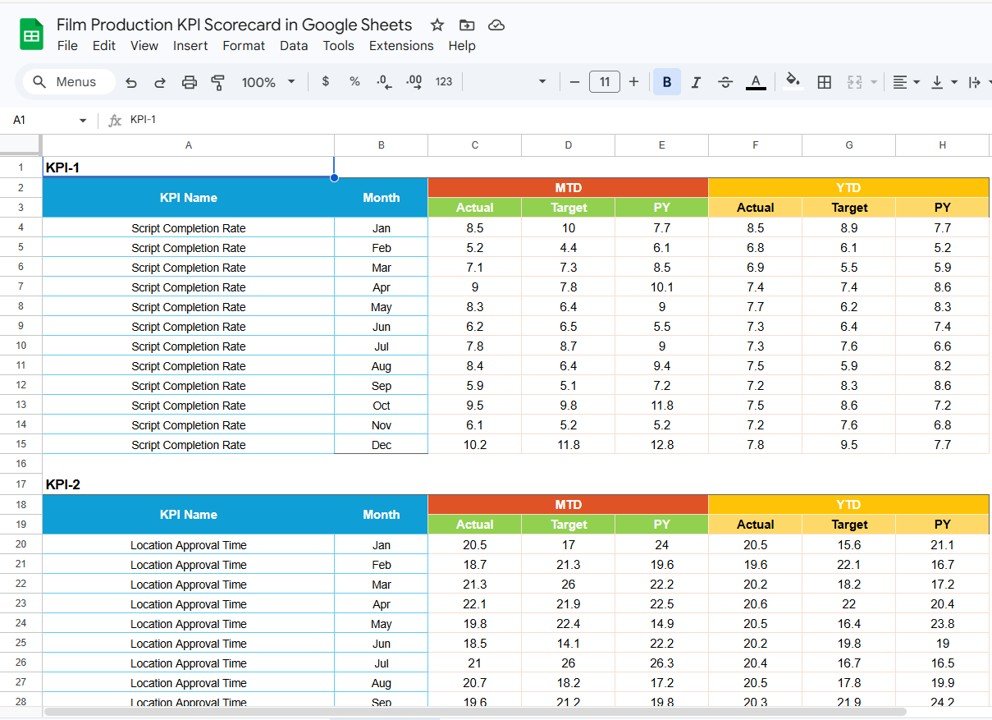
This is the only tab you type into each month. Every KPI has its own block (KPI-1, KPI-2 and so on) with one row per month and six number columns: MTD Actual, MTD Target, MTD PY and YTD Actual, YTD Target, YTD PY. For example, Script Completion Rate in April has an MTD Actual of 9, a Target of 7.8 and a PY of 10.1, and YTD values of 7.4, 7.4 and 8.6.
4. KPI Definition
The reference table behind everything else: #, KPI Group, KPI Name, Unit, Formula, Definition and Type (UTB or LTB, chosen from a dropdown). Change a definition here and the KPI Trend sheet shows the new wording.
How to Use It with Your Own Data
- Make your own copy of the Google Sheet and open the KPI Definition tab. Check each formula and the UTB/LTB type against how your production measures it.
- Agree a target for every KPI for each month (for example a Budget Variance target of 5%).
- In Input Data, fill in MTD Actual, Target and PY for each month in each KPI block, then the matching YTD values.
- Go to the Scorecard, choose the month, pick MTD or YTD and choose the comparison in the Vs. dropdown.
- Scan for red dots first. For any KPI that worries you, open KPI Trend, select it and check whether it is a one-month blip or a steady drift.
- Share the file with view access for executives and edit access only for the person who updates the inputs.
If your team also wants to build its own charts and summaries from production data, the Excel Pivot Tables & Dashboards course on NextGenTemplates Academy walks through the reporting skills step by step.
Three Real-World Use Cases
- Independent feature film: the line producer updates the inputs every Friday of the shoot and sends the studio a link instead of a spreadsheet attachment. Daily Shot Efficiency and Overtime Costs show at a glance whether the schedule is holding.
- Production company with several projects: keep one copy per project and compare Budget Variance and Cost per Scene across them at month end.
- Commercials or series studio: use the YTD view and the PY comparison to see whether this year’s productions finish scenes faster or with fewer reshoots than last year’s.
Best Practices
- Enter data on a fixed day. A scorecard is only as current as its last update.
- Keep units consistent. Equipment Downtime is in hours and Location Approval Time in days; do not mix in other units.
- Write down the source of each number (cost report, call sheet, camera report) so the figures are repeatable.
- Read the dot, not just the arrow. For LTB KPIs an upward arrow is bad news.
- Review trends monthly on the KPI Trend tab before making decisions on a single month.
Limitations: Who Should Not Use It
- Data entry is manual. If you want numbers to flow in automatically from accounting or scheduling software, you will need to add that yourself.
- It is a monthly scorecard, not a shooting-schedule tool or a full production budget. Keep using your scheduling and budgeting software alongside it.
- The KPI set is fixed at 10. You can edit names and formulas in the KPI Definition tab, but adding many more KPIs needs extra input blocks and cards.
Related Templates and Guides
If you prefer a dashboard layout over cards, read about the Film Production KPI Dashboard in Google Sheets. For other media formats, see the Broadcasting KPI Scorecard in Google Sheets, the Media & Entertainment KPI Scorecard and the Film and Television Dashboard in Google Sheets. Working in Excel instead? There is also a Film Production KPI Scorecard in Excel.
Frequently Asked Questions
What KPIs are included in the Film Production KPI Scorecard?
Ten: Script Completion Rate, Location Approval Time, Casting Completion Rate, Scene Completion Rate, Equipment Downtime, Reshoot Frequency, Daily Shot Efficiency, Budget Variance, Cost per Scene and Overtime Costs.
What do UTB and LTB mean?
UTB is “upper the better”, used for KPIs such as Scene Completion Rate where a higher value is good. LTB is “lower the better”, used for KPIs such as Equipment Downtime or Budget Variance where a lower value is good.
Can I change the KPIs or formulas?
Yes. Edit the KPI name, unit, formula, definition and type in the KPI Definition tab and enter matching numbers in the Input Data tab.
What is the difference between MTD and YTD?
MTD (month-to-date) shows the selected month only. YTD (year-to-date) shows the cumulative result from the start of the year up to the selected month.
Can my whole crew see the scorecard?
Yes. It is a normal Google Sheets file, so you can share it with view or edit permission through the Share button.
Does it import data automatically?
No. You enter monthly numbers in the Input Data tab. Automation through Google Apps Script or a connected source is possible but is not built in.
Wrapping Up
The Film Production KPI Scorecard in Google Sheets puts 10 production KPIs, their definitions and their monthly trends in one shared file. Set your targets, enter last month’s numbers in the Input Data tab and use the red dots on the Scorecard as your agenda for the next production meeting.
Get the Film Production KPI Scorecard
📅 Last updated: October 2026