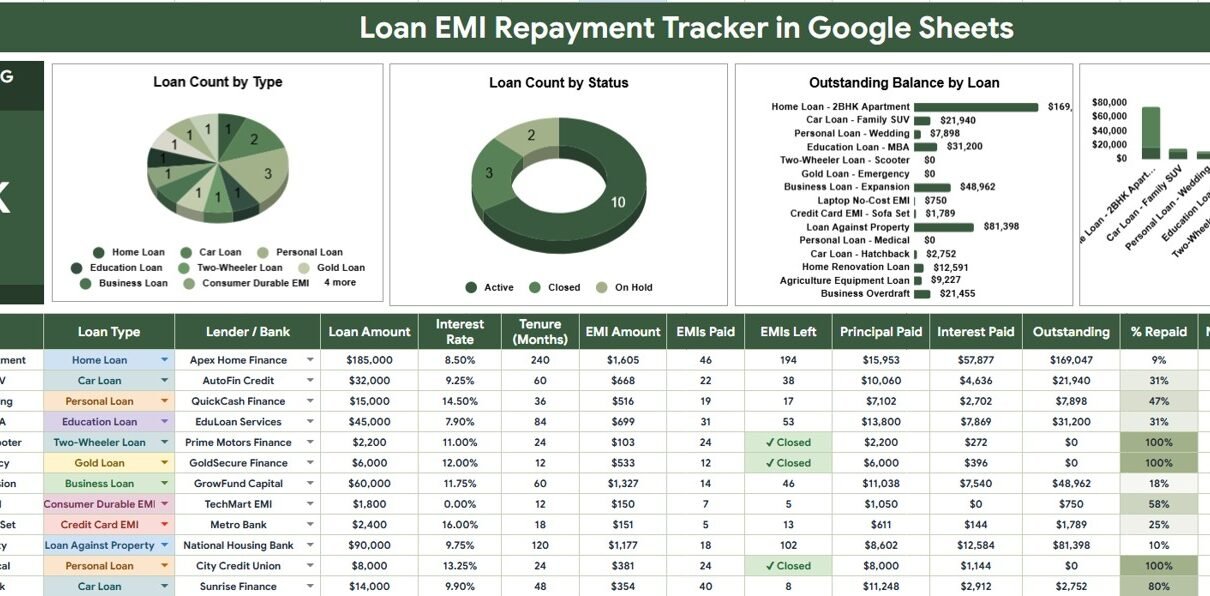
Household borrowing is too large to manage casually: the Federal Reserve Bank of New York reported that U.S. household debt reached $18.8 trillion in Q1 2026. At an individual level, even three loans can create a surprisingly complicated mix of EMI amounts, interest rates, lenders, payment dates, remaining terms, and statuses. The Loan EMI Repayment Tracker in Google Sheets brings those details into a single, editable spreadsheet. It gives you one summary card, four charts, dashboard slicers, a detailed loan register, and a List sheet for maintaining dropdown values. You can get the template from NextGenTemplates for a one-time sale price of $6.99.
This template is intended for manual recordkeeping and planning. It does not connect to a bank, replace a lender statement, calculate a credit score, or provide financial advice. Its value is visibility: update your loan records after each payment, compare progress across facilities, and use the charts to identify balances that deserve attention.
Get the Loan EMI Repayment Tracker in Google Sheets
Key Features of Loan EMI Repayment Tracker in Google Sheets
- Total Outstanding Balance card: A high-level figure for the remaining balance in the current view.
- Four repayment charts: Review loan mix, status, outstanding amount, and principal-versus-interest progress.
- Multiple slicers: Apply filters to the dashboard and inspect a relevant subset quickly.
- Structured input table: Enter one loan per row using consistent fields.
- Calculated repayment columns: Automatically return EMIs Left, Principal Paid, Interest Paid, Outstanding, and % Repaid.
- Completion logic: Mark a loan Closed once it is fully repaid.
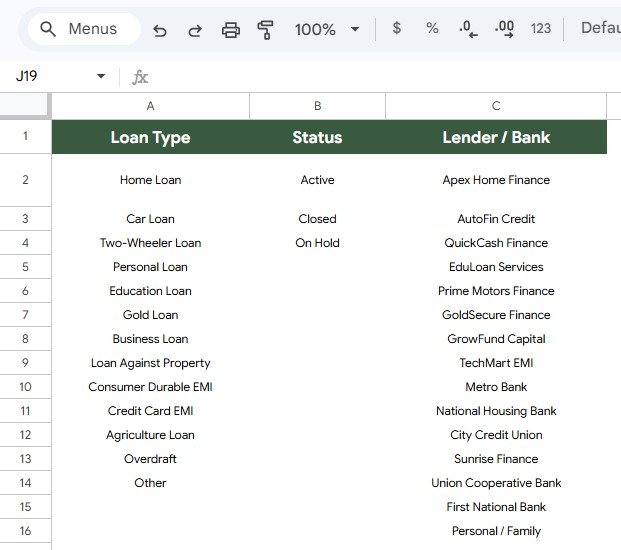
- Editable dropdown sources: Maintain Loan Type, Status, and Lender / Bank choices on a separate List sheet.
- Google Sheets workflow: Use browser-based access and Google’s sharing controls, subject to the template license.
Dashboard Pages Explanation
1 – Loan EMI Repayment Tracker Page
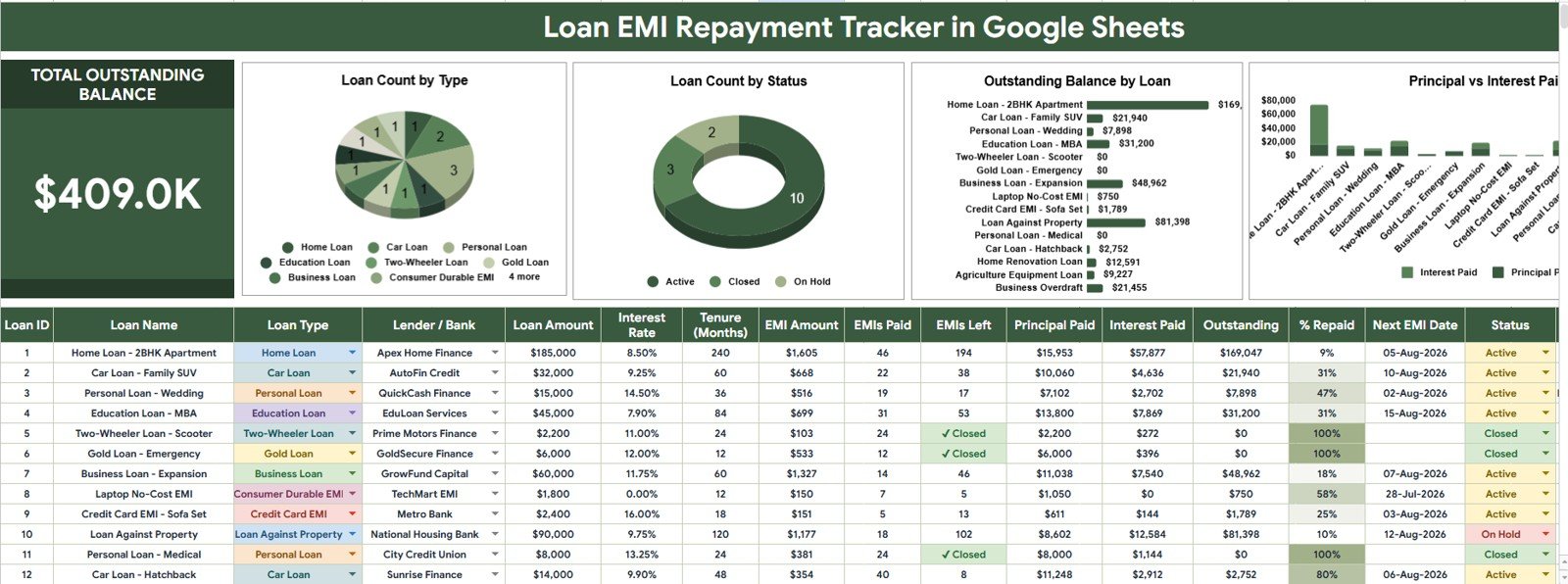
The main page combines the high-level dashboard with the detailed tracking table. At the top, the Total Outstanding Balance card shows the remaining value across the loans included in the filtered view. Slicers let you reduce the data to a relevant selection without changing the underlying loan records.
Loan Count by Loan Type
This chart counts the loans assigned to each loan type and shows the composition of your borrowing. It helps you notice when the portfolio is concentrated in categories such as home, vehicle, education, personal, or business loans.
Loan Count by Status
This chart groups loans by their current status, making open and closed records easy to compare. It also helps identify a row whose status may not have been updated after the latest repayment.
Outstanding Balance by Loan
This chart compares the remaining balance of each individual loan. The largest bar or segment points you toward the obligation with the greatest remaining principal exposure.
Principal Paid and Interest Paid by Loan
This chart places principal paid beside interest paid for each loan. It helps explain how much of the recorded repayment has reduced the borrowed amount versus how much has gone toward interest.
The main table sits below the dashboard. Each row is one loan, and you enter Loan ID, Loan Name, Loan Type, Lender / Bank, Loan Amount, Interest Rate, Tenure (Months), EMI Amount, EMIs Paid, Next EMI Date, and Status. The tracker then calculates EMIs Left, Principal Paid, Interest Paid, Outstanding, and % Repaid. When repayment is complete, the loan is marked Closed.
2 – List Sheet
The List sheet holds the source values for dropdown fields in the tracker. You can add or update Loan Type, Status, and Lender / Bank options, and the main table uses those values automatically. This separation helps keep data entry consistent while allowing customization without editing formulas.
Google’s documentation explains how dropdown lists in Google Sheets can be sourced from a range and updated when that source range changes. That is the same practical idea behind maintaining reusable choices on a dedicated List sheet.
Loan EMI Repayment Tracker in Google Sheets vs. Microsoft Excel vs. Paid Finance SaaS – Feature Comparison
| Feature | Google Sheets tracker | Microsoft Excel alternative | Paid finance SaaS |
|---|---|---|---|
| Cost | $6.99 one-time sale price | Eligible Excel license required | Commonly recurring |
| Platform | Google Sheets | Excel desktop or web | Vendor app or website |
| Setup time | Copy and replace sample records | Depends on workbook design | Account and workflow configuration |
| Real-time team collaboration | Available through Google sharing | Depends on Microsoft 365 setup | Often plan-dependent |
| Mobile access | Sheets app or browser | Excel app or browser | Vendor-dependent |
| Customizable fields | Yes | Yes | May be restricted |
| Share with link | Yes, subject to license terms | Cloud storage required | Usually seat-based |
| Year-1 cost at 5 users | $6.99 purchase; license terms still apply | Depends on existing licenses | Depends on provider and user tier |
| Loan-specific calculated fields | Included | Must be built or sourced | Product-dependent |
| Automatic bank feeds | No | No by default | Sometimes available |
Choose this tracker when you want an understandable, editable register and are comfortable updating it manually. Excel may be preferable for a desktop-first workflow or advanced financial modeling. Paid software is a better fit when automated bank feeds, permissions administration, audit logs, payment collection, or regulated accounting are essential.
Who Should Use This Template
The template works well for salaried borrowers managing several EMIs, couples or families reviewing household debt, freelancers separating personal and business borrowing, and small business owners monitoring a short list of fixed-payment facilities. It also suits finance coaches who need a simple client-owned record, provided they follow appropriate privacy and licensing practices.
It is not designed for lenders servicing thousands of accounts, accountants posting transactions to a general ledger, or borrowers needing exact variable-rate amortization by daily interest. If fees, prepayments, rate resets, moratoriums, or refinancing materially alter a loan, use the official lender schedule as the source of truth.
Real-World Use Cases
Anita: monthly household EMI review
Anita enters her home, vehicle, and education loans as separate rows. At month-end, she updates EMIs Paid and Next EMI Date, verifies Outstanding against lender statements, and uses the status chart to confirm which obligations remain open.
Rohan: freelancer cash-flow planning
Rohan has a personal loan and an equipment loan. Before accepting a long project with delayed payment terms, he checks the next EMI dates and the highest outstanding balance to judge how much cash buffer he needs.
Meera: family debt discussion
Meera uses the principal-versus-interest view during a family finance meeting. The chart makes repayment progress easier to discuss without scrolling through every calculation, while the underlying table keeps the exact inputs available for review.
Advantages of Loan EMI Repayment Tracker in Google Sheets
The strongest advantage of the Loan EMI Repayment Tracker in Google Sheets is visibility without a subscription. The summary card and charts are tied to a straightforward table, so users can trace a result back to its loan row. The List sheet reduces inconsistent spellings, while slicers make focused analysis faster. Google Sheets also provides familiar access controls and version history, which can be helpful when more than one authorized person maintains the records.
The template also separates input from calculated output. You enter lender terms and repayment progress; the sheet returns the remaining EMI count and repayment measures. That structure is easier to audit than scattered notes, screenshots, and calculator results.
Opportunities for Improvement
A future version of the Loan EMI Repayment Tracker in Google Sheets could add an installment-level payment log, exact amortization schedules, prepayment and penalty fields, variable-rate reset history, multi-currency conversion, alerts, or a dedicated cash-flow calendar. Bank synchronization and lender-statement import would require a more advanced integration and careful security review.
Users who need those capabilities should not force this tracker into a role it was not built to fill. Its purpose is a clear loan-level summary, not automated loan servicing or accounting.
Best Practices
- Start with lender statements: Use official loan documents for the original amount, rate, tenure, EMI, and current balance.
- Use one row per loan: Do not combine two facilities even if they share a lender.
- Update immediately after posting: Wait until a payment appears on the lender statement before marking it complete.
- Reconcile monthly: Compare Outstanding, EMIs Paid, and Status with lender records and investigate differences.
- Protect sensitive data: Avoid storing account passwords, full bank account numbers, government IDs, or card credentials.
- Control sharing: Give access only to people who need it and review Google Drive permissions periodically.
- Preserve a clean copy: Keep an untouched master so accidental formula edits can be repaired quickly.
Explore Relevant Templates
If you are building a broader finance system, compare this workflow with the Bill Payment Tracker in Google Sheets, Credit Card Payoff Tracker in Google Sheets, Debt Payoff Snowball Tracker in Google Sheets, and Personal Finance Net Worth Tracker in Google Sheets. Each addresses a different part of personal finance: scheduled bills, revolving credit, payoff prioritization, or assets and liabilities.
Looking to sharpen the spreadsheet skills behind trackers like this? The NextGenTemplates Academy learning paths come with practice files you can follow along.
Get the Loan EMI Repayment Tracker in Google Sheets
Frequently Asked Questions
Does this sheet calculate a new EMI?
No. Enter the EMI agreed with your lender. The tracker focuses on monitoring repayments and remaining balances from the supplied inputs.
What does the tracker calculate automatically?
It calculates EMIs Left, Principal Paid, Interest Paid, Outstanding, and % Repaid, and marks a fully repaid loan as Closed.
Can I change the dropdown options?
Yes. Add or update Loan Type, Status, and Lender / Bank values on the List sheet without changing tracker formulas.
Can I track home, vehicle, education, and personal loans together?
Yes. Give each loan its own row and select an appropriate loan type from the dropdown.
Does it import transactions from my bank?
No. It is a manual tracker and does not require bank login credentials.
Can this replace a lender statement?
No. Use lender records as the authoritative source, particularly after prepayments, fees, rate changes, or payment reversals.
Can multiple people edit the sheet?
Google Sheets supports sharing, but access should be limited to authorized users and must comply with the product license.
About the Author
Built by PK – Microsoft Certified Professional with 15+ years of Excel, Google Sheets, and Power BI experience. Founder of NextGenTemplates, reaching 300K+ subscribers across YouTube channels. Every template is hand-built and tested before release.
Conclusion
The Loan EMI Repayment Tracker in Google Sheets is a practical middle ground between scattered manual notes and subscription finance software. It gives you one outstanding-balance card, four decision-friendly charts, fast filters, a row-level loan register, calculated repayment fields, and editable dropdown sources. Use it consistently, reconcile it with lender records, and you will have a clearer view of what remains, what has been paid, and which loan needs attention next.