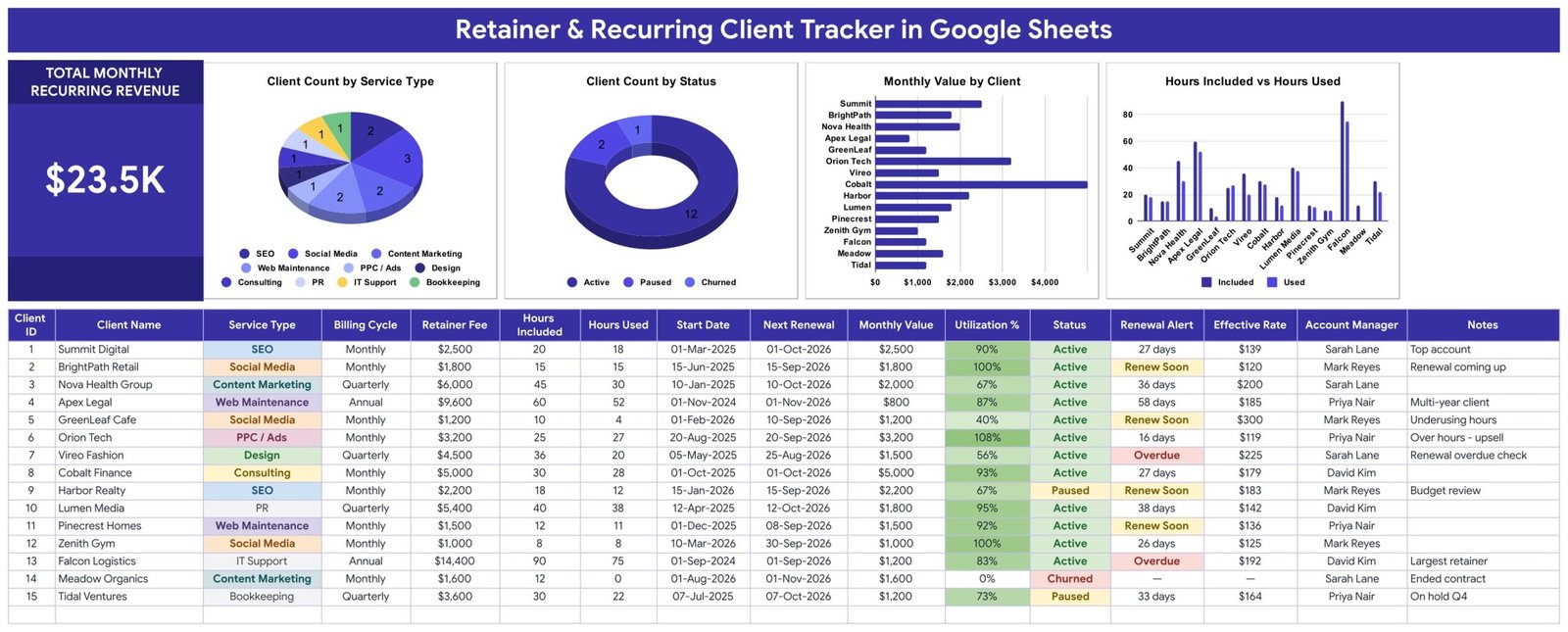
Retainer & Recurring Client Tracker in Google Sheets is a shared working template for agencies, freelancers, consultants, and service firms that manage recurring accounts. Its sample data demonstrates 15 clients, $23.5K in active monthly recurring revenue, 4 charts, 3 client states, and renewal alerts that identify overdue dates or renewals due within 14 days. Enter a retainer once, update usage and renewal dates each cycle, and review the resulting monthly value, utilization, effective rate, and account ownership in one place.
Get the Retainer & Recurring Client Tracker in Google Sheets
Key Features of Recurring Client Tracker in Google Sheets
The tracker combines a client-level register with a compact dashboard. Users enter commercial details such as billing cycle, retainer fee, included hours, used hours, start date, next renewal, status, account manager, and notes. Formula columns calculate monthly value, utilization, renewal alert, and effective rate. These working figures help a team prepare for account reviews, but they should still be reconciled with contracts, time records, invoices, and the accounting ledger.
- Monthly recurring revenue card based on active clients
- Client Count by Service Type chart
- Client Count by Status chart
- Monthly Value by Client chart
- Hours Included vs Hours Used chart
- Active, Paused, and Churned status choices
- Overdue, Renew Soon, and day-count renewal alerts
- Customizable service, billing, status, and owner lists
Tracker Sheets and Fields Explained
Main Tracker
The main sheet contains the dashboard and client register. Input fields cover Client Name, Service Type, Billing Cycle, Retainer Fee, Hours Included, Hours Used, Start Date, Next Renewal, Status, Account Manager, and Notes. Client ID, Monthly Value, Utilization %, Renewal Alert, and Effective Rate are calculated automatically.
Monthly Value normalizes retainers according to billing cycle, which makes monthly, quarterly, and annual clients easier to compare. Utilization divides Hours Used by Hours Included. Effective Rate divides the retainer amount by used hours, so a manager can identify accounts that may need a scope or pricing conversation. These are commercial review indicators, not accounting entries.
Four Dashboard Charts
Client Count by Service Type shows the mix of work across services such as SEO, social media, content marketing, web maintenance, design, consulting, and support. Client Count by Status separates active, paused, and churned accounts. Monthly Value by Client compares normalized value, while Hours Included vs Hours Used exposes underuse and overuse patterns.
How-to-Use Sheet
The instruction page identifies the editable and formula-driven columns. It explains the renewal logic, periodic updates, dropdown maintenance, optional chip formatting, chart behavior, and currency formatting.

Template Reference Sheet
The final sheet provides links to related business templates and a customer offer. It remains separate from the calculations on the working tracker.
Google Sheets Tracker vs. Excel vs. Paid CRM – Feature Comparison
| Feature | Google Sheets tracker | Excel alternative | Paid CRM |
|---|---|---|---|
| Pricing model | One-time template | One-time file | Recurring subscription |
| Real-time collaboration | Yes | Limited | Usually |
| MRR normalization | Included formulas | Template-dependent | Plan-dependent |
| Renewal display | Formula-based alert | Possible with formulas | Often automated |
| Email reminders | Not included | Not included | Often available |
| Invoices and payments | Not included | Not included | Integration-dependent |
| Custom fields | Directly editable | Directly editable | Plan-dependent |
This template fits teams that want spreadsheet flexibility and shared access. A paid CRM is a better fit when you need automated workflows, granular permissions, email sequences, signed contracts, invoicing, or system-level audit history.
Who Should Use This Template
Freelancers can compare recurring income and delivered hours across clients. Creative and marketing agencies can monitor scope use and upcoming renewals. Consultants can normalize quarterly or annual agreements to monthly value. Managed-service teams can assign account owners and record brief commercial notes.
The sheet is not designed to act as a payment processor, tax ledger, legal contract repository, automated reminder system, or enterprise CRM. Do not treat its calculated MRR as final financial reporting until it is reconciled with approved source records.
Real-World Use Cases
Preparing a renewal meeting
An account manager filters for Renew Soon and Overdue items, checks hours used, and prepares the relevant contract for review.
Reviewing retainer utilization
An agency owner compares included and used hours. Accounts above 100% may require a scope discussion; low-use accounts may need proactive engagement.
Building a recurring revenue snapshot
A consultant reviews normalized monthly values and client states, then reconciles the working total with invoices and accounting data before using it in a formal report.
Advantages of This Google Sheets Tracker
Real-time collaboration makes it easy for account and finance teams to work from the same file. The layout keeps source rows visible below the charts, so users can trace each summary back to client inputs. Formula-based alerts require no separate application, and editable lists let the tracker follow the service names and account owners used by the business.
Opportunities for Improvement
The template does not send emails, create invoices, collect payments, sync calendars, import timesheets, enforce contracts, or provide role-based workflow approvals. Teams can add fields and formulas, but organizations needing automated integrations or controlled audit history should connect approved systems or adopt a specialist platform.
Best Practices
- Make a private copy and name an owner for the tracker.
- Protect formula columns before inviting editors.
- Update hours used and renewal dates on a consistent cycle.
- Use stable service and account-manager names in the List tab.
- Restrict sharing to people who need access.
- Reconcile monthly value with signed contracts and accounting records.
- Archive a month-end snapshot when a formal review trail is required.
Google provides instructions for sharing files from Google Drive and protecting sheets and ranges. Apply your organization’s own access and data-handling rules before entering client information.
Separate inputs from review decisions
Use the tracker to surface questions, not to make every decision automatically. A high utilization percentage can indicate scope pressure, but the underlying contract, deliverables, timing, and service quality still matter. An overdue renewal date can indicate that the date needs updating rather than that a client has failed to renew. Open the source agreement and confirm the facts before changing price, scope, status, or ownership.
Keep formulas and source records intact
Protect Client ID, Monthly Value, Utilization %, Renewal Alert, and Effective Rate from accidental typing. When a formula needs to extend to new rows, copy it from a known-good row and test the result with a temporary example. Keep signed agreements, approved rates, invoices, and time records in their designated systems; the sheet should reference those sources rather than replace them.
Review access and version history
Google Sheets collaboration is convenient, but broad sharing can expose commercial information such as fees, renewal dates, and account ownership. Use named access where possible, review collaborators periodically, and avoid public links. Version history can help investigate edits, while a month-end export provides a stable snapshot for internal review.
Define a recurring operating cadence
A practical schedule is to update hours weekly, review Renew Soon accounts at least once a week, confirm status changes when they occur, and reconcile revenue at month end. Assign one person to maintain dropdown lists so service and account-manager labels stay consistent across the charts.
Explore Relevant Templates
For adjacent workflows, see the Freelance Income & Expense Tracker, Billable Hours & Time Tracker, Client Billing & Invoice Management Dashboard, and Freelancer & Agency Project Management Web App.
Want to build recurring-revenue trackers of your own? The NextGenTemplates Academy learning paths teach the spreadsheet skills involved, with practice files to work through.
Get the Retainer & Recurring Client Tracker in Google Sheets
Frequently Asked Questions
How is monthly recurring revenue calculated?
The template normalizes the entered retainer fee according to monthly, quarterly, or annual billing cycle and totals active client values.
What does Renew Soon mean?
The prepared logic flags a next-renewal date within 14 days. Past dates appear as Overdue.
Can I add more clients?
Yes. The prepared chart ranges support additional rows; follow the included instructions when extending the register.
Can I change the currency?
Yes. Apply the appropriate Google Sheets number format to the money columns.
Does it track payments?
No. It tracks commercial retainer values and client status, not invoice settlement or bank transactions.
Can it send automatic renewal reminders?
No. Alerts appear in the sheet. Email or calendar automation would require a separate workflow.
How do I get the template?
Purchase the retainer tracker on NextGenTemplates, open the downloaded PDF, and use its copy link.
About the Author
Built by PK – Microsoft Certified Professional with 15+ years of Excel, Google Sheets, and Power BI experience. Founder of NextGenTemplates, reaching 300K+ subscribers across YouTube channels. Every template is hand-built and tested before release.
Conclusion
A structured retainer tracker helps a service business review recurring value, renewal timing, utilization, and ownership without scattering data across separate lists. Use the template as a working commercial control, reconcile its figures with official records, and move to specialized software when automation or audit requirements outgrow a spreadsheet. See the screenshots and download details on NextGenTemplates.