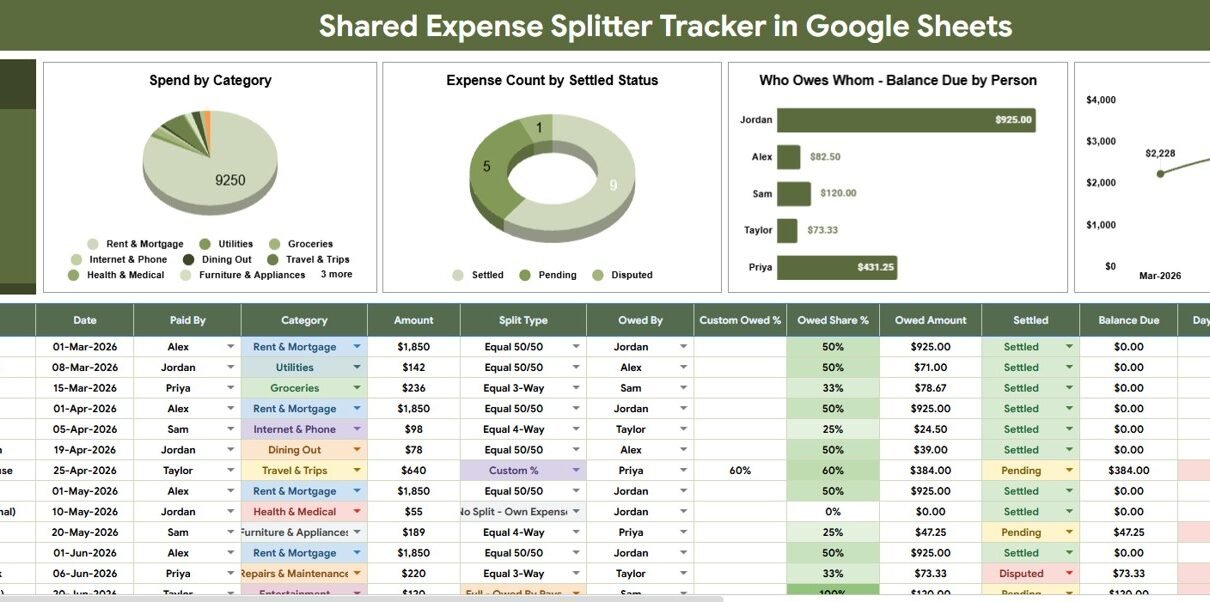
Shared Expense Splitter Tracker in Google Sheets is built for groups that share costs but do not want reimbursement details scattered across chat messages, receipts, and memory. This Google Sheets template gives users 2 main sheet tabs, 1 headline Total Unsettled Balance card, 4 analysis charts, and 4 dropdown-list sections for cleaner shared expense tracking. Because the file runs in Google Sheets, teams can also use Google Drive permissions to control who can view, comment, or edit the file. Google explains those Drive sharing roles in its official file sharing help guide.Shared Expense Splitter Tracker in Google Sheets
The goal is simple: record who paid, what the expense was for, who is involved, whether the expense is settled, and what remains due. That makes it useful for roommates, couples, trip groups, families, student houses, clubs, and small event teams.Shared Expense Splitter Tracker in Google Sheets
Get the Shared Expense Splitter Tracker in Google Sheets
Key Features of Shared Expense Splitter Tracker in Google Sheets
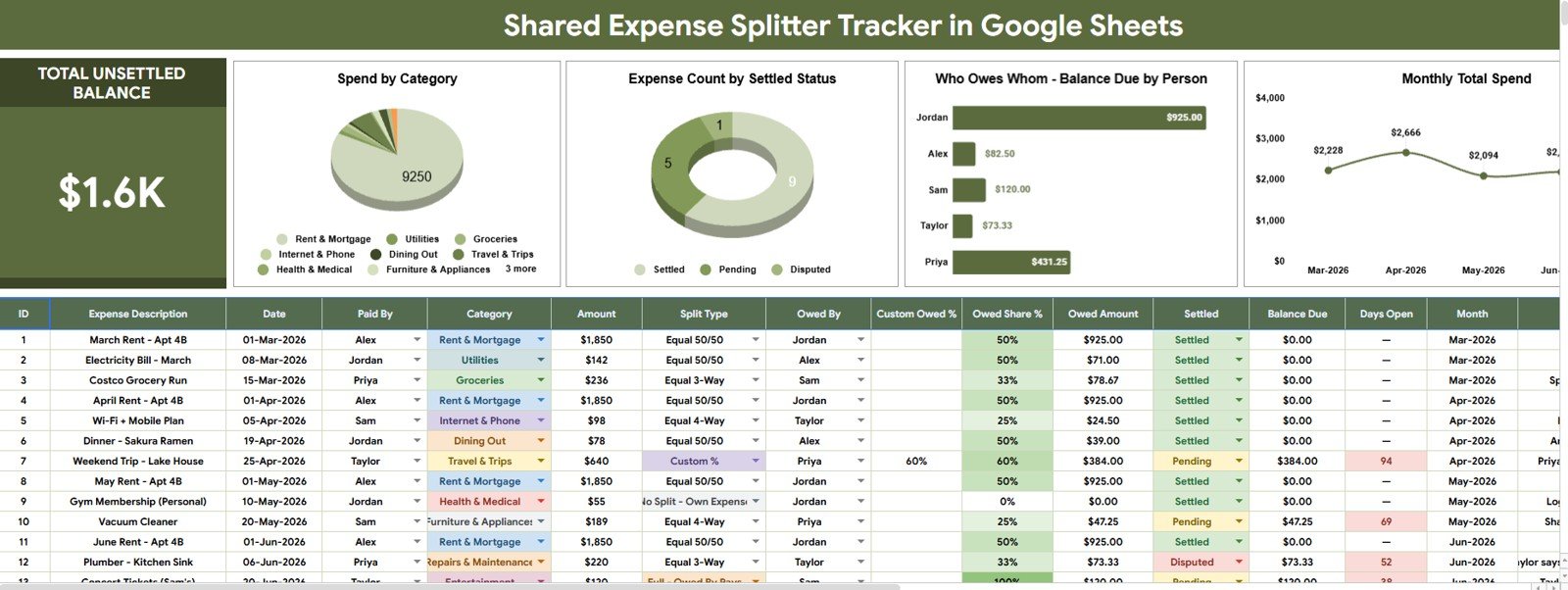
Total Unsettled Balance card: The top card gives a quick answer to the most important question: how much is still open. Users can review this before looking at individual expense rows or charts.Shared Expense Splitter Tracker in Google Sheets
Interactive overview dashboard: The Overview Page brings shared expense analysis into one place. Slicers and charts help users filter by person, status, category, split type, date, or month depending on the setup.Shared Expense Splitter Tracker in Google Sheets
Four chart views: The template includes Spend by Category, Expense Count by Settled Status, Balance Due by Person, and Monthly Total Spend by Month. These views turn raw entries into a practical reimbursement discussion.Shared Expense Splitter Tracker in Google Sheets
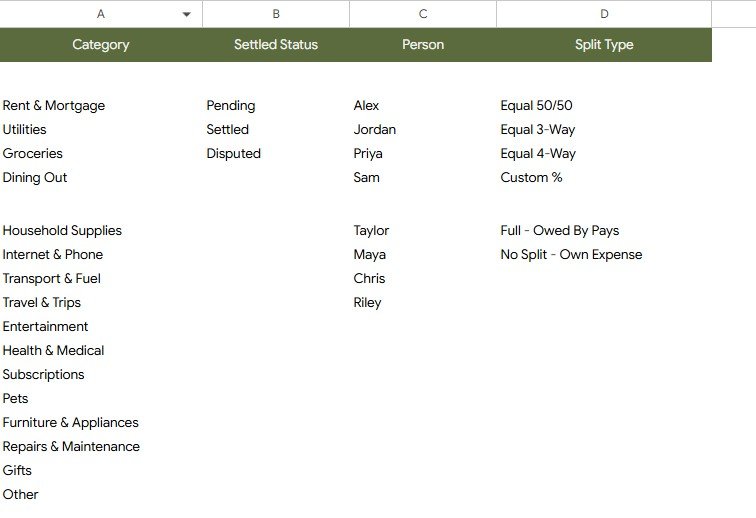
Controlled dropdown lists: The Dropdown Lists sheet stores category options, settled status options, person names, and split type options. Clean dropdowns reduce spelling differences and keep charts easier to trust.
Google Sheets collaboration: After purchase, the buyer can work from a copy in Google Drive. That copy can be shared with selected people using Google Drive access settings.Shared Expense Splitter Tracker in Google Sheets
Dashboard Pages Explanation
1 – Overview Page
The Overview Page is the main reporting page. At the top, the Total Unsettled Balance card shows the high-level amount that still needs settlement, so the group can quickly tell whether reimbursements are complete.Shared Expense Splitter Tracker in Google Sheets
The page also includes slicers to apply filters quickly. This is helpful when a group wants to focus on one roommate, one trip month, one category, or only unsettled records.Shared Expense Splitter Tracker in Google Sheets
Spend by Category: This chart groups expense amounts by category, such as rent, groceries, utilities, travel, meals, supplies, or custom labels. It helps users see which shared cost areas are driving the largest spend.Shared Expense Splitter Tracker in Google Sheets
When one category is much higher than the rest, the group can review whether that pattern is expected. It is especially useful for recurring household costs and travel budgets.Shared Expense Splitter Tracker in Google Sheets
Expense Count by Settled Status: This chart counts records by settlement status. It helps separate completed reimbursements from pending or unsettled items.Shared Expense Splitter Tracker in Google Sheets
Instead of asking everyone to scan transaction rows, users can use this visual to see whether the group has mostly closed items or still needs follow-up.Shared Expense Splitter Tracker in Google Sheets
Balance Due by Person: This chart shows the open balance by person. It gives each group member a clear view of what may still be due.Shared Expense Splitter Tracker in Google Sheets
This is useful for roommate bills, group trips, shared subscriptions, event supplies, and any situation where one person pays first and others reimburse later.
Monthly Total Spend by Month: This chart shows shared spending across months. It helps identify higher-cost months, seasonal costs, travel periods, or recurring group expense patterns.
Monthly visibility also helps users compare the current month with prior months before deciding whether the group budget is drifting upward.
2 – Dropdown Lists
The Dropdown Lists sheet supports cleaner data entry. It is where users maintain the controlled list values that feed the tracker and dashboard analysis.
Category Options by Expense Type: This section stores category values used to classify shared expenses. Standardized categories make the Spend by Category chart easier to read and compare.Shared Expense Splitter Tracker in Google Sheets
Settled Status Options by Payment Status: This section stores settlement status values such as Settled, Pending, Unsettled, or custom labels. Clean status values help the settled-status chart avoid duplicate or unclear labels.Shared Expense Splitter Tracker in Google Sheets
Person Options by Group Member: This section stores the names of the people involved in the split. Using a controlled list avoids slightly different spellings for the same person.
Split Type Options by Sharing Method: This section stores split method options, such as equal split, custom split, paid by one person, reimbursement, or group-specific labels. It helps users classify how each shared expense should be handled.
Shared Expense Splitter Tracker in Google Sheets vs. Microsoft Excel Tracker vs. Paid Expense App – Feature Comparison
| Feature | This Google Sheets template | Microsoft Excel tracker | Paid expense app |
|---|---|---|---|
| Cost | $6.99 one-time template price | Template cost plus possible Microsoft license | Often monthly, annual, or feature-gated |
| Platform | Google Sheets in Drive | Excel desktop or web | Vendor-hosted web or mobile app |
| Setup time | Copy file, edit lists, enter expenses | Download workbook and customize | Create account, invite users, configure groups |
| Real-time team collaboration | Native Google Drive sharing | Depends on OneDrive or SharePoint | Usually account-based |
| Mobile access | Google Sheets app or browser | Excel app or browser | Usually included |
| Customizable fields | Edit categories, people, statuses, split types, and labels | Editable if workbook is unlocked | Limited by vendor settings |
| Share with link | Yes, through Google Drive permissions | Yes, through Microsoft cloud sharing | Usually login-based |
| Year-1 cost at 5 users | $6.99 before any Google Workspace cost | Template plus licensing cost | Can increase with paid plans |
| Unsettled balance view | Included as a headline card | Must be built or customized | Depends on app workflow |
Who Should Use This Template
This shared expense tracker is useful for roommates who split rent-related add-ons, friends planning a group trip, couples sharing household bills, students managing shared house costs, and event organizers who need to track reimbursements after group purchases.
It is also useful for finance coaches or personal productivity creators who want a simple example of group expense tracking in Google Sheets. Because it is a spreadsheet, it can be adapted to different naming conventions and categories.
Real-World Use Cases
Roommate house costs: A shared apartment can use the tracker for rent extras, electricity, internet, groceries, repairs, and supplies. The Balance Due by Person chart helps the group settle up at the end of the month.
Group trip expenses: A trip planner can record hotels, taxis, meals, tickets, fuel, and shared bookings. After the trip, slicers make it easier to review only unsettled records or one person at a time.
Event team reimbursements: An event team can track vendor deposits, materials, food, decorations, and other shared purchases. The status chart helps show what has already been reimbursed.
Advantages of Shared Expense Splitter Tracker in Google Sheets
The biggest advantage is transparency. Everyone can work from the same file, see the same categories, and review the same settlement status.
The second advantage is flexibility. Unlike a locked app workflow, the Google Sheets format allows users to rename people, categories, statuses, and split types as their group changes.
The third advantage is affordability. A one-time spreadsheet template is easier to justify for casual groups than a recurring expense-sharing subscription.
Opportunities for Improvement
This template is intentionally manual, which means it does not connect to bank accounts or payment apps. Users who want automatic transaction imports will need a specialist tool.
It also depends on disciplined data entry. If group members do not enter expenses consistently, charts and balances will need review before final settlement.
For groups with legal, tax, or business reimbursement requirements, the tracker should be treated as an internal planning file rather than an official accounting system.
Best Practices
Start by updating the Dropdown Lists sheet before entering real expenses. Clean categories, person names, status labels, and split types make the dashboard more reliable from the beginning.
Use a consistent settlement process. For example, decide whether an expense becomes Settled only after money is received, after everyone confirms, or after the person who paid marks it complete.
Review the dashboard on a fixed schedule. Roommates might review it monthly, while travel groups may review it at the end of each trip day and again after the trip.
Keep evidence outside the tracker when needed. Receipts, bank screenshots, and payment confirmations should be stored separately if the group needs proof for larger expenses.
Explore Relevant Templates
- Shared Expense Splitter Tracker in Google Sheets
- Personal Cash Flow Tracker in Google Sheets
- FIRE Progress Tracker in Google Sheets
- Loan EMI Repayment Tracker in Google Sheets
- Retirement Savings Tracker in Google Sheets
If you would like to build your own spreadsheet trackers, the NextGenTemplates Academy learning paths guide you through the skills step by step, with practice files.
Get the Shared Expense Splitter Tracker in Google Sheets
Frequently Asked Questions
What is the Shared Expense Splitter Tracker in Google Sheets?
It is a Google Sheets template for tracking shared expenses, unsettled balances, categories, people, split types, settlement status, and monthly spend.
What does the Overview Page show?
It shows Total Unsettled Balance plus charts for Spend by Category, Expense Count by Settled Status, Balance Due by Person, and Monthly Total Spend by Month.
Can I edit the dropdown values?
Yes. The Dropdown Lists sheet lets users edit category options, settled status options, person names, and split type values.
Can multiple people collaborate on the same tracker?
Yes. After the file is copied to Google Drive, the owner can share the Google Sheet with selected people and assign the appropriate access level.
Does this template connect to payment apps?
No. It is a manual shared expense tracker. That keeps setup simple and avoids requiring payment or bank login access.
Is this template for business accounting?
No. It is best for personal, group, household, travel, and light internal reimbursement tracking. Use accounting software for regulated bookkeeping.
About the Author
Built by PK – Microsoft Certified Professional with 15+ years of Excel, Google Sheets, and Power BI experience. Founder of NextGenTemplates, reaching 300K+ subscribers across YouTube channels. Every template is hand-built and tested before release.
Conclusion
The Shared Expense Splitter Tracker in Google Sheets gives groups a simple way to record shared expenses, review unsettled balances, analyze spend by category, track settlement status, and maintain clean dropdown lists. It works best when a group wants transparency, editable fields, and a one-time spreadsheet workflow instead of a recurring expense app.