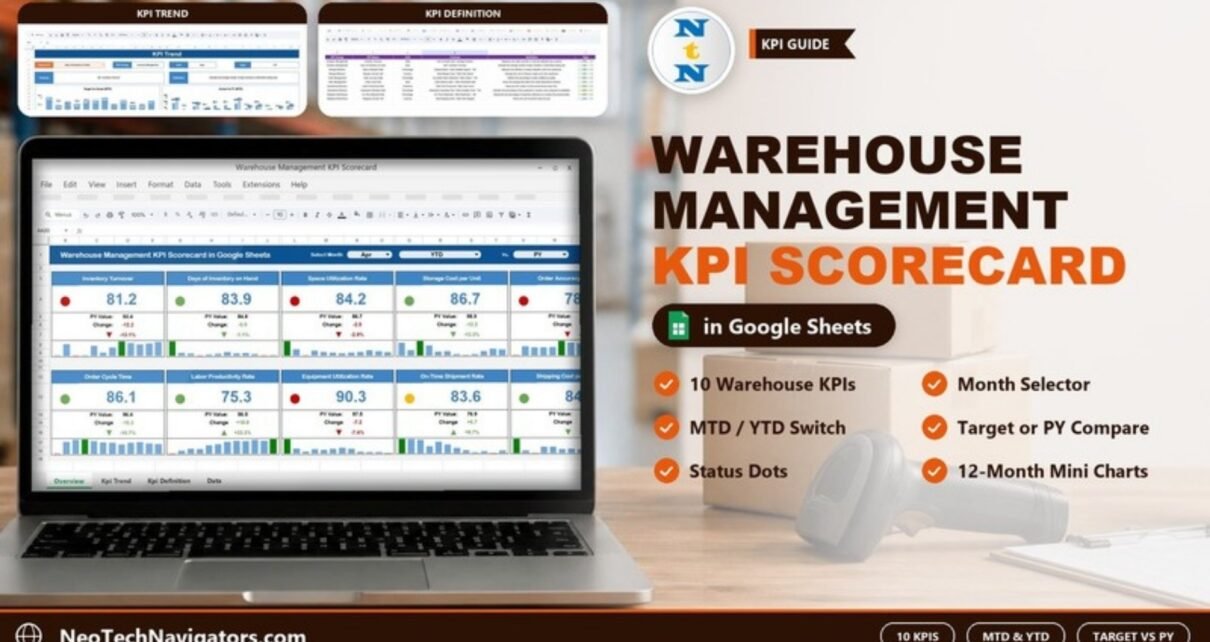
The Warehouse Management KPI Scorecard in Google Sheets shows ten core warehouse KPIs on a single screen, each as a card with its current value, a comparison, a coloured status dot and a twelve-month mini chart. Choose a month, switch between MTD and YTD, compare against Target or Previous Year, and every card updates.
It is built for warehouse managers, operations leads and small 3PL or e-commerce teams who review performance monthly and want a clean, shareable scorecard rather than another raw spreadsheet. The file has four sheets (Scorecard, KPI Trend, Input Data and KPI Definition) and uses only native Google Sheets features.
Get the Warehouse Management KPI Scorecard
Why Use a Warehouse KPI Scorecard?
Warehouse data is usually scattered: inventory counts in one system, labour hours in another, shipping costs on carrier invoices. A monthly scorecard pulls the headline numbers into one view, so you can answer the basic questions quickly. Is inventory moving faster or slower than last year? Is space being used well? Are orders accurate and on time? What does it cost to store and ship a unit?
A scorecard does not replace a warehouse management system (WMS). It sits on top of whatever you already use and turns monthly totals into a consistent, comparable picture.
The 10 Warehouse KPIs in the Scorecard
These are the KPIs exactly as defined on the template’s KPI Definition sheet.
| # | KPI | Group | Unit | Formula | Better when |
|---|---|---|---|---|---|
| 1 | Inventory Turnover | Inventory Management | Ratio | Cost of Goods Sold / Average Inventory | Higher (UTB) |
| 2 | Days of Inventory on Hand | Inventory Management | Days | 365 / Inventory Turnover | Lower (LTB) |
| 3 | Space Utilization Rate | Storage Efficiency | Percentage | (Utilized Space / Total Available Space) * 100 | Higher (UTB) |
| 4 | Storage Cost per Unit | Storage Efficiency | Currency | Total Storage Costs / Total Units Stored | Lower (LTB) |
| 5 | Order Accuracy Rate | Order Management | Percentage | (Accurate Orders Delivered / Total Orders) * 100 | Higher (UTB) |
| 6 | Order Cycle Time | Order Management | Days | Order Delivery Date – Order Placement Date | Lower (LTB) |
| 7 | Labor Productivity Rate | Operational Efficiency | Units/Hour | Total Units Processed / Total Labor Hours | Higher (UTB) |
| 8 | Equipment Utilization Rate | Operational Efficiency | Percentage | (Equipment Operating Time / Total Available Time) * 100 | Higher (UTB) |
| 9 | On-Time Shipment Rate | Shipping Performance | Percentage | (On-Time Shipments / Total Shipments) * 100 | Higher (UTB) |
| 10 | Shipping Cost per Unit | Shipping Performance | Currency | Total Shipping Costs / Total Units Shipped | Lower (LTB) |
The numbers in the sample file are placeholders that show how the sheets behave; an Order Cycle Time of 86.1 days, for example, is not a realistic benchmark. Replace them with your own data.
The Four Sheets Explained
1. Scorecard
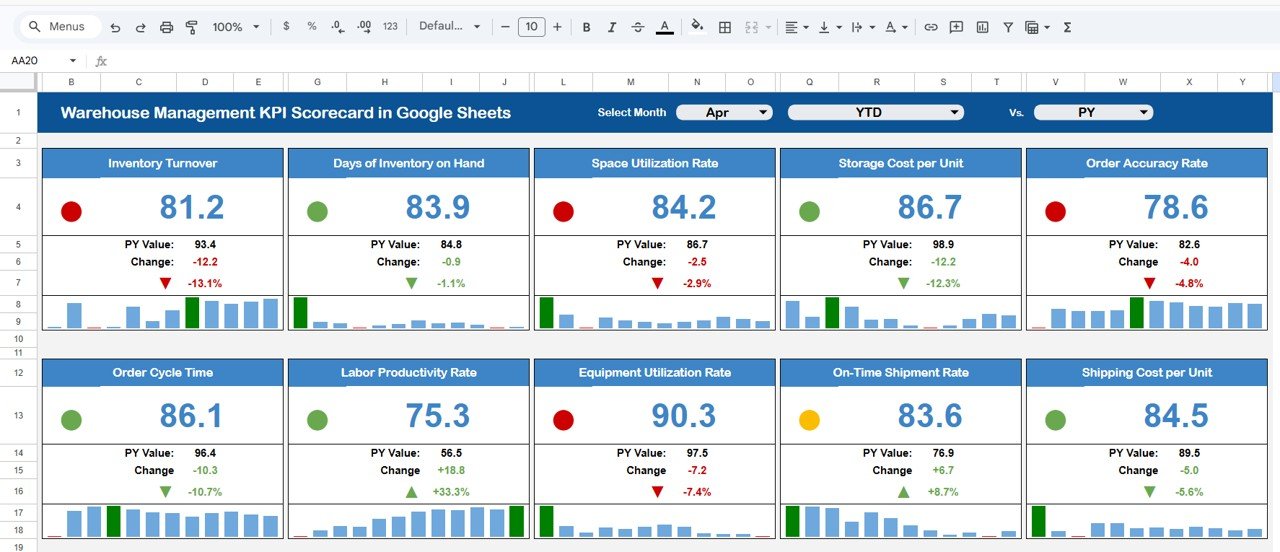
Three dropdowns sit across the top: Select Month, MTD/YTD and Vs. (Target or PY). Below them, ten cards are arranged in two rows. Each card shows:
- the KPI’s value for the selected month and period;
- the comparison value (for example PY Value when you compare with the previous year);
- the Change as a number and as a percentage, with an up or down arrow;
- a coloured status dot (green, amber or red);
- a twelve-month mini bar chart for a quick read of the trend.
Worked example from the screenshot (April, YTD, Vs PY): Inventory Turnover is 81.2 against a PY Value of 93.4. The change is 81.2 − 93.4 = −12.2, and −12.2 ÷ 93.4 = −13.1%, shown in red because turnover should go up. Days of Inventory on Hand is 83.9 against 84.8, a change of −0.9 (−1.1%), shown in green because fewer days is better.
2. KPI Trend
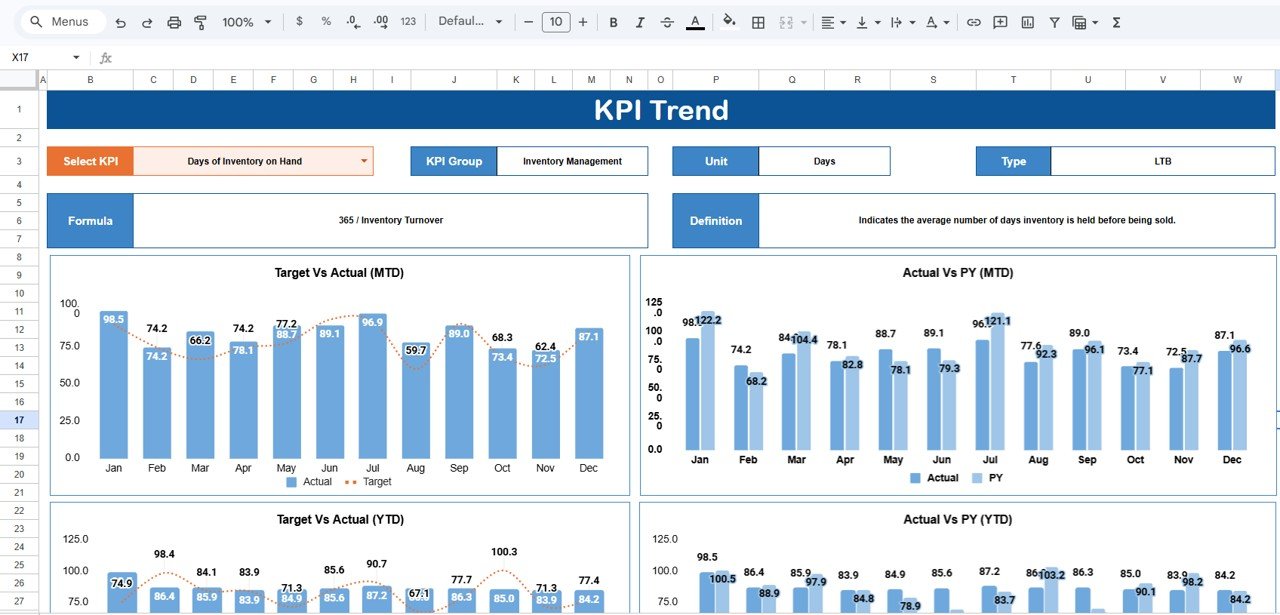
Select a KPI in the dropdown at C3. The header shows its KPI Group, Unit, Type, Formula and Definition. In the screenshot, Days of Inventory on Hand is selected: Inventory Management group, Days, LTB, formula 365 / Inventory Turnover. Four charts follow: Target Vs Actual (MTD), Actual Vs PY (MTD), Target Vs Actual (YTD) and Actual Vs PY (YTD), each covering January to December.
3. Input Data
Each KPI has its own block (KPI-1, KPI-2 and so on) with one row per month. Every row has six numbers: MTD Actual, Target and PY, and YTD Actual, Target and PY. In the sample, Inventory Turnover for April has a YTD Actual of 81.2 and a YTD PY of 93.4, which are exactly the values the Scorecard card shows. This is the only sheet you need to edit each month.
4. KPI Definition
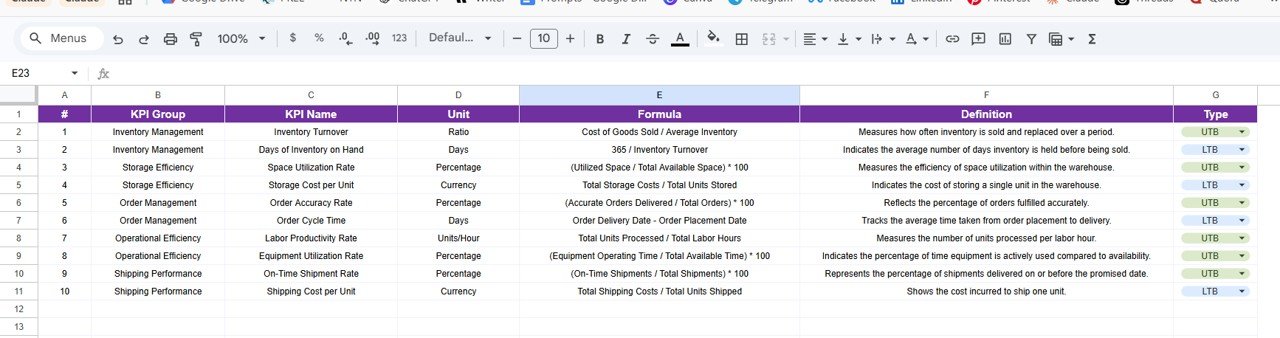
The master list of the ten KPIs with #, KPI Group, KPI Name, Unit, Formula, Definition and Type. The Type column (UTB or LTB) tells the scorecard which direction counts as an improvement.
How to Use It with Your Own Warehouse Data
- Make your own copy using the link in the PDF guide.
- Read the KPI Definition sheet with your team and confirm that each formula matches how you measure it. Edit the names, formulas or types if they do not.
- Gather last year’s monthly figures and enter them as PY values on Input Data.
- Set monthly targets for each KPI and enter them in the Target columns.
- At each month-end, calculate the KPIs from your WMS or ERP exports. For example, if 9,640 of 10,000 orders were accurate, Order Accuracy Rate = 9,640 ÷ 10,000 × 100 = 96.4%. Enter the MTD actual and your YTD figure.
- On the Scorecard, pick the month and switch between MTD/YTD and Target/PY to read the results.
- Open KPI Trend for any KPI with a red dot to see whether it is a one-off or a pattern.
Real-World Use Cases
- Monthly operations review: a single-site distribution warehouse uses the YTD vs PY view in its monthly meeting to show whether turnover, accuracy and on-time shipping are better than last year.
- Cost conversations: a small e-commerce fulfilment team watches Storage Cost per Unit and Shipping Cost per Unit side by side before renegotiating carrier or storage contracts.
- Multi-site comparison: an operations manager keeps one copy per warehouse with identical KPI definitions, so the scorecards can be compared like for like.
Best Practices
- Lock definitions before data. Decide, for example, whether “accurate order” means correct items, correct quantity, undamaged, or all three.
- Use realistic targets. Base them on the last six to twelve months, not on industry headlines.
- Update on a fixed day. The trend charts are only useful if every month is filled in.
- Read pairs of KPIs together. Inventory Turnover and Days of Inventory on Hand move in opposite directions; Labor Productivity and Order Accuracy can trade off against each other.
- Protect the Scorecard. Use Data → Protect sheets and ranges so only Input Data is editable.
If you want to learn to build KPI scorecards and dashboards yourself, the Excel Pivot Tables & Dashboards course on NextGenTemplates Academy walks through the techniques step by step.
Limitations
- It is a monthly reporting tool, not a WMS. There is no barcode scanning, stock ledger or pick-list logic.
- Values are entered manually, so you calculate each KPI from your own exports.
- KPIs are tracked at warehouse level. Zone, shift or SKU breakdowns would need extra copies or a different tool.
- The ten KPIs cover the essentials, but they do not include safety or returns metrics unless you add them.
Related Warehouse and Logistics Dashboards
For a chart-based view of the same topic, see the Warehouse Management KPI Dashboard in Google Sheets. For wider supply-chain coverage, try the Supply Chain & Logistics KPI Scorecard and the Logistics Efficiency KPI Dashboard. Safety-focused teams can pair this scorecard with the Warehouse Safety KPI Dashboard.
Related template: the same scorecard is available as a Warehouse Management KPI Scorecard in Excel.
Frequently Asked Questions
What KPIs are in the Warehouse Management KPI Scorecard?
Ten: Inventory Turnover, Days of Inventory on Hand, Space Utilization Rate, Storage Cost per Unit, Order Accuracy Rate, Order Cycle Time, Labor Productivity Rate, Equipment Utilization Rate, On-Time Shipment Rate and Shipping Cost per Unit.
Can I add or change KPIs?
Yes. Edit the KPI Definition sheet and the matching block on Input Data. Keep the same layout for any new block so the scorecard and trend charts can read it.
What is the difference between MTD and YTD here?
MTD is the value for the selected month only. YTD is the cumulative or year-to-date value up to that month, as you enter it on Input Data. Both have their own target and previous-year figures.
How is the Change percentage calculated?
It is the difference between the actual and the comparison value, divided by the comparison value. In the sample, Inventory Turnover changes from a PY of 93.4 to 81.2, which is −12.2 ÷ 93.4 = −13.1%.
Does it connect to my WMS or ERP?
No. You export or calculate monthly figures and type or paste them into Input Data. That keeps the template simple and system-independent.
Can my team view it on a phone?
Yes. It is a Google Sheets file, so it opens in the Google Sheets mobile app, and you can share it view-only with supervisors.
Wrapping Up
The Warehouse Management KPI Scorecard in Google Sheets gives you ten well-defined warehouse KPIs on one screen, with month, MTD/YTD and Target/PY switches and a trend sheet for deeper checks. Copy it, confirm the definitions with your team, and load last year’s numbers first. Your baseline will then be ready from the very first month.
Get the Warehouse Management KPI Scorecard
📅 Last updated: October 2026