Renovations rarely blow the budget in one moment. They drift. A better tile, an extra circuit the electrician found behind the wall, a permit nobody costed. Industry cost data puts a mid-range major kitchen remodel around $27,000 and a mid-range bathroom remodel around $12,000, and roughly one project in three finishes over its original number. The gap is almost never a mystery afterwards – it is just that nobody was watching it line by line while it was happening.Home Renovation Budget Tracker in Google Sheets
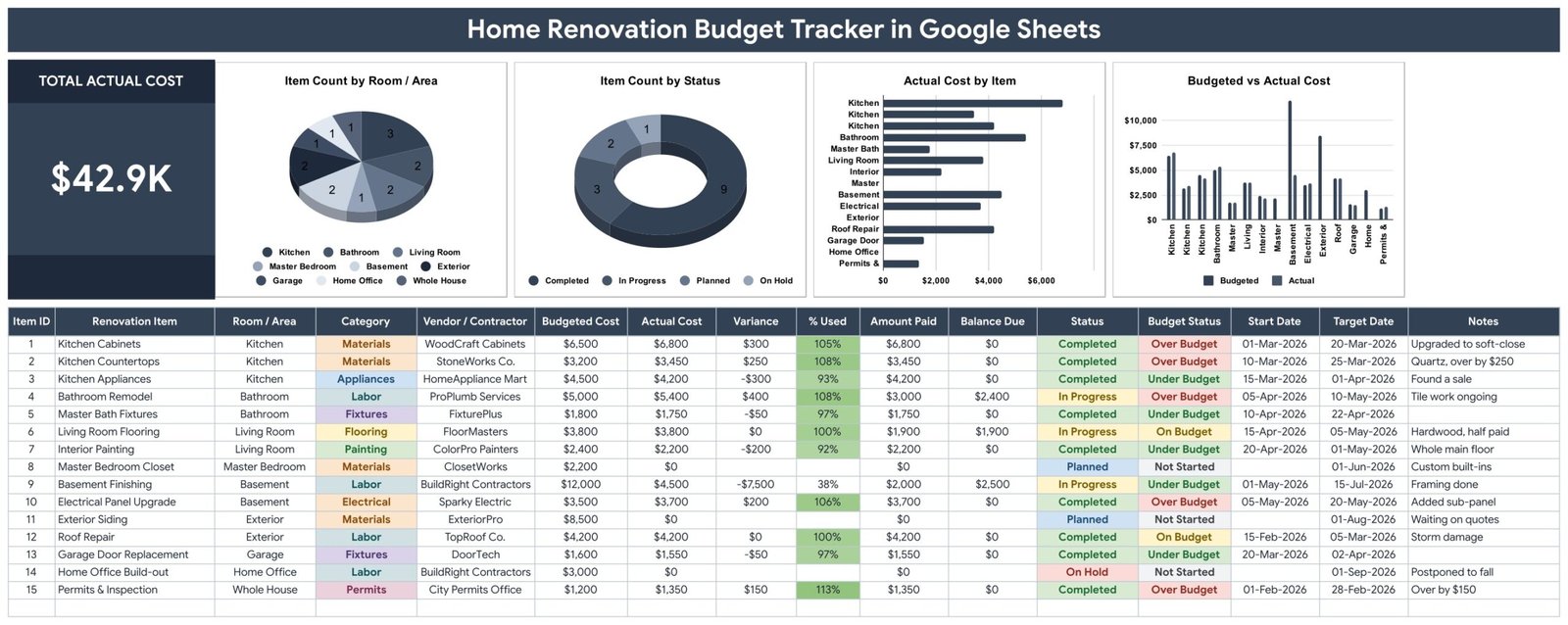
The Home Renovation Budget Tracker in Google Sheets exists to make that drift visible while you can still do something about it. One page, 16 columns per renovation item, 5 of them calculated automatically, 4 live charts and a Total Actual Cost card that reads $42.9K on the sample build. Every line carries what you planned, what it actually cost, who did the work, what you have paid and what is still owed.
Get the Home Renovation Budget Tracker in Google Sheets
This article walks through what is on each page, which columns you fill and which the sheet fills for you, how it stacks up against Excel and a paid renovation platform, and the handful of habits that keep a renovation budget honest from demolition to the final invoice. The template is available here.Home Renovation Budget Tracker in Google Sheets
Key Features of Home Renovation Budget Tracker in Google Sheets
A single Total Actual Cost card. The dark card on the top left holds one number – everything you have actually spent so far. It is deliberately the largest thing on the page, because it is the figure you check most often and the one that should never require a calculation.Home Renovation Budget Tracker in Google Sheets
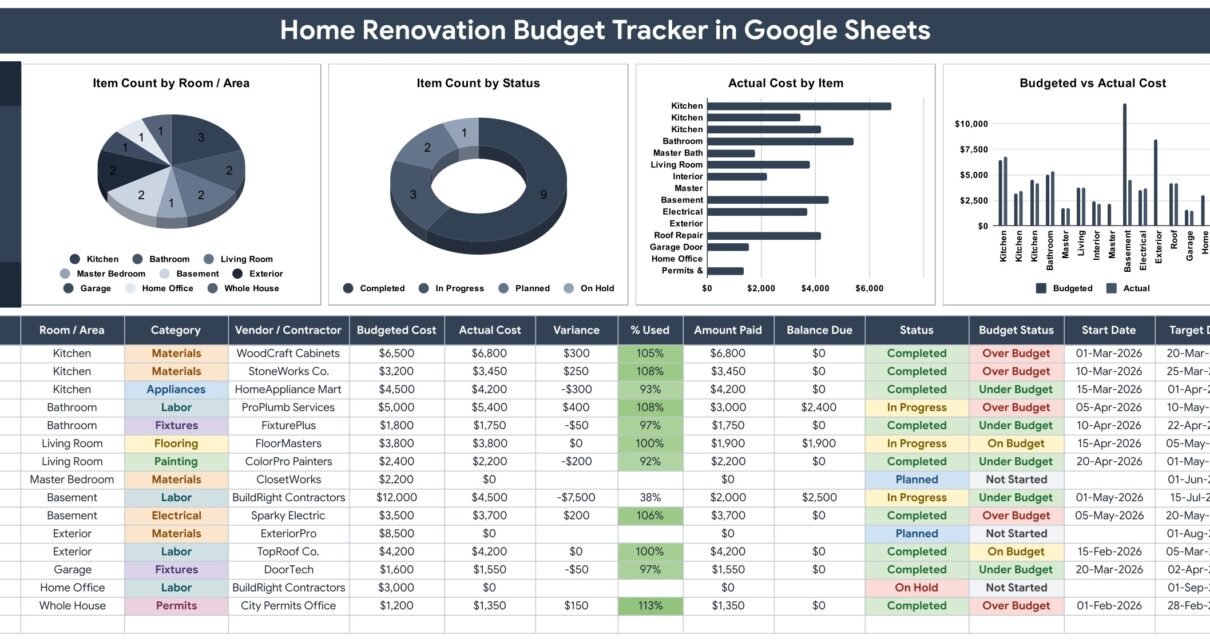
Four charts that read the table directly. Item Count by Room / Area (pie) shows where the work is concentrated. Item Count by Status (donut) shows how much of the project is Completed, In Progress, Planned or On Hold – nine, three, two and one on the sample data. Actual Cost by Item (bar) ranks the money so the two or three lines carrying the project separate themselves out. Budgeted vs Actual Cost (paired columns) is the one you show a contractor: plan next to reality, item by item.Home Renovation Budget Tracker in Google Sheets
Five columns you never type in. Item ID numbers itself. Variance is Actual minus Budgeted. % Used is the share of the line’s budget consumed. Balance Due is Actual minus Amount Paid. Budget Status resolves to Over Budget, Under Budget, On Budget or Not Started. Variance and % Used stay deliberately blank until an Actual Cost exists, so a planned item is not misreported as being under budget.
Vendor and payment tracking on the same row. Vendor / Contractor, Amount Paid and Balance Due sit beside the cost columns, so a half-paid flooring job shows $1,900 still owed rather than disappearing into a project total.
Dropdowns that grow with the job. Room / Area, Category, Vendor / Contractor and Status all read from the List tab, rows 2 to 500. Add a new subcontractor there once and they appear in every dropdown immediately – no re-setup, no editing validation rules. If you have not built a Google Sheets dropdown before, Google’s own data validation guide explains the mechanics.Home Renovation Budget Tracker in Google Sheets
Two dates per item. Start Date and Target Date turn the budget into a light schedule, which matters when a delayed basement pushes the flooring crew into next month’s cash flow.Home Renovation Budget Tracker in Google Sheets
Tracker Pages Explained
1. Tracker page
The working page and where you will spend all your time. A dark title banner across the top, then the Total Actual Cost card and the four charts in a single row, then the item table underneath.
The table columns run: Item ID, Renovation Item, Room / Area, Category, Vendor / Contractor, Budgeted Cost, Actual Cost, Variance, % Used, Amount Paid, Balance Due, Status, Budget Status, Start Date, Target Date, Notes. Fifteen sample rows are supplied and they are worked examples, not filler – Kitchen Cabinets at $6,500 budgeted against $6,800 actual and flagged Over Budget, Basement Finishing at $12,000 budgeted with only $4,500 spent so far at 38% used, Permits & Inspection over by $150. The formulas and chart ranges run to row 1000.
2. List page
The lookup tab that feeds every dropdown. Rooms cover Kitchen, Bathroom, Living Room, Master Bedroom, Basement, Exterior, Garage, Home Office and Whole House. Categories cover Materials, Labor, Appliances, Fixtures, Flooring, Painting, Electrical and Permits. Contractors and the four status values live here too. Edit this tab rather than the data table when you want new options.
3. How to Use page
A four-step guide written into the file itself, so it travels with the sheet when you share it: enter your items, understand the automatic columns, update as you pay, and extend the dropdowns. It also documents the ten-second manual step for turning the status dropdowns into coloured chips, and where to change the currency format if you are not working in dollars.
4. Explore More Templates page
A WELCOME15 coupon for 15% off a future purchase, a short list of related trackers and dashboards, and links into the main category pages.
Home Renovation Budget Tracker in Google Sheets vs. Excel vs. Paid Renovation SaaS – Feature Comparison
| This template (Google Sheets) | Excel renovation budget file | Paid renovation SaaS | |
|---|---|---|---|
| Cost | $6.99 one time | $6 to $20 one time, plus Office | Typically $85 to $399 per month |
| Platform | Any browser, free Google account | Desktop Excel or Microsoft 365 | Web plus vendor mobile app |
| Setup time | Under 10 minutes from the copy link | 15 to 30 minutes | Onboarding call, often 1 to 2 weeks |
| Real-time team collaboration | Yes, native and simultaneous | Only via OneDrive co-authoring | Yes, with seat licences |
| Mobile access | Yes, Google Sheets app | Limited on the Excel app | Yes |
| Customizable fields | Yes, nothing is locked | Yes | Restricted to the vendor’s schema |
| Share with link | Yes, view, comment or edit | Attachment or OneDrive link | Invite by seat |
| Year-1 cost at 5 users | $6.99 | $6 to $20 plus licences | $1,000 and up |
| Contractor payment tracking | Amount Paid and Balance Due per line | Usually manual | Yes, with invoicing |
| Automatic over-budget flag | Yes, per line | Manual conditional formatting | Yes |
Who Should Use This Template
It suits a homeowner running one renovation of roughly 10 to 200 line items, a couple splitting a remodel budget who both need the same numbers in front of them, a landlord turning a unit over between tenants, and a small remodelling contractor who wants one shared page per client instead of a project-management subscription.
It is not the right tool for a builder juggling twenty concurrent jobs with crew scheduling and formal change orders. It is not an accounting system – it records what you paid a contractor, not your tax position. And it will not estimate materials for you; the budget figures come from your quotes.
Real-World Use Cases
A first whole-house refresh, roughly $45K. Fifteen items go in at quote stage with budgets only. As each invoice lands, Actual Cost and Amount Paid get updated. Kitchen Cabinets come back at $6,800 against a $6,500 budget, Budget Status flips to Over Budget, and $300 comes off the exterior siding scope before that order is placed. The overrun is absorbed inside the project instead of showing up at the end.
A three-week rental turnover. One copy per unit. Room / Area separates Kitchen, Bathroom and Whole House work, the Item Count by Status donut answers “what is still open” in a glance, and the Balance Due column is the list of who still needs paying before the tenant moves in.
A small contractor reporting to clients. Each client gets a view-only link. The Budgeted vs Actual chart replaces the weekly phone call about money, and the Notes column records the reason behind every variance – “tile work ongoing”, “storm damage”, “found a sale” – which settles most disputes before they become disputes.
Advantages of Home Renovation Budget Tracker in Google Sheets
The obvious one is cost: a one-time $6.99 against a platform subscription that runs four figures in a year. But the real advantage is that everything lives on one page. There is no navigation, no drill-through, no second tab holding the number you actually want. Scroll once and you have the total, the four charts and every line item.
Second, nothing is locked. Add a column, rename a category, delete a chart you do not use. Google Sheets also handles the collaboration problem for free – a contractor with a view-only link sees the same figures you do, on their phone, on site.
Third, the charts use the built-in Aggregate option against the data columns rather than hidden helper tables. New rows appear in the charts without anyone re-pointing a range, which is the single most common way a spreadsheet dashboard quietly breaks.
Opportunities for Improvement
Being honest about the limits: there is no multi-project rollup, so five renovations means five copies rather than one portfolio view. There is no photo or receipt attachment column, though you can add one and paste Drive links into it. Currency is formatted in dollars out of the box and needs a Format, Number change if you work in another currency. And the coloured chip display on the dropdowns has to be switched on by hand once per column, because Google does not expose that setting to scripts.
None of those are hard blockers, and each of them is a two-minute fix, but they are worth knowing before you start.
Best Practices
Enter budgets before the work starts. A tracker filled in retrospectively is a receipt book, not a budget. Put your ten largest line items in with an estimate against each on day one – that is usually 80% of the total.
Update Amount Paid the same day you pay. Balance Due is only trustworthy if payments are current, and it is the column that stops you paying a deposit twice.
Write the reason in Notes, every time. “Upgraded to soft-close”, “quartz, over by $250”. Six weeks later the variance will be meaningless without it.
Add a contingency line. Create one item called Contingency at 10 to 15% of the total budget. When something unexpected appears, move money from that line rather than pretending the plan never changed.
Keep the List tab tidy. Every duplicate spelling of a contractor’s name splits them across two chart slices.
Explore Relevant Templates
- Home Renovation Budget and Project Tracker in Google Sheets – the larger build, with a project view alongside the money.
- Annual Family Budget Tracker in Google Sheets – for the household budget the renovation is funded from.
- Wedding Budget Tracker in Google Sheets – the same one-page pattern applied to a different large spend.
- Utility Bills & Usage Tracker in Google Sheets – useful once new appliances and insulation change your running costs.
- Money Lent & Borrowed Tracker in Google Sheets – for the family loan that part-funds the work.
Curious how trackers like this are put together? The NextGenTemplates Academy learning paths cover the spreadsheet skills involved, with practice files you can follow along with.
Get the Home Renovation Budget Tracker in Google Sheets
Frequently Asked Questions
Do I need a paid Google account?
No. Any free Google account can open, copy and use the tracker. Nothing installs and no add-on needs authorising.
How many renovation items can it hold?
The formulas and chart ranges run to row 1000, which leaves 985 items after the 15 samples – far beyond a single home project.
Can my partner and the contractor both see it?
Yes. Edit access for whoever is managing the money, view-only or comment access for anyone who just needs to follow along.
What happens to Variance on an item I have not started?
It stays blank, and so does % Used. Budget Status shows Not Started. That is deliberate, so planned work is not counted as savings.
Can I change the currency?
Yes, through Format then Number on the money columns. The dollar sample data is a placeholder.
Why are my dropdowns plain text instead of coloured chips?
The chip display style cannot be set by a script. Select the column, then Data, Data validation, click the rule, Advanced options, Display style: Chip.
What is actually in the download?
A PDF carrying the Make a copy link for the Google Sheet plus the setup notes. Google Sheets templates are delivered this way so your copy always lands in your own Drive.
About the Author
Built by PK – Microsoft Certified Professional with 15+ years of Excel, Google Sheets, and Power BI experience. Founder of NextGenTemplates, reaching 300K+ subscribers across YouTube channels. Every template is hand-built and tested before release.
Conclusion
The difference between managing a renovation budget and finding out what it cost is whether the estimate existed before the spending did. Sixteen columns, four charts and a flag that turns itself red is enough to hold that line across a six-month project. Put your ten biggest items in tonight with a budget against each, and every invoice from then on has something to be measured against.
Get the template here: Home Renovation Budget Tracker in Google Sheets. For walkthroughs of this and other Google Sheets builds, subscribe to youtube.com/@NeoTechNavigators.