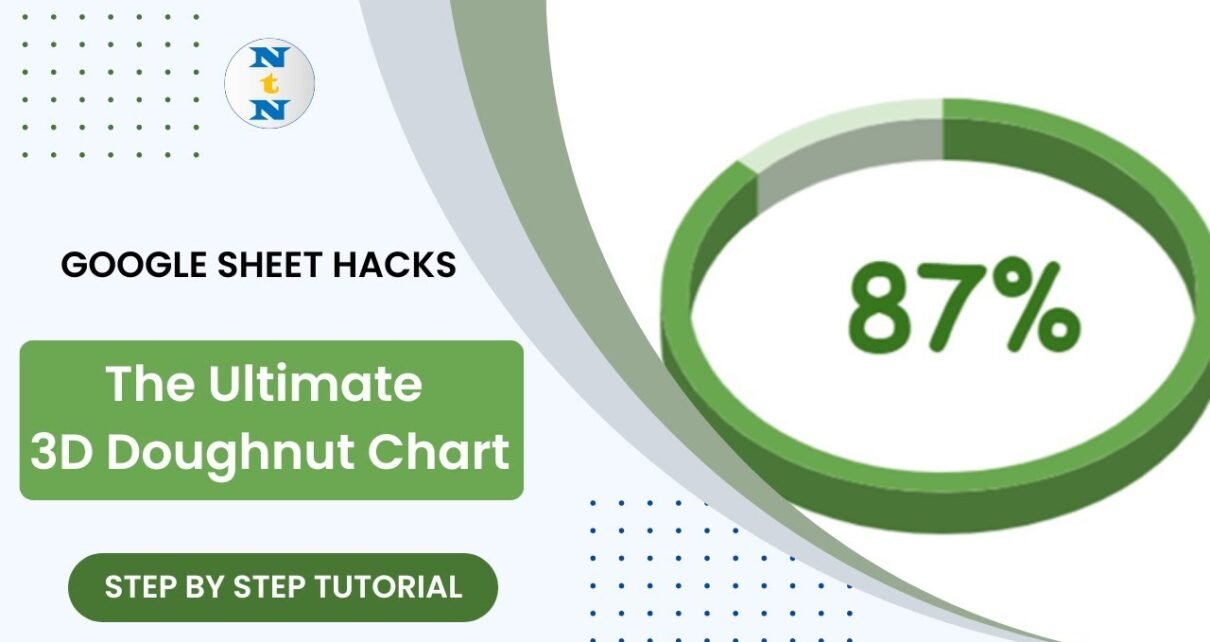
A 3D doughnut chart in Google Sheets is a neat way to show a single percentage, such as a service level, completion rate or target achievement, as a ring that fills up. In this guide you will build one from scratch using only a built-in pie chart, two cells of data and one helper formula, so the ring updates on its own whenever the number changes.
This tutorial is for anyone who builds reports or dashboards in Google Sheets and wants a clean KPI visual without add-ons. You will learn how to set up the data, turn a pie chart into a 3D doughnut, place the percentage in the middle of the ring, and avoid the mistakes that make doughnut charts look wrong.
🎥 Watch the Video Tutorial
Make a Copy of the Free Practice File
What the Finished 3D Doughnut Chart Looks Like
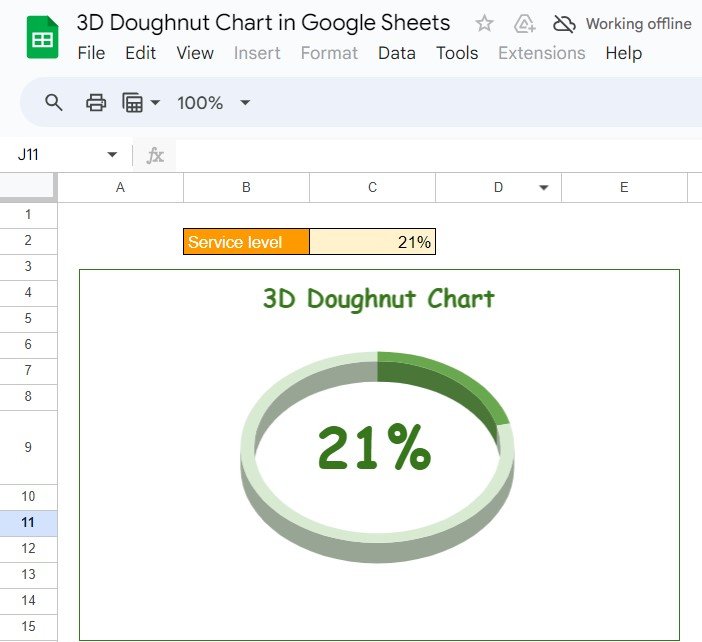
The practice file tracks one KPI, Service level. The label sits in cell B2 and the value in C2. The chart below it, titled “3D Doughnut Chart”, shows the filled part of the ring in dark green, the unfilled part in light green, and the percentage in large text in the centre of the ring.
How the Data Is Set Up
A doughnut chart that shows one percentage needs two slices: the part you achieved and the part that is left. The practice file uses this small table:
| Cell | Label | Value / formula | Purpose |
|---|---|---|---|
| B2 : C2 | Service level | Your KPI, e.g. 21% | The filled (dark green) part of the ring |
| B3 : C3 | Blank Area | =1-C2 |
The unfilled (light green) part of the ring |
| C9 | (no label) | =C2 |
The big number that shows through the centre of the ring |
Because Blank Area is always 1 - Service level, the two slices always add up to 100%. With a service level of 21%, Blank Area is 79%; if the service level changes to 29%, Blank Area becomes 71% and the ring redraws automatically.
Optional: simulate live data while you practise
The value in the practice file changes each time the sheet recalculates, which is a handy way to test that the chart updates. You can do the same with:
=RANDBETWEEN(1,100)/100Format the cell as a percentage with Format > Number > Percent. Once you are happy with the chart, replace the formula with your real KPI or a reference to the cell that calculates it.
Step-by-Step: Build the 3D Doughnut Chart
Step 1: Prepare a clean sheet
Add a new sheet, type the labels and values from the table above, and hide gridlines with View > Show > Gridlines (untick it). Without gridlines the chart sits on a clean white background and looks like part of a dashboard rather than a spreadsheet.
Step 2: Insert a pie chart
- Select B2:C3 (both labels and both values).
- Go to Insert > Chart.
- In the Chart editor, on the Setup tab, set Chart type to Pie chart.
You now have a flat pie with two slices: Service level and Blank Area.
Step 3: Turn the pie into a 3D doughnut
- Open the Customize tab.
- Under Chart style, tick 3D.
- Under Pie chart, set Donut hole to a large percentage (for example 75%) so the ring looks thin, as in the screenshot.
- Still under Pie chart, set Slice label to None so no numbers are printed on the ring itself.
Step 4: Colour the slices
Under Pie slice, pick the Service level slice and give it a strong colour (dark green in the example). Then pick the Blank Area slice and give it a pale shade of the same colour. Using two shades of one colour makes the ring read as “filled vs. empty” instead of two competing categories.
Step 5: Remove the legend and add a title
Under Legend, set Position to None. Under Chart & axis titles, type a short title such as “3D Doughnut Chart” or the KPI name, and set the font colour to match the ring.
Step 6: Show the percentage in the centre
Google Sheets does not have a built-in “value in the middle” option for pie charts, so the practice file uses a simple trick: the cell C9 contains =C2 and sits right behind the hole of the ring.
- In C9, enter
=C2, make the font large and bold, centre it and use the same green. - Make row 9 taller so the number has room (the practice file uses a taller row 9).
- In the Chart editor, under Chart style, set Background color to None and remove the border if you prefer.
- Drag and resize the chart until the hole of the ring sits exactly over C9.
Because the chart background is transparent, the number in C9 shows through the hole and changes along with the ring.
Practical Variations
- Project completion: link C2 to a formula such as
=COUNTIF(D2:D50,"Done")/COUNTA(D2:D50)to show the share of finished tasks. - Target achievement: use
=MIN(Actual/Target,1)so the ring never “overflows” past 100%. - Several KPIs side by side: build one chart, then use the three-dot menu on the chart and choose Copy chart, paste it, and change its data range to the next pair of rows.
- Traffic-light number: chart slice colours are fixed, but you can colour the centre number with conditional formatting on C9 (Format > Conditional formatting), for example red below 50% and green above 80%.
- Flat version: untick 3D for a cleaner, modern look on busy dashboards.
Common Problems and How to Fix Them
| Problem | Likely cause | Fix |
|---|---|---|
| The ring shows more than two slices | The data range includes extra rows or a header | Set the range to exactly B2:C3 on the Setup tab |
| The ring is always full or always empty | Blank Area is typed as a fixed number | Use =1-C2 so the slices always total 100% |
| The ring looks “over 100%” | Your KPI is above 1 (for example 110%) | Cap it with =MIN(C2,1) for the chart |
| The centre number is hidden | The chart background is white | Set Background color to None |
| Numbers printed on the slices | Slice labels are switched on | Set Slice label to None |
Best Practices for KPI Doughnut Charts
- One number per chart. A doughnut is best for a single share of a whole. For comparing many categories, a bar chart is easier to read.
- Two shades of one colour. A strong filled colour and a pale remainder make the progress obvious at a glance.
- Use 3D sparingly. 3D adds visual appeal for presentations, but on a dense dashboard a flat ring is often clearer.
- Label the KPI. Keep the KPI name in the title or next to the chart so nobody has to guess what 21% means.
If you want to take charts like this further and build full reporting dashboards, the Excel Pivot Tables & Dashboards course on NextGenTemplates Academy covers chart design and dashboard layout step by step.
Related Google Sheets Chart Tutorials
- Gauge chart in Google Sheets for showing a KPI on a speedometer-style dial
- Progress circle chart for project status, another ring-style way to show completion
- How to make a pie chart in Google Sheets if you are new to pie charts
- Sparklines in Google Sheets for tiny in-cell trend charts
- Conditional formatting in a Google Sheets chart
Frequently Asked Questions
Does Google Sheets have a doughnut chart type?
Yes. In the Chart editor, Chart type lists Doughnut chart in the Pie group. It is simply a pie chart with a hole, and you can change the size of the hole with Customize > Pie chart > Donut hole.
How do I make the doughnut chart 3D?
Open the Chart editor, go to Customize > Chart style and tick 3D. The chart keeps the same data and simply gets depth.
How can I show the percentage in the middle of the ring?
Put the value in a cell (for example =C2), format it large and bold, set the chart background to None and move the chart so the hole sits over that cell.
Will the chart update automatically?
Yes. The chart reads B2:C3, and Blank Area is calculated with =1-C2, so any change to the KPI cell redraws the ring instantly.
Can I show more than one KPI in the same doughnut?
You can add more rows, but the chart then becomes a share-of-total chart rather than a progress ring. For several KPIs, use one small doughnut per KPI.
Wrapping Up
With two data cells, one helper formula and a few Chart editor settings, you can turn a plain pie chart into a 3D doughnut that shows a KPI clearly and updates by itself. Make a copy of the practice file, change the Service level value and watch the ring move, then swap in your own KPI.
Prefer Excel? The ready-made 3D Doughnut Chart for KPI Metrics template on NextGenTemplates gives you a similar visual in Microsoft Excel.
Get the 3D Doughnut Chart Template for Excel
📅 Last updated: October 2026