The Code Quality KPI Dashboard in Google Sheets tracks ten software quality KPIs, from Code Coverage to Technical Debt, month by month against targets and last year’s results. It is built for engineering managers, QA leads and tech leads who want one shared view of code health without paying for another reporting tool.
The file has six sheets: Dashboard, KPI Trend, Actual Numbers, Target, Previous Year and KPI Definition. You pick a month in a dropdown and the dashboard shows Month-to-Date (MTD) and Year-to-Date (YTD) actuals, targets, previous-year values and percentage comparisons, with up and down arrows that flag where each KPI stands.
Get the Code Quality KPI Dashboard
Why Track Code Quality KPIs in One Place?
Most teams already have the raw numbers. Test coverage comes from the CI pipeline, defect counts from the bug tracker and build results from the build server. The trouble is that nobody sees them side by side, so a slow drop in review coverage or a creeping rise in complexity goes unnoticed until releases start to slip.
A monthly KPI sheet fixes that. Once a month someone copies ten numbers into one table, and the whole team can see whether quality is moving in the right direction, whether targets are realistic and how this year compares with last year.
The 10 KPIs in the Code Quality KPI Dashboard in Google Sheets
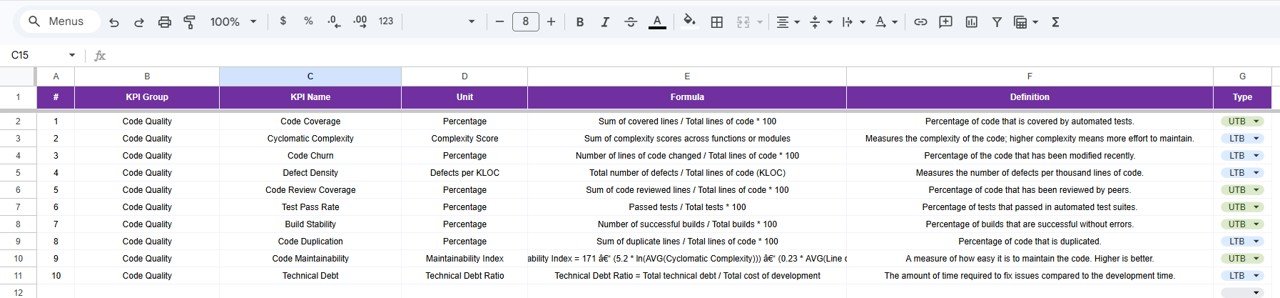
All ten KPIs sit in the Code Quality group. The Type column tells the dashboard which direction is good: UTB (upper the better) or LTB (lower the better). The formulas and definitions below are taken from the template’s KPI Definition sheet.
| # | KPI | What it measures | Formula (from the template) | Unit | Better when |
|---|---|---|---|---|---|
| 1 | Code Coverage | Share of code covered by automated tests | Sum of covered lines / Total lines of code * 100 | Percentage | Higher (UTB) |
| 2 | Cyclomatic Complexity | How complex the code is; higher means more effort to maintain | Sum of complexity scores across functions or modules | Complexity Score | Lower (LTB) |
| 3 | Code Churn | Share of code modified recently | Number of lines of code changed / Total lines of code * 100 | Percentage | Lower (LTB) |
| 4 | Defect Density | Defects per thousand lines of code | Total number of defects / Total lines of code (KLOC) | Defects per KLOC | Lower (LTB) |
| 5 | Code Review Coverage | Share of code reviewed by peers | Sum of code reviewed lines / Total lines of code * 100 | Percentage | Higher (UTB) |
| 6 | Test Pass Rate | Share of automated tests that pass | Passed tests / Total tests * 100 | Percentage | Higher (UTB) |
| 7 | Build Stability | Share of builds that succeed without errors | Number of successful builds / Total builds * 100 | Percentage | Higher (UTB) |
| 8 | Code Duplication | Share of code that is duplicated | Sum of duplicate lines / Total lines of code * 100 | Percentage | Lower (LTB) |
| 9 | Code Maintainability | How easy the code is to maintain | A Maintainability Index formula based on 171 minus log-scaled complexity and size terms (full text in the KPI Definition sheet) | Maintainability Index | Higher (UTB) |
| 10 | Technical Debt | Effort needed to fix issues compared with development time | Total technical debt / Total cost of development | Technical Debt Ratio | Lower (LTB) |
Sheet-by-Sheet Walkthrough
Dashboard sheet
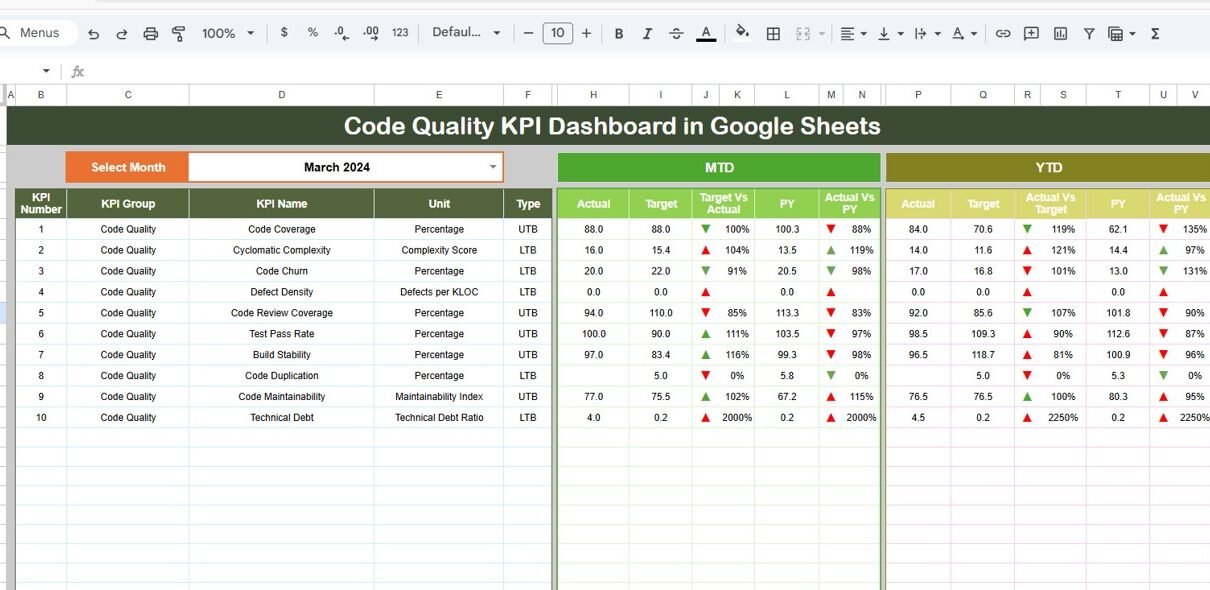
This is the main view. Choose a month in the Select Month dropdown (cell D3) and the table fills in for that month. For each KPI you see its number, group, name, unit and type, followed by two blocks:
- MTD: Actual, Target, Target Vs Actual, PY and Actual Vs PY.
- YTD: Actual, Target, Actual Vs Target, PY and Actual Vs PY.
Conditional-formatting arrows sit next to each percentage, so you can scan the table for the KPIs that need a closer look.
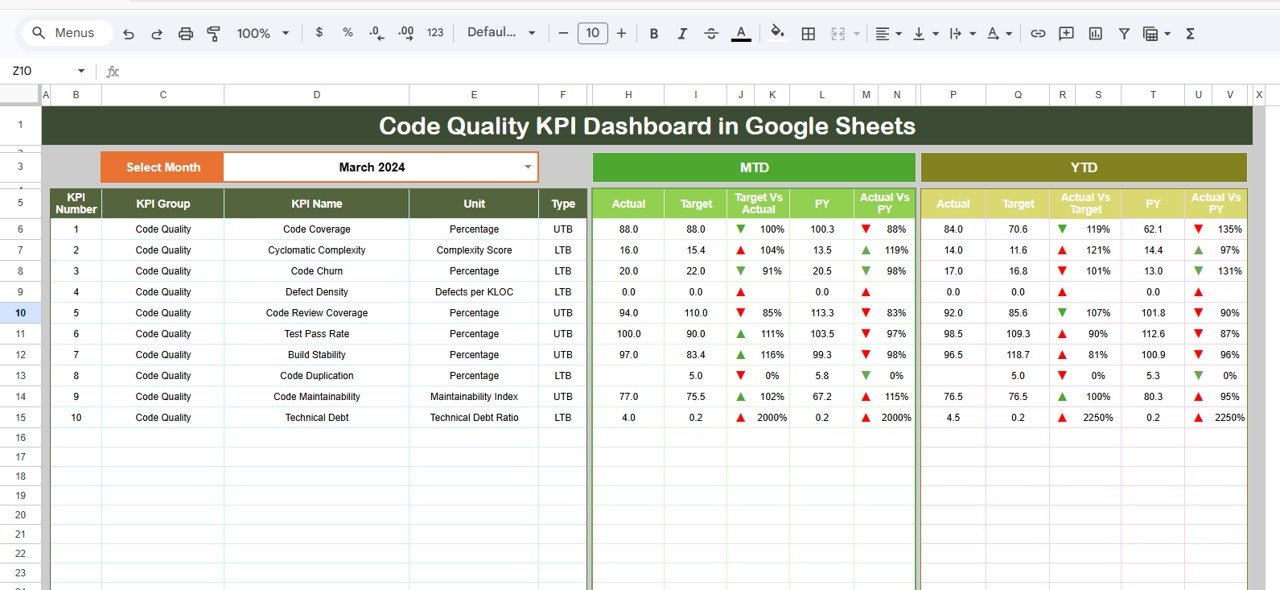
Worked example: reading the March 2024 numbers
The comparison columns divide the actual value by the target or by the previous-year value. Using the March 2024 sample data:
Code Review Coverage (MTD)
Target Vs Actual = Actual / Target = 94.0 / 110.0 = 85%
Actual Vs PY     = Actual / PY     = 94.0 / 113.3 = 83%

Test Pass Rate (MTD)
Target Vs Actual = 100.0 / 90.0  = 111%
Actual Vs PY     = 100.0 / 103.5 = 97%

Test Pass Rate (YTD)
Actual Vs Target = 98.5 / 109.3 = 90%
For a UTB KPI like Code Review Coverage, 85% means the team is behind target. For an LTB KPI such as Cyclomatic Complexity, the logic flips: March shows an actual of 16.0 against a target of 15.4, a ratio of 104%, which means complexity is slightly higher than planned. Always read the percentage together with the Type column.
KPI Trend sheet
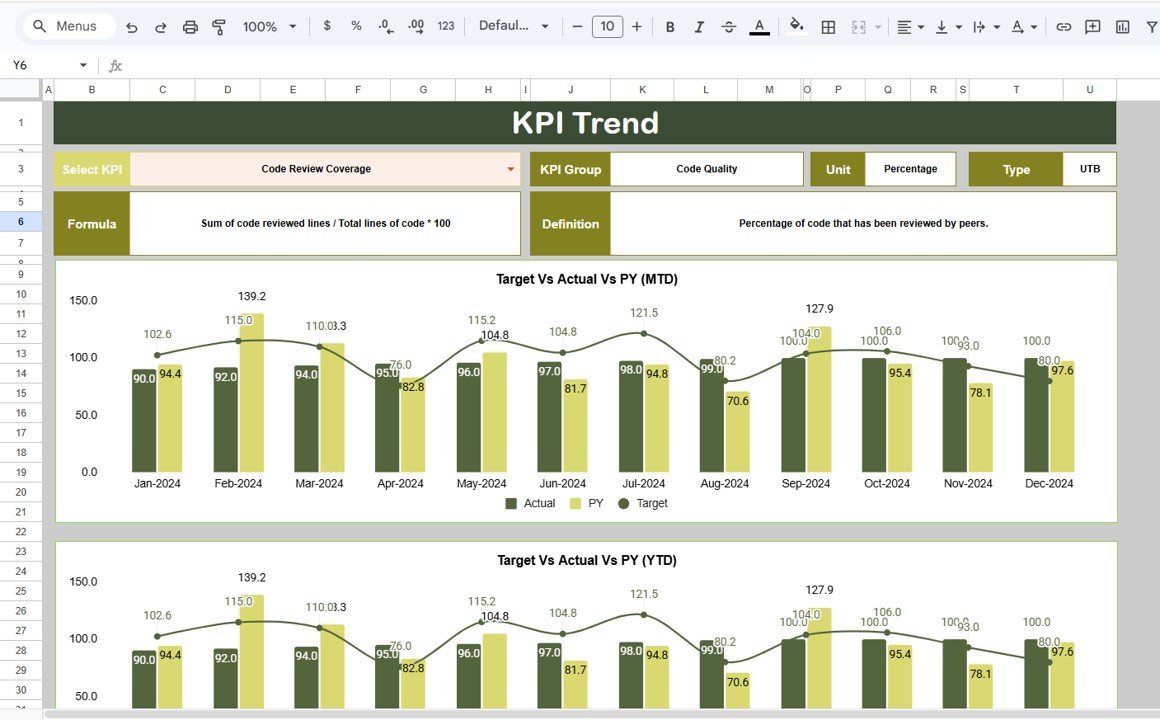
Pick one KPI in Select KPI (cell C3) and the sheet shows its KPI Group, Unit, Type, Formula and Definition, plus two combo charts: Target Vs Actual Vs PY (MTD) and Target Vs Actual Vs PY (YTD) for January to December. In the screenshot, Code Review Coverage climbs steadily from 90.0 in January 2024 to 100.0 from September onward.
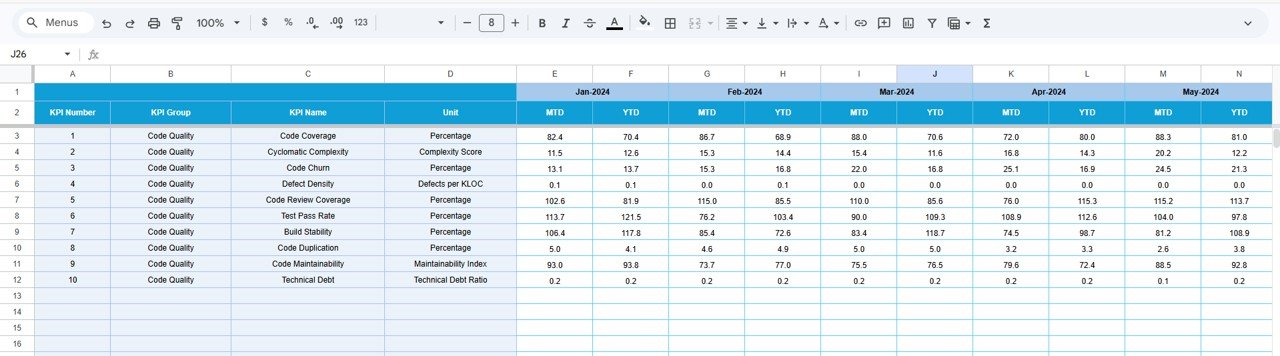
Actual Numbers sheet
This is where you type the real results. Each KPI has an MTD and a YTD column for every month. A cell at the top, labelled Change the first of the year, sets the starting month (Jan-2024 in the sample), and the month headers follow from it.

Target sheet
The Target sheet uses the same layout. Enter the MTD and YTD target for each KPI and month. Setting monthly targets, not just a yearly one, lets you plan gradual improvement, for example raising coverage a little each sprint.
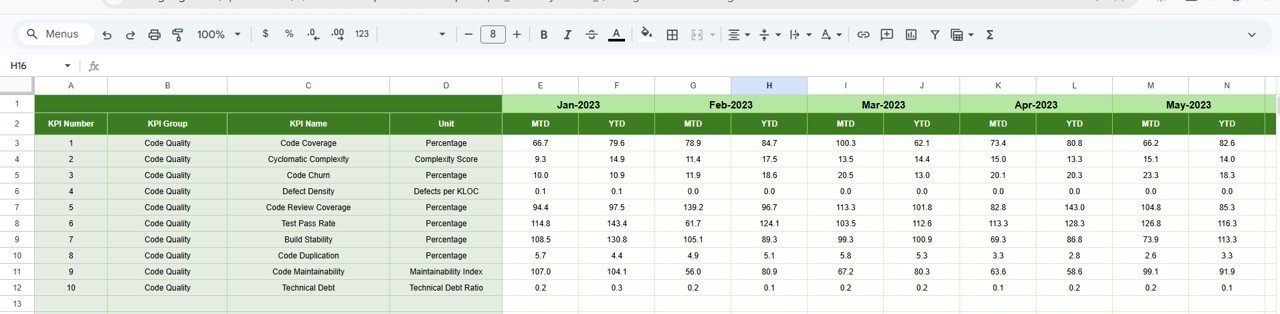
Previous Year sheet
Here you store last year’s MTD and YTD results (Jan-2023 onward in the sample). The dashboard and trend charts read from it for every PY comparison.
KPI Definition sheet
The master list of KPIs: number, group, name, unit, formula, definition and type (UTB or LTB). It is the reference the KPI Trend sheet uses when it shows a KPI’s group, unit, type, formula and definition, so keep it in step with the other sheets.
How to Use It with Your Own Data
- Make a copy with File > Make a copy.
- Review the KPI Definition sheet. Keep the ten KPIs, edit their wording, or replace any that your team does not measure. Set each one’s Type to UTB or LTB.
- In the Actual Numbers sheet, set the first month of your year in the “Change the first of the year” cell.
- Enter last year’s results in the Previous Year sheet, if you have them.
- Enter MTD and YTD targets in the Target sheet.
- At the end of each month, pull the numbers from your CI, test, review and bug-tracking tools and enter them in the Actual Numbers sheet.
- Open the Dashboard, choose the month in cell D3 and review the arrows. Use the KPI Trend sheet to look at any KPI that is off track.
If you want to understand the lookups and comparison formulas behind sheets like this one, the Excel AI Mastery course on 100 formulas at NextGenTemplates Academy covers them with practice files, and the same logic carries over to Google Sheets.
Real-World Use Cases
- Monthly engineering review: an engineering manager opens the dashboard in the monthly meeting and spends the time on the two or three KPIs with red arrows instead of reading out every number.
- Quality improvement programme: a team aiming to raise Code Review Coverage and cut Code Duplication sets stepped monthly targets and uses the KPI Trend charts to show progress to leadership.
- Agency or outsourced development: a software agency shares a view-only copy with a client each month as simple, transparent evidence of code health.
Best Practices
- Use the same data source every month. Coverage from one tool and complexity from another is fine, but do not switch tools halfway through the year.
- Set targets you can defend. A Code Coverage target of 100% looks good on paper but pushes people towards low-value tests.
- Read KPIs together. High Test Pass Rate with falling Code Coverage may simply mean fewer tests are being written.
- Keep KPI numbers unique. When you add or rename KPIs, make sure each row keeps the same KPI number and order across the Actual, Target and Previous Year sheets, so lookups stay aligned.
- Review trends, not single months. One bad month after a big refactor is normal. Three in a row is a signal.
Limitations and Who Should Not Use It
This template does not connect to GitHub, GitLab, SonarQube or your CI server. Numbers are entered by hand once a month, which suits monthly reporting but not real-time monitoring. Teams that want per-commit or per-pull-request quality gates should use the dashboards inside their code analysis tools instead. The KPIs are tracked at team or product level, so it is not designed to score individual developers, and it should not be used that way.
Related Software KPI Dashboards
Code quality is one part of delivery health. For pipeline and deployment metrics see the DevOps KPI Dashboard in Google Sheets. For sprint velocity and commitment, see the Agile Sprint KPI Dashboard in Google Sheets. The Bug Resolution KPI Dashboard focuses on defect handling, and the Software Development KPI Dashboard gives a broader project view.
Related template: if your team works in Excel, there is also a Code Quality KPI Dashboard in Excel.
Frequently Asked Questions
Which KPIs does the Code Quality KPI Dashboard include?
Ten: Code Coverage, Cyclomatic Complexity, Code Churn, Defect Density, Code Review Coverage, Test Pass Rate, Build Stability, Code Duplication, Code Maintainability and Technical Debt.
What do UTB and LTB mean?
UTB means “upper the better” (for example Test Pass Rate) and LTB means “lower the better” (for example Defect Density). The type controls how the dashboard’s arrows are read.
What is the difference between MTD and YTD here?
MTD is the value for the selected month only. YTD is the value for the year up to and including that month. You enter both in the Actual Numbers and Target sheets.
Can I replace the KPIs with my own?
Yes. Edit the KPI names, units, formulas and types in the KPI Definition sheet, and make the matching changes, with the same KPI numbers, in the Actual Numbers, Target and Previous Year sheets so every lookup stays aligned.
Does it pull data automatically from my code tools?
No. You enter the monthly values yourself, usually from reports exported from your CI, test and code review tools.
Can I use it without last year’s data?
Yes. Leave the Previous Year sheet empty or fill it as you go. The target comparisons still work; the PY columns simply have nothing meaningful to compare against until you add last year’s figures.
Wrapping Up
The Code Quality KPI Dashboard in Google Sheets gives your team a simple monthly routine: enter ten numbers, pick the month and talk about the ones that are off track. Start with the sample KPIs, adjust them to what your tools can measure, and use the trend charts to show steady improvement over the year.
Get the Code Quality KPI Dashboard
📅 Last updated: October 2026