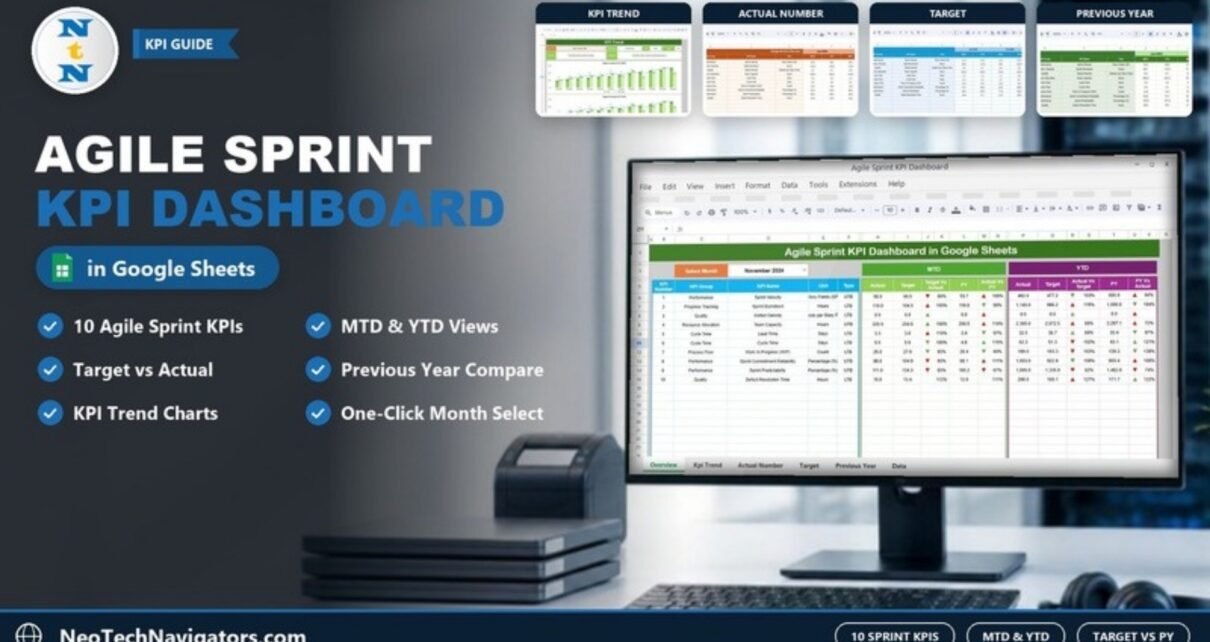
The Agile Sprint KPI Dashboard in Google Sheets tracks ten sprint metrics, from Sprint Velocity and Sprint Burndown to Defect Density and Sprint Predictability, and compares each one against its target and the previous year on a month-to-date (MTD) and year-to-date (YTD) basis. You pick a month from one dropdown and the whole scorecard updates.
It is built for Scrum Masters, agile coaches, delivery managers and engineering leads who want a monthly view of team performance without setting up Jira dashboards or a BI tool. The file has six sheets: Dashboard, KPI Trend, Actual Number, Target, Previous Year and KPI Definition. This guide explains each sheet, lists every KPI with its formula and direction, and shows how to load your own sprint numbers.
Get the Agile Sprint KPI Dashboard
Why Agile Teams Need a Sprint KPI Dashboard
Every sprint produces data: story points completed, hours remaining, defects found, items in progress. Most teams look at that data inside the sprint and then lose it. When a manager asks “are we more predictable than last quarter?”, someone has to rebuild the numbers by hand.
A KPI dashboard keeps the monthly totals in one place and answers three questions for every metric:
- Did we hit the target? (Target vs Actual)
- Are we better than the same month last year? (Actual vs PY)
- How are we doing for the year so far? (the YTD block)
Because it runs in Google Sheets, the whole team can open the same file, and the numbers are just cells you can audit, not a black box.
The 10 KPIs in the Agile Sprint KPI Dashboard in Google Sheets
These are the exact KPIs from the template’s KPI Definition sheet. “UTB” means upper the better and “LTB” means lower the better; the type controls which way the arrows point on the dashboard.
| # | KPI (Group) | Unit | Formula / what it measures | Better when |
|---|---|---|---|---|
| 1 | Sprint Velocity (Performance) | Story Points (SP) | Sum of completed story points per sprint | Higher (UTB) |
| 2 | Sprint Burndown (Progress Tracking) | Hours | Remaining hours per day in the sprint | Lower (LTB) |
| 3 | Defect Density (Quality) | Defects per Story Point | Total defects / total story points completed | Lower (LTB) |
| 4 | Team Capacity (Resource Allocation) | Hours | Total available hours for the team in the sprint | Higher (UTB) |
| 5 | Lead Time (Cycle Time) | Days | Total days from start of work to completion for tasks | Lower (LTB) |
| 6 | Cycle Time (Cycle Time) | Days | Average time to complete a task | Lower (LTB) |
| 7 | Work In Progress (WIP) (Process Flow) | Count | Total number of items currently in progress | Lower (LTB) |
| 8 | Sprint Commitment Reliability (Performance) | Percentage (%) | (Completed / Committed) * 100 | Higher (UTB) |
| 9 | Sprint Predictability (Performance) | Percentage (%) | (Completed / Estimated) * 100 | Higher (UTB) |
| 10 | Defect Resolution Time (Quality) | Hours | Average time to resolve defects | Lower (LTB) |
If your team calculates any of these differently (for example, velocity as an average over three sprints), you can change the formula text and definition in the KPI Definition sheet so the dashboard documents your own method.
Sheet 1: Dashboard
The Dashboard is the main view. Select the month in the Select Month dropdown (cell D3) and the table shows all ten KPIs with two blocks of numbers:
- MTD: Actual, Target, Target Vs Actual, PY (previous year) and Actual Vs PY.
- YTD: Actual, Target, Actual Vs Target, PY and PY Vs Actual.
Green and red arrows show whether each KPI is ahead or behind, taking the UTB/LTB type into account. In the sample, with November 2024 selected, Sprint Velocity shows 58.0 actual against a 65.5 target (89%) and 53.7 in the previous year (108%). For the year to date it is 492.0 against 477.2 (103%).
The percentages are simple ratios, so you can check any of them by hand:
Target Vs Actual = Actual / Target        → 58.0 / 65.5 = 89%
Actual Vs PY     = Actual / Previous Year → 58.0 / 53.7 = 108%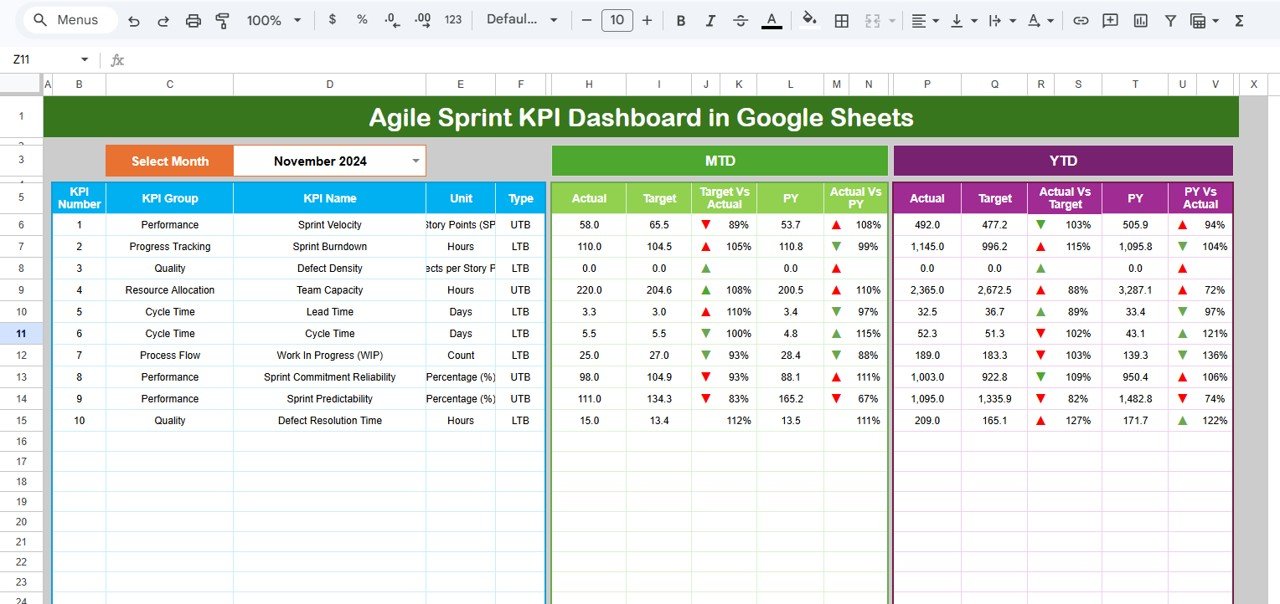
Sheet 2: KPI Trend
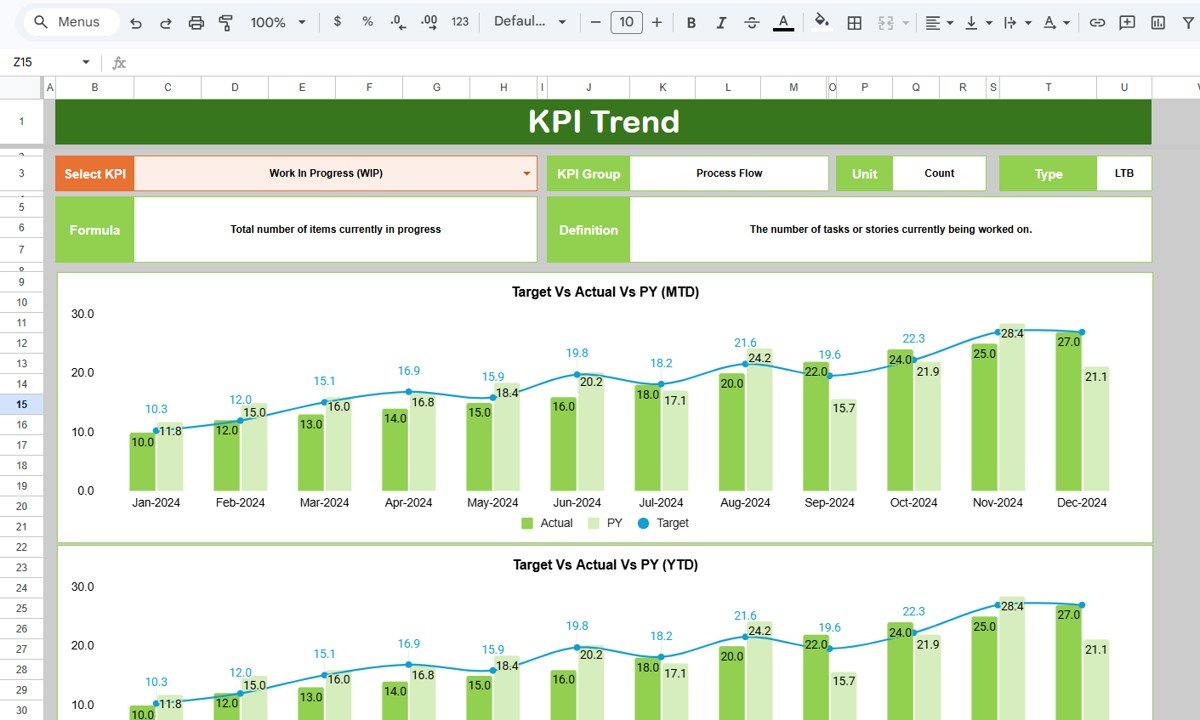
The KPI Trend sheet focuses on one metric at a time. Choose a KPI in the Select KPI dropdown (cell C3) and the sheet shows its KPI Group, Unit, Type, Formula and Definition, followed by two combo charts: Target Vs Actual Vs PY (MTD) and Target Vs Actual Vs PY (YTD) across January to December.
In the screenshot, Work In Progress (WIP) is selected: group Process Flow, unit Count, type LTB, formula “Total number of items currently in progress”. Actual WIP climbs from 10.0 in Jan-2024 to 27.0 in Dec-2024, which for a lower-the-better metric is a signal worth discussing in a retrospective.
Sheet 3: Actual Number
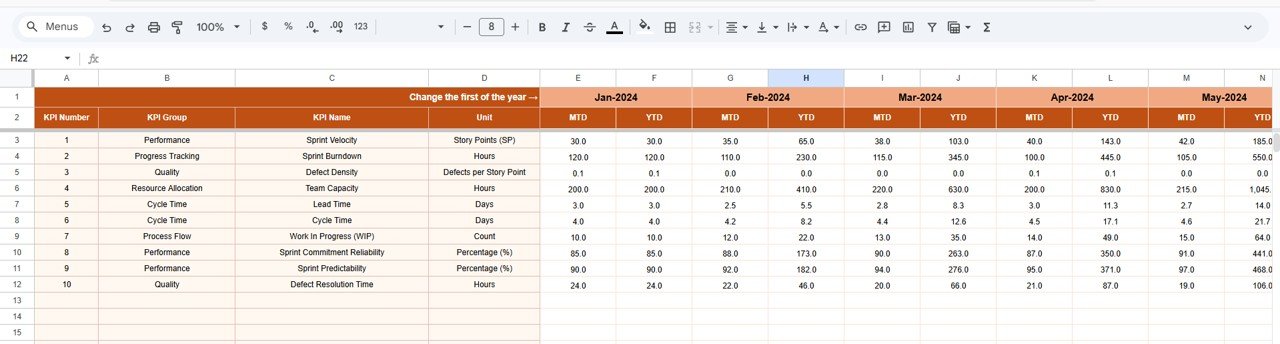
This is where you type the real results. Each KPI has an MTD and a YTD column for every month. The first month of the year is set in cell E1 (labelled “Change the first of the year”); in the sample it is Jan-2024, and the month headers follow from it. Set this correctly before entering data, because the dashboard’s month matching depends on it.
In the sample, Sprint Velocity is 30.0 MTD in Jan-2024 and 35.0 in Feb-2024, giving a Feb YTD of 65.0.
Sheet 4: Target
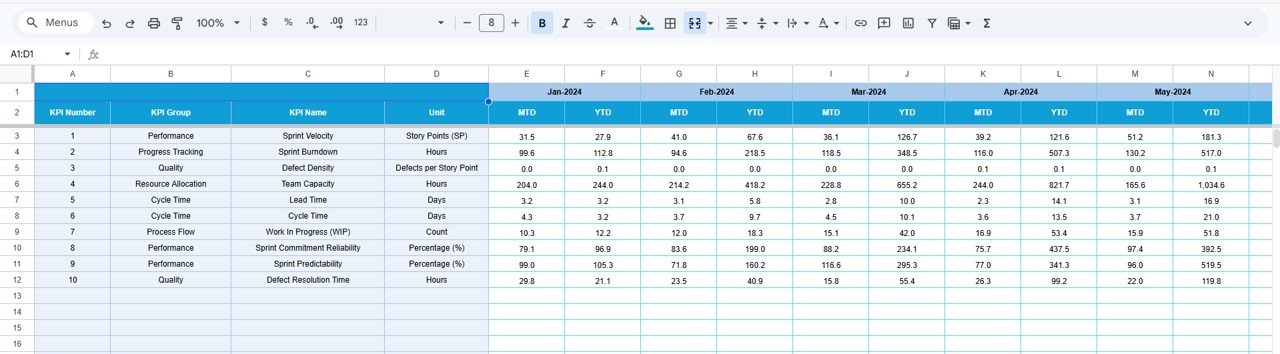
The Target sheet has the same layout, holding the MTD and YTD target for each KPI and month (Jan-2024 onwards in the sample). Set realistic targets from your team’s recent history rather than aspirational numbers, otherwise every arrow turns red and the dashboard stops being useful.
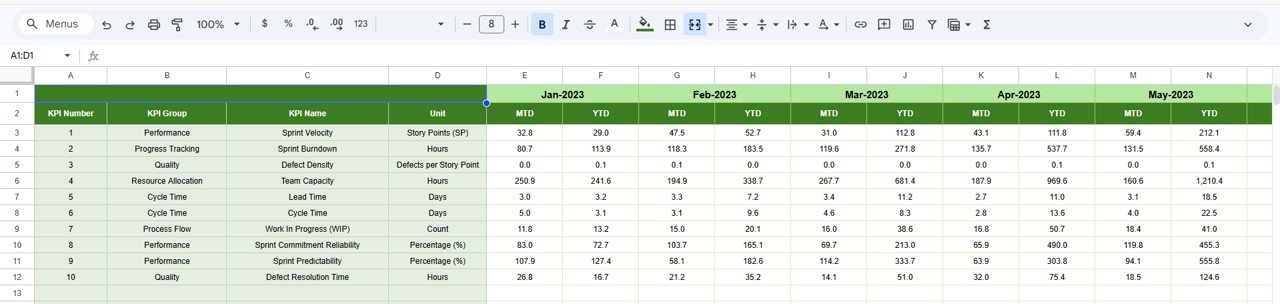
Sheet 5: Previous Year
The Previous Year sheet stores last year’s MTD and YTD values (Jan-2023 onwards in the sample). These feed the PY columns on the Dashboard and the PY series in the trend charts. If your team is new and has no history, you can leave it empty for now; the PY comparisons only become meaningful once a year of data exists.
Sheet 6: KPI Definition
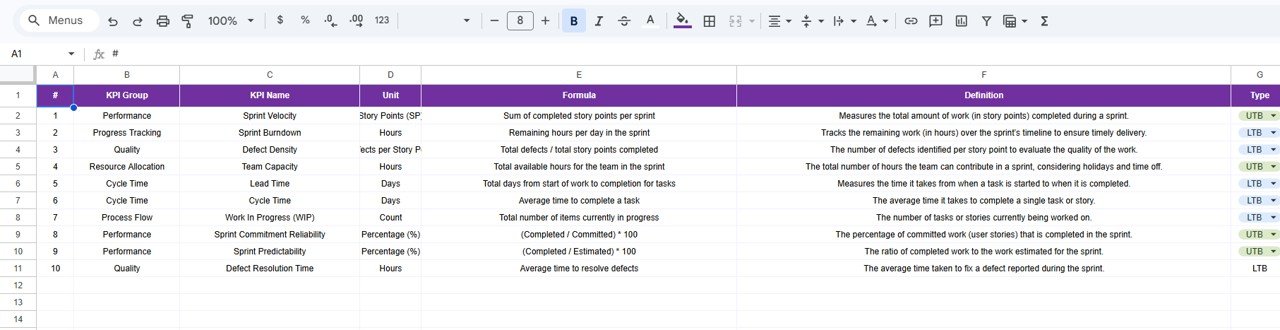
The KPI Definition sheet is the master list: number, KPI Group, KPI Name, Unit, Formula, Definition and Type (UTB or LTB, chosen from a dropdown). The dashboard and trend sheet read KPI names and types from here, so this is the place to rename a KPI or switch its direction.
How to Use It With Your Own Data
- Make a copy of the file (File > Make a copy) and keep the original as a reference.
- Review the KPI Definition sheet. Rename or adjust any KPI so it matches how your team measures it, and confirm the UTB/LTB type.
- On the Actual Number sheet, set cell E1 to the first month of your year.
- Fill in the Target sheet for each month, then the Previous Year sheet if you have last year’s numbers.
- At the end of each month (or after each sprint review), enter the MTD actuals and update YTD.
- Open the Dashboard, pick the month in cell D3, and review the red arrows first.
- Use the KPI Trend sheet in the retrospective to look at any metric that has been red for two or more months.
Real-World Use Cases
- Monthly engineering review: a delivery manager presents the Dashboard for the month and explains the two or three red KPIs, instead of building slides.
- Retrospective input: a Scrum Master opens KPI Trend for Cycle Time and Work In Progress to show the team whether limiting WIP is actually shortening cycle time.
- Quality focus: a QA lead tracks Defect Density and Defect Resolution Time against last year to show whether new testing practices are working.
Best Practices
- Enter data on the same day every month, ideally right after the last sprint review of the month.
- Compare trends, not single months. One bad sprint is noise; three in a row is a pattern.
- Do not turn velocity into a target for individuals. Story points are a planning tool; pushing them up usually inflates estimates.
- Keep the KPI list short. Ten KPIs is already plenty; remove any metric nobody discusses.
- Protect the Dashboard and KPI Trend sheets (Data > Protect sheets and ranges) so only the input sheets are edited.
Limitations and Who Should Not Use It
This is a monthly KPI scorecard, not a sprint board. It does not pull data from Jira, Azure DevOps or other tools automatically; you enter the numbers. It has no burndown chart per sprint, no story-level tracking and no team-by-team split. If you need live sprint charts or several teams side by side, use your agile tool’s reporting or a BI model. If you just need a clear monthly view of ten core metrics against target and last year, it does the job well.
Related Guides and Templates
For a team-level Scrum view, see the Scrum Team KPI Dashboard in Google Sheets. Engineering leaders may also like the Software Development KPI Dashboard in Google Sheets and the DevOps KPI Dashboard in Google Sheets. For broader project reporting, there is the Project Management KPI Dashboard in Google Sheets, and for day-to-day blockers the Project Management Issue Tracker in Google Sheets.
Working in Excel instead? The Agile Sprint KPI Dashboard in Excel covers the same topic.
If you want to learn how MTD/YTD comparisons and dashboard layouts like this are built, the Pivot Tables & Dashboards course on NextGenTemplates Academy walks through it step by step.
Frequently Asked Questions
Which KPIs does the Agile Sprint KPI Dashboard in Google Sheets track?
Ten KPIs: Sprint Velocity, Sprint Burndown, Defect Density, Team Capacity, Lead Time, Cycle Time, Work In Progress (WIP), Sprint Commitment Reliability, Sprint Predictability and Defect Resolution Time.
What do UTB and LTB mean?
UTB stands for “upper the better” (a higher value is good, like Sprint Velocity) and LTB for “lower the better” (a lower value is good, like Cycle Time). The type decides whether an above-target result shows a green or red arrow.
How is Sprint Commitment Reliability calculated?
The template defines it as (Completed / Committed) * 100, the percentage of committed user stories completed in the sprint. Sprint Predictability uses (Completed / Estimated) * 100.
Does it connect to Jira automatically?
No. You enter monthly MTD and YTD values in the Actual Number sheet. Many teams export a sprint report from their agile tool and copy the totals in once a month.
Can I add or change KPIs?
Yes. Edit the KPI Definition sheet to rename a KPI, change its unit, formula text or UTB/LTB type, and keep the Actual, Target and Previous Year sheets in the same row order.
Why is cell E1 on the Actual Number sheet important?
It sets the first month of your year. The month columns and the dashboard’s MTD/YTD lookups depend on it, so set it before entering any data.
Wrapping Up
The Agile Sprint KPI Dashboard in Google Sheets gives an agile team a plain, monthly answer to “are we improving?” across ten well-defined metrics, each compared with its target and last year. Start by checking the KPI definitions against how your team works, set the first month in E1, and enter one month of actuals. After two or three months, the trend charts become the most useful part of your retrospectives.
Get the Agile Sprint KPI Dashboard in Google Sheets
📅 Last updated: October 2026