Most diet plans do not fail in the kitchen. They fail on a Wednesday, when nobody remembers that Sunday was supposed to be the batch-cook night, the market run never got scheduled, and the fridge is empty. The plan was fine. It just was not written anywhere anybody looked.
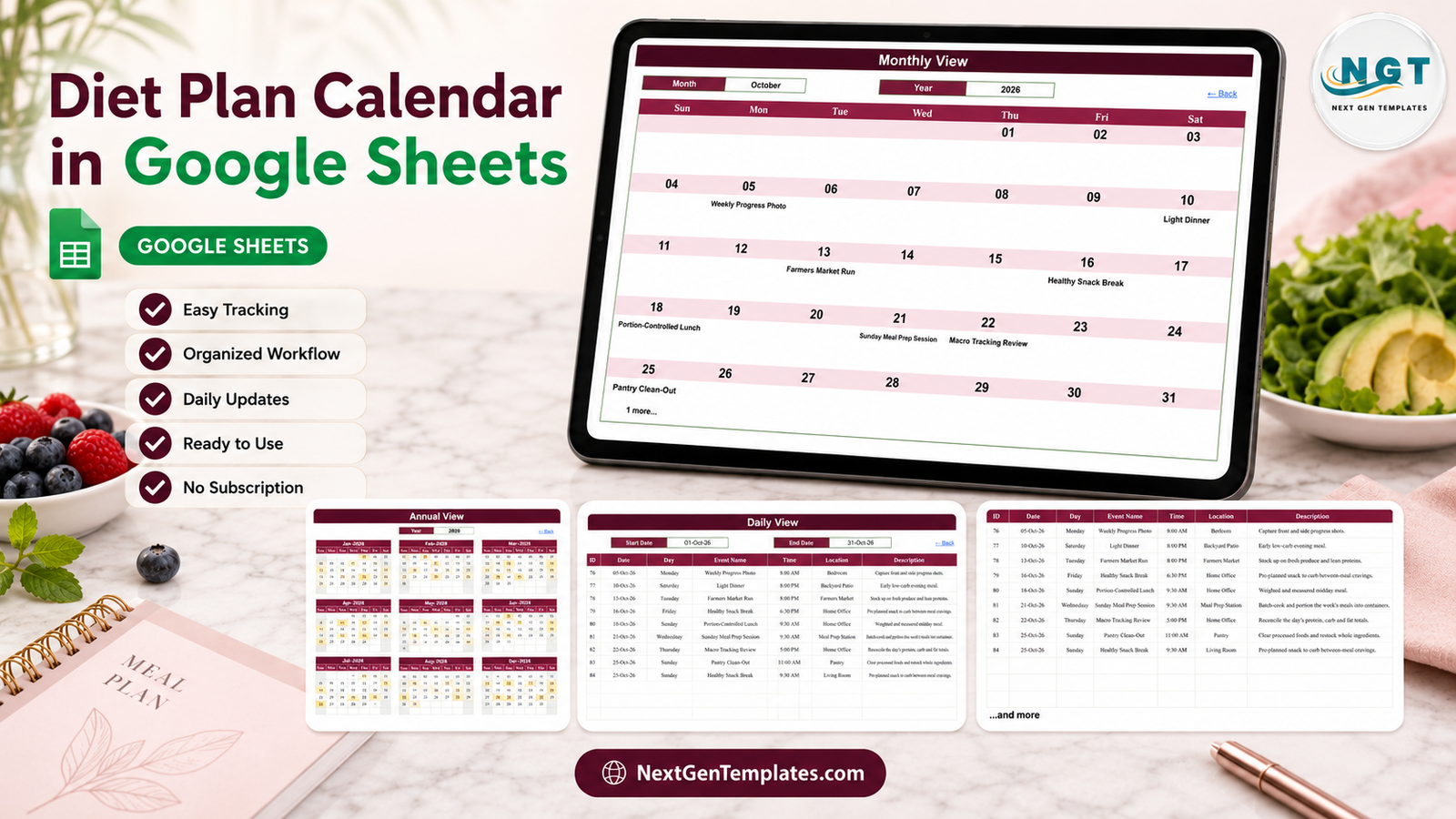
The Diet Plan Calendar in Google Sheets is the boring fix for that: a five-tab spreadsheet where you write down the meal-related things you have already decided to do, and then see them on a year grid, a month grid and a printable day list – all from one table you type into once.
Get the Diet Plan Calendar in Google Sheets
Please read this before anything else. This is a scheduling calendar. It is not medical, dietary or nutritional advice, and it is not a substitute for a registered dietitian, nutritionist, physician or any other qualified professional. Talk to your own clinician or dietitian before you start or change how you eat, especially if you are managing a medical condition. The spreadsheet counts no calories, macros, portions or nutrients, holds no food database, performs no calculation about food or the body, and makes no claim about weight, energy, blood sugar or any other health outcome. It does not name, recommend or follow any diet or fasting protocol. No dietitian or clinician was involved in building it. It is a place to write down decisions you have already made with the right person – nothing more.
What the template actually is
Five working tabs, plus one hidden helper tab that holds the drop-down lists:
- Home – a landing tab with four links into the views.
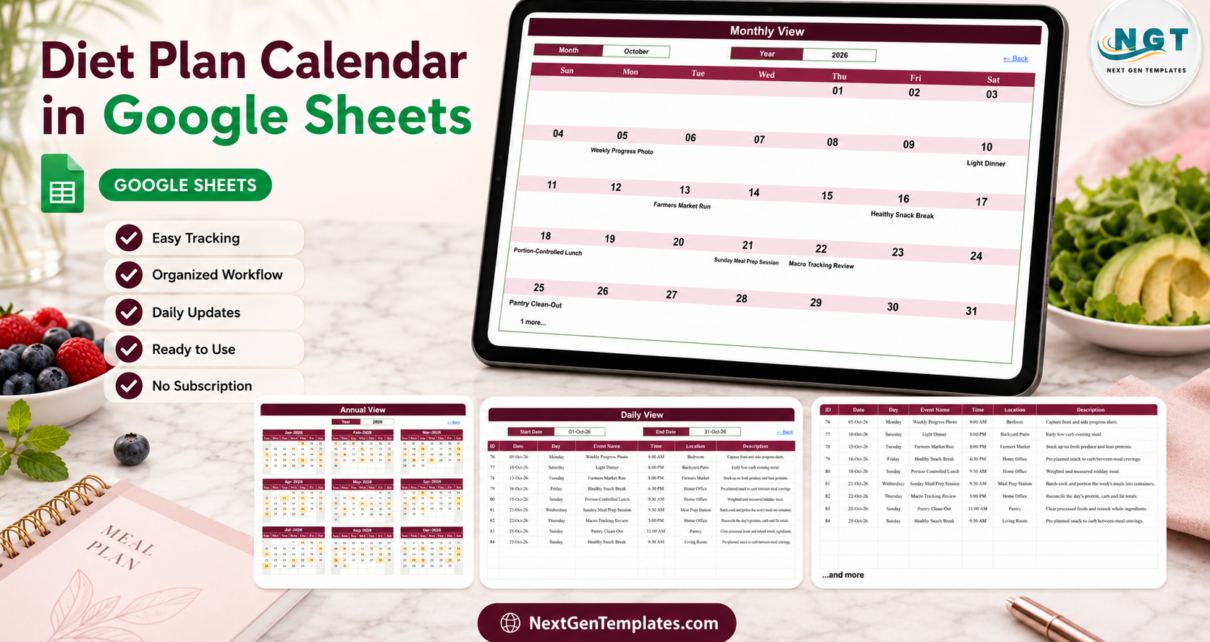
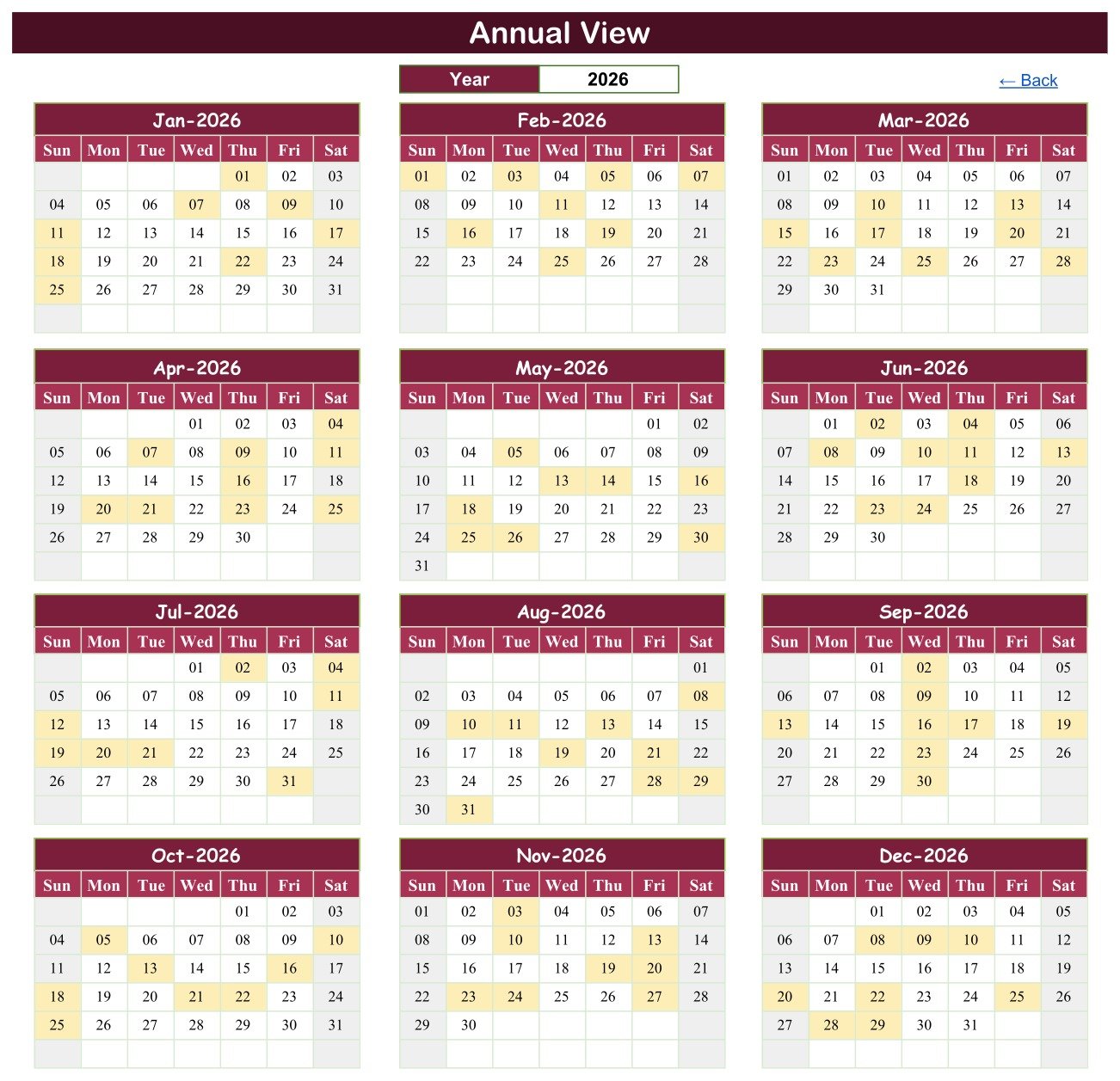
- Annual View – twelve month blocks for a chosen year, with any day that carries an entry shaded amber.
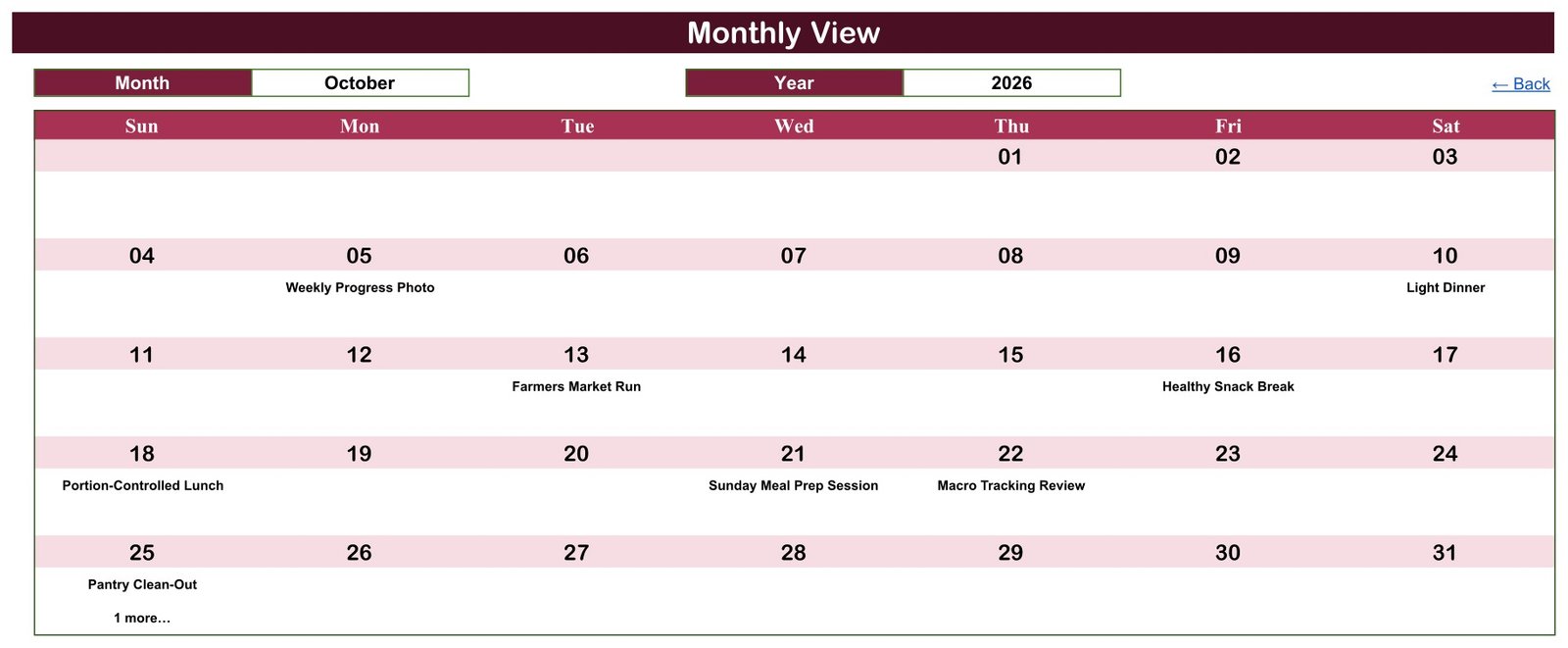
- Monthly View – one month, Sunday to Saturday, with the entry name printed inside each day cell.
- Daily View – pick a start and end date and get a clean list of everything between them.
- Events – the master table. Seven columns, 100 sample rows, and the only tab you maintain.
Everything runs on ordinary worksheet formulas. There is no Apps Script, no macro and no add-on, which means nothing to authorise, no permission prompt and no script to review before you trust it with your own file.
Tab by tab
Home
A branded navigation page with four in-sheet links – Annual View, Monthly View, Daily View, Events. Every view has a matching “Back” link, so the file is navigable by somebody who has never used Google Sheets.
Annual View – the whole year in one screen
Twelve mini-calendars in a three-across grid, built from DATE, EOMONTH and TEXT. Change the single Year cell and all twelve blocks redraw. Days that carry an entry are shaded, so you can see at a glance that January has eight things in it and April has nine, and where the empty stretches are.
Monthly View – the one you will actually use
Two drop-downs, Month and Year, and the grid redraws. Each day cell shows the entry name for that date, looked up with VLOOKUP against the Events table. If a date carries more than one entry, COUNTIF adds a “1 more” note under the first one so you never lose a second booking behind the first.
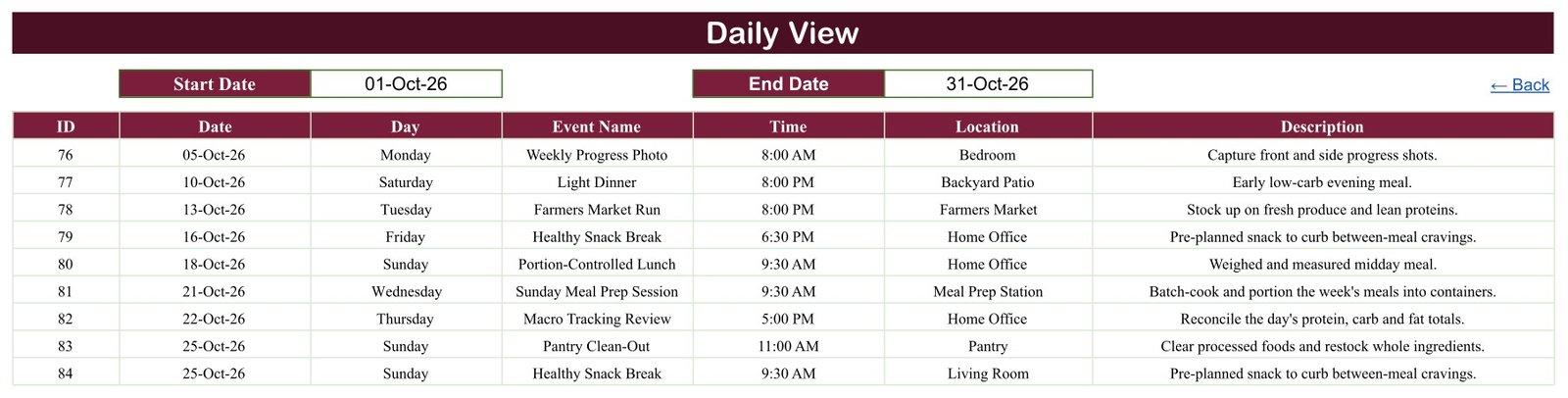
In the shipped October 2026 sample the grid reads: Weekly Progress Photo on the 5th, Light Dinner on the 10th, Farmers Market Run on the 13th, Healthy Snack Break on the 16th, Portion-Controlled Lunch on the 18th, Sunday Meal Prep Session on the 21st, Macro Tracking Review on the 22nd, and Pantry Clean-Out on the 25th with “1 more” underneath it.
Daily View – one formula, and the tab you print
Set Start Date and End Date and the sheet lists every entry in that window with all seven columns. The whole tab is a single FILTER(Events!A4:G999, Events!B4:B999>=C3, Events!B4:B999<=F3), so it updates the instant a date box changes. Set both boxes to the same day for a one-day list, or to a Monday and a Sunday for the week ahead, then print it and put it on the fridge.
Events – the master table
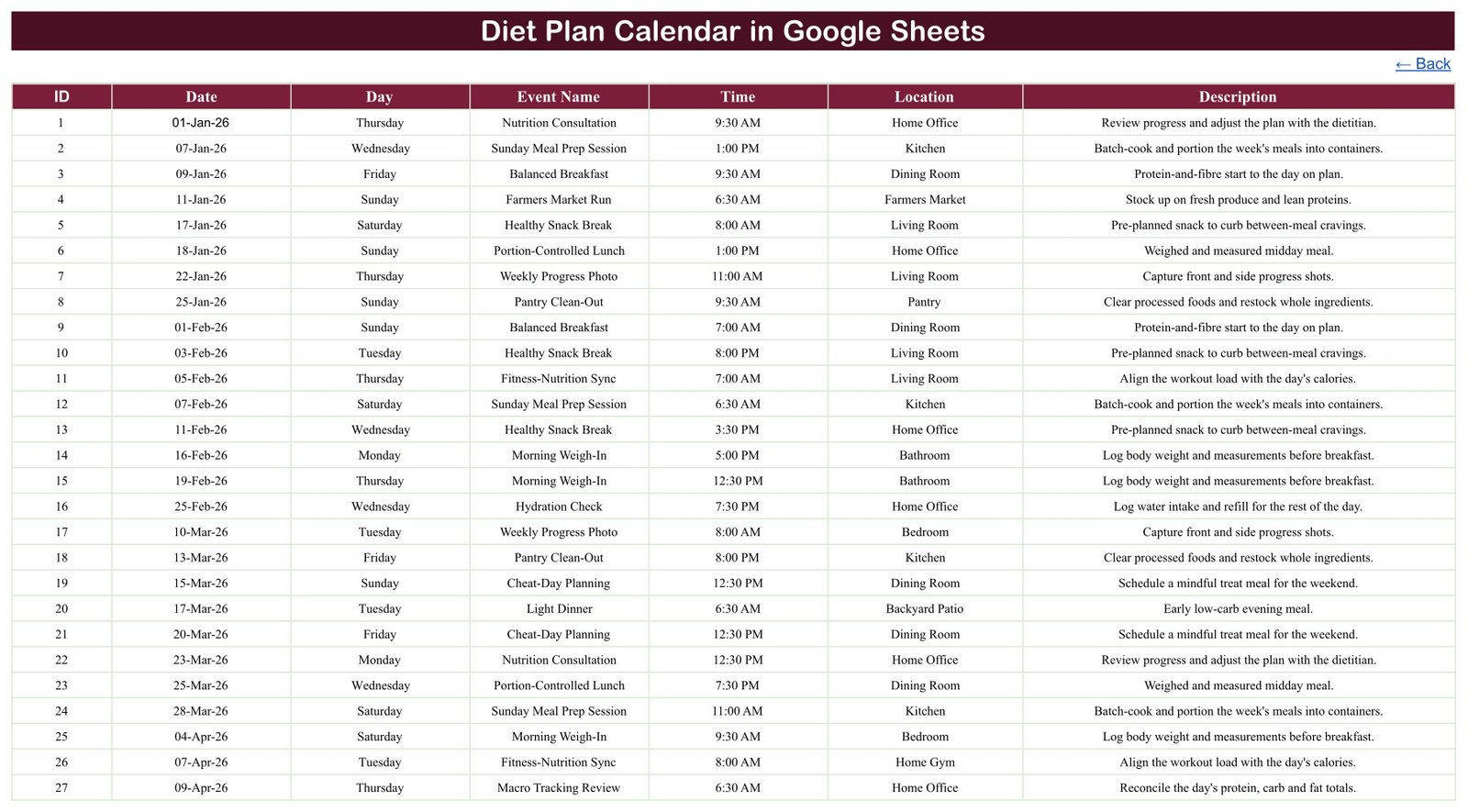
Seven columns: ID, Date, Day, Event Name, Time, Location, Description. Rows 4 to 103 hold the 100 sample entries, sorted by date. Clear them, type your own, and the three views follow. There is no entry form and no button – it is a plain spreadsheet table, which is precisely why two people can be in it at the same time.
What is in the 100 sample rows
The template ships populated so you can see how it behaves before you clear a row. The sample year runs from Thursday 01-Jan-2026 to Tuesday 29-Dec-2026, IDs 1 to 100, eight or nine entries in every month, across 16 labels and 13 locations, at twelve distinct times between 6:30 AM and 8:00 PM. One date, 25-Oct-2026, carries two entries – which is what puts the “1 more” note on that cell in the month grid.
The 16 labels are Macro Tracking Review, Sunday Meal Prep Session, Farmers Market Run, Healthy Snack Break, Balanced Breakfast, Weekly Progress Photo, Morning Weigh-In, Smoothie & Juice Prep, Nutrition Consultation, Hydration Check, Portion-Controlled Lunch, Fitness-Nutrition Sync, Light Dinner, Grocery Planning, Pantry Clean-Out and Cheat-Day Planning. The 13 locations are Home Office, Kitchen, Dining Room, Living Room, Bedroom, Meal Prep Station, Farmers Market, Bathroom, Backyard Patio, Grocery Store, Nutrition Clinic, Pantry and Home Gym.
Treat all of that as placeholder text. It is demo content chosen to show the layout, not a plan anybody should follow, and a couple of rows are deliberately odd – there is a Morning Weigh-In at 5:00 PM and a Light Dinner at 6:30 AM in there. Delete the lot and type what you and your own professional have agreed.
A note on the dates, because it matters
Before this template went out, every one of the 100 sample rows was checked by recomputing the weekday from its date. All 100 match. Zero mismatches. The IDs run 1 to 100 with no gaps and no duplicates, and every date is a real calendar date in 2026.
That check exists because of the one genuine limitation in this file, and it is worth knowing on day one:
The Day column is typed text, not a formula. If you edit a date in column B, the weekday in column C will not follow it. The fix takes ten seconds: put =TEXT(B4,"dddd") in cell C4 and fill it down column C. From then on the Day column tracks the date automatically.
How to set it up
- Buy the template and open the PDF you receive. Click its Make a copy link – the file lands in your own Google Drive, and the master stays read-only.
- Open the Events tab and clear rows 4 to 103, keeping the header row in row 3.
- Optionally apply the
=TEXT(B4,"dddd")fix to column C first, so the Day column looks after itself. - Type your own rows: ID, date, day, a short label, a time, a location, one line of description.
- Open Monthly View, pick the month and year, and check the grid fills as you expect.
- Use Daily View to print the week ahead; use Annual View once a quarter to see the shape of the year.
- Share it with Share > specific people, not “anyone with the link”.
What it deliberately does not do
It is worth being blunt about the boundaries, because they are the point of a template like this rather than a limitation of it:
- It does not count anything. No calories, macros, portions or nutrients. There is not a single numeric measurement column in the file.
- It has no food or recipe database, and it will not generate a shopping list for you.
- It does not remind you. No alert, notification, alarm, email, SMS or calendar sync of any kind.
- It gives no advice. It names, recommends and follows no diet or fasting protocol, and it makes no health claim of any sort.
- It is not a clinical record. As shipped it holds no names, contacts, addresses, weights, measurements or health information – and the safest thing you can do is keep it that way.
What is left after all of that is exactly what most people were missing: a calendar that survives the week.
Want to build calendars and planners like this yourself? The NextGenTemplates Academy learning paths teach the spreadsheet skills behind them, with practice files to follow.
Get the Diet Plan Calendar in Google Sheets
Frequently asked questions
Do I need Apps Script or an add-on?
No. Every view runs on DATE, EOMONTH, TEXT, VLOOKUP, COUNTIF and FILTER. Nothing to authorise, nothing to install.
Can I use a year other than 2026?
Yes. The year drop-down runs from 2021 to 2056 and is generated by formula from the current year, so the list rolls forward on its own rather than freezing on the sample year. Change the year and every grid redraws.
Can two of us use it at once?
Yes – that is the main advantage of the Google Sheets edition. Because there is no macro and no entry form, several people can edit the Events table simultaneously and everyone sees the same single version.
Is there an Excel version?
An Excel edition of this calendar is being prepared and is not on sale yet, so there is nothing to link to today. It will be a separate build – a macro-enabled workbook with a pop-up entry form, Add/Update/Delete buttons and a This Month summary sheet – rather than this file converted.
Is my data private?
The file lives in your own Google Drive and sends nothing anywhere. Google’s sharing controls are the only access control: the spreadsheet itself has no permissions, no encryption and no audit trail. Share it with named people, and keep anything clinical out of it.
Get the template
Diet Plan Calendar in Google Sheets – 4.99 on offer, regular 8.99. You receive a PDF containing the Make a copy link, and the template lands in your Drive in seconds with all 100 sample entries in place.
If a tracker suits you better than a calendar, the Meal Prep & Batch Cooking Tracker in Google Sheets covers batch-cook sessions and portions, and the Medical Appointment Calendar in Google Sheets uses this same three-view layout for appointments.
Last updated: 04 September 2026.