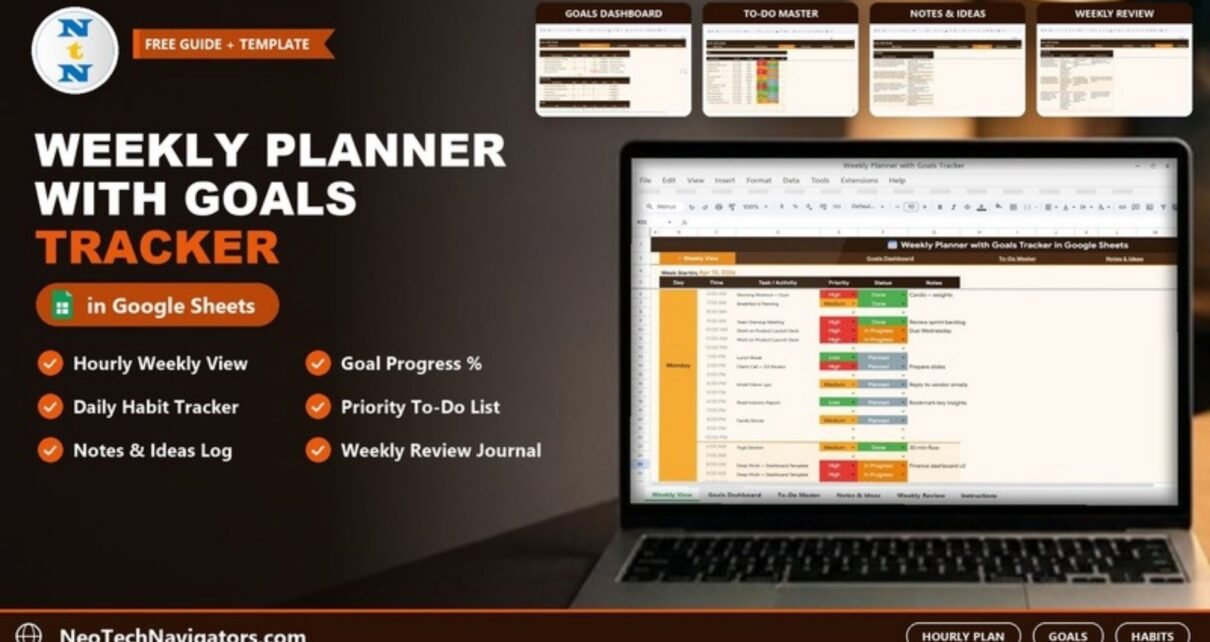
A to-do list tells you what to do today, but it rarely tells you whether this week is moving you toward your goals. The Weekly Planner with Goals Tracker in Google Sheets connects the two: you plan the week hour by hour, set a handful of weekly goals with targets, tick off daily habits, keep a master to-do list and finish the week with a short written review.
It suits freelancers, small business owners, students and anyone who prefers a simple spreadsheet over yet another productivity app. The file has five working pages – Weekly View, Goals Dashboard, To-Do Master, Notes & Ideas and Weekly Review – plus an Instructions tab, all linked from a navigation bar at the top.
🎥 Watch the Video Tutorial
Get the Weekly Planner with Goals Tracker
What Problem Does a Weekly Planner with Goals Solve?
Most people plan in one place, track goals in another and never look back at what happened. The result is a busy week that does not add up to much. Putting the schedule, goals, habits, tasks and review in one Google Sheets file makes the link visible: if a goal is at 0% on Thursday, you can see on the Weekly View whether any time was actually blocked for it.
Inside the Planner: Page by Page
1. Weekly View
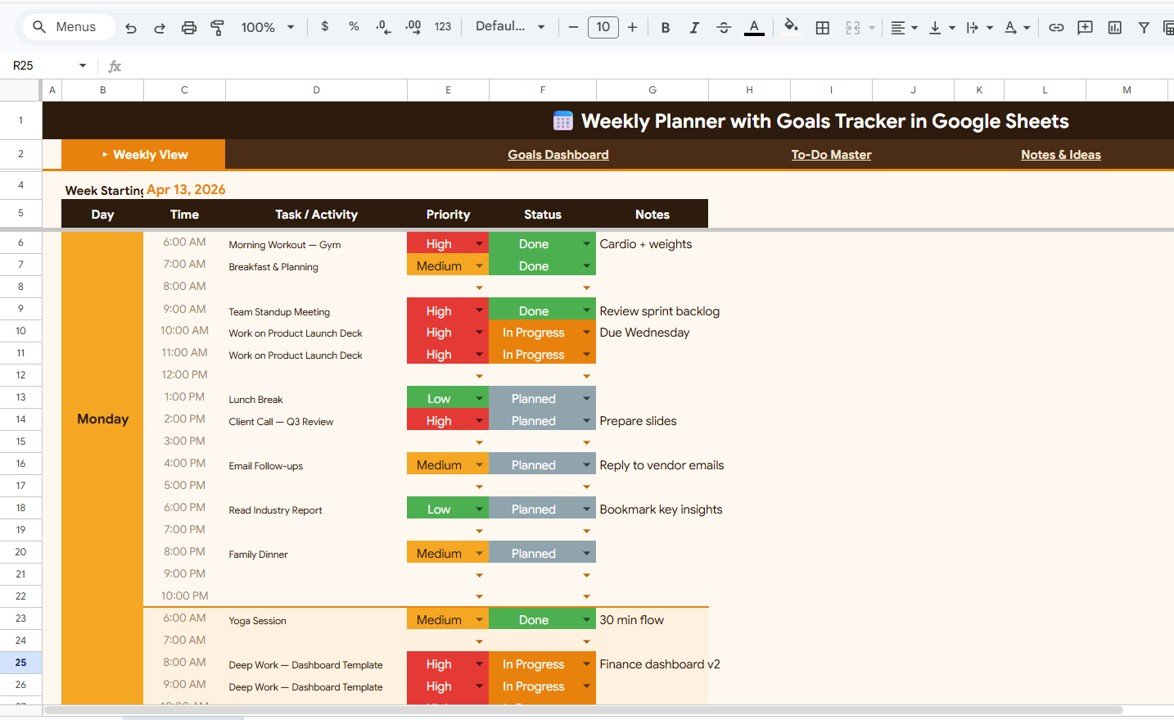
Enter the Week Starting date at the top (the sample uses Apr 13, 2026). Each day has hourly rows from 6:00 AM to 10:00 PM with six columns: Day, Time, Task / Activity, Priority, Status and Notes. Priority is a colour-coded drop-down (High, Medium, Low) and Status is another drop-down (Done, In Progress, Planned).
On the sample Monday, for example, a 6:00 AM “Morning Workout – Gym” is High and Done, while a 2:00 PM “Client Call – Q3 Review” is High and Planned with the note “Prepare slides”.
2. Goals Dashboard
This page has three sections:
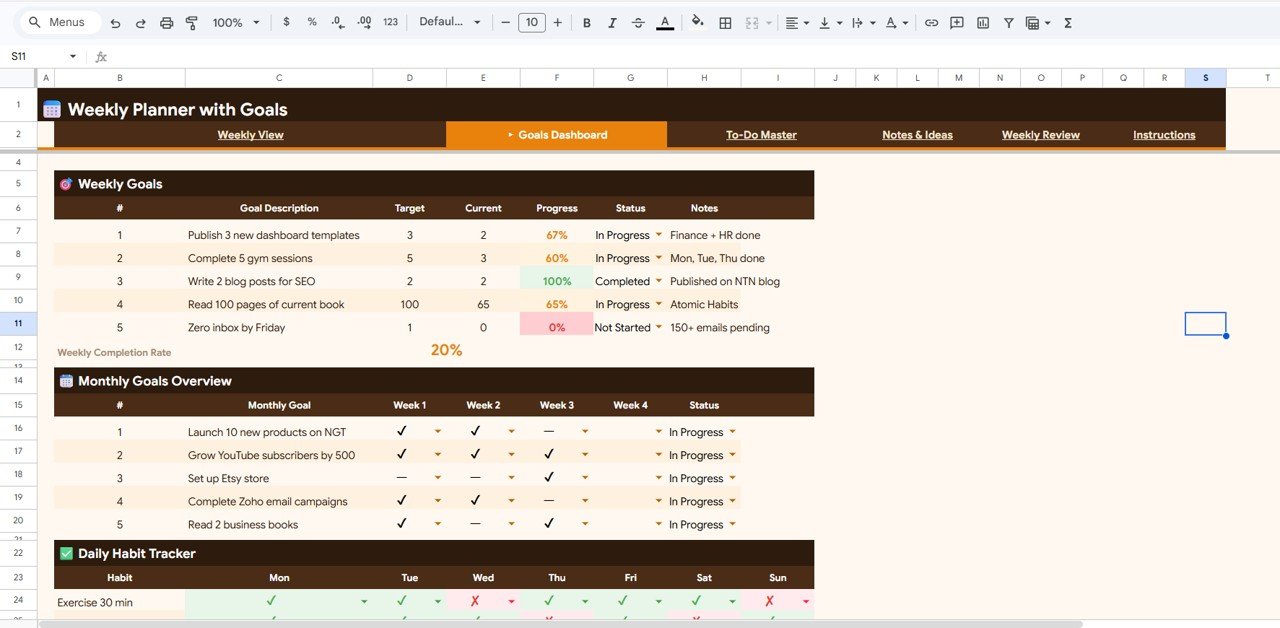
- Weekly Goals – columns #, Goal Description, Target, Current, Progress, Status and Notes. Status options are In Progress, Completed and Not Started. Below the table, a Weekly Completion Rate shows the share of goals completed.
- Monthly Goals Overview – #, Monthly Goal, Week 1 to Week 4 (marked with a tick or a dash) and Status.
- Daily Habit Tracker – one row per habit (for example “Exercise 30 min”) with Mon to Sun columns marked with a tick or a cross.
How Goal Progress Is Calculated
Progress is simply the current value divided by the target. The sample numbers confirm it:
| Goal (sample) | Target | Current | Progress | Status |
|---|---|---|---|---|
| Publish 3 new dashboard templates | 3 | 2 | 67% | In Progress |
| Complete 5 gym sessions | 5 | 3 | 60% | In Progress |
| Write 2 blog posts for SEO | 2 | 2 | 100% | Completed |
| Read 100 pages of current book | 100 | 65 | 65% | In Progress |
| Zero inbox by Friday | 1 | 0 | 0% | Not Started |
If you wanted to write the same calculation yourself, it would look like this (Target in column D, Current in column E):
=IFERROR(E7/D7, 0)The Weekly Completion Rate of 20% in the sample equals one Completed goal out of five. The lesson is useful: four goals are partly done, but only fully finished goals count toward the completion rate, which encourages you to close goals rather than start new ones.
3. To-Do Master
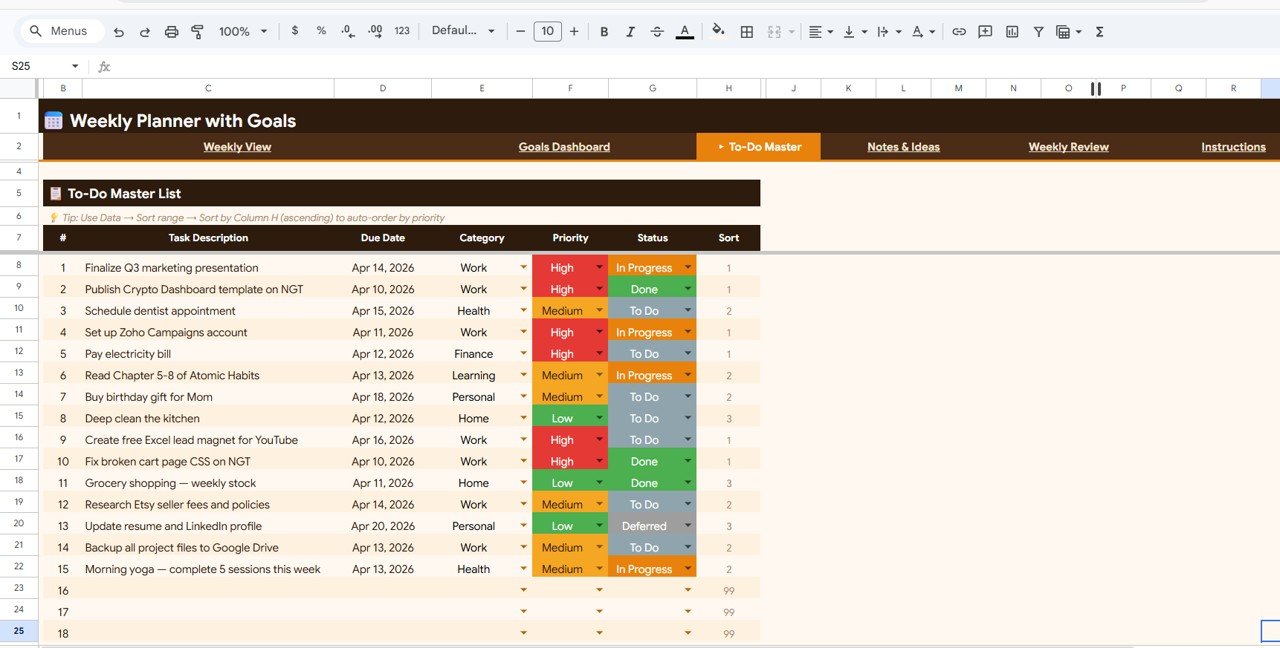
The To-Do Master List holds every task that is not tied to a specific hour. Columns are #, Task Description, Due Date, Category (Work, Health, Finance, Learning, Personal, Home), Priority (High, Medium, Low), Status (To Do, In Progress, Done, Deferred) and Sort.
The Sort column turns priority into a number: 1 for High, 2 for Medium, 3 for Low, and 99 for empty rows. To order the list by priority, follow the tip printed on the sheet: Data > Sort range > Sort by Column H (ascending). High-priority tasks then move to the top and blank rows drop to the bottom.
4. Notes & Ideas
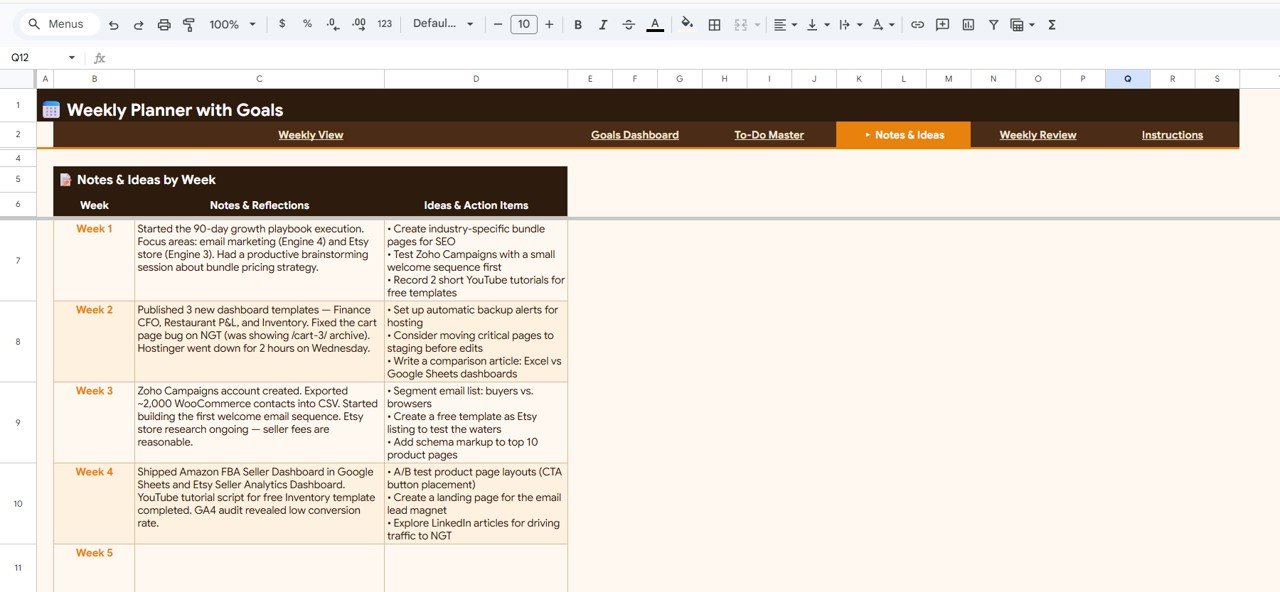
The Notes & Ideas by Week table has three columns: Week, Notes & Reflections and Ideas & Action Items. Use it as a running log: what happened this week in one column, and bullet-point ideas you want to act on in the other.
5. Weekly Review
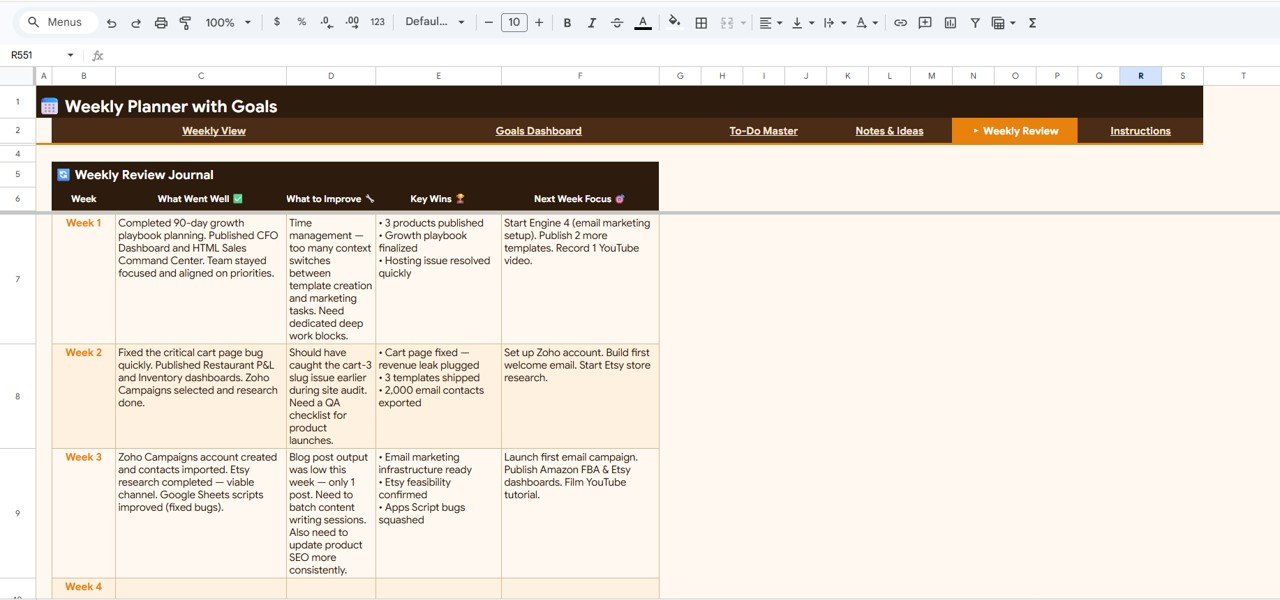
The Weekly Review Journal closes the week with five columns: Week, What Went Well, What to Improve, Key Wins and Next Week Focus. Ten minutes on Friday is enough, and the Next Week Focus column becomes the starting point for next week’s goals.
How to Use It With Your Own Data
- Make a copy of the file in your Google Drive and read the Instructions tab.
- Clear the sample entries and set the Week Starting date on the Weekly View.
- On the Goals Dashboard, write three to five weekly goals with a numeric Target (for example 5 sessions or 100 pages).
- Block time for those goals on the Weekly View and set each slot’s Priority.
- Add untimed tasks to the To-Do Master, then sort by the Sort column so High priority tasks come first.
- Update Current values and Status each evening, and tick your habits in the Daily Habit Tracker.
- On Friday, fill in the Weekly Review and copy your Next Week Focus into next week’s goals.
Real-World Use Cases
- Solo business owner: plans product launches and content goals on the Goals Dashboard and keeps admin tasks such as bills and backups in the To-Do Master.
- University student: blocks lectures and study hours on the Weekly View, sets weekly reading targets and uses the habit tracker for exercise and sleep.
- Team lead: uses the Weekly Review columns as notes for a Monday stand-up and tracks monthly goals week by week.
Best Practices
- Keep goals measurable. A goal like “Read 100 pages” works with the Target and Current columns; “Read more” does not.
- Limit weekly goals to five. The sample uses five, which keeps the completion rate meaningful.
- Plan before Monday. Fill the Weekly View on Sunday evening or first thing Monday.
- Re-sort the to-do list daily. The sort is a manual step, so run it whenever priorities change.
- Be honest in the review. The What to Improve column is where the real gains come from.
Limitations: Who Should Not Use It
- It does not send reminders or notifications. If you rely on alerts, pair it with Google Calendar.
- Priority ordering in the To-Do Master needs a manual sort through the Data menu.
- It is designed for one person’s week. Teams that assign tasks to each other need a shared task or project tracker.
- The hourly grid runs from 6:00 AM to 10:00 PM, so night-shift schedules need the time slots changed.
Related Guides and Templates
If habits are your main focus, the Habit Tracker in Google Sheets goes deeper than the weekly habit grid. For a lighter daily list, see the To Do List in Google Sheets. To set better goals in the first place, the Goal Setting Checklist in Google Sheets helps, and the Weekly Reflection Checklist adds prompts for your Friday review. For financial targets, try the Savings Goal Planner in Google Sheets.
New to spreadsheets and want to customise templates like this with confidence? The learning paths on NextGenTemplates Academy are a structured place to start.
Frequently Asked Questions
What pages does the Weekly Planner with Goals Tracker include?
Weekly View, Goals Dashboard, To-Do Master, Notes & Ideas and Weekly Review, plus an Instructions tab.
How is goal progress calculated?
Progress is Current divided by Target. For example, 2 of 3 templates published shows 67%.
What is the Weekly Completion Rate?
It is the share of weekly goals with status Completed. One completed goal out of five gives 20%.
How do I sort tasks by priority?
Use Data > Sort range and sort by the Sort column (column H) in ascending order. High priority tasks have a sort value of 1, so they move to the top.
Can I change the categories and time slots?
Yes. You can edit the drop-down options for categories and statuses and change the times on the Weekly View.
Does it work on a phone?
Yes, through the Google Sheets app, although planning a full week is easier on a laptop or tablet.
Wrapping Up
A good week is planned, measured and reviewed. The Weekly Planner with Goals Tracker in Google Sheets gives you all three in one file: an hourly plan, goals with clear progress, habits, a sortable to-do list and a weekly review that feeds the next week. Set three to five goals this Sunday, block time for them, and see how far the completion rate moves by Friday.
Get the Weekly Planner with Goals Tracker for Google Sheets
📅 Last updated: October 2026