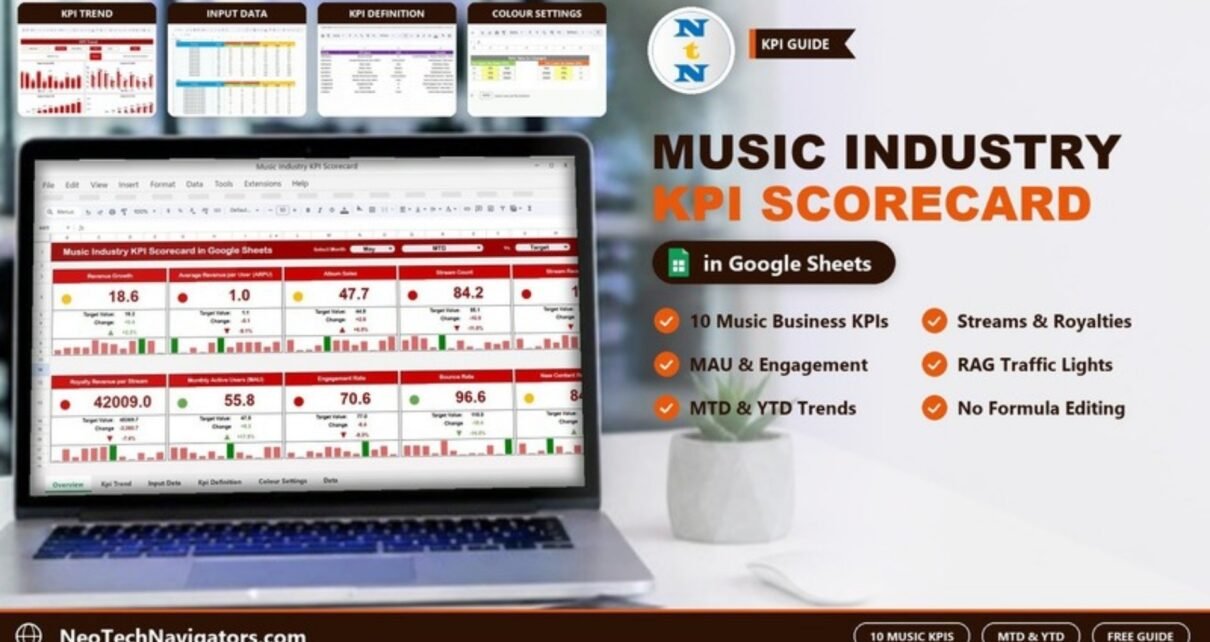
The Music Industry KPI Scorecard in Google Sheets brings ten music-business metrics onto one page, from Revenue Growth and Stream Count to Monthly Active Users (MAU) and Bounce Rate. Each metric is shown against its target with a green, amber or red signal. Choose a month, switch between MTD and YTD, and every card updates.
It is aimed at record label managers, artist managers, independent artists running their own release plans, and small streaming or music-service teams who want a monthly performance view without building one from scratch. The file has four main worksheets (Scorecard, KPI Trend, Input Data and KPI Definition) plus a small colour settings tab for the traffic-light thresholds. The calculations, arrows and colours are already built in, so you only enter numbers.
Below you will find the ten KPIs with their formulas, a walkthrough of each sheet, a worked example from the sample data, and a frank note on what this scorecard does not do.
Get the Music Industry KPI Scorecard
Why the Music Business Needs a Scorecard
Music revenue now comes from many places at once: album sales, streaming payouts, royalties, and an audience spread across several platforms. Each platform has its own analytics screen, and none of them shows your targets. That makes it hard to say, at the end of a month, whether things went to plan.
A scorecard pulls the important numbers into one structure (Actual, Target and Previous Year for each month) and shows the gap as a simple colour. A label meeting can then spend its time on the two or three red cards instead of on gathering numbers.
The 10 KPIs in the Music Industry KPI Scorecard in Google Sheets
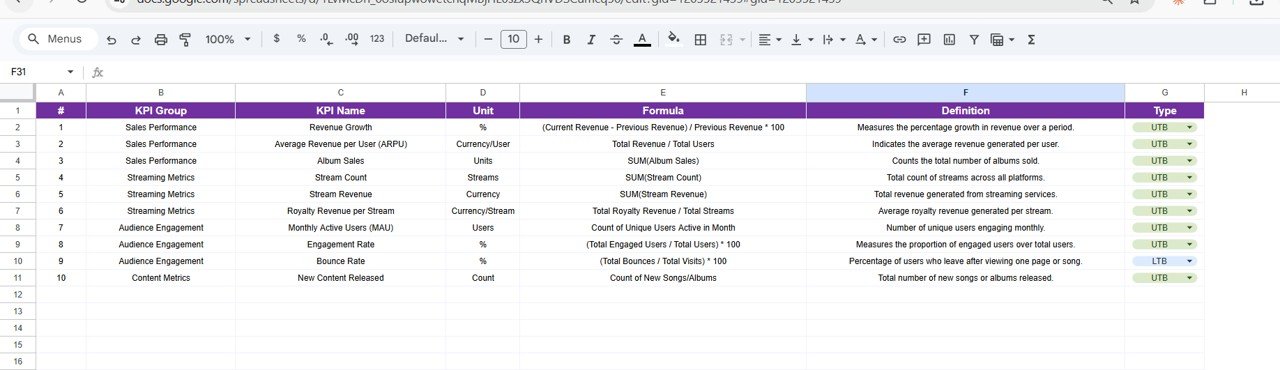
These come straight from the template’s KPI Definition sheet. UTB means Upper the Better and LTB means Lower the Better.
| KPI | KPI Group | What it measures | Formula (from the template) | Better when |
|---|---|---|---|---|
| Revenue Growth | Sales Performance | Percentage growth in revenue over a period | (Current Revenue – Previous Revenue) / Previous Revenue * 100 | Higher (UTB) |
| Average Revenue per User (ARPU) | Sales Performance | Average revenue generated per user | Total Revenue / Total Users | Higher (UTB) |
| Album Sales | Sales Performance | Total number of albums sold | SUM(Album Sales) | Higher (UTB) |
| Stream Count | Streaming Metrics | Total streams across all platforms | SUM(Stream Count) | Higher (UTB) |
| Stream Revenue | Streaming Metrics | Total revenue from streaming services | SUM(Stream Revenue) | Higher (UTB) |
| Royalty Revenue per Stream | Streaming Metrics | Average royalty earned per stream | Total Royalty Revenue / Total Streams | Higher (UTB) |
| Monthly Active Users (MAU) | Audience Engagement | Unique users engaging in the month | Count of Unique Users Active in Month | Higher (UTB) |
| Engagement Rate | Audience Engagement | Share of users who engaged | (Total Engaged Users / Total Users) * 100 | Higher (UTB) |
| Bounce Rate | Audience Engagement | Share of users who leave after one page or song | (Total Bounces / Total Visits) * 100 | Lower (LTB) |
| New Content Released | Content Metrics | New songs or albums released | Count of New Songs/Albums | Higher (UTB) |
Sheet-by-Sheet Walkthrough
1. Scorecard Sheet
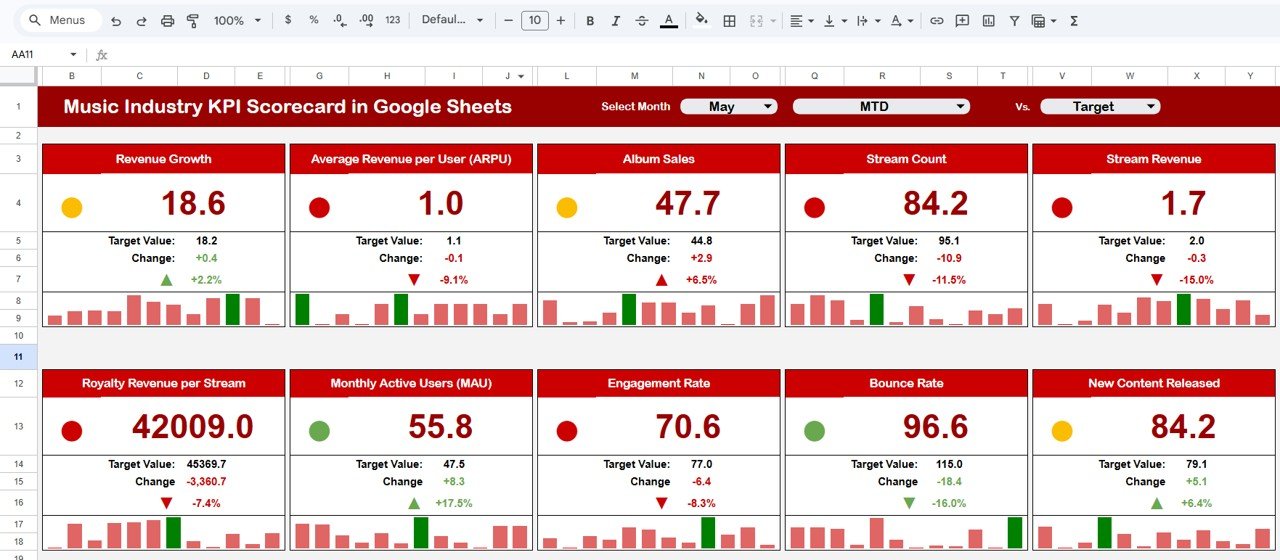
The header holds three dropdowns: Select Month, a period selector for MTD or YTD, and Vs., set to Target in the sample. Ten KPI cards follow in two rows of five. Each card shows the actual value with a coloured dot, the Target Value, the Change as a number and a percentage with an arrow, and a 12-month mini bar chart that shows how the KPI moved across the year.
2. KPI Trend Sheet
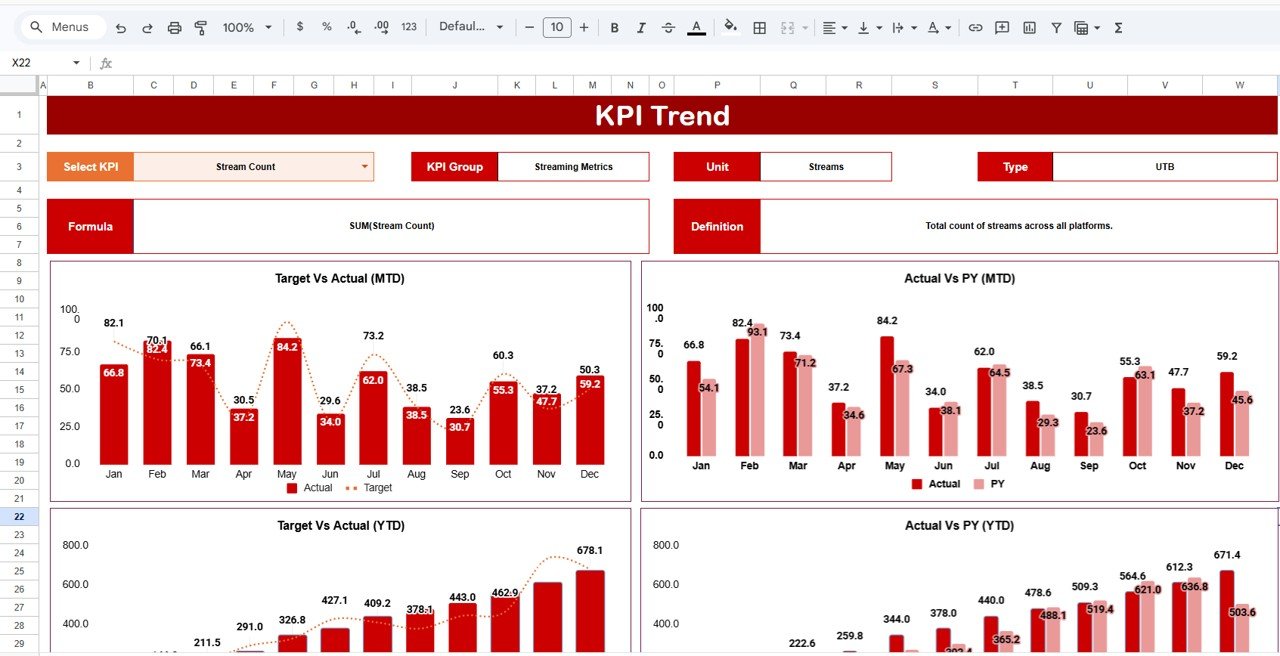
Select a KPI in the Select KPI dropdown in cell C3. The sheet shows its KPI Group, Unit, Type, Formula and Definition, then four charts: Target Vs Actual (MTD), Actual Vs PY (MTD), Target Vs Actual (YTD) and Actual Vs PY (YTD). In the sample, Stream Count is selected: Streaming Metrics group, unit Streams, type UTB, defined as the total count of streams across all platforms.
3. Input Data Sheet
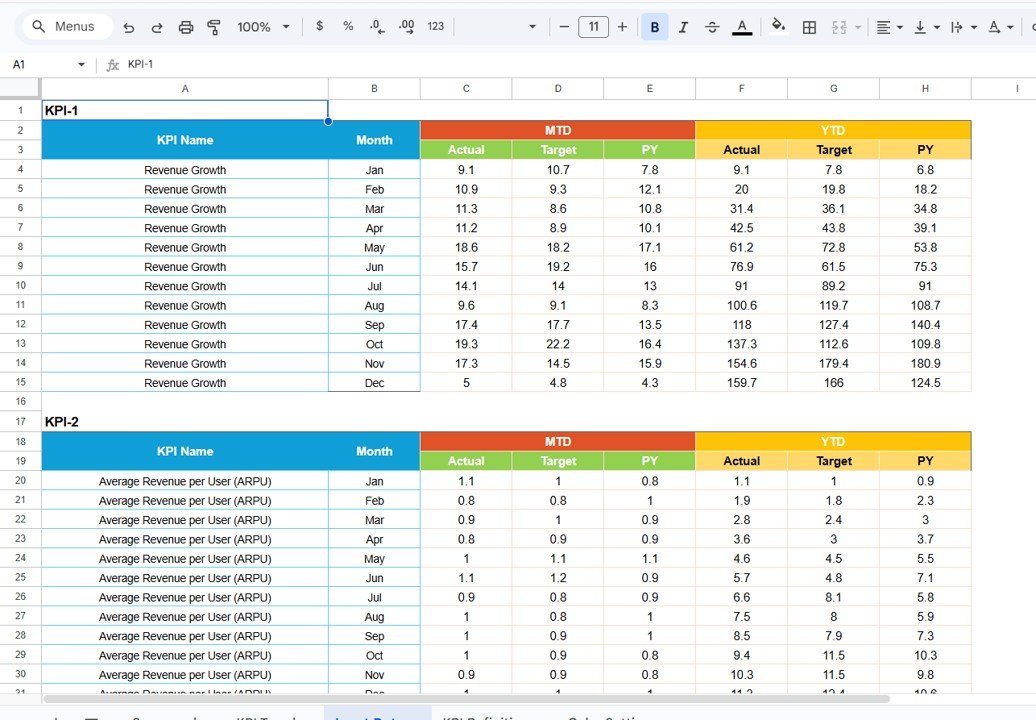
All data entry happens here. The sheet is laid out in blocks (KPI-1, KPI-2 and so on), each with a row for every month from Jan to Dec and six columns: MTD Actual, MTD Target, MTD PY, YTD Actual, YTD Target, YTD PY. You type the numbers; the scorecard and charts pick them up.
4. KPI Definition Sheet
The reference list for all ten KPIs: number, KPI Group, KPI Name, Unit, Formula, Definition and Type (UTB or LTB from a dropdown). If you replace a KPI, change it here and set the Type correctly so the colours behave.
5. Colour Settings Tab
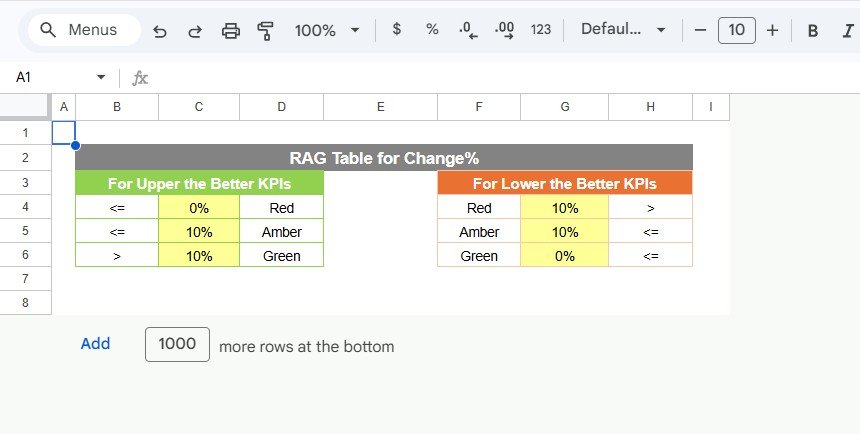
A small tab holds the RAG Table for Change%. For Upper the Better KPIs, a change of 0% or less is Red, up to 10% is Amber and above 10% is Green. For Lower the Better KPIs, above 10% is Red, up to 10% is Amber and 0% or less is Green. Edit the yellow cells to tighten or loosen the bands.
Worked Example: Reading the May Scorecard
In the sample, May MTD Revenue Growth shows an actual of 18.6 against a target of 18.2:
Change    = 18.6 - 18.2           = +0.4
Change %  = (18.6 - 18.2) / 18.2  = +2.2%
Revenue Growth is Upper the Better and +2.2% is inside the 0–10% band, so the card is amber: ahead of target, but only just.
Three other cards from the same month show the rules in action:
- Monthly Active Users (MAU): 55.8 against 47.5 is +8.3, or +17.5%. That is more than 10% above target on a UTB KPI, so green.
- Stream Count: 84.2 against 95.1 is −11.5%. A shortfall on a UTB KPI is red.
- Bounce Rate: 96.6 against 115.0 is −16.0%. Bounce Rate is Lower the Better, so being under target is green.
Read together, May looks like a month where audience reach grew but streams did not keep up. That is a useful question to take to the marketing and playlisting team.
How to Use It With Your Own Data
- Open KPI Definition and decide which of the ten KPIs fit your business. Rename or replace any that do not, and set UTB or LTB.
- Pick the data source for each KPI, such as your distributor’s sales report, streaming dashboards or royalty statements, and note it beside the definition.
- Clear the sample numbers in Input Data and enter your monthly MTD Actual, Target and PY values.
- Fill the YTD columns the same way every month. In the sample file, YTD values are running totals of the monthly figures; if you prefer running averages for rates such as Engagement Rate, set the YTD targets the same way so the comparison stays fair.
- Adjust the RAG bands on the colour settings tab if you want a stricter or looser definition of “on track”.
- Open the Scorecard, pick the month and MTD or YTD, and use KPI Trend to dig into any red card.
Three Real-World Use Cases
An independent label’s monthly review
The label manager looks at Album Sales, Stream Revenue and Royalty Revenue per Stream in YTD view to see whether the year’s release slate is paying off.
An artist manager planning a release cycle
New Content Released, Stream Count and MAU are tracked month by month. The trend charts show how much each release lifts streams and how quickly the effect fades.
A small music streaming or fan-platform team
Product and growth staff focus on MAU, Engagement Rate, Bounce Rate and ARPU, using the Actual Vs PY charts to compare against last year’s same months.
Best Practices
- Use one source per KPI and stick to it all year. Platform dashboards often revise figures later.
- Record streaming and royalty numbers in the month they relate to, not the month the statement arrives, or your trends will lag.
- Set targets per month, not just per year. Releases and seasons make music performance uneven.
- Review Stream Count and Stream Revenue together. Rising streams with flat revenue often point to a shift in platform or region mix.
- Protect the formula areas with Data > Protect sheets and ranges so only Input Data stays editable.
Limitations and Who Should Not Use It
This scorecard works with monthly summary figures that you enter yourself. It does not connect to streaming platforms or distributor portals, and it does not break performance down by track, artist or territory. A label with a large catalogue that needs per-artist analysis will want a separate data sheet or a BI tool, and can use this scorecard as the top-level summary.
Related Templates and Guides
For a chart-led view of the same industry, see the Music Industry KPI Dashboard in Google Sheets. Event teams can look at the Music Festival KPI Dashboard. Scorecards in the same format exist for related media businesses: the Film Production KPI Scorecard, the Broadcasting KPI Scorecard and the Media & Entertainment KPI Scorecard.
Related template: there is also a Music Industry KPI Scorecard in Excel.
If you want to learn how scorecards and dashboards like this are put together, the Excel Pivot Tables & Dashboards course on NextGenTemplates Academy covers it in structured lessons.
Frequently Asked Questions
What KPIs does the Music Industry KPI Scorecard include?
Revenue Growth, Average Revenue per User (ARPU), Album Sales, Stream Count, Stream Revenue, Royalty Revenue per Stream, Monthly Active Users (MAU), Engagement Rate, Bounce Rate and New Content Released.
How is the change percentage calculated?
It is the difference between actual and the comparison value, divided by the comparison value. For example, May Revenue Growth of 18.6 against a target of 18.2 is (18.6 − 18.2) ÷ 18.2 = +2.2%.
Why is Bounce Rate green when it is below target?
Bounce Rate is the only Lower the Better KPI in the set. A lower bounce rate means more listeners stay, so falling below target is good news.
Can I track each artist separately?
Not within one file. The scorecard is built for one set of ten KPIs. You can make a copy per artist, or use it for the label total and track artists elsewhere.
Do I need to edit any formulas?
No. You enter values in the Input Data sheet and, if needed, adjust names and types in KPI Definition. The rest is calculated for you.
Can my team use it at the same time?
Yes. It is a Google Sheets file, so you can share it with view, comment or edit access.
Get the Music Industry KPI Scorecard in Google Sheets
Wrapping Up
The Music Industry KPI Scorecard in Google Sheets gives labels, managers and artists one page that shows whether sales, streaming and audience numbers are on plan. Pick the KPIs that match how you earn, load last year’s figures for the PY comparison, and use the first month’s red cards to set your priorities.
📅 Last updated: October 2026


