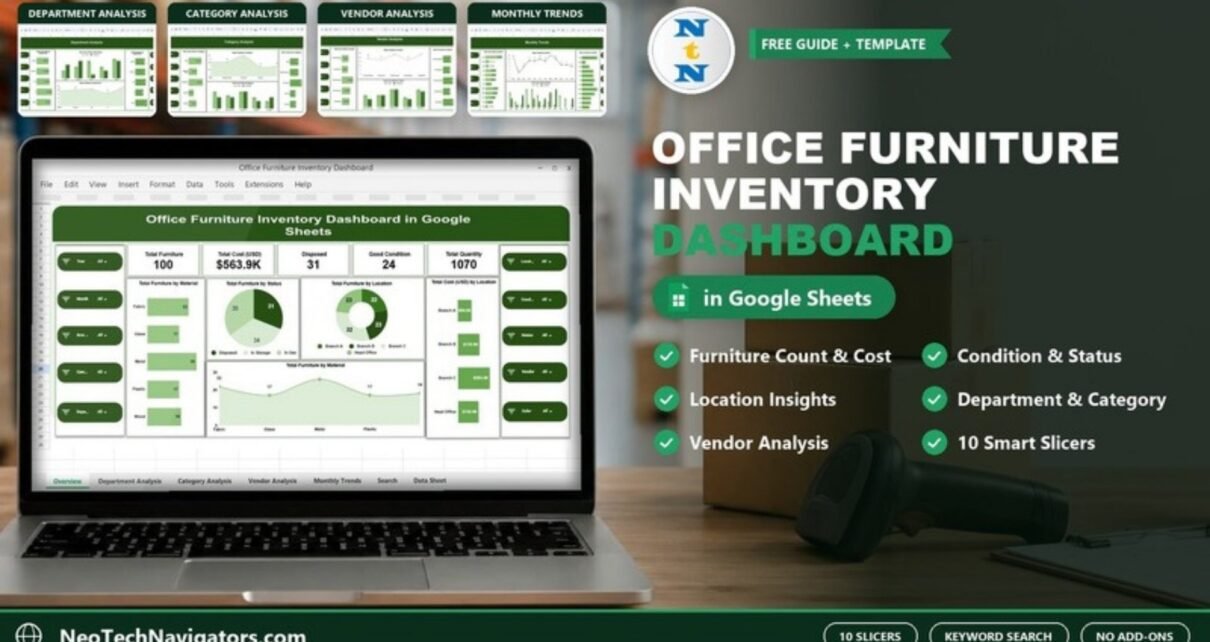
The Office Furniture Inventory Dashboard in Google Sheets shows every desk, chair, cabinet and sofa your organisation owns in one place: how many items you have, what they cost, what condition they are in, and where they sit by location, department, category and vendor. Ten slicers let you filter the whole view in a click.
It is made for facility managers, office administrators, procurement teams and finance staff who keep furniture records in scattered lists and struggle to answer simple questions like “How much have we spent on reception furniture?” or “How many items are in storage?”. You maintain one data sheet; the five dashboard pages and the search sheet do the rest.
This guide explains each page with the real sample figures, the columns in the data sheet, how to load your own inventory, and the template’s limits.
🎥 Watch the Video Tutorial
Get the Office Furniture Inventory Dashboard
Why Use an Office Furniture Inventory Dashboard?
Furniture is one of the largest physical assets in most offices, yet it is often tracked in a paper register or not at all. That leads to duplicate purchases, items sitting unused in storage, repairs that never get logged and no clear picture of spending by department. An office furniture inventory dashboard gives you a single source of truth and makes audits, budgeting and moves far easier.
Dashboard Structure
| Page | What it shows |
|---|---|
| Overview | 5 KPI cards plus charts by material, status and location |
| Department Analysis | Cost, item count, In Use vs Disposed and repairs by department |
| Category Analysis | The same views by furniture category |
| Vendor Analysis | The same views by supplier |
| Monthly Trends | Cost, item count, In Use vs Disposed and repairs by month |
| Search | Filter records by any column and keyword |
| Data Sheet | One row per furniture item |
Every analysis page has the same ten slicers down both sides: Year, Month, Item, Category, Department, Location, Condition, Status, Vendor and Color.
Overview Page
The five cards in the sample read:
- Total Furniture: 100 (the number of item records)
- Total Cost (USD): $563.9K
- Disposed: 31
- Good Condition: 24
- Total Quantity: 1070 (the sum of all units)
Below them you find:
- Total Furniture by Material: Metal 26, Fabric 22, Wood 18, Glass 17, Plastic 17 (shown both as a bar chart and an area chart).
- Total Furniture by Status: In Use 35, In Storage 34, Disposed 31.
- Total Furniture by Location: a doughnut across Branch A, Branch B, Branch C and Head Office.
- Total Cost (USD) by Location: Branch C $204.0K, Branch B $139.9K, Head Office $132.0K, Branch A $88.0K.
The status split is the first thing to act on: in the sample, a third of the items are in storage. That is furniture you have paid for but are not using.

Department Analysis
The sample has five departments: Admin, Finance, HR, IT and Sales.
- Total Cost (USD) by Department: IT $130.0K, Sales $118.7K, HR $110.3K, Finance $104.0K, Admin $100.9K.
- Total Furniture by Department: Sales 24, HR 21, Finance 20, Admin 19, IT 16.
- A clustered column chart comparing In Use and Disposed items per department (Admin 4 in use against 7 disposed, HR 9 against 2).
- Repair Needed by Department: an area chart.
Interesting detail: IT has the fewest items but the highest cost, which points to more expensive pieces per item.
One thing to check in your copy: in the sample, the Repair Needed by Department values (19, 20, 21, 16, 24) are the same as the total item count per department, and the In Use vs Disposed chart carries the title “Total Cost (USD) by Department”. The same pattern appears on the Category, Vendor and Monthly pages. To see true repair counts, set the Condition slicer to Repair Needed; the item-count charts then show only items that need repair.

Category Analysis
Categories in the sample are Desk, Meeting Room, Reception, Seating and Storage.
- Total Cost (USD) by Category: Reception $165.0K, Desk $151.0K, Meeting Room $97.2K, Storage $91.2K, Seating $59.5K.
- Total Furniture by Category: Reception 29, Desk 21, Meeting Room 21, Storage 15, Seating 14.
- Repair Needed by Category and an In Use vs Disposed comparison by category (for example Reception 9 in use and 9 disposed).

Vendor Analysis
Five suppliers appear in the sample: ComfortSeating, FurnitureCo, OfficeFurnish, SmartSpaces and UrbanWork.
- Total Cost (USD) by Vendor: OfficeFurnish $158.0K, SmartSpaces $118.2K, UrbanWork $106.5K, ComfortSeating $94.1K, FurnitureCo $87.1K.
- Total Furniture by Vendor: UrbanWork 24, OfficeFurnish 23, ComfortSeating 19, FurnitureCo 17, SmartSpaces 17.
- Repair Needed by Vendor and an In Use vs Disposed comparison by vendor.
To judge vendor quality before your next purchase order, set the Condition slicer to Repair Needed and compare each vendor’s count with its total items. Do not rely on the Repair Needed by Vendor chart alone, because in the sample it shows the same values as the item count.

Monthly Trends
This page groups records by month. In the sample, April has the highest spend ($87.0K, 12 items) and September the lowest ($15.4K, 6 items). It also includes Repair Needed by Month, Total Furniture by Month and an In Use vs Disposed comparison per month, which helps you see when large batches were bought and how they are holding up.

Search by Keyword and Field Name
The search sheet has a Select Column dropdown, a Search Keyword box and a Total Record counter. In the sample, Color is selected and the keyword is “Brown”, which returns 21 records with every column visible. It is handy for audits (“show me everything at Branch C”), vendor queries or finding all items marked Repair Needed.

Data Sheet: The Columns
| Column | Example from the sample |
|---|---|
| Item ID | FUR-0001 |
| Item Name | Reception Sofa, Office Chair, Standing Desk, Filing Cabinet |
| Category | Reception, Storage, Desk, Meeting Room, Seating |
| Location | Branch A, Branch B, Branch C, Head Office |
| Quantity | 7 |
| Unit Cost (USD) | 314.08 |
| Total Cost (USD) | 2198.56 |
| Condition | Good, New, Repair Needed |
| Status | In Use, In Storage, Disposed |
| Vendor | SmartSpaces |
| Department | Admin, Finance, HR, IT, Sales |
| Color | Blue, Brown, White, Black, Gray |
| Material | Fabric, Metal, Glass, Wood, Plastic |
| Purchase Date | 28-May-24 |
| Good Condition / New Condition | 1 or 0 flags, with further flag columns to the right |
Total Cost is Quantity multiplied by Unit Cost. For the first row: 7 × 314.08 = 2,198.56.
Total Cost (USD) = Quantity * Unit Cost (USD)
How to Use It With Your Own Inventory
- Make a copy with File > Make a copy.
- Walk each location (or use your last audit) and list every item with ID, name, category, location, department and vendor.
- Clear the sample rows in the Data Sheet and paste your list, keeping the column order.
- Enter Quantity and Unit Cost as numbers only. In the sample a couple of cells are blank or hold text, which is exactly the kind of error that skews totals; add Data > Data validation to block it.
- Set Condition, Status and the 1/0 flag columns for each row.
- Open the Overview page, check the cards, then use the slicers to explore by location or department.
If you want to understand how slicer-driven summaries and charts like these are built, the pivot tables and dashboards course on NextGenTemplates Academy explains the same techniques step by step.
Three Real-World Use Cases
- Office move or consolidation: filter by Location and Status to see what can move from storage instead of buying new.
- Annual budget planning: use cost by department and category to set next year’s furniture budget.
- Supplier review: filter Condition to Repair Needed and compare vendors before renewing a contract.
Best Practices
- Label each item physically with its Item ID so audits match the sheet.
- Update Status the day an item is moved, stored or disposed.
- Run a quarterly check of everything marked In Storage or Repair Needed.
- Use one spelling for each vendor, location and category.
- Give edit access only to the people who maintain the inventory.
Limitations and Who Should Not Use It
The dashboard reports on furniture you have entered. It does not scan barcodes, calculate depreciation, raise purchase orders or send repair reminders. Organisations with thousands of assets across many sites, or that need depreciation schedules for accounting, should use a dedicated asset management system. For a small to mid-size office, this template covers what most admin teams need.
Related Templates
The same dashboard is available as an Office Furniture Inventory Dashboard in Excel. For broader asset tracking, see the office asset management dashboard, the office infrastructure and furniture dashboard, the office asset disposal tracker and the asset utilization and status dashboard.
Frequently Asked Questions
What is the difference between Total Furniture and Total Quantity?
Total Furniture counts item records (100 in the sample). Total Quantity adds up the Quantity column (1070), because one record can represent several identical units.
Which filters does the dashboard have?
Ten slicers: Year, Month, Item, Category, Department, Location, Condition, Status, Vendor and Color.
Can I add my own locations, categories or vendors?
Yes. Enter them in the Data Sheet with consistent spelling and they will appear in the charts and slicers.
Does it track depreciation?
No. It records purchase date and cost, which you can use to calculate depreciation separately.
Is the currency fixed to USD?
The sample labels cost in USD. You can enter your own currency and rename the column and card titles to match.
Can several people update the inventory?
Yes. It is a Google Sheets file, so you can share it with editors and viewers.
Wrapping Up
The Office Furniture Inventory Dashboard in Google Sheets gives you a clear, filterable view of what furniture you own, what it cost and what condition it is in. Load your inventory, keep Status and Condition current, and use the storage and repair numbers to cut unnecessary purchases.
Get the Office Furniture Inventory Dashboard
📅 Last updated: October 2026