Event Success Tracking Dashboard in Google Sheets is built for teams that need a simple way to review event revenue, ticket sales, profit, client type performance, venue ranking, and event status without building a dashboard from scratch. The template includes 6 connected sheet tabs, 4 KPI cards, 16 chart views, slicers, a Search sheet, and a Data sheet. For event teams that still prepare monthly summaries manually, those built-in views can replace hours of spreadsheet formatting with a repeatable reporting workflow.
You can view the template here: Event Success Tracking Dashboard in Google Sheets.
Get the Event Success Tracking Dashboard in Google Sheets
Because the dashboard runs in Google Sheets, teams can share access through Google Drive, collaborate in the browser, and use normal spreadsheet controls. Google explains sharing and permission options in its official Google Drive file sharing guide.
Key Features of Event Success Tracking Dashboard in Google Sheets
- 4 headline KPI cards: Total Revenue, Total Events, Total Profit, and Tickets Sold.
- 6 sheet tabs: Overview, Revenue, Events, Venues & Clients, Search Sheet, and Data Sheet.
- 16 chart views: Revenue, cost, event count, ticket sales, capacity, event status, city, client type, venue, and event type analysis.
- Slicer-based filtering: Filter reports quickly by event type, client type, venue, city, status, month, or other available fields.
- Search Sheet lookup: Select one Event ID and view the complete event record instantly.
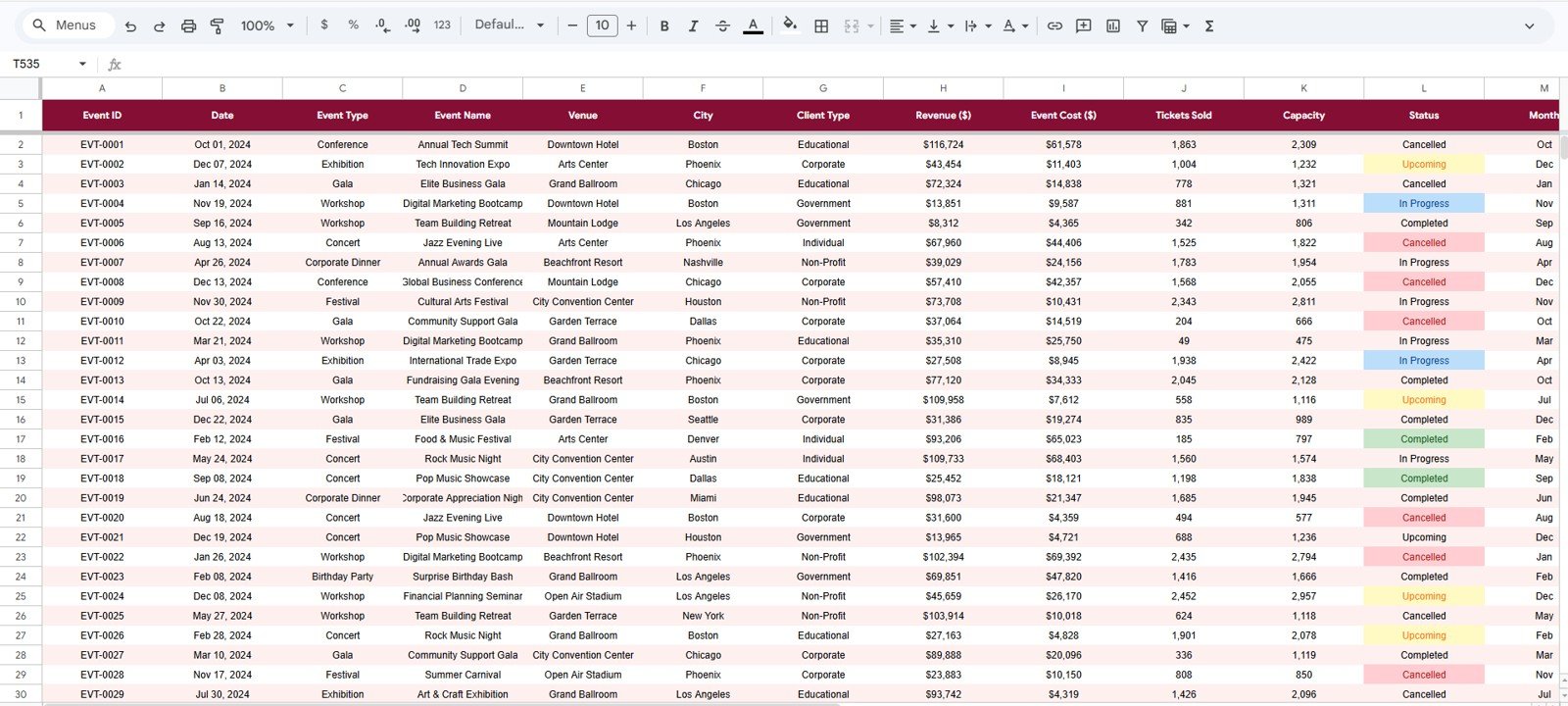
- Structured Data sheet: Replace the sample records with your own event data in the same format.
- Google Sheets collaboration: Share the file with planners, finance reviewers, venue managers, and clients.
Dashboard Pages Explanation
1. Overview Page
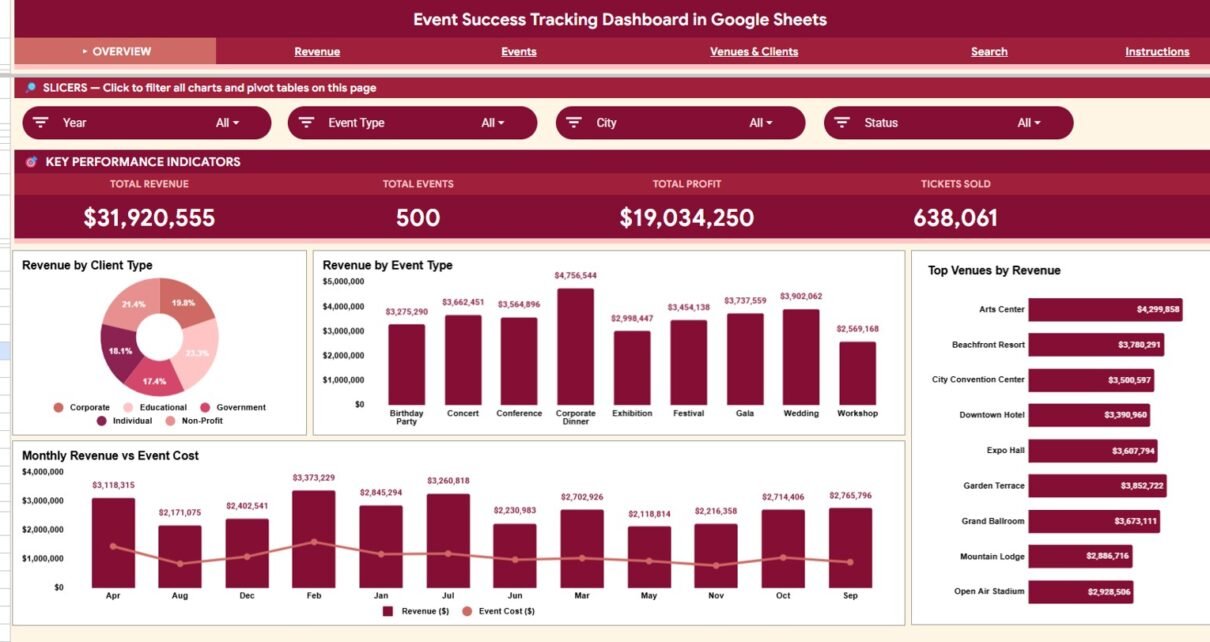
The Overview page is the main executive view. At the top, the dashboard shows Total Revenue, Total Events, Total Profit, and Tickets Sold, giving managers a quick way to understand the overall health of the event portfolio.
Revenue by Client Type: This chart shows how revenue is distributed across client groups. It helps event teams identify whether corporate clients, private clients, non-profit clients, or agency clients are driving the strongest results.
Revenue by Event Type: This chart compares revenue across event categories. It is useful for seeing whether conferences, product launches, workshops, weddings, concerts, or fundraisers deserve more planning attention.
Top Venues by Revenue: This ranking shows which venues generate the highest revenue. Managers can use it for vendor negotiations, venue partnerships, and future booking strategy.
Monthly Revenue vs Event Cost: This trend compares revenue and cost month by month. It helps users see whether revenue growth is improving profit or just following higher event spending.

2. Revenue Sheet Tab
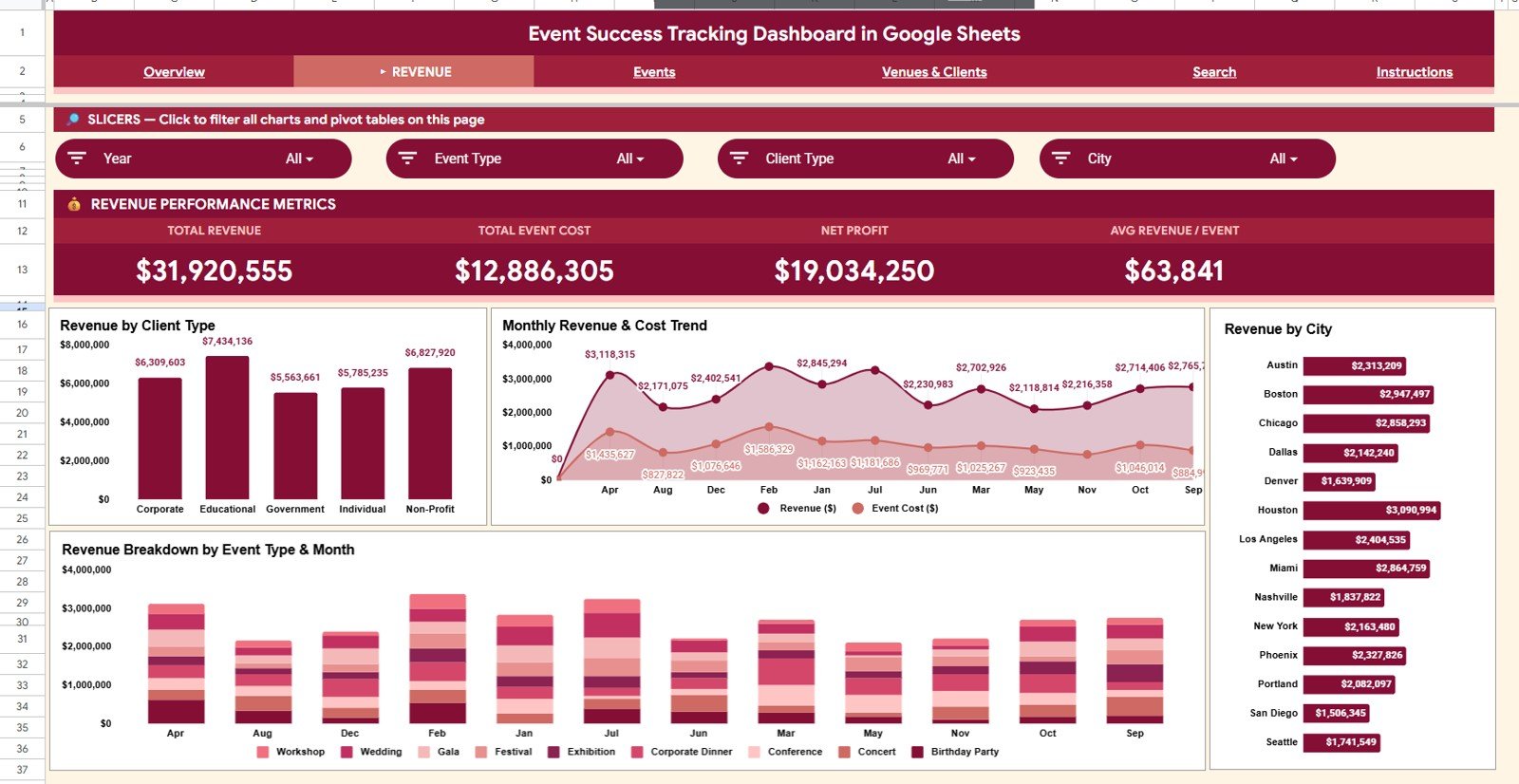
The Revenue tab gives finance and planning teams a closer view of event income. Revenue by Client Type shows which client segments are creating the most value. Monthly Revenue & Cost Trend helps users track whether costs are rising faster than revenue. Revenue by City highlights location-level performance, while Revenue Breakdown by Event Type & Month combines category and time analysis in one view.
3. Events Sheet Tab
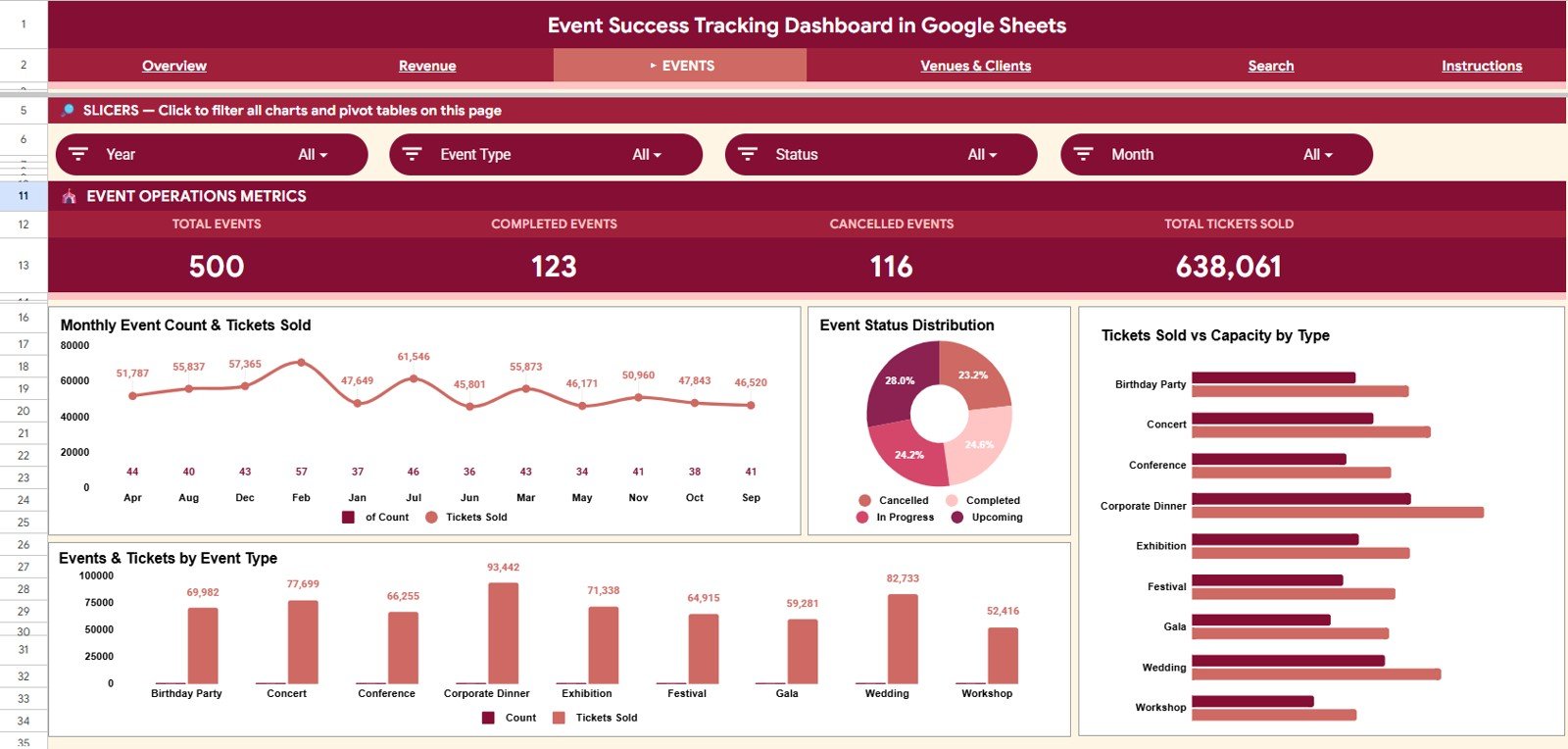
The Events tab focuses on volume, ticket activity, event status, and capacity. Monthly Event Count & Tickets Sold compares the number of events with ticket movement over time. Event Status Distribution shows how many events are completed, confirmed, cancelled, or pending. Tickets Sold vs Capacity by Type helps users understand utilization, and Events & Tickets by Event Type shows which event formats are most active.
4. Venues & Clients Sheet Tab
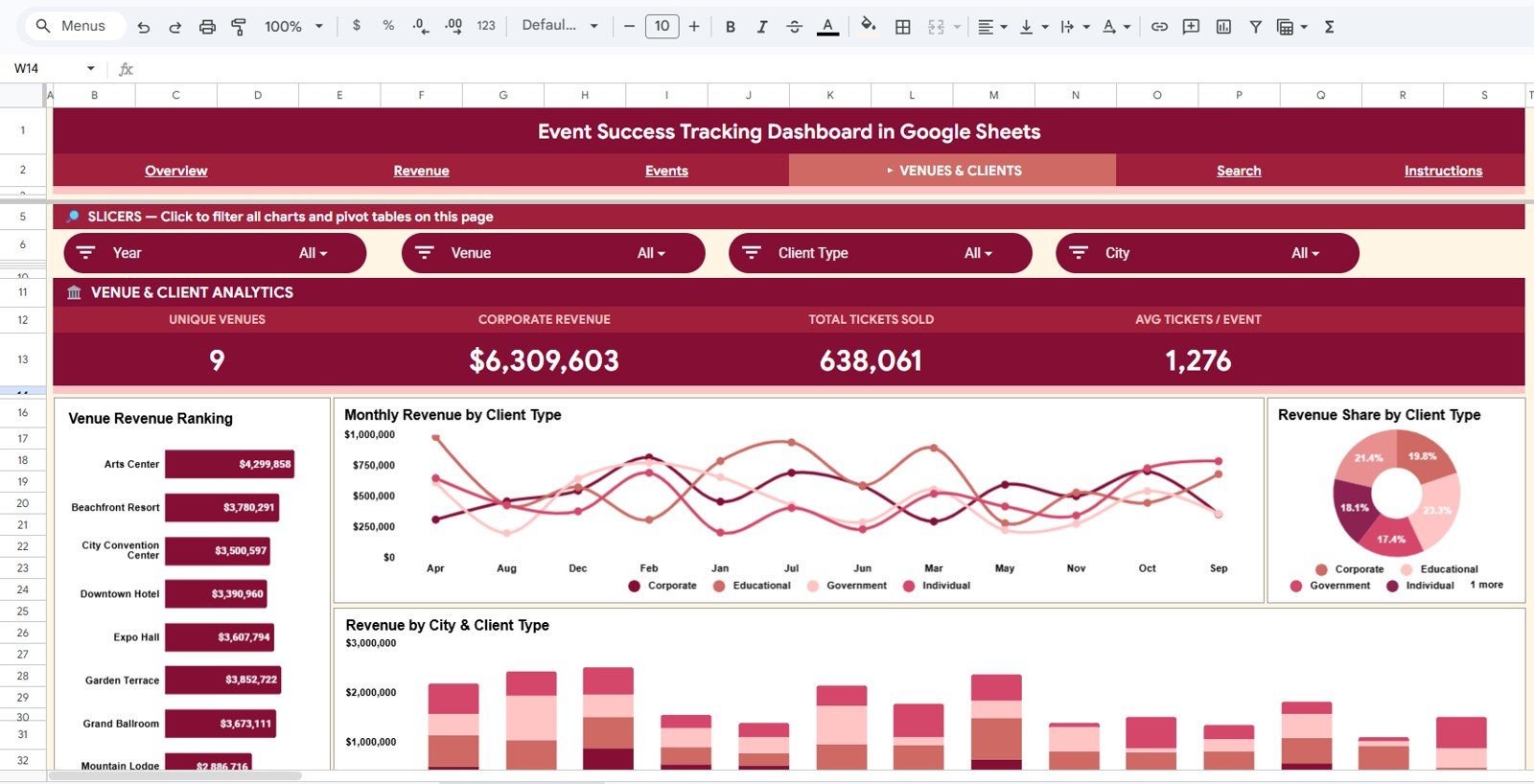
The Venues & Clients tab connects revenue with the people and places behind each event. Venue Revenue Ranking shows which venues are producing the highest revenue. Monthly Revenue by Client Type tracks client mix across time. Revenue Share by Client Type gives a proportional view of client contribution, and Revenue by City & Client Type helps teams compare market and client performance together.
5. Search Sheet Tab
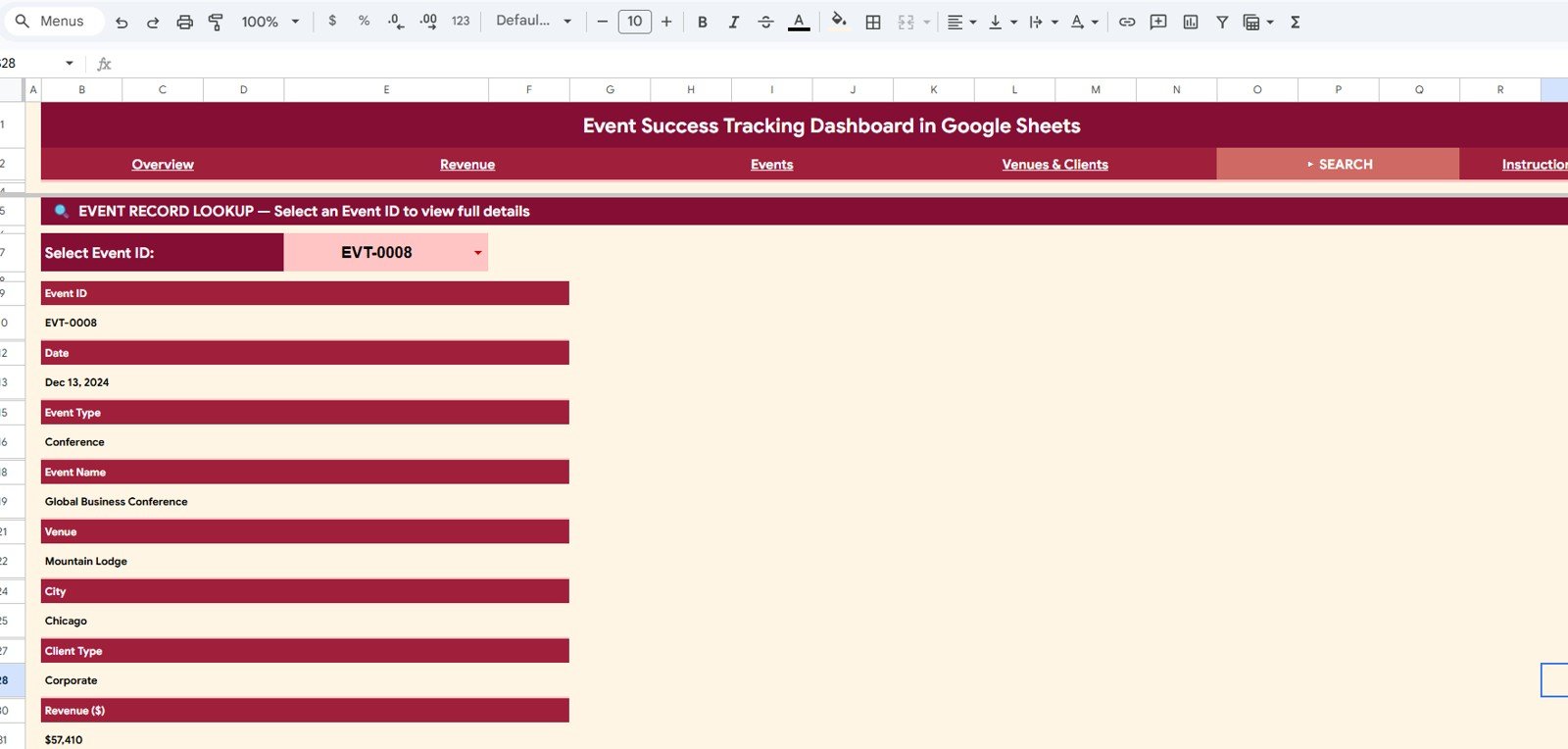
The Search sheet is helpful when someone asks for the details of one event. Select an Event ID from the dropdown and the sheet displays the full record for that event, including date, event type, event name, venue, city, client type, revenue, cost, profit, ticket sales, capacity, and status details.
6. Data Sheet Tab
The Data sheet is the input table behind the dashboard. Add your event records in the same format as the sample data, keep the fields consistent, and the dashboard pages will continue to work cleanly. This tab is also useful for auditing raw records before reviewing charts.
Event Success Tracking Dashboard in Google Sheets vs. Excel Dashboard vs. Paid Event SaaS – Feature Comparison
| Feature | This Google Sheets Dashboard | Microsoft Excel Dashboard | Paid Event SaaS |
|---|---|---|---|
| Cost | $9.99 one-time | One-time template or internal build | Monthly subscription or per-user fee |
| Platform | Google Sheets in browser | Excel desktop or Microsoft 365 | Vendor-hosted web app |
| Setup time | Copy file and replace sample data | Open workbook and refresh | Often requires configuration |
| Real-time team collaboration | Native Google Drive sharing | Possible with OneDrive or SharePoint | Usually available by paid seat |
| Mobile access | Google Sheets app or browser | Excel mobile with limits | Usually available |
| Customizable fields | Fully editable | Fully editable | Limited by vendor settings |
| Share with link | Yes | Possible through cloud storage | Usually login-based |
| Year-1 cost at 5 users | $9.99 total | Template cost plus licenses | Can reach hundreds or thousands |
| Event ID lookup | Included Search sheet | Requires setup unless prebuilt | Usually included |
| Data ownership | Your Google Drive | Your file storage | Vendor-hosted data |
Who Should Use This Template
- Event agencies tracking multiple clients, venues, cities, and event types.
- Corporate event teams preparing monthly or quarterly event summaries.
- Venue managers reviewing revenue contribution and event capacity usage.
- Wedding planners, conference planners, workshop organizers, and training teams.
- Small businesses that export ticket or registration records and need a clean reporting layer.
- Consultants creating event performance reports for clients.
Real-World Use Cases
Maya runs an event planning agency and uses the Overview tab every week to review revenue, profit, tickets sold, and active event count. When a client asks for details, she jumps to the Search sheet and selects the Event ID.
Rohan manages a venue portfolio and reviews the Venues & Clients tab to identify which locations are producing the most revenue. He also compares city and client type data before negotiating packages for the next quarter.
Alina works in corporate events and uses the Revenue tab to explain monthly cost trends to finance. The dashboard helps her show whether higher revenue is coming with stronger margins or higher spending.
Advantages of Event Success Tracking Dashboard in Google Sheets
- Fast setup: Start with a ready-made reporting structure instead of building charts manually.
- Low cost: The template uses a one-time price rather than a recurring software subscription.
- Collaborative: Google Sheets makes it easy to share with teammates and stakeholders.
- Practical event views: Revenue, tickets, venues, clients, city, event type, and status are all covered.
- Record lookup: The Search sheet helps users answer one-event questions quickly.
- Editable format: Advanced users can customize charts, formulas, fields, colors, and layout.
Opportunities for Improvement
This dashboard is a spreadsheet reporting layer, so the quality of the output depends on the quality of the data entered in the Data sheet. Teams with very high event volume may eventually want automated imports from ticketing tools, registration platforms, or payment systems.
Useful future improvements could include Google Forms intake, protected formula ranges, automated Apps Script imports, Looker Studio reporting, or separate tabs for vendor cost tracking, sponsor revenue, marketing spend, and attendee satisfaction.
Best Practices
- Keep the Data sheet column structure consistent.
- Use clean labels for event type, client type, venue, city, and status.
- Update records on a weekly or monthly schedule.
- Make a backup copy before making major structural changes.
- Protect formula cells if multiple people will edit the file.
- Review revenue and cost together instead of looking at revenue alone.
- Use the Search sheet during client calls when a single event record is needed.
Explore Relevant Templates
- Concert Promoters Dashboard in Excel – analyze concerts, artists, venues, sponsorship, expenses, and ticket performance.
- Ticketing and Live Events KPI Dashboard in Excel – track ticket sales, revenue, and live event KPIs.
- Catering Services Dashboard in Excel – useful for event service revenue, cost, guests, and menu analysis.
- Driving School Dashboard in Google Sheets – another Google Sheets dashboard with slicers and a Search sheet pattern.
If you want to build event dashboards like this from your own data, the Excel Pivot Tables & Dashboards course on NextGenTemplates Academy takes you through it step by step with practice files.
Get the Event Success Tracking Dashboard in Google Sheets
Frequently Asked Questions
What does the Event Success Tracking Dashboard in Google Sheets track?
It tracks total revenue, total events, total profit, tickets sold, client type, event type, venue revenue, city revenue, monthly revenue, event cost, capacity, event status, and detailed event records.
Is this a Google Sheets template?
Yes. The template is designed in Google Sheets and can be copied to Google Drive for editing and sharing.
Can I use it for different event types?
Yes. You can use it for corporate events, conferences, weddings, workshops, product launches, charity events, training programs, concerts, and other event categories.
Does the template include a lookup page?
Yes. The Search sheet lets you choose an Event ID from a dropdown and view the full record for that event.
Can I add more records?
Yes. Add records in the Data sheet using the same format so the charts, slicers, and lookup fields continue to work.
Does this replace event management software?
No. It is a reporting dashboard. Use it alongside registration systems, ticketing tools, payment systems, or manual event logs when you need clean spreadsheet analytics.
About the Author
Built by PK – Microsoft Certified Professional with 15+ years of Excel, Google Sheets, and Power BI experience. Founder of NextGenTemplates, reaching 300K+ subscribers across YouTube channels. Every template is hand-built and tested before release.
Conclusion
The Event Success Tracking Dashboard in Google Sheets gives event teams a practical way to monitor revenue, profit, tickets, event count, client type, venues, cities, and individual event records in one collaborative spreadsheet. It is best for teams that already have event records and want a faster, cleaner way to review performance without adding another monthly software bill.
Last updated: May 21, 2026