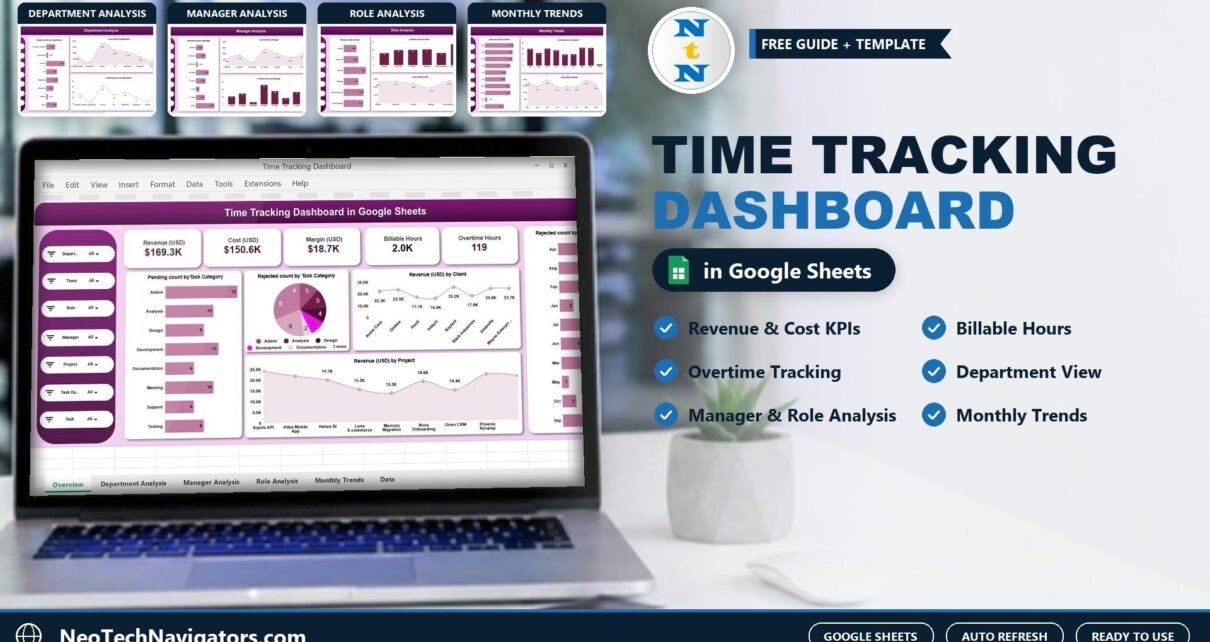
The Time Tracking Dashboard in Google Sheets turns raw timesheet entries into a clear picture of where hours go and what they earn. It shows revenue, cost, margin, billable hours and overtime on one Overview page, then breaks them down by department, manager, role and month, plus client and project revenue and task approval status.
It is designed for consulting firms, IT and professional services companies, project managers and the HR and finance teams who need to answer questions like “Which clients are profitable?” and “Where is overtime building up?” without building reports by hand. The workbook has an Overview page, four analysis pages (Department, Manager, Role and Monthly Trends) and a Data Input sheet. Charts and KPI cards update automatically when the data changes.
Below you will find what every page shows, how the KPIs are calculated, how to load your own timesheets and the honest limits of a spreadsheet-based approach.
🎥 Watch the Video Tutorial
Get the Time Tracking Dashboard
Why Use a Time Tracking Dashboard in Google Sheets?
Most teams already record time. The problem is what happens next. Timesheets sit in separate files, billable and non-billable hours get mixed, overtime is only noticed at payroll, and nobody can say quickly which client or project is actually making money.
A time tracking dashboard connects hours to money. Once every entry carries the employee, department, manager, role, client, project, hours, cost and revenue, you can answer the questions that matter:
- Is billable time high enough to cover cost, and what margin is left?
- Which departments, managers or roles carry the most overtime?
- Which clients and projects bring in the most revenue?
- Where are task entries pending or rejected, and in which months?
If you only need a simple log of hours for invoicing, our billable hours and time tracker in Google Sheets may be enough. This dashboard is for when you need analysis across teams.
Dashboard Pages Explained
1. Overview Page
The Overview is the executive summary. Five KPI cards show Revenue (USD), Cost (USD), Margin (USD), Billable Hours and Overtime Hours. Below them, five charts cover the workflow and commercial side:
- Pending Count by Task Category shows where approvals are stuck.
- Rejected Count by Task Category highlights categories with poor entry quality.
- Revenue (USD) by Client ranks clients by contribution.
- Revenue (USD) by Project shows which projects earn the most.
- Rejected Count by Task Month reveals months with higher rejection rates.

2. Department Analysis
Four charts compare departments on Revenue, Cost, Billable Hours and Overtime Hours. A department with high overtime but modest billable hours is a signal to look at staffing or scope.

3. Manager Analysis
The same four measures by manager. This page helps leadership see how workload and overtime are distributed across teams and whether some managers consistently run hotter than others.

4. Role Analysis
Revenue, Cost, Billable Hours and Overtime Hours by role. It supports workforce planning, for example spotting that senior roles are absorbing overtime on work a junior role could handle at lower cost.

5. Monthly Trends
Revenue, Cost, Billable Hours and Overtime Hours by month. Use it to spot seasonal peaks, forecast workload and check whether a cost increase was matched by revenue.

6. Data Input Sheet
Every chart reads from the Data Input sheet. Typical fields are Employee Name, Department, Role, Manager, Client, Project, Task Category, Billable Hours, Overtime Hours, Cost, Revenue and Task Status, along with the task date that drives the monthly views.
The KPIs and How They Are Calculated
| KPI | What it measures | Formula | Better when |
|---|---|---|---|
| Revenue (USD) | Amount billed for the tracked work | Sum of Revenue | Higher |
| Cost (USD) | Labour cost of the tracked work | Sum of Cost | Lower (relative to revenue) |
| Margin (USD) | What is left after labour cost | Revenue − Cost | Higher |
| Billable Hours | Hours that can be charged to clients | Sum of Billable Hours | Higher |
| Overtime Hours | Hours worked beyond normal schedule | Sum of Overtime Hours | Lower |
In Google Sheets, the logic behind these cards looks like the following (the template already contains its own formulas; this is for understanding and for building extra metrics):
Margin (USD)        = SUM(Revenue) - SUM(Cost)
Margin %            = (SUM(Revenue) - SUM(Cost)) / SUM(Revenue)
Overtime by Dept    = SUMIFS(Overtime_Hours, Department, "Engineering")
Pending tasks count = COUNTIFS(Task_Category, "Design", Task_Status, "Pending")
Worked example: if a month shows $120,000 revenue and $78,000 cost, Margin is $42,000 and Margin % is 42,000 ÷ 120,000 = 35%. If one department logged 310 overtime hours against a company total of 900, it carries over a third of all overtime and deserves a closer look.
How to Use It With Your Own Data
- Make a copy. Open the file and choose File > Make a copy to get your own editable version.
- Review the sample data. Look at the Data Input sheet to see the expected columns and formats.
- Standardise your lists. Agree on exact names for departments, roles, managers, clients, projects, task categories and statuses. A typo creates a separate bar in every chart.
- Paste or enter your entries. Replace the sample rows with your timesheet records, one row per entry. If you export from a time-tracking tool, map its columns to the template’s headers first.
- Add cost and revenue. Calculate cost as hours × cost rate and revenue as billable hours × bill rate before pasting, so the money KPIs are meaningful.
- Check the Overview. Compare total hours and revenue with your payroll or invoicing figures for the same period.
- Update weekly. Add new rows each week; all pages refresh automatically.
Real-World Use Cases
Consulting firm checking client profitability
A 30-person consultancy uses Revenue by Client together with the margin card to find that one large client generates lots of hours but a below-average margin, prompting a rate review at renewal.
IT services team controlling overtime
An IT operations manager reviews Overtime Hours by Role each month and spots that support engineers absorb most out-of-hours work, which justifies hiring a part-time on-call role. Our employee productivity dashboard in Google Sheets pairs well with this view.
Finance team tightening timesheet approvals
Finance uses Pending and Rejected Count by Task Category to see which categories cause most rework, then rewrites the category guidance for staff. Rejections drop in the following months on the trend chart.
Best Practices
- Log time daily, upload weekly. Memory-based timesheets at month end are the biggest source of bad data.
- Use fixed drop-down lists. Add data validation (Data > Data validation) on category columns to prevent spelling variants.
- Separate billable and non-billable clearly. Internal meetings and training should never count toward billable hours.
- Review overtime monthly. Persistent overtime in one team is an early warning for burnout and attrition.
- Restrict editing. Share the dashboard as view-only with managers and keep edit access to the data owner.
- Keep history. Do not delete old months; trends become more useful over time.
Limitations and Who Should Not Use It
- It is not a time clock. The dashboard analyses time data; it does not capture clock-in and clock-out times. You still need a timesheet process or tool.
- No automatic import. Data from tools such as Jira or Harvest needs to be exported and pasted in.
- Very large teams. Organisations logging tens of thousands of rows a month may find Google Sheets slow; the Power BI version handles bigger datasets better.
- No utilisation % card out of the box. If you need utilisation rate, add a capacity-hours column and compute billable ÷ capacity yourself.
Prefer working offline in Excel? There is also a Time Tracking Dashboard in Excel. For a broader people view, see the HR KPI dashboard in Google Sheets.
If you would like to build or extend dashboards like this yourself, including SUMIFS-driven summaries, charts and slicers, the Excel Pivot Tables and Dashboards course on NextGenTemplates Academy teaches the same reporting skills step by step.
Get the Google Sheets Time Tracking Dashboard
Frequently Asked Questions
What is a time tracking dashboard in Google Sheets?
It is a set of Google Sheets pages that summarise timesheet data into KPIs and charts, such as billable hours, overtime, revenue, cost and margin, so managers can review performance without building reports manually.
Can it handle multiple clients and projects?
Yes. Each entry carries a client and project, and the Overview shows revenue by client and by project.
How is margin calculated?
Margin is total revenue minus total cost for the entries in view. Dividing margin by revenue gives margin percentage.
Do I need advanced Google Sheets skills?
No. You paste or type entries into the Data Input sheet and the pages update. Basic familiarity with copying and pasting data is enough.
Can I add a utilisation rate KPI?
Yes. Add a column for available capacity hours and calculate billable hours divided by capacity hours. You can then chart it by department or role.
Is my data secure in Google Sheets?
Security depends on sharing settings. Keep edit access limited, share view-only links with managers and avoid public links.
Wrapping Up
Tracking time is only useful when it tells you something about cost, revenue and workload. The Time Tracking Dashboard in Google Sheets does that on one Overview and four analysis pages. Start by loading last month’s timesheets, check that totals match payroll and invoices, and then make the Monday review a habit. For space and capacity questions beyond people’s hours, the office utilization dashboard in Google Sheets is a useful next read.
📅 Last updated: October 2026