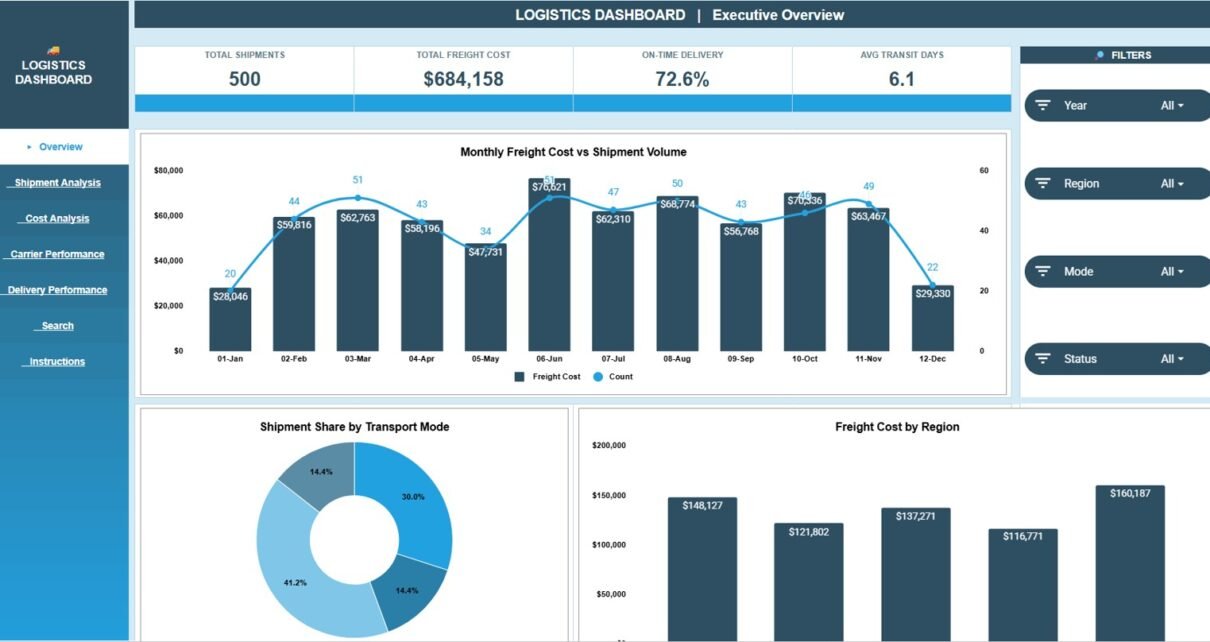
The Logistics Dashboard in Google Sheets is a reporting template for shipment volume, freight cost, carrier performance, delivery status, transit days, regional trends, and Shipment ID lookup. It includes 4 KPI cards, 15 charts across five dashboard pages, slicers, a Search Sheet, and a structured Data Sheet, giving logistics teams a practical way to review freight performance without building a dashboard from zero.
Many logistics teams still review shipments in exported files, carrier portals, emails, and separate spreadsheets. That makes simple questions hard to answer: how many shipments moved this month, which carrier handled the most weight, which region is expensive, and whether on-time delivery is improving. This Google Sheets dashboard puts those answers in one editable workbook.
🎥 Watch the Video Tutorial
Key Features of the Logistics Dashboard in Google Sheets
- Seven working tabs: Overview, Shipment Analysis, Freight Cost Analysis, Carrier Performance, Delivery Performance, Search Sheet, and Data Sheet, plus an Instructions tab.
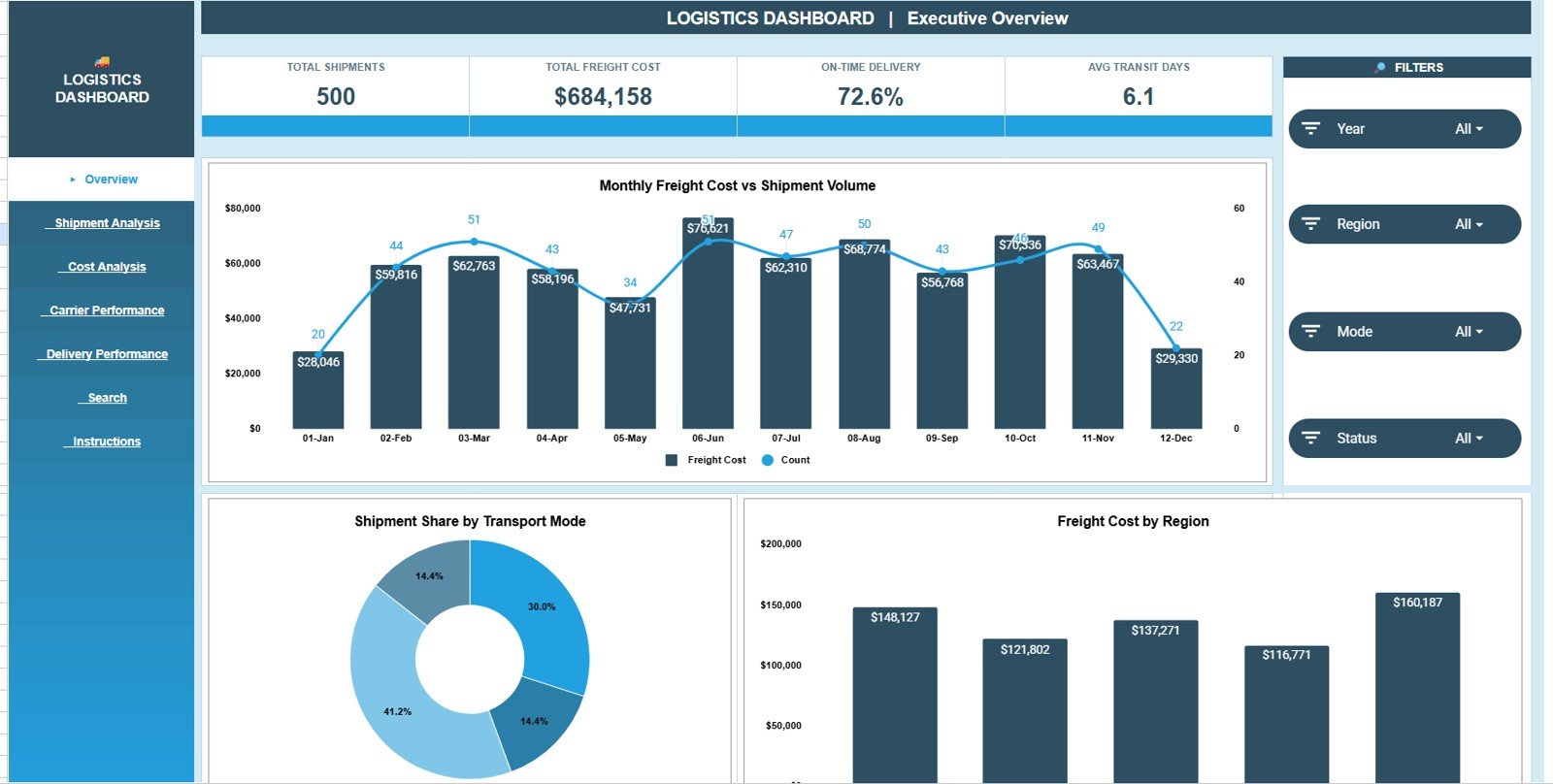
- 4 headline KPI cards: Total Shipments, Total Freight Cost, On-Time Delivery, and Avg Transit Days. With the 500 sample shipments they read 500, $684,158, 72.6%, and 6.1 days.
- 15 charts: three on each dashboard page, analysing shipment volume, transport mode, freight cost, carrier workload, delivery status, and regional transit days.
- Interactive slicers: Year, Region, Mode, and Status slicers sit in a Filters panel on every dashboard page. Google documents how slicers work in Google Sheets.
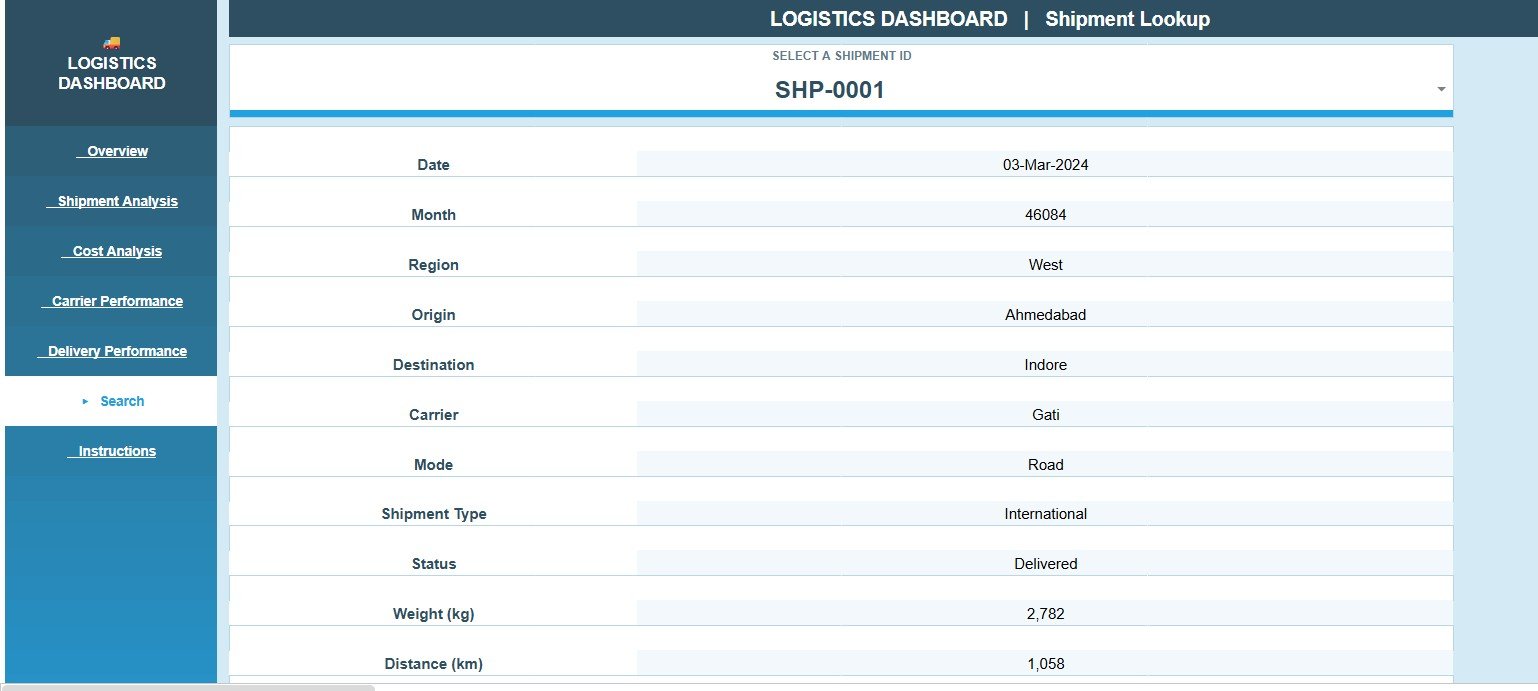
- Shipment Lookup: select a Shipment ID and instantly view the matching shipment record.
- Editable Data Sheet: replace the sample rows with your own logistics data while keeping the same structure.
- Team-friendly format: share the Google Sheets file with view or edit permissions through Google Drive.
Dashboard Pages Explanation
1. Overview Page
The Overview page is the management summary. At the top it shows Total Shipments, Total Freight Cost, On-Time Delivery, and Avg Transit Days, so a manager can quickly understand volume, spend, service quality, and delivery speed.
- Monthly Freight Cost vs Shipment Volume: compares monthly freight cost with monthly shipment count. It helps you see whether cost movement is driven by more shipments or by higher cost per shipment.
- Shipment Share by Transport Mode: shows how shipments are split across the Air, Rail, Road, and Sea modes, so teams can review whether the mode mix matches cost and service goals.
- Freight Cost by Region: compares freight cost across regions to highlight areas that may need route review or carrier negotiation.
2. Shipment Analysis
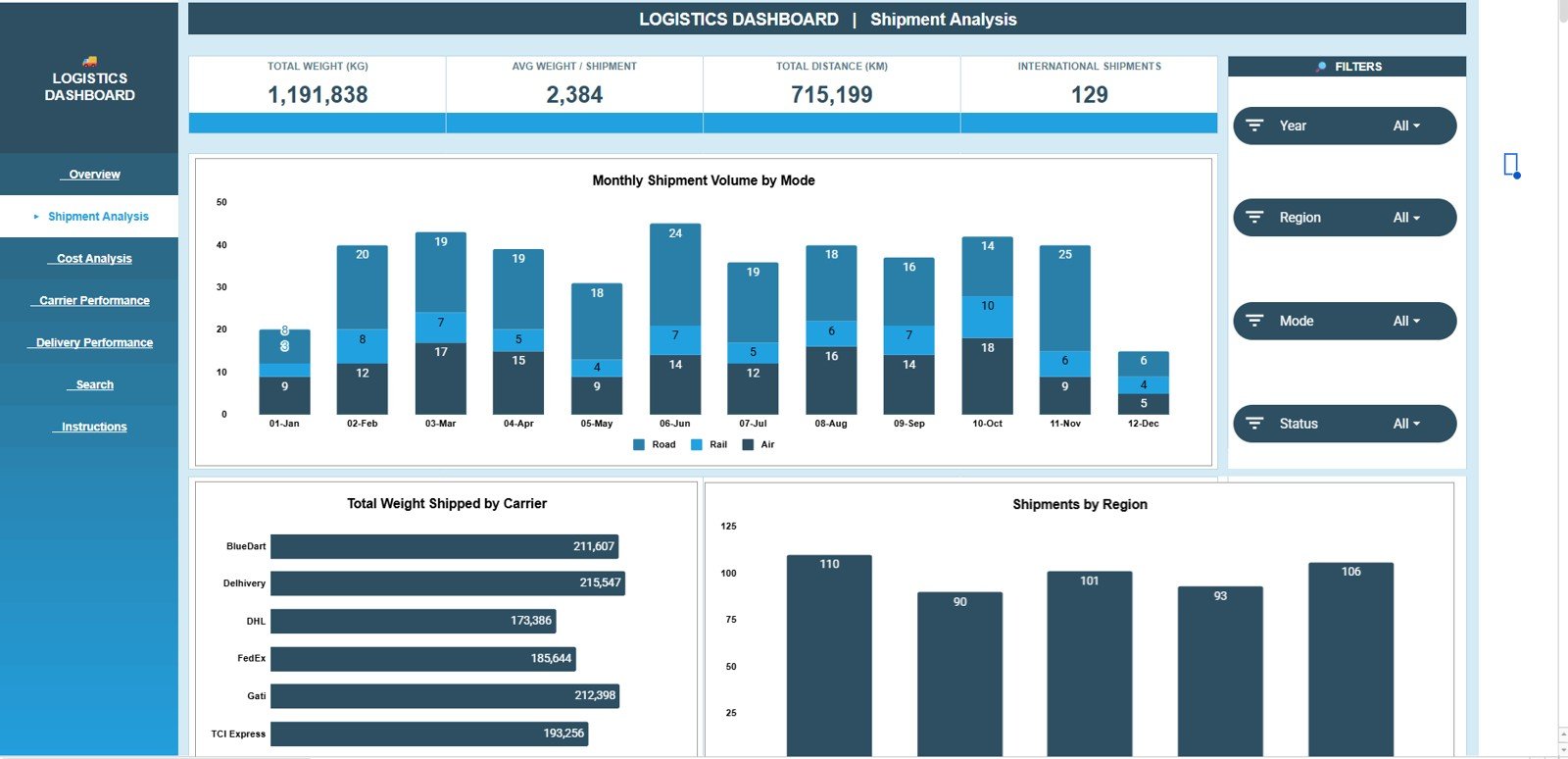
The Shipment Analysis tab focuses on movement, volume, carrier load, shipped weight, and region contribution. Its cards show Total Weight (kg), Avg Weight per Shipment, Total Distance (km), and International Shipments.
- Monthly Shipment Volume by Mode: stacks shipment counts by month and mode, helping teams spot seasonal changes and mode shifts.
- Total Weight Shipped by Carrier: compares shipped weight across BlueDart, Delhivery, DHL, FedEx, Gati, and TCI Express, showing whether carrier workload is balanced.
- Shipments by Region: shows where logistics activity is concentrated.
3. Freight Cost Analysis
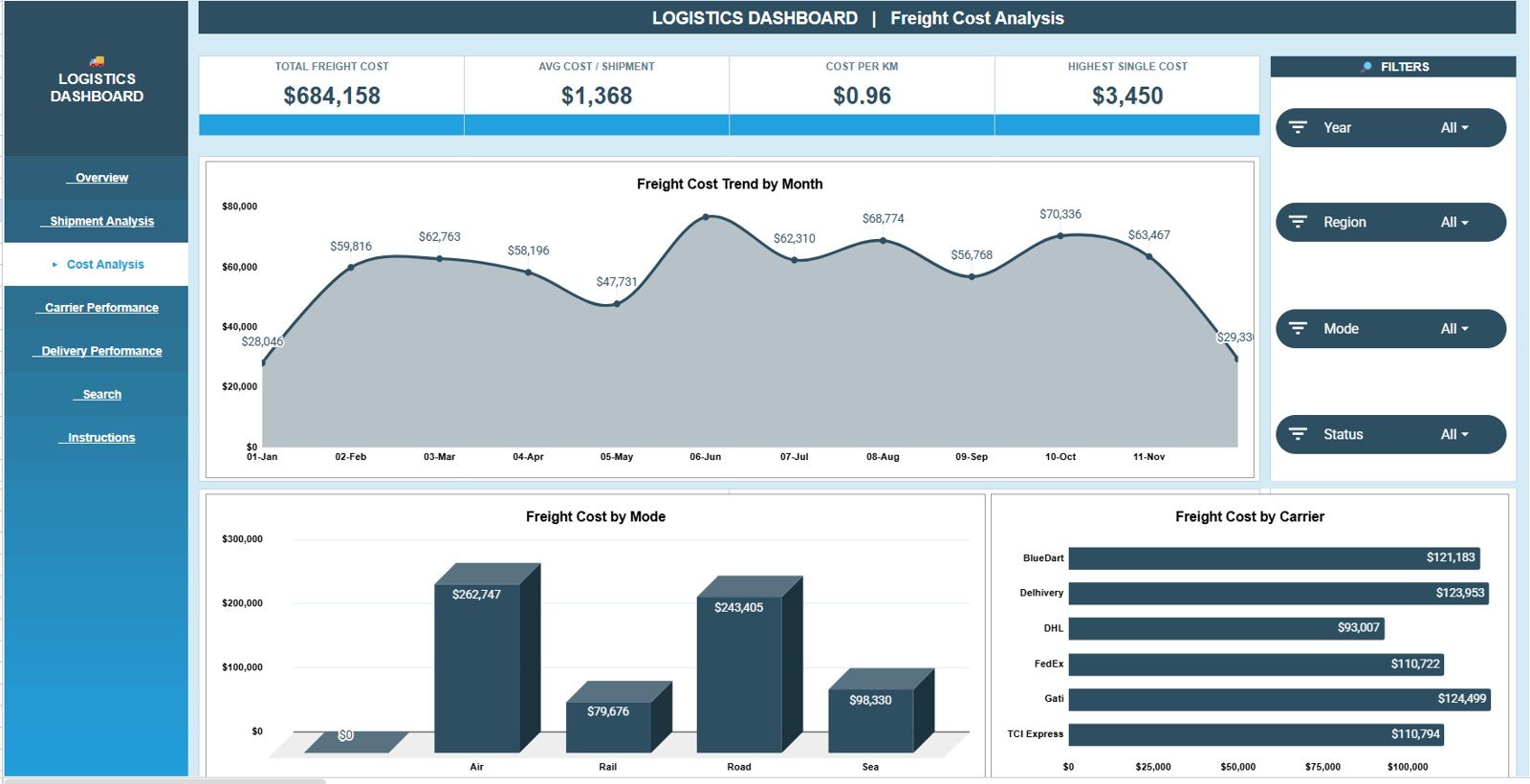
The Freight Cost Analysis tab is designed for cost review. Its cards show Total Freight Cost, Avg Cost per Shipment, Cost per KM, and Highest Single Cost. In the sample, Avg Cost per Shipment is $684,158 ÷ 500 = $1,368 and Cost per KM is $684,158 ÷ 715,199 km = $0.96.
- Freight Cost Trend by Month: tracks freight spend over time and supports budget review.
- Freight Cost by Mode: compares cost across Air, Rail, Road, and Sea to show which mode drives most of the spend.
- Freight Cost by Carrier: ranks carriers by freight cost for carrier review meetings.
4. Carrier Performance
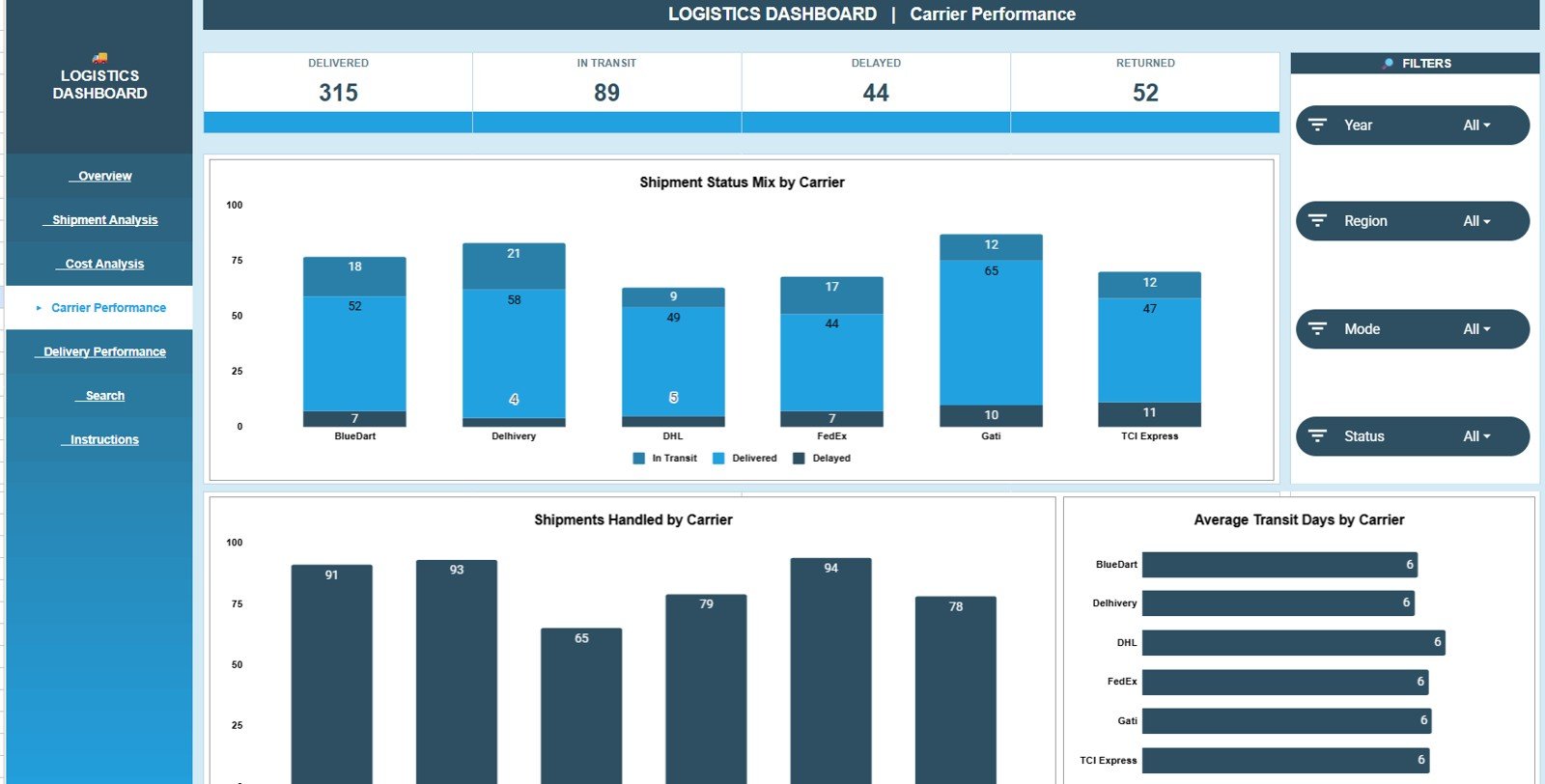
The Carrier Performance tab compares carriers on workload, status mix, and average transit days. Its cards count shipments that are Delivered, In Transit, Delayed, and Returned (315, 89, 44, and 52 in the sample, which add up to the 500 total shipments).
- Shipment Status Mix by Carrier: breaks Delivered, In Transit, and Delayed shipments down by carrier, highlighting carriers with more delays.
- Shipments Handled by Carrier: shows whether one carrier is carrying most of the workload.
- Average Transit Days by Carrier: lets teams evaluate carrier speed alongside cost.
5. Delivery Performance
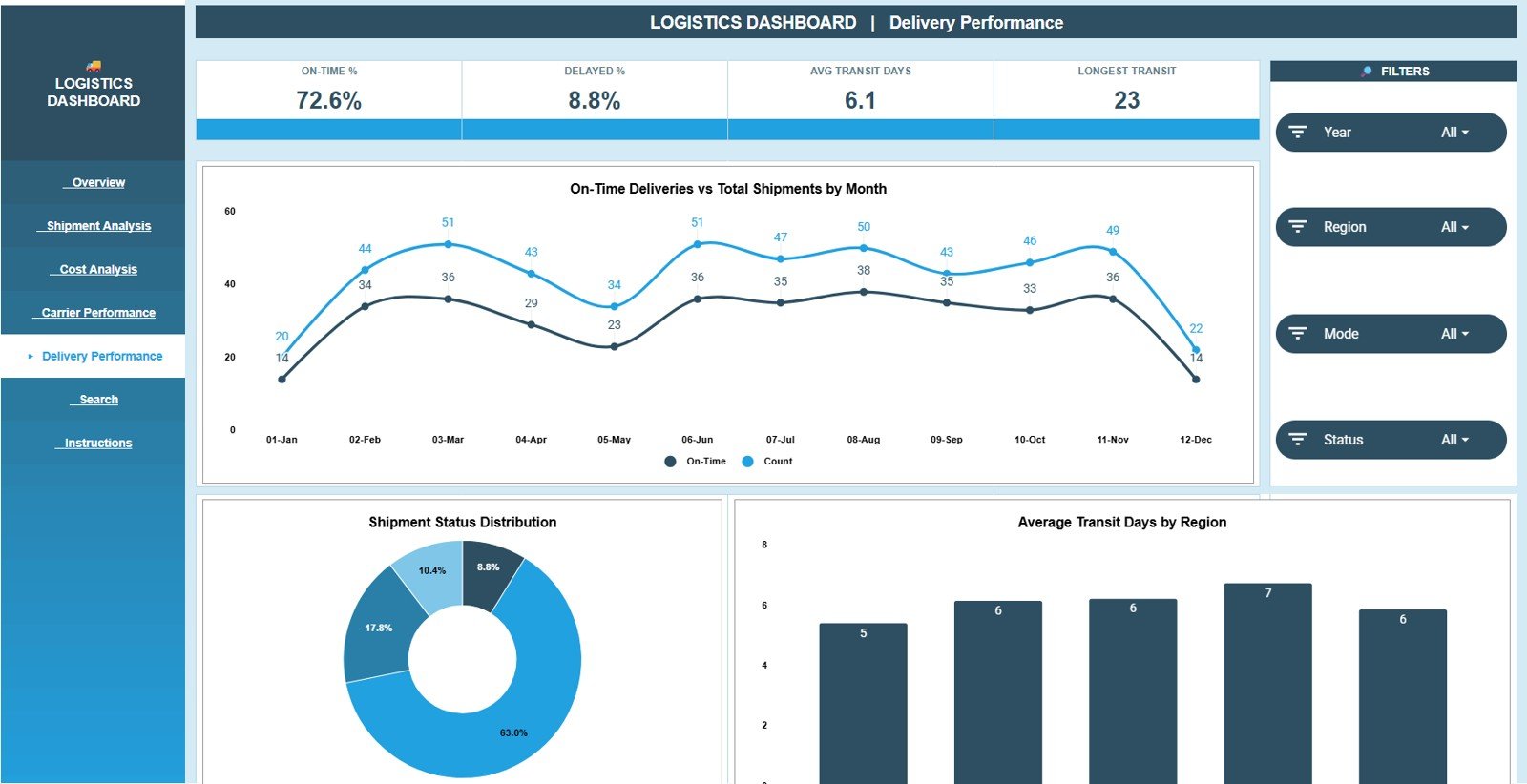
The Delivery Performance tab focuses on service levels. Its cards show On-Time %, Delayed %, Avg Transit Days, and Longest Transit.
- On-Time Deliveries vs Total Shipments by Month: checks whether service quality keeps up as volume changes.
- Shipment Status Distribution: shows the share of shipments by status.
- Average Transit Days by Region: identifies regions where delivery takes longer than expected.
6. Search Sheet
The Search Sheet is the Shipment Lookup page. Select a Shipment ID and it returns the matching details, including date, region, origin, destination, carrier, mode, shipment type, status, weight, and distance. This helps when a manager or customer asks about one shipment and you do not want to scroll through the full Data Sheet.
7. Data Sheet
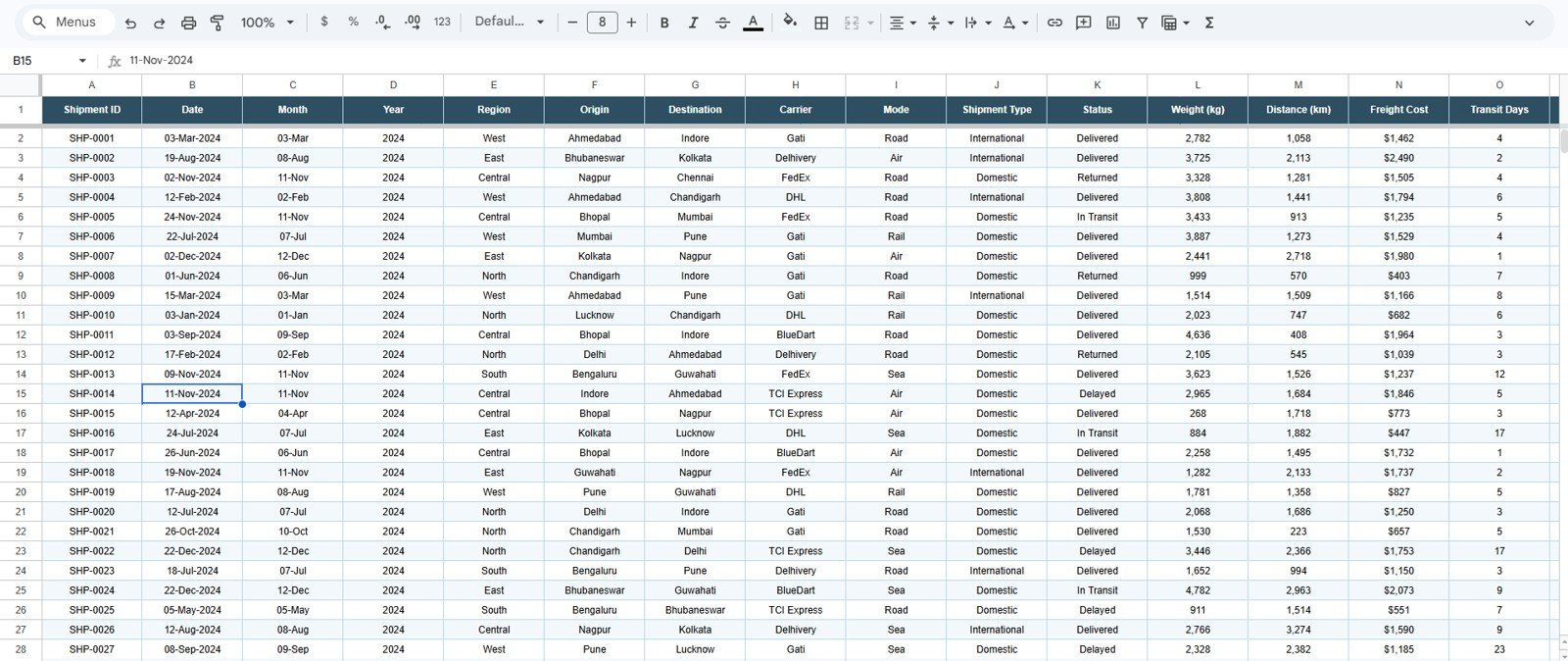
The Data Sheet is where you add or paste logistics records in the same format as the sample data: Shipment ID, Date, Month, Year, Region, Origin, Destination, Carrier, Mode, Shipment Type, Status, Weight (kg), Distance (km), Freight Cost, and Transit Days. Keeping the same columns allows the KPI cards, charts, slicers, and Shipment Lookup to keep working correctly.
Logistics Dashboard in Google Sheets vs. Microsoft Excel Dashboard vs. Paid TMS SaaS: Feature Comparison
| Feature | Logistics Dashboard in Google Sheets | Microsoft Excel dashboard | Paid TMS SaaS |
|---|---|---|---|
| Cost | One-time template purchase | Template cost plus possible Microsoft 365 licence | Monthly or annual subscription |
| Platform | Google Sheets in browser | Excel desktop or web | Vendor-hosted logistics software |
| Setup time | Copy sheet, replace data, review dashboard | Open workbook, update data, refresh | Implementation and onboarding |
| Real-time team collaboration | Native Google Drive sharing | Best with OneDrive or SharePoint | Usually included by plan |
| Mobile access | Google Sheets app or browser | Excel app or browser | Vendor app or browser |
| Customizable fields | Edit fields, charts, formulas, and slicers | Edit workbook structure | Often limited by admin permissions |
| Shipment lookup | Built-in Shipment ID Search Sheet | Possible with formulas | Usually included in shipment records |
| Carrier performance reporting | Status mix, shipment count, freight cost, and transit days | Depends on workbook setup | Plan and implementation dependent |
| Live tracking, dispatch, EDI | No | No | Yes |
Who Should Use This Template
- Logistics managers tracking shipment volume, delivery status, and freight cost.
- Supply chain analysts preparing recurring monthly logistics reports.
- Warehouse or dispatch teams that need a shared shipment reporting workbook.
- Small 3PL, courier, and distribution teams that are not ready for a paid TMS subscription.
- Finance teams reviewing freight cost by month, carrier, region, and mode.
Real-World Use Cases
Meera runs logistics for a regional distributor. She checks the Overview page every Monday to compare total shipments, freight cost, on-time delivery, and average transit days before the operations meeting.
Daniel is a supply chain analyst. He uses Freight Cost Analysis to explain why costs rose in a specific month, then checks the mode and carrier views to separate volume growth from cost per shipment.
Sana manages warehouse dispatch. When a customer asks about one shipment, she uses the Search Sheet to look up the Shipment ID and confirm origin, destination, carrier, mode, status, weight, and distance.
Advantages of the Logistics Dashboard in Google Sheets
- Fast setup: copy the Google Sheet, add your shipment data, and start reviewing dashboards.
- Low one-time cost: useful for teams that need reporting without a recurring software bill.
- Clear page structure: separate tabs for overview, shipment, cost, carrier, delivery, lookup, and data entry.
- Collaboration: Google Drive sharing lets operations, finance, and management review the same file.
- Editable source: you can adjust fields, labels, formulas, and charts after purchase.
If you want to build this kind of report yourself, the Pivot Tables and Dashboards course on NextGenTemplates Academy teaches the approach in structured lessons.
Opportunities for Improvement
This dashboard is a reporting template, not a live logistics platform. It does not include automatic carrier API connections, live GPS tracking, driver mobile apps, route optimization, EDI, warehouse scanning, or automated proof-of-delivery capture. Larger logistics operations may still need a dedicated TMS, especially if dispatch and customer notifications must run in real time.
The template also depends on clean data entry. If carrier names, regions, statuses, or modes are typed inconsistently in the Data Sheet, charts may split categories. A simple data-entry standard keeps the dashboard clean.
Best Practices
- Keep one row per shipment in the Data Sheet.
- Use consistent names for carriers, regions, modes, shipment types, and statuses.
- Do not change column headers unless you also update the related formulas and charts.
- Review Freight Cost Trend by Month before budget meetings.
- Use Carrier Performance monthly to compare status mix, shipment volume, and transit speed.
- Share view-only access with stakeholders who only need to review the dashboard.
Explore Relevant Templates
- Logistics Management System Web App: multi-user shipment management with logins.
- Freight Cost KPI Dashboard in Google Sheets: target-based freight cost tracking.
- Supply Chain Logistics KPI Dashboard in Google Sheets: wider supply chain metrics.
- EV Fleet Dashboard in Google Sheets: fleet utilisation and charging analysis.
- Transportation and Logistics Dashboard in HTML: a browser-based alternative.
The same dashboard is also available as the Logistics Dashboard in Excel and the Logistics Dashboard in Power BI.
Frequently Asked Questions
Is the Logistics Dashboard built in Google Sheets?
Yes. It is a Google Sheets dashboard template that you copy into your own Google Drive and update with your shipment records.
What KPI cards are included?
The Overview page includes Total Shipments, Total Freight Cost, On-Time Delivery, and Avg Transit Days. Each of the other dashboard pages adds four more metric cards, such as Cost per KM and Longest Transit.
How many tabs and charts are included?
The template has seven working tabs (Overview, Shipment Analysis, Freight Cost Analysis, Carrier Performance, Delivery Performance, Search Sheet, and Data Sheet) plus Instructions, with 15 charts across the five dashboard pages.
Can I search for one shipment?
Yes. The Search Sheet lets you select a Shipment ID and view matching details such as date, region, origin, destination, carrier, mode, type, status, weight, and distance.
Can I customize the dashboard?
Yes. You can edit sheet names, formulas, fields, colours, charts, slicers, and labels in Google Sheets.
Does this replace a TMS?
No. It is a reporting dashboard. It does not replace live dispatch, GPS tracking, carrier API booking, EDI, route optimization, or proof-of-delivery workflows.
About the Author
Built by PK, Microsoft Certified Professional with 15+ years of Excel, Google Sheets, and Power BI experience. Founder of NextGenTemplates. Every template is hand-built and tested before release.
Wrapping Up
The Logistics Dashboard in Google Sheets gives logistics and supply chain teams a simple way to review shipment volume, freight cost, transport mode share, carrier workload, on-time delivery, transit days, regions, and Shipment ID lookup from one editable workbook. Load a month of shipments and start with the Carrier Performance page to see which partners are slowing you down.
Get the Logistics Dashboard in Google Sheets
📅 Last updated: October 2026