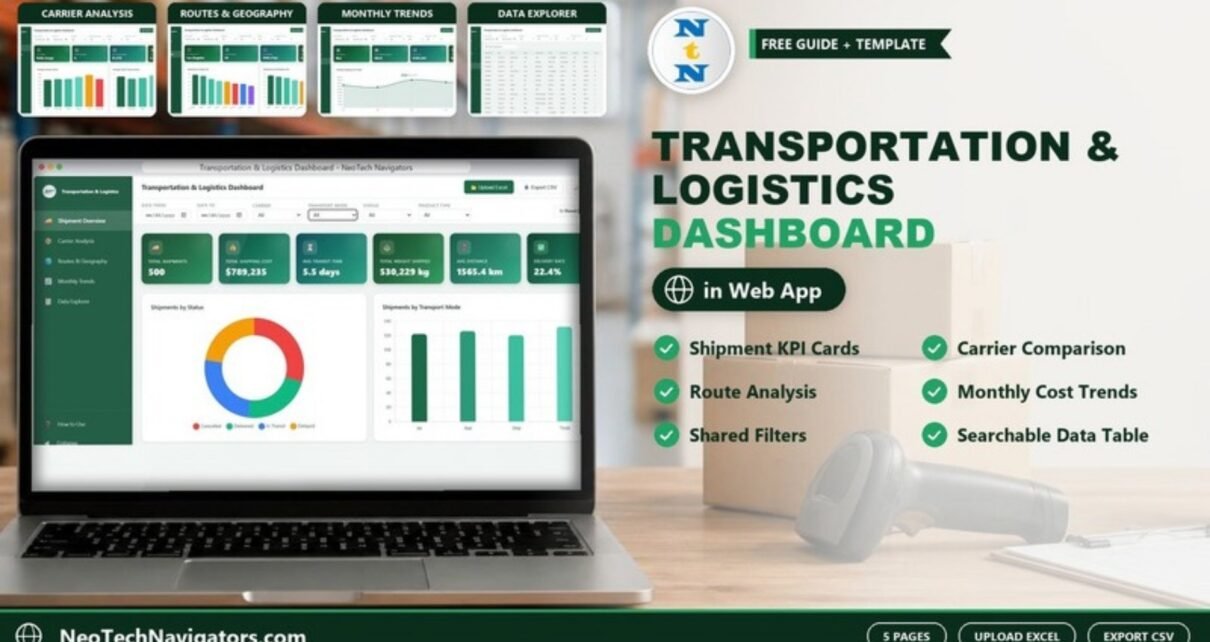
The Transportation and Logistics Dashboard in HTML is a browser-based dashboard for tracking shipments, comparing carriers, reviewing routes and following monthly cost trends in one place. You open a single HTML file in Chrome, Edge, Firefox or Safari, and the five pages with KPI cards, charts, filters and a searchable shipment table are ready to use. Nothing has to be installed.
It is built for logistics coordinators, transport managers, small freight businesses and operations analysts. These are people who keep shipment records in a spreadsheet and want a clear visual summary without building charts by hand. This guide walks through each page, the KPIs shown on the cards, how to load your own data and where the template fits (and where it does not).
🎥 Watch the Video Tutorial
Get the Transportation and Logistics Dashboard
What Problem This Logistics Dashboard Solves
Shipment data usually sits in a long table: one row per shipment with a carrier, a mode, a route, a weight, a transit time, a status and a cost. A table like that answers lookup questions well. It does not answer questions like “Which carrier is the slowest?”, “Which month cost the most?” or “Where do most of our shipments start?”
The dashboard turns that table into summary cards and charts. All five pages share the same filter bar, so one filter change updates every view. The top bar also has Upload Excel, Export CSV and a Dark mode toggle. The left sidebar has the page menu, a How to Use guide and a Collapse button for more screen space.
Filters available on every page
- Date From and Date To: limit the analysis to a date range
- Carrier: DHL, Delta Cargo, FedEx, Maersk, UPS and Union Pacific in the sample data
- Transport Mode: Air, Rail, Ship and Truck
- Status: Delivered, In Transit, Delayed and Cancelled
- Product Type: for example Food, Clothing, Electronics, Machinery, Furniture and Pharmaceuticals
- Reset Filters: clears all selections with one click
Transportation and Logistics Dashboard Pages Explained
1. Shipment Overview
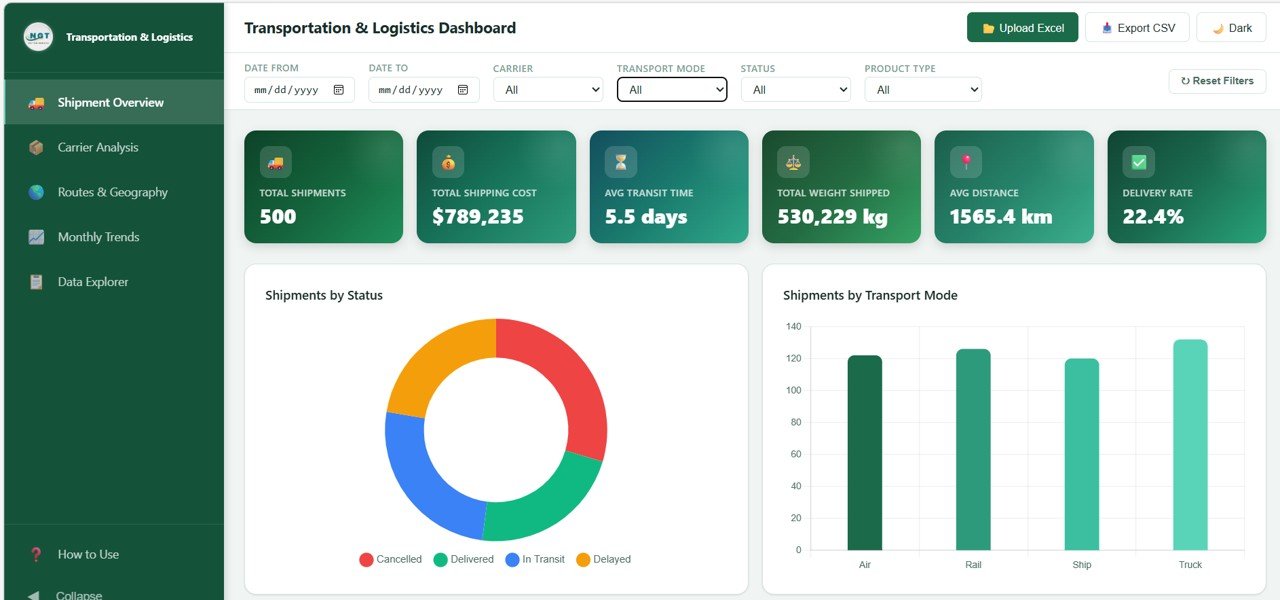
This is the landing page and gives you a quick health check. Six KPI cards run across the top. With the sample data they show Total Shipments 500, Total Shipping Cost $789,235, Avg Transit Time 5.5 days, Total Weight Shipped 530,229 kg, Avg Distance 1565.4 km and Delivery Rate 22.4%.
Below the cards, a donut chart shows Shipments by Status and a column chart shows Shipments by Transport Mode. In the sample, Truck has the most shipments and Air, Rail and Ship are close behind. Further down the page are Top Carriers by Shipment Volume, Cost Distribution by Product Type and a Monthly Shipment Trend.
2. Carrier Analysis
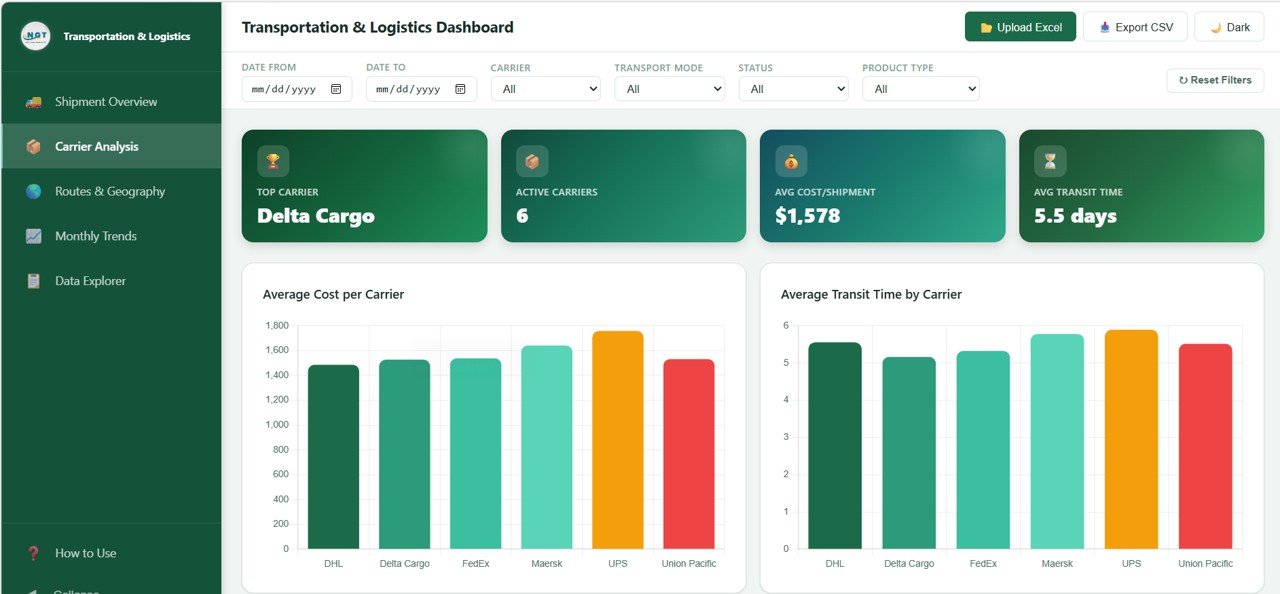
This page compares your shipping partners. Its four cards show Top Carrier (Delta Cargo in the sample), Active Carriers (6), Avg Cost/Shipment ($1,578) and Avg Transit Time (5.5 days).
The Average Cost per Carrier chart puts the six carriers side by side. In the sample data UPS has the highest average cost and DHL the lowest. Average Transit Time by Carrier shows the same carriers by speed, so you can see whether a cheaper carrier is also slower. The page also includes Carrier Performance by Status and Carrier Revenue Share.
3. Routes & Geography
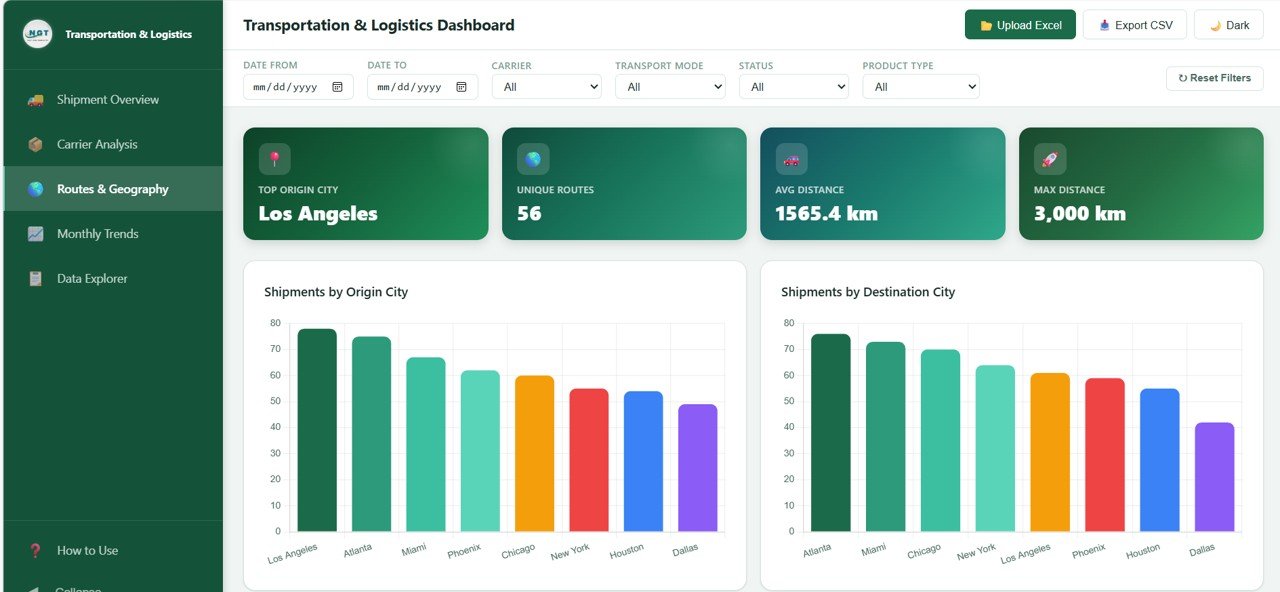
This page shows where shipments start and end. The cards show Top Origin City (Los Angeles), Unique Routes (56), Avg Distance (1565.4 km) and Max Distance (3,000 km).
Shipments by Origin City and Shipments by Destination City rank eight cities: Los Angeles, Atlanta, Miami, Phoenix, Chicago, New York, Houston and Dallas. In the sample, Los Angeles is the busiest origin and Atlanta the busiest destination. The page also shows Average Distance by Transport Mode and the Top 10 Routes by Volume. These help you spot the lanes that are worth negotiating rates on.
4. Monthly Trends
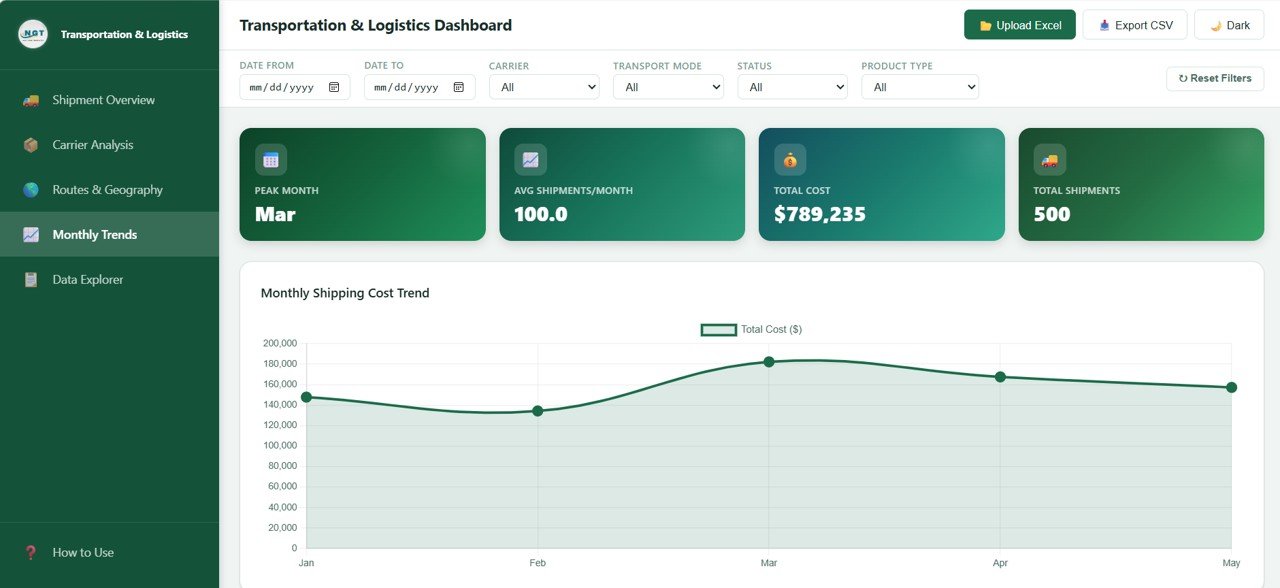
Use this page for budgeting and spotting seasonal patterns. The cards show Peak Month (Mar), Avg Shipments/Month (100.0), Total Cost ($789,235) and Total Shipments (500). The sample data runs from January to May, so 500 shipments over five months gives the average of 100 per month.
The Monthly Shipping Cost Trend line chart shows a small dip in February, the highest point in March and a gradual easing in April and May. The page also tracks Monthly Average Transit Time, Monthly Weight Shipped and Status Distribution by Month.
5. Data Explorer
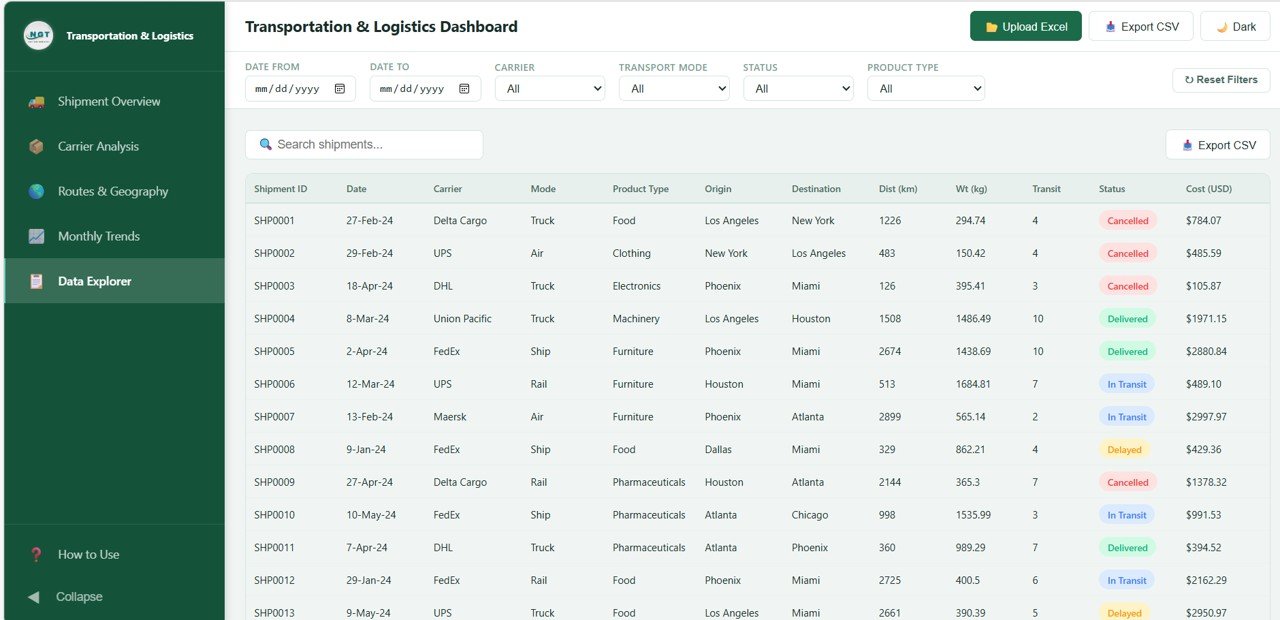
The Data Explorer lists every shipment record with a Search shipments box and its own Export CSV button. The columns are Shipment ID, Date, Carrier, Mode, Product Type, Origin, Destination, Dist (km), Wt (kg), Transit, Status and Cost (USD). Status values are shown as coloured tags, so delayed and cancelled shipments are easy to spot when you scroll.
KPI Cards at a Glance
The table below lists the KPI cards visible on the first four pages. Values are from the sample data. Where a calculation can be checked against the screenshots, it is shown.
| KPI card | Page | What it measures | How it is calculated | Better when |
|---|---|---|---|---|
| Total Shipments | Overview, Monthly Trends | Number of shipment records in the filtered view (500) | Count of Shipment IDs | Context metric |
| Total Shipping Cost | Overview, Monthly Trends | Total freight spend ($789,235) | Sum of Cost (USD) | Lower for the same volume |
| Avg Transit Time | Overview, Carrier Analysis | Average days in transit (5.5 days) | Average of Transit | Lower |
| Total Weight Shipped | Overview | Total cargo weight (530,229 kg) | Sum of Wt (kg) | Context metric |
| Avg Distance | Overview, Routes | Average route length (1565.4 km) | Average of Dist (km) | Context metric |
| Delivery Rate | Overview | Share of shipments marked Delivered (22.4%) | Delivered shipments ÷ total shipments | Higher |
| Avg Cost/Shipment | Carrier Analysis | Average cost per shipment ($1,578) | Total Shipping Cost ÷ Total Shipments ($789,235 ÷ 500) | Lower |
| Active Carriers / Top Carrier | Carrier Analysis | Number of carriers in the data (6) and the carrier shown as Top Carrier (Delta Cargo) | Distinct count of carriers / leading carrier | Context metric |
| Unique Routes / Max Distance | Routes & Geography | Distinct origin–destination pairs (56) and the longest route (3,000 km) | Distinct count / maximum of Dist (km) | Context metric |
| Peak Month / Avg Shipments per Month | Monthly Trends | Busiest month (Mar) and monthly average volume (100.0) | Total shipments ÷ number of months (500 ÷ 5) | Context metric |
A low Delivery Rate in the sample data is expected. The demo records include many shipments that are still In Transit, Delayed or Cancelled. With your own closed-out data, this card is the one to watch most closely.
How to Use It With Your Own Data
- Download the ZIP file from NextGenTemplates and extract it to a folder on your computer.
- Open the HTML file in a modern browser such as Chrome, Edge, Firefox or Safari. It first loads with the sample data so you can explore every page.
- Prepare your shipment records in Excel with the same fields used in the Data Explorer: Shipment ID, Date, Carrier, Mode, Product Type, Origin, Destination, distance, weight, transit days, Status and Cost. Open How to Use in the sidebar for guidance before you upload.
- Click Upload Excel in the top bar and select your file. The cards and charts update from your records.
- Use the filters (date range, carrier, transport mode, status, product type) to focus on a segment, then click Reset Filters to return to the full view.
- Click Export CSV to save the filtered records for a report or for further work in Excel or Google Sheets.
Real-World Use Cases
- Monthly carrier review. A transport manager filters to the last quarter and opens Carrier Analysis. Average cost and transit time are compared side by side before a rate renegotiation.
- Lane planning for a distributor. A distribution business uses Routes & Geography to see which origin and destination cities carry the most volume. That shows where a consolidated weekly run or a regional partner could reduce cost.
- Exception follow-up. An operations coordinator sets Status to Delayed and searches the Data Explorer by carrier or destination. The list is exported as CSV and shared with the customer service team.
Best Practices
- Keep carrier, city and product type names consistent in your source file (for example always “Union Pacific”, never “UP”), so charts do not split one carrier into two bars.
- Record transit time in the same unit (days) for every row so the averages stay meaningful.
- Update the closing status of older shipments before each review, or the Delivery Rate will look worse than reality.
- Compare cost and transit time together. The cheapest carrier is not always the best choice if it is also the slowest.
- Use the date filters to compare like-for-like periods instead of reading the full history at once.
Limitations and Who Should Not Use It
This is a reporting dashboard that works on a file you load. It is not a live tracking system. It does not connect to carrier APIs, GPS feeds or a transport management system, so the numbers are only as current as the last file you uploaded. It also has no map view; routes are shown as city charts.
If you need live shipment tracking, dispatch, driver assignment or multi-user data entry, a TMS or a dedicated web app is a better fit. If your team prefers spreadsheets, the Excel or Power BI versions may suit you better (see the related templates below).
HTML Dashboard vs Spreadsheet vs Power BI
| Option | Best for | Trade-off |
|---|---|---|
| HTML dashboard (this template) | Quick visual review in any browser, no software to install | Data is loaded from a file, not a live connection |
| Excel or Google Sheets dashboard | Teams that want to edit formulas and keep data in the workbook | Charts and slicers need more manual upkeep |
| Power BI dashboard | Larger datasets and scheduled refresh from other systems | Needs Power BI Desktop and some modelling knowledge |
Related templates: Transportation & Logistics Dashboard in Power BI and Transportation & Logistics Dashboard in Excel.
If you want to build dashboards like this yourself, the Excel Pivot Tables & Dashboards course on NextGenTemplates Academy covers summarising raw records, building charts and adding slicers step by step.
More Logistics Dashboards on NeoTech Navigators
- Trucking and Logistics Dashboard in HTML is a browser dashboard focused on trucking operations.
- Supply Chain Analytics Dashboard in HTML covers a wider view of supply chain performance.
- Fleet Management Dashboard in HTML tracks your own vehicles rather than outsourced carriers.
- Warehouse Efficiency Dashboard in HTML covers what happens before shipments leave the dock.
- Transportation & Logistics Dashboard in Google Sheets is the spreadsheet-based alternative.
Frequently Asked Questions
Do I need any software to run this transportation dashboard?
No. It is a single HTML file that opens in a modern browser such as Chrome, Edge, Firefox or Safari. You do not need Excel or Power BI to view it.
Can I use my own shipment data?
Yes. Click Upload Excel in the top bar and load a file with the same fields as the sample data. The How to Use option in the sidebar gives guidance before you start.
Does the dashboard track shipments in real time?
No. It summarises the records in the file you load. To see new shipments, update your Excel file and upload it again.
Which filters are available?
Date From, Date To, Carrier, Transport Mode, Status and Product Type, plus a Reset Filters button. The filters apply across all five pages.
Can I export the data?
Yes. Both the top bar and the Data Explorer page have an Export CSV button. The CSV file opens in Excel or Google Sheets.
Does it work on tablets?
The layout is responsive and works on desktops, laptops and tablets. Because the pages hold a lot of charts, a larger screen gives the best reading experience. The sidebar can be collapsed and a dark mode is available.
Wrapping Up
The Transportation and Logistics Dashboard in HTML gives you five focused views of your shipment data: overview, carriers, routes, monthly trends and a searchable record table. Everything runs in a browser without setup. Start with the sample data to learn the layout, then upload your own records and use Carrier Analysis and Monthly Trends in your next cost review.
Get the Transportation and Logistics Dashboard
📅 Last updated: October 2026