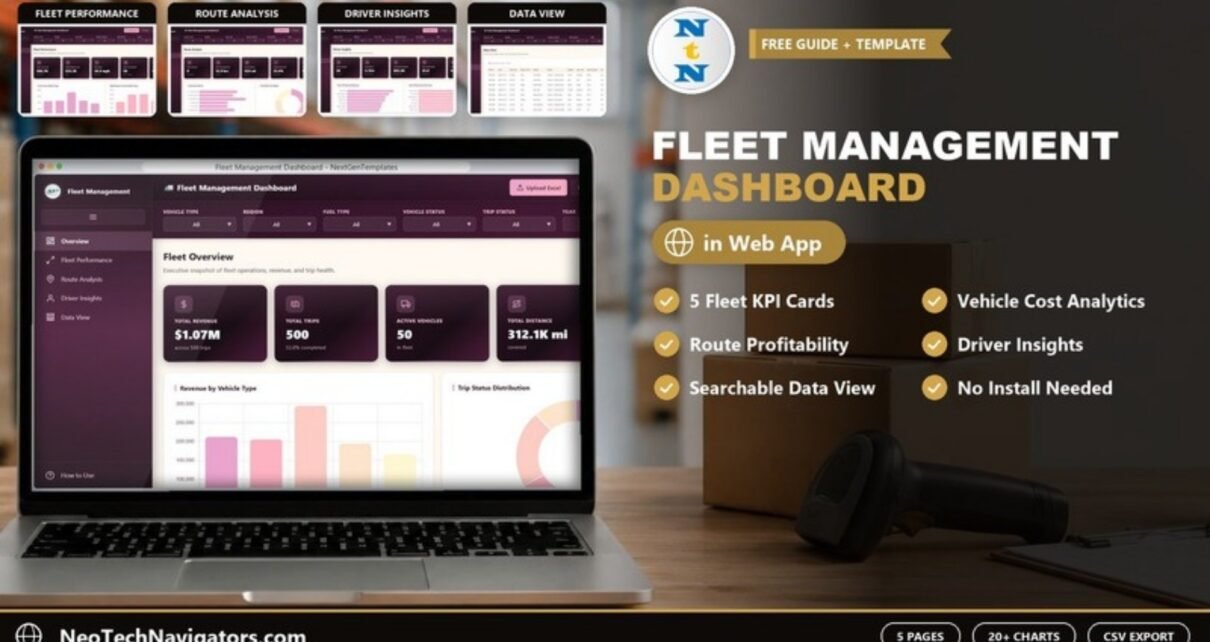
The Fleet Management Dashboard in HTML is a browser-based analytics template for fleet managers, logistics coordinators and transport operators who want one clear view of revenue, trips, vehicles, routes and drivers. It opens from a single index.html file in Chrome, Edge, Firefox or Safari, so there is nothing to install and no licence to manage.
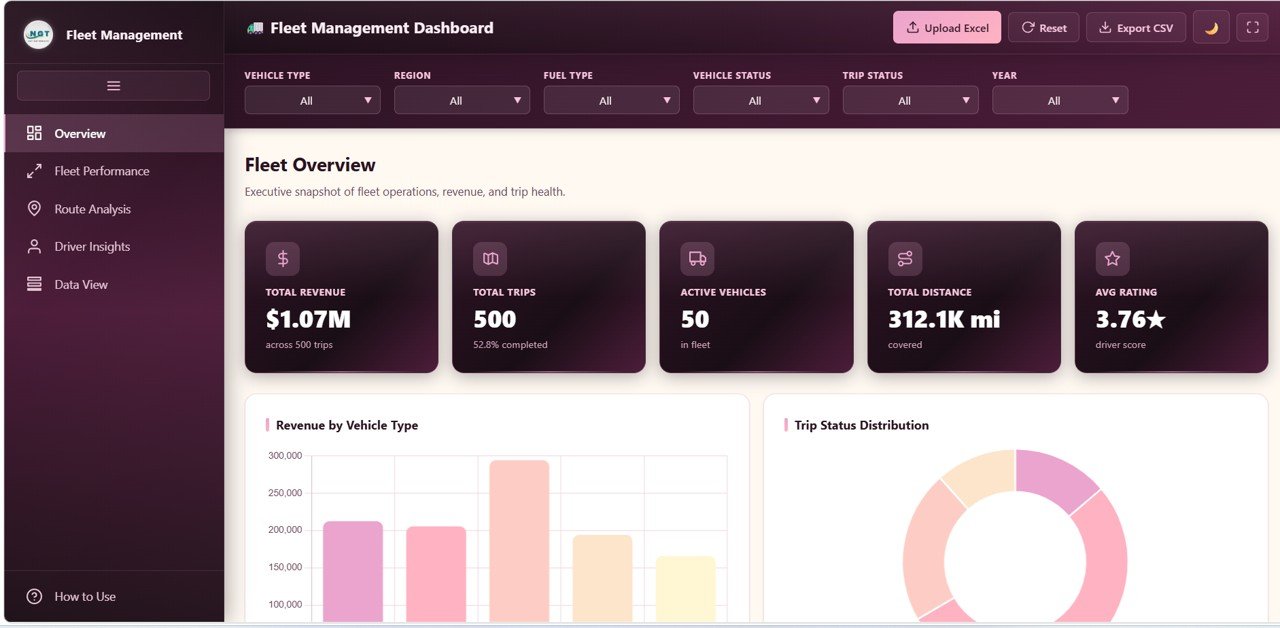
Inside are five pages: Overview, Fleet Performance, Route Analysis and Driver Insights, each with five KPI cards and its own charts, plus a Data View with search and CSV export. A filter bar at the top of every page filters by Vehicle Type, Region, Fuel Type, Vehicle Status, Trip Status and Year. Unzip the download, open the file, and load your own data with the Upload Excel button.
🎥 Watch the Video Tutorial
Get the Fleet Management Dashboard in HTML
What Problem Does a Fleet Management Dashboard Solve?
Fleet data usually sits in several places: trip logs, fuel receipts, maintenance records and driver ratings. Pulling them together for a weekly review takes hours, and by the time a chart is ready the question has moved on. Without one view it is hard to see which vehicle types cost the most to run, which routes actually make money, or which drivers carry the heaviest workload.
This HTML fleet dashboard combines those numbers into one interactive report. Because it runs in a browser, anyone on the team can open it on a laptop or tablet without Excel, Power BI or a login.
Key Features of the Fleet Management Dashboard in HTML
- Five pages: Overview, Fleet Performance, Route Analysis, Driver Insights and Data View, plus a How to Use page in the sidebar.
- Five KPI cards on each analysis page, 20 in total.
- Charts on every analysis page covering revenue, costs, trips, distance, routes and drivers.
- Six filters on every page: Vehicle Type, Region, Fuel Type, Vehicle Status, Trip Status and Year.
- Toolbar buttons: Upload Excel, Reset, Export CSV, a dark-mode toggle and full screen.
- Data View with a search box and CSV export of the filtered records.
- No installation: built with HTML, CSS and JavaScript and opened directly in a modern browser.
Dashboard Pages Explained
1. Overview
The Fleet Overview cards are Total Revenue, Total Trips (with the share completed), Active Vehicles, Total Distance in miles and Avg Rating (the driver score). Below them, Revenue by Vehicle Type compares the Truck, Tanker, Trailer, Pickup and Van categories, Trip Status Distribution splits trips by status, and the page continues with revenue by month, vehicle count by vehicle status and revenue by region.
2. Fleet Performance
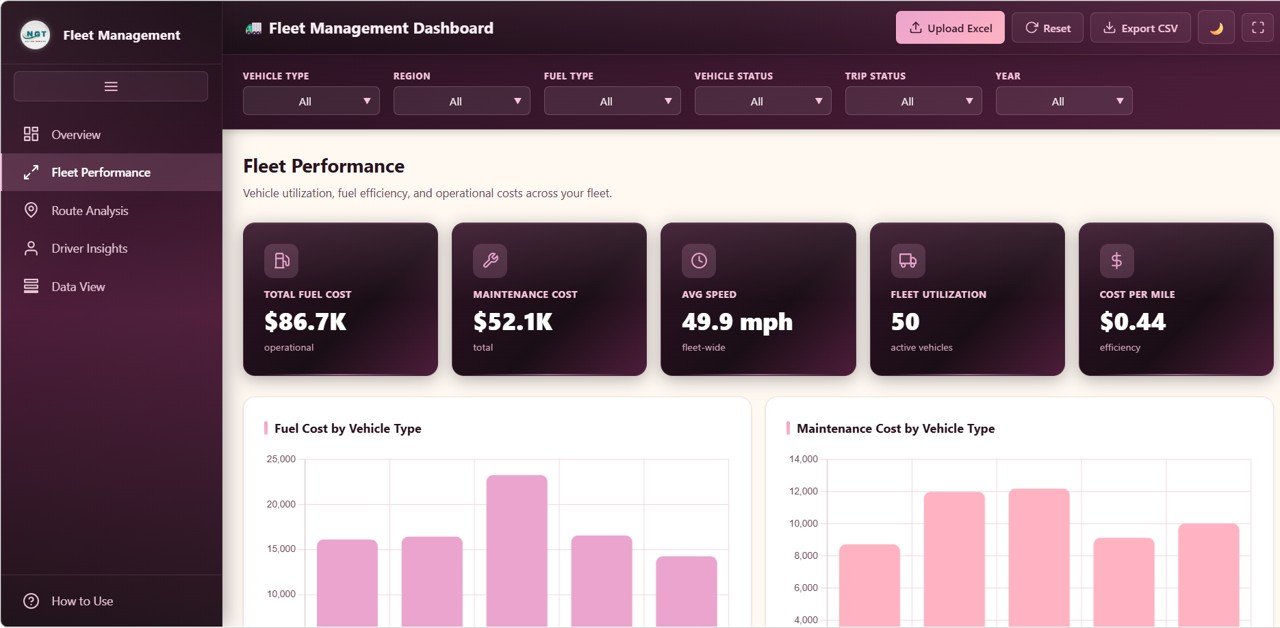
Vehicle utilization, fuel efficiency and operating costs. Cards: Total Fuel Cost, Maintenance Cost, Avg Speed (mph), Fleet Utilization (active vehicles) and Cost per Mile. Charts start with Fuel Cost by Vehicle Type and Maintenance Cost by Vehicle Type, followed by distance by fuel type (Gasoline, Diesel, CNG and Electric in the sample data), average speed by vehicle type and revenue by vehicle ID. Use it to spot vehicle types whose running costs are out of line with what they earn.
3. Route Analysis
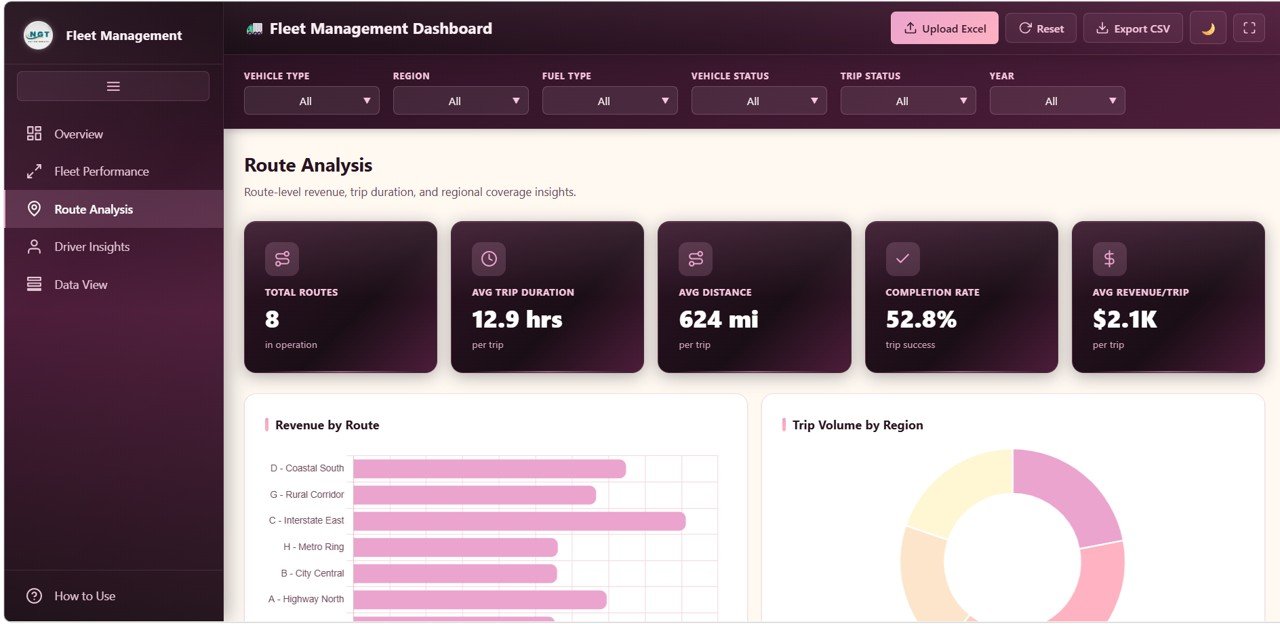
Route-level revenue, trip duration and regional coverage. Cards: Total Routes, Avg Trip Duration, Avg Distance, Completion Rate and Avg Revenue/Trip. Charts start with Revenue by Route (eight routes in the sample, such as Route C – Interstate East and Route D – Coastal South) and Trip Volume by Region (North, South, East, West and Central), followed by trip duration by route and distance by region. Long average durations on a short route are often the first sign of a bottleneck.
4. Driver Insights
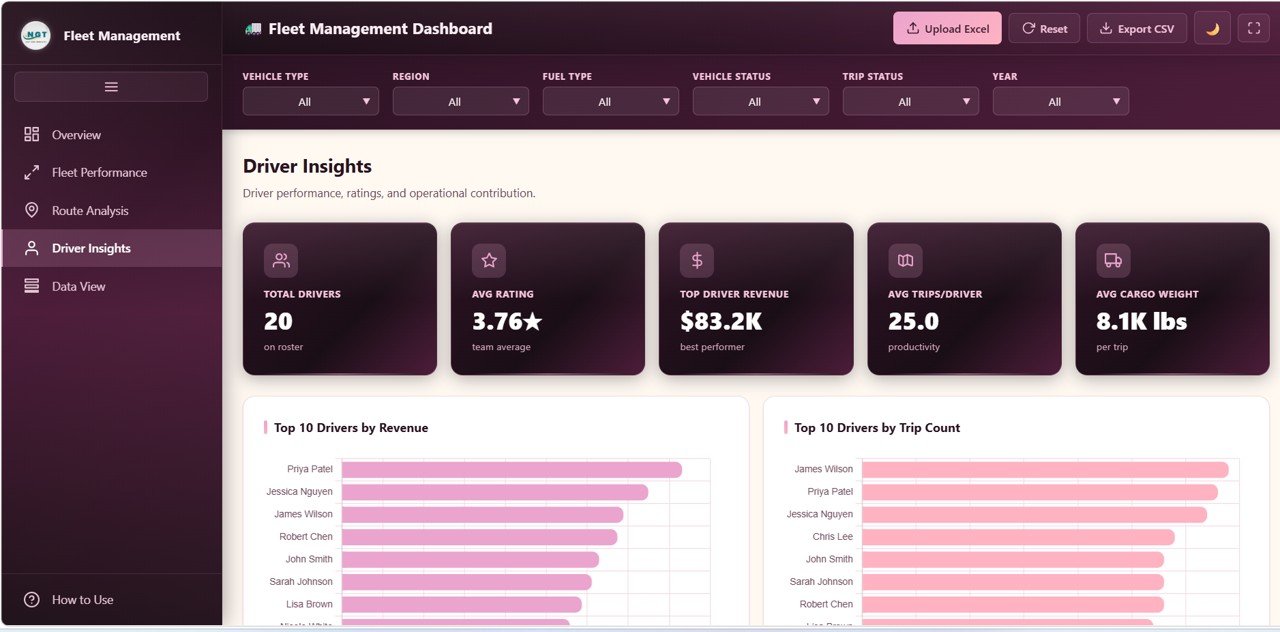
Driver performance, ratings and contribution. Cards: Total Drivers, Avg Rating, Top Driver Revenue, Avg Trips/Driver and Avg Cargo Weight (lbs per trip). Charts start with Top 10 Drivers by Revenue and Top 10 Drivers by Trip Count, followed by rating and revenue-per-distance views. Useful for fair trip allocation, incentives and coaching conversations.
5. Data View
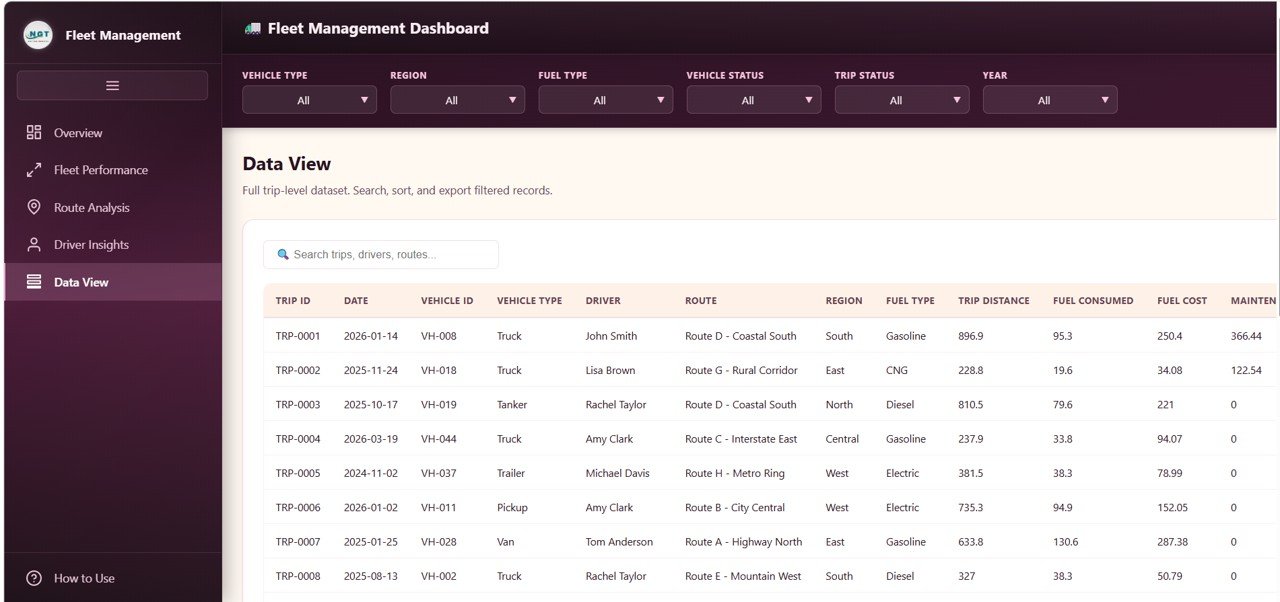
The full trip-level dataset with columns such as Trip ID, Date, Vehicle ID, Vehicle Type, Driver, Route, Region, Fuel Type, Trip Distance, Fuel Consumed, Fuel Cost and maintenance cost. Use the search box to find trips, drivers or routes, sort the table, and export the filtered records to CSV for a report or a follow-up analysis in a spreadsheet.
The Fleet KPIs and How They Are Calculated
The formulas below reproduce the sample figures in the screenshots (500 trips, $1.07M revenue, 312.1K miles, 20 drivers).
| KPI (page) | What it measures | How it is calculated | Better when |
|---|---|---|---|
| Total Revenue (Overview) | Income earned from trips in the filtered period | Sum of trip revenue | Higher |
| Total Trips (Overview) | Volume of work carried out | Count of trip records | Higher (with a high completion share) |
| Total Distance (Overview) | Miles covered | Sum of Trip Distance | Context-dependent; compare with revenue |
| Cost per Mile (Fleet Performance) | Running cost for every mile driven | (Total Fuel Cost + Maintenance Cost) ÷ Total Distance = ($86.7K + $52.1K) ÷ 312.1K mi ≈ $0.44 | Lower |
| Completion Rate (Route Analysis) | Share of trips that finished | Completed trips ÷ Total Trips (52.8% in the sample) | Higher |
| Avg Distance (Route Analysis) | Typical trip length | Total Distance ÷ Total Trips = 312.1K ÷ 500 ≈ 624 mi | Context-dependent |
| Avg Revenue/Trip (Route Analysis) | Earnings per trip | Total Revenue ÷ Total Trips = $1.07M ÷ 500 ≈ $2.1K | Higher |
| Avg Trips/Driver (Driver Insights) | Workload per driver | Total Trips ÷ Total Drivers = 500 ÷ 20 = 25.0 | Balanced across drivers |
| Avg Rating (Overview, Driver Insights) | Driver score | Average of the rating field (3.76 in the sample) | Higher |
Watching Avg Revenue/Trip and Cost per Mile month by month (use the Year filter, or export the Data View) tells you whether growth comes from more work or from better-paying work.
How to Use It with Your Own Data
- Unzip the download and open index.html in a modern browser to explore the sample data.
- Export your trip records from your fleet or dispatch system, keeping one row per trip.
- Match your columns to the sample data layout shown in Data View (trip ID, date, vehicle ID, vehicle type, driver, route, region, fuel type, trip distance, fuel consumed, fuel cost, maintenance cost and the remaining fields), following the How to Use page.
- Click Upload Excel and select your file; use Reset to return to the starting view.
- Use the filter bar on each page to review a vehicle type, region, fuel type, vehicle status, trip status or year.
- Click Export CSV when you need the filtered records for a report.
HTML vs Google Sheets vs Power BI
| Need | HTML dashboard | Google Sheets dashboard | Power BI dashboard |
|---|---|---|---|
| Software required | Web browser only | Google account | Power BI Desktop or service |
| Loading data | Upload an Excel file with the Upload Excel button | Edit cells directly, shared live | Refresh from data source |
| Export | CSV export of filtered records | Download as Excel, CSV or PDF | Export from visuals, depending on settings |
| Best for | Sharing a polished read-only report with anyone | Teams entering data together | Large datasets and scheduled refresh |
Real-World Use Cases
- Delivery company: the operations manager reviews Fuel Cost and Maintenance Cost by Vehicle Type each week to decide which vehicles to replace first.
- Regional transport operator: uses Revenue by Route, Completion Rate and Avg Trip Duration to move vehicles from slow, low-earning routes to busier corridors.
- Haulage or shuttle service: combines Top 10 Drivers by Revenue and Top 10 Drivers by Trip Count in monthly reviews to balance workload and plan coaching.
Best Practices
- Check the Overview daily or weekly so unusual drops in trips or ratings are caught early.
- Keep vehicle type, region and route names consistent so filters group correctly.
- Compare costs with revenue, not in isolation; a high-cost vehicle type can still be the most profitable.
- Upload fresh data on a fixed schedule and note the date in your report.
- Export the filtered Data View before management meetings so figures can be traced back to records.
If you want to analyse the exported CSV further, the Excel Pivot Tables and Dashboards course on NextGenTemplates Academy shows how to summarise trip data and build your own charts step by step.
Limitations: Who Should Not Use It
- It is an analytics report, not a live tracking system; there is no GPS or telematics feed.
- Data is loaded by uploading an Excel file, not entered record by record through forms.
- It does not schedule maintenance or dispatch drivers. Pair it with an operational tool if you need those workflows.
Related Fleet and Logistics Dashboards
Prefer to enter data in a spreadsheet? See the Fleet Management Dashboard in Google Sheets, the Fleet Management KPI Dashboard and the Fleet Utilization KPI Dashboard. For fuel tracking, the Fleet Fuel and Mileage Tracker works well alongside this report, and the Trucking and Logistics Dashboard in HTML covers freight operations in the same browser format.
Also available as the Fleet Management Dashboard in Power BI and the Fleet Management Dashboard in Excel.
Frequently Asked Questions
What KPIs does the Fleet Management Dashboard in HTML track?
The Overview shows Total Revenue, Total Trips, Active Vehicles, Total Distance and Avg Rating. Fleet Performance adds fuel cost, maintenance cost, average speed, fleet utilization and cost per mile; Route Analysis adds routes, trip duration, distance, completion rate and revenue per trip; Driver Insights adds driver count, top driver revenue, trips per driver and cargo weight.
Do I need any software to use it?
No. Unzip the download and open index.html in Chrome, Edge, Firefox or Safari. No Excel, Power BI or coding knowledge is required to view it.
Can I track individual vehicles and drivers?
Yes. Data View lists every trip with its Vehicle ID and Driver, and Driver Insights ranks the Top 10 Drivers by Revenue and by Trip Count.
How do I load my own data?
Arrange your trip records in the same columns as the sample data, then click Upload Excel and select the file. Cards, charts and filters update to your data, and Reset returns to the starting view.
Can I share it with my team?
Yes. Share the folder or host the file on an internal site. Anyone with a browser can open it and use the filters.
Does it show live vehicle locations?
No. It analyses trip records you supply. For live tracking you need a GPS or telematics system; you can export its data into an Excel file and upload it here.
Wrapping Up
The Fleet Management Dashboard in HTML turns trip, cost and driver records into a five-page report anyone can open in a browser. Upload a recent month of trips, review the Fleet Performance and Route Analysis pages first, and use what you find to decide where vehicles and drivers should go next.
Get the Fleet Management Dashboard in HTML
📅 Last updated: October 2026