No Spend Challenge Tracker in Google Sheets is built for people who want a practical way to complete a spending reset without turning personal finance into a complicated system. A no-spend challenge works best when each day is visible: what happened, how much money stayed in your account, what triggered the temptation, and whether your streak is growing. This tracker gives you 2 focused sheet pages, 1 high-level Total Money Saved card, 4 dashboard charts, and 4 dropdown option groups so the challenge feels organized from the first entry.No Spend Challenge Tracker in Google Sheets
Instead of trying to remember why you spent money or guessing whether your habits are improving, the template gives you a simple Google Sheets structure for recording daily behavior. You can get the editable template from NextGenTemplates and use it for a 7-day, 30-day, monthly, or custom no-spend challenge.
Get the No Spend Challenge Tracker in Google Sheets
Key Features
The No Spend Challenge Tracker in Google Sheets is designed around daily accountability and quick review. It is not a full budgeting app, and that is the point: the template stays focused on the challenge itself.
- Total Money Saved card: See the headline result of the challenge without scanning every row.
- Success rate analysis: Compare no-spend results so you can see how often the challenge rules are being met.No Spend Challenge Tracker in Google Sheets
- Trigger tracking: Record what created the urge to spend, such as boredom, stress, convenience, social pressure, or sales.No Spend Challenge Tracker in Google SheetsNo Spend Challenge Tracker in Google Sheets
- Cumulative savings trend: Watch saved money build by date so small decisions become visible progress.
- Daily streak progress: Track streak movement to see strong runs, resets, and recovery after a missed day.
- Dropdown option lists: Keep responses, spending triggers, temptation categories, and moods consistent across the tracker.
- Google Sheets format: Keep your own editable copy in Google Drive and adjust labels as your challenge changes.
Dashboard Pages Explanation
This dashboard is showing multiple types of pages so the experience stays clean. The Overview Page is where you read the challenge results. The Dropdown Options Sheet is where you manage the controlled lists that feed the tracker fields.
Overview Page
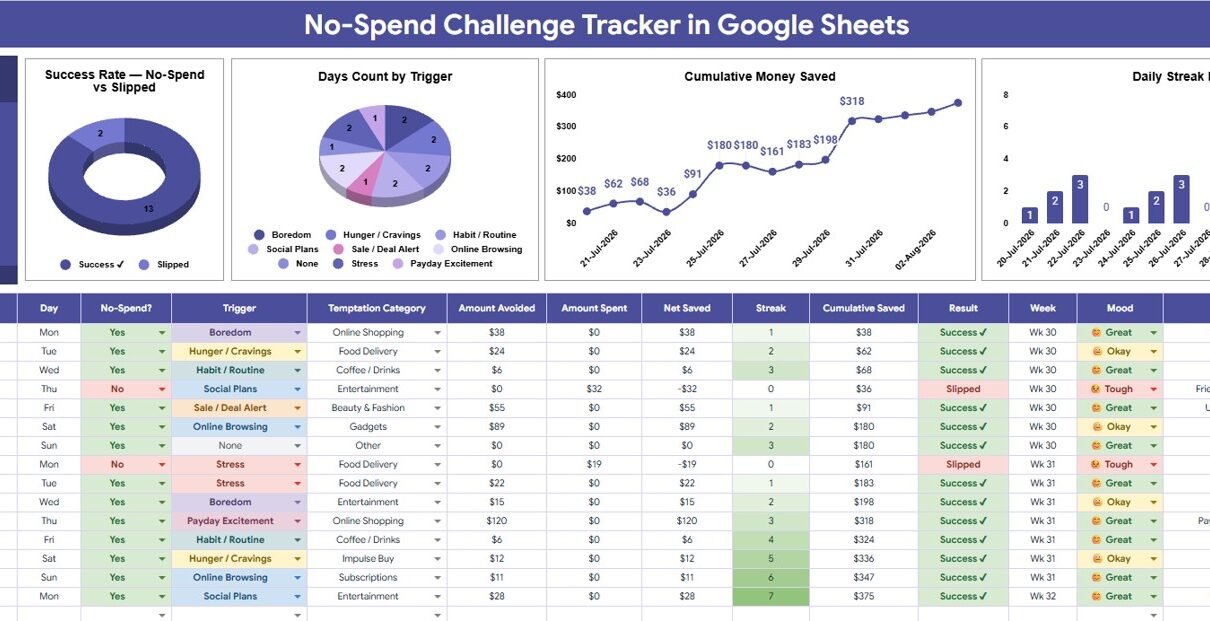
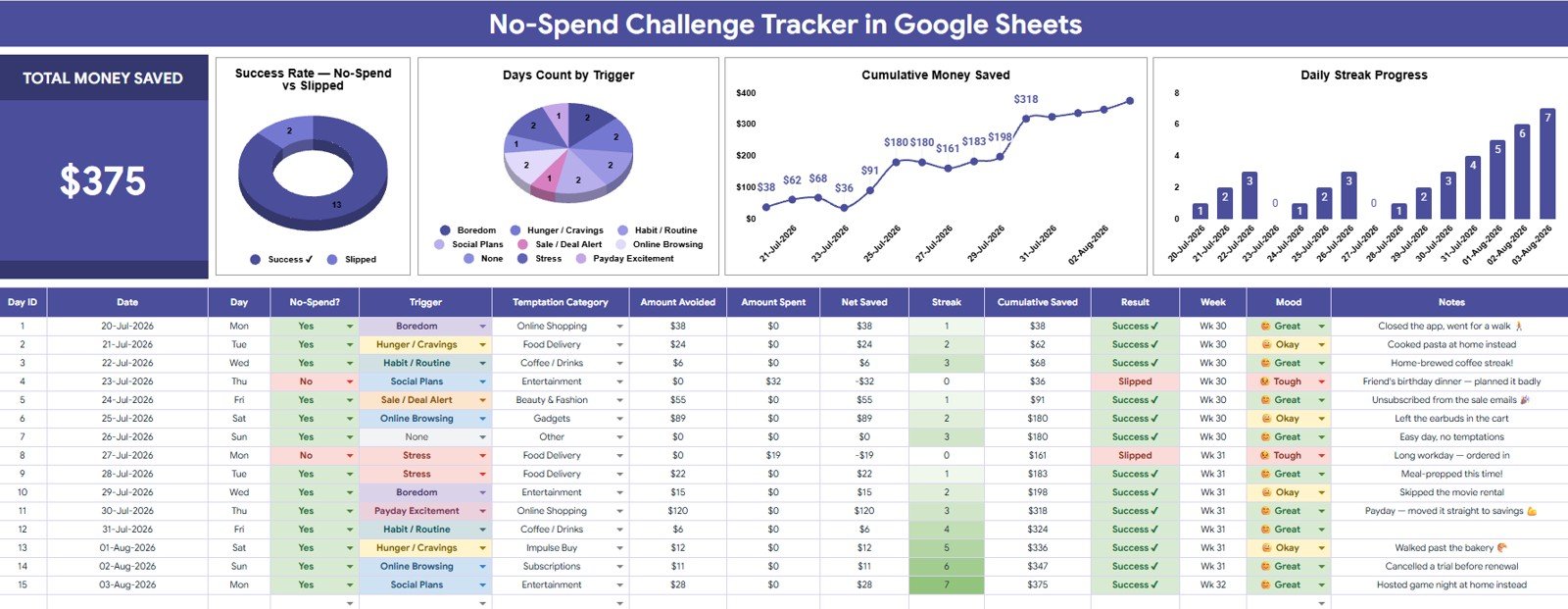
The Overview Page gives you a top-level view of the no-spend challenge. At the top, the Total Money Saved card shows the amount saved across your entries, making it easy to understand the financial result of your effort.
Success Rate by No-Spend Result: This chart compares the daily results of the challenge, such as successful no-spend days versus spending days.
It helps you see whether the challenge is becoming easier and whether your routine is improving over time.
Days Count by Trigger: This chart counts challenge days by the spending trigger selected in the tracker.
It helps reveal the situations or emotions that most often create spending pressure, which is useful for planning ahead.
Cumulative Money Saved by Date: This chart shows how your saved amount builds across the challenge timeline.
It turns daily progress into a running visual total, which can be motivating during longer challenges.
Daily Streak Progress by Date: This chart shows how your streak changes from one date to the next.
It helps you spot momentum, resets, and patterns that may explain why some weeks feel easier than others.
Dropdown Options Sheet
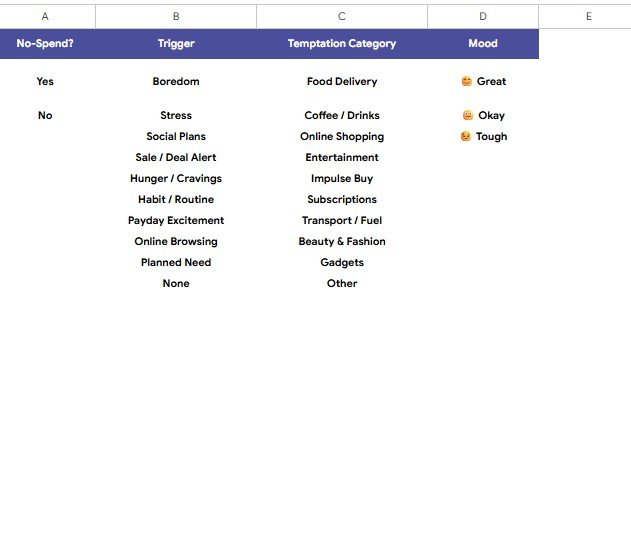
The Dropdown Options Sheet supports cleaner data entry. When you use consistent dropdown values, your charts and slicers stay easier to read because the same response is not entered in several different ways.
- No-Spend Options by Response: Stores the response choices used to identify whether a day followed the challenge rules.
- Trigger Options by Spending Trigger: Stores the spending trigger choices that explain what caused the temptation to spend.
- Temptation Category Options by Spending Type: Stores category labels for different types of spending urges.
- Mood Options by Tracker Mood: Stores mood labels so you can compare emotional patterns with spending behavior.
Google Sheets Tracker vs Other No-Spend Tools
| Tool | Best Use | Trade-Off |
|---|---|---|
| No Spend Challenge Tracker in Google Sheets | Focused no-spend tracking, saved money visibility, and trigger analysis. | Manual entry is required, which keeps the habit intentional but is not automatic bank syncing. |
| Printable no-spend challenge page | Simple habit marking and offline accountability. | Limited analysis, no slicers, and no automatic chart updates. |
| Microsoft Excel tracker | Desktop spreadsheet users who prefer local files. | Less convenient for browser-based access and sharing through Google Drive. |
| Paid budgeting app | Full budget planning, account syncing, and recurring spending reports. | Can be more expensive over time and may be too broad for a single no-spend challenge. |
Who Should Use This Tracker
This tracker is a good fit for anyone who wants a clear structure for a short spending reset or a longer habit-building challenge. It works well for individuals trying to reduce impulse purchases, couples planning a low-spend month, students learning basic money awareness, and families trying to review discretionary spending without building a full budget from scratch.
It is also useful for personal finance bloggers, coaches, and spreadsheet creators who want a repeatable way to explain no-spend habits. Because the tracker uses dropdown options and visual charts, it can support both a private challenge and an educational walkthrough.
Real-World Use Cases
30-day no-spend month: Use the tracker daily for one month and review the Total Money Saved card at the end of each week. The cumulative savings chart helps show how small daily decisions add up.
Impulse purchase reset: Record each urge to spend and select a trigger and temptation category. Over time, the Days Count by Trigger chart can show whether spending pressure is mostly tied to mood, convenience, social settings, or sales.
Household discretionary spending review: Use the tracker with a partner to understand where optional spending slips into the week. The dropdown structure keeps both people using the same categories.
Student savings challenge: Track food, entertainment, shopping, and subscription temptations during a school term. A simple Google Sheets tracker is easy to open from a browser and does not require another app subscription.
Advantages of Using Google Sheets
Google Sheets is a strong fit for personal trackers because it is flexible, familiar, and easy to copy. You can keep the template in Google Drive, adjust dropdown labels, and review charts without installing desktop software. If you are new to dashboard filtering, Google also provides help documentation for using slicers in Google Sheets, which can make filtered views easier to understand.
The main advantage is ownership. You are not sending bank credentials to a budgeting app or locking your no-spend challenge inside a subscription service. You are simply keeping a daily challenge record in a spreadsheet that you control.
Opportunities for Better Money Habits
A no-spend challenge is not only about spending zero dollars. The bigger opportunity is learning what creates unnecessary purchases. A missed day can still be useful if it tells you that stress shopping happens after work, convenience food spending happens during busy weeks, or subscription temptation appears when a free trial expires.
By pairing money saved with triggers, temptation categories, and moods, the tracker helps convert daily entries into decisions. You might change grocery planning, remove saved cards from shopping sites, set a waiting period for purchases, or create a small planned-fun budget so the challenge does not feel unrealistic.
Best Practices for a No-Spend Challenge
- Define allowed spending first: Decide what counts as essential spending before the challenge starts.
- Use the tracker every day: A daily entry is more reliable than trying to remember the week later.
- Record the trigger honestly: The trigger field is where the most useful behavior insight often appears.
- Do not restart because of one miss: Record the miss, learn from it, and continue the challenge.
- Review the Overview Page weekly: Use the charts to adjust your plan before frustration builds.
- Customize dropdown options: Make the labels match your real spending life, not someone else’s categories.
Explore Relevant Templates
If you are building a broader personal finance workflow, these related Google Sheets templates can work well alongside a no-spend challenge:
- Savings Goal Tracker in Google Sheets
- Retirement Savings Tracker in Google Sheets
- Personal Finance Net Worth Tracker in Google Sheets
- Shared Expense Splitter Tracker in Google Sheets
- Stock Portfolio Tracker in Google Sheets
Curious how trackers like this are built? The NextGenTemplates Academy learning paths teach the spreadsheet skills behind them, using hands-on practice files.
Get the No Spend Challenge Tracker in Google Sheets
FAQ
What is the No Spend Challenge Tracker in Google Sheets?
It is an editable Google Sheets template for recording no-spend challenge results, saved money, spending triggers, temptation categories, moods, and streak progress.
What pages are included in the tracker?
The tracker includes an Overview Page for dashboard analysis and a Dropdown Options Sheet for managing response, trigger, temptation, and mood options.
What charts are included on the Overview Page?
The Overview Page includes Success Rate by No-Spend Result, Days Count by Trigger, Cumulative Money Saved by Date, and Daily Streak Progress by Date.
Can I change the dropdown lists?
Yes. You can update the dropdown options to match your own challenge rules, spending triggers, temptation categories, and mood labels.
Does this tracker sync with bank accounts?
No. It is a manual tracker. That makes it simple, private, and focused on habit awareness rather than automatic transaction imports.
Is this only for a 30-day challenge?
No. You can use it for a 7-day, 14-day, 30-day, monthly, or custom challenge by entering the dates that match your plan.
About the Author
Built by PK – Microsoft Certified Professional with 15+ years of Excel, Google Sheets, and Power BI experience. Founder of NextGenTemplates, reaching 300K+ subscribers across YouTube channels. Every template is hand-built and tested before release.
Conclusion
The No Spend Challenge Tracker in Google Sheets gives your challenge structure, visibility, and useful feedback. With a Total Money Saved card, four dashboard charts, slicers, and dropdown-supported entries, it helps you see more than whether a day was successful. It helps you understand why spending pressure appears and how your savings grow when you stay consistent.
Get the editable template here: No Spend Challenge Tracker in Google Sheets.