Harbor Point Remodeling, a contractor in Charlotte, North Carolina, loses time and money on every quote: a customer asks for 15% off, the estimator retypes the whole form by hand, and nobody knows if the job still makes money. This tutorial builds a quote and estimate template in Google Sheets that fixes it: two dropdowns, contact details that fill in by themselves, automatic totals, sales tax on materials only, a profit check that turns red when the margin is too low, and a print-ready one-page PDF. The free practice file has a Practice tab to build it yourself and a Solution tab to check your work.
📥 Download the FREE Practice File (Google Sheets)
Opens a copy in your Google Drive – README, Practice, Solution, Price List and Customers tabs. Sign in to Google first.
Watch the Video Tutorial
Video Overview
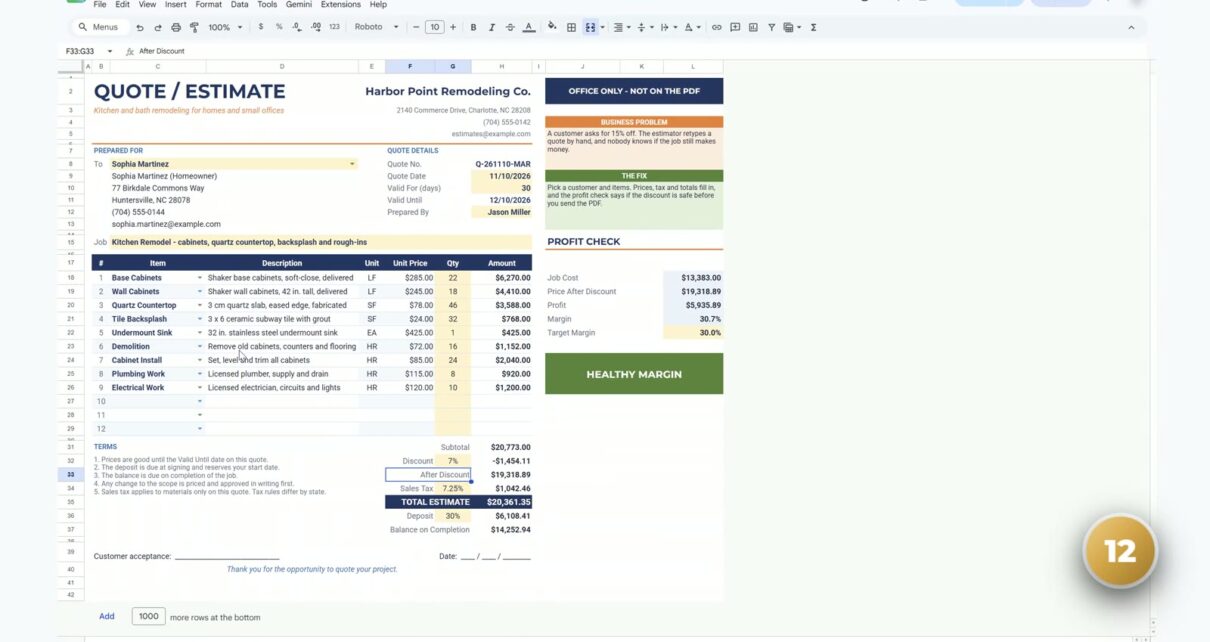
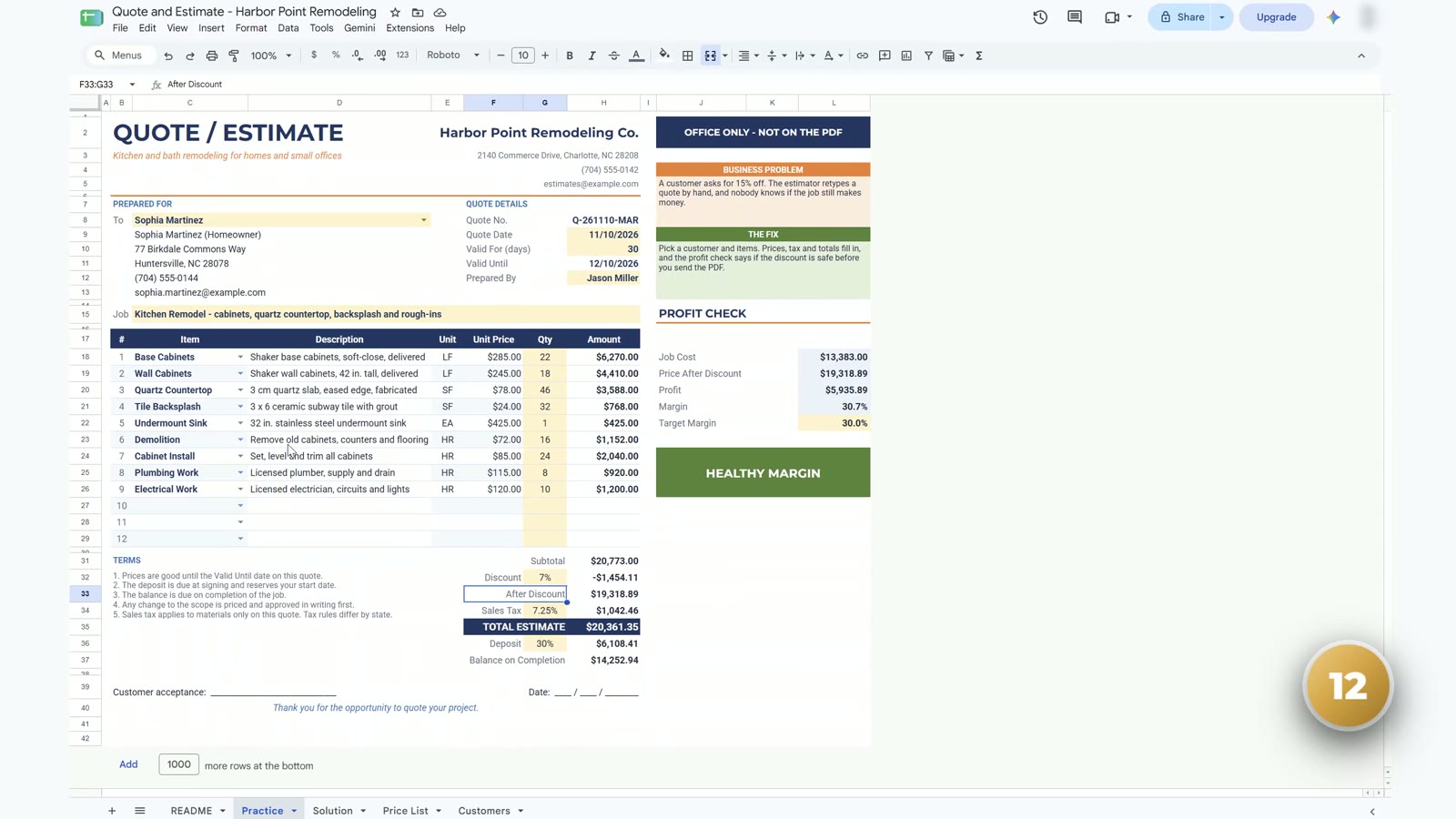
The video opens with the finished estimate: a kitchen remodel for Sophia Martinez with nine lines, every price coming from a price list. Pick another customer and the contact block and quote number change by themselves; add Project Management for 5 hours and the line shows $390.00 while the sales tax stays the same, because labor is not taxed. Then you move to the Practice tab and build it in twelve steps, about 17 minutes in total. The payoff comes near the end: cutting the discount from 15% to 7% turns the status badge from red to green and lifts the margin from 24.2% to 30.7%.
What You Will Build
- A customer dropdown that fills in the contact, address, phone, email and a quote number.
- An item dropdown with one XLOOKUP that brings in the description, unit and price.
- Totals that always add up: subtotal, discount, sales tax on materials only, total, deposit and balance.
- A profit check outside the print area with a healthy-margin or too-low badge.
- A one-page PDF of only the customer form.
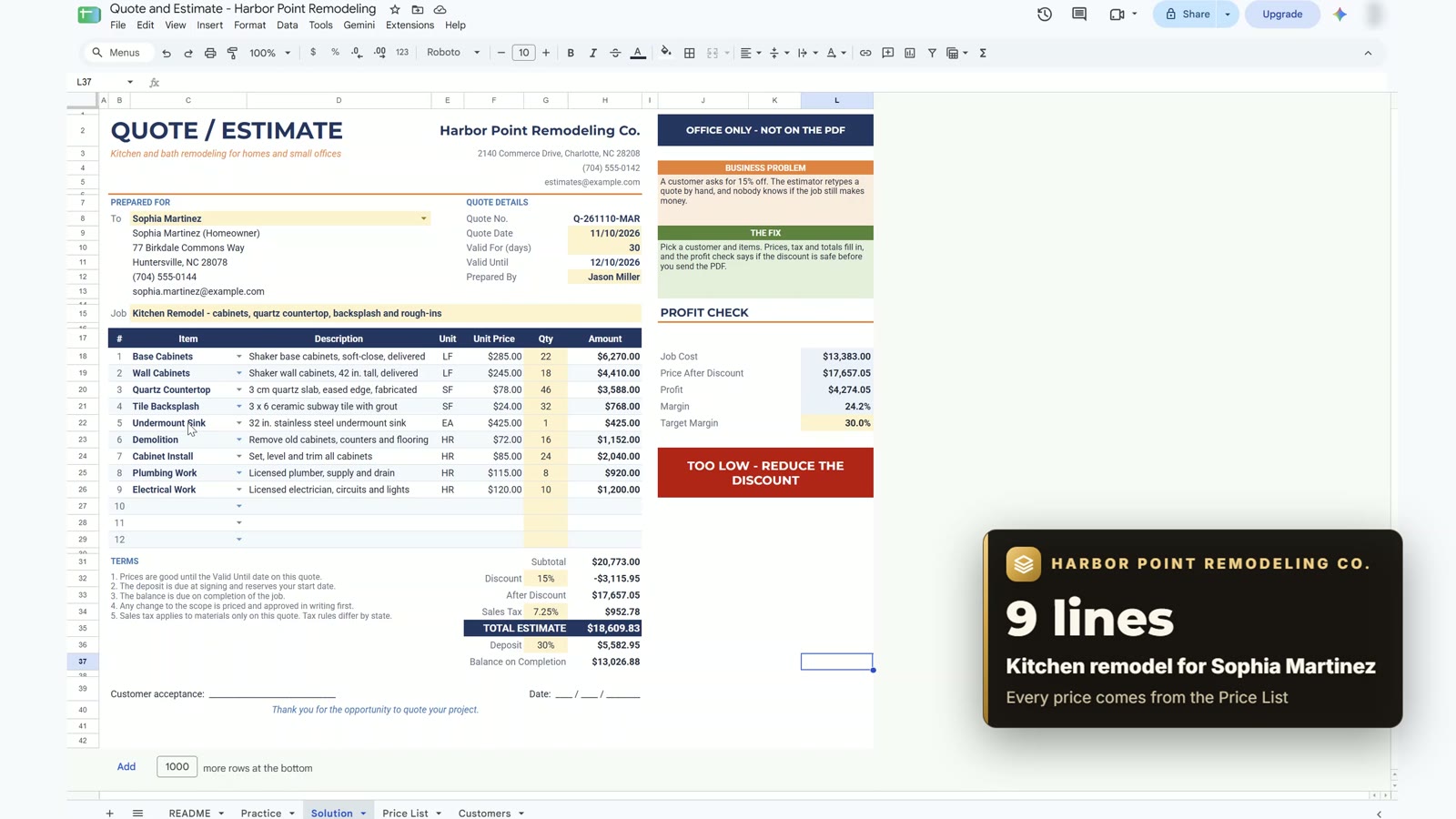
The Problem and the Practice File
Open the Practice tab. It is the same form as the Solution, but the smart parts are empty. The yellow cells are the ones you type in: the date, how many days the offer is valid, the job and the quantities. The Price List tab has 20 items (10 materials and 10 labor) with a description, unit, price, a taxable flag (1 = taxable, 0 = not taxable) and your own cost. The Customers tab has 12 customers with the contact, address, city, phone, email and a short code.
Step 1: Customer Dropdown
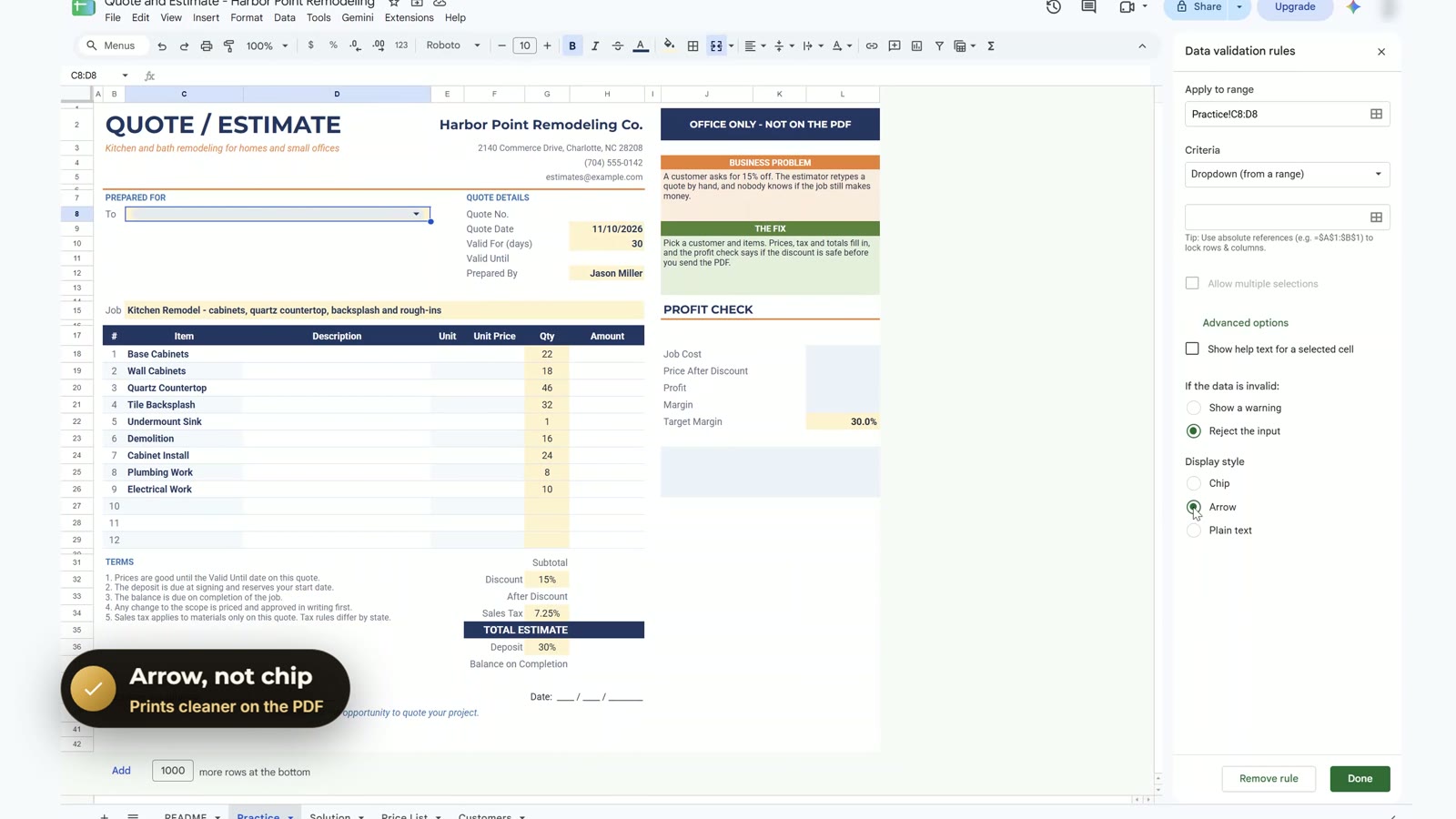
Select C8, open Data > Data validation, press Add rule, choose Dropdown (from a range) and enter Customers!$B$4:$B$15. Under Advanced options set the display style to Arrow, because a plain arrow prints cleaner than a colored chip.
Step 2: Contact Block with XLOOKUP and TRANSPOSE
In C9 one formula fills the contact, address, city, phone and email. XLOOKUP returns five columns across, and TRANSPOSE turns them down. Keep the cells below C9 empty and unmerged, or you get a #REF! error.
=IF(C8="","",TRANSPOSE(XLOOKUP(C8,Customers!$B$4:$B$15,Customers!$C$4:$G$15)))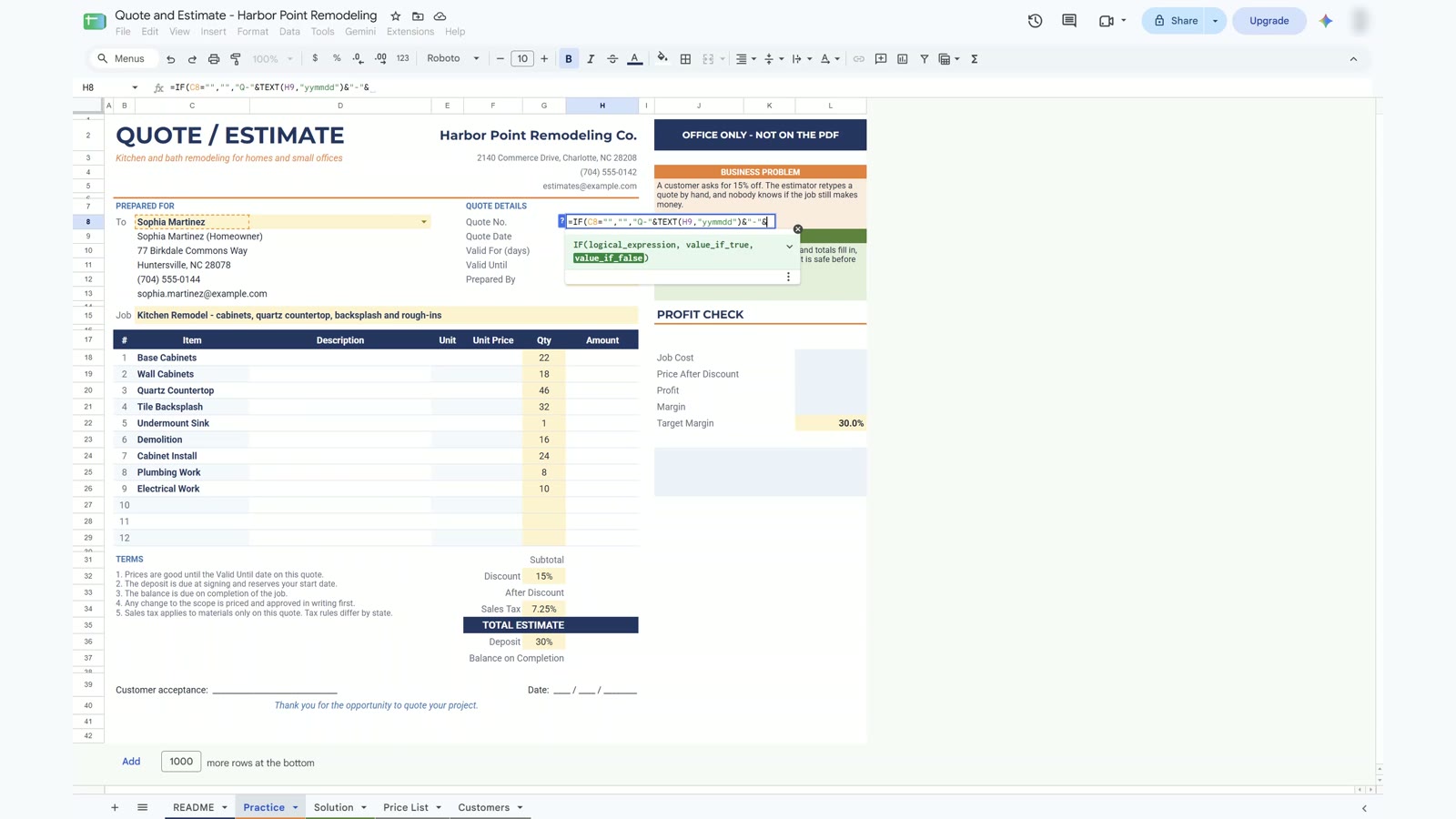
Step 3: Quote Number
Build the number from the quote date and the customer’s short code, for example Q-261110-MAR.
=IF(C8="","","Q-"&TEXT(H9,"yymmdd")&"-"&XLOOKUP(C8,Customers!$B$4:$B$15,Customers!$H$4:$H$15))Step 4: Valid Until Date
Add the days the offer is valid to the quote date. If the cell shows a number, use Format > Number > Date.
=H9+H10Step 5: Item Dropdown
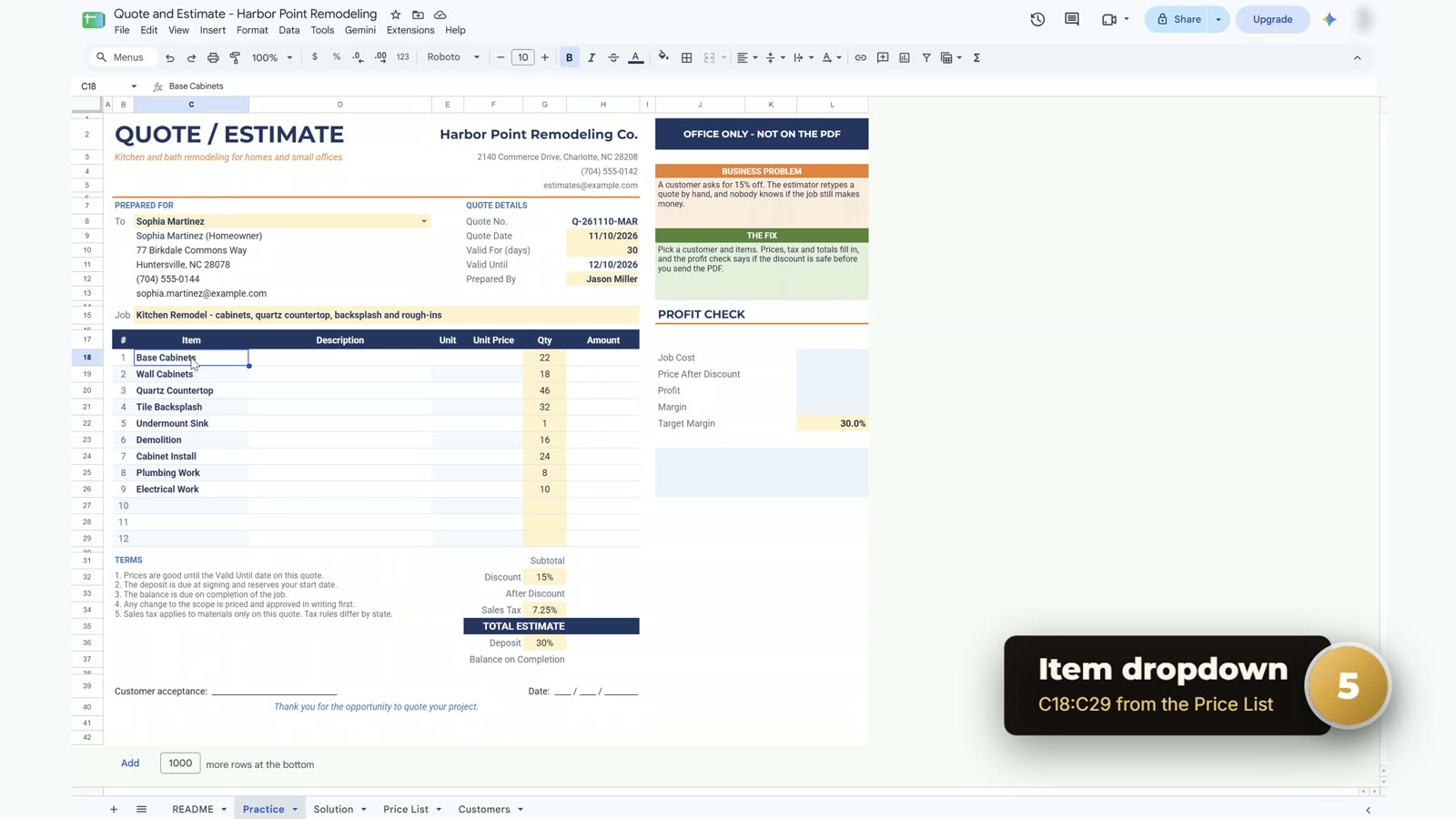
Select C18:C29 and add the same kind of dropdown with the range 'Price List'!$B$4:$B$23. The items already typed on the sheet stay valid.
Step 6: One XLOOKUP for Three Columns
In D18 one XLOOKUP returns the description, unit and unit price. It spills sideways, so columns E and F must stay empty. The blank guard keeps rows 27 to 29 empty. Copy it down to row 29.
=IF(C18="","",XLOOKUP(C18,'Price List'!$B$4:$B$23,'Price List'!$C$4:$E$23))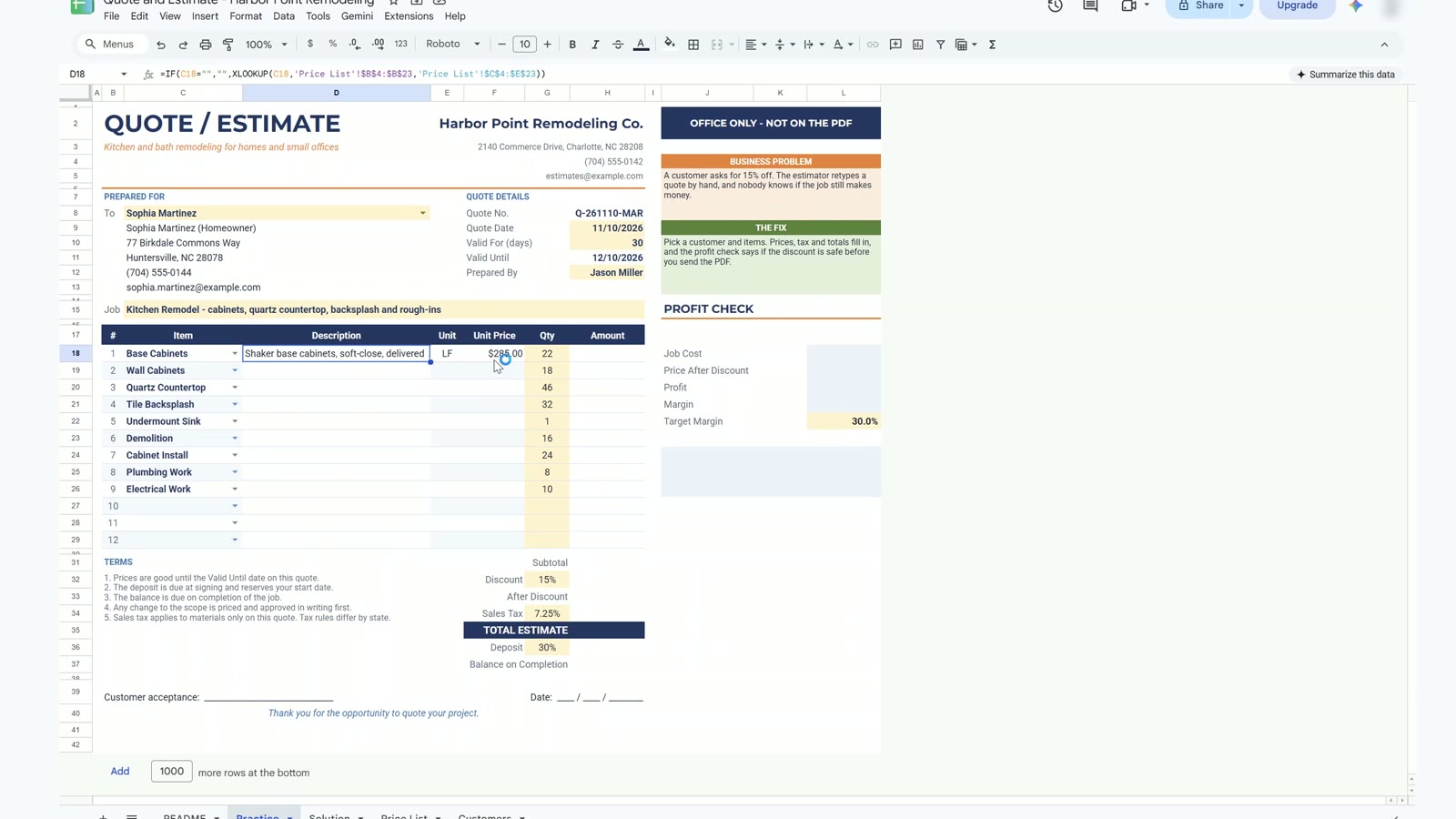
Step 7: Line Amount with ROUND
Multiply the unit price by the quantity and round to the cent, so the printed PDF adds up exactly. Copy it down to H29.
=IF(C18="","",ROUND(F18*G18,2))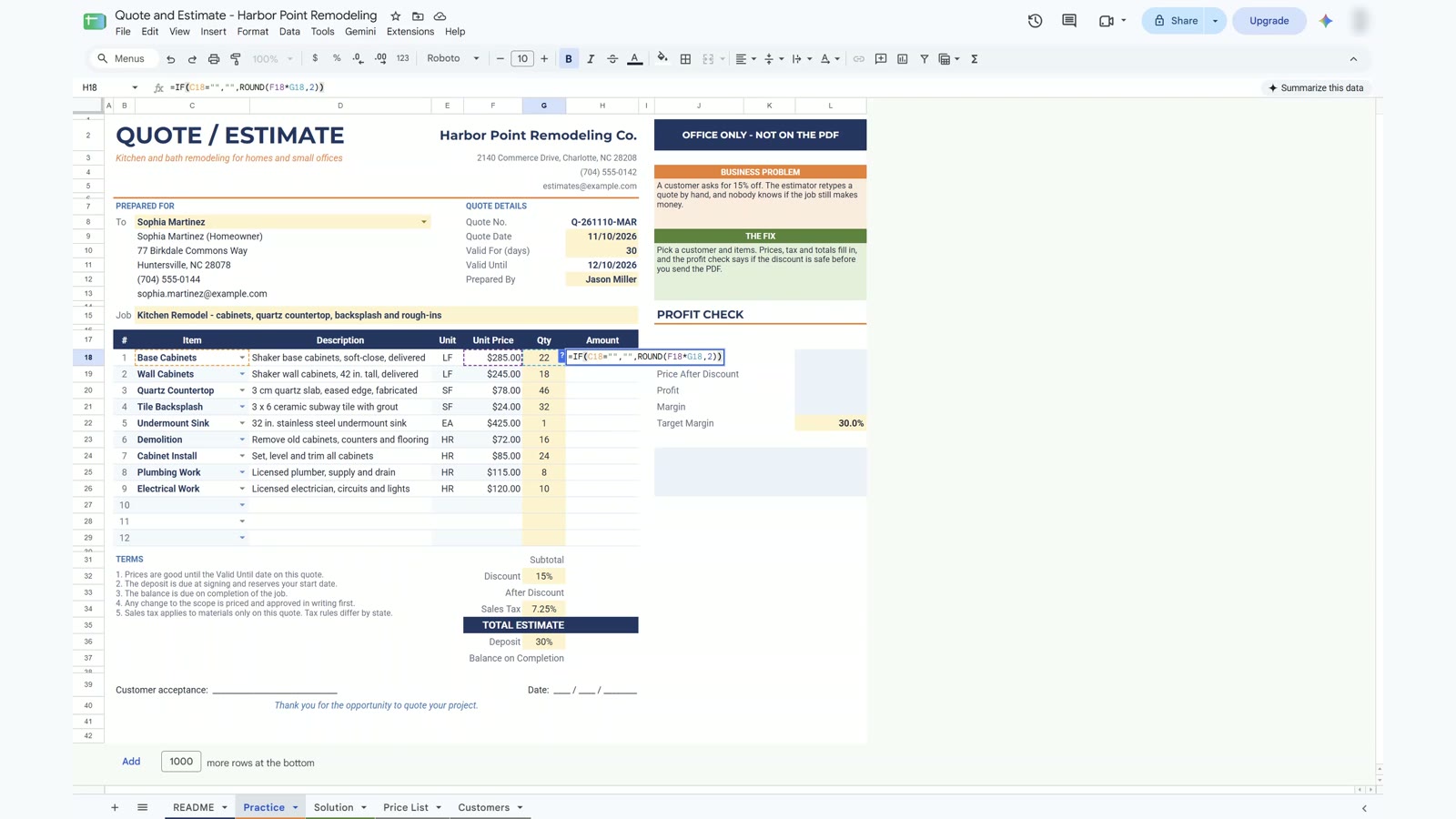
Step 8: Subtotal and Discount
Enter these three formulas in H31, H32 and H33. The discount percentage lives in the yellow cell G32.
=SUM(H18:H29)
=-ROUND(H31*G32,2)
=H31+H32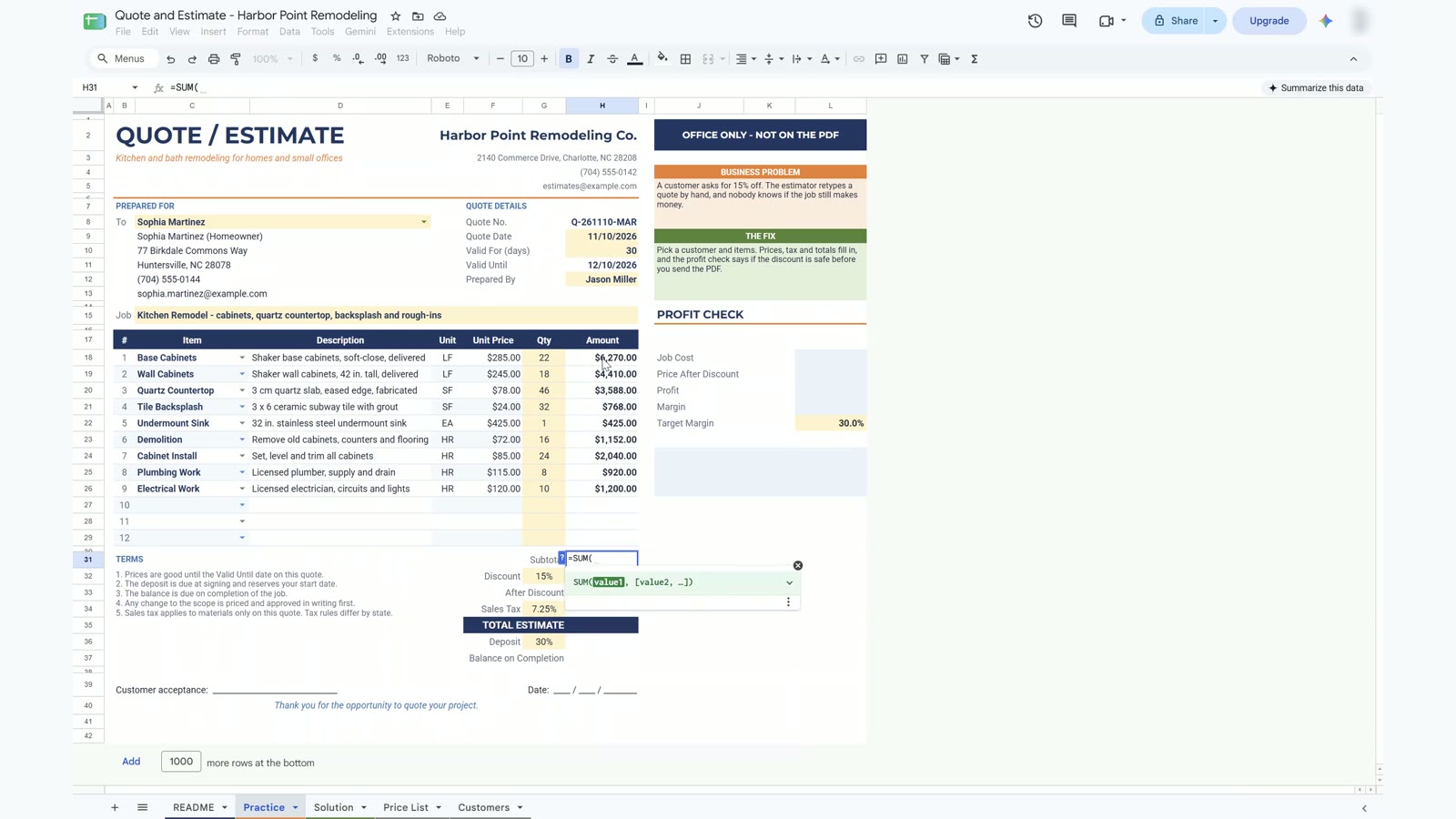
Step 9: Sales Tax on Materials Only
This is the interesting one. SUMIF with a range of criteria returns the 1 or 0 taxable flag for every line, SUMPRODUCT keeps only the taxable amounts, and (1-G32) is there because the discount lowers the taxable amount. In this example only materials are taxed, and tax rules differ by state, so change the 1s and 0s in the Price List to match yours. The result is $952.78.
=ROUND(SUMPRODUCT(SUMIF('Price List'!$B$4:$B$23,C18:C29,'Price List'!$G$4:$G$23),H18:H29)*(1-G32)*G34,2)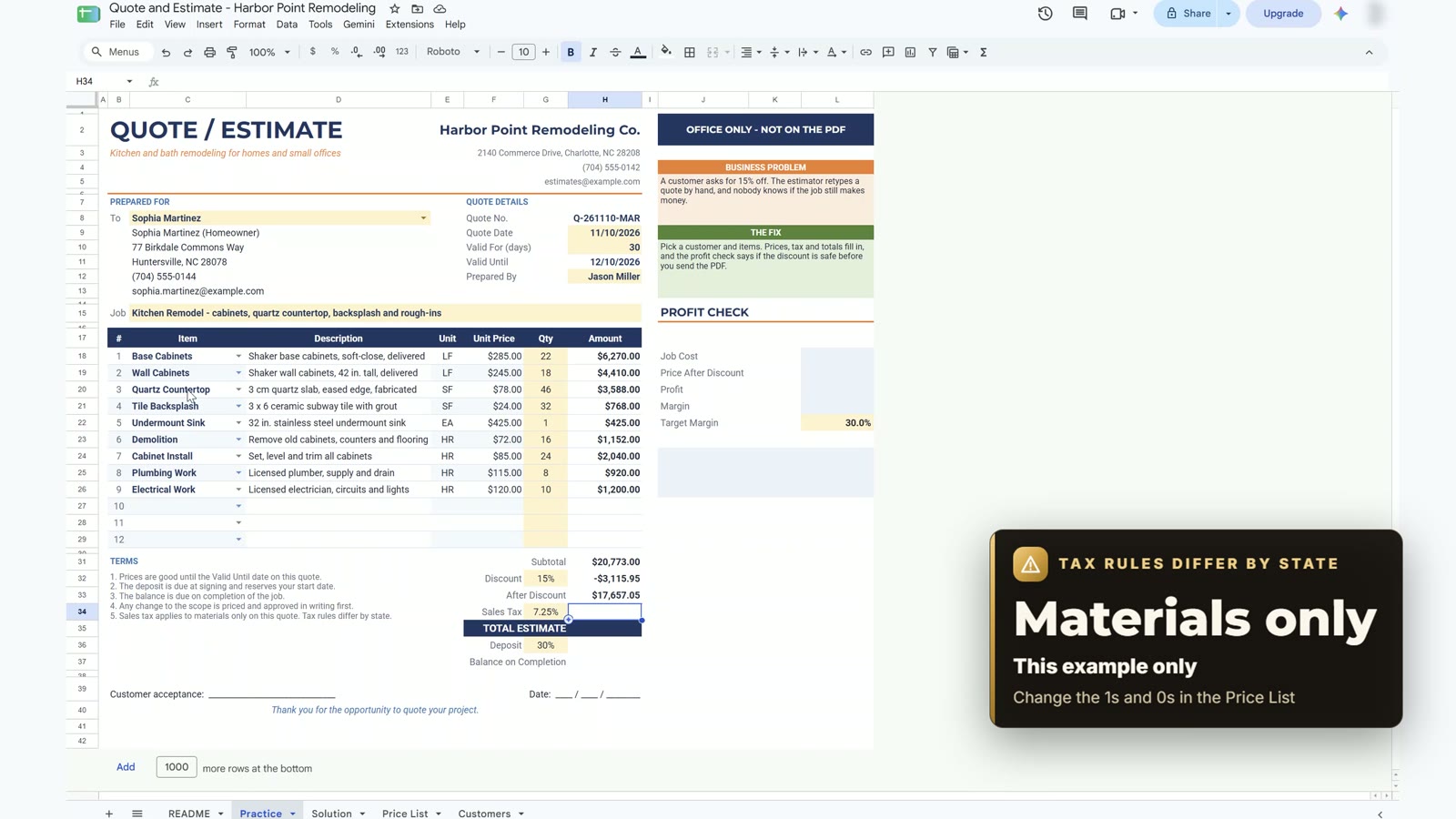
Step 10: Total, Deposit and Balance
The total is the after-discount amount plus tax: $18,609.83. The deposit is a percentage from the yellow cell G36 (30% here), and the balance on completion is $13,026.88.
=H33+H34
=ROUND(H35*G36,2)
=H35-H36
Step 11: Profit Check and Status Badge
The profit panel sits outside the print area, so the customer never sees it. L18 adds up the job cost with the same SUMIF and SUMPRODUCT idea, this time on the Unit Cost column. The job costs $13,383.00, the profit is $4,274.05 and the margin is 24.2% against a 30% target.
=SUMPRODUCT(SUMIF('Price List'!$B$4:$B$23,C18:C29,'Price List'!$H$4:$H$23),G18:G29)=H33
=L19-L18
=L20/L19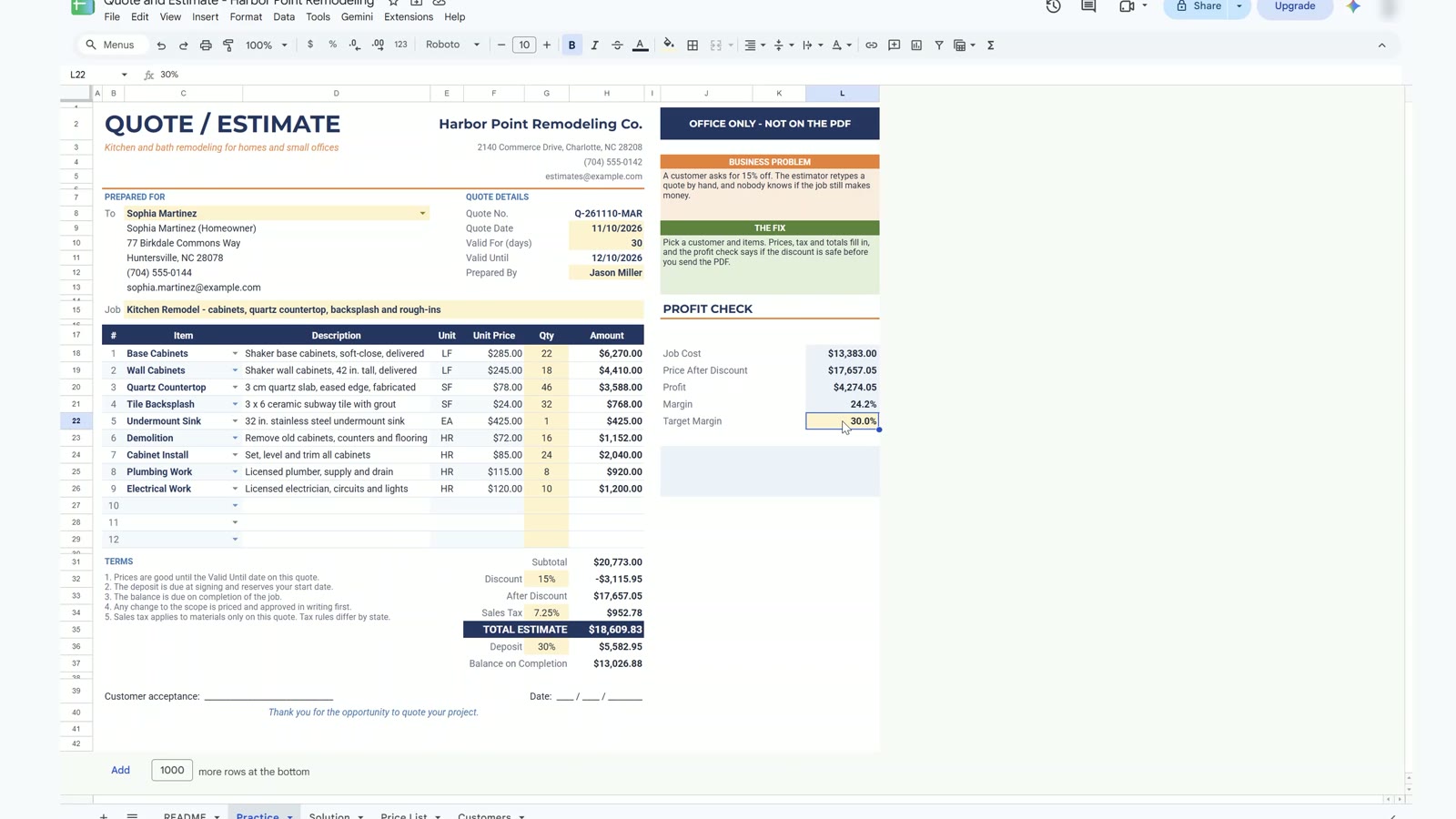
The status box in J24 shows a warning or a green light, and two conditional formatting rules (Custom formula, white text) color it green or red:
=IF(L21>=L22,"HEALTHY MARGIN","TOO LOW - REDUCE THE DISCOUNT")=$J$24="HEALTHY MARGIN"
=LEFT($J$24,3)="TOO"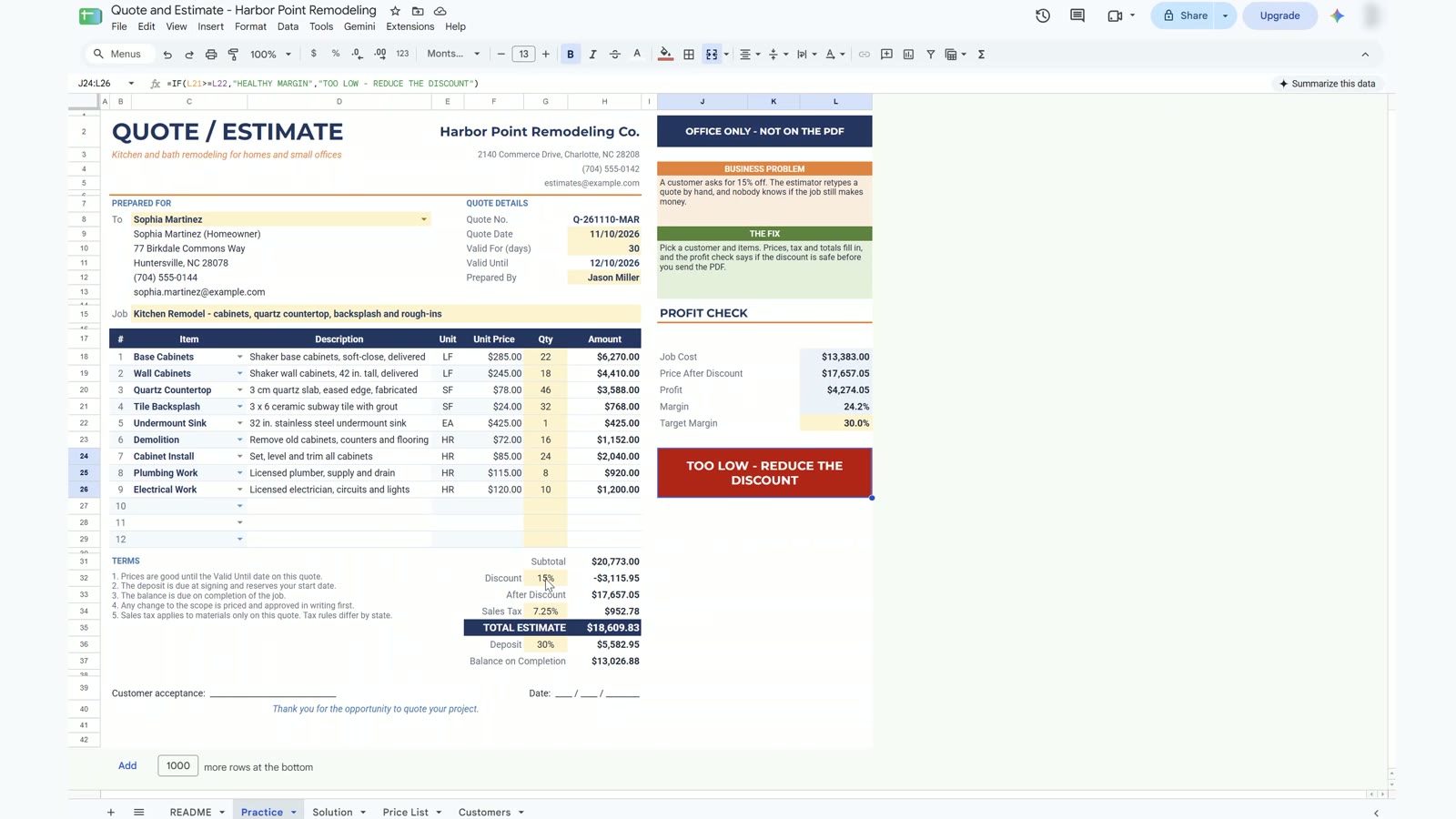
The payoff: change the discount from 15% to 7% and nothing else. The badge turns green, the margin goes from 24.2% to 30.7%, and the total becomes $20,361.35. You did not touch a single formula.
Step 12: Print-Ready PDF
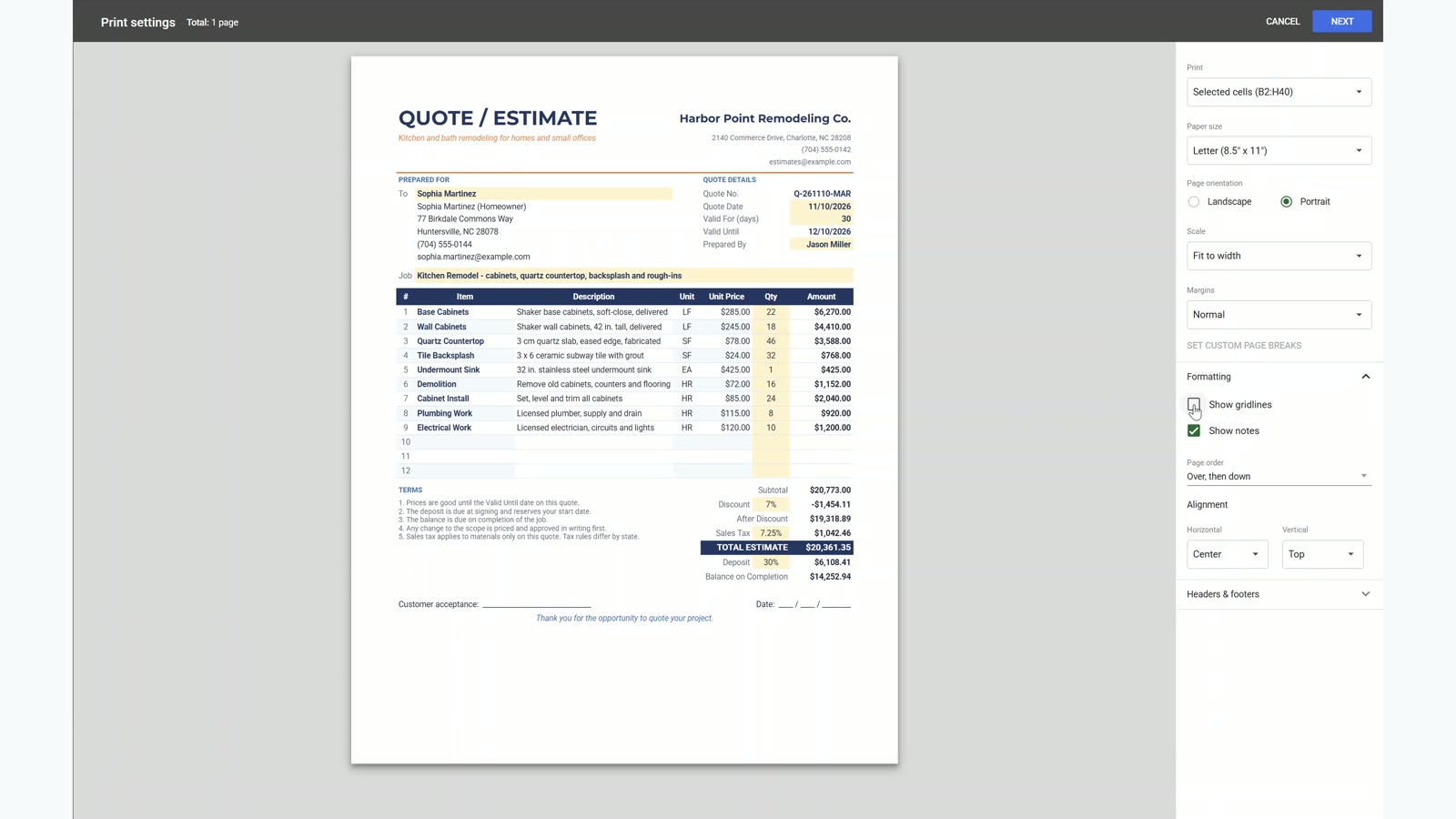
Select only the form (B2:H40), choose File > Print, and set Selected cells, Letter, Portrait, and Fit to width. Turn Gridlines off under Formatting, then Next and Save as PDF. The result is one clean page, and the office panel is not on it.
Use This Quote Template for Your Own Business
Replace the Customers and Price List tabs with your own data, keep the column order, and set your tax rate, deposit and target margin in the yellow cells. Compare with the Solution tab if a result looks off.
📥 Download the FREE Practice File (Google Sheets)
Opens a copy in your Google Drive – README, Practice, Solution, Price List and Customers tabs. Sign in to Google first.
Want a Ready-Made Version?
If you want a quotation template that also covers invoices, look at the Quotation and Invoice Template in Excel and Google Sheets from Next Gen Templates. To learn Sheets step by step, see the Google Sheets Course: Beginner to Advanced on Next Gen Templates Academy.
🛒 Get the Quotation and Invoice Template
Excel and Google Sheets · Next Gen Templates
Related Google Sheets Tutorials
- Invoice Template in Google Sheets
- 10 Google Sheets Formulas for Work
- 9 Google Sheets Tricks for Business Reports
The official XLOOKUP documentation from Google explains every argument.
Frequently Asked Questions
How do I make a quote template in Google Sheets?
Set up a Customers tab and a Price List tab, then build the quote form with two dropdowns (customer and item), XLOOKUP formulas that pull the contact details and prices, ROUND on every money step, and a totals block. This tutorial builds all of it in twelve steps with a free practice file.
Why does the contact block show a #REF! error?
The XLOOKUP returns five columns and TRANSPOSE spills them down. If any cell in the spill area is typed in or merged, Google Sheets cannot fill it and shows #REF!. Keep those cells empty and unmerged.
How do I charge sales tax on materials only?
Give each item a taxable flag in the Price List (1 for taxable, 0 for not taxable). SUMIF with a range of criteria returns the flag for every quote line, SUMPRODUCT keeps only the taxable amounts, and you multiply by one minus the discount and the tax rate. Tax rules differ by state, so change the flags to match yours.
Why is the discount part of the tax formula?
A discount lowers the taxable amount. The formula multiplies the taxable total by (1 – discount) before applying the tax rate, so the customer is not taxed on money they do not pay.
How do I keep the profit check out of the customer's PDF?
Put the office-only panel outside the print area, select only the form (B2:H40), and choose Selected cells in the print settings. Only the form is saved to PDF.
Will the template work with more than the nine lines in the demo?
Yes. The form has twelve lines, and the empty ones stay blank because every formula has a blank guard. Pick an item and enter a quantity on any empty line and the amount, totals, tax and profit check update.
All names and numbers in this tutorial are made up. More Google Sheets tutorials are on the NeoTech Navigators blog and the YouTube playlist.
More Google Sheets tutorials
- 10 Google Sheets Formulas for Work: Build One Real Sales Report (Free Practice File)
- Business Expense Tracker in Google Sheets: Free Template with Monthly Summary and Chart
- Asset Tracking System Web App
- Task Management Tracker in Google Sheets 2026: Build a Project Task Tracker Step by Step
- Purchase Order and Vendor Management System Web App
- 9 Google Sheets Tricks for Business Reports: Build a Weekly Sales Report That Updates Itself (Free)